

I bookmark a lot of things on Twitter (X).
Sometimes it’s a useful tutorial I want to try later. Sometimes it’s an informative thread, a product tip, a strategy someone shared, or even just a funny tweet I want to revisit. Over time, bookmarks become a kind of personal library of things you don’t want to lose.
The range of what people bookmark is huge. It can be work-related information, learning resources, or simply entertaining tweets you want to come back to.
But there is one big weakness with Twitter bookmarks.
They can disappear.
Many users eventually realize that some of their saved tweets are gone. When that happens, it raises the obvious question:
How do you recover lost Twitter bookmarks?
Let’s first understand why bookmarks disappear.
Why Twitter bookmarks sometimes disappear
Bookmarks feel permanent when you save them, but in reality they depend entirely on the original tweet and account. If something happens to the tweet or your account, the bookmark can be lost.
Here are the most common reasons.
1. The tweet was deleted
This is the most common situation.
If the original tweet author deletes their tweet, the bookmark no longer has anything to point to. The tweet disappears from the platform, and your bookmark disappears with it.
Even if you saved the tweet months ago, once it is deleted it cannot be accessed again through bookmarks.
2. The account becomes unavailable
Sometimes the tweet itself is not deleted, but the account becomes unavailable.
This can happen if:
- the account is suspended
- the user deletes their account
- the account becomes private and you no longer have access
When this happens, bookmarked tweets may stop appearing.
3. You lose access to your Twitter account
Another situation is when users cannot log into their own account.
If your account is locked, suspended, or you lose access to it for some reason, you also lose access to your bookmarks. Since bookmarks are stored inside the account, they are not accessible outside the platform.

Can you recover lost Twitter bookmarks?
Unfortunately, if a tweet is deleted and you never saved its content elsewhere, recovering it later is extremely difficult.
Twitter bookmarks are not designed as a permanent archive system. They are simply a way to save tweets inside the platform for later viewing.
That means if the tweet disappears, the bookmark disappears as well.
Because of this, the only reliable way to protect your bookmarks is to export them and keep a copy outside the platform.
The only reliable way to recover bookmarks: exporting them
If you regularly export your bookmarks, you create a backup of everything you saved.
This means that even if the tweet disappears from Twitter later, you still have the information stored on your own device.

Exporting bookmarks gives you:
- a permanent record of the tweets you saved
- the ability to search through them anytime
- a backup that doesn’t depend on Twitter
When your bookmarks are saved as an Excel or CSV file, they become easy to manage. You can search by keywords, filter tweets, and store them on your computer or cloud storage.
Even if the tweet disappears from the platform later, your saved archive remains.
Exporting bookmarks with Circleboom Twitter
To export my bookmarks, I use Circleboom Twitter.

Circleboom Twitter is an official X Enterprise Developer, which means it uses the official API and works safely with the platform.
One of its useful features is the ability to download your Twitter bookmarks.
 infocircleboom.com
When you export your bookmarks with Circleboom, the tool retrieves the tweets you saved and generates a file containing the details.
The export includes the full tweet text, which means that even if the tweet later disappears from Twitter, you still have the content stored in your file.
This makes bookmarks much more reliable because you are no longer depending entirely on the platform to keep them accessible.
How to export and download your Twitter bookmarks
Here is how you can export your bookmarks using Circleboom Twitter.
Step #1: Log In to Circleboom Twitter
Go to the Circleboom Twitter website and log in with your credentials. If you’re a new user, sign up, it’s quick and easy!

Step #2: Go to your Bookmarks
In the left-side menu, click on “Essential Toolbox” and then select “Delete Bookmarks” from the dropdown.

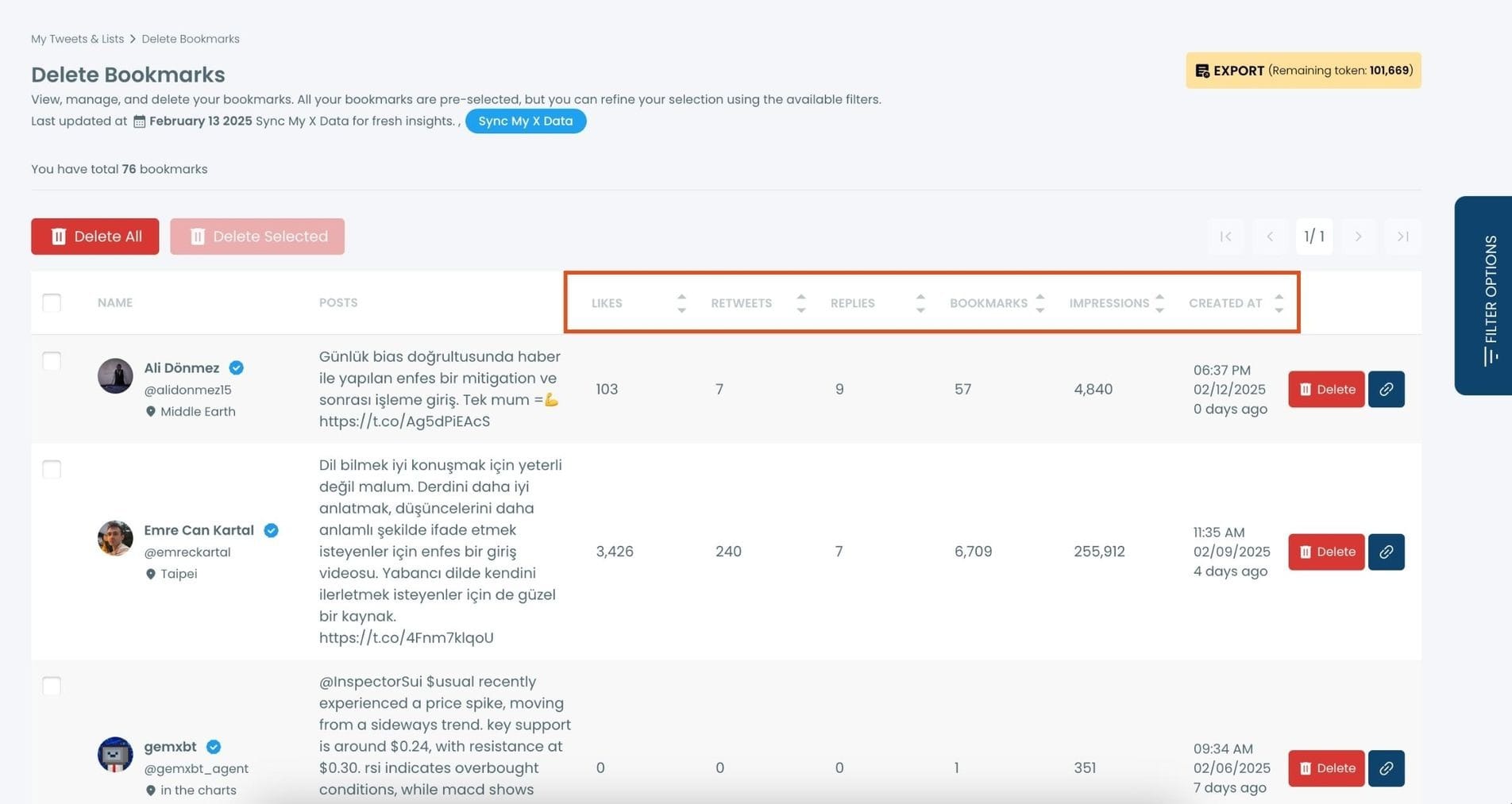
Step #3: View and Manage Your Bookmarks
After opening the "Delete Bookmarks" section, you'll see all your saved tweets.
The page will display essential details such as likes, retweets, replies, and impressions for each bookmarked tweet.
This allows you to filter, organize, and select bookmarks for export.
Step #4: Use Filters to Find Specific Bookmarks
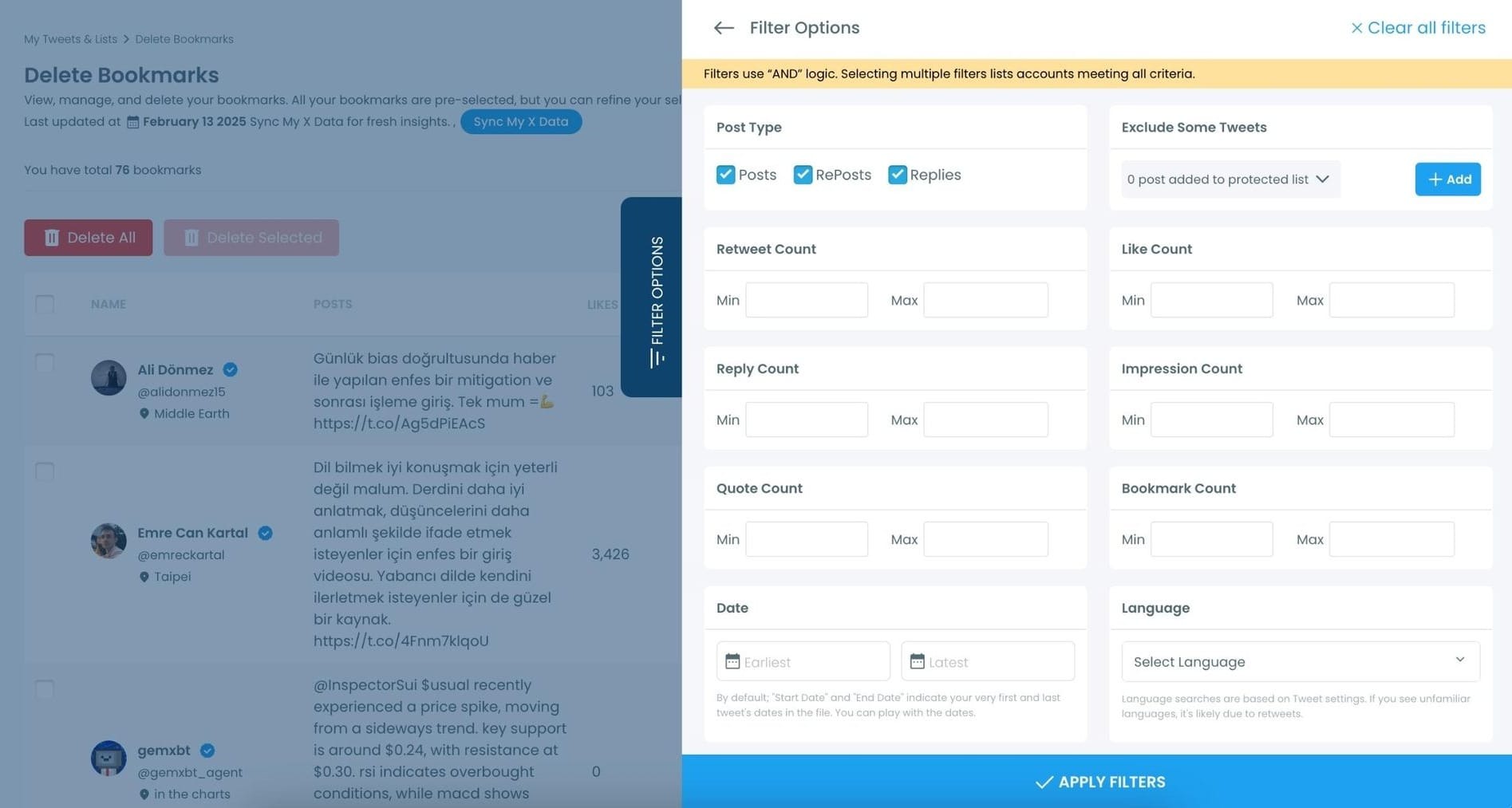
Click on “Filter Options” on the right side of the screen.
You can refine your bookmarks based on engagement (likes, retweets, impressions), date, language, and tweet type (posts, replies, or reposts).
Step #5: Select and Export Your Bookmarks
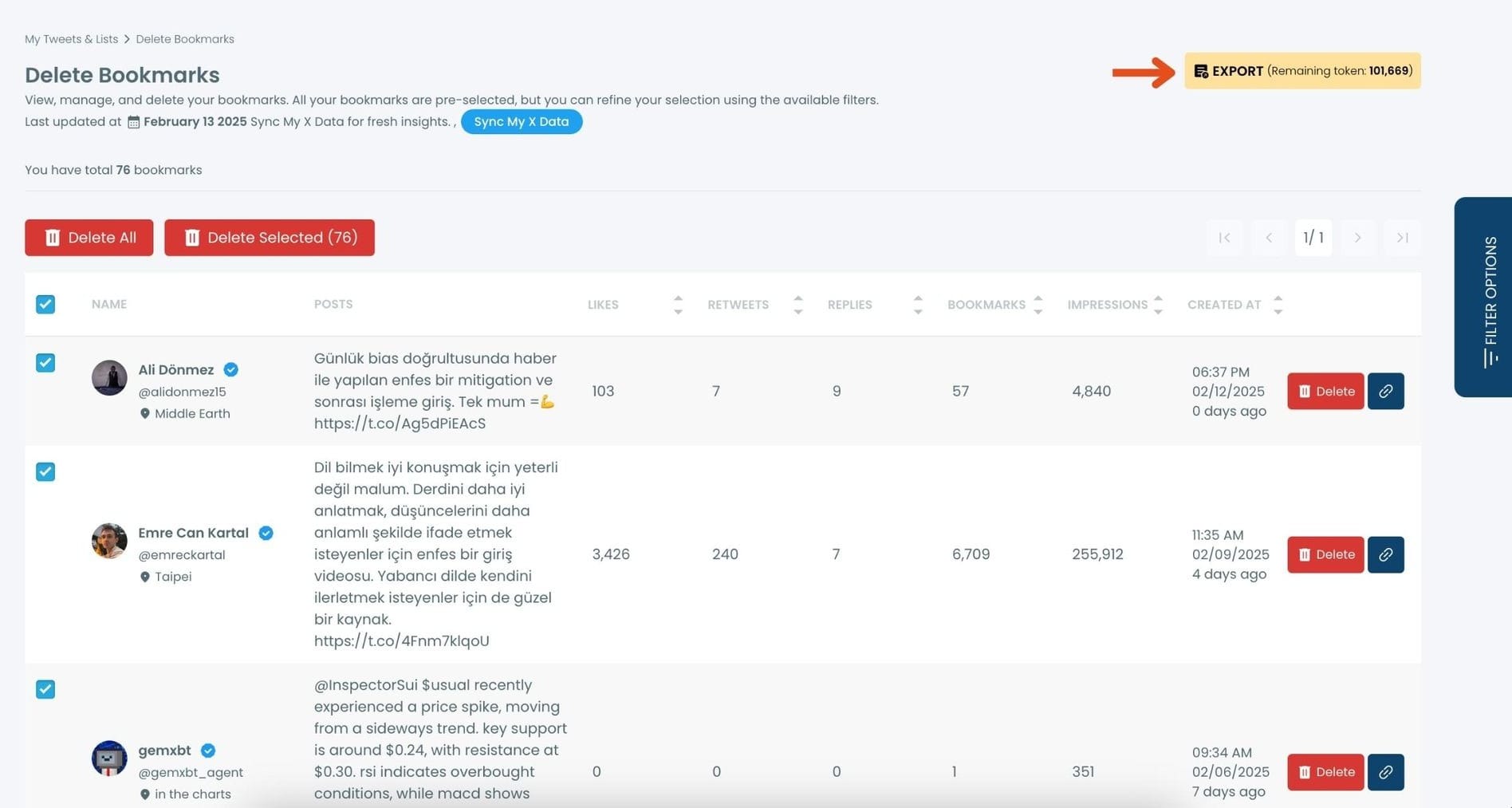
Check the box next to each tweet you want to export, or click "Select All" to export all bookmarks.
Click on the “Export” button at the top right. You are one step away from downloading all your Twitter bookmarks.
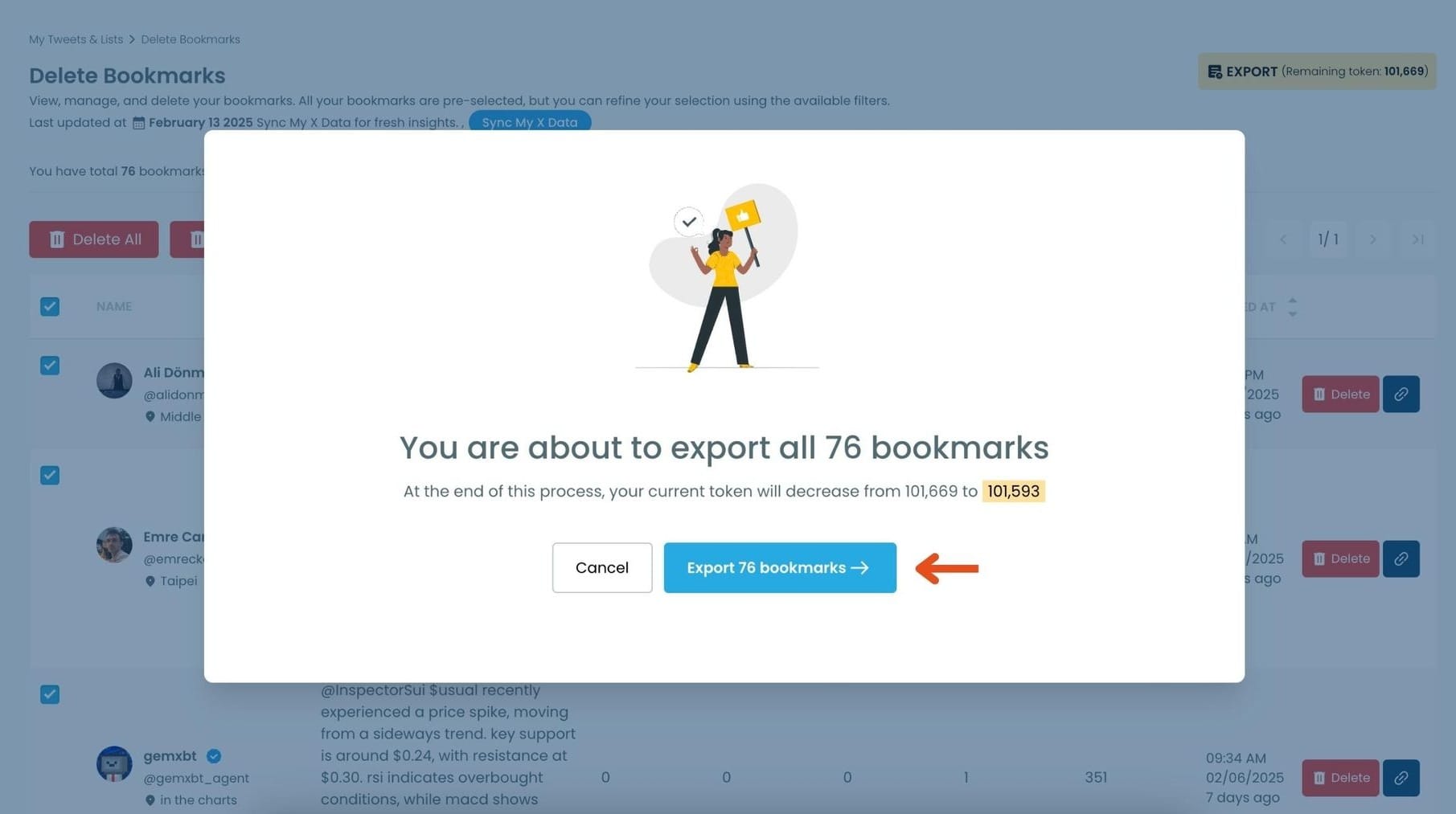
A confirmation message will pop up showing the number of bookmarks you’re about to export.
Click “Export X Bookmarks”, and your bookmarks will be downloaded as a file.
Step #6: Access and Use Your Exported Bookmarks
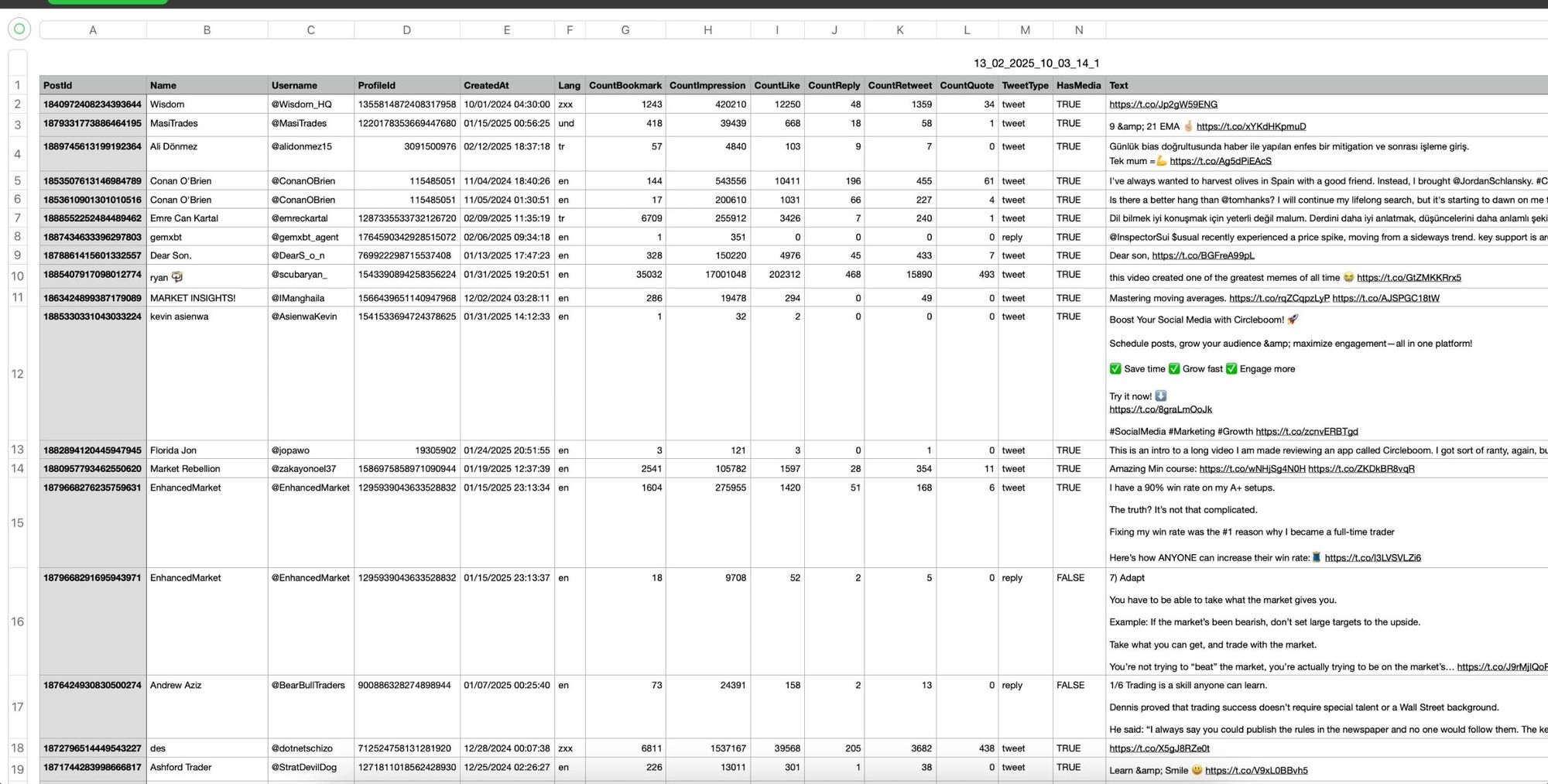
Once the bookmarks are exported, they will be saved in a spreadsheet format (CSV or Excel file).
The file contains detailed tweet information
This organized format makes it easy to search, sort, and reference your saved tweets whenever needed.
Why exporting bookmarks regularly is important
Bookmarks are incredibly useful, but they are not permanent.
Tweets can disappear for many reasons, and when that happens the bookmark disappears too. If you rely heavily on bookmarks for tutorials, information, or saved ideas, losing them can be frustrating.
Exporting them regularly creates a simple backup system.
Instead of depending entirely on the platform, you keep your own archive that you can access anytime.
Final thoughts
Twitter bookmarks are a great way to save valuable tweets, but they are not guaranteed to stay forever. Tweets can be deleted, accounts can disappear, or access to an account can be lost.
Because of that, the safest way to protect your bookmarks is to export them and store them outside the platform.
Tools like Circleboom Twitter, an official X Enterprise Developer, make this process easy by allowing you to download your bookmarks and save them as a file.
Once your bookmarks are saved on your device, they are no longer at risk of disappearing, and you can keep your personal library of tweets forever.

