

Nearly every privacy control X offers sits on one screen, Privacy and safety, three taps or clicks from your home timeline.
Short answer: open Settings and privacy, then Privacy and safety. On x.com, click More in the side menu first; in the X app, start from your profile photo or the menu icon at the top of the screen. The catch: your Twitter privacy settings work forward, not backward, so followers you already have, message threads that are already open and locations already attached to your posts stay put until you remove them yourself.
From here on: the route on each device, what every section controls, the leftovers a new setting won't touch, and the privacy controls X keeps on other screens.
How to change your privacy settings on Twitter, step by step
To change your privacy settings on Twitter, open Settings and privacy and choose Privacy and safety, the page that groups the controls for your audience, photo tags, messages, discoverability and data sharing.
Only the first tap differs by device: x.com keeps Settings and privacy behind More, while the X app puts it under your profile photo or the menu icon. Both routes end on the same list of sections.
On x.com in a browser
- Click More in the side navigation menu.
- Choose Settings and privacy.
- Click Privacy and safety, then open the section you want to change.
- Tick or clear the setting. X saves changes like discoverability and sensitive-media preferences automatically, while muted words use a Save button of their own.
In the X app on iPhone or Android
- Tap your profile photo at the top of the screen, or the menu icon if your version of the app shows one instead.
- Tap Settings and privacy, then Privacy and safety.
- Open the section you need and flip the switch or tick the box.
Sign in before you start, whichever route you take. The settings on this page belong to your account, so a change made while logged in applies wherever you use X.
X also lets you change its data and personalization controls while logged out, but a change made that way covers only that one browser, and only until you log in.
What each section of X's privacy page controls
Your X privacy settings are grouped into sections, and each one answers a different question about your account. One section, Content you see, only shapes your own feed, so it's left out below.
Audience, tagging and your posts
Audience and tagging has two controls: one for who reads your posts, one for who can tag you in photos. Protect your posts limits your posts to your followers and makes every new follower send a request first.
Photo tagging has three options:
- Off
- Anyone can tag you
- Only people you follow can tag you
A new choice can take up to 30 minutes to apply, according to X's help center.
The same page notes that the Exif data inside your photo files, which can include where a picture was taken, isn't shown to the people who view them.
Your posts covers what you publish. Its account-wide switch, Mark media you post as containing material that may be sensitive, puts a warning in front of your photos and videos for anyone who hasn't chosen to see sensitive content.
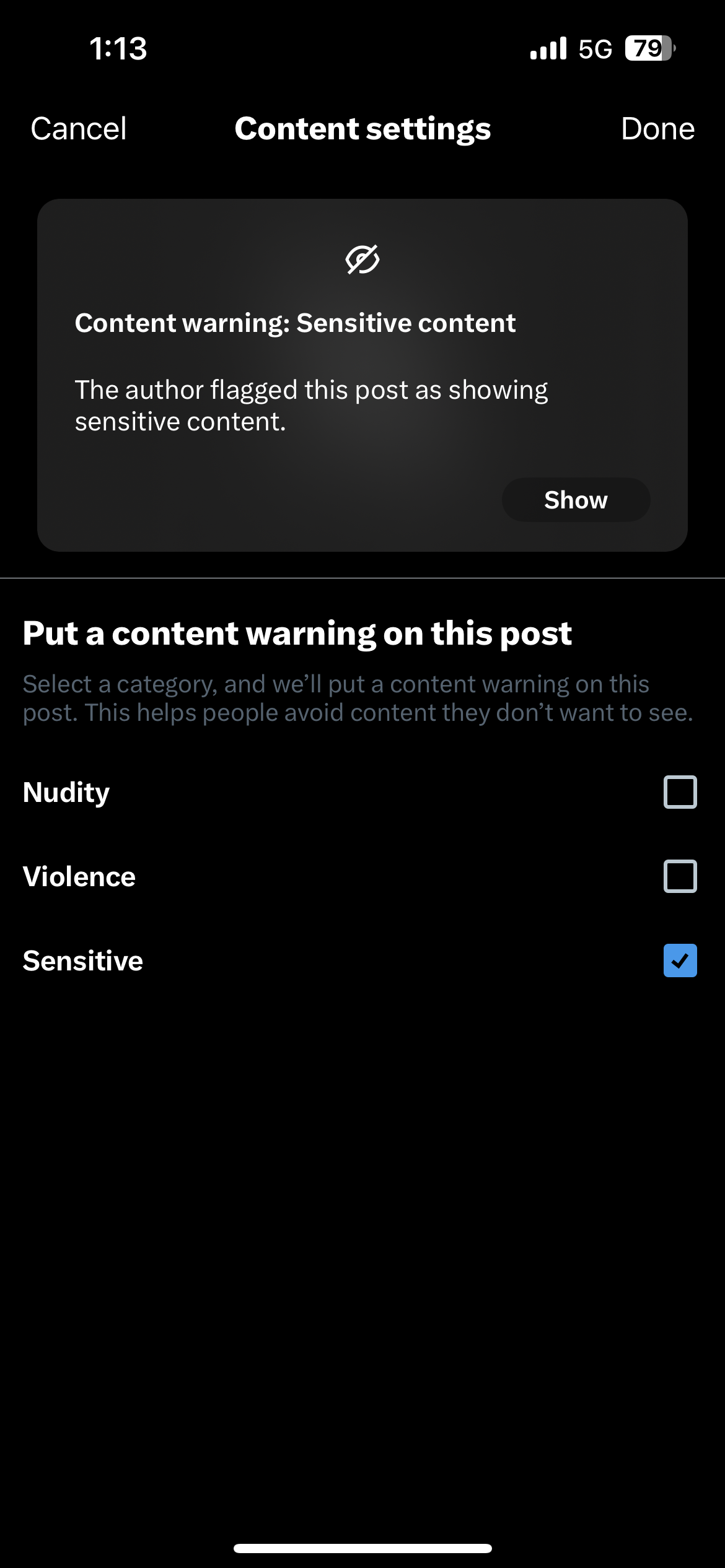
For a single photo or video, you can add a one-time content warning instead: tap the flag icon while editing the attachment and choose Nudity, Violence or Sensitive.
Muting, blocking and messages
The muting and blocking controls sit together here: muted words, muted accounts and the list of accounts you've blocked. Each muted word can be hidden from notifications, from the Home timeline or from both, for a set period or permanently.
Direct Messages decides whether people you don't follow can send you message requests: everyone, only verified accounts, or nobody outside the people you follow. The same section holds Show read receipts, which X turns on by default.
Discoverability and contacts
Discoverability and contacts controls whether someone who has your email address or phone number can find your account, including through an address book they upload. Switching both options off also stops X from using any contacts you uploaded to suggest your account to other people.
Ads, location data and AI training
The last group of your X privacy settings covers what X does with information about you, rather than what other people see:
- Ads preferences, where Personalized ads decides whether X combines partner data with your activity to choose your ads.
- Location information, where you can stop adding location to new posts and delete it from old ones.
- Allow additional information sharing with business partners, for the non-public identifiers X can pass to ad platforms such as Google.
- Grok & Third-party Collaborators, where you can keep your public data and Grok chats out of xAI's model training.
- Personalize based on your inferred identity, which decides whether X tailors your experience using other browsers and devices it links to you.
Which X privacy settings don't reach backward?
Protect your posts, the message-request switch and the location setting all change what happens from now on, and none of them rewrites the past. That pattern runs through most Twitter privacy settings.
Tightening a setting protects what happens next. Loosening one can expose what already happened.
Protecting your posts keeps the followers you already have
Anyone who followed you before you turned on Protect your posts keeps seeing everything you post afterward.
X gives you two ways to change that: Remove this follower, which X's help center lists as a web-only option and which doesn't stop the person from requesting to follow again, or a block.
An older workaround, soft blocking, gets the same result with a block followed straight away by an unblock.
Closing your DMs leaves existing conversations open
Switching off message requests from everyone stops new strangers, not old ones.
X's Direct Messages help page says that someone you don't follow who already has a conversation with you can keep writing. The only ways to end it are reporting the conversation or blocking the account.
Turning off location leaves old labels on your posts
Unticking Add location information to your posts stops new labels, while posts that already carry one keep it.
The same setting has a line of red text below it that deletes location information from all your past posts at once. X's help page on adding your location puts two limits on that deletion. It doesn't reach copies held by third-party apps or shown in outside search results, and it doesn't touch locations you shared in Direct Messages.
Going public again reaches all the way back
The reverse move works differently. According to X's page on protecting and unprotecting your posts, turning Protect your posts off makes every post you wrote while protected public.
Pending follow requests aren't accepted automatically either: anyone left waiting has to follow you again.
So check your pending requests before you switch back, and read your protected posts as if strangers were about to see them, because they are.
Does blocking someone keep your posts private on X?
No. When your posts are public, an account you've blocked can still read them; the block only stops it from liking, replying to or reposting them.
X's blocking page lists what else a block cuts off:
- following you
- sending you Direct Messages
- adding your account to its lists
- tagging you in photos
To keep your posts from one specific person, protect them. Protected posts show only to your followers, and a block removes that account from your followers.
Muting stays invisible; blocking doesn't. X sends no notice, but a blocked account that opens your profile sees the block, while a muted account has no way to tell. This breakdown of the effects of muting or blocking a person on Twitter walks through both sides.
Twitter privacy controls that sit outside the settings page
Two sets of privacy-related controls sit away from Privacy and safety, so a pass through your privacy settings on X alone misses them.
Where X says your account is based
Public profiles on X carry an About this account panel that includes the country or region your account is based in, which X infers from your aggregated IP addresses.
You choose whether it shows your country or only your region: click the Joined date on your own profile, then the settings gear.
The country setting under Your account and Account information is a different thing: a private field X uses to tailor your experience, which you can correct yourself. X's country settings page explains how the two differ.
Two-factor authentication and connected apps
Two-factor authentication and your connected apps sit under their own entries in Settings and privacy.
Two-factor authentication, under Security and account access, adds a text message code, an authentication app or a security key to your password.
Apps and sessions lists every third-party app with access to your account and every active login, with a button to log out of all other sessions. It deserves a look during any privacy check, because an app with read access can see who you follow, mute and block.
Finding the block list in your X privacy settings
Your blocked accounts are listed in Privacy and safety as well: open Settings and privacy, choose Privacy and safety and select Blocked accounts.
On x.com the list has two tabs, All for everyone you currently block and Imported for accounts added from another account's block list, and each row carries a Blocked button you click to unblock that account.
Opening a blocked account's profile works too. The Follow button reads Blocked, and the account's posts stay hidden until you choose Yes, view profile.
Every other setting on the page is a switch you can read in a second.
The block list is the one part of your Twitter privacy settings that grows, because each block you add during a pile-on, a spam wave or a bad week stays until you undo it.
Before you prune it, decide what a block is for on your account. This piece on whether you should block fake Twitter followers is a useful test case. A fake account usually lands on the list for what it is, not for anything it did to you.
Auditing a Twitter block list that has grown for years
A long block list mixes two kinds of decisions. Some blocks are safety boundaries you'll want for good; others were quick calls during a spam wave, or accounts caught in a batch you never checked name by name.
X's list shows both kinds the same way, one row and one button per account, and its help page documents no way to search it, filter it or act on several accounts at once. So reviewing a list that runs into the hundreds means reading every row.
For a list you can scroll through in a minute, X's own page is all you need.
For the long ones, Circleboom Twitter has a page built for that review, Accounts I've Blocked. It loads every account you've blocked, on X directly or through Circleboom's Mass Block, into one table.
Each row shows:
- the account's name, @username and location
- how many posts it has
- when it joined
- its following and follower numbers
- its follow ratio and an activity label
You reach it from the check blocked Twitter accounts page once your X account is connected.
The list comes straight from X. Circleboom is named in X's own listing of Enterprise customers, so the table loads through X's official API each time you open it, with nothing scraped and no password shared.
What the table shows that X's list doesn't
Next to X's own list, it adds:
- a search box for finding one account by name or username
- filters for follower quality (accounts with no profile photo, protected accounts, likely fakes or spam, inactive and overactive accounts), verification, bio keywords, follower and following ranges, join date, engagement, language and location
- Add to Blacklist, which flags an account across Circleboom's other tools while it stays blocked
- a token-based CSV export of the list, useful as a moderation log when several people run the account
- Unblock Users for a selection, which hands the chosen accounts to the Mass Unblock Chrome extension
Unblocking in bulk, one account at a time
Bulk unblocking is slow on purpose, and it takes two separate decisions. Nothing happens until you click Unblock Users and then press Start in the extension, which runs in Chrome on a desktop computer and unblocks one account at a time, the way you would by hand.
When X's rate limit kicks in, the extension pauses for somewhere between 1 and 20 minutes and carries on by itself.
Keep the browser open until the queue empties, then reload the page to confirm who is off the list.
An unblock takes effect the moment the extension reaches that account. The person can follow you, reply and message you again.
Leave blocks from harassment where they are, and treat the review as a hunt for mistakes, not a reset.
The table doesn't record why each account was blocked or which batch added it. If you're planning a large block, export the candidate list first so the reasons survive, a step worth adding to any plan to mass block followers on Twitter.
Your Twitter privacy check this week, and after X's next change
This week, your Twitter privacy settings take one sitting: sign in, go through Privacy and safety section by section, then check the About this account panel and Security and account access, which live elsewhere.
Next comes the part no switch handles:
- followers from your public days
- message threads you no longer want
- location labels on old posts
- blocks you no longer mean
Each one waits until you clear it yourself.
After X's next update, look again. About this account arrived as a public field with its own control outside the settings page, and future additions may land the same way.
→ Keep only the blocks you still mean: review your blocked Twitter accounts
Twitter privacy questions about likes, second accounts and sensitive media
Can other people see the posts you like on X?
No. X made likes private for everyone: you can still see the posts you've liked, other people can't, and the like counts on your own posts still appear in your notifications.
Do two X accounts on the same phone number share privacy settings?
No. Each account keeps its own settings, including the switch that lets people find you by phone number, and X notes that anyone with your number can find every account tied to it where that switch is still on.
Can X change one of your privacy settings for you?
Yes, in one case. If media you post is reported and X finds it was sensitive without a warning, X can turn on Mark media you post as containing material that may be sensitive for your account. Repeated mislabeling can make that change permanent.

