
If you want to delete a retweet on iPhone, the X app lets you do it in a few taps. Find the retweet, tap the repost icon, and it's gone. Simple enough for one or two posts.
But if you want to delete multiple retweets at once, the X app won't help you. There's no bulk option, no filter, no way to select a batch and remove them together. You'd be tapping through your timeline one retweet at a time.
For that, Circleboom Twitter's iOS app is the answer. It pulls up all your retweets in one list, lets you filter by date or keyword, and deletes the ones you select in bulk directly from your iPhone.
Here's how both methods work.
How to Delete a Retweet on the X App (iPhone)
The X app doesn't have a dedicated "delete retweet" button, but the process is simple.
Step 1. Open the X app on your iPhone and go to your profile.
Step 2. Scroll to find the retweet you want to remove. Retweets appear in your timeline with the retweet icon and "You reposted" label above them.
Step 3. Tap the retweet icon (the two rotating arrows) on the tweet. A menu will appear with two options: Repost and Quote.
Step 4. Tap Repost. This toggles the retweet off and removes it from your profile immediately.
The retweet is gone. The original tweet remains on the platform but no longer appears on your profile.
📌 This only works one retweet at a time. If you want to remove multiple retweets, the X app gives you no way to do it in bulk. You'd have to repeat this process for every single one manually.
How to Delete Multiple Retweets on iPhone with Circleboom Twitter
If you have a batch of retweets you want to clean up, doing it one by one in the X app is not realistic. That's where Circleboom Twitter's iOS app comes in.
Circleboom Twitter is an Official X Enterprise Developer. All delete actions run through X's official APIs, which means your account stays safe and every action is fully compliant with platform rules. No scraping, no workarounds.

The iOS app lets you pull up all your retweets in a structured list, apply filters if you want to target specific ones, and delete them in bulk with one action directly from your iPhone.
Here's what you can do with Circleboom Twitter on iOS:
- Retrieve all your retweets in one filterable list
- Filter retweets by date range, keyword, or engagement level
- Select all or specific retweets and delete them in bulk
- Delete other tweet types including replies and original tweets from the same dashboard
- All actions run through X's official API, fully safe and compliant

How to Delete Retweets in Bulk on iPhone with Circleboom Twitter
Step #1: Download the Circleboom App
Go to the App Store and download Circleboom for Twitter. It’s lightweight and built for iPhone users like us.
 Circleboom LLC
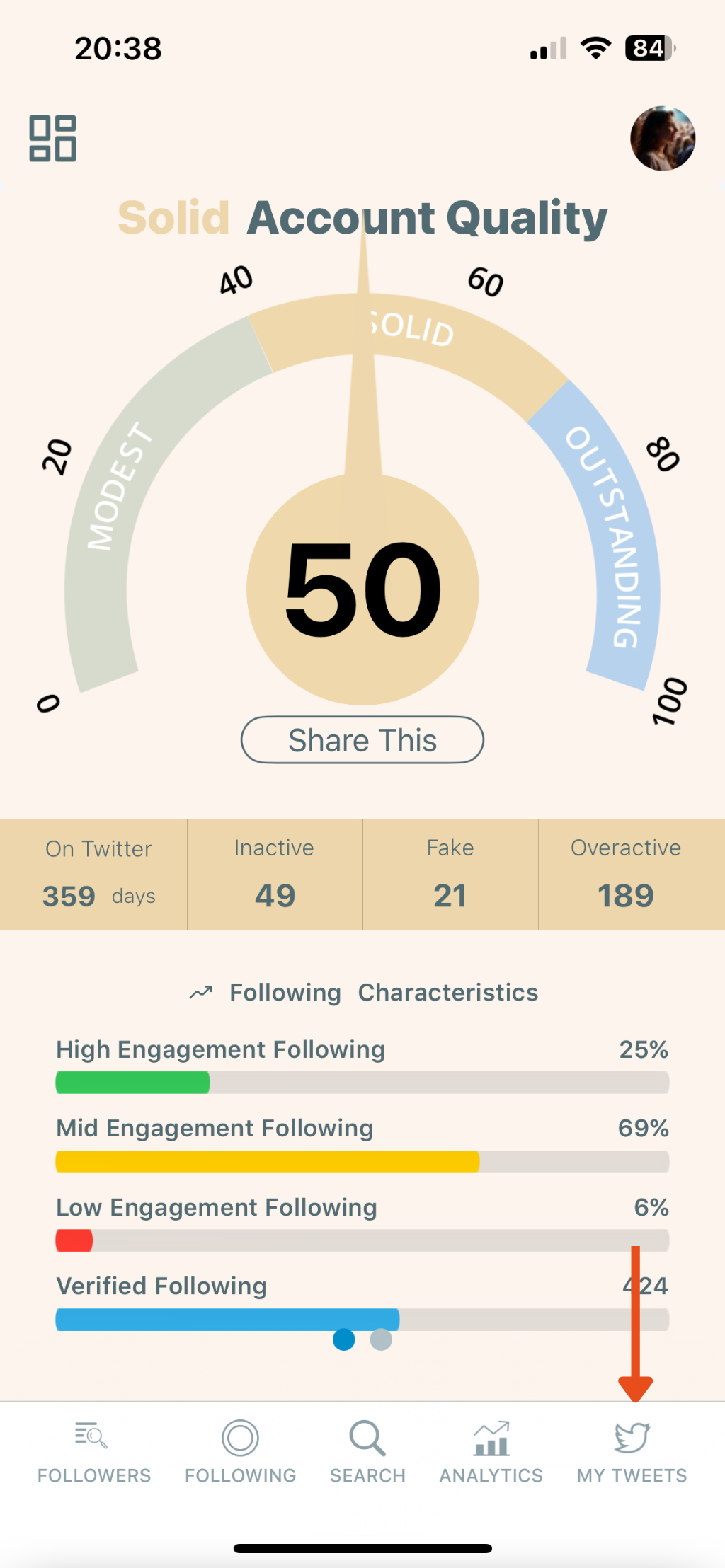
Once you're inside the app, navigate to the bottom menu and tap the “MY TWEETS” icon (bottom right corner with the Twitter bird). This will open the tweet management panel.
Step #2: Tap “Delete My Last Tweets”
From the list of options, select “Delete My Last Tweets.”
This feature allows you to delete your most recent 3,200 tweets without needing to upload your Twitter archive.
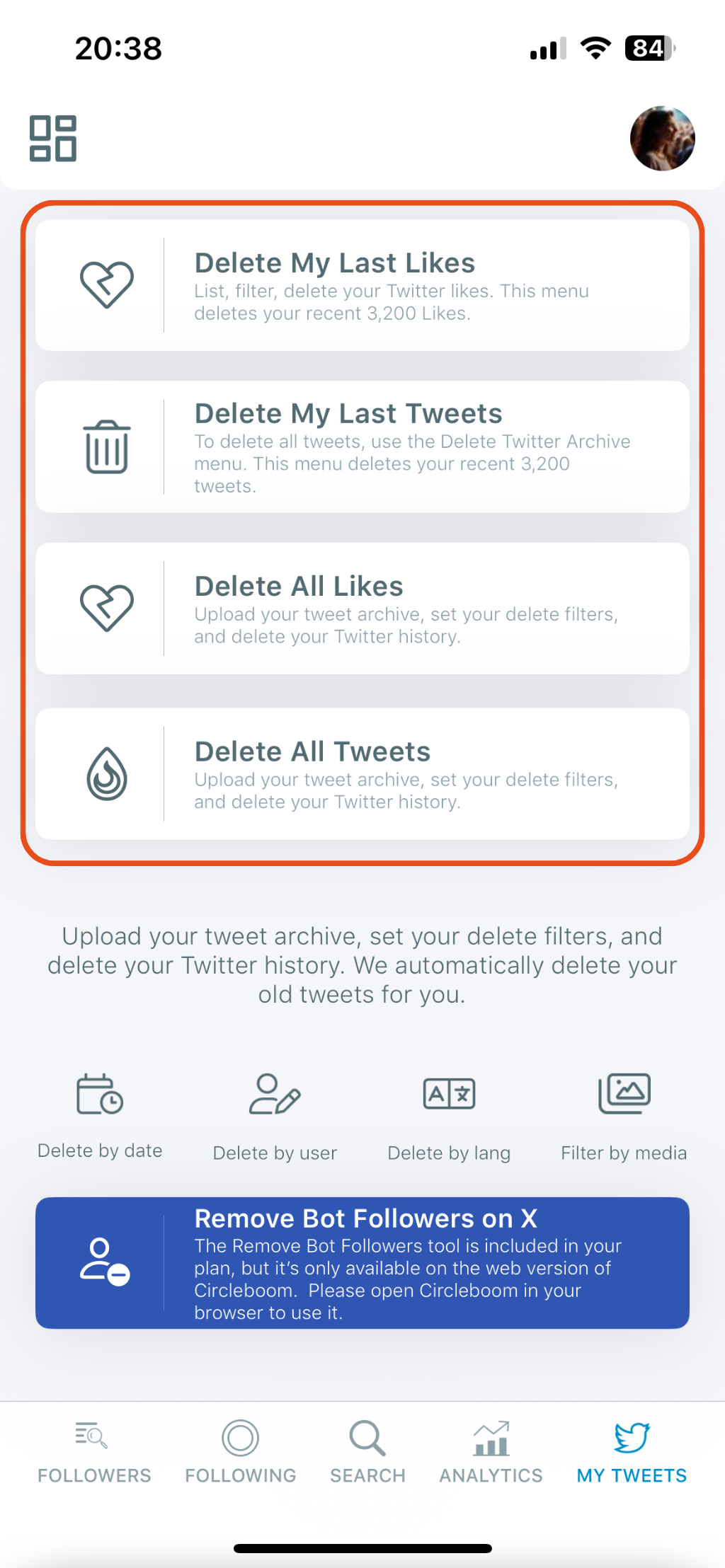
✨ Tip: If you want to delete older tweets beyond the 3,200 limit, you can use the “Delete All Tweets” option by uploading your archive.
Step #3: Review Your Tweets
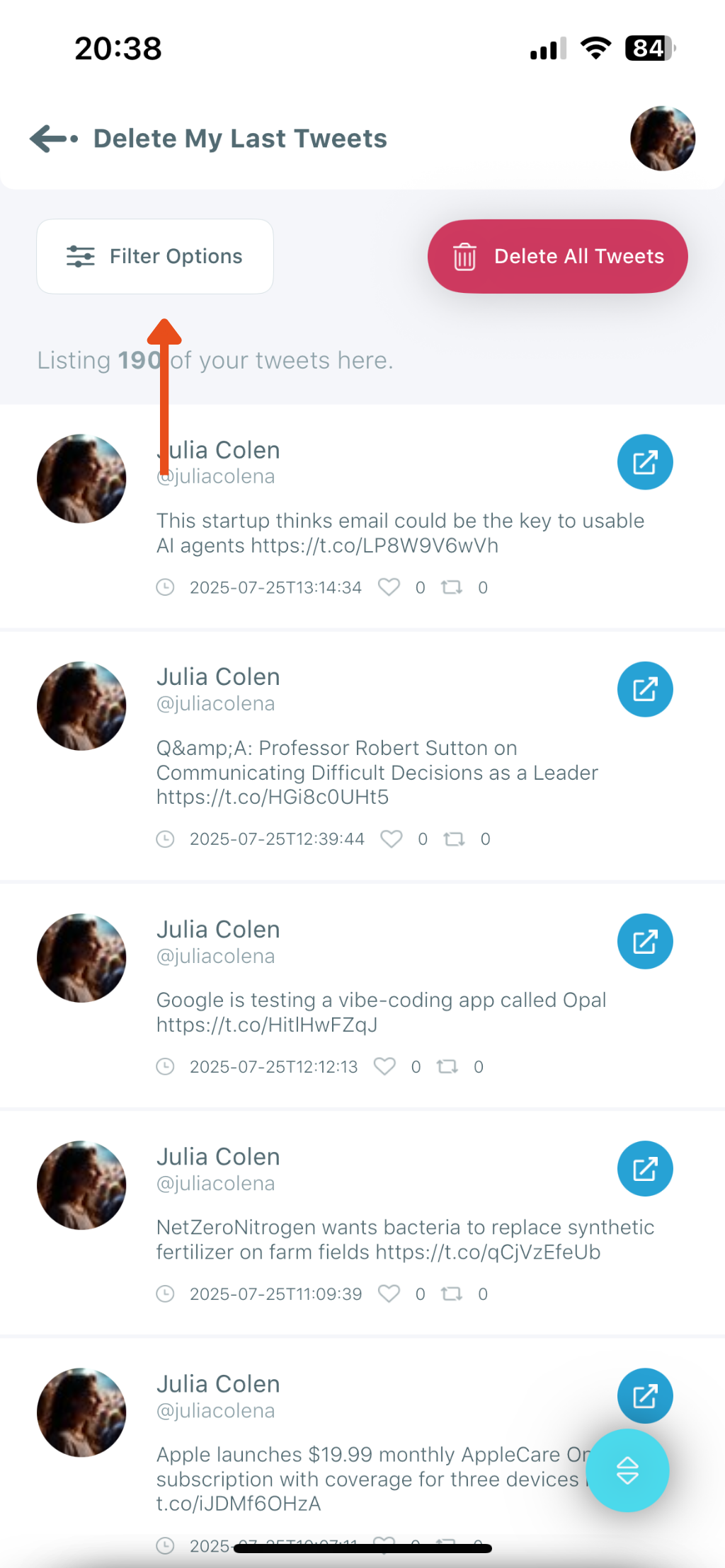
After selecting the delete option, Circleboom will list your recent tweets. You’ll see your content, including tweet text, timestamps, and engagement metrics (likes, replies, retweets).
Step #4: Tap “Filter Options”
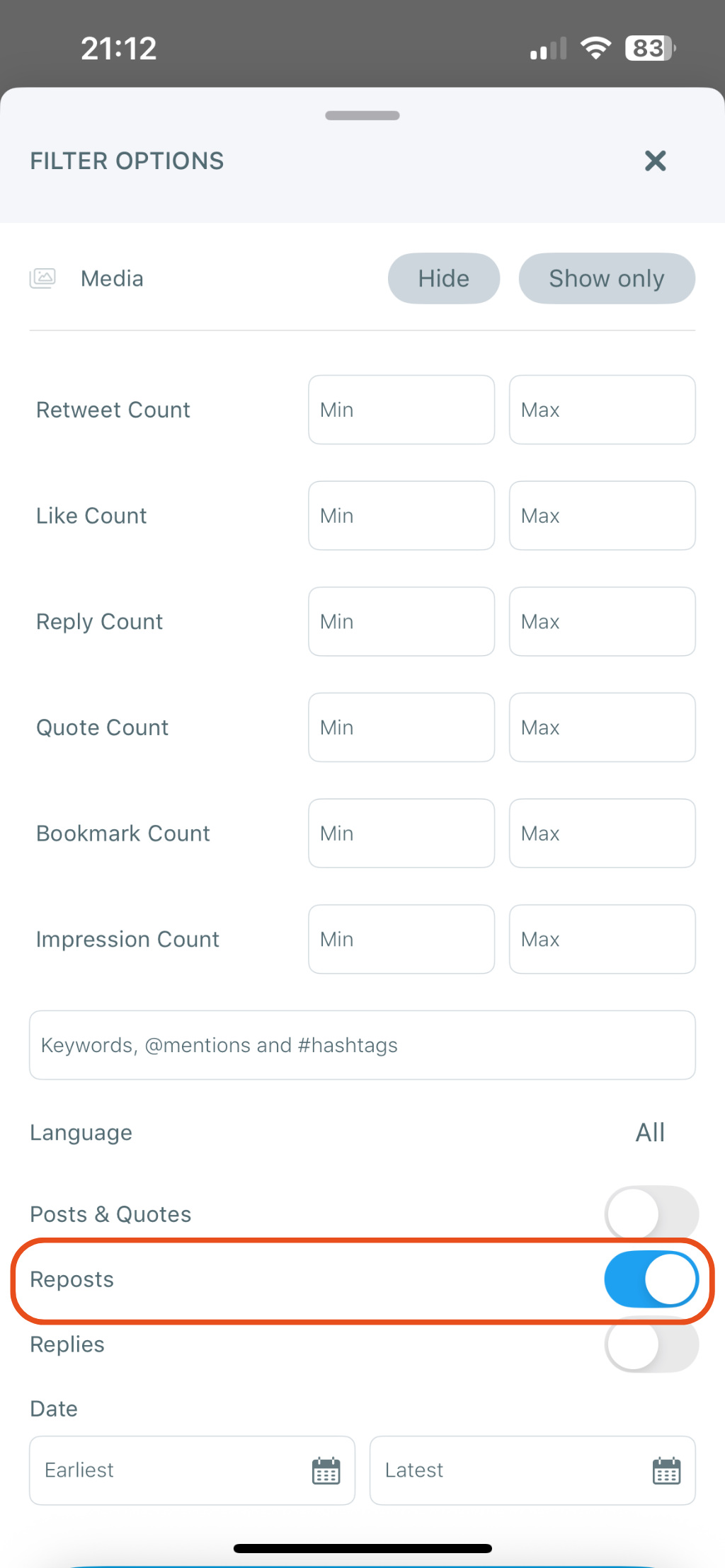
To delete only your retweets and not your original posts, tap “Filter Options.”
In the filter menu:
- Toggle ON: Reposts
- Toggle OFF: Posts & Quotes, Replies
- Optionally filter by keyword, date, or engagement metrics like retweet count or impressions.
Step #5: Tap “Delete All Tweets”
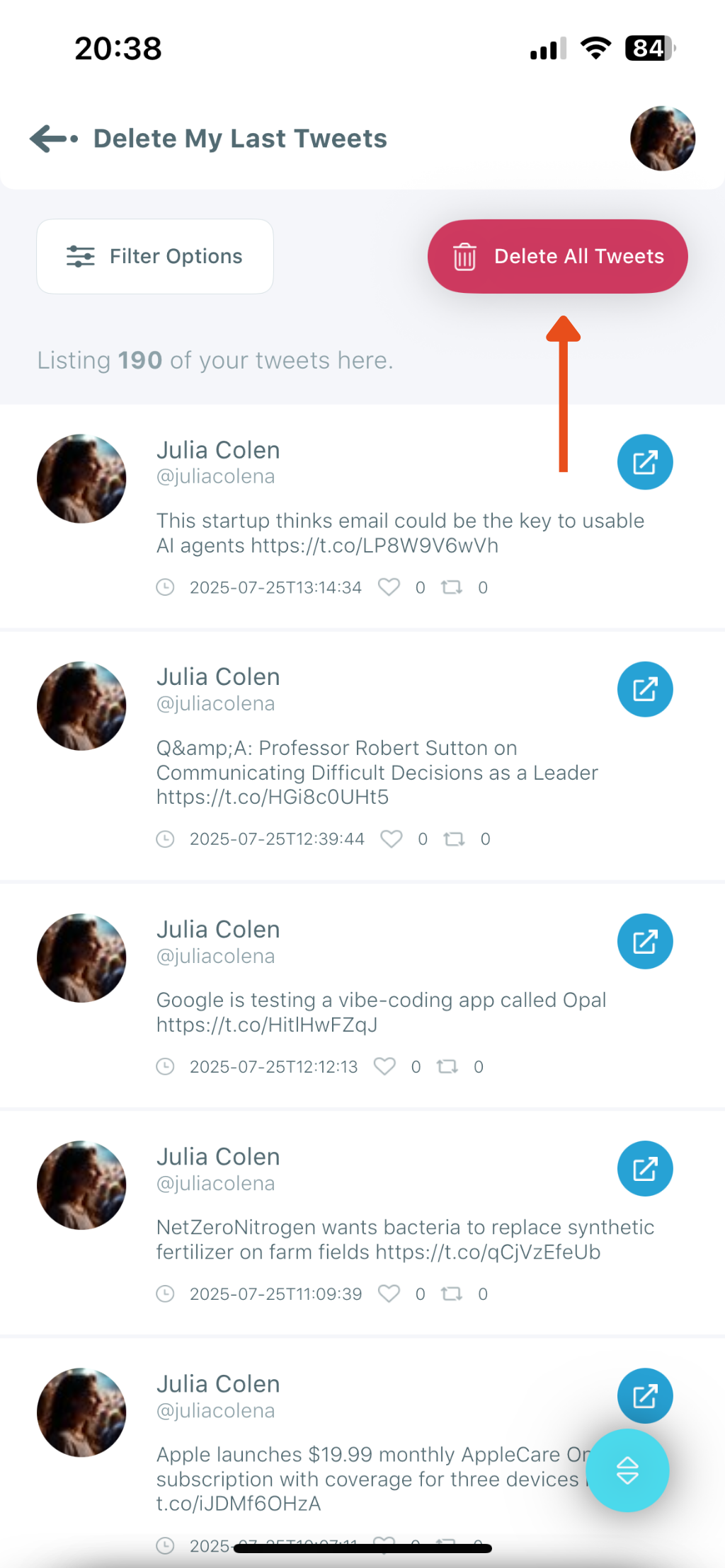
Once you’ve applied your filters (or chosen not to), tap the red “Delete All Tweets” button at the top right.
Step #6: Confirm the Deletion
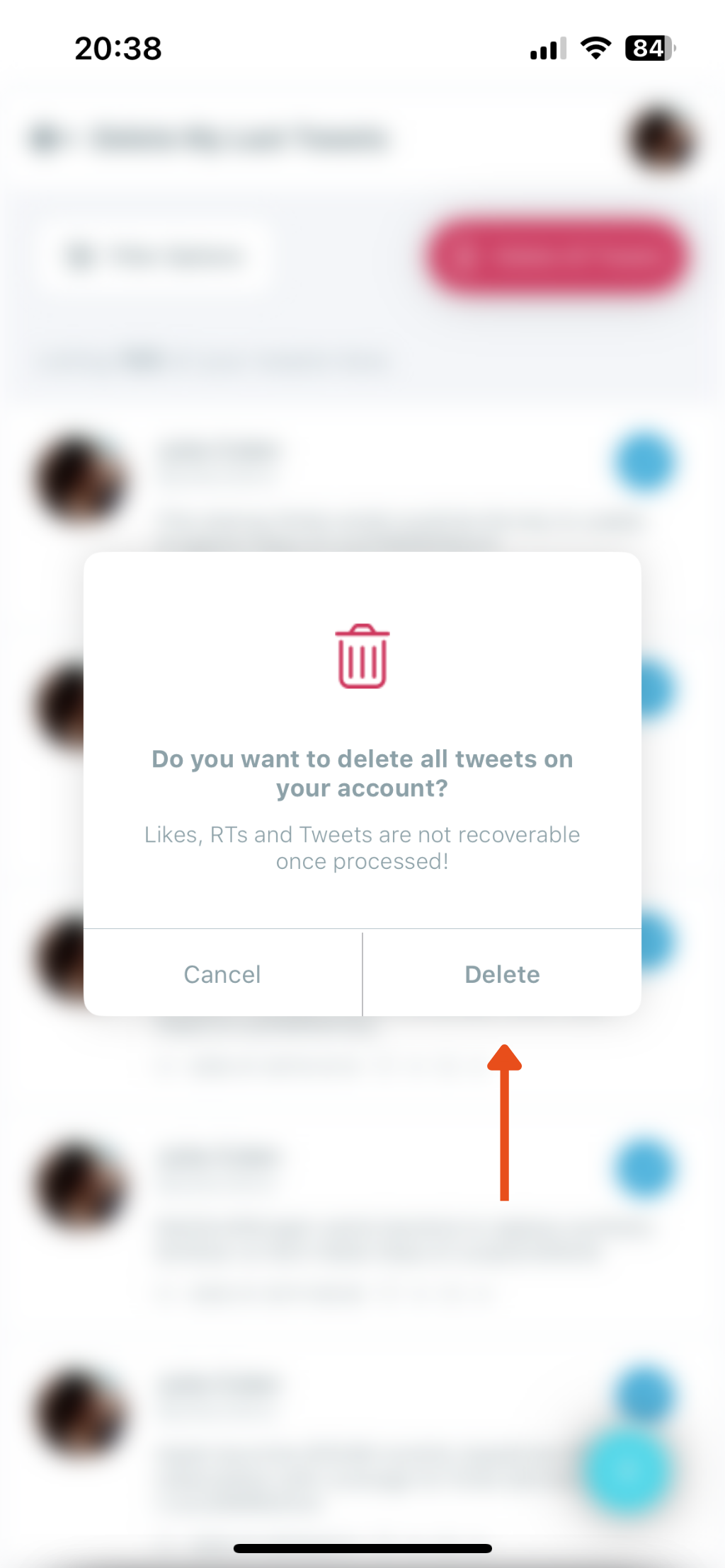
A confirmation pop-up will appear asking:
“Do you want to delete all tweets on your account?
Likes, RTs and Tweets are not recoverable once processed!”
Tap Delete to finalize the process.
Why You Might Want to Delete Retweets
A single retweet is easy to undo in the X app. But retweet cleanup at any real scale runs into the same wall quickly: there's no bulk option natively, and going through them manually takes longer than most people expect.
Your profile tells a story. Retweets from years ago, from accounts you no longer follow, or from topics you've moved away from, can make your profile feel inconsistent. A periodic cleanup keeps your timeline reflecting where you are now rather than who you were following three years ago.
Retweets from inactive or deleted accounts leave orphaned posts. If you retweeted content from an account that's since been suspended or deleted, that retweet may show up broken on your profile. Removing those cleans up the visual experience for anyone visiting your page.
You changed your mind. It happens. Something looked worth sharing at the time and now it doesn't. Deleting a retweet removes your amplification of that content without affecting the original tweet.
You're rebranding or repositioning your account. If you're shifting your content focus, a retweet history that doesn't align with your new direction can undermine the repositioning. Bulk removal lets you clean the slate quickly rather than chipping away at it one at a time.
Frequently Asked Questions
How do I delete a retweet on iPhone?
Open the X app, find the retweet on your profile, tap the retweet icon (the two rotating arrows), and tap Repost in the menu that appears. This removes the retweet from your profile immediately. For bulk retweet deletion, use the Circleboom Twitter iOS app.
Can I delete multiple retweets at once on iPhone?
Not through the X app natively. The X app only supports removing one retweet at a time through the toggle process. Circleboom Twitter's iOS app lets you pull up all your retweets, filter them, and delete them in bulk from your iPhone.
Will the original tweet be deleted when I remove my retweet?
No. Deleting your retweet only removes your repost of the content from your profile. The original tweet remains on the platform and is not affected in any way.
Is deleting retweets through Circleboom safe for my account?
Yes. Circleboom Twitter is an Official X Enterprise Developer and all delete actions run through X's official APIs. The process is fully compliant with X's platform rules and no account-level risk is involved.
Can I filter which retweets to delete in Circleboom?
Yes. In the Circleboom Twitter iOS app, you can filter your retweet list by date range, keyword, engagement level, and other criteria before selecting which ones to delete. This lets you target specific retweets rather than removing everything at once.
Is deleting a retweet permanent?
Yes. Once a retweet is deleted, it cannot be restored. The original tweet remains, but your repost of it is gone. Review your selection before confirming any bulk deletion.
Final Thoughts
For a single retweet, the X app on iPhone handles it in a few taps. For anything beyond that, manual deletion becomes impractical quickly.
Circleboom Twitter's iOS app fills the gap with bulk retweet deletion that runs safely through X's official API, directly from your iPhone, with filters to target exactly what you want to remove.
Delete retweets on iPhone in bulk with Circleboom Twitter.
 infocircleboom.com