
I reached a point where my Twitter account just didn’t feel like my account anymore.
I had followers from years ago, from random old interests, from follow-for-follow phases, from group chats I don’t even remember joining. Some were inactive, some were bots, some were people I would honestly rather not have reading everything I post.
It felt… crowded.
Like my account was filled with people who were physically there but not really there.
So I decided:
I want to delete all my followers and start again.
But doing that manually? Impossible.
That’s when tools like Circleboom’s follower management filters become useful — not to mass-wipe everything, but to quickly identify inactive, unwanted, or low-quality followers so you can clean your account safely and rebuild with people who actually care about what you post.
 Arif Akdogan
Trying to Remove Followers Manually
I started doing it the normal way.
Open profile → remove follower → repeat.
And repeat.
And repeat.
And repeat.
After about 15 minutes, I had removed maybe… 8 followers.
That’s when reality hit:
If I tried to do this manually, I’d be sitting there clicking for days, maybe weeks.
And Twitter also rate-limited me at some point, which made it even worse.
So I stopped.
And I looked for something that could do this without turning it into a full-time job.
That’s when I realized tools like Circleboom’s safe follower-removal system were built exactly for this — letting you select unwanted, inactive, or bot followers and remove them in bulk without triggering rate limits or spending hours clicking.
Where I Ended Up: Circleboom Twitter
I had used Circleboom Twitter before for other things, so I knew it wasn’t some shady bot tool.
The important part:
Circleboom is an official partner of Twitter/X.

Which basically means it doesn’t do anything weird or risky that could get your account restricted.
What I liked:
❇️ It shows all your followers in one clean dashboard.
❇️ And it has a Remove Followers tool.
❇️ And most importantly:
It removes followers automatically, in the background.
No clicking.
No scripts.
No babysitting the screen.
Just set it → let it run → come back later to a clean follower list.
That was exactly what I needed.
Here’s How I Did It
Step #1: Go to the Circleboom Twitter website and log in with your credentials.
If you’re a new user, sign up—it’s quick and easy!

Step #2: On the left-side menu, click on the Followers section. A dropdown menu will appear. Select All My Followers to see the full list of your followers.
If you want to remove specific accounts, such as fake/bot followers or inactive users, you can directly select these categories from the dropdown menu instead of viewing all followers.

Step #3: You will see a complete list of your followers.
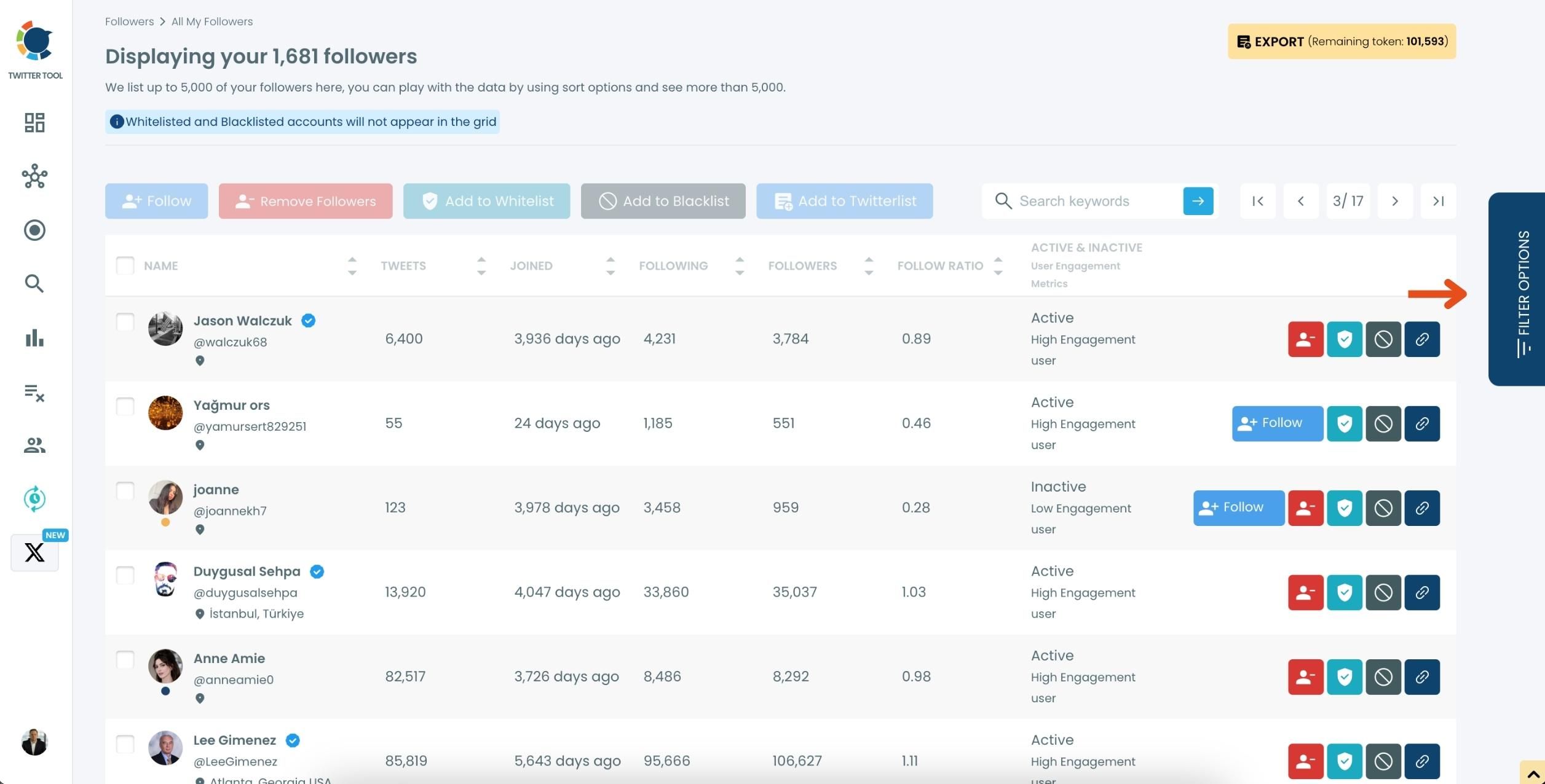
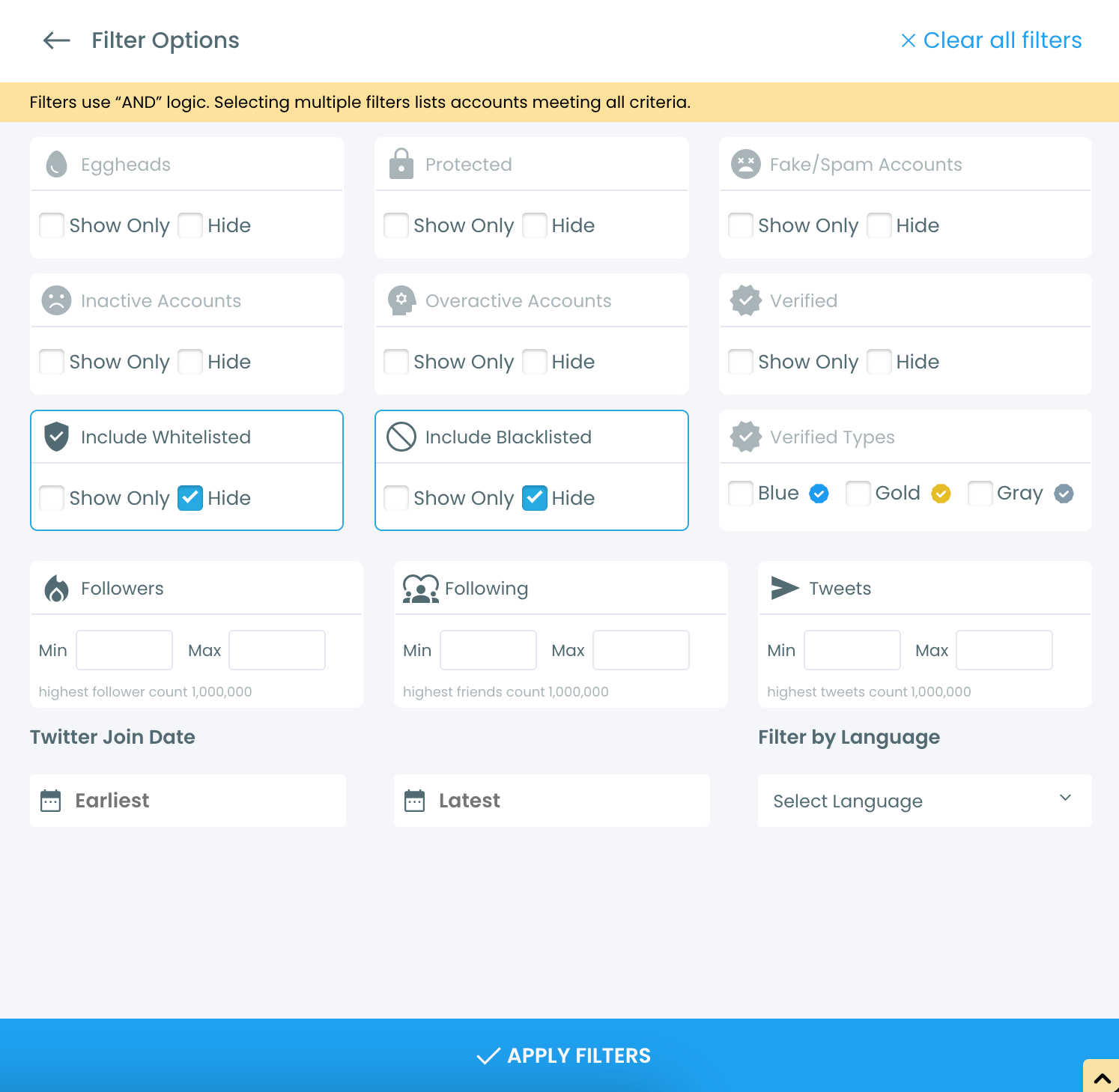
Use the Filter Options on the right-hand side to refine your list.
You can filter followers based on engagement levels, fake/spam accounts, inactivity, verification status, and more.
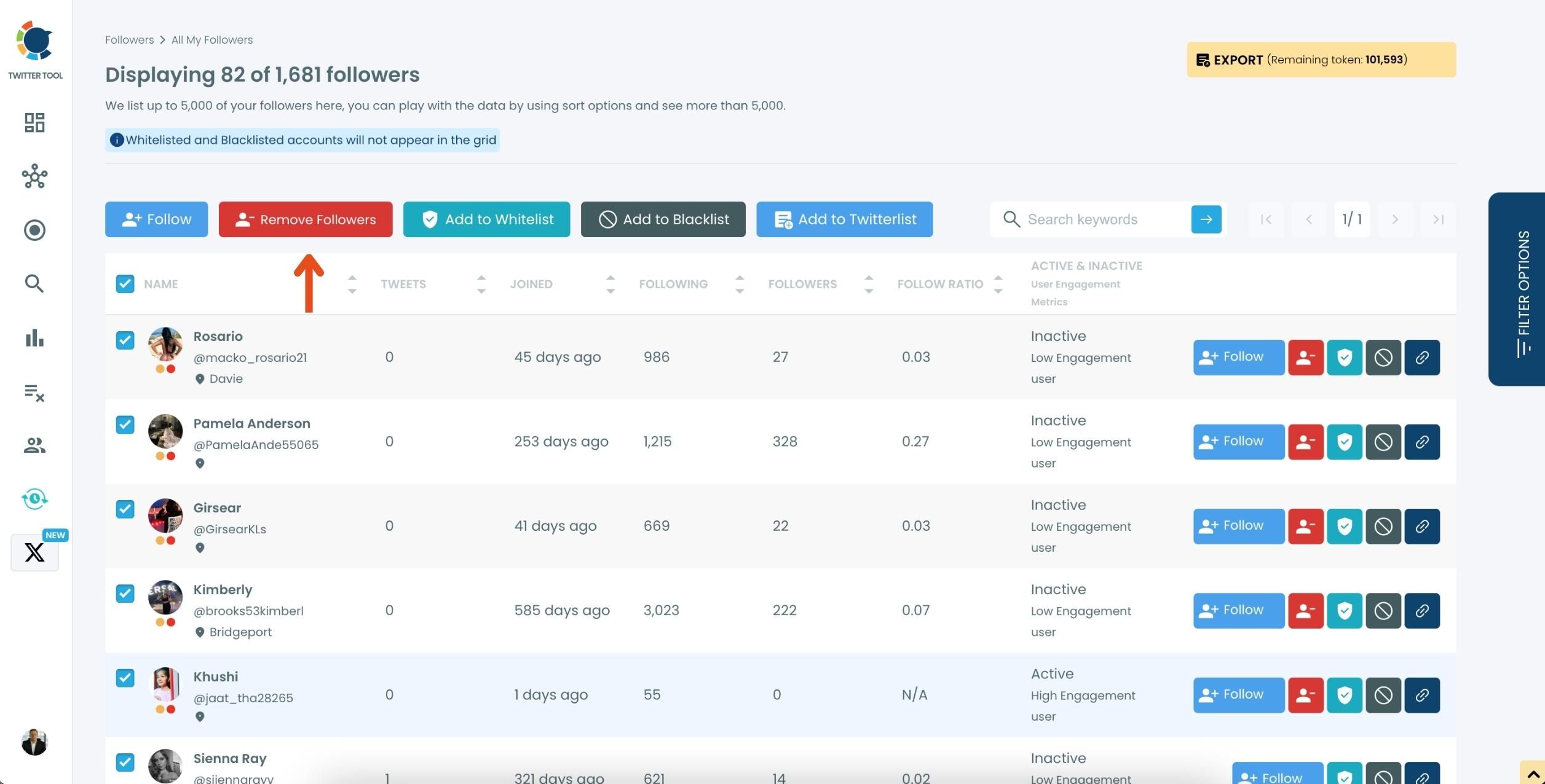
Step #4: Browse through your followers and check the boxes next to the users you want to remove.
You can also select multiple users at once. Once you have selected the users, click on the Remove Followers button at the top.
Alternatively, you can remove individual followers by clicking the red remove icon next to their name on the right side of the list.
A confirmation message will appear asking if you are sure you want to remove the selected followers.
Click ''Remove Followers''.
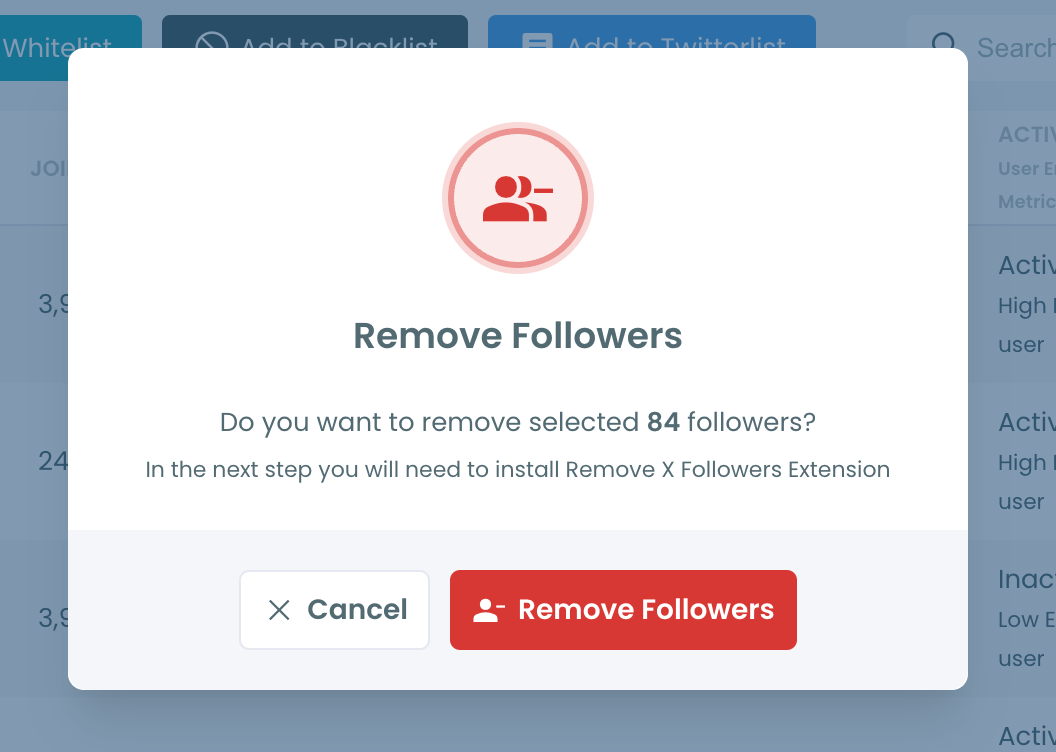
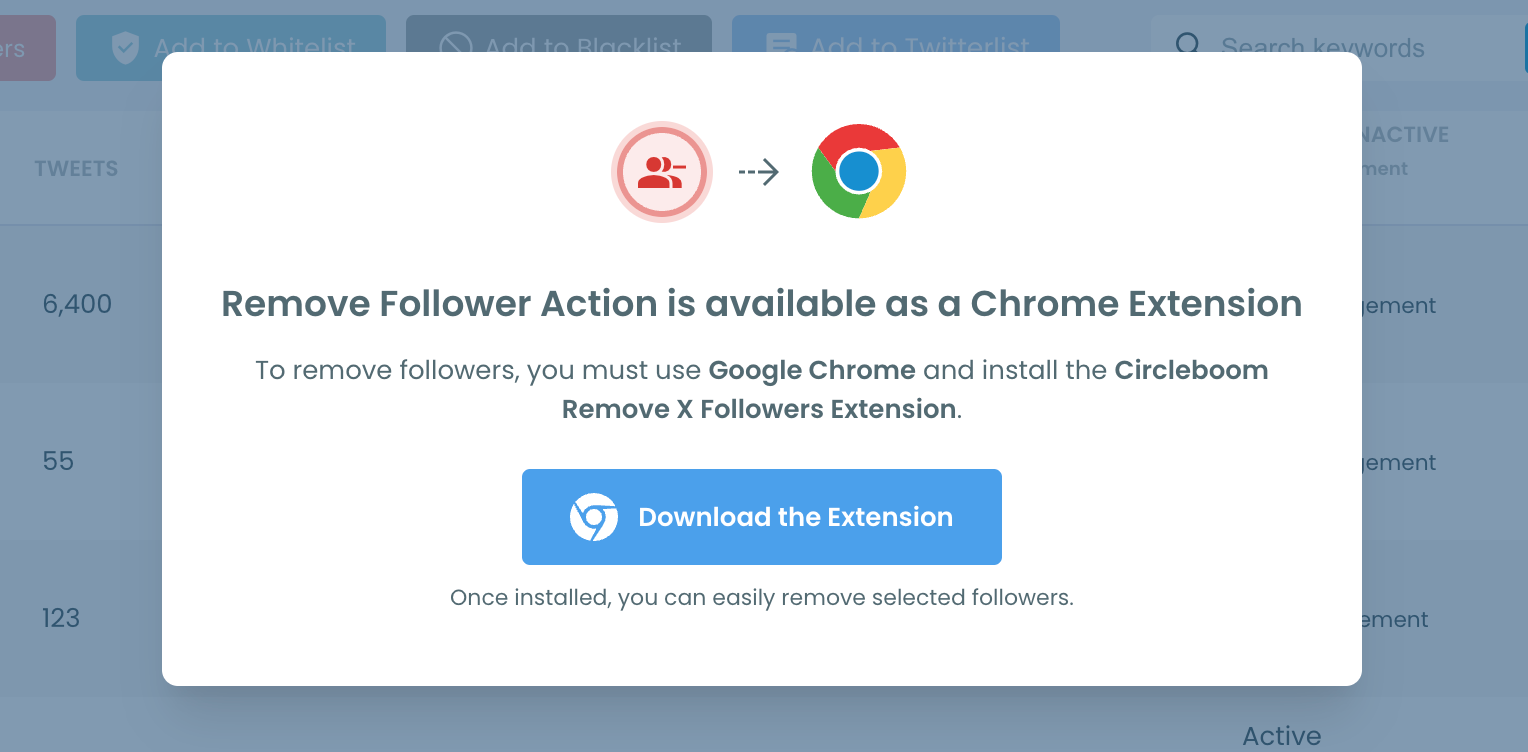
Step #5: Since the removal action is processed via the Circleboom Remove Twitter/X Followers extension, you need to install it to complete the process.
Click on Download the Extension and install it from the Chrome Web Store.
Once installed, you can easily remove followers.
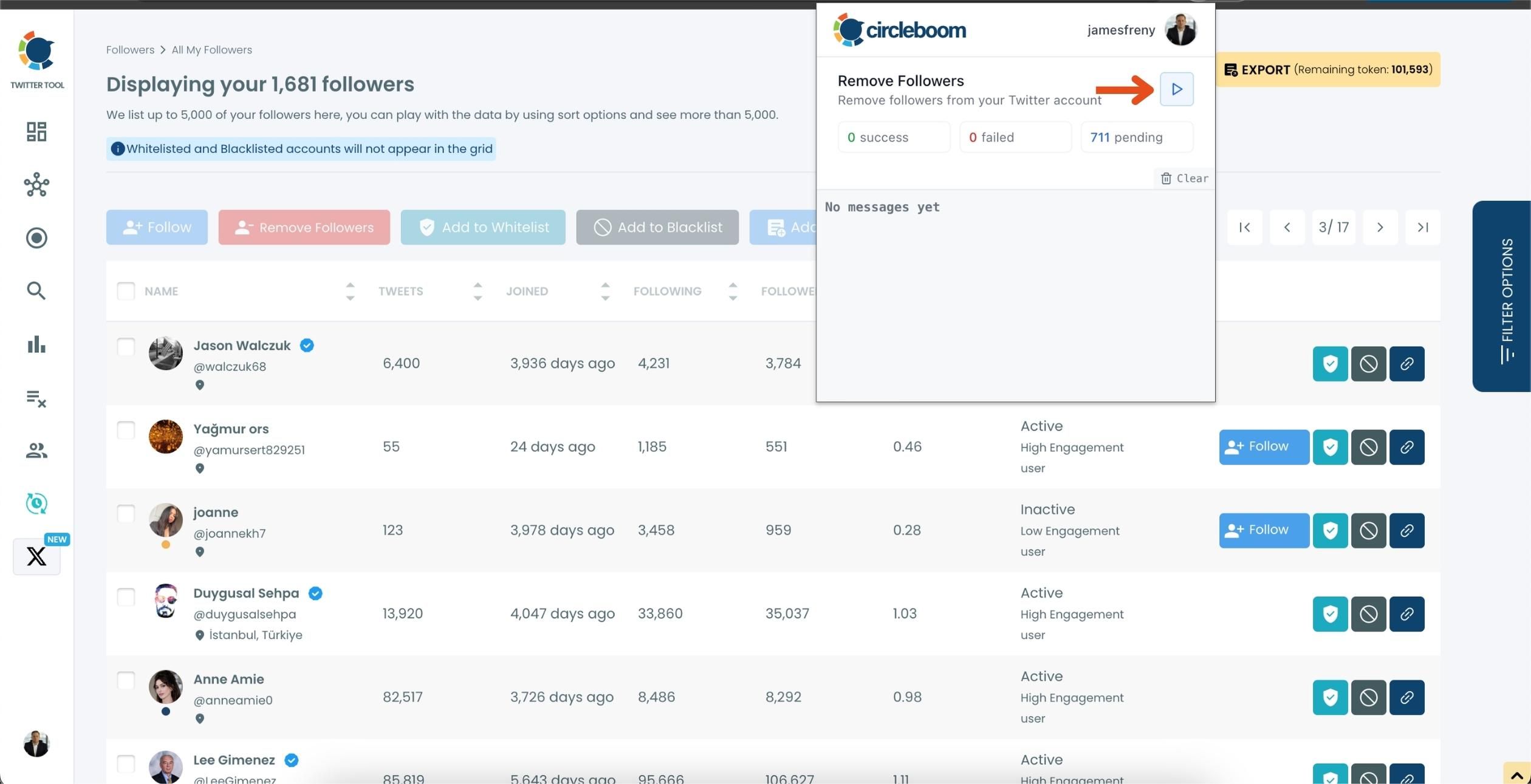
Step #6: After installing the extension, Circleboom will automatically add all your removal requests to the extension queue.
Click on the Start button to begin the removal process.
The extension will process your requests and remove the selected followers.
That's it! Your selected followers are now removed automatically.
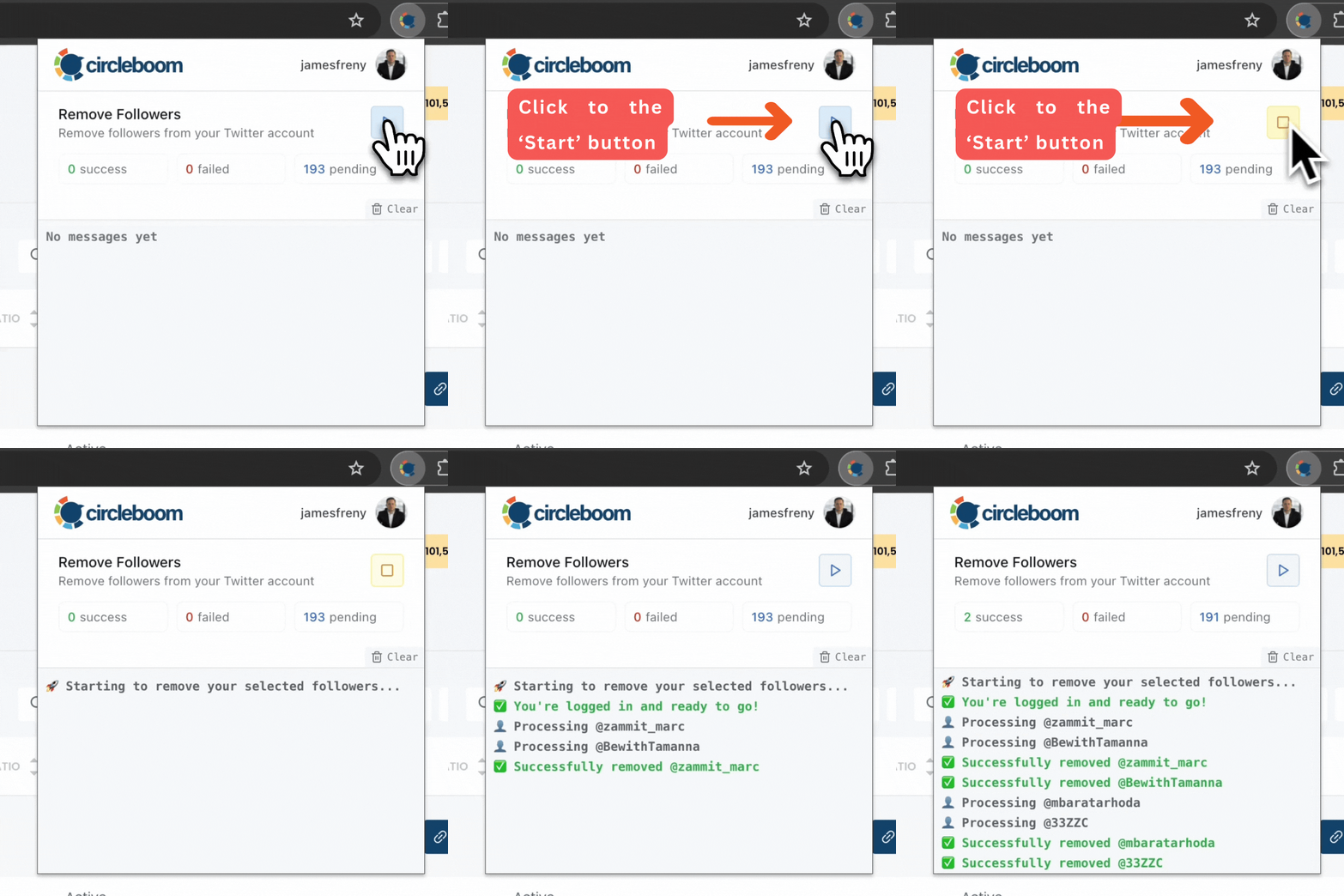
⚠️ Important Warning: Once the removal process begins, do not close your Chrome browser or the Circleboom tab. The tool will automatically remove followers in the background, but if you close the tab or exit Chrome, the process will stop.
If you need a more detailed guide check this video ⬇️
What Happened After
My follower count dropped — obviously.
But honestly? It felt good.
My timeline got cleaner.
My engagement rate actually went up because the only people left interacting were the ones who genuinely cared.
And since I used Circleboom to filter out inactive, spammy, or irrelevant followers instead of removing people blindly, the audience that remained was the audience I actually wanted.
When I started tweeting again, the conversations felt more real. It felt like I got my account back.
If You’re Thinking About Doing This Too
You don’t have to delete your account and start from zero.
You don’t have to do the painful one-by-one removal.
You don’t have to use risky scripts.
You can keep:
- Your username
- Your tweets
- Your history
Just remove the audience that doesn’t fit anymore.
Circleboom made it a one-click reset.
)
