

Put 120 voices from one niche into a single X List and their tweets arrive in one feed, while your Following count does not move by one. That outcome is available to any account today, and it needs no follow button. The only hard part is building the list, because X adds members one profile at a time.
What this guide covers.Why an X List is the dependable way to follow a subject without following its accounts.A seven-step bulk build that fills a topic list from pasted usernames.The member cap, the list cap, and what a bulk add tells you when some accounts fail.
Circleboom fills an X List on Twitter from pasted usernames or a search result through official X Enterprise APIs. Start with Twitter topics.
Why lists are the working way to follow Twitter topics on X
An X List is a feed made of accounts you pick, shown apart from the home timeline. X's help page on using X Lists states that you can follow a list without following the individual accounts in it, and the same holds for a list you build yourself.
That makes a list the natural container for Twitter topics. A subject is a group of people who post about it. Gather those people in a list, and the list is the topic.
The home timeline cannot do this job well. It blends all of your Twitter topics together, and the For You view adds posts from accounts you never chose. A list shows only its members, in one stream.
X's built-in Twitter topics feature has taken different forms, and its current state in your app is worth checking in your settings before you plan around it. The list route does not depend on it, and it gives you something that option never did: you decide who the sources are.
What stops most people from building a topic list
The idea is easy and the labor is not. On X, each account goes onto a list from its own profile, one at a time. The 120 voices from the opening would mean 120 separate additions.
The usual result of trying it by hand is familiar. Someone adds fifteen accounts, the list feels thin, and they go back to following people. The list becomes a neglected folder.
This is where a bulk build changes the math. With Circleboom you can follow Twitter topics without following accounts by adding the whole set in one action. The set can come from a search result or from a pasted line of usernames.
There is a second cost to the manual route, and it is recency. A subject changes. New voices arrive and old ones go quiet. A list that cost hours of profile visits does not get rebuilt, so it drifts away from the subject it was made for.
What Circleboom adds to list building on X
Circleboom's Manage Your X Lists creates lists on Twitter, adds accounts to them in bulk, moves members between lists, and removes them in bulk. Creating and editing lists is a documented capability of the X API, described in X's Manage Lists reference. A bulk add is that same capability applied to many accounts in a row.
Circleboom is listed on X's Enterprise customer directory, so these list edits go through your connected account by the sanctioned route. For you, that means a list built in Circleboom is a normal X List. It shows up in your X app, and it behaves like any list you made by hand.
The Twitter List Manager is where the build below happens.
Find the accounts that cover your topic before you build
A topic list is only as good as its members, so collect the usernames first. You need a set of accounts that post about the subject regularly, and there are three practical sources.
- Accounts you already follow for the topic. They are the fastest start.
- A keyword search across X accounts. Circleboom lets you search Twitter accounts by keyword.
- High-reach voices in the niche. Circleboom can find influencers on Twitter for that.
One product detail saves a step here. Circleboom's search screens carry an Add to List button, so accounts found in a search can go straight into a list in the same session, with no copying of usernames at all.
Some Twitter topics are tied to a place, such as a city's startup scene. For those, read how to find influential Twitter users on a specific topic within a region before you collect names.
Arrive at the build with a list of usernames, or with a search result open, and you are ready.
How to follow topics on Twitter with a list, step by step
Bulk list management on screen: adding and removing X List members in batches, the same moves the steps below rely on.
The build, in order, from login to reading the feed.
Create the topic list in Circleboom
- Open Circleboom Twitter Management and connect the X account that should own the list.

- Go to the Essential Toolbox menu and select X List Manager. The overview shows every list you own with its member count.

- Click the "Create new list" card and name the list after the topic and its purpose. Choose private when the list is only for your own reading.
Fill the list with one paste
- Open the new list and click "Add or import new accounts." A text box opens over the member table.
- Paste the X usernames or IDs, separated by commas, and click "Add accounts." Circleboom checks each username against X before it adds the account.
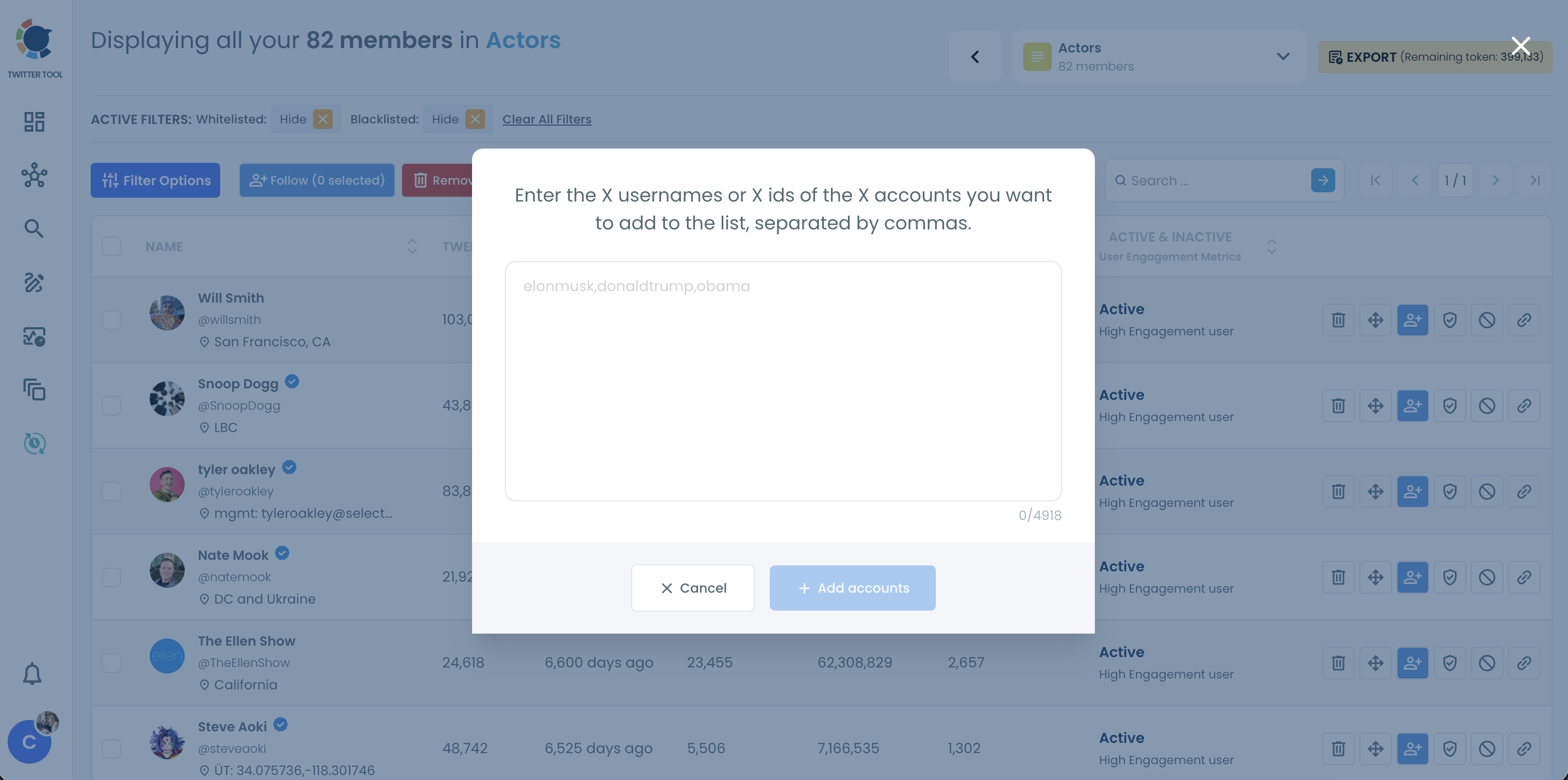
- Read the result message and compare it with the number you pasted. The member count at the top of the list updates to match.
Read the topic as its own feed on X
- Open the list in your X app and pin it. A pinned list sits next to your home timelines, so the topic is one tap away.
Pasting after the list exists matters because a bulk add reports its own result. In Circleboom's recorded example, ten usernames go in and the message reads "Out of 10 accounts, 8 were successfully added to your list." You learn at once which part of the batch needs a second look.
When a batch stops at the 5,000-member cap, the accounts already added stay on the list, so a partial run is never wasted work.
The whole build in four lines:
- Create a list named for the topic.
- Paste the usernames, comma separated.
- Check the result message against your count.
- Pin the list on X and read it there.
How many accounts can a Twitter list hold?
A Twitter list holds up to 5,000 members, and one account can own up to 1,000 lists. X sets both limits at the platform level, so they apply on every Circleboom plan and in X's own app alike.
For most Twitter topics, 5,000 is far more than you want. A feed gets harder to read long before it reaches that size. I keep my own topic lists to the accounts I would miss if they vanished.
Large tracking projects are different. Circleboom's guidance gives a clear example: following 12,000 accounts needs at least three lists. Splitting them by region or sub-topic keeps each list under the cap and easier to read.
Adding to a list that already has 5,000 members fails. If you are near that line, check the count before a paste. When you plan a split, read more on how many accounts you can add to Twitter lists.
Why won't Twitter add some accounts to your list?
Some accounts fail to join a list because of a typo, a member cap, a short-term limit from X, or a browser extension that interferes. The result message after each bulk add is the starting point, because it tells you how many of the pasted accounts made it.
Read the bulk add result before anything else
The "8 of 10" message is the observation that makes failed adds manageable. Two accounts did not go in, and eight did. The eight are safe.
A bulk add never rolls back the accounts it already placed. If a batch hits the 5,000-member limit midway, the accounts processed before the limit remain members, and the rest are simply not added. You fix the remainder and leave the finished part alone.
So the repair routine is short. Compare your pasted line with the member table, find the missing usernames, and check their spelling first. Usernames are validated against X account data, so a handle that changed or never existed will not be added.
Check the caps, the pace and your browser
Circleboom's help center lists the messages you may meet and what causes them:
- A notice that the list has 5,000 members and cannot take more.
- A notice that your selection would push the list past 5,000.
- A notice that the selection could not be added right now, with advice to try again in 15 minutes.
- An ad blocker in the browser, which can break list actions on X and in Circleboom.
Two naming rules from the same page explain a list that refuses to be created: a list name cannot be longer than 25 characters, and it cannot begin with a number.
That help page also says X may limit an account that adds more than 1,000 members to its lists in a day. Very large builds are better spread over several days, in batches you choose and confirm. The full page is here: why you can't create Twitter lists or add accounts to them.
Large operations also run in sequence, so they take time. Let a big add finish before you close the page or start another one.
When the list looks out of date
A list that seems stale is usually a sync question. Circleboom refreshes list data automatically within a 24-hour window, and the overview page shows when the last sync happened.
Members you add or remove directly in the X app may not appear in Circleboom until the next sync. Edits you make inside Circleboom are sent to X as part of the action itself. For problems that start on X's side, the post on Twitter lists not working covers the usual fixes.
What a finished topic list gives you on Twitter
A finished list turns a subject into a place you can visit. You open it when you want that subject, and you leave it when you are done.
Three things improve at once:
- Your home timeline stops carrying sources you only need for one subject.
- Your Following count reflects relationships, since reading no longer requires a follow.
- Each of your Twitter topics can be read in order, without a ranking system choosing what you see.
There is a quieter gain that I value more. Because the list was built in one action, updating it feels cheap. When new voices appear in the niche, I paste them in. A list that is cheap to update stays current, and a current list is the only kind worth pinning.
Check who made it onto the list
The member table is worth a few minutes right after a build. Each row shows the account's tweet count, follower count and verification, plus an activity and engagement label. Quality flags mark accounts that look fake, inactive or overactive.
That view answers a question a pasted list of names cannot: do these accounts still post? A source that reads well in someone's recommendation thread may have gone quiet months ago. Seeing it beside active accounts makes the gap obvious before the list becomes your daily read.
Build several topic lists in one sitting
Because each list takes one paste, you can set up a whole set of Twitter topics before a moment that matters. Ahead of a launch or a campaign, that might be one list for the industry press, one for competitors, and one for the customers who talk about the category.
I prefer building them together, since the same search session usually feeds all three.
A list follows people. If you need every post that mentions a term, including posts from strangers, that is keyword tracking, which is a different job from this one.
Each of these topic lists on Twitter can also stay out of sight. Lists make a private habit possible. A private list of competitors or research sources gives you their posts in one feed, and nothing on your public profile shows that you are reading them.
Your checklist for following Twitter topics without the follows
The mistake I see most often is waiting for the perfect set of accounts. Start with twenty good ones and improve the list as you read it. Twitter topics reward a list that exists over a list that is still being planned.
- Pick one topic and write down what the list is for.
- Collect usernames from your follows, a search, or both.
- Create the list in the List Manager and paste the usernames in.
- Read the result message and fix the accounts that did not go in.
- Pin the list on X and read it for a week before adding more.
→ Set up your Twitter topics feed in the List Manager
Following topics with lists FAQ: unfollowing and ready-made lists
Can I unfollow accounts after I add them to a list and still see their tweets?
Yes. A list shows a member's public posts whether or not you follow that account, so you can unfollow and keep reading in the list. Circleboom paces bulk unfollows at 50 every 15 minutes with a daily safety limit of 800, and anything left continues the next day.
Is there a ready-made list on my topic that I can follow?
Often, yes. Public lists can be followed by any X user, so someone else's list on your subject can become your feed without any building. The trade-off is control, since the owner decides who stays on it. This walkthrough shows how to search for Twitter lists that already exist.
Can I move accounts from one topic list to another?
Yes. In Circleboom you select members in one list and move them to another in a single action, with an option to keep them in the original list as well.

