
By [Altug Altug] | [25.03.2026]
You post a tweet. Within minutes, they arrive. The guy who turns every tweet into a debate. The account that pastes the same crypto link under every post. The person who has replied to your last 47 tweets, always with something slightly off-putting, slightly too familiar, or just plain unwelcome.
Reply guys are one of the most exhausting realities of being visible on X. They come in many forms — spam bots, serial contrarians, unsolicited advice-givers, and outright harassers — and dealing with them one by one is a soul-draining experience.
The good news is that you don't have to tolerate any of it. X gives you a range of tools to block, mute, restrict, and remove unwanted reply guys at every level. And for the most persistent problem, bot followers who generate spam replies at scale Circleboom gives you the infrastructure to clean house properly.
 Arif Akdogan
This guide covers every method available in 2026, from quick one-off fixes to systemic solutions that address the root cause.
TABLE OF CONTENTS
- Understanding the Reply Guy Problem
- The Different Types of Reply Guys
- Method 1: Block the Account
- Method 2: Mute the Account
- Method 3: Hide Individual Replies
- Method 4: Mute Keywords and Phrases
- Method 5: Control Who Can Reply Before You Post
- Method 6: Change Reply Settings on Existing Tweets
- Method 7: Mute Entire Conversations
- Method 8: Remove Bot Followers at the Source with Circleboom
- Method 9: Use Circleboom to Mass-Remove Unwanted Followers
- When to Block vs. Mute vs. Hide
- Building a Long-Term Reply-Clean Strategy
- Frequently Asked Questions
- Conclusion
Understanding the Reply Guy Problem
A "reply guy" in internet culture refers to someone who responds to your posts repeatedly, often without being welcome. But on X in 2026, the problem has evolved beyond individual human harassers. The reply ecosystem now includes spam bots flooding threads with scams, automated accounts dropping crypto links, coordinated troll networks, and the persistent individual who just never seems to get the message.
The problem is compounded by one important technical reality: the more bot followers you have, the more spam replies you'll receive. Bots follow accounts and then flood their posts with automated responses; link drops, repetitive phrases, phishing attempts, and coordinated messaging. Your follower list is the pipeline that spam replies travel through. Clean the pipeline, and you clean the replies.
This is why a complete reply guy strategy has two layers: dealing with individual unwanted repliers in the moment, and systematically cleaning your follower base to prevent them from accumulating in the first place.
The Different Types of Reply Guys
Understanding what you're dealing with helps you choose the right response:
Spam bots — Automated accounts dropping links, scams, and repetitive content under your posts. Usually have no profile photo, few followers, high following counts, or obviously fake bios.
Crypto/NFT spammers — A specific and extremely common bot type that replies to any tweet with sufficient engagement with a link to a wallet, token, or scam site.
The serial contrarian — A real person who replies to virtually everything you post with a disagreement, correction, or negative take. Not necessarily abusive, just exhausting.
The over-familiar stranger — Someone who replies constantly as though you're close friends, when you've never interacted.
The harasser — Someone posting genuinely abusive, threatening, or hateful content under your tweets.
The low-quality troll — Account with minimal history, no real content, and replies designed to provoke or derail.
Each type warrants a slightly different response and X gives you the tools for all of them.
Method 1: Block the Account
Blocking is the most definitive action you can take against an individual reply guy. When you block someone on X:
- They are immediately removed from your followers
- They cannot see your tweets, profile, or activity
- They cannot reply to, like, or retweet your posts
- You stop seeing their content as well
How to block from a reply:
- Tap the three-dot icon (⋯) at the top right of their reply
- Select "Block @username"
- Confirm
How to block from their profile:
- Visit their profile
- Tap the three-dot icon in the top right
- Select "Block"
Blocking is the right tool for: harassers, spam bots, accounts that have repeatedly violated your boundaries despite being muted or ignored, and anyone you simply never want to interact with or be followed by again.
One important note: blocked accounts can still see your tweets when they're not logged in, or if someone else retweets your content. For harassers who may create new accounts, blocking is one part of the solution but not a complete one.
 Arif Akdogan
Method 2: Mute the Account
Muting is blocking's quieter, conflict-free cousin. When you mute someone:
- Their tweets and replies disappear from your timeline and notifications
- When you click into a conversation, their replies are not visible
- They have no idea they've been muted — no notification, no signal
- They can still see, like, and reply to your tweets
How to mute from a reply:
- Tap ⋯ on their reply
- Select "Mute @username"
How to mute from their profile:
- Visit their profile
- Tap ⋯ → Mute
Muting is the right tool for: accounts you've lost interest in, people you'd rather not confront but don't want to hear from, the over-familiar stranger, and the serial contrarian you'd rather just not see than escalate with.
 Arif Akdogan
Method 3: Hide Individual Replies
X lets you hide specific replies on your own tweets, moving them to a separate "hidden replies" section that most users will never see. The person who posted the reply isn't notified, and their reply remains technically accessible behind an extra click, but for practical purposes, it's invisible to your audience.
How to hide a reply:
- Open the reply you want to hide
- Tap ⋯ → "Hide reply"
- Confirm
This is the right tool for: off-topic replies, low-quality comments that are dragging down the conversation quality under your post, and content you'd rather your audience not see without wanting to escalate to a block.
Hidden replies are not deleted, they still exist and can be found if someone specifically looks for them. If you need a reply permanently gone, you'll need to block the account or report it for removal.
Method 4: Mute Keywords and Phrases
One of X's most underused features is keyword muting. You can mute specific words, phrases, usernames, emojis, or hashtags and any post or notification containing those terms will be automatically filtered out of your timeline and notifications.
How to mute keywords:
- Go to Settings → Privacy and Safety → Mute and Block → Muted Words
- Tap the + icon
- Enter the word, phrase, emoji, or hashtag you want to mute
- Set the scope: From anyone / From people you don't follow / From people who don't follow you
- Set the duration: Forever / 24 hours / 7 days / 30 days
This is extraordinarily powerful for blocking spam campaigns. If you're being flooded with crypto replies, mute "wallet," "airdrop," and "$ETH." If a coordinated group is using a specific phrase to harass you, mute the phrase and it vanishes entirely.
Keyword muting applies to your timeline and notifications. It won't prevent the reply from appearing on your post for other viewers for that, you'd still need to hide or delete the individual replies.
 Arif Akdogan
Method 5: Control Who Can Reply Before You Post
X lets you choose who can reply to a tweet before you publish it. This is the most proactive reply guy management tool available because it stops unwanted replies before they ever happen.
Reply control options:
- Everyone — Default, anyone can reply
- Accounts you follow — Only accounts you follow can reply
- Only people you mention — Only accounts you @ mention in the tweet can reply (if you mention no one, effectively no one can reply)
How to set reply controls when composing:
- Tap the compose icon
- Below the text box, tap "Everyone can reply"
- Select your preferred option
- Compose and post
Use this proactively for tweets you expect to be controversial, tweets you're sharing with a broad audience, or any post where you want to manage the conversation tightly. Note that even with restricted replies, anyone can still quote-tweet your post with their own comment.
Method 6: Change Reply Settings on Existing Tweets
You can also change who can reply to a tweet after it's already been published, useful when a post is attracting more negative attention than expected.
How to change reply settings on a live tweet:
- Find the tweet on your timeline or profile
- Tap ⋯ in the top right
- Select "Change who can reply"
- Choose your preferred setting
This change takes effect immediately. Replies that have already been posted remain visible, but new replies are restricted.
Method 7: Mute Entire Conversations
If a specific thread whether yours or someone else's is generating notifications you don't want, you can mute the entire conversation rather than individual accounts.
How to mute a conversation:
- Open any tweet in the conversation
- Tap ⋯ → "Mute this conversation"
- Confirm
Once muted, you'll stop receiving any notifications from that thread, regardless of who posts. This is ideal for conversations that have spiraled in directions you don't want to follow, or threads where you were mentioned but have no interest in tracking.
Method 8: Remove Bot Followers at the Source with Circleboom
All of the above methods are reactive, they deal with reply guys after they've arrived. But the most effective long-term solution is preventing spam replies from happening in the first place, and that means cleaning your follower list.
Here's the reality: bot accounts follow you, and then bot accounts reply to your posts. The two are directly connected. The more bot followers you have, the more spam fills your reply sections. Twitter's own filter hides many of these replies but they still count toward your reply numbers and create a messy, spam-heavy environment that deters real engagement from real people.
Circleboom's fake and bot follower detection tool solves this at the source. It analyzes your entire follower list, identifies accounts exhibiting bot or spam signals — no profile photo, suspicious bios, extreme following ratios, repetitive posting patterns — and lets you remove them in bulk.
How to use Circleboom to remove bot followers:
- Go to Circleboom Twitter and log in
- In the left-side menu, click "Followers" → "Fake/Bot Followers"
- Review your full list of detected bot and spam followers
- Use filter options to refine by engagement level, account age, verification status, and more
- Select the accounts you want to remove (individually or in bulk)
- Click "Remove Followers"
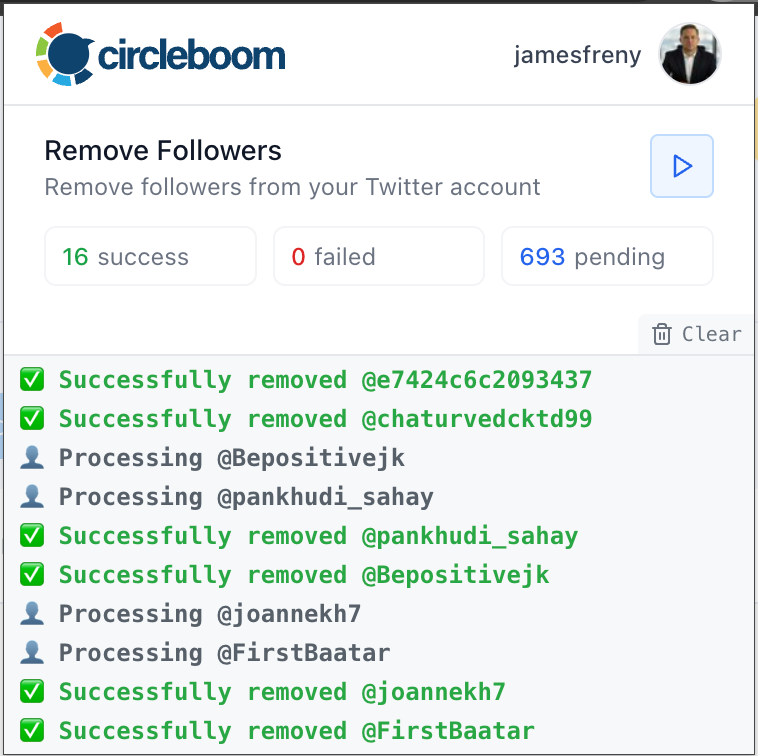
Circleboom executes these removals safely within Twitter's API rate limits so you're cleaning your follower list without risking any restrictions on your own account.

Method 9: Use Circleboom to Mass-Remove Unwanted Followers
Beyond bots, Circleboom also lets you manage your human followers more granularly. If you want to remove inactive accounts, accounts from specific regions, accounts without profile photos, or any other category of follower you don't want Circleboom's follower management tools give you that control.
 Arif Akdogan
Circleboom's follower management features include:
- Inactive follower detection — Find and remove accounts that haven't posted in months
- Follower search and filtering — Search your followers by keyword, language, verification status, and more
- Mass unfollow tools — Clean your following list of accounts that never followed back
- Audience insights — Understand who your followers actually are, their language, interests, and account quality
Together, these tools give you the ability to shape your follower base proactively — building an audience of real, engaged accounts rather than an inflated count padded with bots and inactive users.
Keep in mind that the API provides a more accurate real-time data stream than the X interface itself. While the platform UI may experience lag, the API captures and reflects new developments instantaneously.
Circleboom has the official Enterprise API, we don't scrape data from X!

If you are a creator on X and want to know about the latest developments regarding the algorithm changes, engagement strategies, payout boosts, etc., you can join Circleboom's X Creator Growth Lab Community and enjoy a free space to learn from and contribute to!
When to Block vs. Mute vs. Hide
Here's a quick decision framework:
Block when: The person is harassing you, posting abusive content, you want them permanently removed from your followers, or you never want to see or hear from them again.
Mute when: The person isn't harmful but you've lost interest or find them annoying, you want to avoid confrontation, or you want a quieter timeline without burning bridges.
Hide a reply when: A specific comment is low quality, off-topic, or dragging down the conversation under your post, but you don't need to take action against the account itself.
Mute keywords when: You're being flooded with spam that uses specific terms, you want to filter out an entire topic or campaign, or you want to block a class of content rather than specific accounts.
Control reply permissions when: You want to be proactive about who can engage with a specific tweet before or after it's published.
Building a Long-Term Reply-Clean Strategy
Managing reply guys is most effective when it's a system, not a series of one-off decisions. Here's a simple routine:
Weekly: Block or mute any individual reply guys who showed up that week. Use keyword muting to add any new spam terms that appeared in your replies.
Monthly: Run a Circleboom bot follower audit and remove any new fake or spam accounts that have followed you. Check your hidden replies and decide whether to block the accounts behind them.
Quarterly: Review your full follower list with Circleboom's audience insights. Remove inactive accounts, clean up your following list, and ensure your follower-to-following ratio is in a healthy range.
This rhythm keeps your account clean over time without requiring constant vigilance.
Frequently Asked Questions
Will blocking a reply guy prevent them from seeing my tweets? Yes — a blocked account cannot view your profile or tweets while logged in. They can still see your content if they're logged out or if someone else retweets it.
Can someone tell if I've muted them? No. X does not send any notification when you mute an account. There is no visible signal that you've muted someone.
Does hiding a reply delete it? No. Hidden replies move to a separate "hidden replies" section that requires an extra click to see. They still exist and are technically visible, just much harder to find.
Can I bulk-block accounts on X natively? No. X doesn't offer a native bulk-block tool. Circleboom's follower management tools are the most effective way to remove large numbers of unwanted followers in bulk.
Why do I keep getting spam replies even from accounts I've blocked? If spam replies continue after blocking specific accounts, the likely cause is that you have bot followers being replaced by new bot accounts. Cleaning your follower list with Circleboom addresses this at the source rather than playing whack-a-mole with individual accounts.
Conclusion
Reply guys aren't a fact of life on X, they're a solvable problem. Between X's native tools (blocking, muting, hiding replies, keyword muting, and reply controls) and Circleboom's powerful follower management capabilities, you have everything you need to take full control of your reply environment.
The reactive tools handle individual situations quickly. The strategic tool Circleboom's bot follower removal, addresses the root cause by cleaning the follower pipeline that spam replies travel through. Used together, they give you a genuinely clean, healthy, and enjoyable reply section.
Your tweets deserve real conversations. Start building the audience — and the environment — that makes that possible.
%20in%202026)