

Block lists pile up fast. A harassment wave, a bot flood, a few mass-block sessions, and suddenly you have hundreds or thousands of blocked accounts you can barely review, let alone clean up.
X shows you the list but gives you no way to act on it at scale.
The instinct is to find a shortcut and unblock everything at once. That is exactly where people get burned, because unblocking blindly can re-expose you to the accounts you blocked for good reasons.
The better approach is to make the list manageable first, then unblock deliberately.
What this guide gives you.A clear view of every account on your block list in one place.A safe, bulk way to unblock accounts without risky browser hacks.A review step so you never re-expose yourself to accounts that should stay blocked.
Built on Circleboom's Accounts I've Blocked view. Start when you are ready to mass unblock Twitter accounts.
Why X Makes Block Lists So Hard to Clean
X treats your block list as a record, not a workspace. You can scroll it, but you cannot filter it, sort it, search it, or select multiple accounts to act on at once.
For a short list that is tolerable.
For a long one it is unworkable.
The popular workaround is a browser console script that clicks every "Blocked" button on the page. It technically works, but it is fragile and dangerous: run it twice and you can end up following everyone you just unblocked, and it gives you zero chance to review who you are about to let back in.
A safety block and an outdated mistake get treated identically.
A managed approach fixes both problems. It turns the raw list into something you can filter and review, then unblocks your chosen accounts in bulk.
That is the difference between a reckless purge and a controlled cleanup, and it is why it pays to mass unblock Twitter accounts through a tool built for it.
The Tool That Turns Your Block List Into a Workspace
Circleboom's Accounts I've Blocked feature pulls your entire block list, every account blocked on X directly or through Circleboom, into a structured, filterable table. You can search it, narrow it by account quality, and select exactly the accounts you want to unblock.
Because Circleboom is an official X Enterprise Developer company, it retrieves that block list through sanctioned access, so the data is accurate and your account stays compliant. One honest detail to know up front: bulk unblocking runs through the free Mass Unblock Chrome extension, which performs the unblocks sequentially inside your browser and respects X's rate limits.
It is desktop Chrome only, and it is what keeps the operation safe instead of scripted. If you have ever struggled to find your blocked list and unblock in bulk, this is the workflow built for it.
See it live: unblocking multiple Twitter accounts in one managed pass instead of one profile at a time.
How to Mass Unblock Twitter Accounts (Step by Step)
The process, in order, grouped into three phases.
Connect your account and open the block list
- Log in to Circleboom Twitter and authorize your X account with official OAuth.

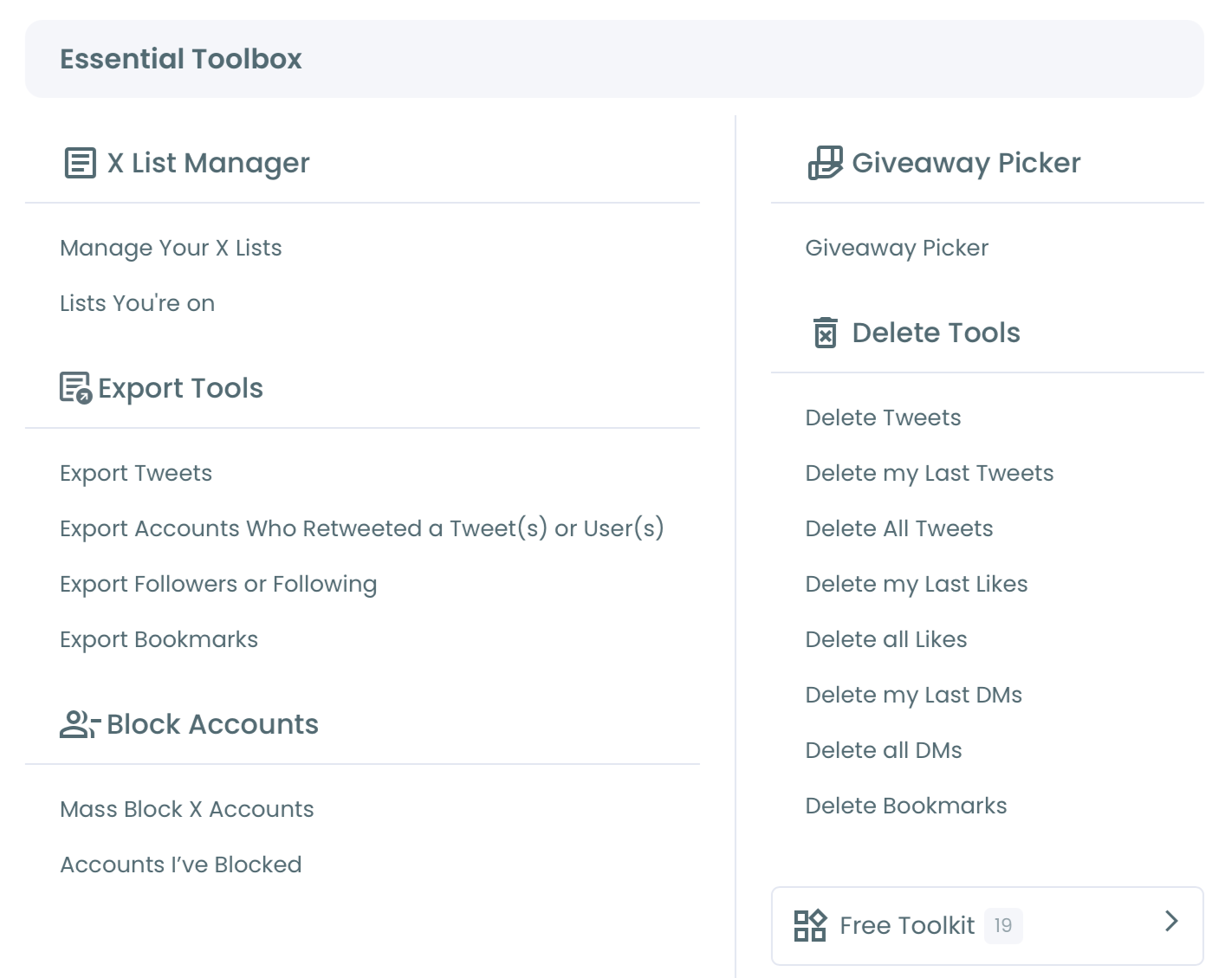
- Open the Essential Toolbox menu and select Accounts I've Blocked to load your full block list.
Review before you reverse anything
- Install the Mass Unblock Chrome extension from the Chrome Web Store so Circleboom can run the bulk action in your browser.
- Filter and review the list by account quality, verification, bio keywords, or join date, so you can see exactly who you are about to unblock.
Run the bulk unblock
- Select the accounts and click "Unblock Users," which loads your selection into the extension automatically.
- Open the extension and click "Start," then keep the browser open while it unblocks each account in sequence and pauses for X's rate limits.
That order matters because the review phase sits between loading the list and acting on it. You see who you are unblocking before anything is reversed, which is the safeguard the console-script method never gives you.
Quick recap:
- Connect with official OAuth and open Accounts I've Blocked.
- Install the Chrome extension.
- Filter and review before selecting.
- Unblock the chosen set and let the extension pace it.
Unblock Selectively, Not All at Once
The most important habit is to stop thinking of this as "unblock everything." Your block list is a mix of categories, and they do not deserve the same treatment.
Some blocks are genuine safety boundaries from a harassment incident. Some are outdated, from a competitor conflict that ended or a campaign long over.
Some were accidental, swept up in a broad mass block. Filtering lets you separate these before you act.
Unblocking the outdated and accidental ones while leaving the safety blocks in place is the whole point, and it is impossible with a blind script. If you are weighing the tradeoffs, our breakdown of the effects of muting or blocking a person on Twitter is worth a read first.
Keep in mind that unblocking restores the account's ability to see your content, follow you, and message you, with no grace period. For accounts tied to real safety concerns, that is a deliberate decision, not a cleanup convenience.
When in doubt, an account can stay blocked and simply be reviewed later, or handled with muting instead of blocking if you only want it out of your feed.
What a Clean Block List Gives You
A reviewed, current block list is more than tidiness. It is an accurate moderation state that reflects your decisions today, not a pile of choices made under old conditions.
That accuracy matters when you take on a new account, onboard a teammate, or plan outreach, because you can see at a glance who is excluded and why. It also closes a quiet failure mode: trying to engage an account you forgot you blocked, where your outreach silently fails.
Cleaning the list as part of broader account hygiene pairs naturally with steps like learning how to get rid of spam followers and following, so your whole audience picture stays intentional.
Your Action Checklist
A safe mass unblock comes down to a short, repeatable sequence:
- Open Accounts I've Blocked and install the Chrome extension.
- Filter the list and review who is actually on it.
- Keep safety blocks; select only outdated or accidental ones.
- Run the bulk unblock and let the extension respect rate limits.
Do it this way and you get the speed of bulk action without the recklessness of a blind purge.
→ Clean your block list and unblock in bulk
What to Know Before You Mass Unblock
Do I really need a Chrome extension to unblock in bulk?
Yes. X does not offer a bulk unblock action through its API, so Circleboom uses the free Mass Unblock Chrome extension to perform the unblocks sequentially in your browser. It is desktop Chrome only.
Is mass unblocking safe for my account?
Yes. Circleboom reads your block list through official API access, and the extension unblocks at X's normal pace with automatic rate-limit pauses, so the operation stays within platform rules.
Will unblocking re-follow those accounts?
No. Unblocking only restores interaction permissions. It does not re-follow anyone, and you would have to follow them again manually if you wanted their posts back in your feed.
Can I unblock just some accounts instead of all of them?
Yes, and you should. Filter and select only the accounts you want to reverse, leaving safety blocks in place. Selective unblocking is the main advantage over a blind script.
How long does a large unblock take?
It depends on volume. Each unblock is sequential and the extension pauses for X's rate limits, in 1 to 20 minute windows, so big lists take time. Keep the browser open until it finishes.
Can I track which accounts I unblocked?
Export your block list as a CSV before you run the unblock. That pre-action snapshot is the cleanest record of who was on the list, so you can compare it against the list afterward to confirm exactly which accounts were reversed.
What if I block someone again later?
Re-blocking is always available. Unblocking is not a permanent commitment; if an account becomes a problem again, you can block it on X or through Circleboom's mass block workflow just as easily.



)