

If you follow many accounts on Twitter (X), your timeline can quickly become crowded with different types of content. One of the best ways to keep things organized is to group the accounts you follow into categories.
On Twitter, this can be done using Twitter Lists. Lists allow you to create groups of accounts based on topics, interests, or any category you want.
For example, you can create separate lists for marketers, founders, news accounts, creators, or industry experts.
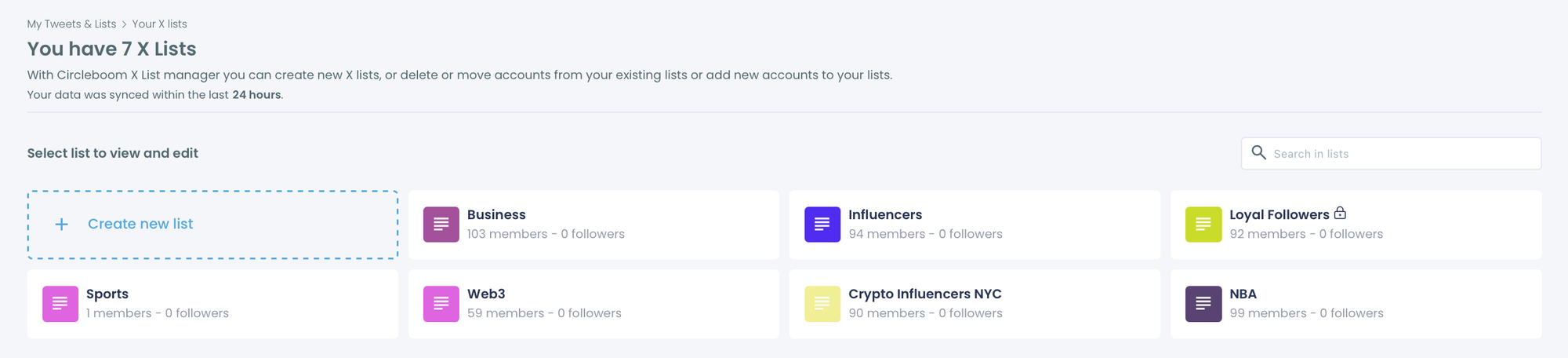
However, Twitter’s list system has an important limitation. While you can create lists easily, adding people to lists must be done one by one. If you want to organize many accounts, this process becomes slow and repetitive.
A much easier way to organize your followings is by using Circleboom Twitter.
Circleboom Twitter is an official X Enterprise Developer, and it allows you to view all your followings in one dashboard, search among them, select multiple accounts at once, and create Twitter Lists for them much more quickly.
Using Twitter Lists to Organize Your Follows
Twitter Lists are designed to help users organize accounts into groups.
Instead of viewing everything in one mixed timeline, you can create lists focused on specific topics. Each list becomes a separate feed that only shows tweets from the accounts inside that list.
For example, you might create lists such as:
- Marketing experts
- Startup founders
- Crypto accounts
- Tech news sources
- Content creators
This allows you to follow many people while still keeping your timeline organized.
The Limitation of Twitter’s List Feature
Although Twitter Lists are useful, managing them directly on Twitter can be time-consuming.
❌ The main issue is that Twitter does not allow adding users to lists in bulk. If you want to categorize many accounts, you need to visit each profile individually and add it to a list.
This becomes difficult if you follow hundreds or even thousands of accounts.
Instead of spending time opening profiles one by one, it is much easier to organize followings from a single dashboard.
Organize Your Followings with Circleboom Twitter
Circleboom Twitter simplifies the process of organizing Twitter accounts.

As an official X Enterprise Developer, Circleboom provides tools that display all your followings in a clear and manageable interface.
Instead of checking accounts individually, you can review your entire following list in one place and organize it much more efficiently.
With Circleboom Twitter, you can:
- View all the accounts you follow
- Search among your followings
- Select multiple accounts at once
- Create Twitter Lists for them quickly
This makes it much easier to organize your Twitter network into categories.
Find Accounts by Searching Keywords
One of the useful features in Circleboom Twitter is the ability to search your followings using keywords.
Many Twitter users mention their profession, interests, or niche in their profile bios. By searching for keywords, you can quickly find accounts related to a specific category.
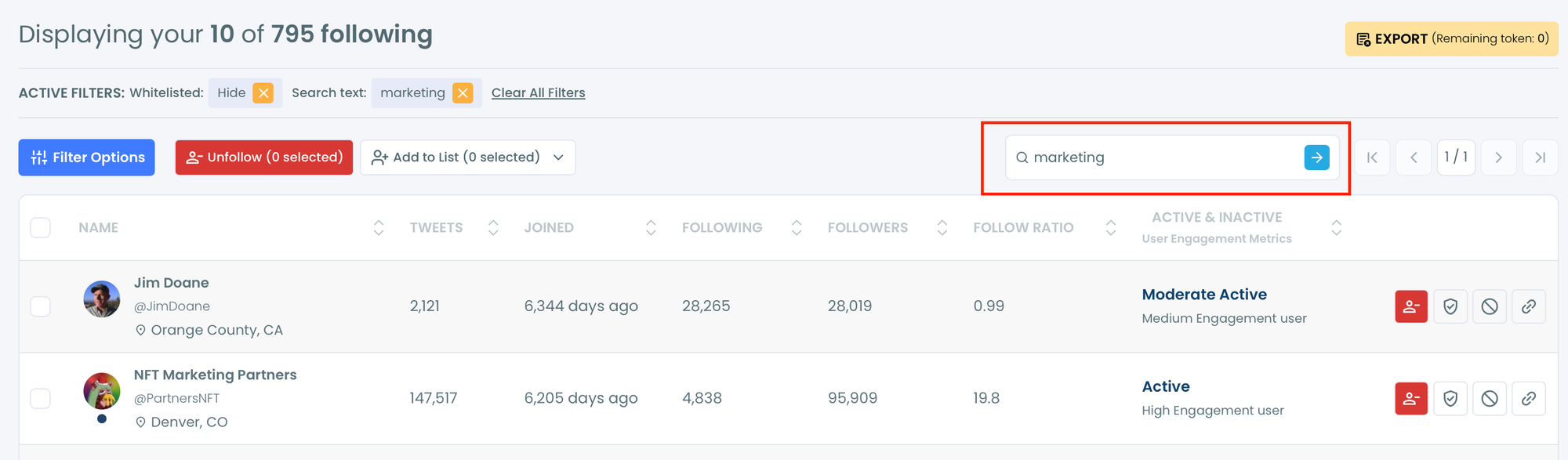
For example, you can search for keywords such as:
- marketing
- founder
- developer
- crypto
- designer
- journalist
This helps you quickly identify accounts that belong to a certain category before adding them to a list.
Select Multiple Accounts and Create Lists Easily
Another advantage of using Circleboom Twitter is the ability to select multiple accounts at once.
Instead of adding users one by one, you can review your followings, choose several accounts together, and organize them into a Twitter List.

This makes building lists much faster, especially when you are organizing large numbers of accounts.
For example, after selecting a group of users related to marketing, you can create a Marketing Experts list and add them all at once.
How to Organize Your Twitter Follows into Lists with Circleboom Twitter
Follow these steps to create and manage lists quickly.
Step #1: Open “All Your Following” in Circleboom Twitter
First, log in to your Circleboom Twitter account and open the Followers / Following Management dashboard.
From the Following section, click All Your Following.
Circleboom will display the full list of accounts you follow in one organized interface.

Here you can view details such as account activity, follower ratio, and engagement metrics, making it easier to manage your network.
Step #2: Search Your Followings by Keyword
At the top-right of the page, you will see the search bar.
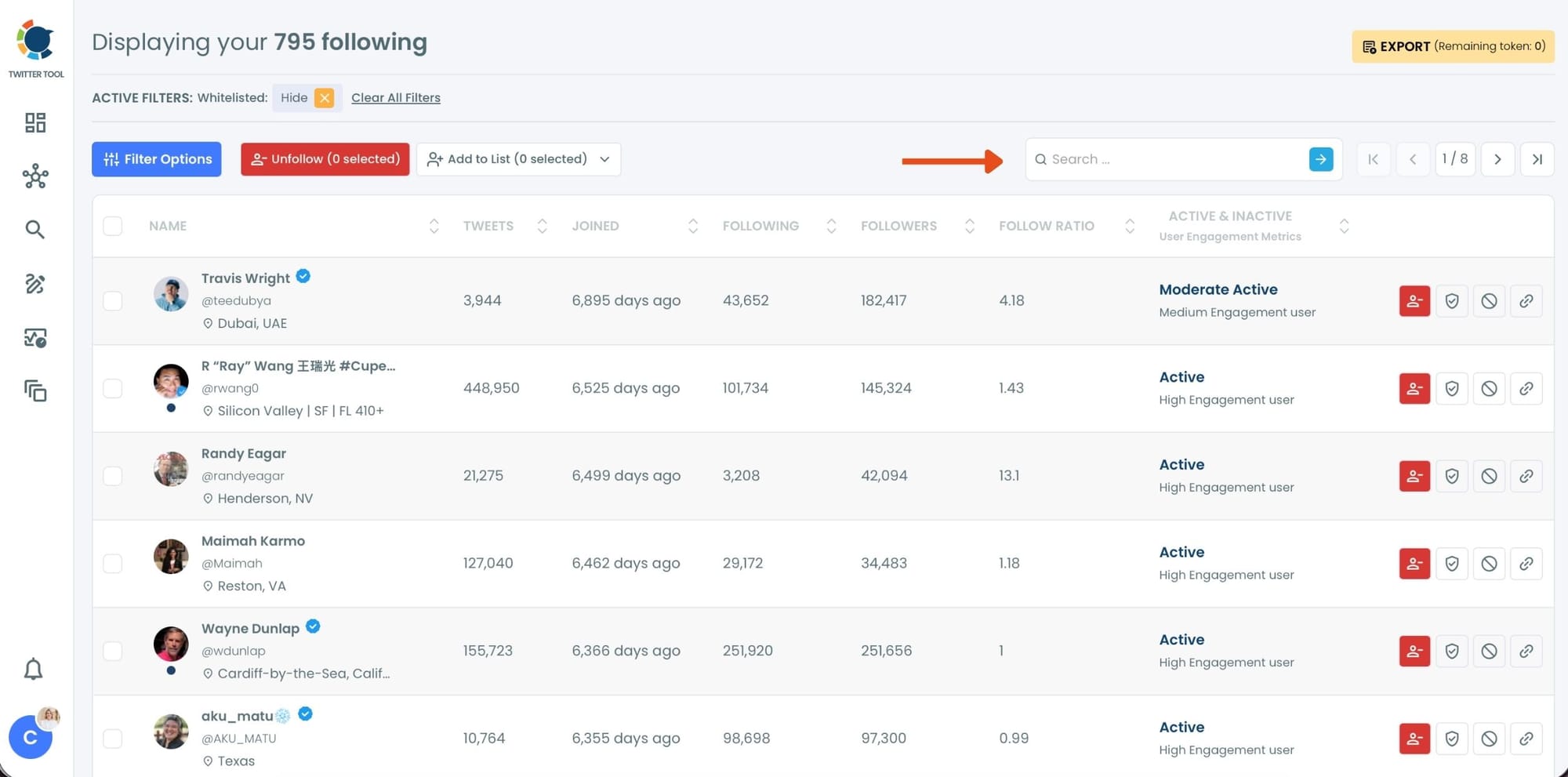
Enter a keyword related to the category you want to create.
For example, you might search for:
- marketing
- founder
- crypto
- developer
- designer
Circleboom will instantly filter your following list and show the accounts that match your search.
Step #3: Select the Accounts and Add Them to a Twitter List
Once the relevant accounts appear in the list, simply select the users you want to include.
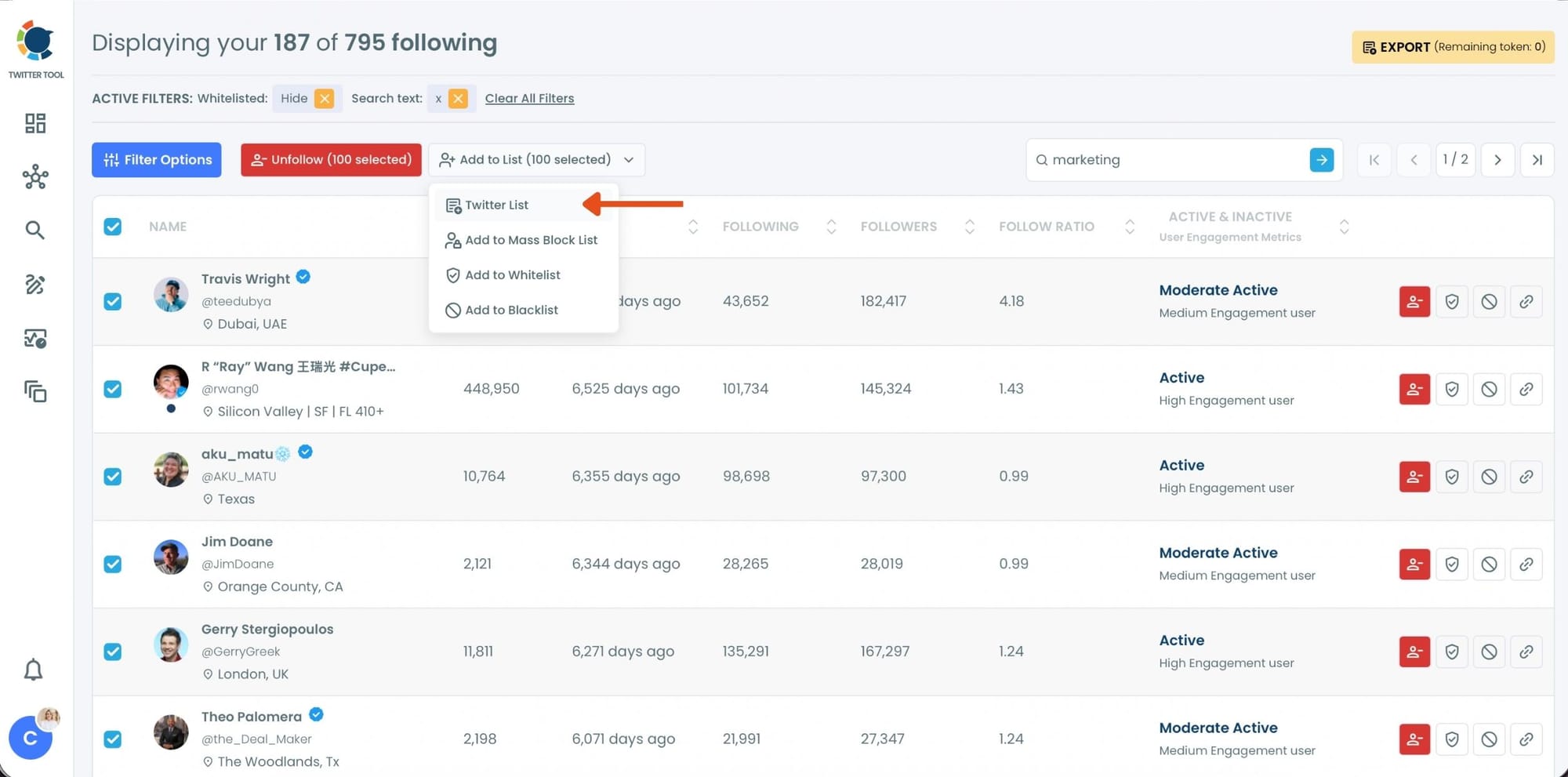
After selecting them, click Add to List, and choose Twitter List from the dropdown menu.
This allows you to organize multiple accounts at the same time instead of adding them one by one.
Step #4: Create a New Twitter List
A window will appear where you can create a new Twitter List.
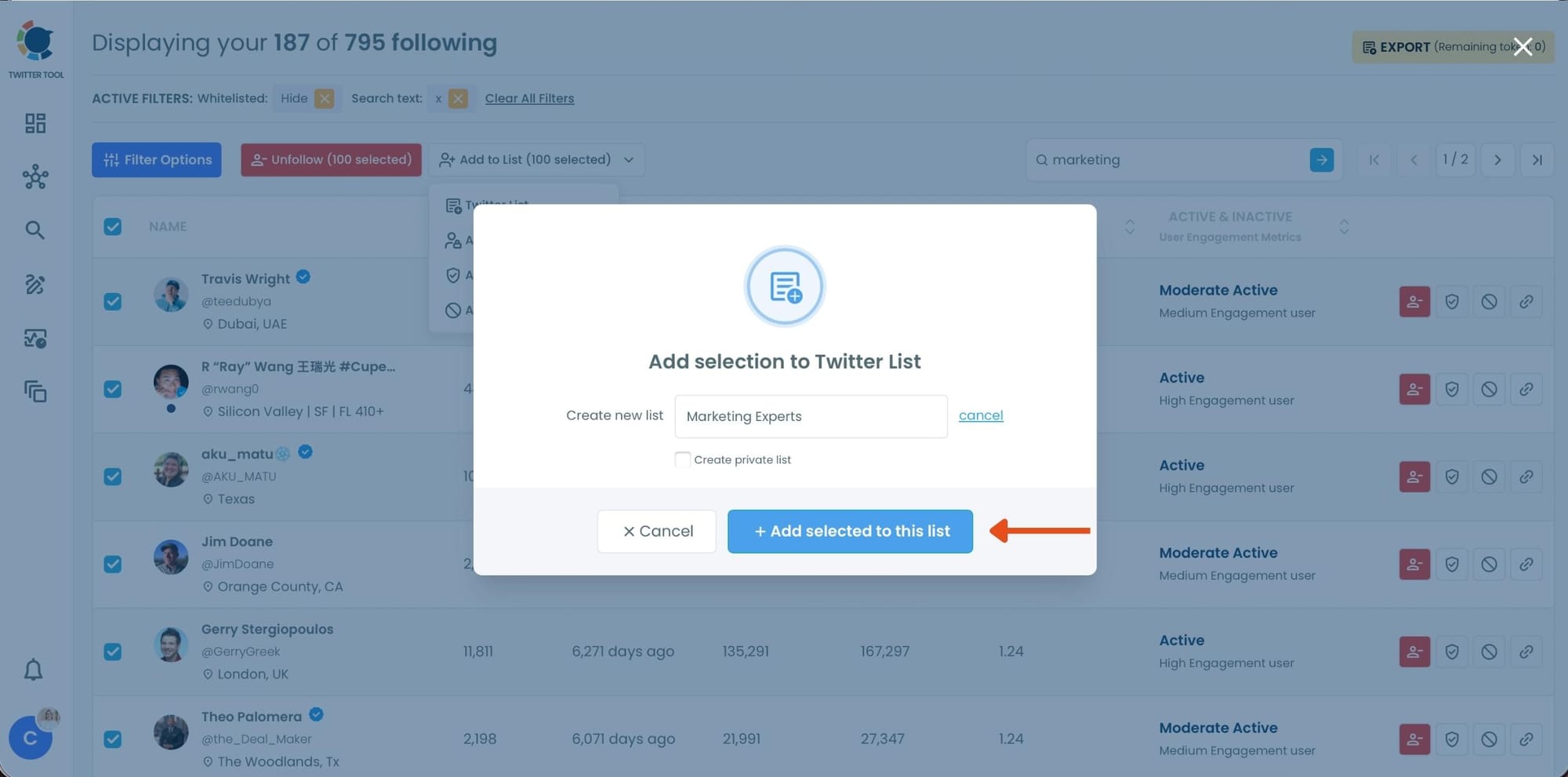
Enter the name of your list — for example:
- Marketing Experts
- Startup Founders
- Tech Creators
- Crypto Analysts
Then click Add selected to this list.
Circleboom will instantly group all selected accounts into the list you created.
Step #5: Manage and Edit Your Lists Anytime
After creating the list, Circleboom allows you to manage it easily.

Inside the list dashboard, you can:
- Filter accounts
- Remove users from the list
- Move users between lists
- Add or import new accounts
- Create additional lists
This makes it simple to keep your Twitter network organized and continuously improve your lists over time.
Final Thoughts
Organizing your Twitter follows into categories is possible by using Twitter Lists, which allow you to group accounts based on topics or interests.
However, Twitter itself requires users to add accounts to lists one by one, which makes the process slow when managing large followings.
With Circleboom Twitter, you can view all your followings in one place, search them using keywords, select multiple accounts at once, and create Twitter Lists for them much more easily. This makes organizing your Twitter network into categories much faster and more efficient.

