
Twitter itself only lets you apply bold or italic formatting, and even that requires an X Premium subscription.
Outside of that, the platform gives you nothing. Every tweet is the same plain text, the same weight, the same visual weight as the one above and below it in the feed.
But with Circleboom Twitter's X Post Planner, you can write tweets in a range of visually distinct styles using Unicode-based text formats, all without needing X Premium. You write your tweet, pick a style, and the text transforms inside the editor before you post.
Can you change the font of tweets on Twitter?
Yes, you can change the font of tweets on Twitter using Unicode-based text styles. Twitter's native formatting is limited to bold and italic only, and only through X Premium.
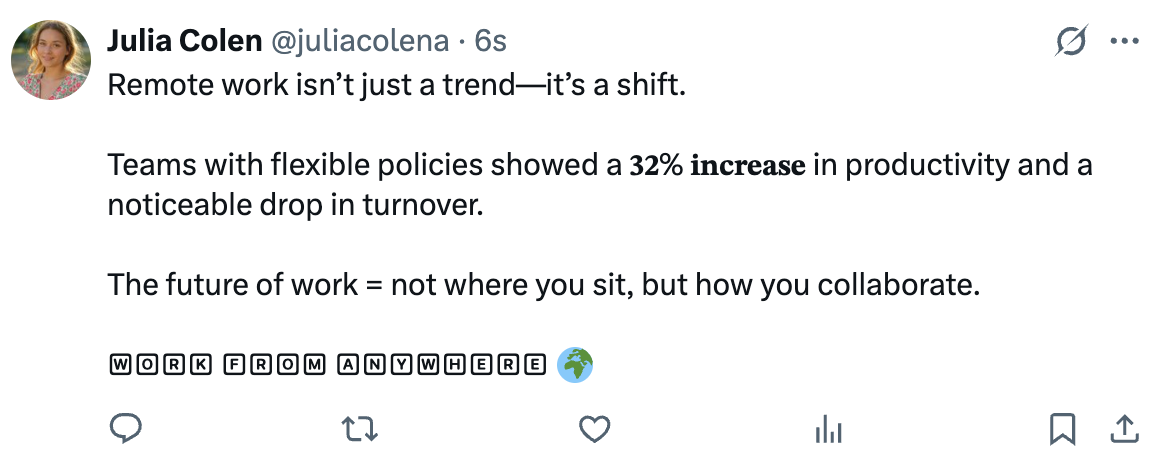
To use different font styles on Twitter without a premium subscription, you can use Circleboom Twitter's Font Styler, which converts your tweet text into a range of visual formats directly inside the post editor before publishing.
 Arif Akdogan
What Is Circleboom Twitter?
Circleboom is an Official X Enterprise Developer, which means it works directly with X's official APIs.
No scraping, no third-party workarounds, no credential sharing. Everything runs through compliant, verified access.

Here's what you can do with Circleboom Twitter when it comes to creating and styling content:
🟢 Style tweet text with multiple Unicode font formats without X Premium
🟢 Apply bold, italic, underline, strikethrough, and more inside the post editor
🟢 Write, schedule, and publish tweets from a single content planner
🟢 Generate tweet ideas and rewrite content using built-in AI tools
🟢 Schedule tweets in bulk or set them to auto-repost at peak times
If you want to change the font of your tweets on Twitter and stand out in a feed full of identical plain text, Circleboom Twitter's Font Styler is the tool that makes it possible.
How to Change the Font of Your Tweets with Circleboom Twitter
Step 1: Go to Circleboom Twitter’s X Post Planner
Open Circleboom Twitter and click X Post Planner + AI Writer.
Then select Write & Plan Your Post to start creating your tweet.

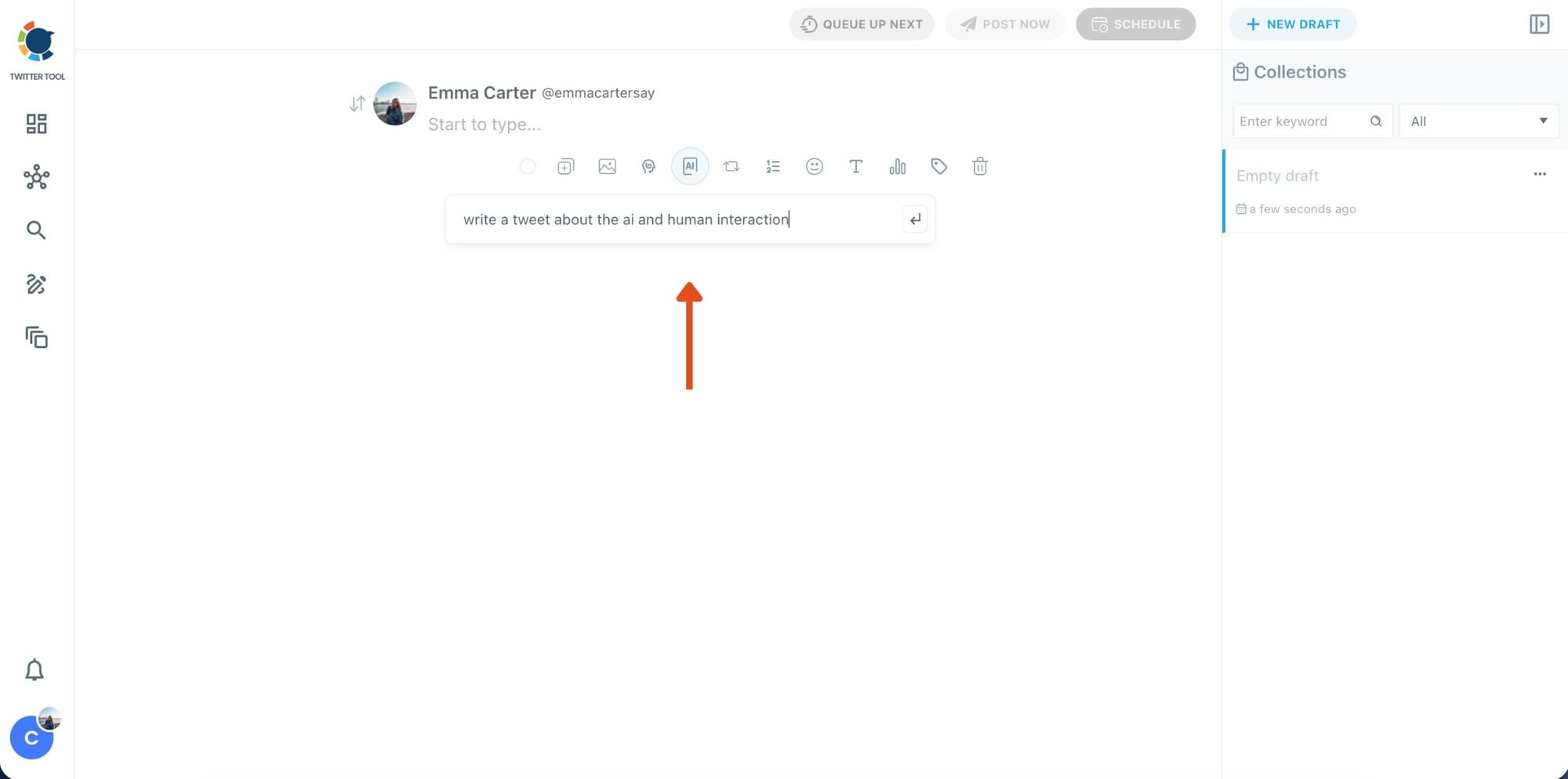
Step 2: Write your tweet (or generate one with AI)
You can type your tweet manually in the editor.
Or, if you want to move faster, click the AI option and let Circleboom generate a tweet idea for you based on your topic.
Step 3: Add an image to make the post more engaging
Once your text is ready, attach a visual to your tweet.
You can:
- Upload an image/video from your device
- Pick one from Unsplash
- Or design one instantly using Canva

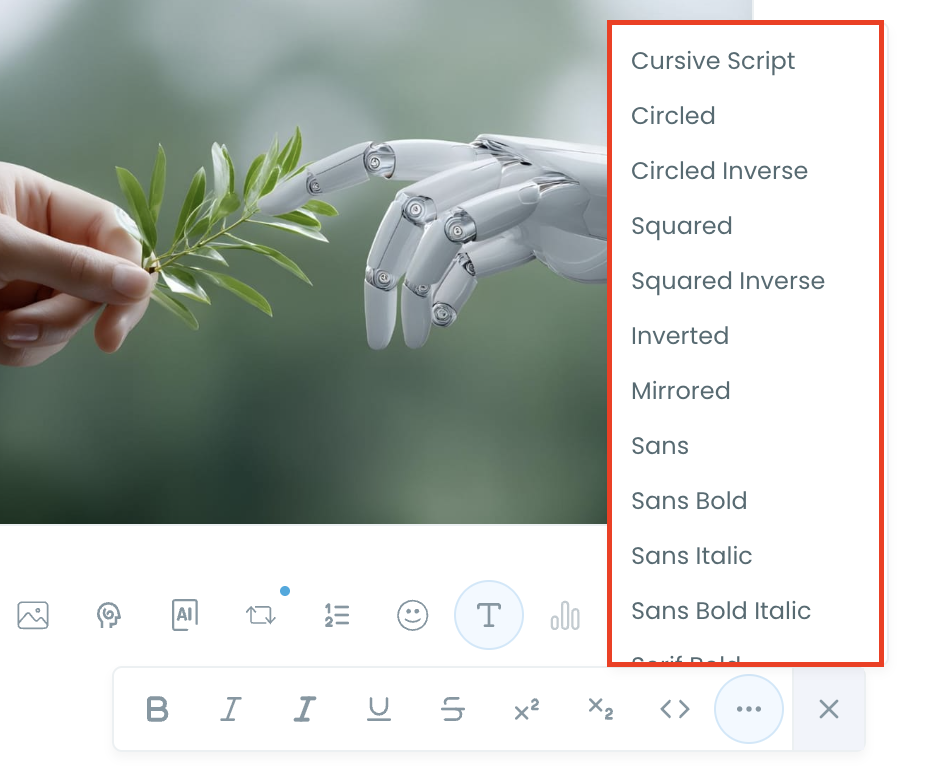
Step 4: Style your tweet using Circleboom’s Font Generator
Now it’s time to make your tweet stand out visually.

Select the part of your text you want to change, then open the Font Generator toolbar and apply styles like:
- Bold / Italic / Underline
- Different font variations
- Extra formatting options for a more “designed” look
This is perfect when you want key parts of your tweet to grab attention immediately.
Step 5: Set Auto Retweets to boost visibility
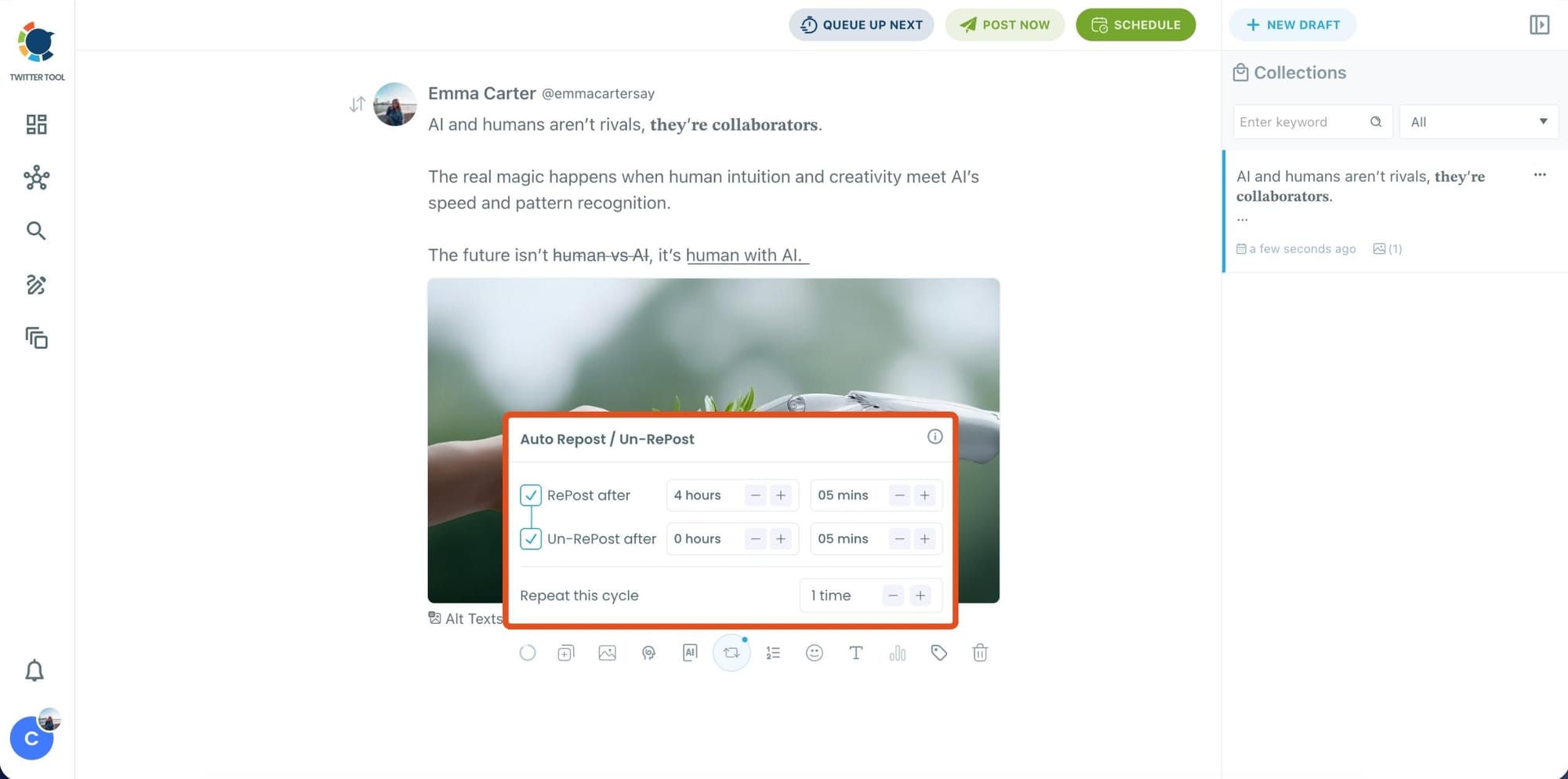
After styling your post, you can increase reach by enabling Auto Repost / Un-RePost settings.
This lets you automatically:
- Repost your tweet after a selected time
- Remove the repost later
- Repeat the cycle if you want more than one repost
It’s a smart way to bring your tweet back into the feed without manually reposting it.
Bonus Tip: Cross-post your tweet to other platforms automatically
Before you publish, you can also enable Cross-Post to share the same tweet across multiple platforms in one go.
Circleboom lets you post your content to Instagram, Facebook, LinkedIn, Bluesky, and Threads automatically, so you don’t have to rewrite, re-upload, or repeat the same work on each platform.

Step 6: Schedule it for the best time to post
Finally, click Schedule and set your date and time.
You can also click Find your best posting time to see Circleboom’s suggested time slots based on follower activity.

Once you pick the best option, schedule it, and you’re done. Your tweet will go out at the time it has the highest chance to perform well.
What Font Styles Are Available?
Circleboom Twitter's Font Styler gives you a full range of visual text styles to choose from. Here's what's actually in the tool.
Unicode font styles include Normal, Fullwidth, Fraktur, Fraktur Bold, Double Struck, Cursive Script, Circled, Circled Inverse, Squared, Squared Inverse, and Inverted. Each one transforms how your text looks in the feed without affecting how Twitter reads or indexes the tweet.
Built-in formatting tools include Bold, Italic, Underline, Strikethrough, Superscript, Subscript, and Code formatting. These can be applied on top of a font style or used on their own for emphasis within a standard tweet.
You can also combine styles. A headline in Fraktur Bold with a key word underlined and a supporting line in Cursive Script creates a tweet that looks nothing like the default feed.
📌 These are Unicode transformations, not actual font files. That means they don't require any special rendering on Twitter's side. They appear correctly on desktop, mobile, and every browser. What you see in the Circleboom editor is what your followers see in their feed.
What Twitter Actually Lets You Do
On its own, Twitter gives you very little when it comes to text formatting.
Bold and italic are available, but only through X Premium. If you're not a subscriber, your only option is plain text, same as it's always been. No underline. No variation in weight or style. No way to make one word visually distinct from the rest of the sentence without resorting to ALL CAPS or adding symbols manually.
The result is a timeline where almost every tweet looks identical at a glance. Same font, same weight, same visual profile. The only things that break the pattern are images, videos, or the rare account that found a workaround.
⚠️ That workaround is Unicode text styling, and it's been available for years. The issue is that most people don't know it exists or don't have a tool that makes it easy to apply inside the tweet editor.
Arif Akdogan
Why Font Styling Actually Affects Engagement
A tweet gets a fraction of a second before someone scrolls past it. In that window, visual difference matters more than most people expect.
Plain text requires the reader to slow down and actually read before they can decide whether the tweet is worth their attention. Styled text catches the eye before that decision is made. A tweet in Cursive Script or Fraktur Bold registers as visually different even in peripheral vision.
Bold used strategically draws attention to the core idea immediately. If you have one line that contains the whole point of the tweet, making it bold tells the reader where to look without them having to figure it out.
Cursive or Fraktur signals personality and intentionality. It's not an accident. The account took a step that most accounts don't take, and that alone communicates something about how the person approaches their content.
Squared or Circled text works well for announcements, labels, or key terms you want to stand out as distinct from the surrounding sentence. It functions almost like a tag or a badge embedded in the tweet itself.
Underline and Strikethrough are useful for contrast. Striking through an assumption before correcting it, or underlining a conclusion, creates a structure inside the tweet that guides the reader through it.
The core point is simple: in a feed full of identical plain text, Circleboom Twitter's Font Styler gives you a real and immediate way to make tweets on Twitter look different from everything around them, without paying for X Premium and without any technical setup.
Frequently Asked Questions
Can you actually change fonts on Twitter?
Yes. While Twitter does not support traditional font file changes, you can change the visual appearance of tweet text using Unicode-based styles. These characters look different from standard text and render correctly across all devices. Circleboom Twitter's Font Styler makes this possible directly inside the tweet editor without any external tools or X Premium required.
Do you need X Premium to use different fonts on Twitter?
No. X Premium only unlocks bold and italic formatting natively within Twitter. To use a wider range of font styles on Twitter, including Fraktur, Cursive Script, Double Struck, Circled, and more, you can use Circleboom Twitter's Font Styler without any premium subscription.
Are these real fonts or Unicode characters?
They are Unicode characters. Unicode is a universal text encoding standard that includes thousands of character variants that visually resemble different typographic styles. When you use Font Styler in Circleboom Twitter, your text is converted to these Unicode characters, which appear as stylized text in the Twitter feed on every device.
Will styled text show up correctly on all devices?
Yes. Because these are Unicode characters rather than custom fonts, they render using whatever default font the device or browser is already using for Unicode support. That means a tweet styled in Circleboom Twitter's Font Styler will look the same on an iPhone, an Android device, and a desktop browser.
Can I combine multiple font styles in one tweet?
Yes. Circleboom Twitter's Font Styler allows you to apply different styles to different parts of the same tweet. You could write a header in Fraktur Bold, a supporting line in Cursive Script, and use underline for a key phrase. Combining styles gives you more control over how the reader moves through the tweet.
Does using a different font affect how Twitter's algorithm reads my tweet?
Unicode characters are readable text and are indexed normally by Twitter. The algorithm reads the semantic content of the tweet regardless of the visual style applied. Using font styles does not negatively affect discoverability, hashtag indexing, or how the tweet appears in search results.

Final Thoughts
The answer to whether you can change the font of tweets on Twitter is yes, but you need the right tool to do it properly. X's native formatting barely covers the basics, and even that sits behind a paywall.
Circleboom Twitter gives you a full range of Unicode text styles and formatting options, applied inside the post editor before you publish, without needing X Premium. In a feed where every other tweet looks the same, that's a straightforward advantage worth using.
Start changing the font of your tweets on Twitter today with Circleboom Twitter's Font Styler.





)