Can you save tweets from another account before they are deleted? Yes for a public account, provided you act before the deletion, and no for a protected account or for tweets that are already gone.
Yes. Circleboom exports up to the 3,200 most recent tweets of any public account on X to a CSV file, retrieved with official X (Twitter) Enterprise API access. Tweets deleted after the export stay in the file, while protected accounts and tweets already deleted cannot be exported.
→ Save tweets
Four ways to keep a tweet are compared below, followed by the steps.
The direct answer for saving another X account's tweets
You can save tweets from another account when three conditions hold. The account is public, the tweets are still online, and they fall inside its 3,200 most recent posts.
Each condition has a matching limit:
- A protected account cannot be exported, even by a follower.
- Posts deleted before the export date are not retrievable.
- A tweet older than the 3,200 most recent is outside the export.
The 3,200 figure is X's own. X's developer documentation, in its timelines introduction, describes access to up to 3,200 of an account's most recent posts. A tool that reads that timeline works inside the same window.
X itself has no download for a profile that is not yours. That gap is why people fall back on one-post methods, and why a tool to save tweets from another account in bulk exists at all.
Why the export date decides what you keep
The second limit is the one that sets the clock. Circleboom exports a public X account's tweets as they exist on the day of the export, so a post removed yesterday is absent and a post removed tomorrow is kept.
An illustrative case makes the rule concrete. Say you export an account at the start of the month and it deletes ten posts a few days later. Your file still holds all ten, each with its text, posting time and counts.
Someone who exports the same account the day after the deletion gets a file without them, and no later export can add them back.
If the posts you wanted are already gone, an export will not bring them back. The options for that situation are a separate subject, covered in the post on how to see deleted tweets.
Four ways to keep a tweet on Twitter, compared
There are four common ways to keep a copy of someone's tweet, and they differ on four properties. The table puts them side by side.
| Method | Survives deletion | Covers a whole account | Keeps dates and metrics | Keeps media |
|---|---|---|---|---|
| Bookmark | No, it links to the live post | No, one post at a time | Only while the post is live | Only while the post is live |
| Screenshot or image copy | Yes, as a picture | No, one post at a time | Only what the picture shows | Still image only |
| Browser extension or scraper | Yes, if it saves a file | Depends on the tool | Depends on the tool | Depends on the tool |
| Official-API export | Yes, the file is a snapshot | Up to the 3,200 most recent tweets | Yes, posting time and six engagement counts | No, a media flag only |
Only one row answers yes to both "survives deletion" and "covers a whole account" without a condition attached.
Read the table by your purpose. A reminder to yourself needs none of the four properties. A record that other people will question needs the first three.
Bookmark: a reminder that depends on the post staying up
A bookmark does not protect you from deletion. X's Help Center page on Bookmarks covers what the feature is for: saving posts so you can come back to them. A bookmark keeps your place on X, and the post itself stays where its author can remove it.
Use bookmarks for what they are good at, which is finding a live post again. If your working list already lives there, Circleboom can also export Twitter bookmarks to a CSV of your own saved posts.
Screenshot or image copy: durable, and hard to work with
A screenshot survives deletion because it is a separate picture. It covers one post, and its date and counts are only as good as what the frame happened to include.
Images are the right format for showing a post to someone. For that job, Circleboom's tweet screenshot generator produces a clean image of a single tweet.
Free tool on screen: making a presentable screenshot of a tweet, the image-copy row of the table in practice.
I treat the image as the exhibit and never as the archive. A folder of screenshots cannot be filtered by tweet type or sorted by date.
Is a browser extension or scraper just as good for saving tweets?
Not as a record you need to rely on. An extension or scraper that collects by reading pages can skip posts if a page stalls or X redesigns a screen, and the resulting file does not tell you what it missed.
The size of that risk grows with the account. In a 3,000-tweet collection, missing even 10% leaves 300 tweets out, and you cannot know which 300.
Some extensions do not scrape, and some scraped files are complete. The question to ask of any tool is where its data comes from, because that answer is what you will be asked for when the record is challenged.
The Circleboom post on export tweets extensions looks at that category in its own right.
Official-API export: the whole recent timeline in one file
An official-API export is the only method of the four that takes an account's recent timeline in one request with dates and metrics attached. With Circleboom you can export a public account's tweets to a CSV that holds one row per tweet.
The source is documented. Circleboom is a verified Enterprise partner of X and retrieves the rows through the official API, so you can state where the record came from when someone asks.
Official access names the source, and it does not lift X's limits. The 3,200 window still applies, and so do the rules on protected and deleted tweets.
Each row in the file carries these fields:
- Post ID, account name and username.
- Posting date and time.
- Language and tweet type.
- Counts for bookmarks, impressions, likes, replies, retweets and quotes.
- A media flag and the full text.
Replies and retweets are exported along with original posts, and the tweet type column tells them apart. That matters for a record, since a statement made in a reply is the kind of post nobody thinks to bookmark.
How to combine the four methods
The methods are not rivals once you know what each is for. A workable setup uses three of them together:
- The export as the base record of the account.
- An image copy for the handful of posts you need to show.
- Bookmarks as a private to-do list while you read.
The order matters more than the mix. Take the export first, because it is the only step whose result gets worse with every day of delay.
Does saving tweets work on a private Twitter account, and does the owner find out?
It does not work on a private account. Only publicly available tweets can be exported, and an account set to protected cannot be exported whatever your follow relationship with it.
Following changes what you can read on X. It does not change what the export can retrieve, so an approved follower of a protected account is in the same position as a stranger.
The setting can also change after you start. A public account may protect its tweets at any time, and from then on a new export of it is not possible.
A file you received before the switch stays as it was, which is one more reason to export while the account is still public.
Before you run it, compare the username you typed with the profile. The file will hold whichever account you entered.
On the second question, the export needs nothing from the account owner. The run uses your own connected account, and at no step does it ask for the other account's credentials.
People often ask the same thing about image copies. That side is covered in the post titled does Twitter notify screenshots.
Keep the purpose in view. This is a tool for record-keeping and research on what an account has published to everyone, and the file deserves the same care as any other document that may hold sensitive material.
How to save tweets from another account with Circleboom
To save tweets from another account, export them while the account is public and keep the file that comes back. The export reads the account's recent timeline through X's official API and returns a CSV with one row per tweet. In Circleboom the run takes four steps.
- Open Circleboom Twitter Management, then add the X account your daily work runs through.

- Go to the Essential Toolbox menu and open Export Tweets, listed with the Export Tools.

- Enter the public username in the search field. Circleboom fetches the tweet history and displays the total tweet count for you to check.
- Confirm the export, enter the email address for delivery and complete the payment on the secure Stripe page. The CSV is sent to that address.
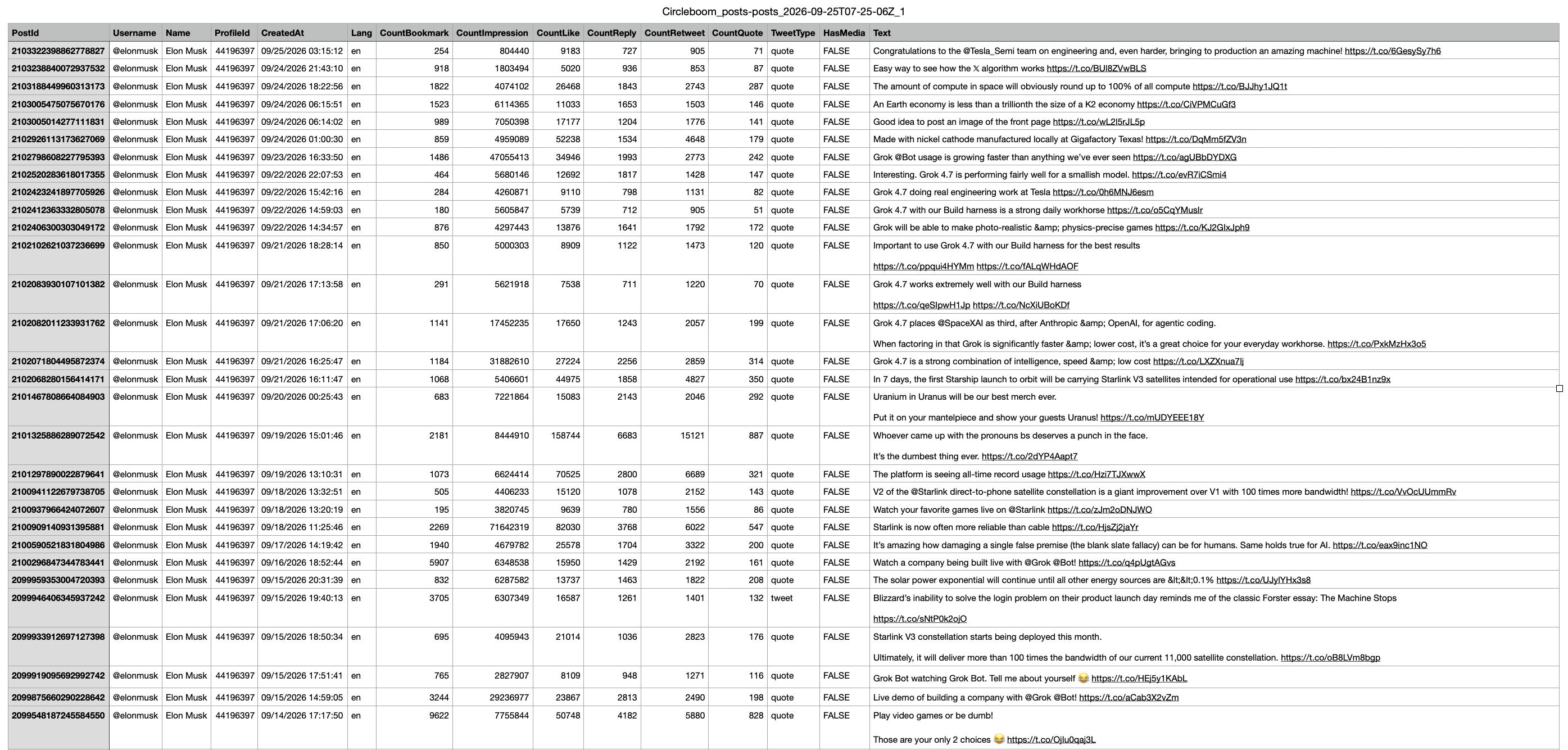
Four steps are enough because the export takes everything inside the window. There is nothing to select post by post, which removes the risk of leaving out the tweet that turns out to matter.
Payment happens once per export, at step 4. Use the count shown at step 3 as your last check before that point.
Does a saved tweet file include the videos and images on X?
No. The CSV records whether a tweet had media in a column named HasMedia, set to TRUE or FALSE, and it does not contain the image or video files.
Filter the column to TRUE and you have the complete list of posts whose media still needs to be fetched, without scrolling the profile to find them.
The timing rule for media is stricter than for text. After a tweet is deleted, its row and its flag remain in your file, and the clip itself can no longer be downloaded from the post. Fetch the media you need soon after the export.
Start with the posts that are central to your record. A filtered list sorted by date puts the flagged posts from the period you care about at the top, so the first files you save are the ones you would miss most.
Two routes for the media files
Two routes cover the files themselves:
- Videos. Circleboom's X (Twitter) video downloader saves the clip from a single post.
- Images. An image copy of the tweet keeps the picture as it appeared in the post.
For the video route step by step, see the post on how to download a tweeted video.
A practical order is export first, media second, image copies of the key posts last. The export is the only one of the three that covers everything at once, so it buys you time for the other two.
A checklist to save an X account's tweets in time
The answer to the title question is yes, and the condition is timing. If you want to save tweets before an account removes them, work through this list today:
- Confirm the account is public.
- Run the export before you start reading the timeline closely.
- Add the export date to the file name.
- Filter HasMedia to TRUE and fetch the media you need.
- Make an image copy of the few posts you will have to show.
The first two items carry most of the value. Everything after them can wait, because the file no longer depends on what the account does next.
→ Save another account's tweets before the next deletion
What to know about the limits of a saved tweet file
Can I get tweets older than the 3,200 most recent?
No, older tweets cannot be exported. Circleboom retrieves up to the 3,200 most recent tweets of a public X account, and X's API fixes that ceiling, so no plan upgrade extends it.
How do I keep my copy current while the account keeps posting?
Run a new export. Each Circleboom export is a snapshot of the X account on that day and does not update itself, so regular exports with the date in each file name keep the record current. Hold on to the older files, since they contain posts that may have been removed since.
What can I do with the CSV once I have it?
Open it in Excel, Google Sheets or any data tool. You can sort the rows by date or by any engagement count, filter by tweet type, and search the text column, which turns an X timeline exported with Circleboom into a searchable dataset.
What if the email with the file never arrives?
The file is not lost. Circleboom also stores the exported CSV in your account page, so a tweet export from X can be downloaded there if the email does not reach you.
Do the like and view counts in the file change later?
No. The counts in a Circleboom export are the values X returned at retrieval time, and they stay fixed in the file while the live numbers on the platform keep moving.