Two tools can do this cleanly, and neither one asks for the account's password. You point them at any public handle, and they hand you the posts.
The only real choice is whether you want the whole timeline in one file or just the tweets that match a topic and a date range.
Circleboom exports any public account's full timeline on X to a CSV, up to the 3,200 most recent tweets, with the text and engagement numbers attached, through the official X API. The honest answer to how to get all tweets from a user is short: choose the account, add a filter if you want one, and download the file.
→ Download a public account's tweets
Two honest ways to pull a full tweet history
There are exactly two methods worth trusting, and the difference matters before you start. The first is a straight timeline export.
You name the account and download every recent post as a spreadsheet. Circleboom's Export Tweets does this, and it reaches the 3,200 most recent tweets, which is the ceiling X's public timeline API returns for any account.
The second method reads a person's posts by content. You give it words and a date window, and it collects only the tweets that match. That is a keyword search, and it fits a different job.
X does publish a way to get an archive, but X's own data-download process only covers the account you are signed into. It will not hand you someone else's posts.
That single limit sends most people elsewhere. Anyone who needs to export all tweets from a user reaches for a tool built on approved API access, not the native settings page.
The walkthrough on how to download all tweets from a user covers the same ground from the download angle, if you want the whole-timeline reasoning laid out.
Why X's own settings won't hand you someone else's posts
The native archive request looks like the obvious answer until you read the fine print. X packages your data as a large ZIP built around your own login, and it can take a day or more to arrive.
Inside, the tweets sit in a JavaScript file, not a clean spreadsheet, so you still have to convert them before you can sort anything.
More to the point, the archive is yours alone. There is no version of the settings page that exports a rival's posts, a client's feed, or a public figure's history.
The moment the account you care about is not the one you logged in with, the native route stops working.
That is the gap a proper export closes. A tool with sanctioned API access can read any public timeline on demand and return it as rows you can open in seconds.
You trade a slow, self-only ZIP for a fast, any-account CSV, and you skip the conversion step entirely.
What the export gives you that the profile hides
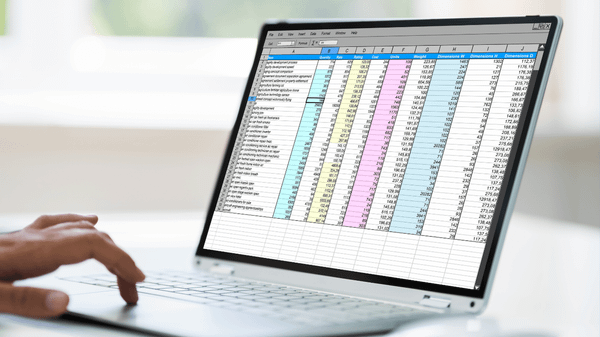
Opening a profile in a browser shows you posts, but it hides the data you actually want to work with. A Circleboom export lands as a CSV with 15 columns per tweet.
You get the full text, the post date, the permalink, and the engagement numbers: likes, replies, reposts, and quotes, lined up so you can sort and count them.
That structure is the whole point. Once the posts sit in rows, you can rank them by replies, filter for links, or isolate every tweet from one month.
The file arrives two ways at once, in your email and inside your account, so you are not stuck watching a browser tab finish.
When people want to download a user's full public timeline for real analysis, this columned format is why they pick an export over copy-paste. If your next step is reading patterns rather than raw rows, the notes on how to analyze someone's tweets pick up where the spreadsheet leaves off.
How to export all tweets from a user
The four steps below are exactly how to get all tweets from a user in a single download. Circleboom runs every export as an official X Enterprise Developer, so the data comes through sanctioned access and your own account never carries the risk that scraping tools invite.
- Log in to Circleboom and open your dashboard.

- Open Essential Toolbox and select Export Tweets.

- Enter the public handle you want, then set any filters that narrow the pull.
- Start the export and collect the CSV from your email or your account.
Because the file carries every column at once, one download replaces an afternoon of scrolling and copying by hand.
See a full timeline export run from handle to finished CSV:
The 3,200 tweet cap, and what to do when you hit it
The export stops at 3,200 tweets for a reason, and it is not a Circleboom limit. X's public timeline API returns at most the 3,200 most recent posts for any account, so no honest tool can pull more from a single timeline pass.
For most handles that covers months or years of posting.
For a heavy daily poster it might reach back only a few weeks.
When you need something older than that ceiling, switch methods. A keyword search reads a person's history by content instead of walking the timeline in order, so it can reach posts the export cannot.
Circleboom's Twitter advanced search is where that lives, and you can aim it at a single account with a date window.
The other move is to narrow by date first. If you already know the month you care about, filtering to it sidesteps the cap.
The rundown on how to find old tweets walks through the date-first approach in more detail.
Filter before you download, not after
Filtering inside Circleboom before the export runs saves you from cleaning a giant file later. Five filters stack on top of each other: date range, engagement level, post type, language, and keyword.
Set a date window and you get only that stretch. Ask for tweets above a reply count and the quiet posts drop out.
Choose a type and you separate originals from replies and reposts.
Pick a language and multilingual accounts get trimmed to the one you read.
The keyword filter is the one people forget. It exports only the posts where an account mentioned a product, a name, or a phrase, which turns a full-timeline dump into a focused set.
Sometimes you want the accounts, not the posts. Circleboom can export Twitter accounts as their own CSV, which pairs neatly with a tweet export when you are mapping who said what.
Public accounts, protected accounts, and deleted posts
Three account states decide what you can actually collect, so it helps to know them before you run anything. A public account is the easy case: its timeline is open, and the export reads it straight through.
A protected account is a hard stop. Its posts are visible only to approved followers, so there is no public timeline for any tool to read, and no sanctioned method changes that. If a handle shows a lock icon, the export has nothing to pull.
Deleted tweets are gone for both methods. Neither an export nor a keyword search resurrects a post the author removed, because the API no longer returns it.
What you can capture is everything still live at the moment you run the pull, which is exactly why people who track an account run their export on a steady rhythm rather than once.
When a keyword search beats a full export
A full export is the right tool when you want everything. It is the wrong tool when you want a slice.
Say you only care about what an account posted about one launch. Exporting 3,200 tweets and deleting 3,150 of them is slower than searching for the launch by name.
That is where content search earns its place. Historical Tweet Search takes a plain-language query and a date range, then returns the matching tweets plus a deduplicated list of the accounts that posted them.
You spend a token for each tweet you collect, and you can export either the posts or the profiles.
The choice is topic-first versus account-first. The steps on how to download someone's tweets show the search route beside the export route, so you can pick the one that fits your question.
Export versus keyword search, side by side
The two methods answer different questions, so the fastest way to choose is to name your question first.
If it starts with a who, the export wins. If it starts with a what, the search wins.
An export is account-first. You hand it a handle and get that account's recent timeline in full, capped at 3,200 posts, sorted however you like. It suits auditing one person, backing up a feed, or studying a single account's habits over months.
A keyword search is topic-first. You hand it words and a date range and get every matching post across accounts, plus the list of who posted them.
It suits tracking a phrase, mapping who talks about a product, or reaching posts older than the timeline cap.
Neither replaces the other. Plenty of people run both: an export for the deep read on one account, and a search for the wide read across a topic.
Reading the file once it lands
A finished CSV is only useful if you know which columns carry the answers. Start with the engagement columns, because they turn a wall of text into a ranking.
Sort by replies to find what started arguments, by reposts to find what spread, and by likes to find what quietly worked.
The date column is your second lever. Group posts by month and a pattern shows up fast: when the account went quiet, when it posted daily, and which stretch pulled the most reaction.
Pair the date and keyword columns and you can chart how often a handle mentioned a topic over a year.
The permalink column is the one to keep. It lets you jump back to any single tweet in context, which matters when a number looks strange and you want to read the thread around it rather than trust the row alone.
Mistakes that waste an export
A few habits turn a two-minute job into a redo:
- Exporting before filtering, then scrolling a 3,200-row file by hand.
- Expecting posts older than the timeline cap without switching to a keyword search.
- Pointing a tool at a protected account, which has no public timeline to read.
- Copying from the browser instead of downloading, which loses the engagement numbers.
- Forgetting the file also lands in your email, then re-running the whole export twice.
The fastest route
If you want one account's posting history in a form you can actually work with, an export is the shortest path. You name a public handle, you filter if you want, and Circleboom hands you a spreadsheet with the text and the engagement numbers already lined up, through sanctioned X access rather than scraping.
When you need older or topic-specific posts, a keyword search fills the gap the 3,200 cap leaves. Either way, you skip the scrolling. Ready to collect every tweet an account has posted?
→ Export a full X timeline to CSV
Frequently asked questions
Can you really get every tweet a user ever posted?
Not always every one. A timeline export reaches the 3,200 most recent posts, which is the maximum X's public API returns per account. For anything older, a keyword search by date can reach tweets the timeline export cannot.
Do you need the person's password or permission?
No. Both methods read only public posts through approved X access, so you never touch the account's login. A protected account is the exception, because it has no public timeline to export.
Is downloading someone's tweets allowed?
Yes, when the posts are public and the data comes through official X access rather than scraping. Circleboom pulls tweets on the same sanctioned API footing X grants approved partners, which keeps your own account clear.