Cancelling X Premium does not erase your saved posts, but it does switch off the folder organization you built on top of them. The bookmarks themselves stay in your account under All Bookmarks. The labeled folders that sorted them by topic stop working, because folders are a Premium feature, not a free one. So the curation you spent months building becomes the thing you lose first.
Your individual bookmarks survive a Premium cancellation, but the folder structure that organized them does not. Circleboom exports every saved post and its details from your X account into a structured file through secure, authorized access, so your organized layout survives the downgrade. The fix for twitter bookmark folders deleted cancel premium worries is to back up before the billing date.
→ back up your X bookmarks
Here is what changes the moment Premium lapses, and how to keep your organization.
What Actually Happens to Bookmark Folders After You Cancel
Bookmark folders are tied to your X Premium subscription, so the organization layer is the part you lose. According to X's own bookmarks help page, saving a post to a general bookmark list is available to everyone, while organizing those saves into labeled folders is a Premium capability. When Premium ends, the labeled-folder system you relied on is no longer available to manage.
The posts do not vanish. Every bookmark you saved stays in your account, and X keeps a copy of each one in the default All Bookmarks view regardless of subscription status. What you lose is the ability to see and sort them by the categories you created. A research stack of 600 saved posts that was neatly split into "client examples," "data sources," and "draft ideas" collapses back into one long, undivided scroll.
That distinction matters because the value of bookmarks at scale is the organization, not the raw saves. A flat list of 600 posts in save-date order is technically intact and practically unusable. You cannot filter it by topic, you cannot jump to the right category, and the only way to find one specific post is to scroll. The folder layer was what made the archive a reference system, and that layer is exactly what a cancellation removes.
This is why the smart move is to save your X bookmarks before the downgrade rather than after. While Premium is still active, you can capture both the posts and the details that let you rebuild the categories outside X.
X has not always documented the lapse behavior in fine detail, and users on the platform have asked directly what happens to pre-made folders after Premium expires. The safe reading, and the one X's About X Premium page supports, is that Premium features expire at the end of your billing cycle.
So if your folder organization is load-bearing for how you work, the move is to preserve it before that date rather than test the edge case live. If you want to keep that organized structure, you can Export Twitter Bookmarks to a file you own, which is the only reliable way to save the layout.
Why You Cannot Just Re-Sort Later
The folder labels themselves are not exported by X, so re-sorting after a cancellation means rebuilding from memory. This is the part most people miss when they assume "the bookmarks are still there" means "nothing is lost." The saves are there. The map that told you which save belonged to which project is not, and X provides no native export for either the bookmarks or the folder structure on top of them.
That gap is the real cost. You can resubscribe to Premium and get folder functionality back, but X does not restore your old folder assignments. Resubscribing gives you empty folders and a flat pile of saves, then asks you to re-categorize hundreds of posts by hand. For anyone using bookmarks as a working research library, that is hours of manual sorting to recover organization that already existed.
Here is the information most "what happens when Premium ends" articles skip: the only way to preserve your hand-built organization across a cancellation is to capture it in a portable format while folders still work. Circleboom downloads every saved post from your X account, with author, full text, date, and engagement details, into a structured file you control.
You can recreate your topic groups in a spreadsheet, a notes app, or any research tool, and that structure no longer depends on a subscription you might pause. Once that file exists, you can even use Delete Twitter Bookmarks to reset the in-app list to a clean state, because nothing is lost.
The point of running the bookmark backup before you cancel Premium is to make the cancellation a non-event for your research.
See it live: how a full X bookmark archive opens into a sortable file you can re-organize after Premium ends.
There is a deeper reason this matters for anyone who treats X as a research feed. Saved posts are quiet capital. The threads you bookmarked are sources for your next article, the data points you flagged are evidence for a pitch, and the competitor examples you filed away are reference for strategy.
Folders made that capital findable. Losing the folder layer does not destroy the capital, but it buries it, and buried research is functionally the same as lost research. Backing up first keeps it both safe and usable.
How to Back Up Twitter Bookmark Folders Before You Cancel Premium
Exporting your bookmarks before the billing date is a short process, and it preserves both the saved posts and the data you need to rebuild your folders. The flow runs in four steps from login to file, and it works while your folders are still active, which is exactly the window you want to use.
Log in and connect your X account
- Log in to Circleboom Twitter and connect your X account with official OAuth. The connection is secure and read-authorized, so Circleboom can retrieve your bookmark list without touching your password.

Open the bookmarks tool from Essential Toolbox
- Navigate to the bookmarks manager inside the Essential Toolbox menu, where the export and cleanup tools for your saved posts live together.
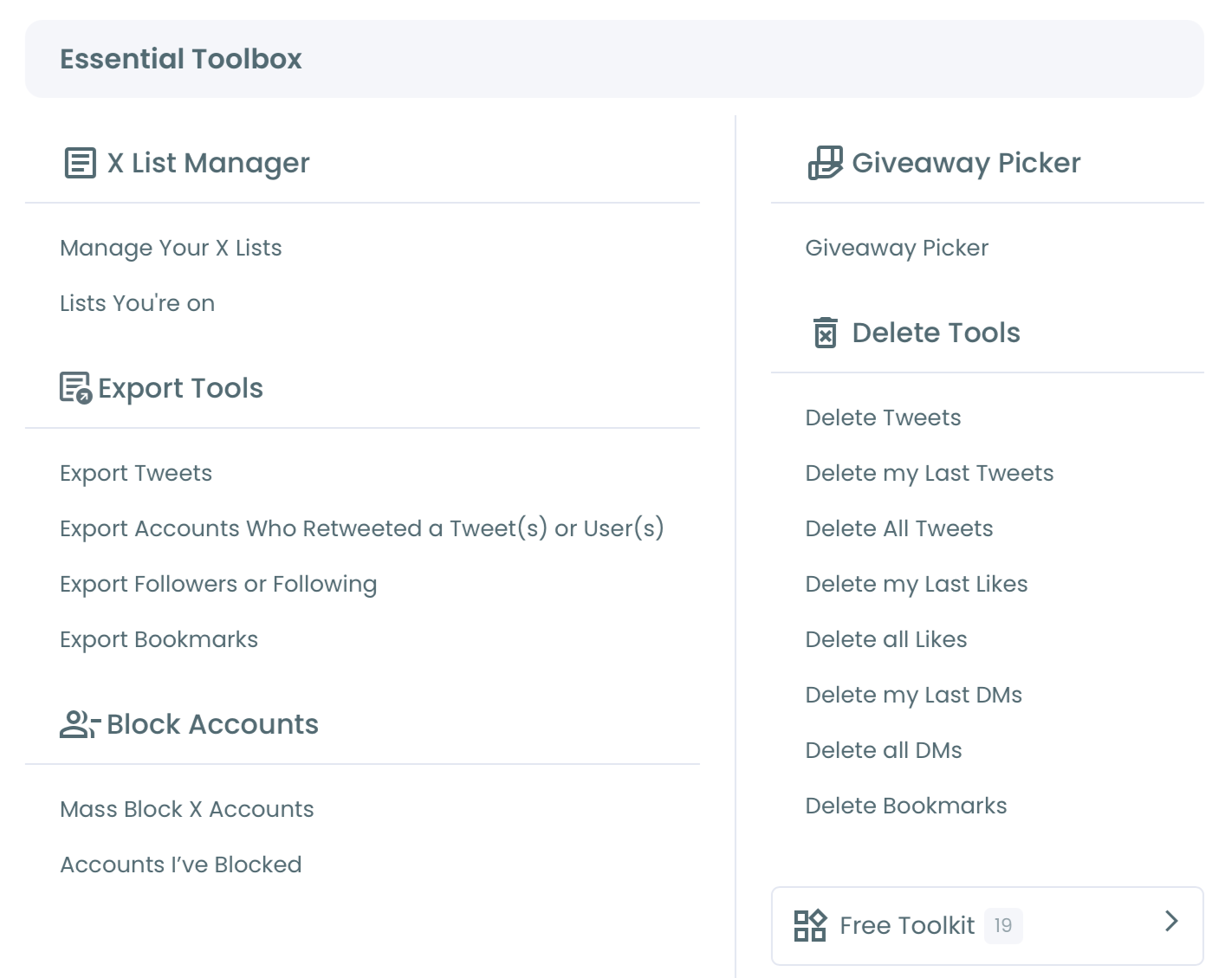
- Sync your X data using the "Sync My X Data for fresh insights" option so the bookmark list reflects every post saved right up to today, including anything you filed in the last few days.
Filter and export your saved posts
- Select the bookmarks and export the file. All bookmarks are pre-selected by default, so you can export the full collection at once, or apply the filter panel to narrow by date, keyword, author, or engagement before you confirm. Click Export and Circleboom builds a structured CSV with each saved post on its own row.
Backing up at this point means your organization is no longer hostage to a subscription, because the export captures the content and the metadata you need to rebuild every topic group by hand or by filter.
To recap the order:
- Log in and connect your X account through official OAuth.
- Open the bookmarks manager inside Essential Toolbox.
- Sync your X data so the list is current.
- Filter if needed, then export the full collection to CSV.
Circleboom uses official X (Twitter) Enterprise APIs to pull this data, so the export is complete and gathered the safe way, with no scraping and no suspension risk on your account. That matters most on a backup you intend to rely on later: the file holds the real, full record of what you saved, retrieved through authorized access rather than a workaround.
What You Keep After the Backup
A clean export turns a Premium-dependent folder system into an archive you own outright. Once the file exists, cancelling Premium stops being a loss event.
Your saved posts already live in a portable format, your old folder categories can be rebuilt as columns or tags, and the in-app scroll going flat no longer costs you the structure you built. You also gain something the in-app view never offered: a searchable, filterable copy you can open in any spreadsheet, sort by author, group by topic, or feed into a research tool.
It is worth knowing how this compares to the manual route. X gives you no native bookmark export and no way to download your folder structure, so the manual alternative is screenshotting folders or copying links one at a time before the billing date, which nobody finishes for a real archive. Pulling the whole collection into one file in a few clicks is the difference between keeping your research and watching it dissolve into an undivided list.
If your collection is also bumping the cap, our guide to the Twitter bookmarks limit explains why exporting and resetting keeps you under it.
If you are still weighing the renewal, the breakdown of whether Twitter Premium is worth it puts the folder feature in context against the rest of the plan.
The point is simple. The bookmarks survive a cancellation on their own. The organization does not, and there is no native export to recover it, which makes a backup the one action that keeps your hand-built structure intact. Decide before the billing date, not after.
Your Next Move Before the Billing Date
Run the export before your Premium term ends, and the folder question stops being a risk. Here is the short checklist to keep your saved posts and your organization both intact:
- Check your renewal date and give yourself a day of buffer before it.
- Sync your X data so the export captures every recent save.
- Export the full collection to CSV while folders are still active.
- Recreate your topic groups in a spreadsheet or notes app from the file.
Do that, and a Premium downgrade becomes a billing decision instead of a data loss. To compare your options, see our roundup of the best Twitter bookmark managers.
If your saved posts are heavy on visuals, the walkthrough on how to download all media from Twitter bookmarks covers keeping the images too. When you are ready, the fastest way to back up your X bookmarks before you cancel is right here.
→ export your Twitter bookmarks
Common Questions About Bookmark Folders and Premium
Do my Twitter bookmarks get deleted when I cancel X Premium?
No, your individual bookmarks are not deleted when you cancel X Premium. The saved posts remain in your account and stay accessible in the default All Bookmarks view. What you lose is the labeled folder organization, since folders are a Premium feature.
Why do bookmark folders stop working after Premium ends?
Bookmark folders stop working because organizing bookmarks into labeled folders is a paid X Premium capability, while saving posts to a general list is free for everyone. When your Premium term expires, the folder management layer is no longer available, even though the underlying saves persist.
Can I get my old folders back if I resubscribe to Premium?
Resubscribing restores folder functionality, but X does not restore your previous folder assignments. You get empty folders and a flat list of saves, then have to re-categorize each post by hand, which is why exporting before you cancel saves hours of rebuilding.
How do I keep my bookmark organization before cancelling?
Export your bookmarks to a structured file while folders still work. Circleboom retrieves every saved post with its author, text, date, and engagement details, so you can rebuild your topic groups outside X in a spreadsheet or notes app that does not depend on a subscription.
Is exporting my X bookmarks safe for my account?
Yes, exporting through Circleboom is safe because it retrieves your bookmark data via official, authorized X access rather than scraping. Your account stays compliant with X's rules, your password is never shared, and there is no suspension risk from pulling your own saved posts.