

Hashtags aren't the growth hack they were back in 2019, but they're still one of the fastest ways to find a live conversation on X (formerly Twitter).
A hashtag groups tweets around a single topic, event, or community, and the # sign is still the easiest way to jump into that topic without knowing who's talking about it.
Why Follow a Hashtag on X?
X is a massive, constantly updating data source, and hashtags are the checkpoints that organize it. When you track a hashtag, you can see every tweet posted under it, past and present, even from accounts you don't follow. That makes hashtag tracking useful for more than just scrolling: it's a way to monitor a market, watch a competitor, follow a live event, or run a sentiment check on how people are talking about a topic right now.
Can You Follow a Hashtag on X?
Yes. X doesn't offer a "follow this hashtag" button the way it lets you follow an account, but you can effectively track a hashtag two ways: through X's own search tools, or through a dedicated hashtag tracking tool like Circleboom that adds filtering, history, and export on top of what X gives you natively.
Below are both methods. Pick the one that fits what you're trying to do.
Method 1: X's Native Advanced Search
X has a built-in advanced search you can use to track hashtags and keywords without any extra tools.
- Type the hashtag into X's search bar and hit enter. You'll get a live feed of tweets using that hashtag, sorted by "Top" or "Latest."
- Click the three dots next to the search bar for more options, then select Advanced Search.
- From there, you can narrow results with filters for exact phrases, accounts, dates, and engagement.

This works fine for a quick check on a trending topic, but it has real limits. You can't set a precise historical date range, you can't pull the accounts behind the tweets into a structured list, and reconstructing what a hashtag looked like weeks or months ago is close to impossible through the native interface.
Method 2: Track Hashtags with Circleboom's Advanced X Search
If you want to monitor a hashtag properly (not just glance at it), Circleboom's Advanced X Search gives you two tools built exactly for this: Historical Tweet Search and Real-time Tweet Search. Both let you filter by hashtag, choose a time window, and turn the matching tweets into a structured, exportable list of the accounts behind them.
Circleboom operates as an official X Enterprise Developer, so your account stays fully within X's API rules when you connect it.

Step 1: Log into Circleboom. If you're new, account setup takes about five seconds. Existing users just log in as usual.

Step 2: Choose Historical or Real-time Tweet Search. From the dashboard, go to Advanced X Search. If you want to catch a hashtag as it's being posted right now (a live event, a launch, a breaking story), pick Real-time Tweet Search. If you want to look back at how a hashtag was used over the past 30, 60, 90 days, a year, or a custom range, pick Historical Tweet Search.

Step 3: Enter the hashtag and set your filters. Describe your search in plain language, then use the Hashtags filter to lock the search to your specific tag. You can further narrow results by language, whether to include replies or links, engagement thresholds (likes, retweets, impressions), and verified-only accounts. Circleboom also suggests AI-refined search variations as you type.

Step 4: Set your date range. For Historical Tweet Search, choose Last 30 Days, 60 Days, 90 Days, 1 Year, or a custom window. For Real-time Tweet Search, pick a start point (Last 24 Hours, 7 Days, 30 Days, or custom), and the tool keeps collecting matching tweets forward from that moment.
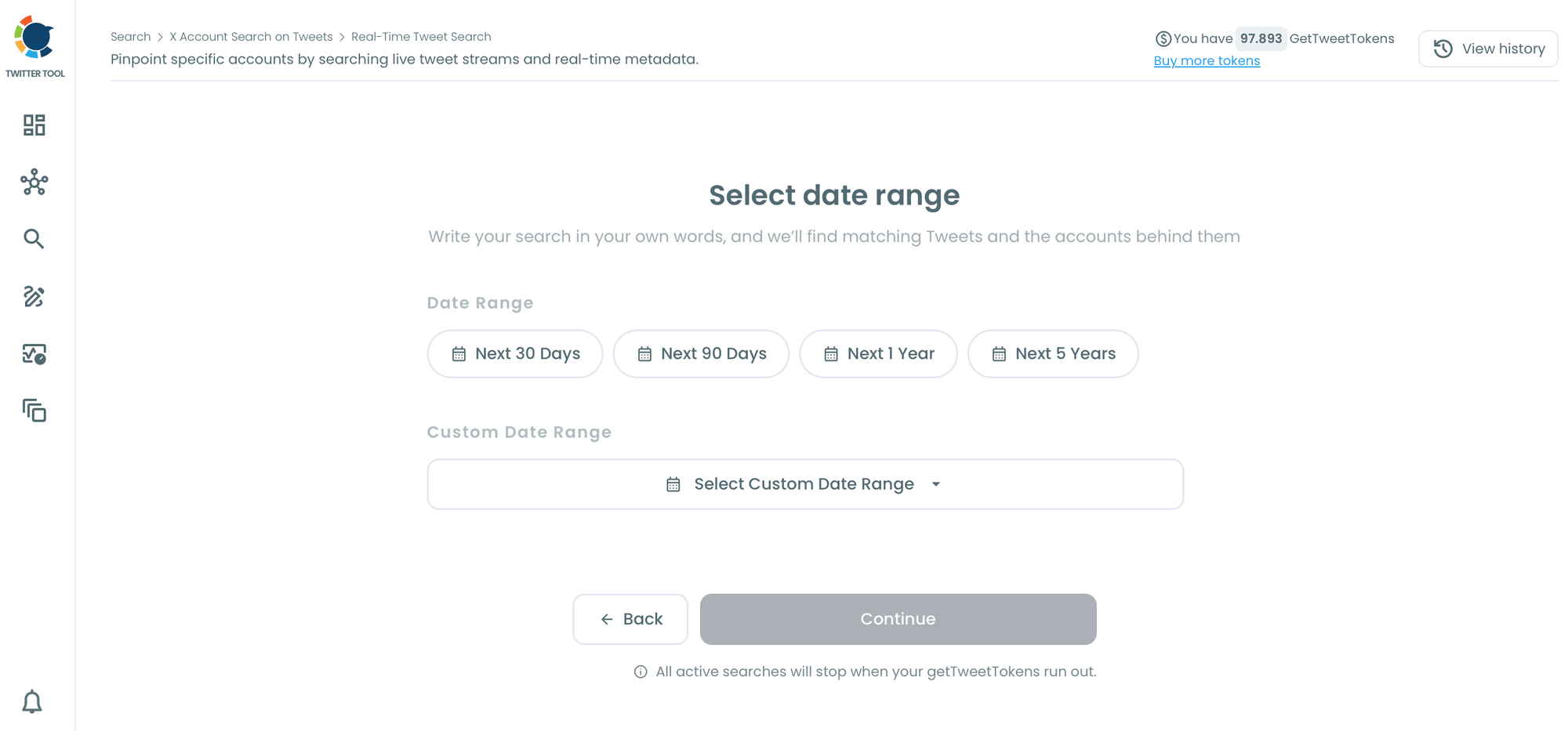
Step 5: Set how many tweets to collect. This controls how much data the search pulls in. Collection consumes GetTweetTokens from your balance, shown before and during the search.

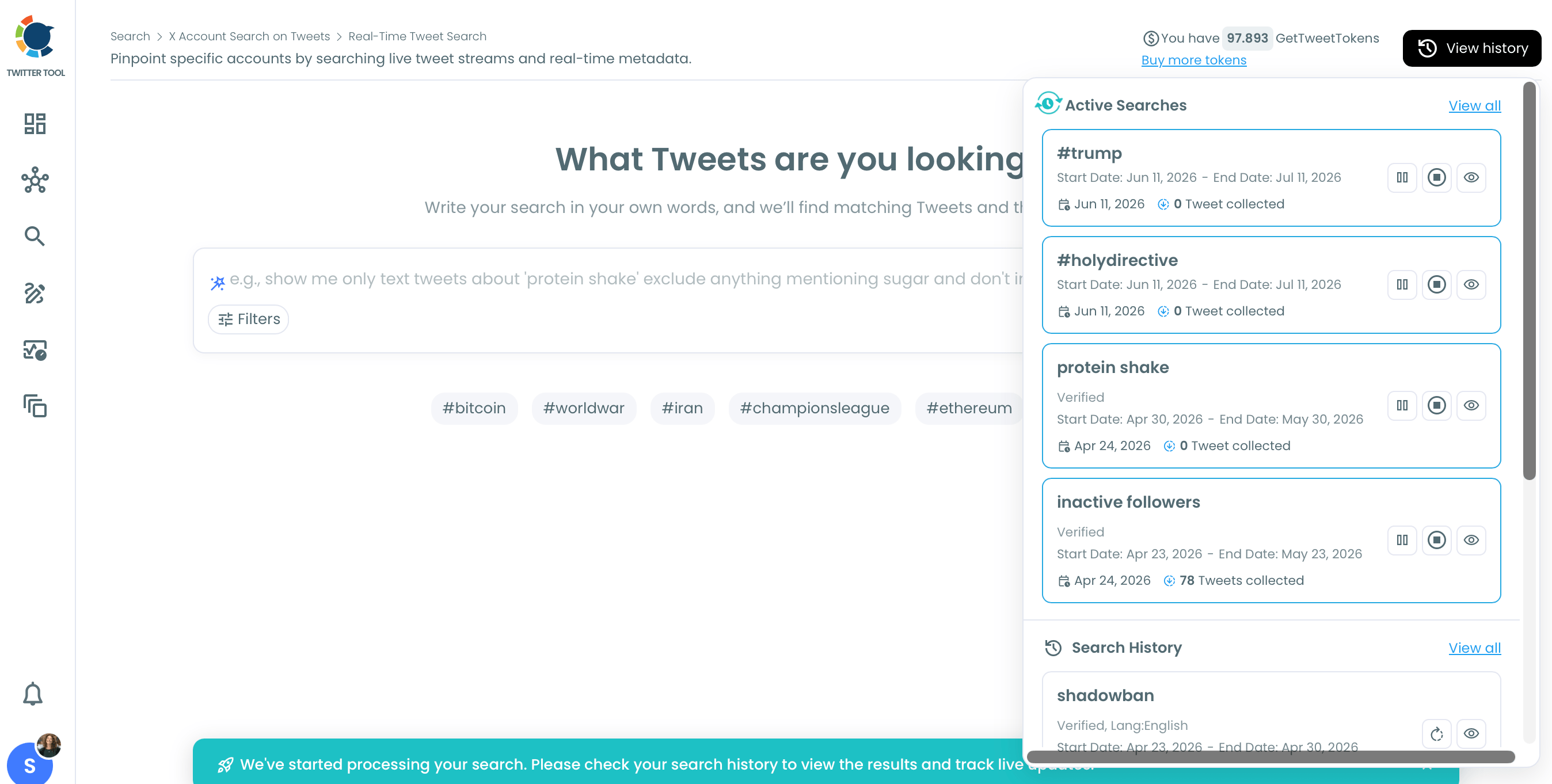
Step 6: Review your results. Results come in two views you can switch between: the Tweet View, showing the matching posts themselves with impressions, likes, retweets, quotes, bookmarks, replies, and timestamps, and the Profile View, a deduplicated list of every unique account that posted under the hashtag. From the Profile View, you can follow accounts individually or in bulk, add them to a Twitter List, export the whole set as CSV, or use Auto Follow from matching keyword to automatically follow accounts posting under the hashtag going forward.
Tips for Tracking Hashtags Effectively
- Use engagement minimums and exclude terms to cut noise out of broad or trending hashtags before you act on the results.
- Review profiles before using Auto Follow. A hashtag match doesn't automatically mean the account is relevant, active, or the right fit for your list.
- Combine Historical and Real-time search: use Real-time to catch what's happening now, then use Historical to check whether the same hashtag has spiked before.
- Export your profile results for outreach lists, competitor research, or reporting before revisiting the search later (search logs let you come back without spending more tokens).
Final Words
X's native advanced search is enough for a casual check on what a hashtag is doing right now. If you want to actually track it over time, filter out the noise, and turn the accounts behind it into something actionable, Historical and Real-time Tweet Search in Circleboom's Advanced X Search do that work for you.
To go a step further, use the Hashtags filter alongside Circleboom's broader Advanced X Search to discover accounts with similar interests, check bios and tweet history, and follow the trends that matter to you on X.
%20in%202026%3A%202%20Simple%20Methods)
