
Tweet-style posts perform surprisingly well on Instagram.
Short opinions, sharp one-liners, and conversational texts feel natural in the feed. People stop, read, and often share them to Stories. That’s why I regularly turn my thoughts and opinions into tweet-looking visuals and post them on Instagram.
The problem is simple: Instagram is visual-first, tweets are not.
You can’t just paste text into the feed, and screenshots usually look messy, low-quality, or poorly sized.
Over time, I ended up using two different approaches, depending on whether Twitter is part of the workflow or not.
How you create that image depends on whether you use Twitter actively.
Option #1: Create a Fake Tweet Image (Best for Non-Twitter Users)
This option is ideal if you don’t actively use Twitter/X but still want tweet-style content on Instagram.
You might be:
- Posting quotes or opinions
- Running a meme or text-based page
- Creating visual content without tweeting it publicly
In that case, the fastest solution is a fake tweet image.
The Tool: Circleboom Fake Tweet Generator
For this, I use Circleboom’s Fake Tweet Generator.
 infocircleboom.com
It’s a free tool, and that’s not a “free with limits” situation: no login required, no pop-up ads, no watermarks, no distractions.
You simply create your tweet-style image and download it.
The tool lets you:
🟢 Write any tweet text you want
🟢 Set a profile name, username, and photo
🟢 Adjust the layout to look like a real tweet
🟢 Download the image instantly
This is meant for design and content purposes: quotes, opinions, mockups, not impersonation or misinformation.
Step-by-Step: How to Create a Fake Tweet Image for Instagram
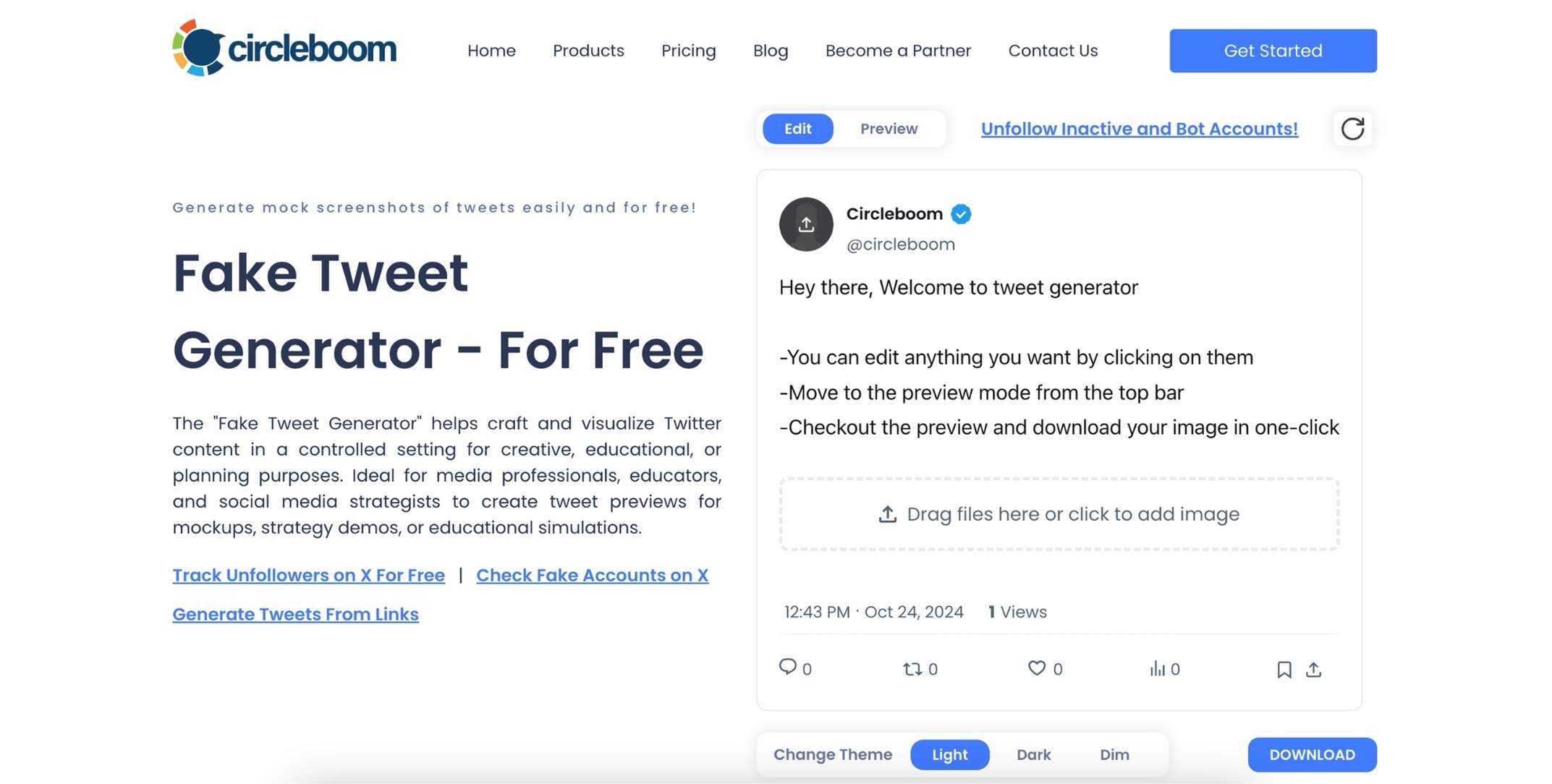
Step #1: Go to Circleboom Fake Tweet Generator
Head over to the Circleboom Fake Tweet Generator. You’ll be greeted by a simple and intuitive interface where you can start customizing your fake tweet.
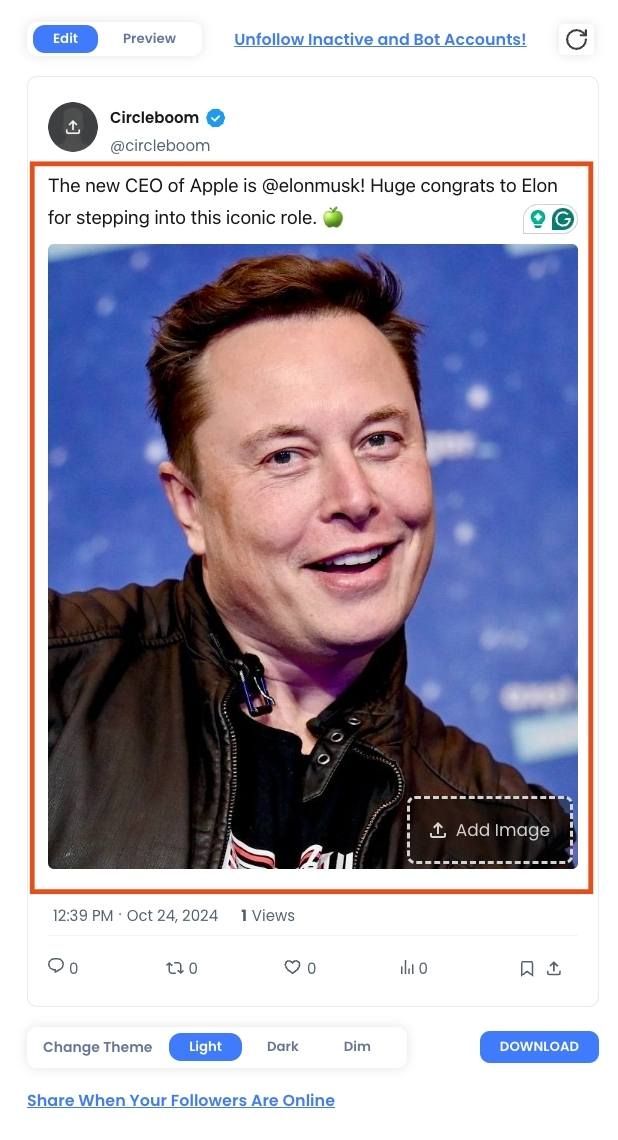
Step #2: Enter Your Tweet Text
Type the text of your fake tweet. You can add emojis, hashtags, or even @ mentions to make it more realistic. Think about the message you want to send and make it as creative or funny as you like.
Step #3:: Customize the Profile Details
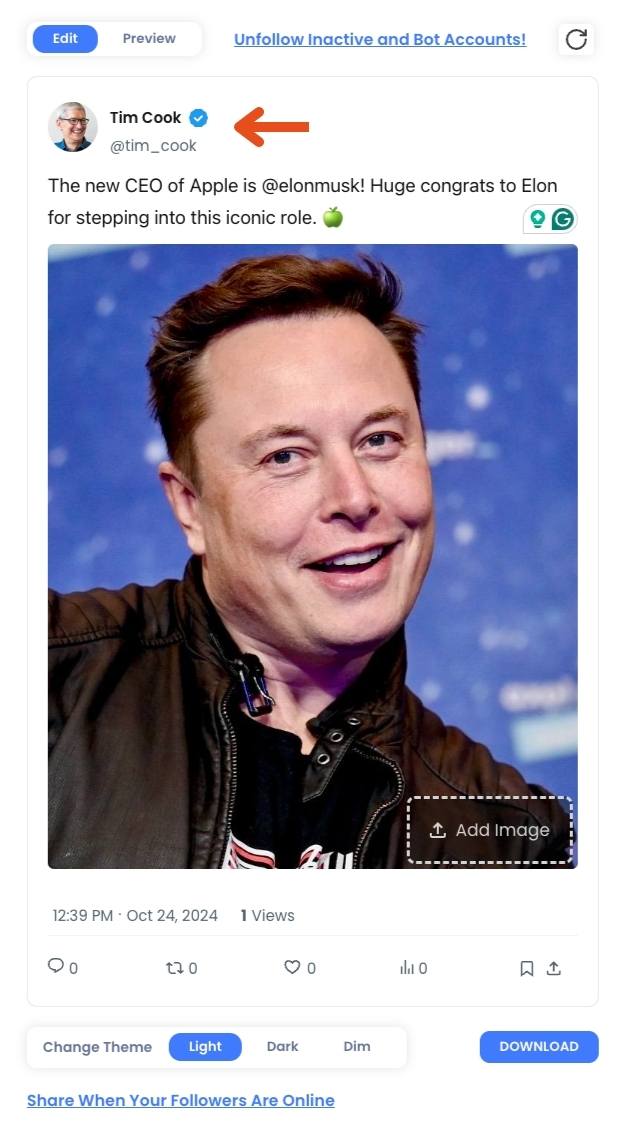
Now, you can customize the profile picture, username, and Twitter handle of your fake tweet. If you're creating a tweet for a well-known figure or brand, you can upload their profile image and add their official Twitter handle to make it look authentic.
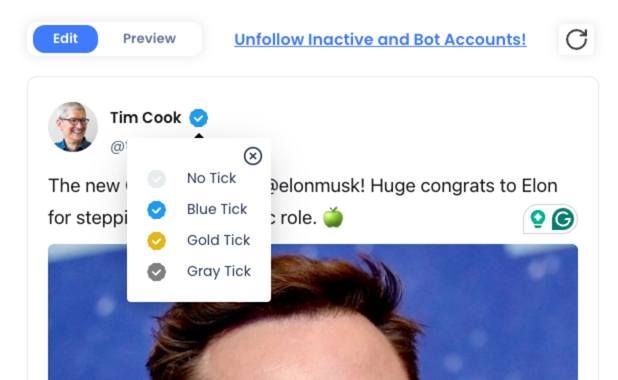
Step #4: : Choose Your Verification Badge
Circleboom lets you choose between a blue, gold, or grey verification checkmark. This feature allows you to mimic tweets from verified accounts, businesses, or government entities.
Step #5: Add Engagement Stats
Want your fake tweet to look viral? You can easily add likes, retweets, and views to the tweet. Just type in the numbers you want, and they’ll appear on the image, making your tweet look like it’s been seen by thousands of people.
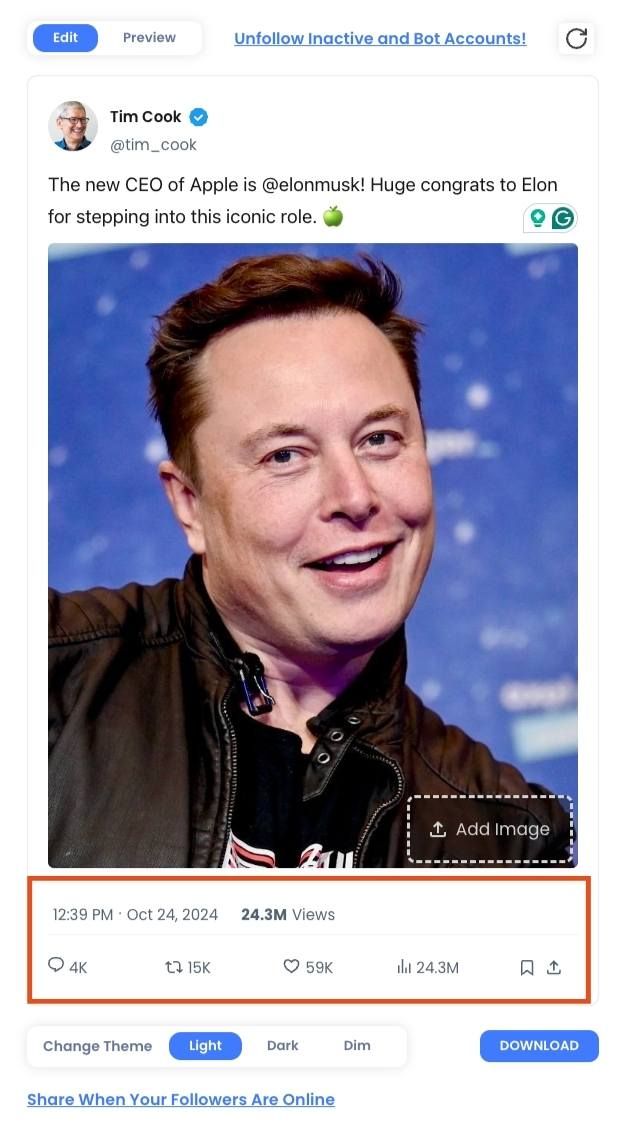
Step #6: Preview Your Fake Tweet
Once you’ve filled out all the details, click on the preview button to see how your fake tweet looks. This step allows you to review and make any last-minute changes before finalizing the tweet.
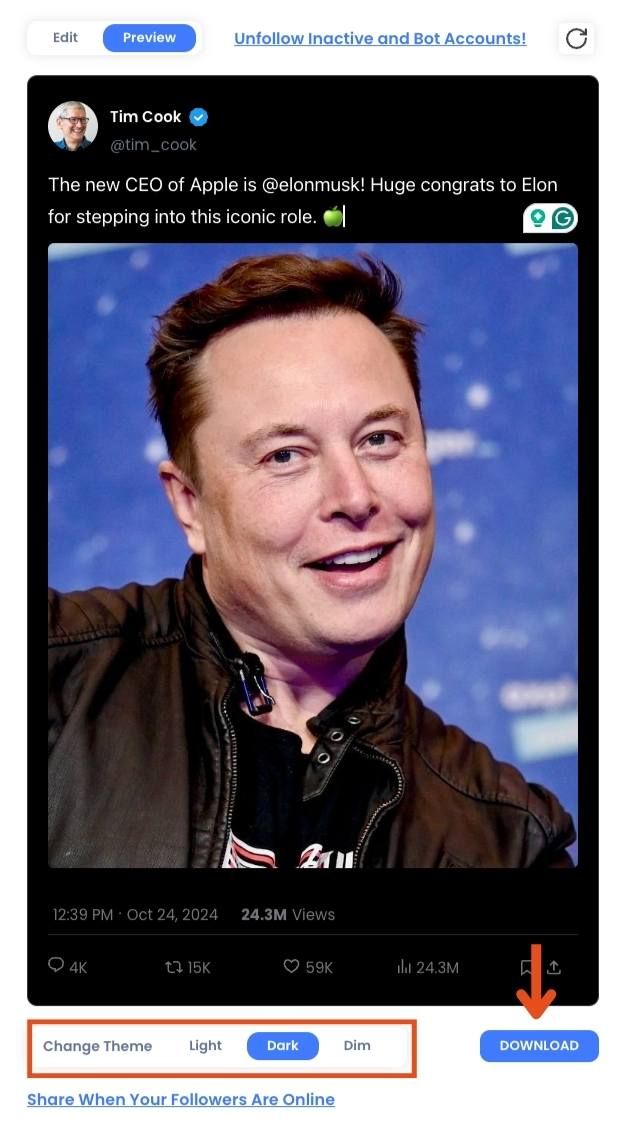
When you’re happy with your creation, simply download the image to your device or share it directly on social media. The download is quick, and you’ll have your customized fake tweet ready to go in seconds!
Here is the result:

If you need help, you can watch our video guide on how to create fake tweets! ⬇️
Option #2: Auto-Share Real Tweets to Instagram (Best for Active Twitter Users)
If Twitter/X is already part of your daily workflow, creating “fake” tweets doesn’t make much sense. There’s a more efficient and cleaner way to do this, by using your real tweets and letting them travel across platforms automatically.
That’s exactly where Circleboom Twitter fits in.

Instead of writing the same idea twice or turning to screenshots, you create your tweet once and let Circleboom handle everything that comes after.
The tweet is published on X, then automatically transformed into an Instagram-ready visual and shared on your Instagram account, without any extra steps.
Why This Works Better for Active Twitter Users
Circleboom Twitter is an official X Enterprise Developer, which means it works directly with X’s API and follows platform-approved workflows. This makes posting, scheduling, and cross-posting safe, stable, and reliable.
At the center of this workflow is the X Post Planner. It allows you to:
➡️ Write and format tweets in one place
➡️ Use built-in tools (AI writer, styling options, visuals if needed)
➡️ Schedule tweets in advance
➡️ Prepare posts for cross-post on multiple platforms at the same time
Once Instagram is connected, Circleboom takes care of the rest automatically. Your tweet is:
✅ Converted into a clean, tweet-style image
✅ Adapted to Instagram’s visual formats
✅ Shared as an Instagram Post, Story, or Reel, depending on your choice
There’s no need for screenshots, resizing, or switching between apps. What used to be a multi-step manual process becomes a single action inside one dashboard.
For creators who tweet regularly, this isn’t just faster, it’s a completely different way of working. You focus on writing better tweets, and Circleboom handles the distribution.
Step-by-Step: How to Turn Tweets into Instagram Posts Automatically
Step #1: First, log in to your Circleboom Twitter account.
If you don't have an account yet, you can create one in seconds!

Step #2: On the Circleboom Twitter dashboard, navigate to the left menu.
First, find the “Post Management & Analytics” and then click on “Write and Plan Your Post”.

Step #3: Write your tweet. Circleboom’s AI options can generate tweets for you automatically.
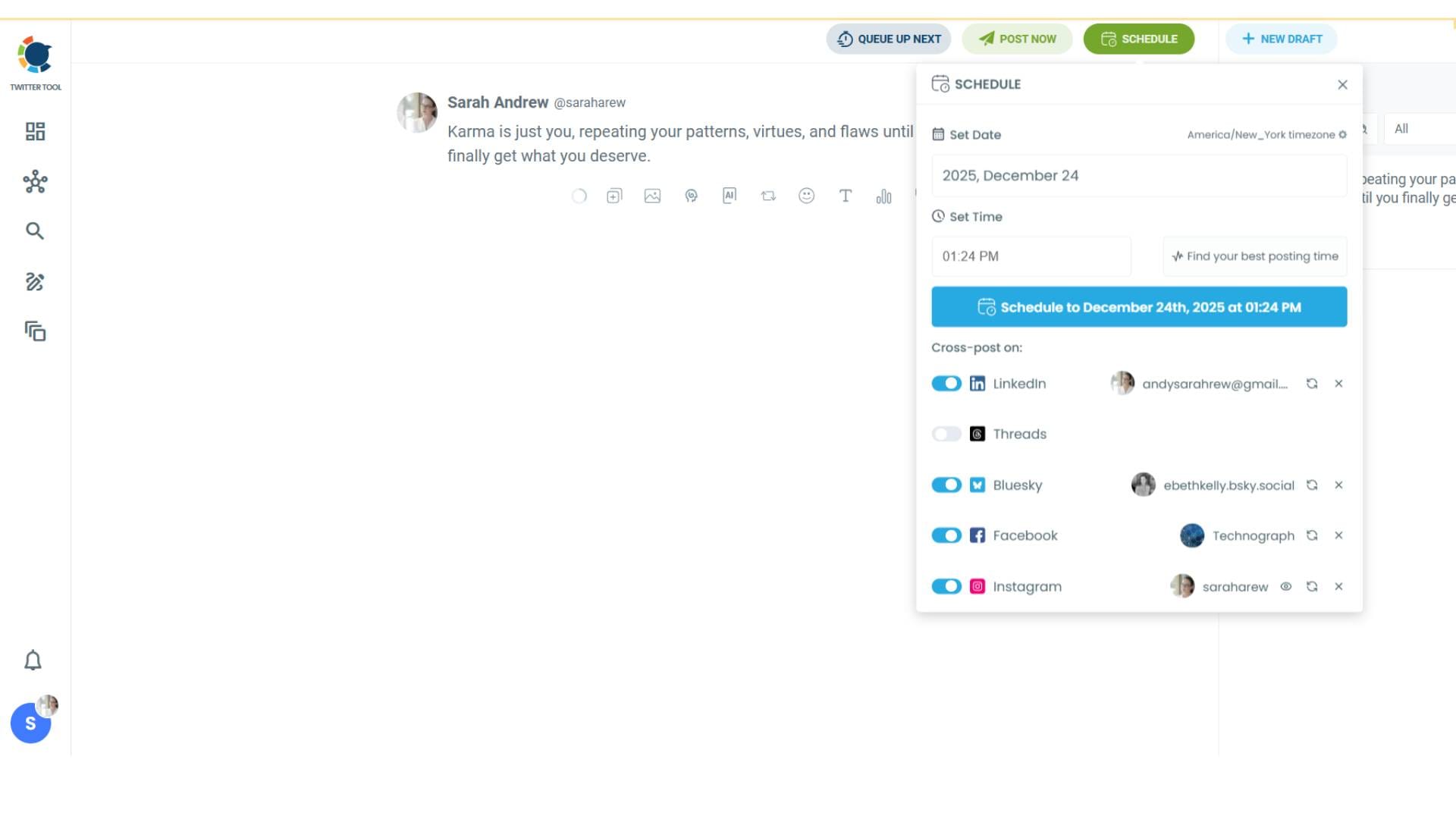
When it is ready, you can “Post” or “Schedule” your tweet. To see your cross-posting options, you should click on one of them.
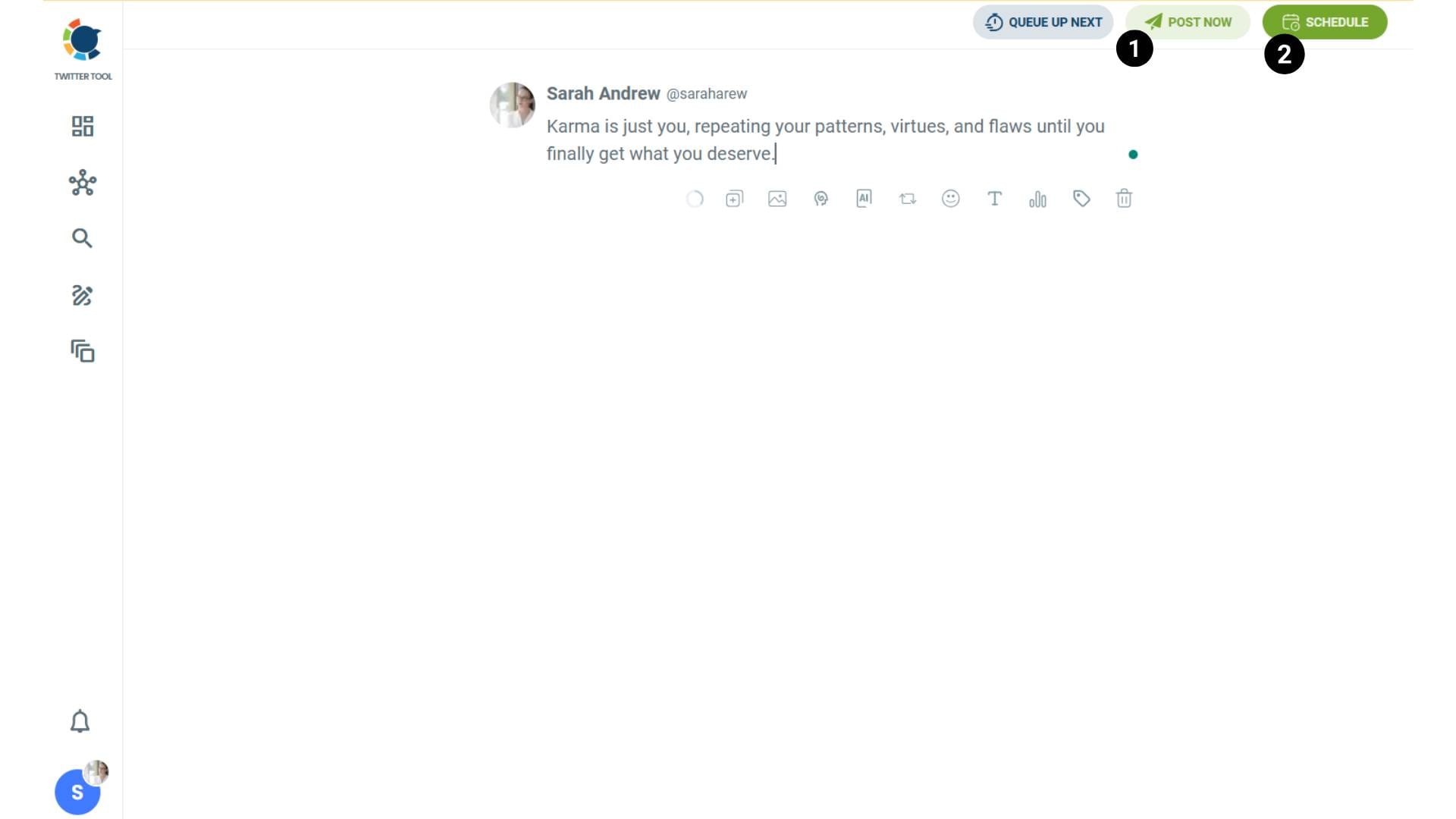
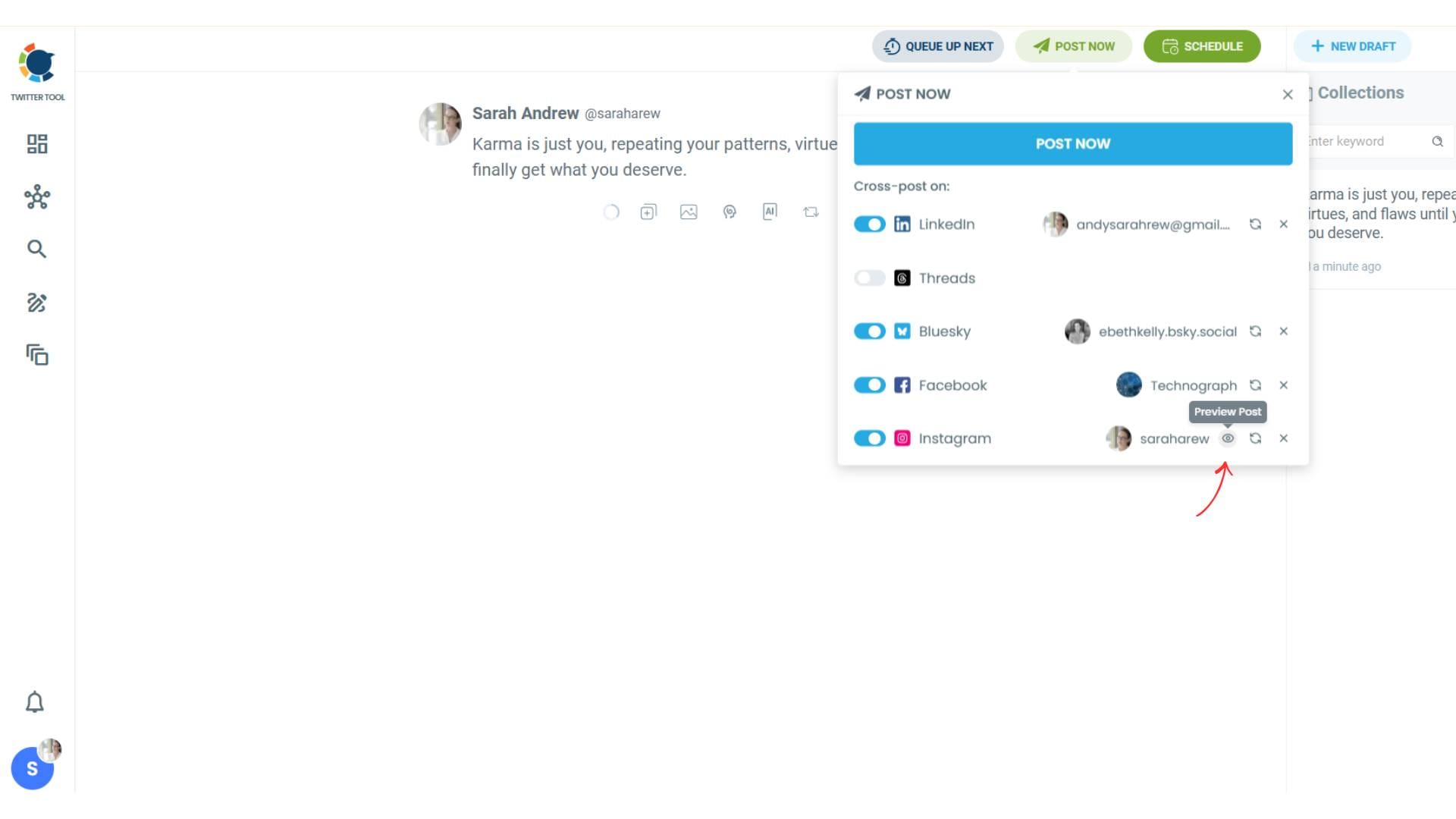
Step #4: You will see your connected platforms. You can cross-post your tweets to these accounts automatically.
You can share tweets on LinkedIn, Facebook, Threads, Bluesky, and finally, Instagram!
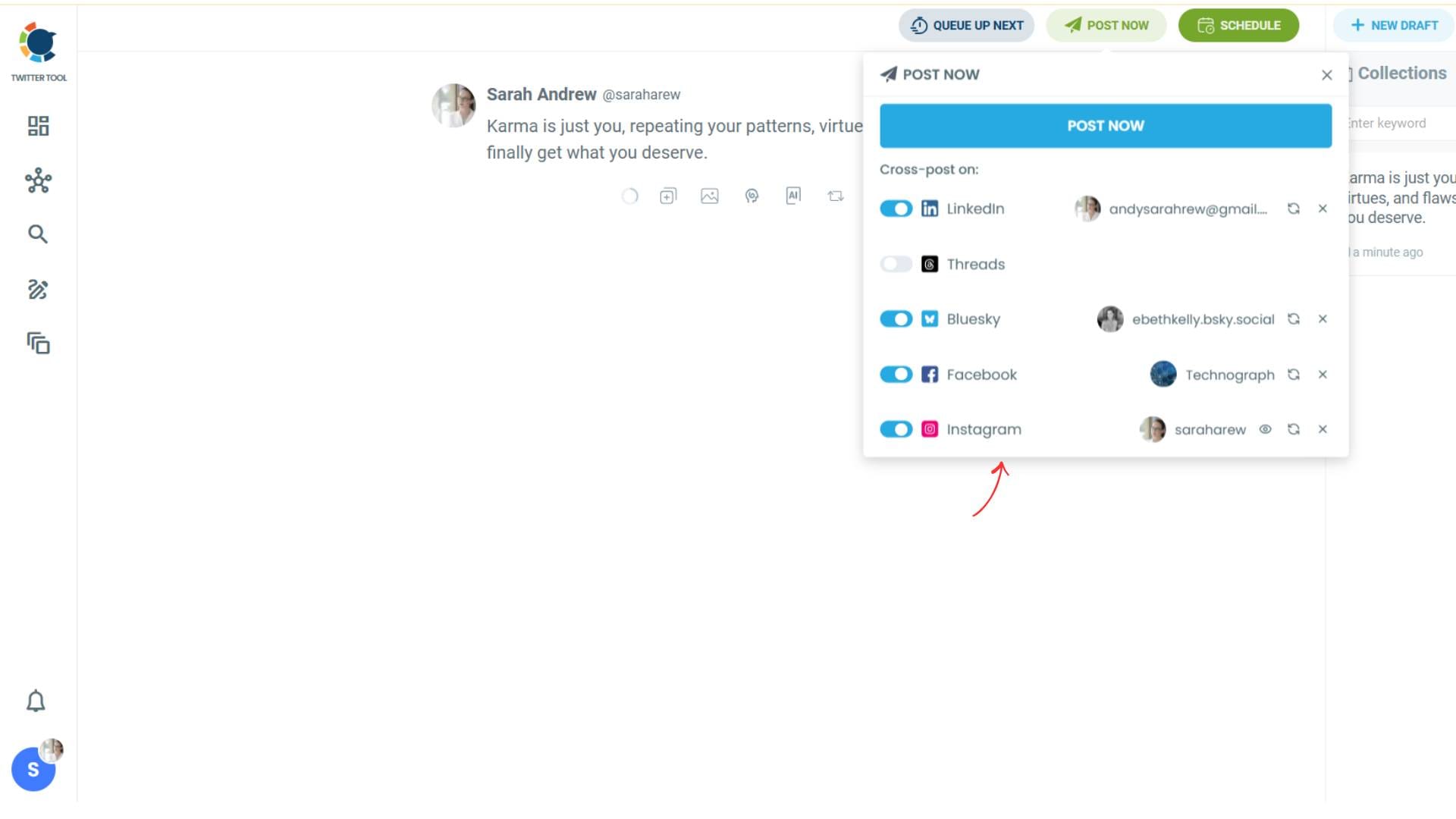
To decide if it is going to be a standard Instagram post or Story or Reels, and decide layouts and colours, click on “Preview”.
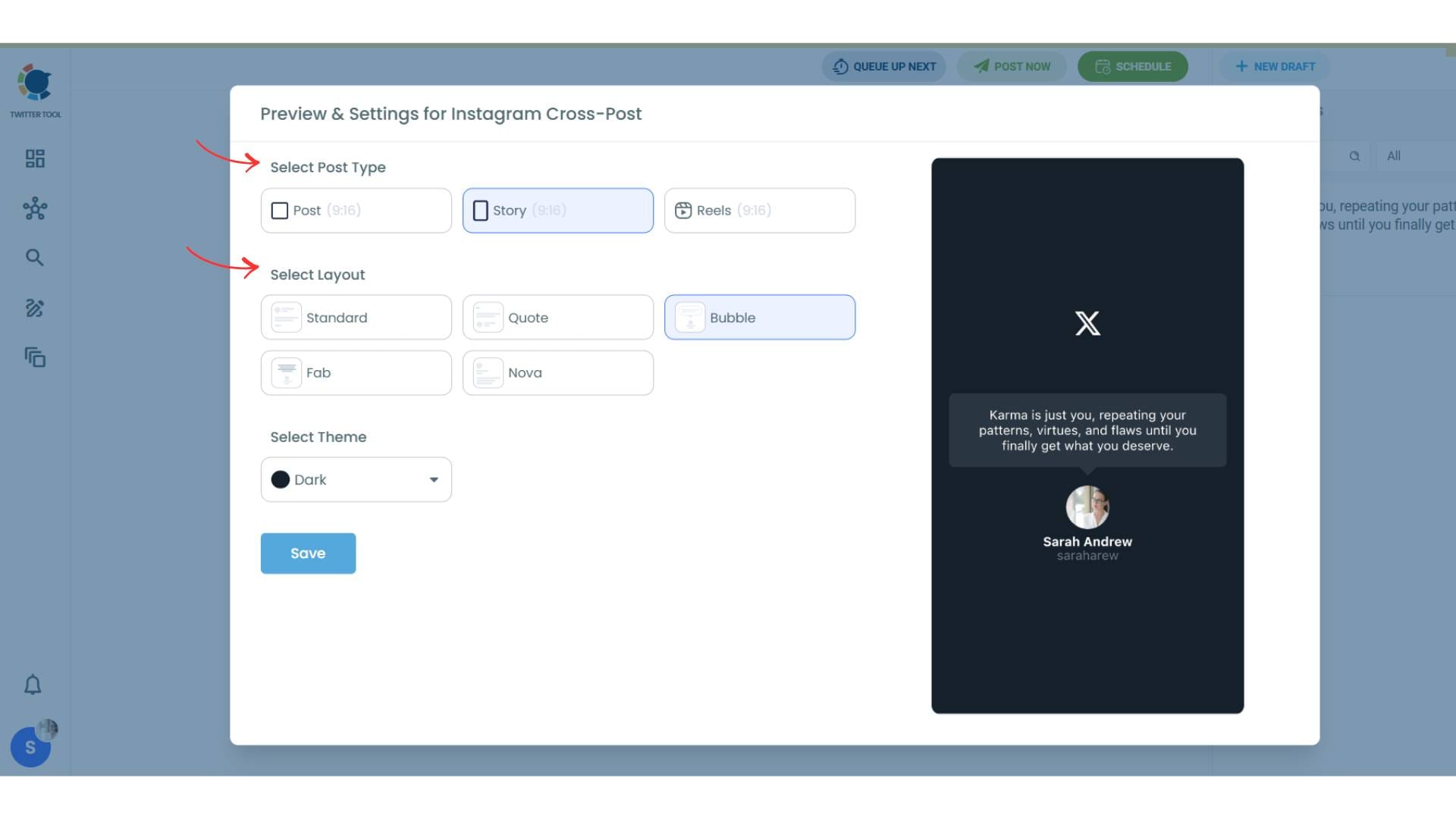
Step #5: Here you can select Instagram post type: “Post”, “Story”, and “Reels”.
You can also select the post layout.
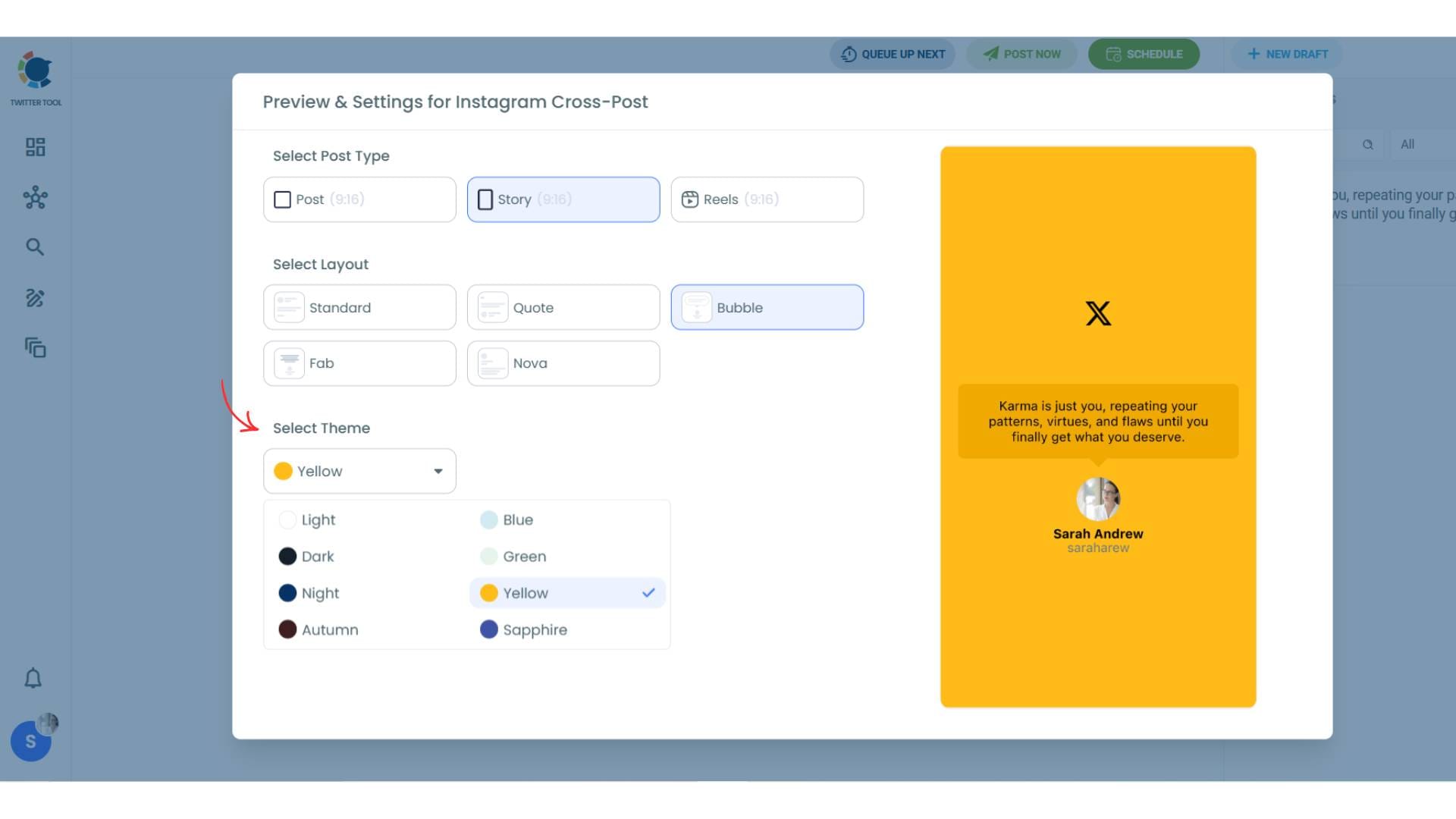
You can also select different themes. Share your tweet on Instagram with different colors.
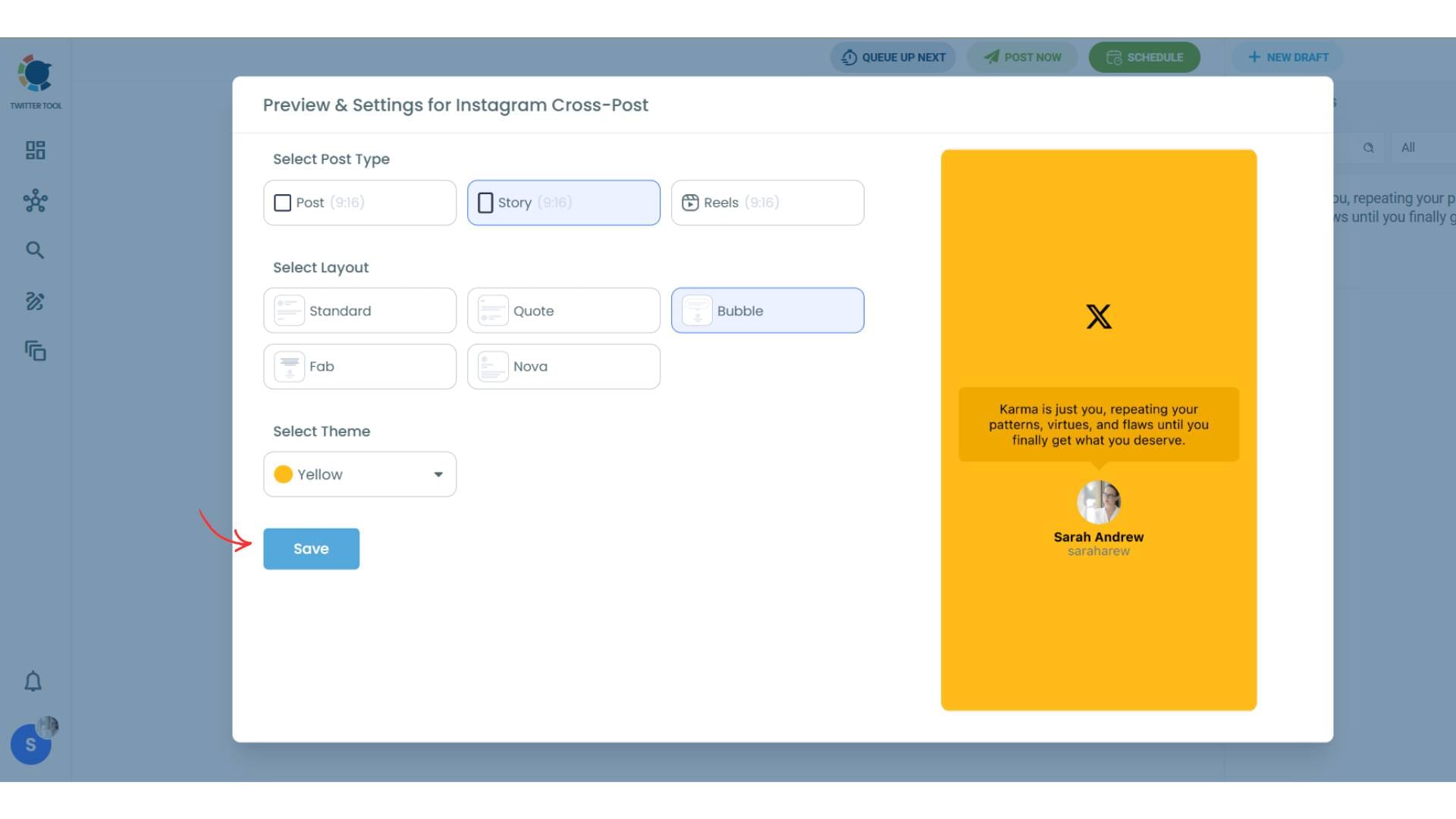
Lastly, you should click on “Save” and your Instagram cross-post is ready.
Step #6: When all is set, you can share your cross post immediately or schedule it for a later time.
You can select the day and hour and click to share your tweet!
You can get more impressions and engagement for your tweets on Instagram. Don't limit yourself to Twitter (X).
Share your tweets on Instagram to reach a wider audience.

If you need help, you can watch our video guide on how to sahre your tweets as Instagram posts ⬇️
Which Option Should You Choose?
Choose Fake Tweet Generator if:
- You don’t use Twitter
- You just want tweet-style visuals
- You need fast, clean images
Choose Circleboom Twitter if:
- You actively tweet
- You want automation
- You want one workflow for X + Instagram
Both approaches work; the difference is whether Twitter is part of your content strategy.
Best Practices for Tweet-Style Instagram Posts
- Keep text short and focused
- One clear idea per post
- Strong first line matters more than design
- Use Stories for quick thoughts
- Use Posts for evergreen opinions
- Reels work well when you narrate the tweet
Tweet-style content works because it feels conversational. Don’t overdesign it.
Final Thoughts
Tweet-looking posts are one of the simplest ways to turn text into engaging Instagram content.
If you don’t use Twitter, creating a fake tweet image is fast and effective.
If you do use Twitter, automating the entire process saves time and keeps everything consistent.
Either way, you don’t need screenshots, design tools, or extra effort, just the right workflow.