

If you are active on Twitter/X, you probably create posts regularly. But if you also manage a Facebook Page, sharing the same content there can quickly become repetitive.
Many people copy their tweets manually and paste them into Facebook. This works, but it takes time. If you post frequently, repeating the same process on multiple platforms can slow you down.
A much easier solution is to connect your Twitter/X account to your Facebook Page so your posts can be shared automatically.
This is exactly what I do with Circleboom Twitter.
Since I mainly use Twitter/X as my primary platform, I create my tweets in Circleboom and let the system automatically share them on my other social media accounts, including Facebook.
Can You Feed Your Twitter into Your Facebook Page?
Yes, you can feed your Twitter/X content directly into your Facebook Page.
By connecting your accounts through Circleboom Twitter, your tweets can be automatically shared on Facebook. This means you don’t need to manually copy every tweet and post it again.
 Arif Akdogan
Once everything is set up, your content can be distributed to multiple platforms from a single dashboard.
Why I Use Circleboom Twitter
To automate this process, I use Circleboom Twitter.

Circleboom Twitter is an official X Enterprise Developer, which means it works with the official platform infrastructure.
It allows you to connect your Twitter/X account with other social media platforms and share posts across them automatically.
Besides Facebook, Circleboom also supports:
- Bluesky
- Threads
Since I mainly create my content for Twitter/X with X Post Planner, I simply prepare my tweets in Circleboom and let them automatically appear on my other social media accounts as well.
This way, I don’t need to repeat the same work on every platform.
How to Feed Your Twitter into Your Facebook Page with Circleboom Twitter
Setting up automatic sharing between Twitter/X and Facebook only takes a few steps.
Step #1: First, log in to Circleboom Twitter and land on the main dashboard.
From here, open the account menu and click Settings. This is where Circleboom lets you manage connected accounts, cross-posting options, and platform integrations.
You only need to do this setup once.

Step #2: Inside Settings, switch to the Crosspost Accounts tab.
If you haven’t connected any external platforms yet, you’ll see a message saying that no accounts are connected for cross-posting. This is normal for first-time setup.
Here, Circleboom shows all supported platforms you can connect, including Facebook.
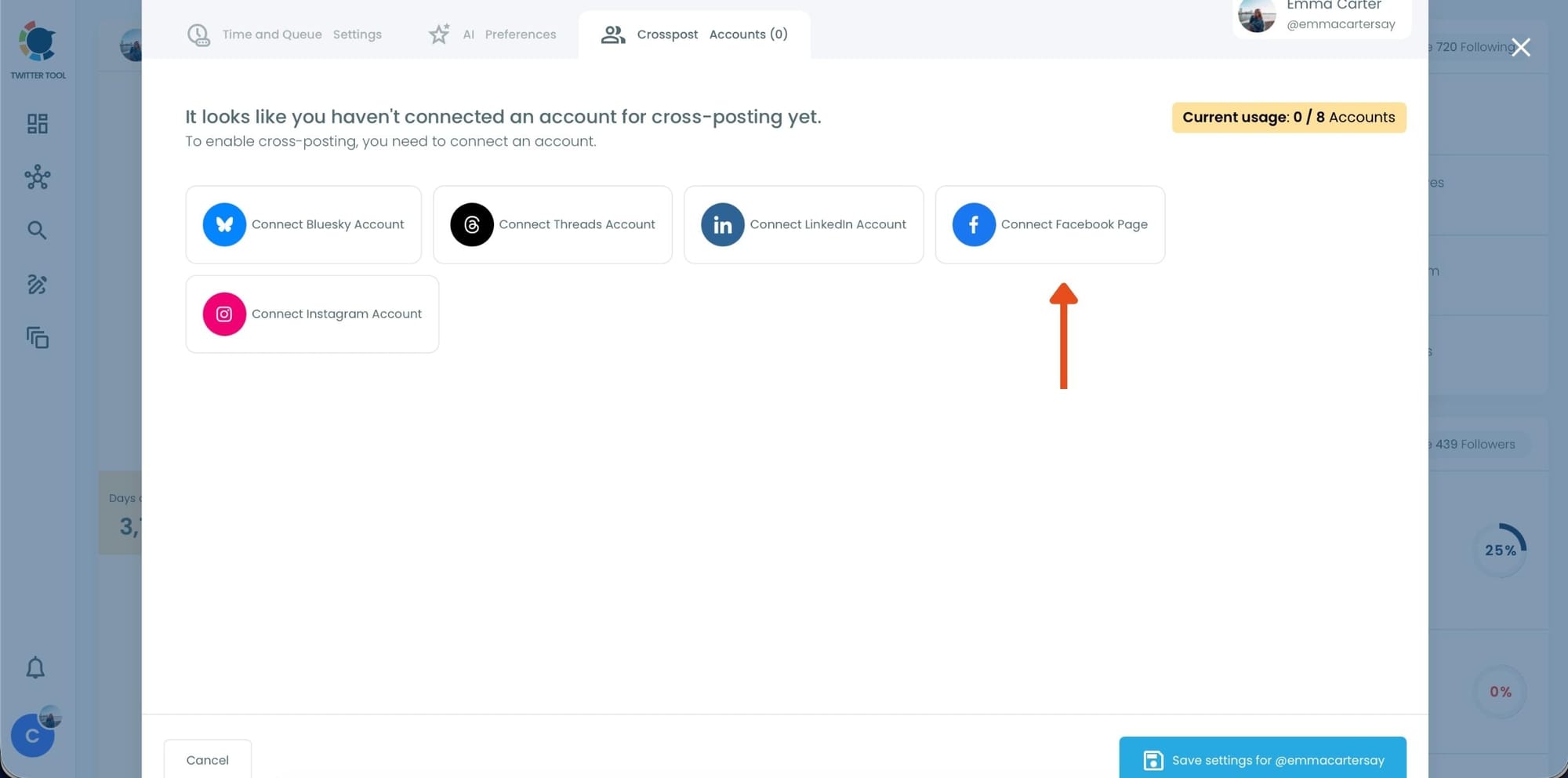
Step #3: Click Connect Facebook Account.
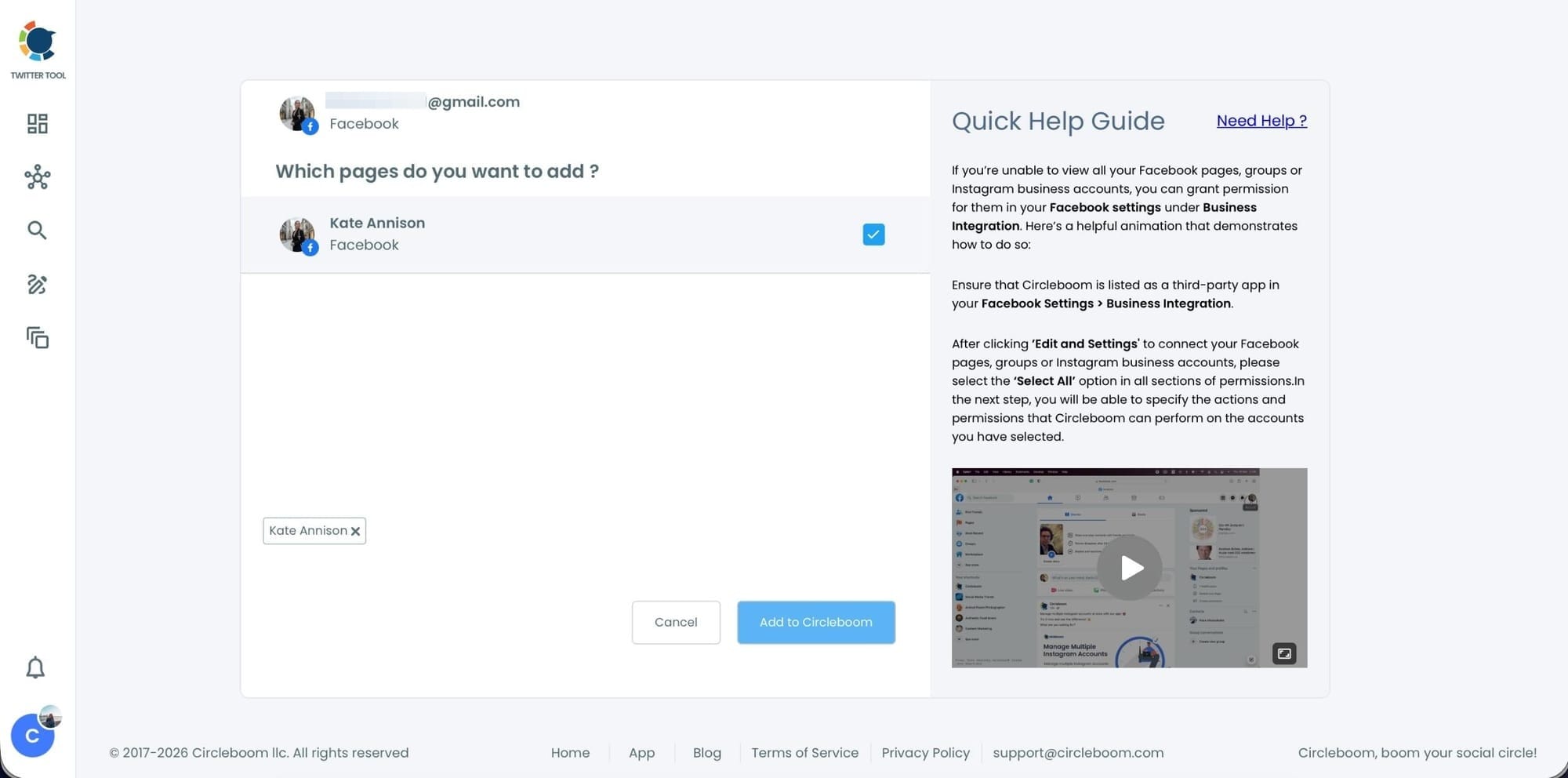
Circleboom will guide you through the Facebook authorization process.
You’ll be asked to:
- Log in with your Facebook account
- Select which Facebook Page you want to connect to
- Grant the required permissions so Circleboom can post on your behalf
After completing these steps, your Facebook Page will appear as connected inside Circleboom.
At this point, Facebook is ready for cross-posting.
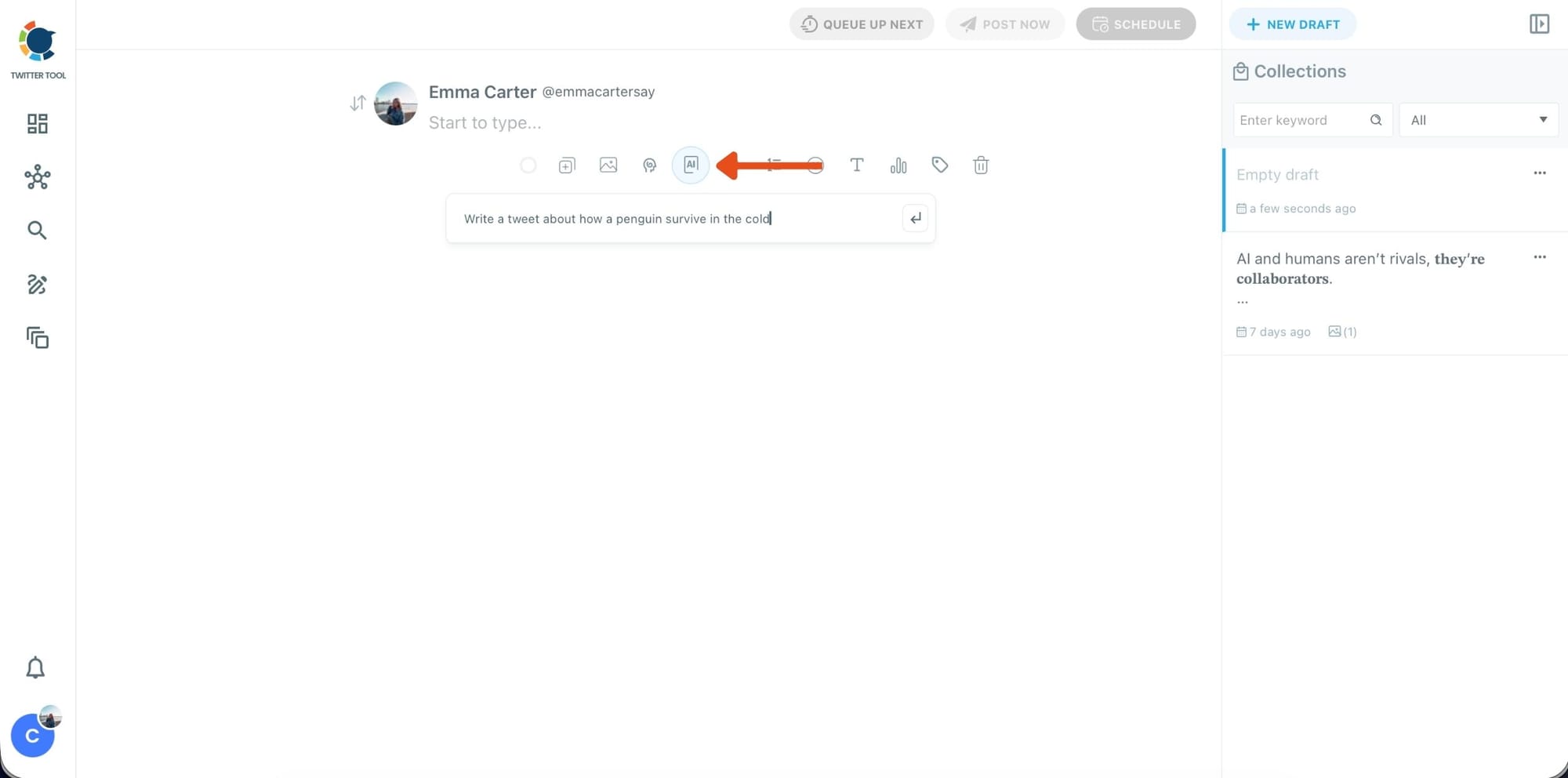
Step #4: Go back to the X Post Planner to create your tweet
Now that Facebook is connected, return to the main dashboard and open X Post Planner + AI Writer.
If you want to speed things up, click the AI button and let Circleboom generate a tweet draft based on your topic. You can edit, shorten, or rewrite the result until it fits your style.
This step is especially useful when you want ideas quickly without starting from a blank screen.
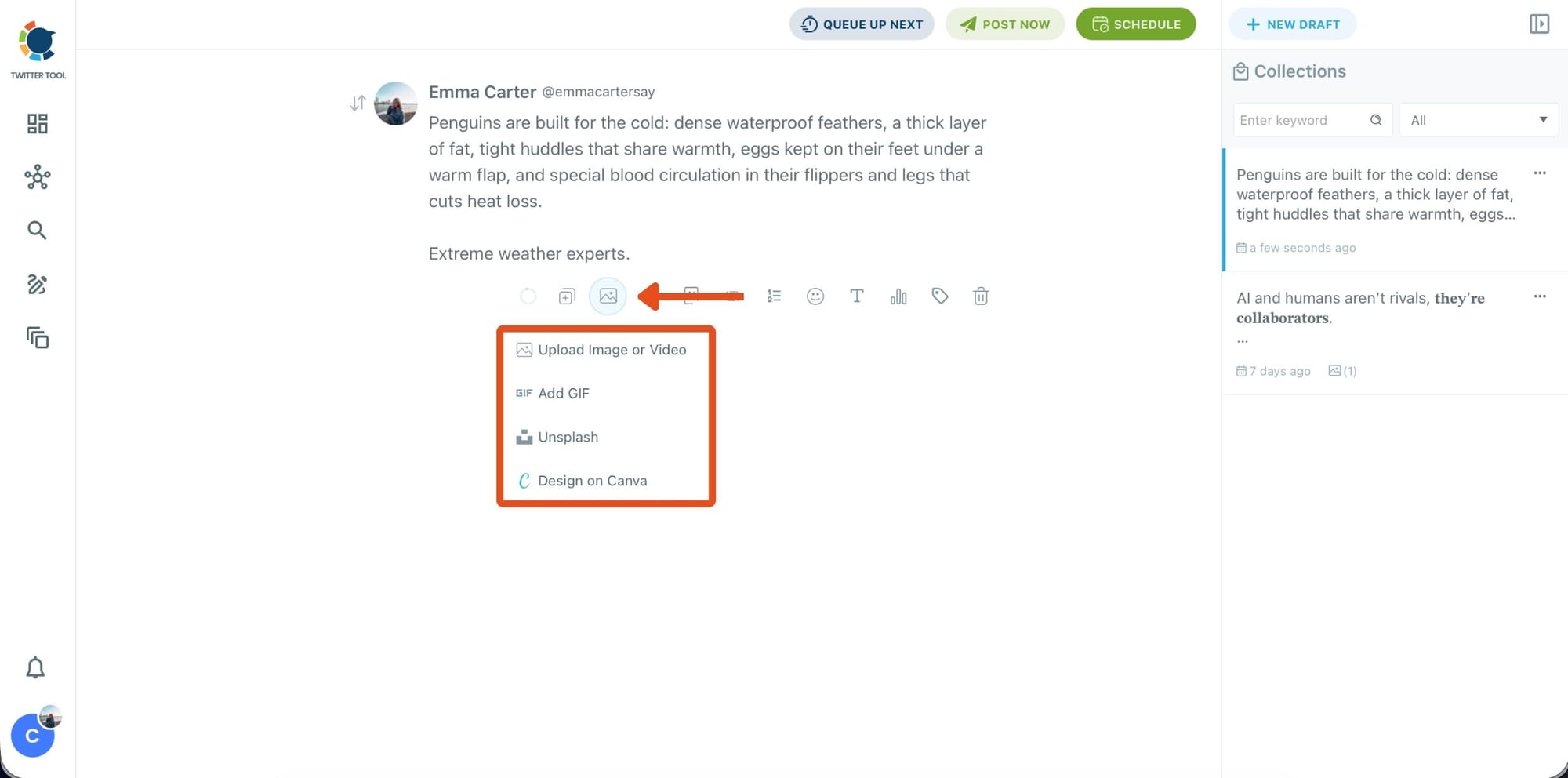
Step #5: Add images, GIFs, or designs to your tweet
After finalizing your text, you can attach a visual to your tweet.
Circleboom lets you:
- Upload an image or video from your device
- Add a GIF
- Select a photo from Unsplash
- Create a custom visual instantly using Canva
All of this happens inside the same editor, so there’s no need to open extra tabs or download files.
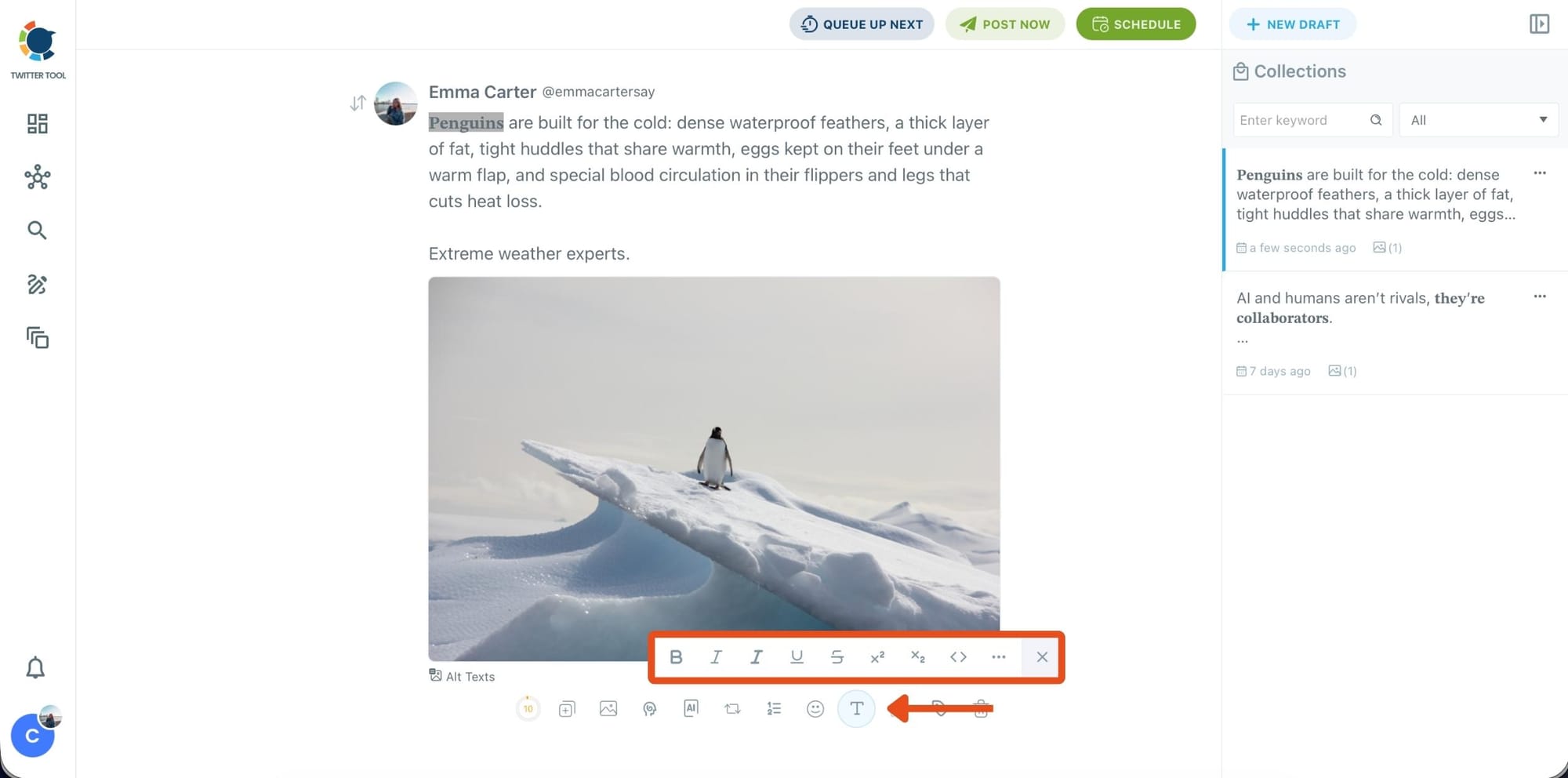
Step #6: Style your tweet with the Font Generator
To make your tweet stand out visually, select any part of your text and open the Font Generator.
Here, you can apply:
- Bold, italic, underline, or strike-through
- Different font styles
- Extra formatting options for emphasis
This is useful when you want key phrases to catch attention quickly in Facebook feeds.
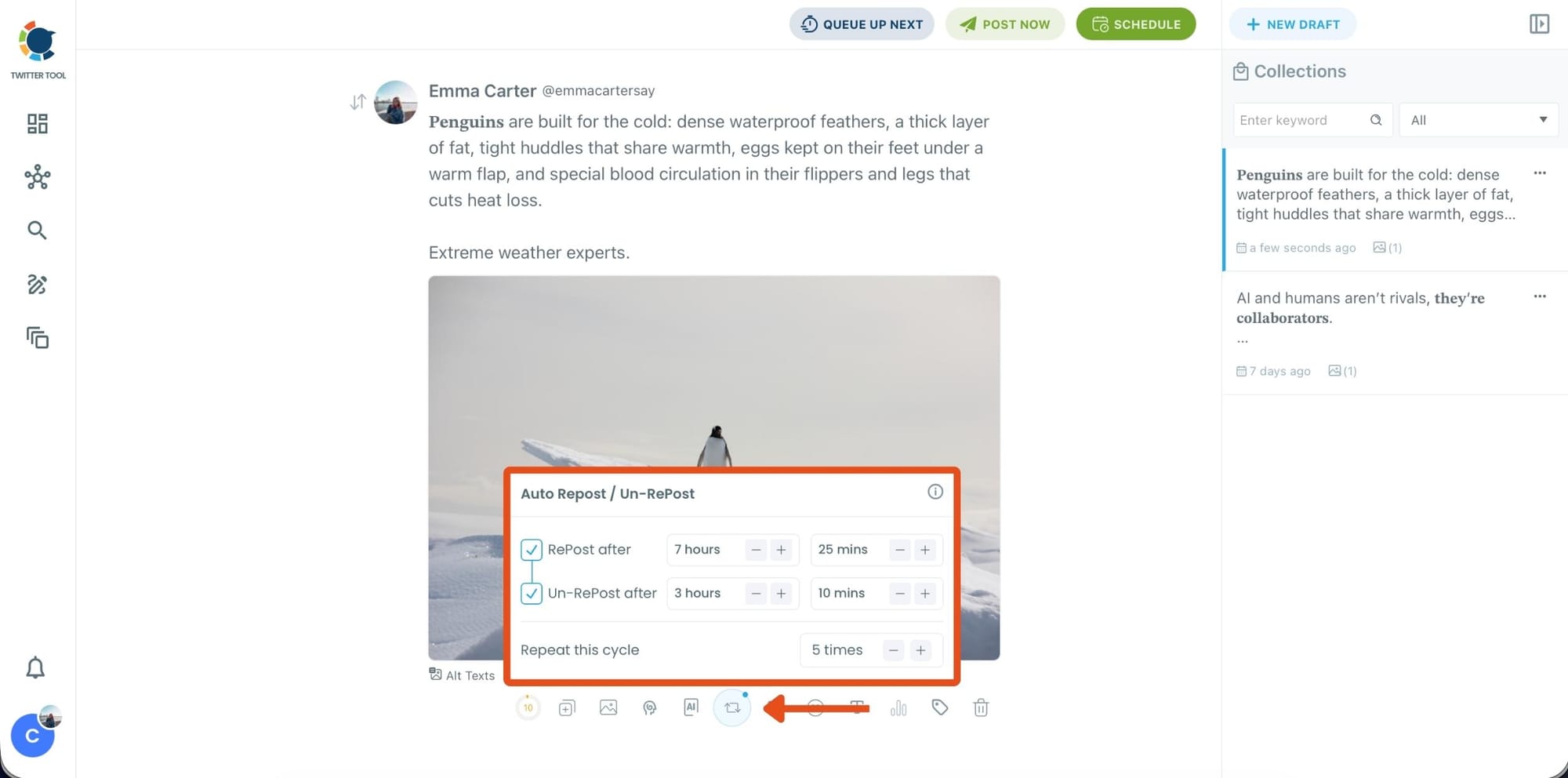
Step #7: Before publishing, you can turn on Auto Repost / Un-Repost.
This allows Circleboom to:
- Repost your tweet after a set time
- Remove the repost later
- Repeat the cycle multiple times
It’s a hands-free way to extend the lifespan of your content without manual reposting.
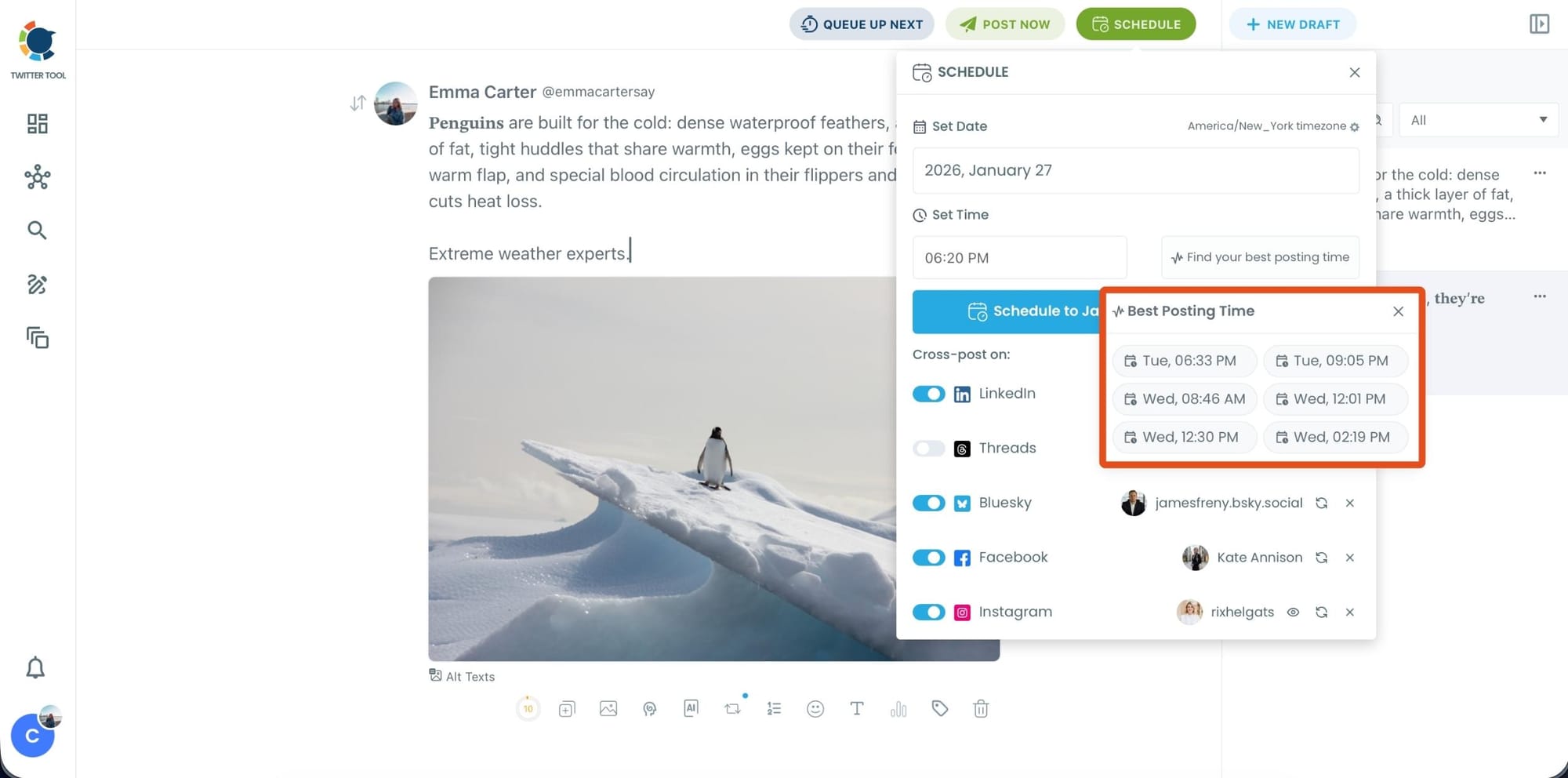
Step #8: Click Post Now or Schedule to choose when your tweet should go live.
You can:
- Set a specific date and time manually
- Or click Find your best posting time to see Circleboom’s suggested time slots based on follower activity analysis
Once published or scheduled, Circleboom will post your tweet on X and share it on Facebook automatically.
Why Connect Twitter/X to Facebook?
If Twitter/X is your main platform, it makes sense to extend your content to other networks.
Connecting your Twitter to your Facebook Page offers several benefits:
➡️ It saves time. Instead of creating separate posts for each platform, you can publish once and share everywhere.
➡️ It helps you stay consistent. Your Facebook Page will stay active even if most of your content is created for Twitter.
➡️ It allows you to get more value from each post. One tweet can reach audiences across multiple social media platforms.
For creators, brands, and marketers managing several accounts, this can make content distribution much easier.
Final Thoughts
If you want to feed your Twitter/X posts into your Facebook Page, the easiest solution is to connect your accounts through Circleboom Twitter.
Instead of manually copying every tweet to Facebook, you can create your content once and automatically share it across multiple platforms.
Since I mainly use Twitter/X for posting, I create my tweets in Circleboom and let the system automatically distribute them to Facebook and my other social accounts.
This makes managing multiple platforms much easier while ensuring that every post reaches a wider audience.

