
Spam accounts, crypto promoters, adult content bots, MLM recruiters, scam profiles. They show up in replies, follow you unprompted, and clutter your notifications. And they almost always announce themselves in their bio.
The keywords are right there. "F4F." "L4L." "GFX." "NFT." "MM." "FX." "OnlyF." "CC." Each one is a fingerprint for a type of account. If you know the abbreviation, you can find every account using it.
The problem is that Twitter gives you no way to act on that. You can search tweets and hashtags natively. You cannot search bios and block the results in bulk. You'd have to find each account individually, open their profile, and block them one at a time, which is not a realistic option when you're dealing with dozens or hundreds of accounts that all use the same playbook.
With Circleboom Twitter's Advanced X Search, you enter the keyword, get back a full list of matching accounts, apply filters to target exactly the ones you want, and block them all at once automatically.
Can you block accounts with specific keywords in their bio on Twitter?
Not natively. Twitter's search does not support filtering accounts by bio content at scale or blocking search results in bulk.
With Circleboom Twitter, you can search any keyword against public bios and profiles across X, retrieve a structured list of every matching account, apply filters to narrow it down, and block the selected accounts in one automated action using the Circleboom Twitter (X) Mass Blocker Chrome extension.


What Is Circleboom Twitter?
Circleboom is an Official X Enterprise Developer. All data it retrieves is pulled through X's official APIs using publicly available information. No scraping, no credential sharing, fully compliant with platform rules.

Here's what Circleboom Twitter gives you for search-based blocking:
- Search any keyword against public bios and profiles across X and get a full list of matching accounts
- Apply filters to narrow results by fake or bot signals, account age, follower ratio, and activity level
- Select all matching accounts or a filtered subset before any action runs
- Block selected accounts in bulk automatically using the Mass Blocker Chrome extension
- Review and manage your full block list anytime from the Accounts I've Blocked dashboard
If you want to block accounts with specific keywords in their bio on Twitter without doing it manually one by one, Circleboom Twitter is how you do it at scale.
How to Block Accounts with Specific Keywords in Their Bio with Circleboom Twitter
Let's say you want to block every account using "F4F" in their bio:
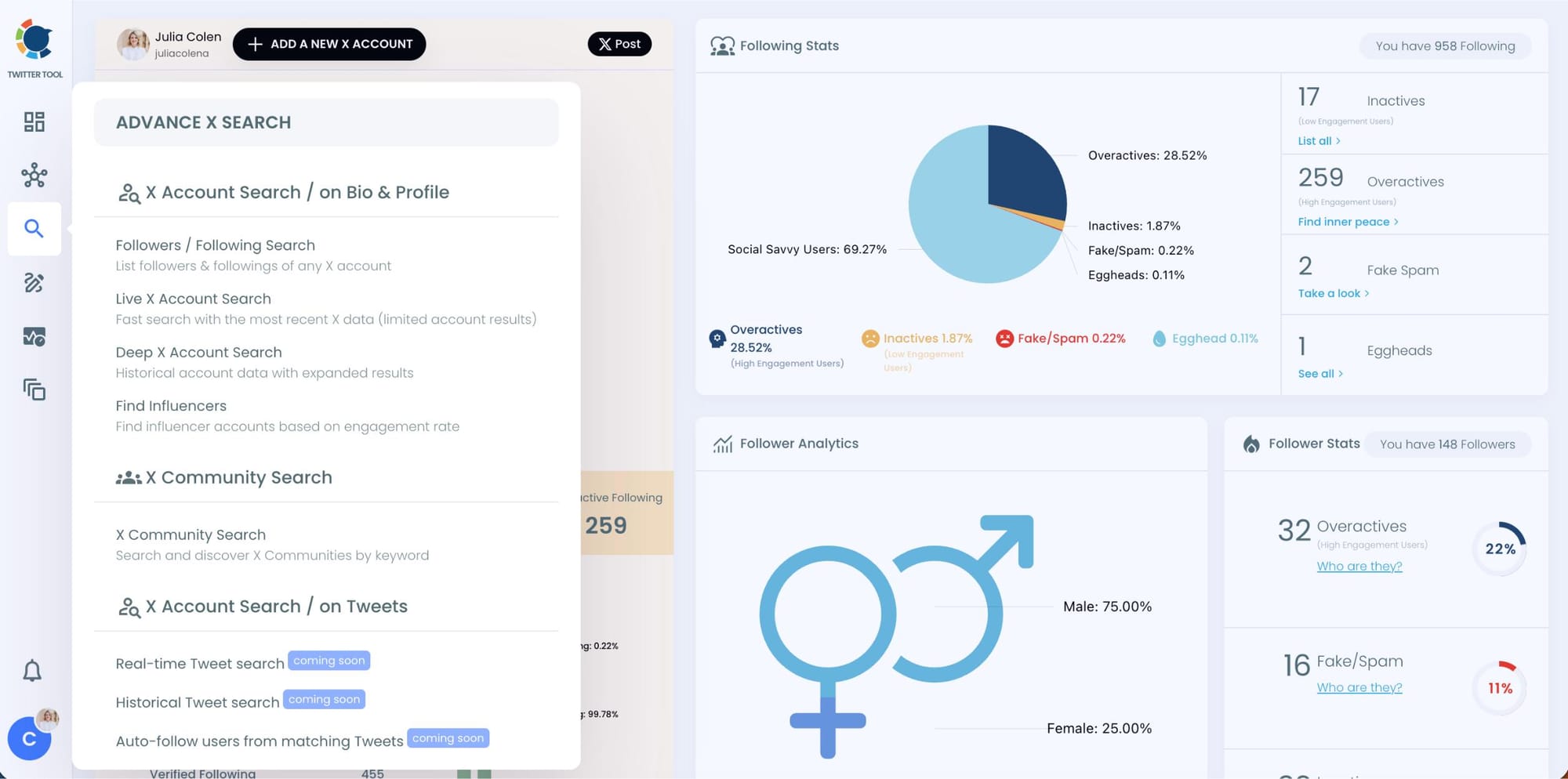
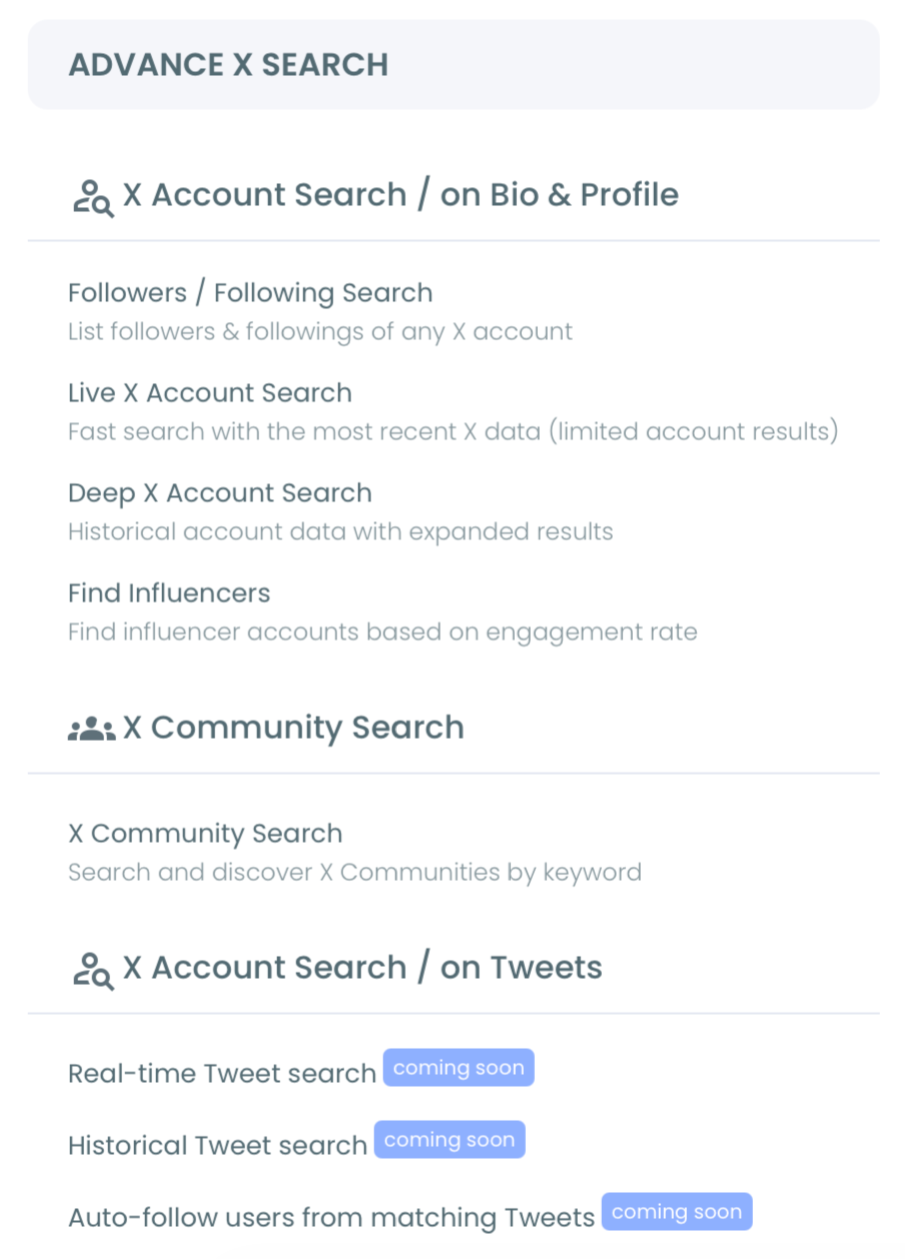
Step #1: Go to the left-hand menu and click the Search icon to open Advanced X Search.
You'll see two options: Live X Account Search for the most recent data, and Deep X Account Search for broader historical coverage. For keyword bio blocking, Deep X Account Search returns more results.
Step #2: Set your filters before searching.
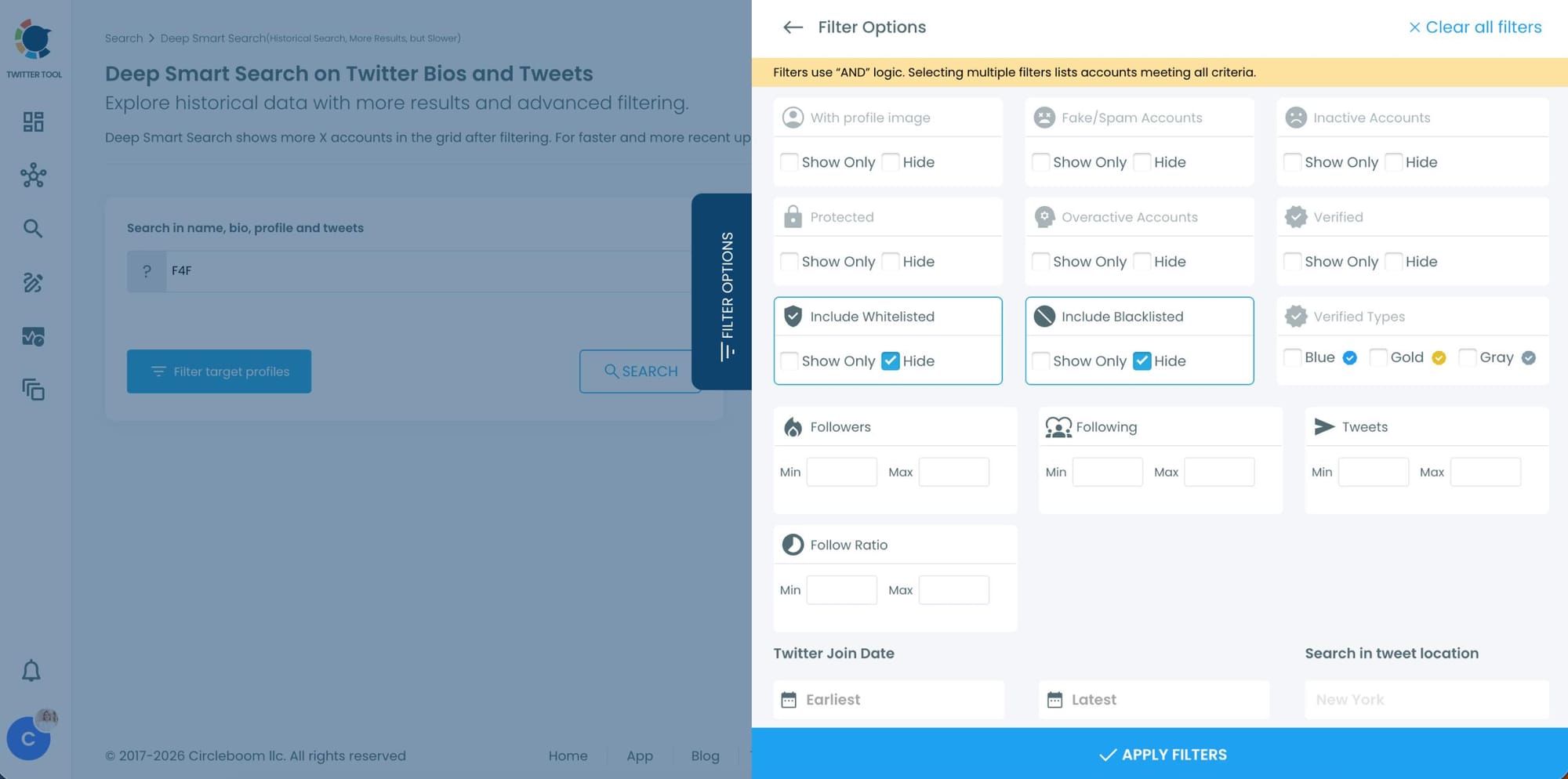
Before entering your keyword, open the Filter Options panel on the right side of the screen and configure your filters to target only the account types you want to block.
Useful filters for this workflow:
- Fake/Spam Accounts → Show Only
- With profile image → Hide (isolates egghead accounts)
- Inactive Accounts → Show Only
- Follow Ratio → set a min/max to catch follow-farming accounts
- Twitter Join Date → filter for recently created accounts if you suspect a coordinated campaign
Once your filters are set, click Apply Filters.
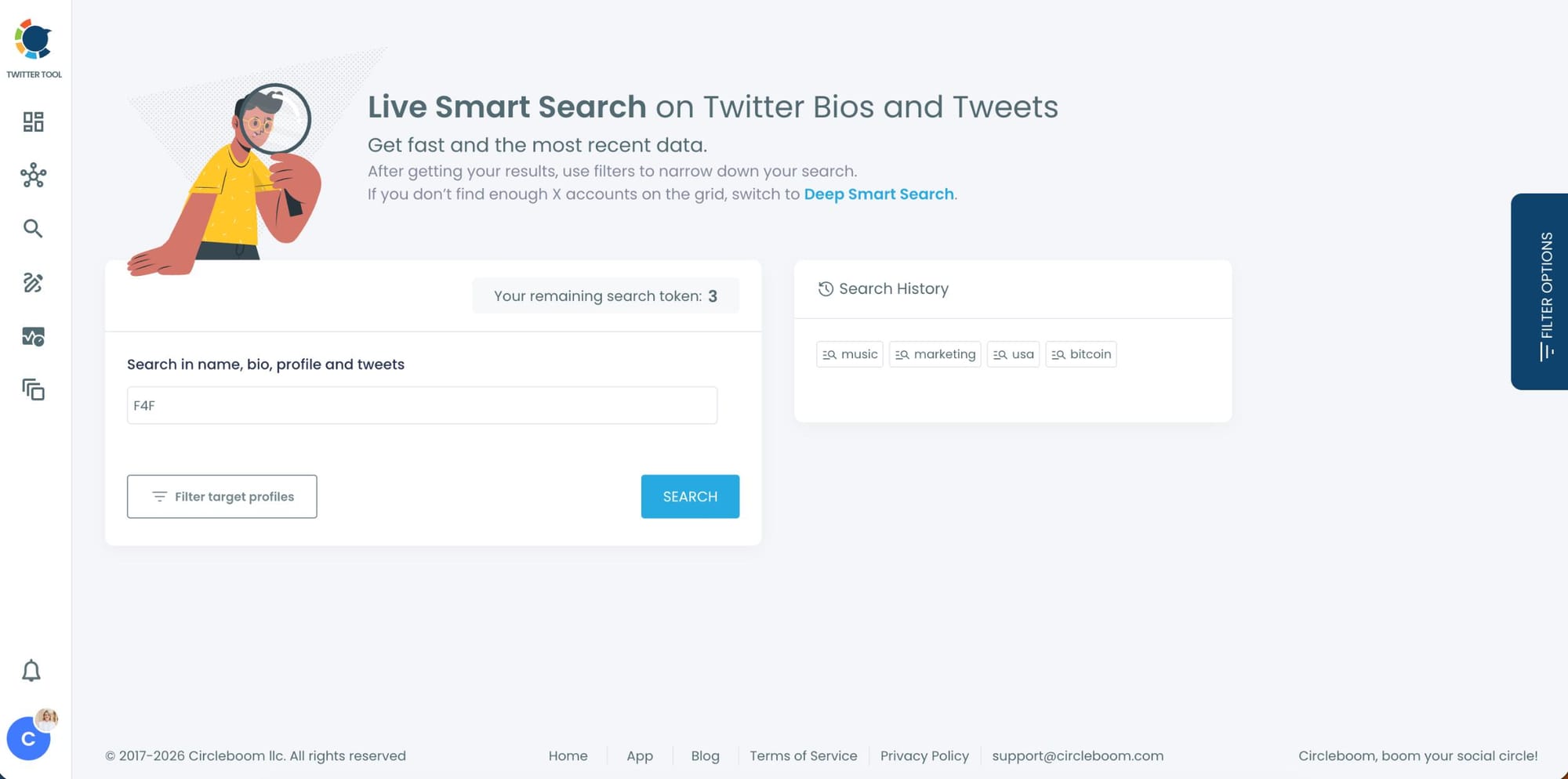
Step #3: Enter your keyword in the search bar and hit "Search."
Type the bio keyword you want to target, for example F4F, OnlyF, MM, or any phrase that consistently appears in spam bios hitting your account.
Circleboom scans names, bios, profiles, and tweets and returns only the accounts that match both the keyword and your active filters.
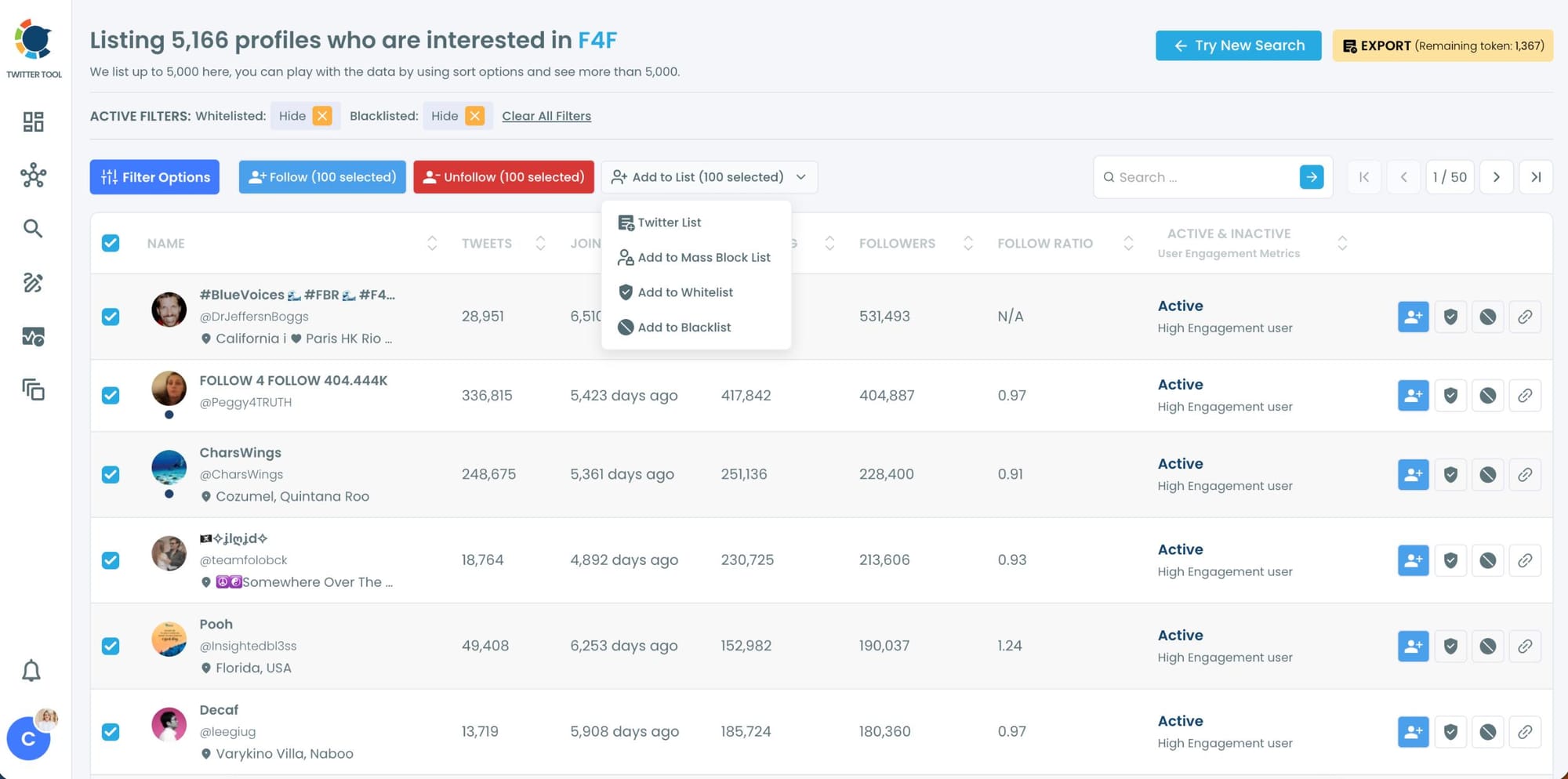
Step #4: Select the accounts you want to block and click "Add to Mass Block List."
You can tick accounts individually or select all filtered results at once. Once selected, open the Add to List dropdown at the top and click "Add to Mass Block List."
A pop-up will appear asking you to install the Circleboom Twitter (X) Mass Blocker Chrome extension if you haven't already.
Click through to the Chrome Web Store, add the extension, and return to confirm.

Step #5: You will be directed to the Chrome Extension page.
Please click on "Add to Chrome".
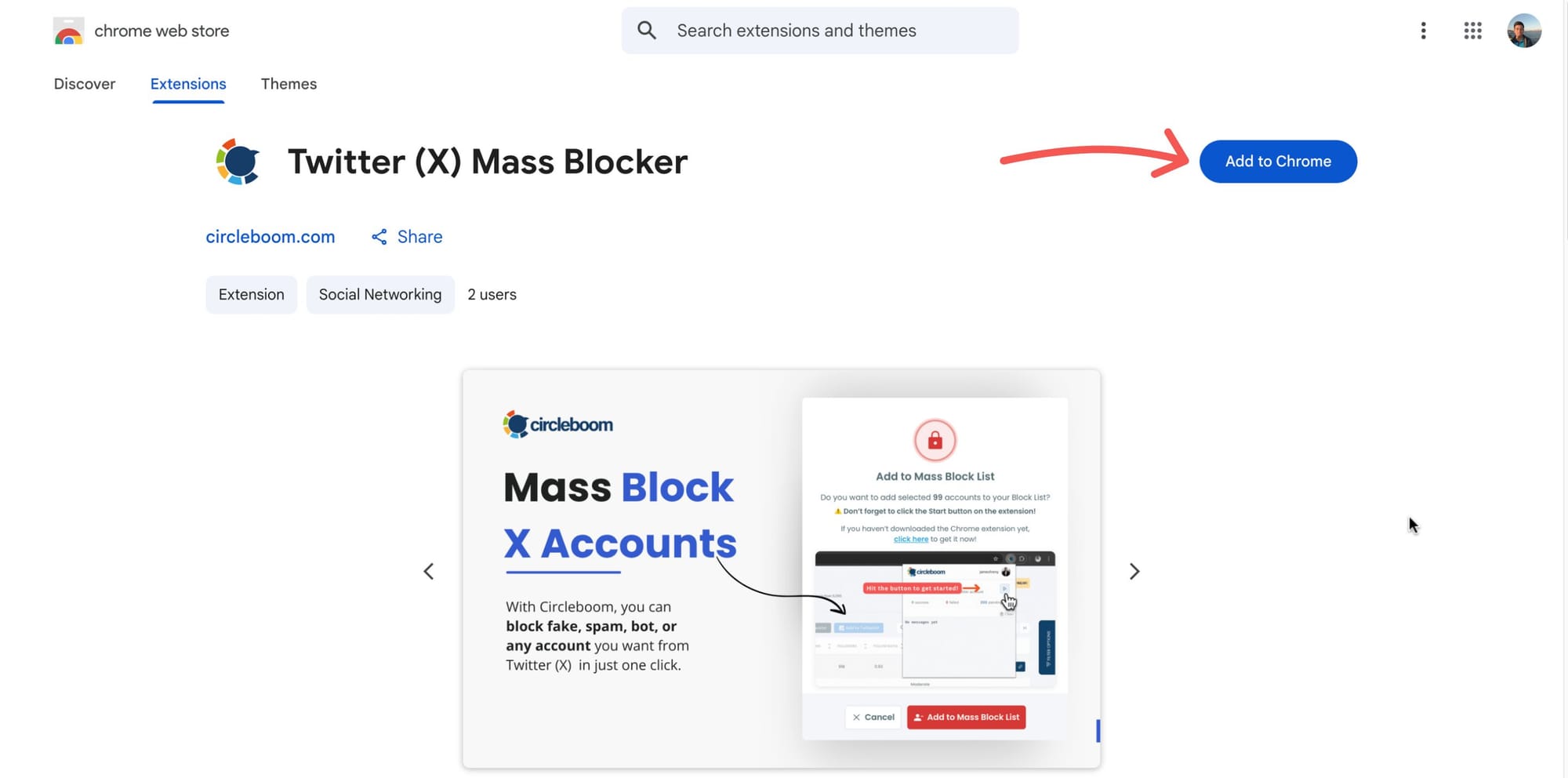
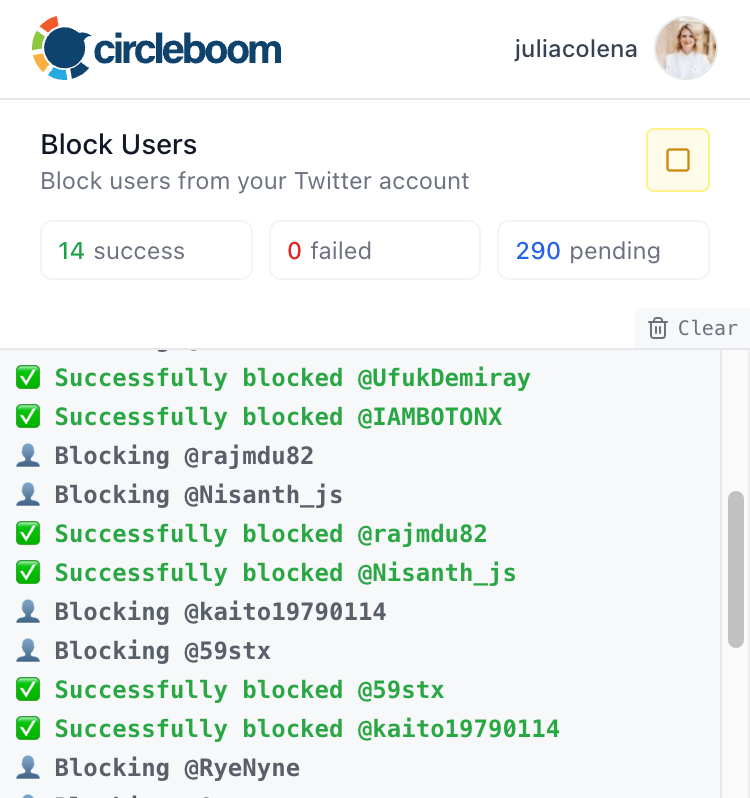
Then your process will start.
Now, you can mass block your spammy, bot followers on Twitter with Circleboom.
How the Bio Keyword Search Actually Works
You enter a keyword into Circleboom Twitter's Advanced X Search and it searches public bio and profile data across X, returning every account whose bio contains that keyword in a structured list.
This isn't a guess or a ranked relevance result. It's a direct match against the bio field. If the keyword is in the bio, the account appears. If it isn't, it doesn't. The results come back with full profile data for each account: username, display name, bio, follower count, following count, tweet count, account creation date, and activity indicators.
Circleboom offers two search modes depending on what you need. Live X Account Search prioritizes recently active accounts and surfaces results in real time, which is useful when you want to catch currently active spam campaigns or accounts that are posting right now.
Deep X Account Search goes broader and covers historical data, which returns a larger dataset and catches accounts that might have gone quiet but are still present.
📌 This is the step Twitter's native tools don't support. You can search tweets and hashtags on Twitter. You cannot search bios across the platform and get an actionable list of every matching account. That gap is exactly what Circleboom's Advanced X Search closes.
How Filters Make the Block More Precise
The keyword search returns everyone whose bio contains that word or phrase. Not all of them need to be blocked. Some results might be legitimate accounts that happen to use the same language in a different context.
Filters let you narrow the list before the block action runs, so you're targeting the accounts that match multiple low-quality signals rather than blocking based on a single data point.
Fake and bot filter. Surfaces accounts that show behavioral patterns consistent with automated or inauthentic activity. If the keyword you searched is associated with spam, the accounts flagged here are the ones most worth acting on first.
Egghead filter. Isolates accounts without a custom profile image. Spam and bot accounts frequently use default avatars. Combined with a spam-associated keyword in the bio, this combination is a strong signal.
Follower to following ratio filter. Accounts following thousands of profiles while having almost no followers themselves are typically farming follows rather than participating authentically. Filtering for extreme imbalances removes the most obvious cases.
Low tweet count filter. An account that has been active for a year and posted fewer than ten times is either abandoned or was created purely for a specific purpose. Filtering by tweet count below a set threshold surfaces these accounts quickly.
Account age filter. New accounts created in clusters are a common pattern in coordinated spam campaigns. If a keyword search returns a high proportion of recently created accounts, the age filter makes that visible immediately.
Verification and activity filters. Verified accounts are unlikely to be spam. Filtering them out of the results reduces the risk of blocking legitimate users. Activity filters help distinguish accounts that are actually doing something from those that have never engaged with anything.
⚠️ No filter is a guarantee and bulk blocking should always be preceded by a quick review. Some edge cases appear in every search. The goal of filtering is to reduce the list to the accounts you're confident about, not to automate away the judgment entirely.
Circleboom shows you every account before any block action runs. Nothing happens automatically without your confirmation.
Why Blocking by Keyword Beats Blocking One by One
Manual blocking doesn't scale against organized spam. A single bot network can have dozens or hundreds of accounts all using the same bio template. Finding and blocking them individually is a losing game. One batch keyword search catches all of them at once.
It stops the problem before it compounds. Once you've blocked a category of account based on bio keywords, those accounts can no longer follow you, appear in your mentions, or interact with your content. You're not reacting to each incident. You're removing the conditions that allowed them in the first place.
Cleaner replies and mentions change how your account is perceived. New visitors look at your replies. If they're full of spam responses and bot interactions, it signals that your account attracts low-quality engagement. Cleaning that up through keyword-based blocking is a content quality decision as much as a moderation one.
Your block list persists. Unlike muting, blocking is durable. Blocked accounts stay blocked. Circleboom's Accounts I've Blocked dashboard gives you a centralized view of every account you've blocked, with the option to unblock in bulk if you ever need to reverse a decision.
It gives you control over who can interact with your account proactively. Most people only block accounts after they've already interacted with them. Keyword-based blocking lets you get ahead of that by removing categories of accounts before they show up in your notifications at all.
Frequently Asked Questions
Can you block accounts based on bio keywords on Twitter?
Not through Twitter's native tools. Twitter's search functionality is designed for tweets and hashtags, not for filtering accounts by bio content at scale. Circleboom Twitter's Advanced X Search lets you do exactly that, searching public bios for any keyword and returning every matching account in a structured list you can filter and block in bulk.
How does Circleboom's bio keyword search work?
You enter a keyword in Circleboom Twitter's Advanced X Search. The tool searches public bio and profile data across X and returns a structured list of every account whose bio contains that keyword. Each result includes full profile data. You can then apply filters to narrow the list and select the accounts you want to block before running the mass block action.
Can I preview the list before blocking in bulk?
Yes. Circleboom shows you the full list of matching accounts, with all their profile data visible, before any block action is triggered. You can review, filter, and deselect individual accounts. Nothing is blocked automatically without your explicit confirmation.
What keywords are most useful for blocking spam accounts?
Effective keywords depend on the type of spam you're dealing with. Common ones include phrases associated with crypto signal groups, follow-back schemes, adult content promotions, pyramid scheme recruitment, and generic bot phrases. Highly specific phrases, such as the exact wording that shows up repeatedly in spam bios targeting your niche, tend to produce the most precise results.
Will blocked accounts know they were blocked?
When you block someone on X, they cannot see your profile or tweets, but the platform does not send them a notification telling them they were blocked. They may notice they can no longer access your account if they try, but there is no active alert sent.
Can I unblock accounts I blocked this way?
Yes. Circleboom Twitter's Accounts I've Blocked feature shows you every account you've blocked in a centralized dashboard. You can unblock accounts individually or in bulk from there at any time.
Does this work on accounts that don't follow me?
Yes. The bio keyword search returns any public account whose bio contains the keyword, regardless of whether they follow you or have ever interacted with your account. This is part of what makes it useful for proactive blocking before any interaction occurs.
Final Thoughts
The keywords are already in the bios of the accounts you want to block. They use the same phrases, the same templates, the same signals. Circleboom Twitter finds all of them at once, lets you filter out any edge cases, and blocks the rest in a single automated action.
What used to be an endless manual task becomes a workflow you run once and repeat whenever a new pattern shows up.
Block accounts with specific keywords in their bio on Twitter using Circleboom Twitter's Advanced X Search and Mass Block.
infocircleboom.com