

There was a point where I genuinely needed to change the font style in my tweets.
Not because I was bored or trying to be fancy, but because my posts were starting to look too flat.
I was sharing useful stuff: tips, short guides, quick insights, and I knew people were scrolling past them faster than I wanted. Everything looked like one big block of text, even when the content was good.
I wanted a simple way to make key parts stand out.
Like:
- a stronger hook on the first line
- a bold-looking keyword in the middle
- a “title” inside the tweet
- a short takeaway at the end
Basically, I wanted my tweets to feel more structured and easier to scan, without rewriting everything.
And that’s when I realized something important:
Changing fonts on X isn’t a default feature, but you can still do it in two ways; one limited, one much better.
 Arif Akdogan
Why Changing Fonts Helps on X (Twitter)
Most people don’t read tweets the way they read blog posts.
They scan your first line, maybe your second line, and then decide whether they’ll keep going. If your tweet looks like a dense paragraph, it’s harder to follow, even if the message is valuable.
Font styling helps because it gives your tweet “visual structure.”
It helps the reader instantly understand:
- what the main point is
- where the important part is
- what they should remember
And the funny thing is, you don’t even need to style the whole tweet. Even formatting one line can make your post feel sharper and more intentional.
Can You Change Fonts on Twitter Posts Directly?
No, not directly.
X doesn’t give you a font menu. You can’t choose “Arial” or “Times New Roman.” You can’t highlight text and switch it to a different font style like you would in a document editor.
So how do people change fonts on X?
They use Unicode-styled text.
Unicode is basically a system that includes special versions of letters. When you convert your normal text into Unicode-styled characters, it starts looking bold, italic, circled, boxed, or styled—then you paste it into your tweet.
So technically, you’re not changing fonts inside X… you’re changing the text itself before posting.
That’s the real trick behind “Twitter fonts.”
The Two Ways to Change Fonts on X (Twitter)
After trying different methods, I realized it comes down to two real options.
1) Use X Premium (basic formatting)
If you have X Premium, you can format tweets using:
- Bold
- Italic
This is useful if your goal is simple and you only want lightweight emphasis.

But the limits show up fast.
Premium doesn’t give you:
- underline-style text
- circled letters
- boxed fonts
- different font variations for hooks and headlines
So if your goal is “I want my tweets to look more formatted and structured,” Premium helps a little, but it doesn’t fully solve it.
2) Use Unicode Font Styling (full font options)
If you want real variety, like the styles people use for strong hooks and cleaner posts, you need Unicode formatting.
This is where you get things like:
- underline-style text
- circled letters like ⓣⓗⓘⓢ
- boxed fonts like 🅃🄷🄸🅂
- headline-style variations
- multiple clean styles beyond basic bold/italic
The good part is Unicode works on any account, even if you don’t have Premium.
The bad part is that if you use random font generator websites, the workflow becomes annoying. You write your tweet in one place, copy it, format it somewhere else, copy again, paste back into X, then fix spacing. It works, but it’s not something I wanted to repeat daily.
So I moved to a cleaner solution: Circleboom Twitter.

The Easiest Way to Change Fonts Without X Premium: Circleboom Twitter
Circleboom Twitter made this simple because it has a built-in Font Generator inside its tweet editor.
 Arif Akdogan
So instead of using separate tools and copy/paste workflows, I can write my tweet and style it in the same place. It feels like a normal part of writing, not an extra chore.
Another big reason I chose Circleboom Twitter is safety.
Circleboom is an official X Enterprise developer, which means it’s a trusted tool that works with X properly. I’m careful with third-party apps, and I don’t like connecting my account to random services that could risk security or get my account flagged.
Circleboom feels like a professional tool, not a shortcut website.
And the biggest benefit for this topic:
You can use the font generator even without X Premium.
Circleboom’s X Post Planner Makes It More Than Just Fonts
The font feature is what solved my “I need styled text” problem, but Circleboom’s real advantage is the whole system around it.
Circleboom has an X Post Planner, and that changes the workflow completely because it’s not just about writing a tweet. It’s about creating and managing content smarter.
Here’s what I use inside the X Post Planner and why it matters:
❇️ Smart Scheduling (post when people are actually online): Changing fonts makes your hook stand out, but timing still matters.
 infocircleboom.com
If you post at random times, you may miss the hours when your followers are active. With Circleboom, I schedule posts ahead of time, so the formatted tweet hits the timeline when it has the best chance to perform.
❇️ AI Tweet Generation (write faster in your style): Sometimes I have the idea but I don’t want to spend 15 minutes rewriting the perfect version.
 infocircleboom.com
Circleboom AI helps me generate tweet variations, improve hooks, and keep the tone similar to my older posts. It’s designed for social media writing, so it doesn’t give me long robotic text. It gives tweet-friendly options I can actually use.
❇️ Image Curation (formatted tweets + visuals work well together): For educational tweets, tips, or announcements, adding a strong visual can increase stops and engagement.
 infocircleboom.com
Circleboom makes it easy to add curated images to the post while I’m already working on the text. So I don’t have to leave the planner and find visuals separately.
❇️ Auto Retweeting (reusing what already worked): This one is underrated.
The average lifespan of a post is fleeting; if your followers aren't online at the exact moment you post, your best content is often lost forever. Circleboom’s Auto Retweet feature solves this "visibility gap" by strategically resurfacing your posts to ensure your audience never misses an update. It’s the ultimate tool for capturing attention across different time zones and activity peaks without the manual effort of reposting.
By automating your retweet strategy, you can effectively boost your impressions by 4x and double your engagement rates. This practice doesn't just keep your profile active; it forces the algorithm to give your content a second life, reaching fresh segments of your audience who missed the original broadcast. With Circleboom, you transform a single post into a high-performance asset that works around the clock to maximize your digital reach.
 infocircleboom.com
How to Change Fonts on Twitter Posts Using Circleboom (Step-by-Step)
Step 1: Go to Circleboom Twitter’s X Post Planner
Open Circleboom Twitter and click X Post Planner + AI Writer.
Then select Write & Plan Your Post to start creating your tweet.

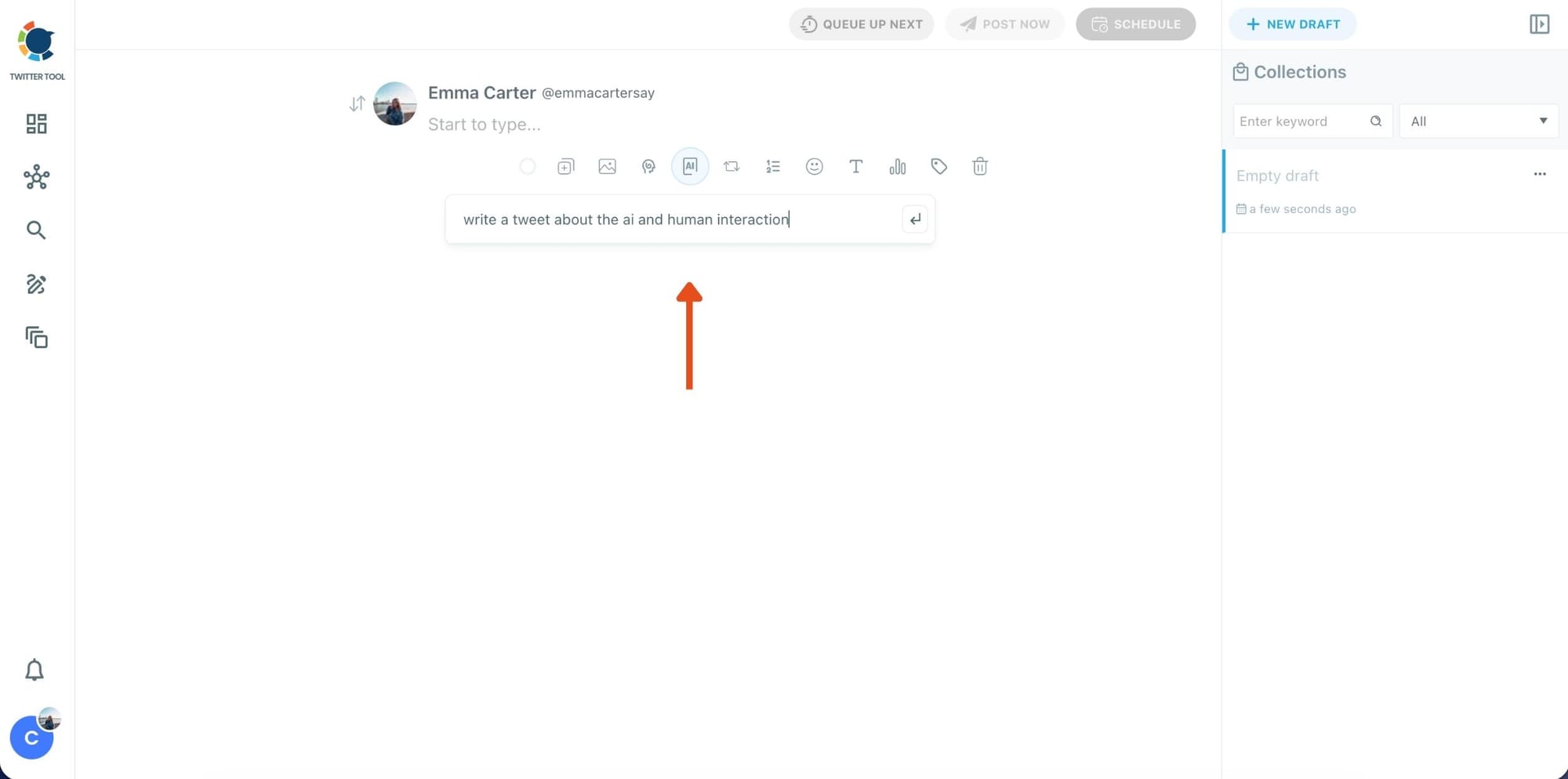
Step 2: Write your tweet (or generate one with AI)
You can type your tweet manually in the editor.
Or, if you want to move faster, click the AI option and let Circleboom generate a tweet idea for you based on your topic.
Step 3: Add an image to make the post more engaging
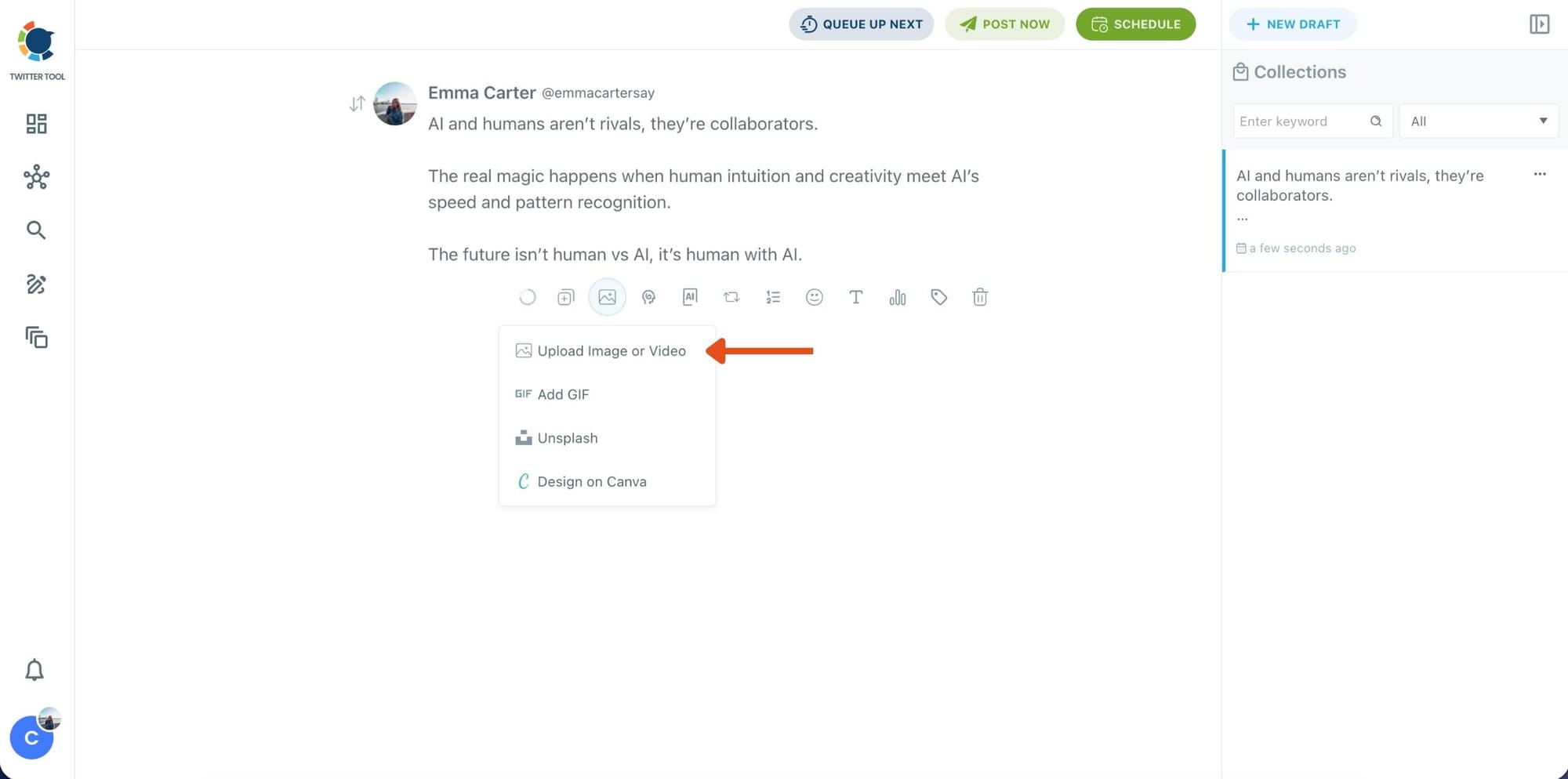
Once your text is ready, attach a visual to your tweet.
You can:
- Upload an image/video from your device
- Pick one from Unsplash
- Or design one instantly using Canva
Step 4: Style your tweet using Circleboom’s Font Generator
Now it’s time to make your tweet stand out visually.
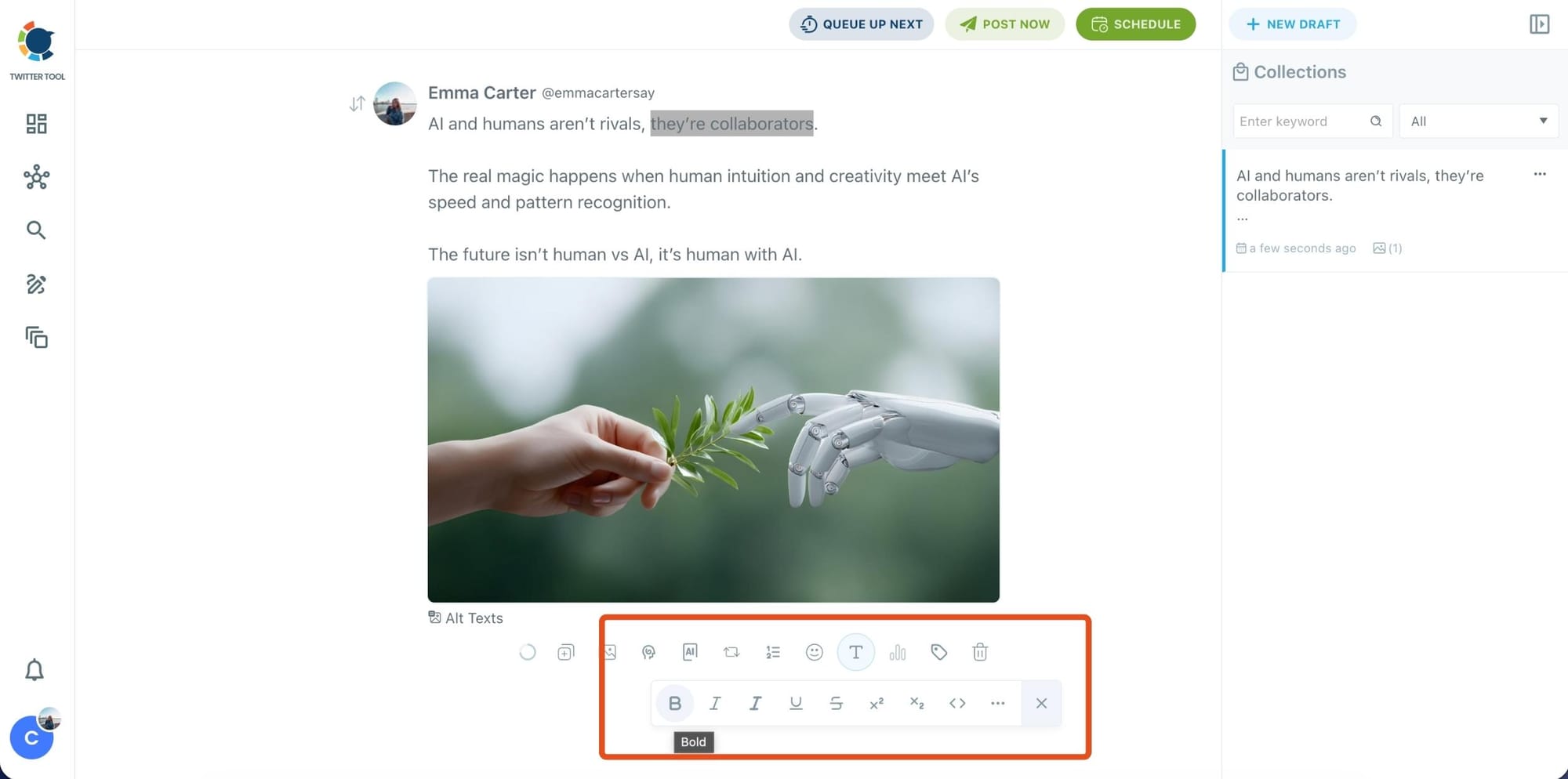
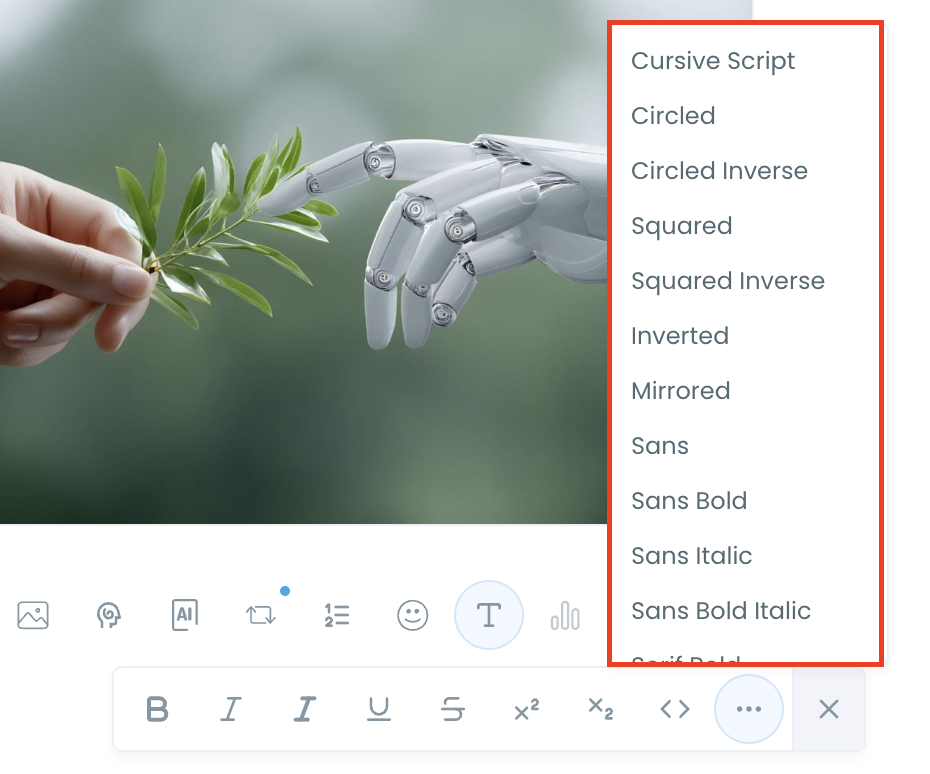
Select the part of your text you want to change, then open the Font Generator toolbar and apply styles like:
- Bold / Italic / Underline
- Different font variations
- Extra formatting options for a more “designed” look
This is perfect when you want key parts of your tweet to grab attention immediately.
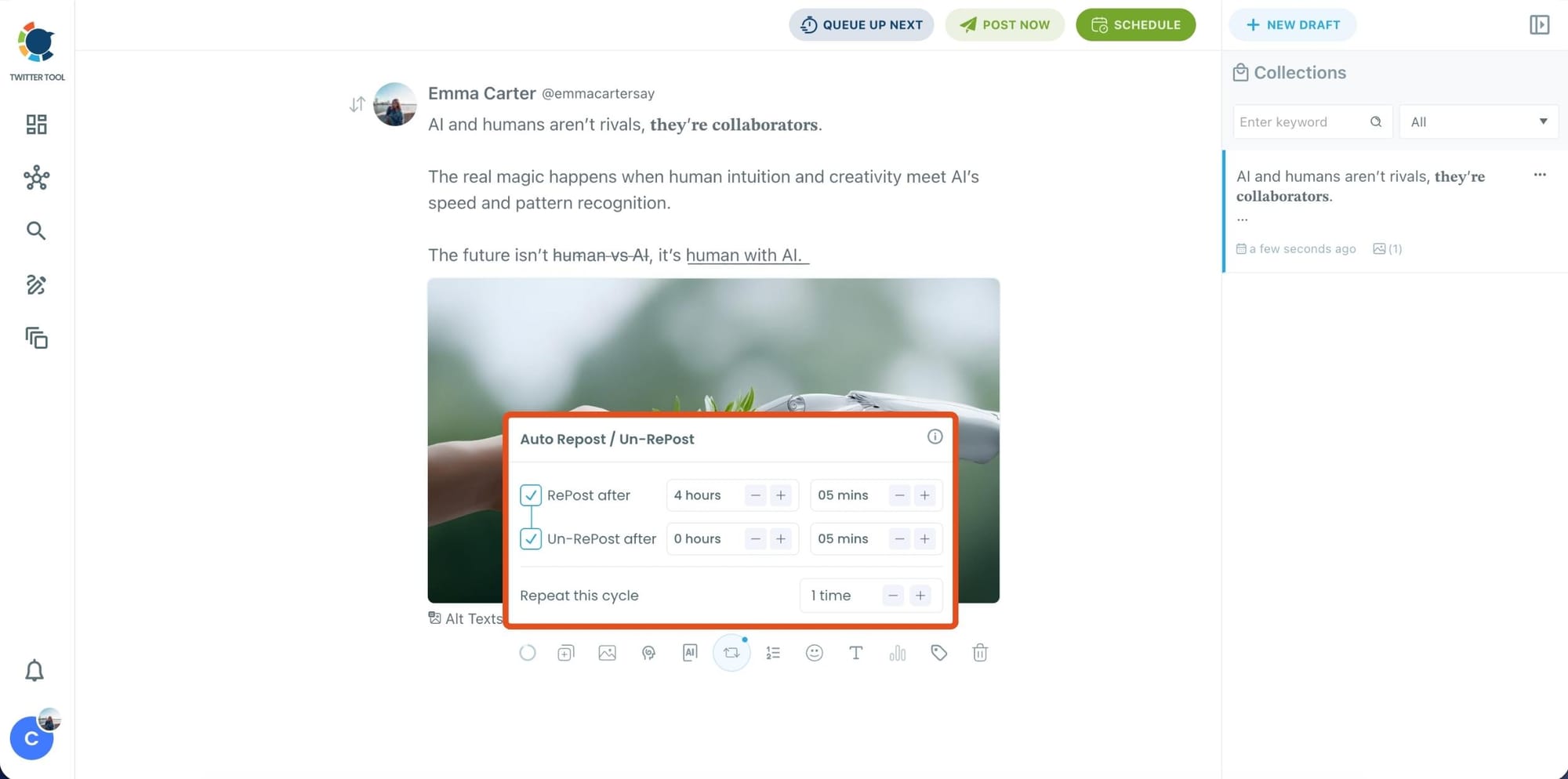
Step 5: Set Auto Retweets to boost visibility
After styling your post, you can increase reach by enabling Auto Repost / Un-RePost settings.
This lets you automatically:
- Repost your tweet after a selected time
- Remove the repost later
- Repeat the cycle if you want more than one repost
It’s a smart way to bring your tweet back into the feed without manually reposting it.
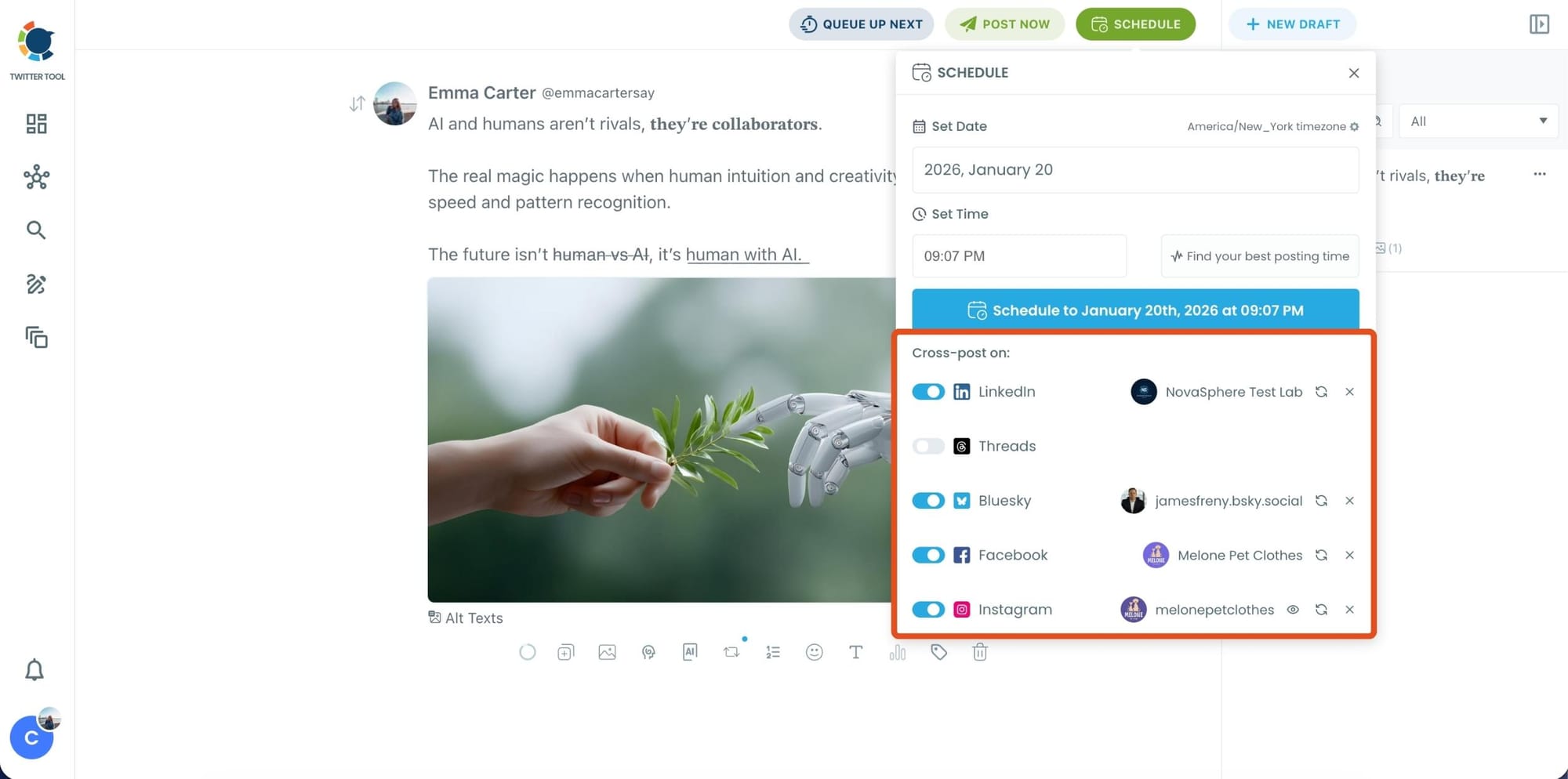
Bonus Tip: Cross-post your tweet to other platforms automatically
Before you publish, you can also enable Cross-Post to share the same tweet across multiple platforms in one go.
Circleboom lets you post your content to Instagram, Facebook, LinkedIn, Bluesky, and Threads automatically, so you don’t have to rewrite, re-upload, or repeat the same work on each platform.
Step 6: Schedule it for the best time to post
Finally, click Schedule and set your date and time.
You can also click Find your best posting time to see Circleboom’s suggested time slots based on follower activity.
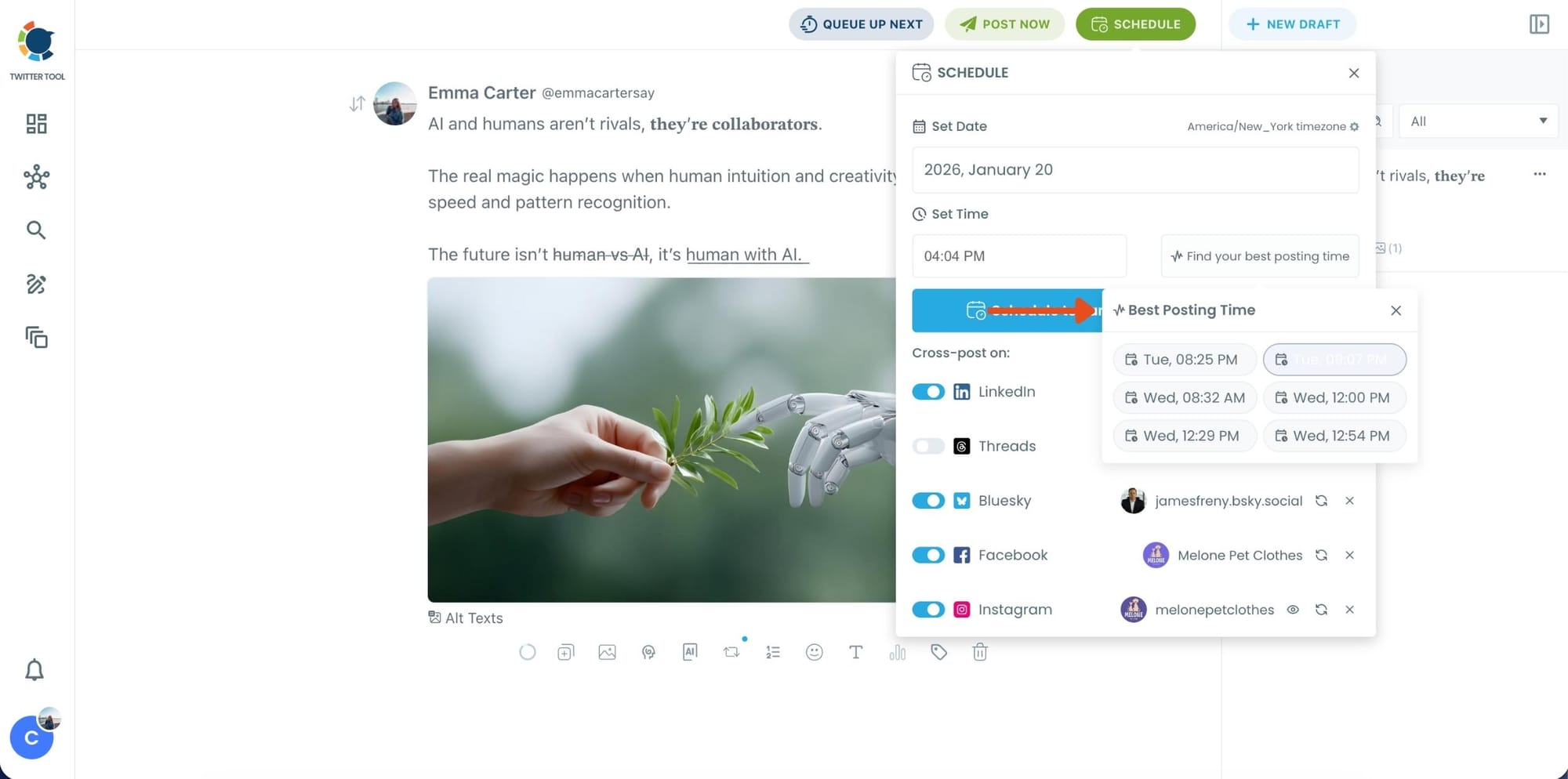
Once you pick the best option, schedule it and you’re done. Your tweet will go out at the time it has the highest chance to perform well.
My Tips for Changing Fonts Without Looking Spammy
Unicode formatting is powerful, but it has one risk: overuse.
If you change the font for the entire tweet and use weird styles everywhere, it can start looking like spam or bot content. So I keep it clean.
Here’s what works best for me:
➡️ Format only the first line (hook)
➡️ Format one keyword, not the whole sentence
➡️ Use font styling as a highlight, not as decoration
➡️ Keep readability as the priority
➡️ Avoid styling links, @handles, or hashtags
The goal is clarity. If it looks nice but becomes hard to read, you lose people.
Final Thoughts
If you only want basic text emphasis, X Premium gives you bold and italic.
But if you actually want to change fonts and use different text styles in a way that makes your tweets more structured, you need Unicode styling.
That’s why Circleboom Twitter became my go-to tool.
It lets me:
- change fonts without Premium
- format text directly inside the editor
- write posts with AI support
- schedule them at the right times
- add visuals using image curation
- and reuse winners with auto retweeting
Once I started doing this, my tweets didn’t just look different; they looked more readable, more organized, and easier for people to engage with.
And that was the whole point.
)
