

There was a time when opening Twitter felt exciting. My feed was full of useful threads, smart insights, breaking news, and interesting conversations. It felt like the fastest place on the internet to learn something new.
But at some point, that changed.
My For You feed became a mess.
Instead of thoughtful posts or interesting discussions, it was full of rage bait tweets, spammy accounts, low-effort viral content, and random topics I didn’t even care about. Every time I opened the app, it felt more chaotic than the last time.
At first, I thought the platform itself had changed. Maybe Twitter’s algorithm had gotten worse.
But after paying closer attention, I realized something important.
The algorithm wasn’t broken.
It was simply showing me what I had trained it to show.
The Moment I Realized the Problem Was My Signals
Twitter’s algorithm is constantly learning from your behavior. Everything you do sends signals about what you want to see more of.
For example:
- Who you follow
- What tweets you like
- What posts you bookmark
- Which accounts you interact with
- What topics you engage with
Over time, these signals build a profile of your interests.
Looking at my account activity, it suddenly made sense why my feed had become chaotic. I had followed hundreds of accounts over the years, liked thousands of random tweets, and bookmarked posts from completely unrelated topics.
The algorithm wasn’t confused. It was simply reflecting the signals I had given it.
So instead of blaming the platform, I decided to reset those signals and rebuild my feed.
The First Fix: Cleaning My Following List
The first place I looked was my following list.
Like most long-time Twitter users, I had followed a lot of accounts over the years. Some of them were interesting at the time, but many had become inactive, spammy, or simply irrelevant to what I wanted to see today.
And the truth is simple: if you follow low-quality accounts, your feed becomes low-quality too.
Instead of manually checking hundreds of accounts one by one, I used Circleboom Twitter to analyze my following list.

Circleboom is an Official X Enterprise Developer, and it provides detailed insights about Twitter accounts. When I connected my account, it analyzed my followers and following lists and categorized them into different groups, including:
➡️ Spam accounts
Seeing the results was eye-opening. Many of the accounts I was following hadn’t tweeted in years, and others clearly showed spam-like behavior.
Using Circleboom, I was able to select these accounts and unfollow them in bulk, which made the cleanup process much faster than doing it manually.
After removing those accounts, the change in my feed was noticeable. The algorithm started prioritizing content from more relevant users.
How to clean up your following list with Circleboom Twitter
Step #1: Log in to your Circleboom Twitter dashboard.
From the left-side menu, go to Followers / Following Management & Analytics, then click on All Your Following.
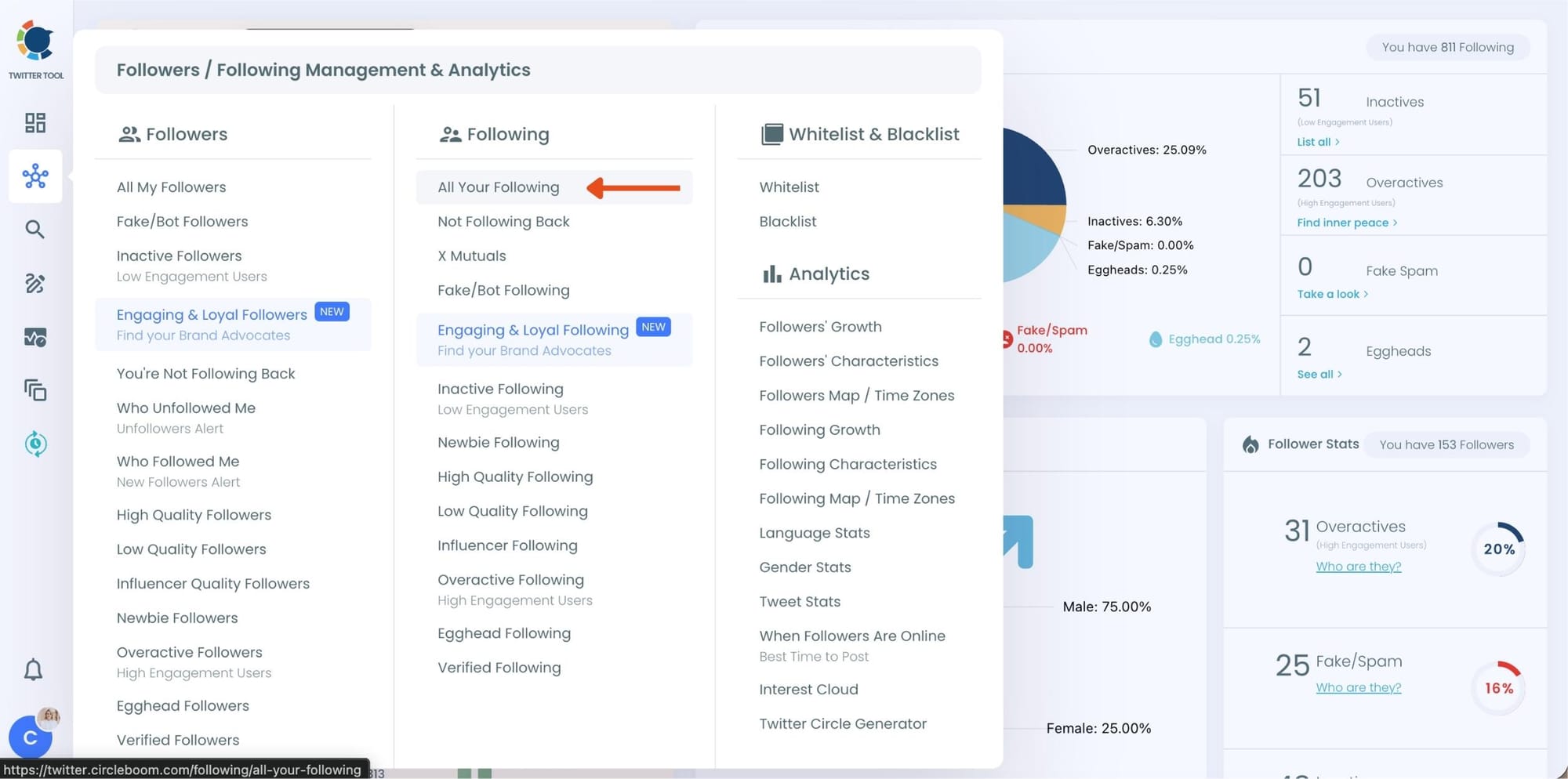
At this point, Circleboom loads your entire following list and displays each account with detailed metrics such as tweet count, join date, follower and following numbers, follow ratio, and activity level.
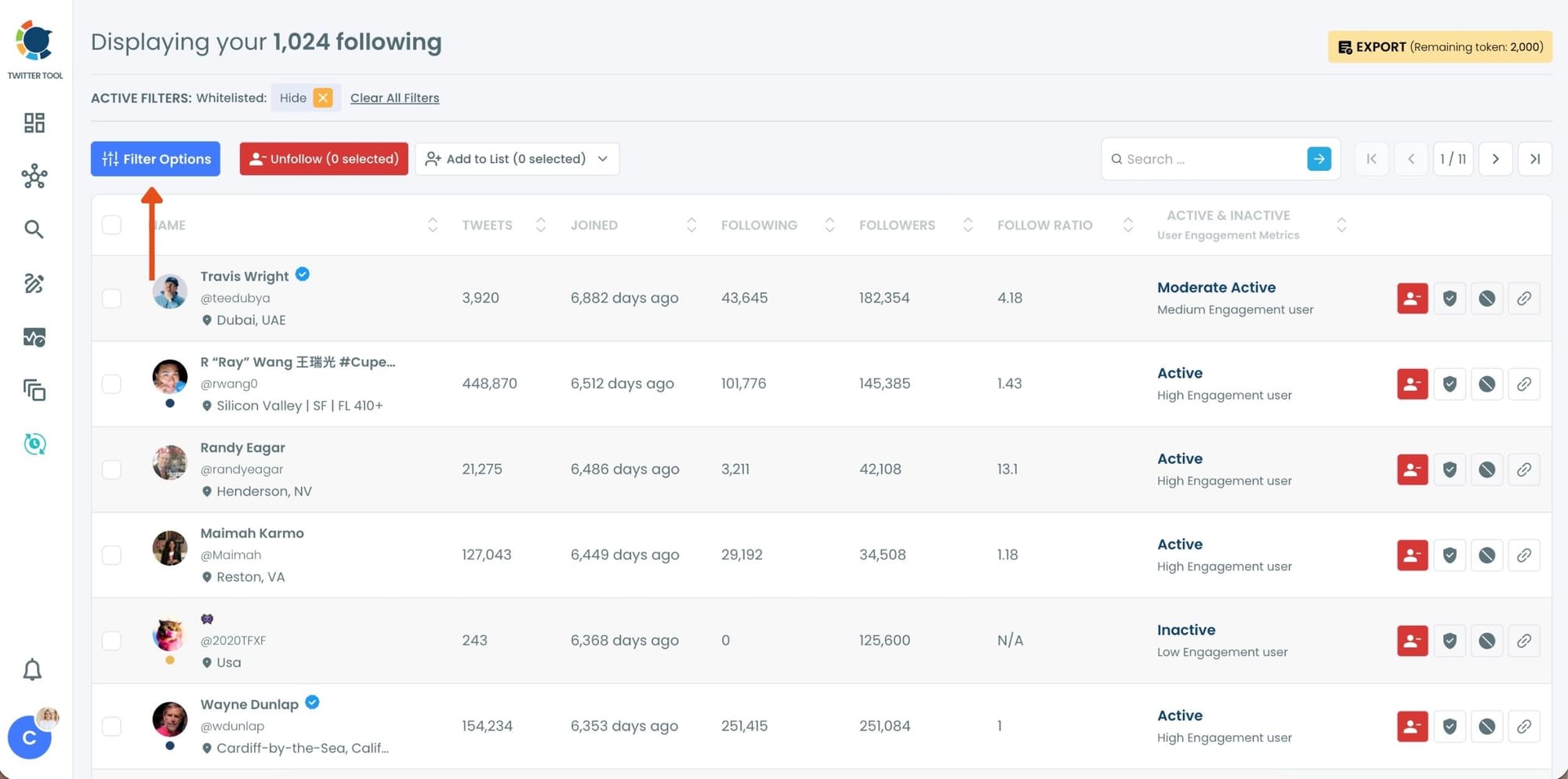
Step #2: Once your following list is visible, click on Filter Options at the top of the page.
Inside the filter panel, use the Follower Quality section to define what you want to see.
Select Fake/Spam and enable Show only. You can also adjust additional quality filters depending on how strict you want the cleanup to be.
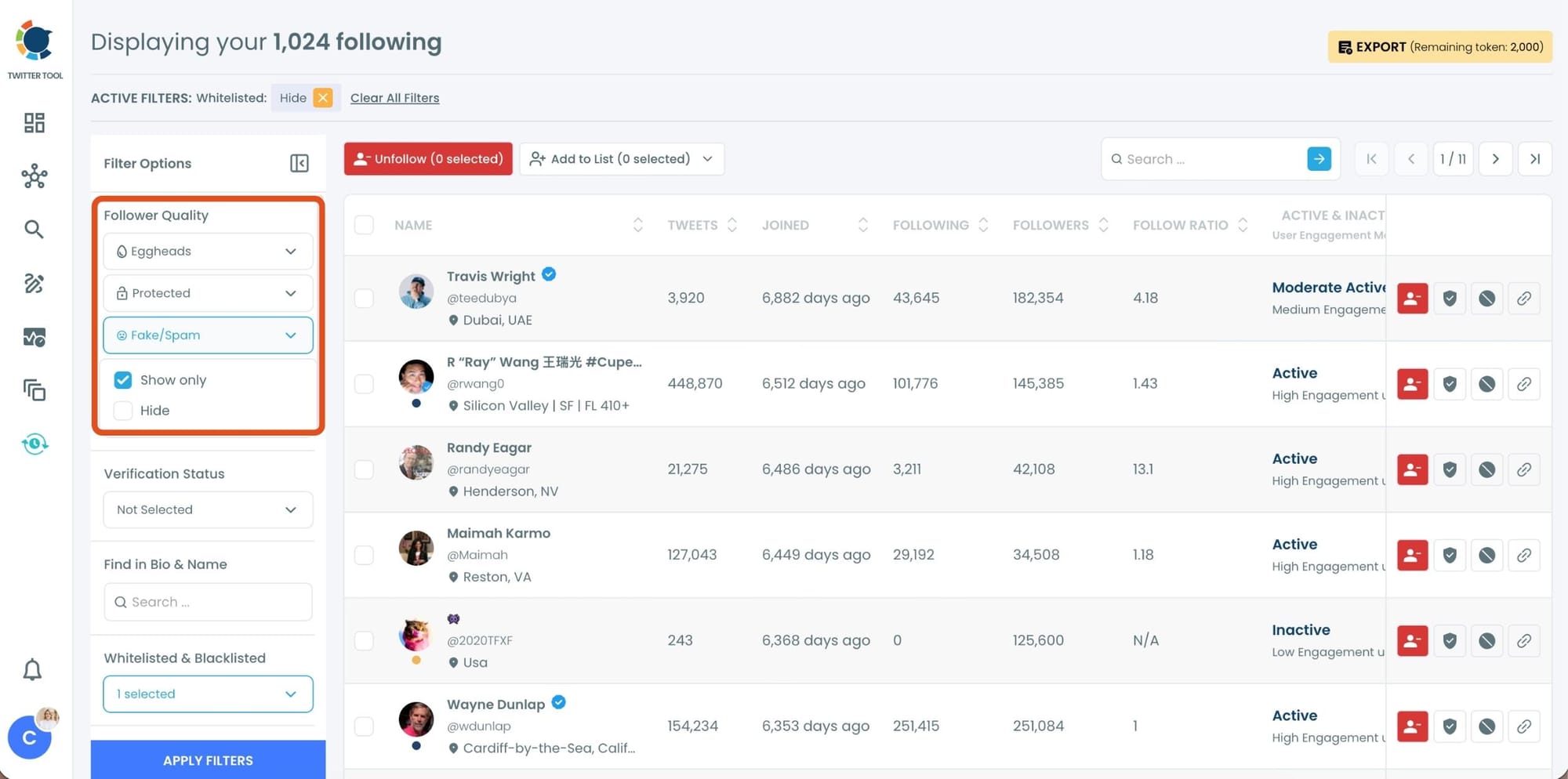
After setting your filters, apply them. Circleboom now lists only fake and low-quality following accounts.
Step #3: Circleboom now shows only low-quality or fake following accounts, each clearly labeled with engagement and activity indicators.
Select the accounts you want to remove by using the checkboxes on the left. You can select multiple accounts at once.
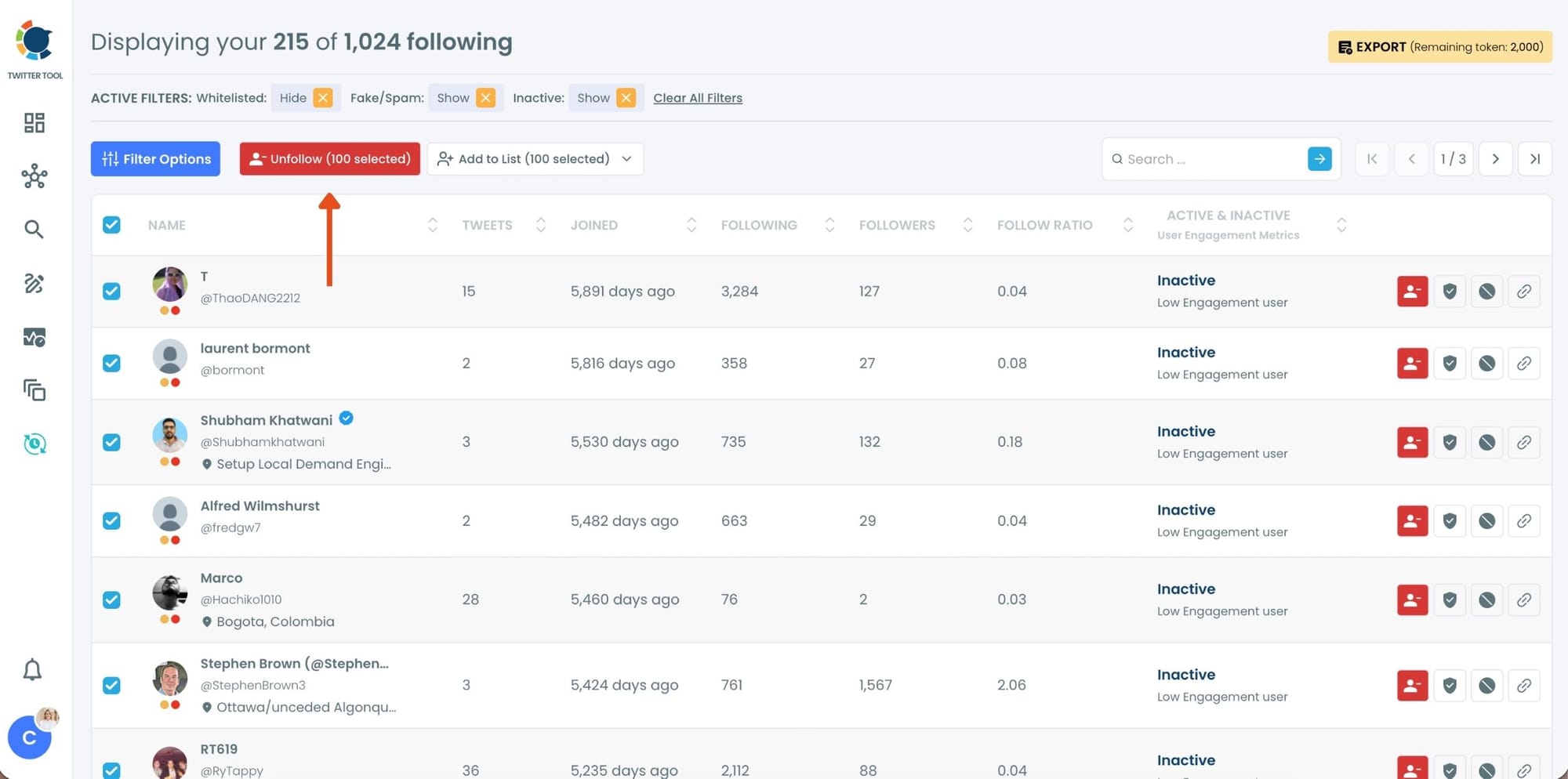
Click the red Unfollow button at the top of the list after making your selection.
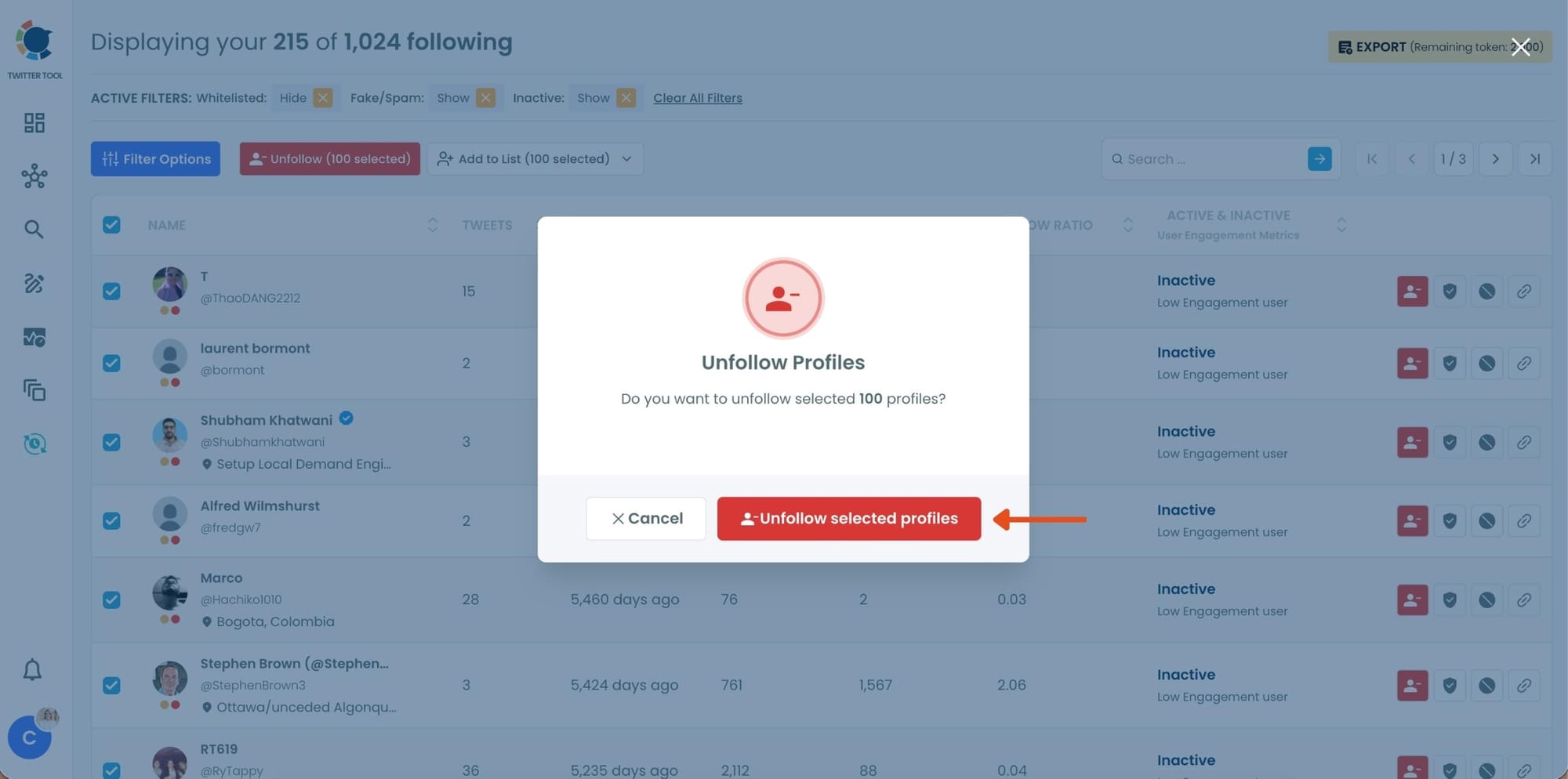
Step #4: Circleboom will show a confirmation pop-up to prevent accidental unfollow actions.
Confirm the action by clicking Unfollow selected profiles.
The Second Fix: Resetting My Likes
Then I realized something else.
Over the years, I had liked thousands of tweets.
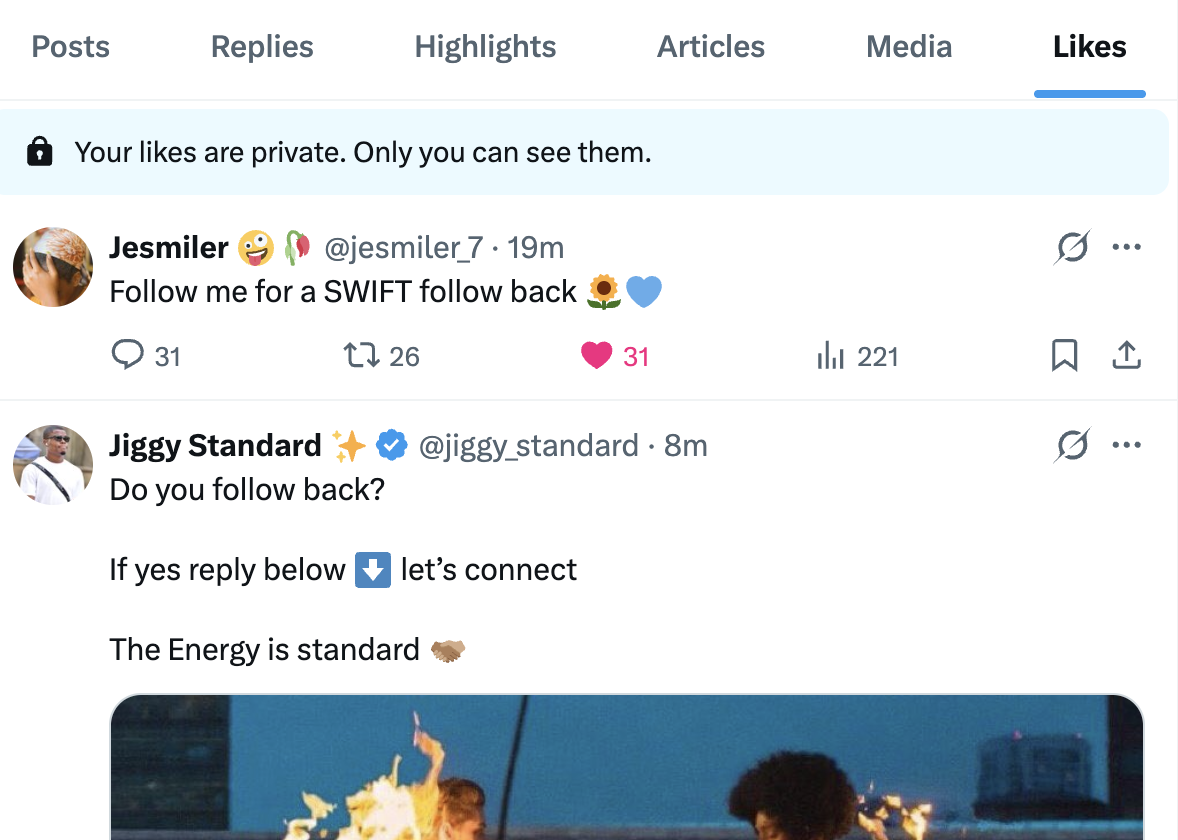
Some were insightful threads, but many were just random memes or viral posts I clicked like on without thinking too much about it.
What I had forgotten was that every like sends a strong signal to the algorithm. When you like a tweet, Twitter assumes you want to see more content like that.
So if you casually like a lot of low-quality posts, the platform will start recommending more of them.
Cleaning up likes manually is almost impossible because it requires scrolling through years of activity.
Instead, I used Circleboom Twitter again to quickly list all the tweets I had liked. The platform displayed them in one place, making it much easier to review and remove them.
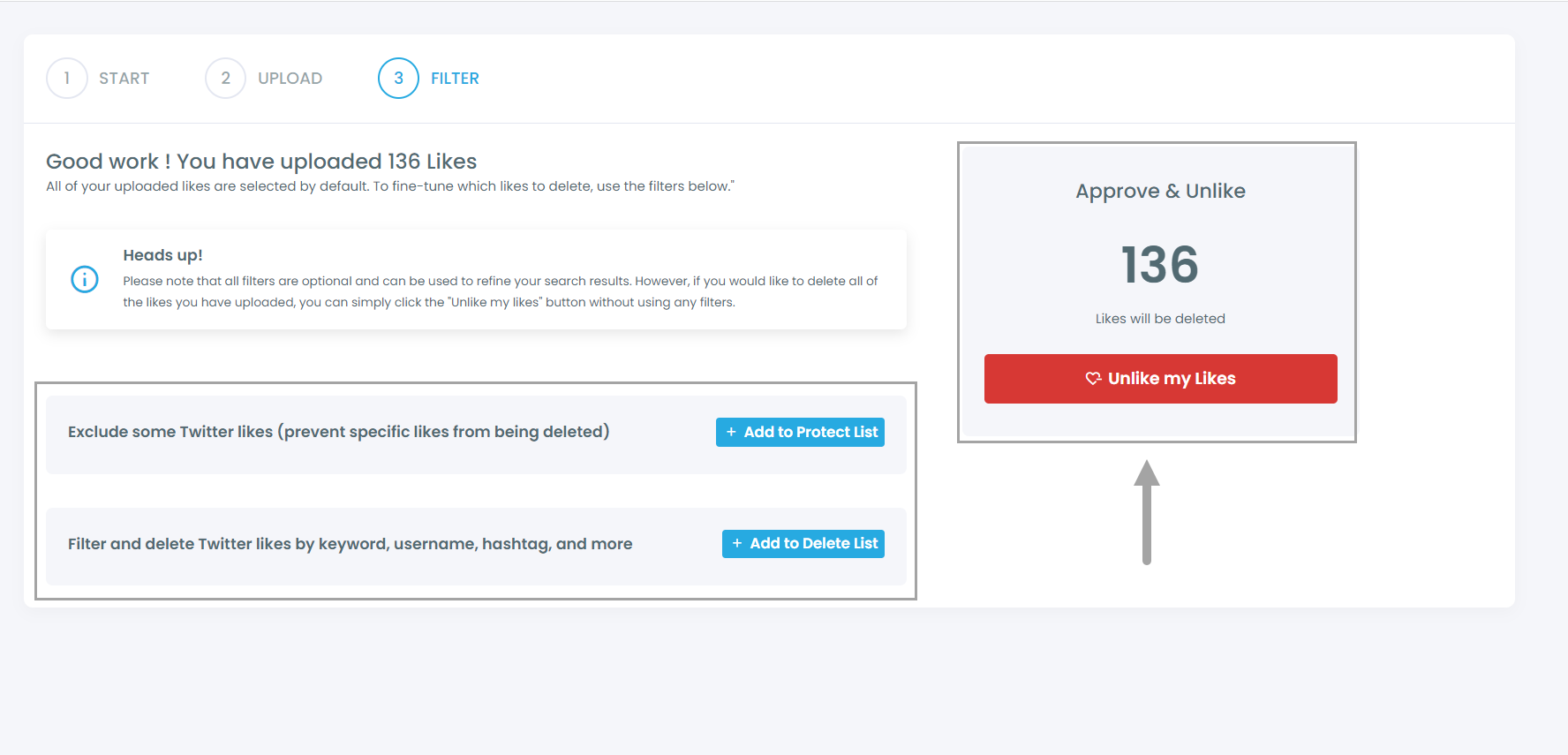
After resetting my likes and becoming more selective about what I interact with, the feed started showing much more relevant content.
The Third Fix: Cleaning My Bookmarks
Bookmarks were another signal I had completely ignored.
When you bookmark tweets, Twitter assumes those posts represent topics you care about and may want to revisit later.
But my bookmarks were completely mixed.
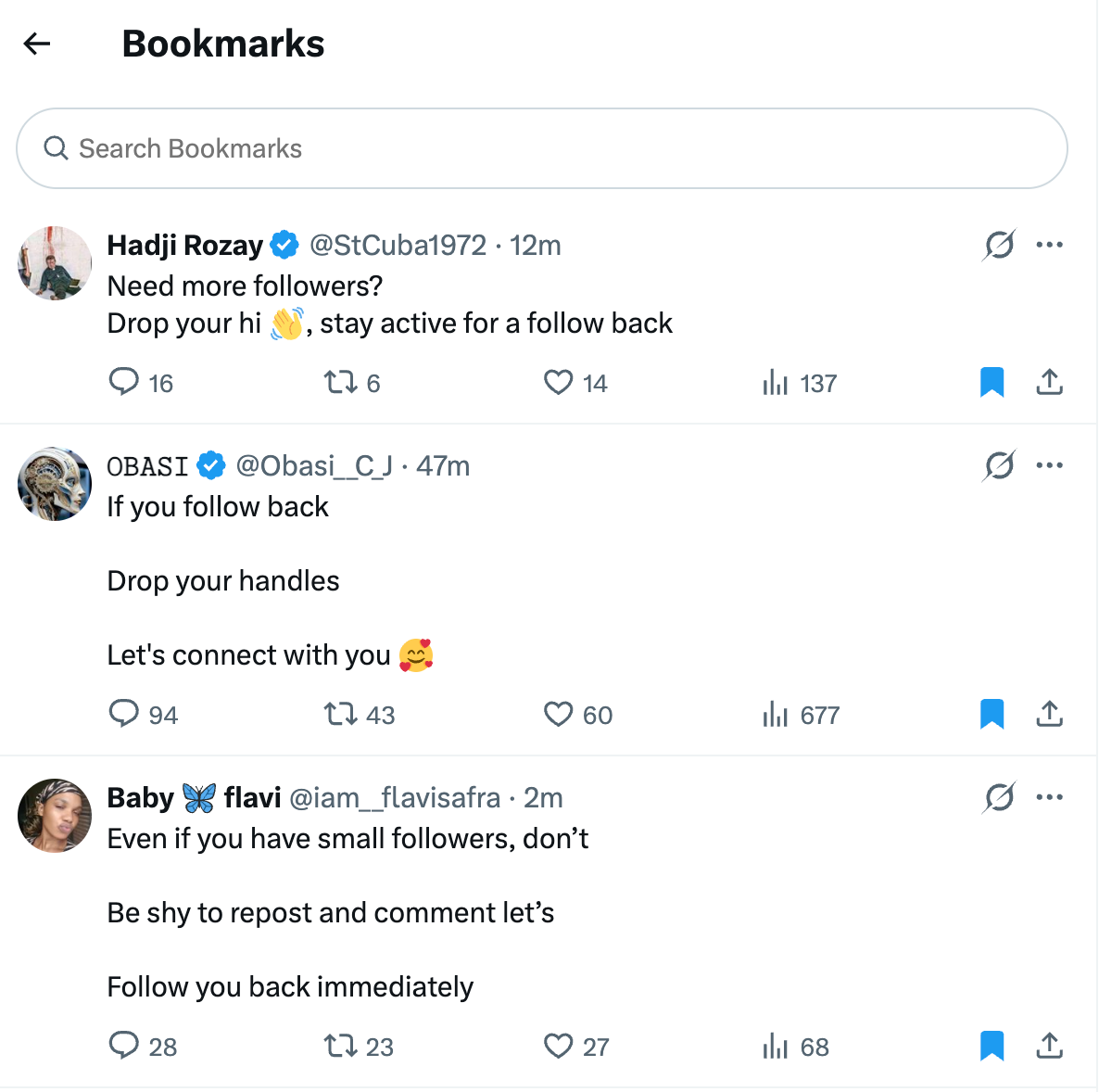
Memes, random threads, news posts, interesting discussions, everything was saved in one giant list. Over time, this created another confusing signal for the algorithm.
To fix this, I cleaned up my bookmarks using Circleboom’s Bookmark Manager.
This feature shows all of your bookmarked tweets in a single interface. Instead of opening each tweet individually, I could review them quickly, export the ones I wanted to keep, and remove the rest.
After clearing the list, I started bookmarking only the content that was actually important to me.
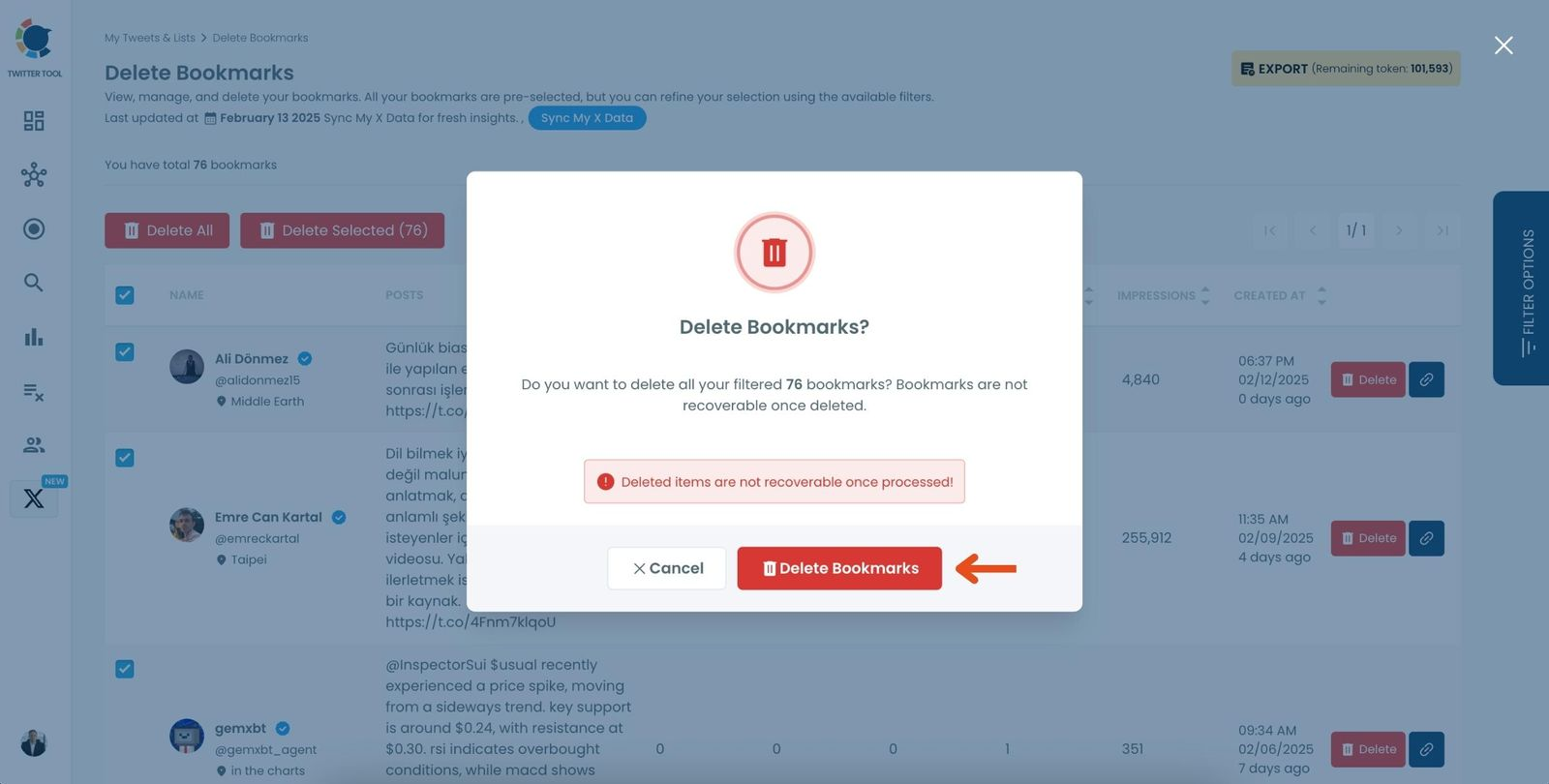
This helped reset another important signal the algorithm uses to shape the feed.
The Trick That Improved My Feed the Most
Even after cleaning my signals, I realized something important.
Relying only on the For You feed isn’t always the best approach.
The algorithm is powerful, but sometimes you want more control over what you see.
That’s where Twitter Lists come in.
 infocircleboom.com
Lists allow you to build your own curated feeds around specific topics. Instead of seeing a mix of everything, you can create timelines focused on the subjects you care about.
For example, you can create lists for:
- AI researchers
- startup founders
- crypto analysts
- journalists
- sports commentators
Each list becomes its own focused feed.
To build these lists faster, I used Circleboom Twitter’s search tools to find accounts related to specific topics. Circleboom allows you to search users by keywords and discover relevant profiles within a niche.
Once I found the right accounts, I could add multiple users to a Twitter list in bulk, which saved a lot of time compared to adding them manually.
Within minutes, I had several curated feeds focused on the topics I wanted to follow.
How I Build Lists with Circleboom
Here’s an example of how I built my NTF List in under 15 minutes using Circleboom:
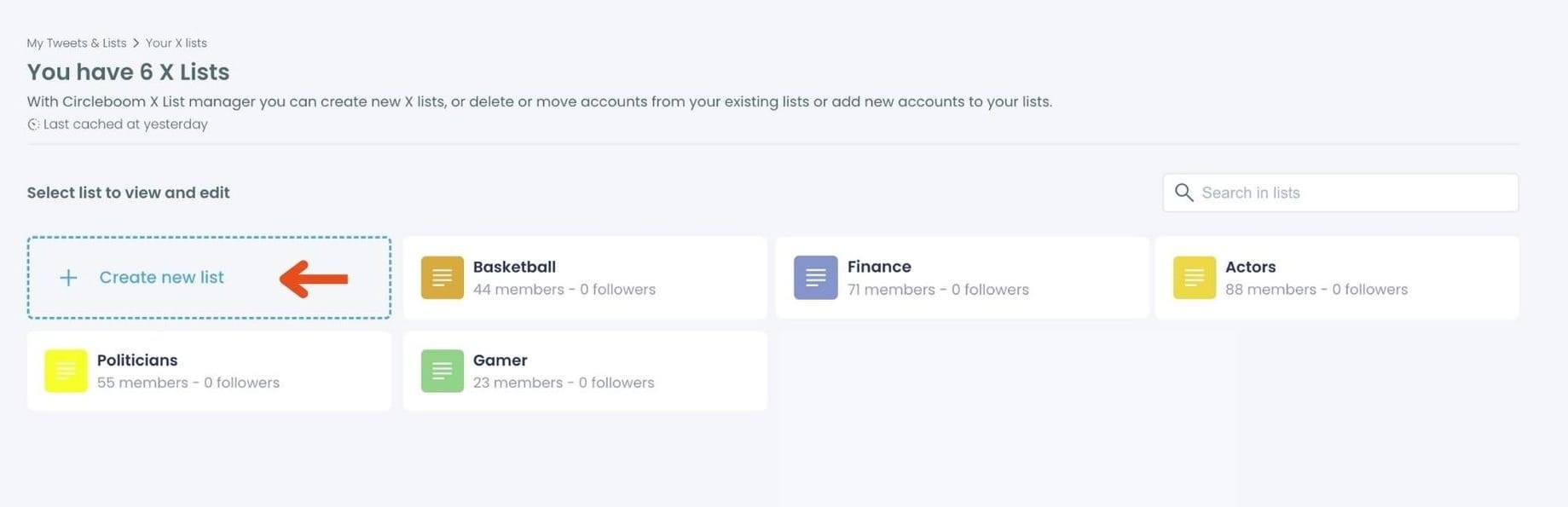
Step #1: On the main Twitter X Lists page, click the "Create new list" option (indicated by the plus sign).
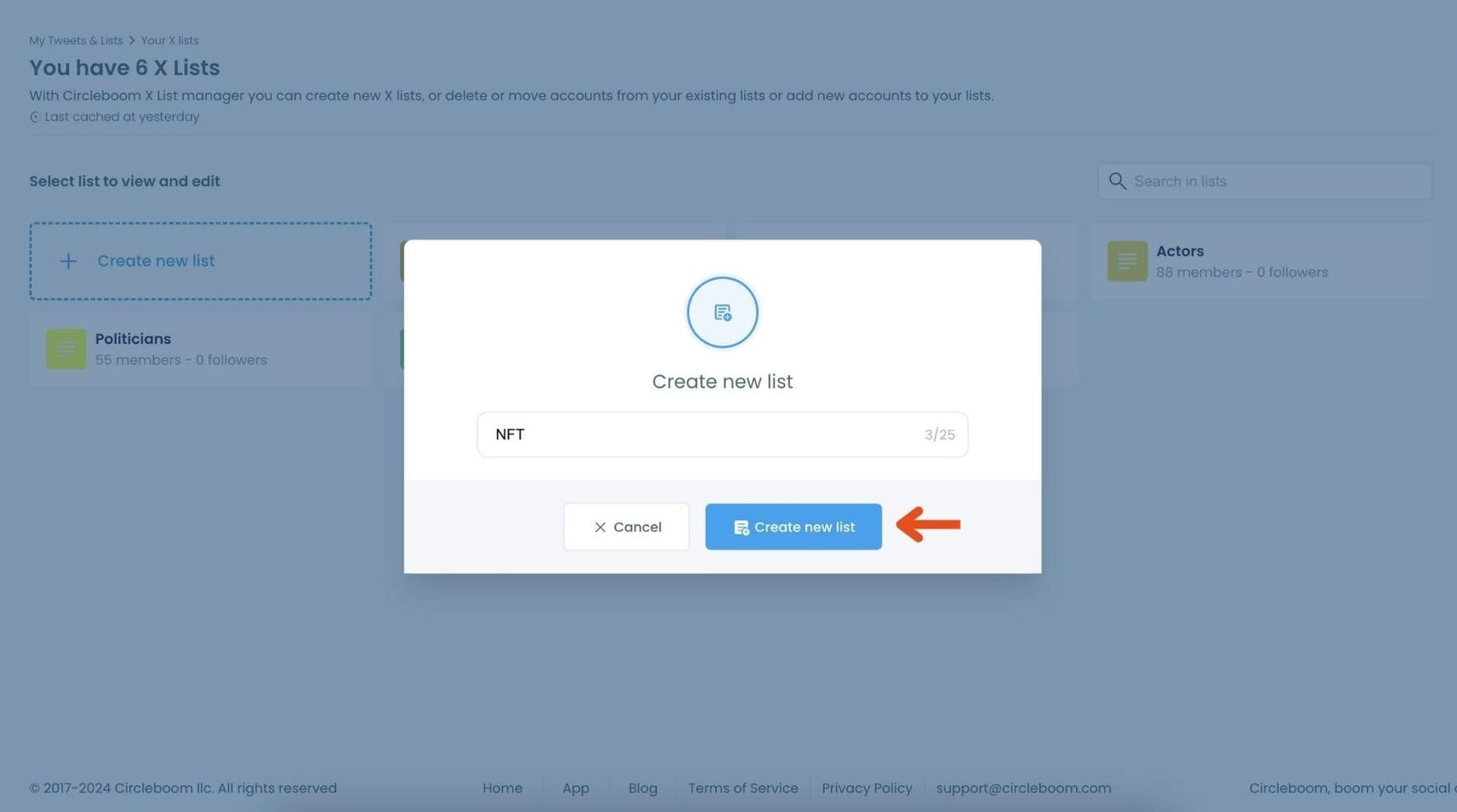
In the pop-up window, enter a name for your new list. For example, if you’re creating a list for NFT accounts, type "NFT" in the text field.
Click on "Create new list" to finalize and create your Twitter X List.
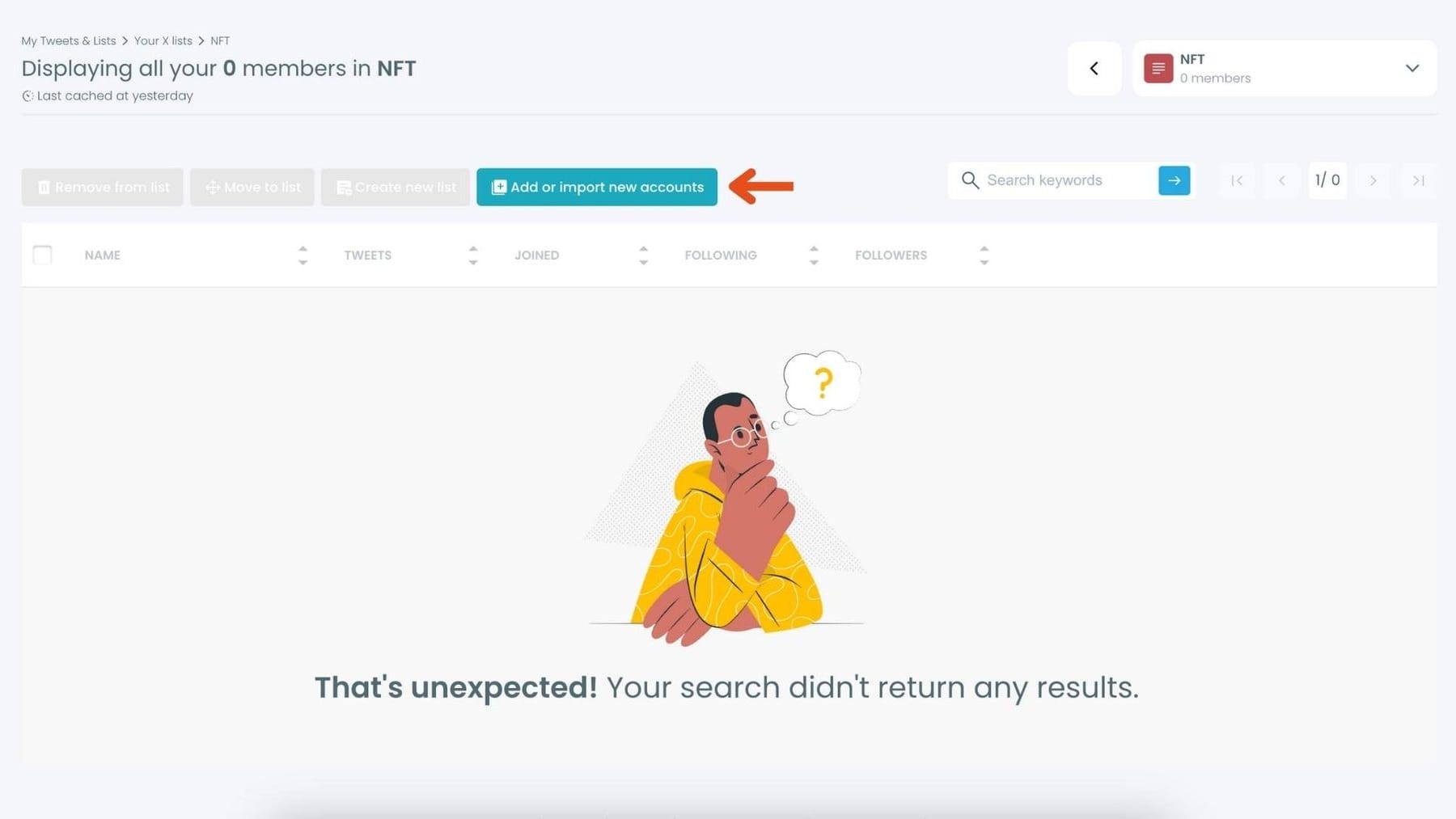
Step #2: Click on the "Add or import new accounts" button at the top of the page.
In the dialog box that appears, enter the usernames or account IDs you want to add, separated by commas.
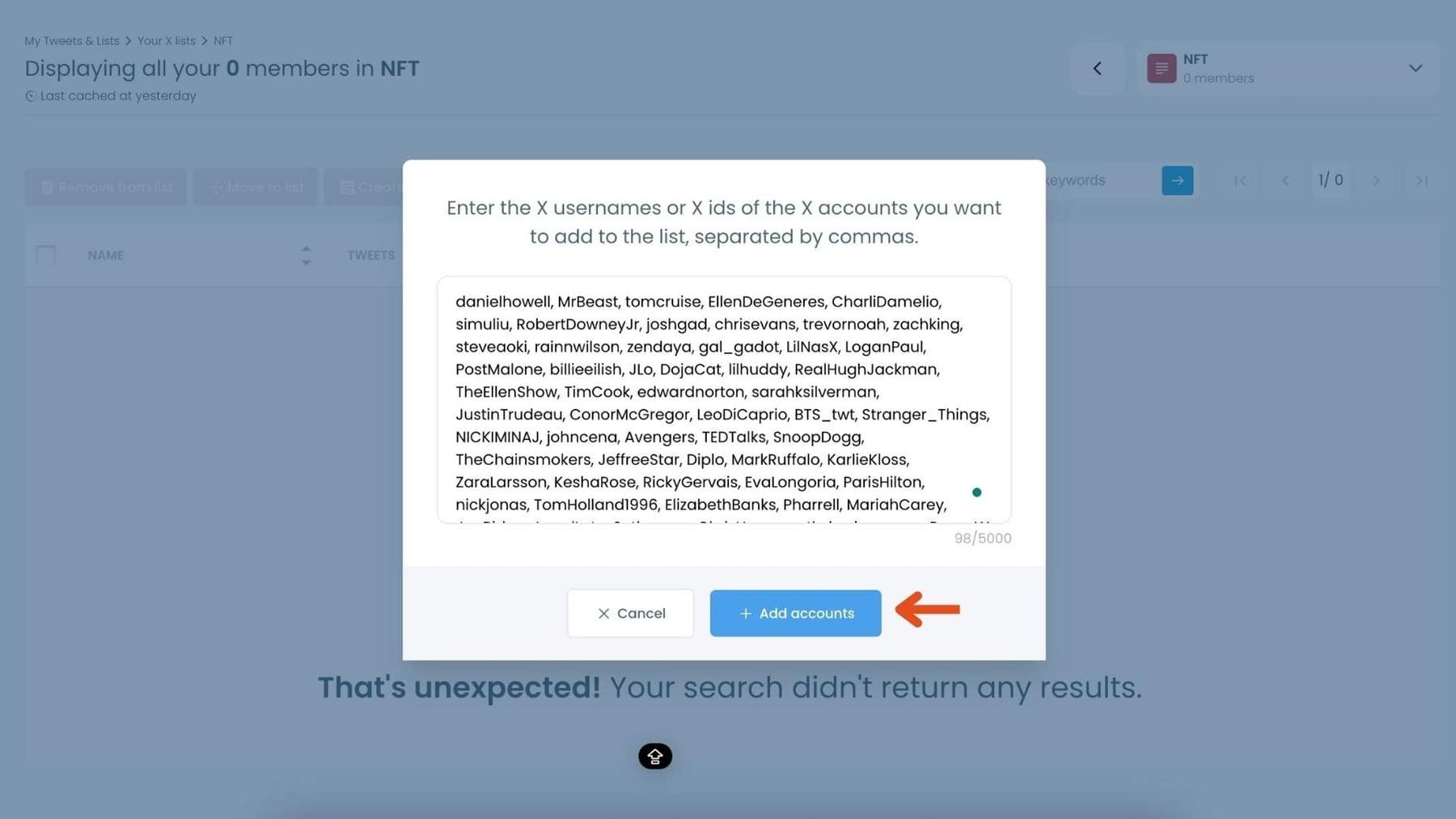
Once you’ve entered the accounts, click "Add accounts" to import them into your list.
Step #3: After importing, you’ll see the members of your list displayed along with details like their Twitter handle, follower count, and location.
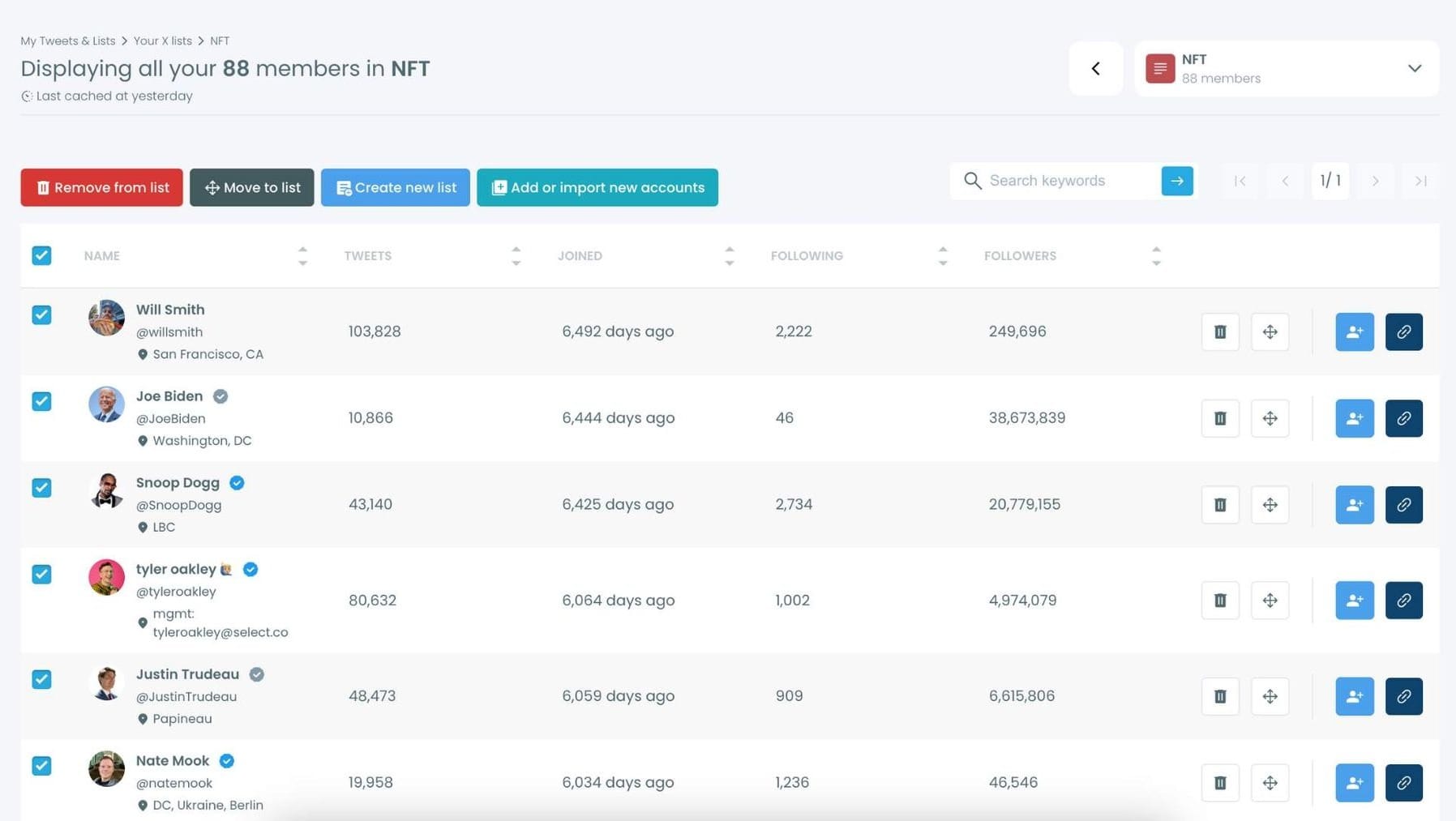
Use the options next to each account to remove them from the list, move them to another list, or edit their settings within the list.
My Twitter Feed Became Useful Again
After cleaning my following list, resetting my likes, organizing my bookmarks, and building curated lists, my Twitter experience completely changed.
Now when I open Twitter, the feed feels very different.
Instead of endless noise, I see insightful threads, meaningful discussions, and content from people who actually share valuable ideas.
The most important realization from this process was simple:
Your Twitter feed is not random.
It reflects the signals you send to the platform.
And if you clean those signals, by managing who you follow, what you like, what you bookmark, and how you organize content, you can completely transform the experience.
Circleboom Twitter made this process much easier by helping me analyze my account activity, clean up my signals, and organize my feed around the topics that actually matter to me.

