
I started noticing something while scrolling through X.
Some posts just look easier to read than others. Not because the ideas are better, but because the text is visually organized.
A few words are bold, some lines look italic, and sometimes people even use circled letters like ⓣⓗⓘⓢ or boxed fonts. It makes the tweet feel more structured, and it’s easier to catch the main point without reading everything slowly.
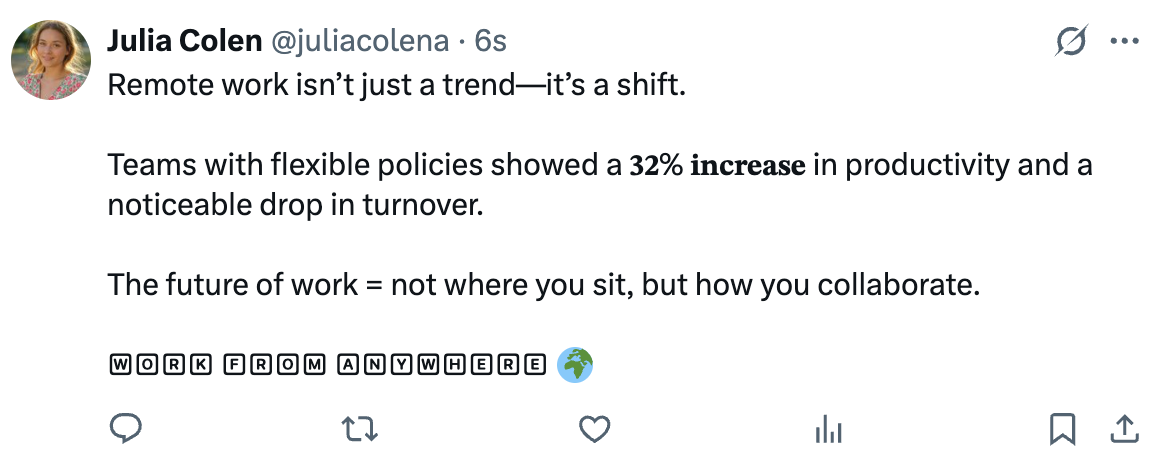
So of course, I wanted to try it too.
At first, I thought X had a built-in text formatting tool and I somehow missed it. I checked the editor, tried different shortcuts, and even searched around the settings.
But after playing with it for a while, I realized X doesn’t support full-text formatting like a document editor. You can’t highlight a sentence and turn it into bold, underline, or another font the way you would in Google Docs.
Still, those formatted tweets obviously exist. So I kept digging.
The Only 2 Ways to Format Text on X Posts
After trying a bunch of things, here’s the honest truth: there are only two real ways people format text on X.
1) X Premium (basic formatting only)
If you have X Premium, you can format tweets using:
- Bold
- Italic
And for some people, that’s enough. If you’re just trying to highlight one word or add a little emphasis, Premium does the job.
But if you’re looking for what creators are actually using to make posts stand out underline-style text, circled letters, boxed fonts, and different styles, Premium won’t really get you there.
2) Unicode formatting (the real “font style” trick)
This is what most people use.
Unicode formatting lets you create things like:
- underline-style text
- circled letters like ⓛⓘⓚⓔ ⓣⓗⓘⓢ
- boxed fonts like 🅃🄷🄸🅂
- aesthetic styles
- headline-looking hooks for threads
I tried using random font generator websites for this, and they technically work. But the workflow was annoying. I kept bouncing between tabs, copying and pasting, trying different styles, then going back to X and fixing spacing.
It didn’t feel like something I’d want to do every day.
So I switched to Circleboom Twitter.

Why I Use Circleboom Twitter for Text Formatting
Circleboom Twitter makes this whole thing much easier because it has a built-in Font Generator inside its posting tools.
 Arif Akdogan
So instead of writing my tweet in one place and formatting it somewhere else, I can do everything from one dashboard. I write the post, format the parts I want, and it’s ready.
Also, Circleboom Twitter is an official X Enterprise developer, so it’s safe to use. That part matters a lot because there are tons of random “Twitter tools” online, and I’m not comfortable connecting my account to something I don’t trust.

Another big advantage:
You don’t need X Premium to format your text with Circleboom. Even if your account is completely free, you can still create styled tweets and post them normally.
Circleboom’s X Post Planner Makes Posting Easier Too
The font generator is what pulled me in at first, but Circleboom’s X Post Planner is what made me stay.
Because the truth is, formatting alone isn’t the full game. You also want the post to be well-written, clean, and timed correctly.
Circleboom’s X Post Planner helps me create and plan content without rushing. And inside it, there’s also Circleboom AI, which is built specifically for social media writing.
I usually use it when:
- I know what I want to say, but my first sentence sounds weak
- I want a few variations of the same tweet
- I’m writing a thread and need smooth transitions
- I want to match my older tweet style instead of sounding robotic
It analyzes your tweets and audience and creates posts that feel closer to your usual vibe. So it doesn’t feel like “AI wrote this,” it feels more like you just wrote it faster.
How I Use Formatting Without Making My Tweets Look Weird
There’s one mistake I made early on: I tried formatting too much.
If your whole tweet is in a fancy font, it becomes harder to read. Also on X, people sometimes associate heavy formatting with spam, bots, and low-quality engagement posts.
So now I keep it simple.
I usually format only:
- the first line (hook)
- one keyword that matters
- a short “headline-style” line inside the tweet
- the final takeaway or CTA
This keeps the post clean, but it still makes the important part stand out while people are scrolling fast.
How to Format Text on X (Twitter) Using Circleboom (Step-by-Step)
Step 1: Go to Circleboom Twitter’s X Post Planner
Open Circleboom Twitter and click X Post Planner + AI Writer.
Then select Write & Plan Your Post to start creating your tweet.

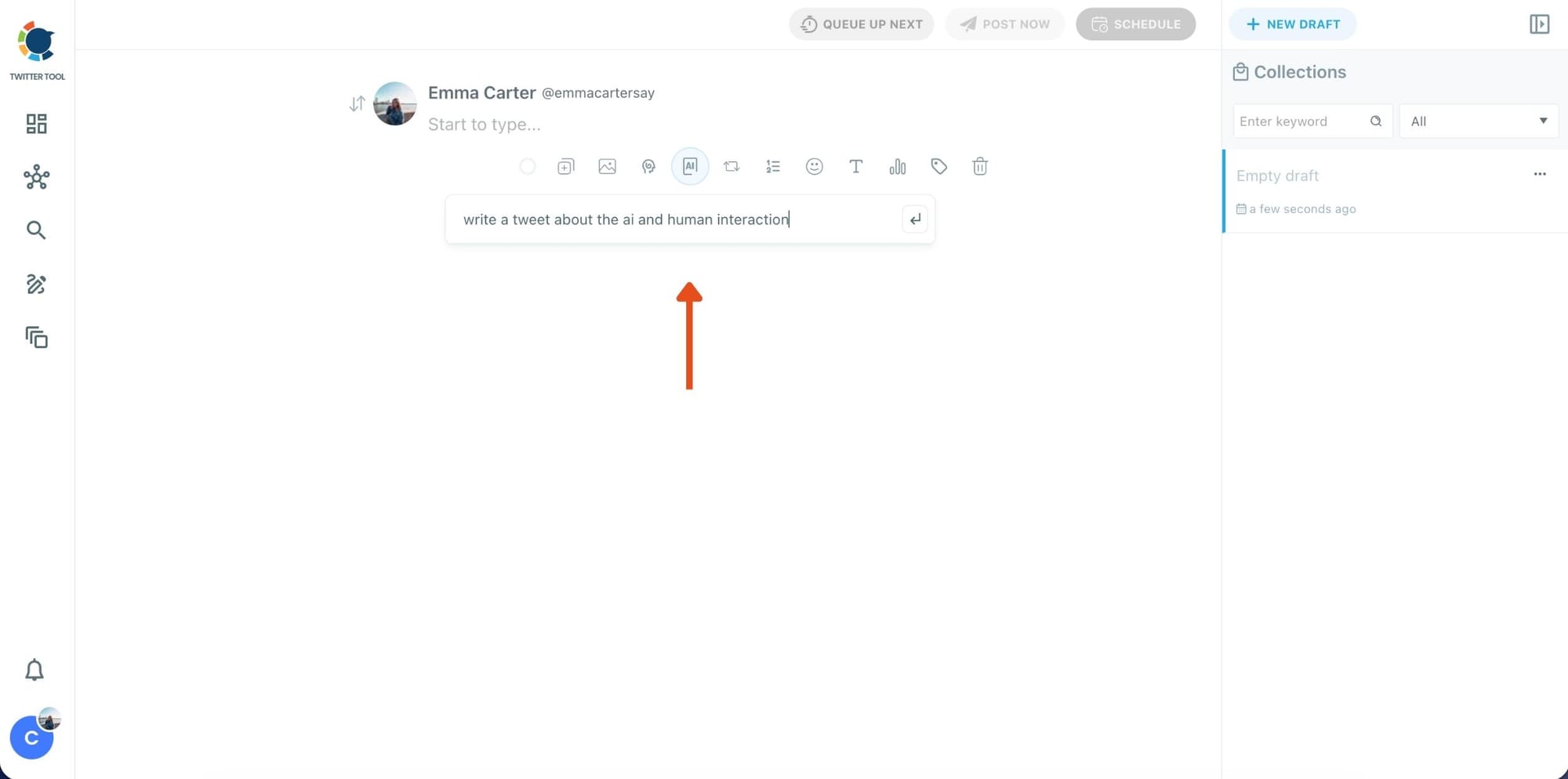
Step 2: Write your tweet (or generate one with AI)
You can type your tweet manually in the editor.
Or, if you want to move faster, click the AI option and let Circleboom generate a tweet idea for you based on your topic.
Step 3: Add an image to make the post more engaging
Once your text is ready, attach a visual to your tweet.
You can:
- Upload an image/video from your device
- Pick one from Unsplash
- Or design one instantly using Canva

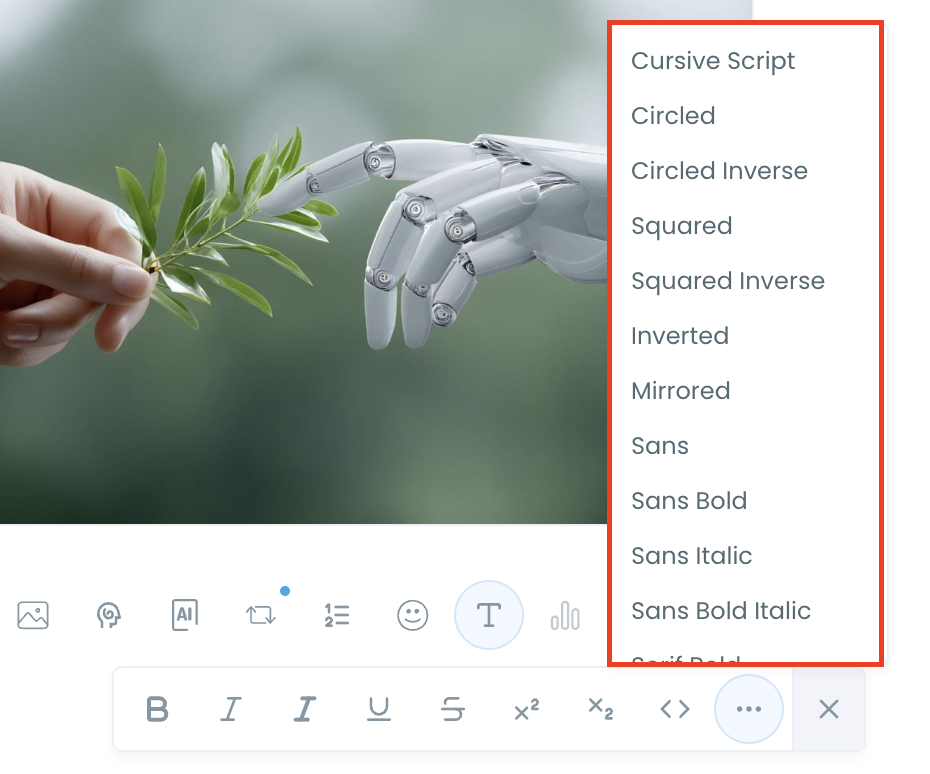
Step 4: Style your tweet using Circleboom’s Font Generator
Now it’s time to make your tweet stand out visually.

Select the part of your text you want to change, then open the Font Generator toolbar and apply styles like:
- Bold / Italic / Underline
- Different font variations
- Extra formatting options for a more “designed” look
This is perfect when you want key parts of your tweet to grab attention immediately.
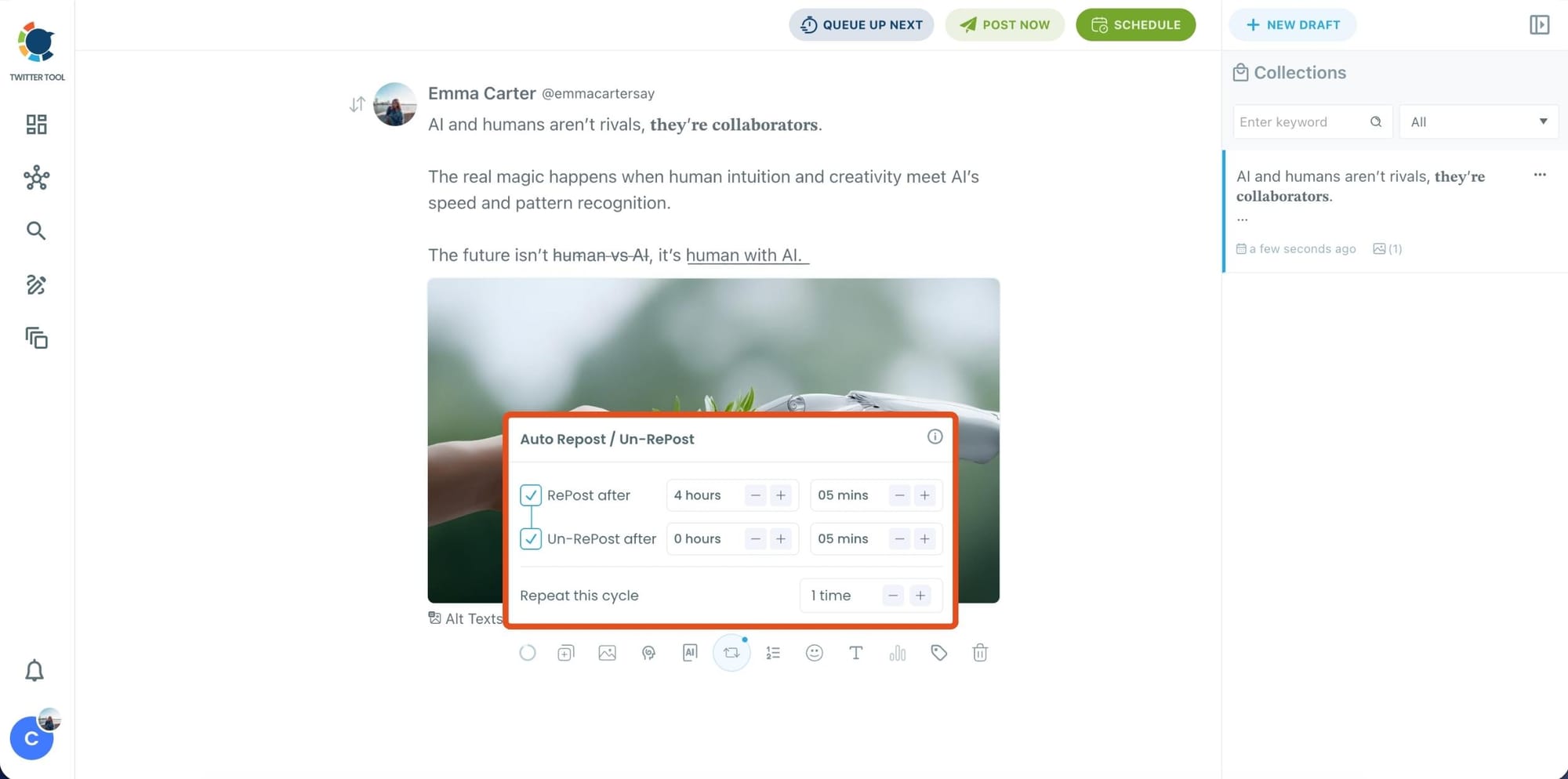
Step 5: Set Auto Retweets to boost visibility
After styling your post, you can increase reach by enabling Auto Repost / Un-RePost settings.
This lets you automatically:
- Repost your tweet after a selected time
- Remove the repost later
- Repeat the cycle if you want more than one repost
It’s a smart way to bring your tweet back into the feed without manually reposting it.
Bonus Tip: Cross-post your tweet to other platforms automatically
Before you publish, you can also enable Cross-Post to share the same tweet across multiple platforms in one go.
Circleboom lets you post your content to Instagram, Facebook, LinkedIn, Bluesky, and Threads automatically, so you don’t have to rewrite, re-upload, or repeat the same work on each platform.

Step 6: Schedule it for the best time to post
Finally, click Schedule and set your date and time.
You can also click Find your best posting time to see Circleboom’s suggested time slots based on follower activity.

Once you pick the best option, schedule it, and you’re done. Your tweet will go out at the time it has the highest chance to perform well.
Final Thoughts
If your only goal is to use bold and italic, then X Premium is fine.
But if you want the real formatting styles people actually use on X, underline-style text, circled letters, boxed fonts, and different font variations, then Unicode styling is the way to go.
That’s why I use Circleboom Twitter.
It lets me write tweets inside the X Post Planner, improve them with Circleboom AI, format them using the built-in font generator, and even increase impressions with Auto Retweet and smart scheduling.
Once you start doing this, your tweets instantly feel more structured and easier to read. And on X, that small difference can make your content stand out more than you’d expect.


%20Posts%3A%20Bold%2C%20Italic%2C%20Underline%20%26%20More)
