

If you actively use Twitter (X) to learn, research, or collect ideas, bookmarking becomes second nature. You see a smart thread, a useful tool, a sharp insight, or a tweet you’ll “definitely come back to later,” and you hit the bookmark button without thinking twice.
That’s exactly how I use bookmarks. A lot.
Over time, my bookmarks became a mix of: content ideas, marketing insights, technical threads, tools to test later, tweets I wanted to reference or reuse
Individually, every bookmark was valuable.
Collectively, they turned into chaos.
When I opened my bookmarks tab, it felt like a cat pile, everything was there, but nothing was findable. Scrolling endlessly, trying to remember who posted what or when I saved it, became frustrating.
The worst part wasn’t that I had too many bookmarks. It was that I couldn’t actually use them anymore.
That’s when I realized bookmarking without a system doesn’t save time—it delays value.
 Arif Akdogan
Why Twitter Bookmarks Become Unmanageable So Fast
Twitter bookmarks are designed for saving, not for management.
Everything goes into one long list, ordered only by the time you saved it. There’s no real way to review bookmarks in bulk, no meaningful sorting, and no way to treat bookmarks as a collection rather than a stream.
As the list grows:
- Older bookmarks get buried
- Searching becomes trial and error
- Cleaning feels overwhelming
- You stop revisiting saved tweets altogether
At that point, bookmarks stop being a productivity tool and start becoming digital clutter.
Option 1: Bookmark Folders on X (Helpful, But Limited)
X does offer bookmark folders, and at first, I was excited about them.
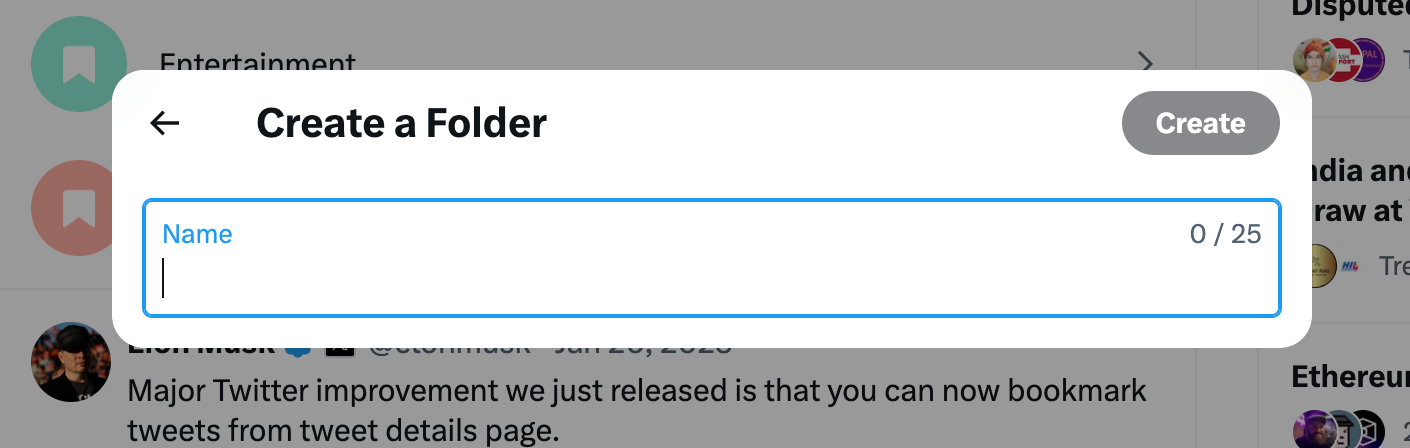
Folders let you group bookmarks under different topics, which immediately makes the main list feel less overwhelming. For example, you can separate ideas, research, inspiration, and tools.
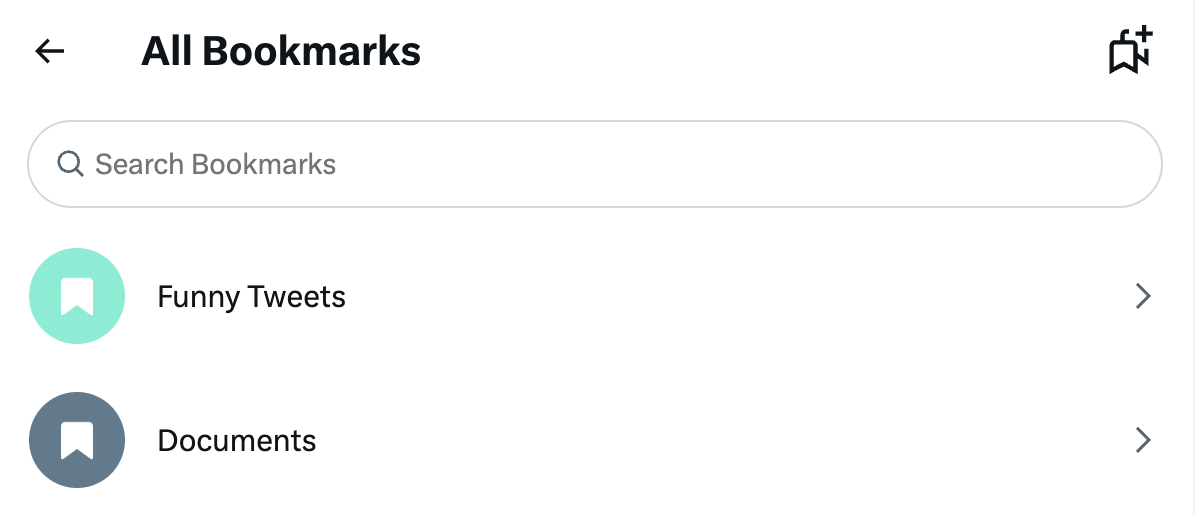
However, two issues quickly became clear.
First, folders are only available for Premium users, which already limits accessibility.
Second, and more importantly, even with folders, management is still very shallow. Inside folders:
➡️ You still can’t sort bookmarks properly
➡️ Filtering is minimal
➡️ Searching across folders is clunky
➡️ Bulk actions are not supported
Folders help visually, but they don’t solve the deeper problem: control.
Option 2: Exporting Bookmarks and Building My Own System
Because I didn’t want to lose any valuable tweets, I decided to treat bookmarks like a personal knowledge base instead of a casual save list.
 infocircleboom.com
My next step was exporting bookmarks as CSV files and managing them in Excel.
This changed everything.
Inside Excel, I could:
➡️ Search instantly
➡️ Sort bookmarks by date, author, or topic
➡️ Add notes explaining why I saved a tweet
➡️ Mark priority items
➡️ Create categories that actually made sense to me
Over time, this turned my bookmarks into a structured archive instead of a messy feed.
But there was still a problem: exporting and cleaning manually took effort. I had to remember to do it, repeat the process, and jump between tools. It worked but it wasn’t smooth.
If you are a creator on X and want to know about the latest developments regarding the algorithm changes, engagement strategies, payout boosts, etc., you can join Circleboom's X Creator Growth Lab Community and enjoy a free space to learn from and contribute to!

Turning Bookmark Management Into a Habit (My Personal Routine)
What finally made bookmark management sustainable was building a repeatable routine, not a one-time cleanup.
Here’s how I personally manage bookmarks now:
- Daily / ongoing:
I bookmark freely without overthinking. If something feels useful, I save it. - Weekly or bi-weekly:
I quickly review recent bookmarks and remove obvious low-value ones. This prevents the pile from growing uncontrollably. - Monthly:
I export valuable bookmarks, archive them, and clean up the rest. This keeps the bookmark list lean while preserving long-term value.
This routine only works, though, if the tools don’t slow me down. That’s where Circleboom comes in.

Keep in mind that the API provides a more accurate real-time data stream than the X interface itself. While the platform UI may experience lag, the API captures and reflects new developments instantaneously.
Circleboom has the official Enterprise API, we don't scrape data from X!
Managing Everything from One Place with Circleboom Twitter Bookmark Manager
To make this entire system practical, I use Circleboom Bookmark Manager.

Circleboom Twitter is an official X Enterprise Developer, which means it works directly with X’s official API and respects platform rules.
That’s important when dealing with bookmark data, exporting, and bulk actions.
 infocircleboom.com
Instead of switching between X, spreadsheets, and manual cleanup, Circleboom brings everything together in one dashboard.
With Circleboom Twitter Bookmark Manager, I can:
❇️ See all my bookmarks in a clean, scrollable list
❇️ View detailed stats for each bookmarked tweet
❇️ Search bookmarks instantly instead of endless scrolling
❇️ Filter bookmarks to narrow down what matters
❇️ Sort bookmarks to review them intelligently
❇️ Download/export bookmarks (something X itself doesn’t offer)
❇️ Delete bookmarks to keep the list clean and usable
This turns bookmark management from a “project” into a simple workflow.
Step-by-Step: How I Manage Bookmarks Using Circleboom Twitter
Here’s exactly how I use it:
Step #1: Log In to Circleboom Twitter
Go to the Circleboom Twitter website and log in with your credentials. If you’re a new user, sign up—it’s quick and easy!

Step #2: Go to your Bookmarks
In the left-side menu, click on “My Tweets & Lists” and then select “Delete Bookmarks” from the dropdown.

Step #3: View and Manage Your Bookmarks
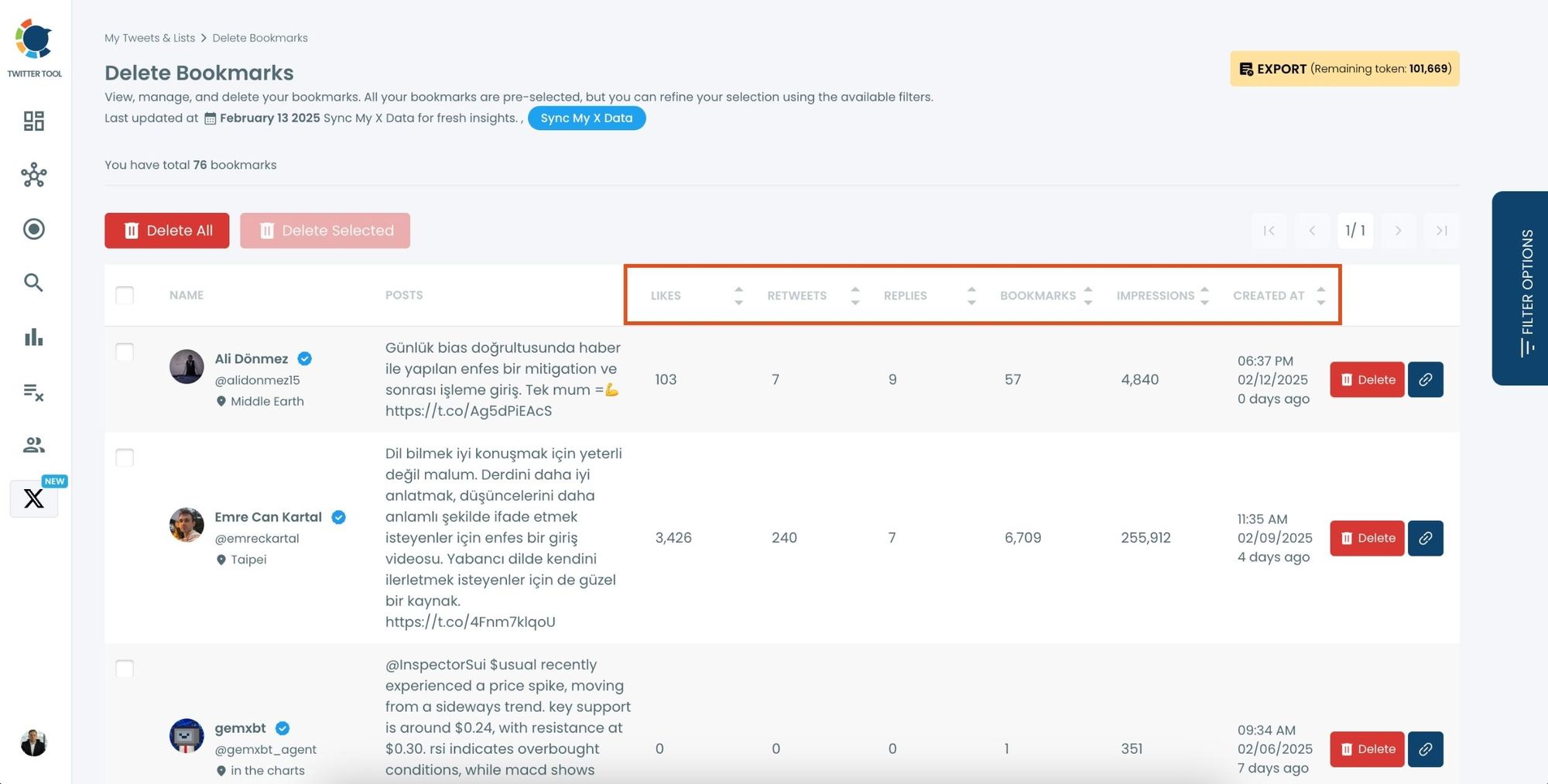
After opening the "Delete Bookmarks" section, you'll see all your saved tweets.
The page will display essential details such as likes, retweets, replies, and impressions for each bookmarked tweet.
This allows you to filter, organize, and select bookmarks for export.
Step #4: Use Filters to Find Specific Bookmarks
Click on “Filter Options” on the right side of the screen.
You can refine your bookmarks based on engagement (likes, retweets, impressions), date, language, and tweet type (posts, replies, or reposts).

Step #5: Select and Export Your Bookmarks
Check the box next to each tweet you want to export, or click "Select All" to export all bookmarks.
Click on the “Export” button at the top right. You are one step away from downloading all your Twitter bookmarks.
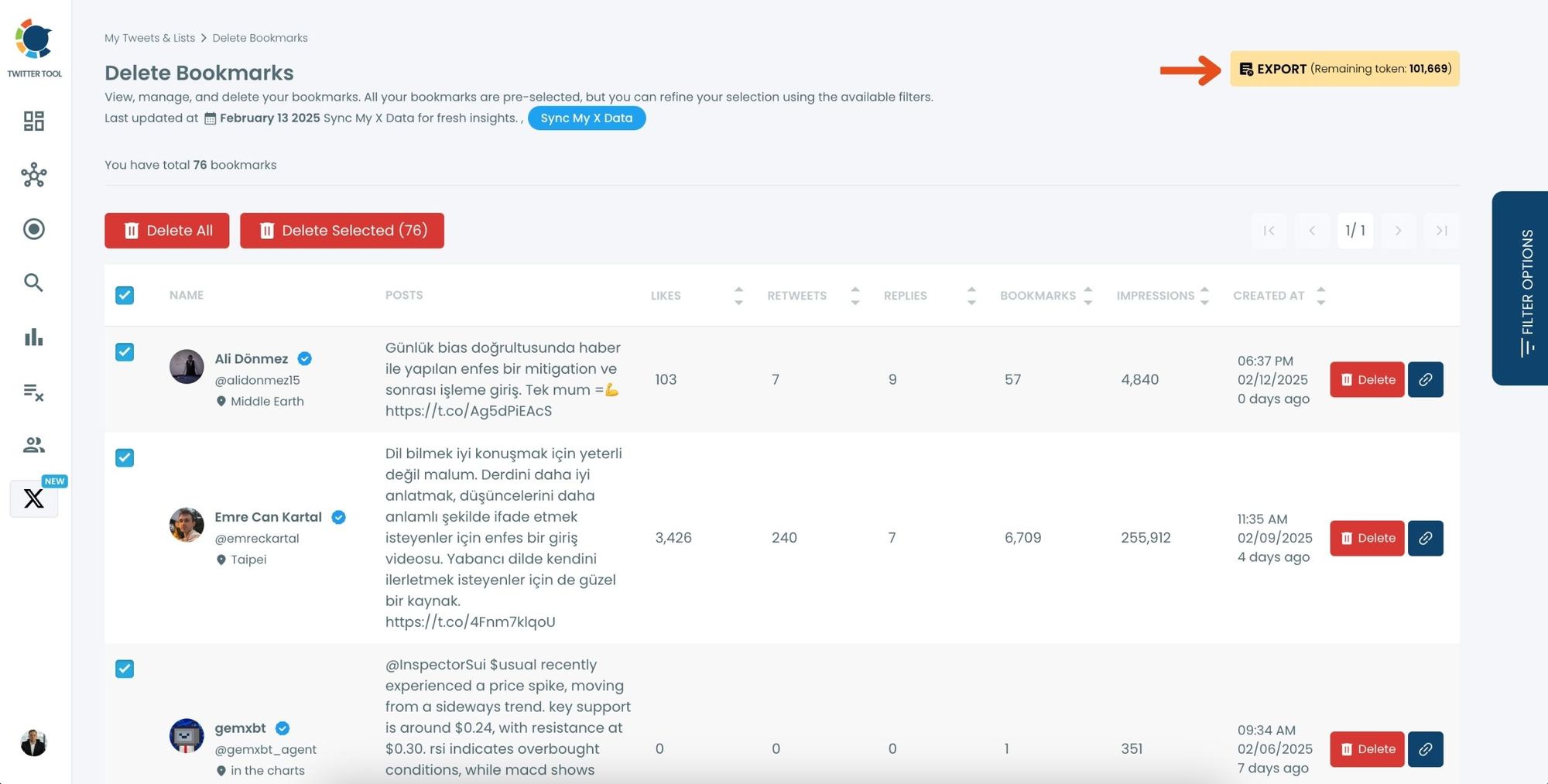
A confirmation message will pop up showing the number of bookmarks you’re about to export.
Click “Export X Bookmarks”, and your bookmarks will be downloaded as a file.

Step #6: Access and Use Your Exported Bookmarks
Once the bookmarks are exported, they will be saved in a spreadsheet format (CSV or Excel file).
The file contains detailed tweet information
This organized format makes it easy to search, sort, and reference your saved tweets whenever needed.
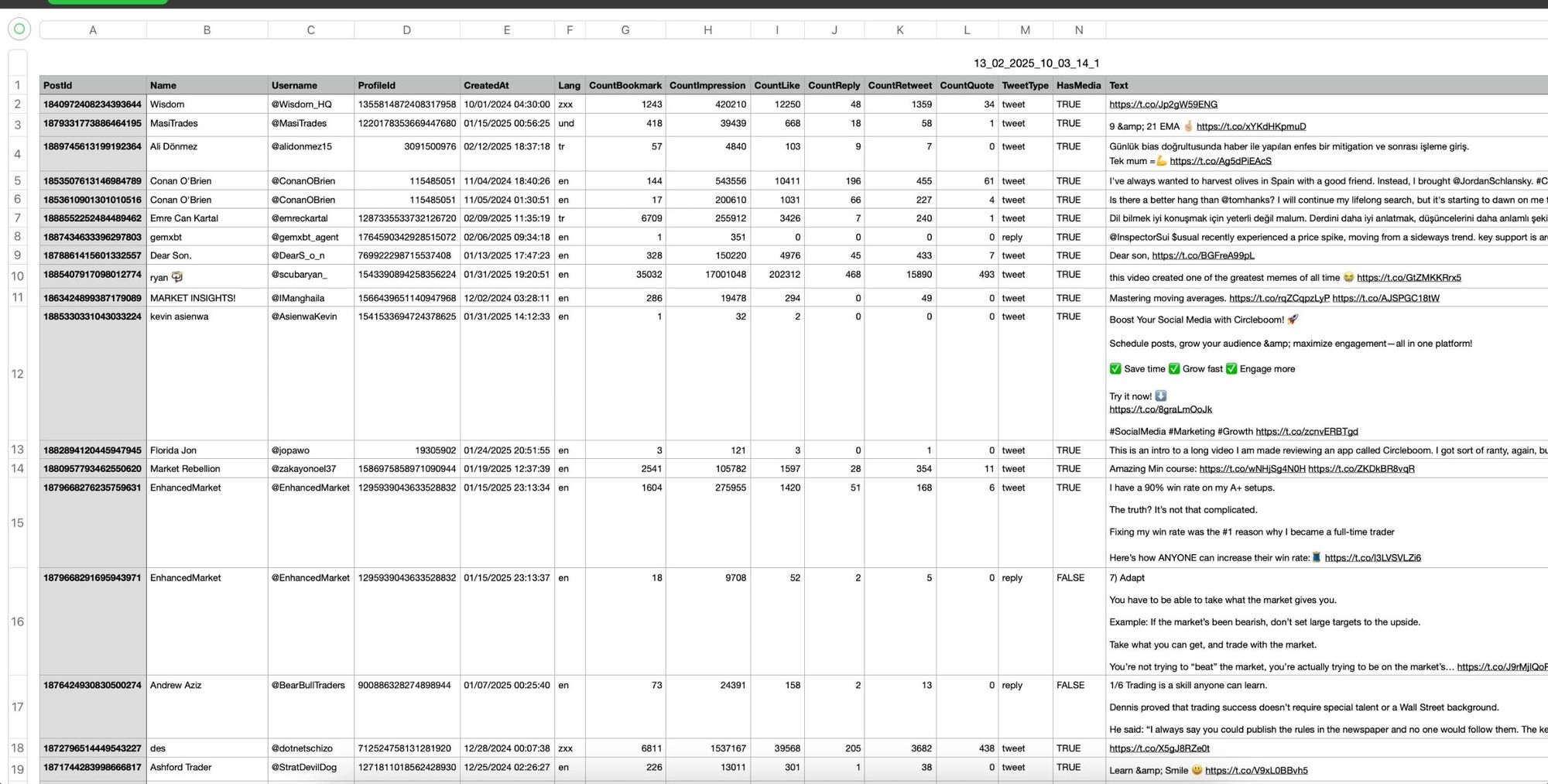
By exporting your X bookmarks, you ensure that important tweets remain accessible even if they get deleted or lost.
Why This System Works Long-Term
The biggest mistake people make with bookmarks is treating them as a passive feature. Bookmarks only become valuable when they’re actively managed.
By combining:
- Light daily saving
- Periodic review
- Structured exporting
- Centralized management with Circleboom
bookmarks turn into a searchable, reusable resource instead of an overwhelming archive.
Final Thoughts: Bookmarks Should Work for You, Not Against You
Saving tweets is easy. Using them later is the hard part.
Without a system, bookmarks slowly lose their value even if every saved tweet is great. With a clear routine and the right tools, bookmarks become a personal library you can actually rely on.
With Circleboom Bookmark Manager, you can search, sort, export, and clean your bookmarks from one place. That makes managing hundreds or thousands of saved tweets realistic, sustainable, and actually useful.
%20Bookmarks)
