

I started losing followers even though I was posting the same type of content, using the same style, and staying consistent with my routine.
The drop itself wasn’t the part that annoyed me, because follower counts go up and down every day anyway. What really bothered me was the fact that I had no idea who unfollowed me, because X (Twitter) doesn’t show unfollowers inside the iPhone app.
 infocircleboom.com
So if you’re checking your account from your phone and thinking, “Okay… who left?” you’re definitely not alone.
And the truth is, if you want to track unfollowers properly on iOS, you need something that actually shows this information clearly instead of forcing you to guess.
That’s exactly why I started using Circleboom.

Why X Doesn’t Let You Track Unfollowers on iPhone
Tracking unfollowers on iPhone is frustrating because X only shows you the numbers, not the details.
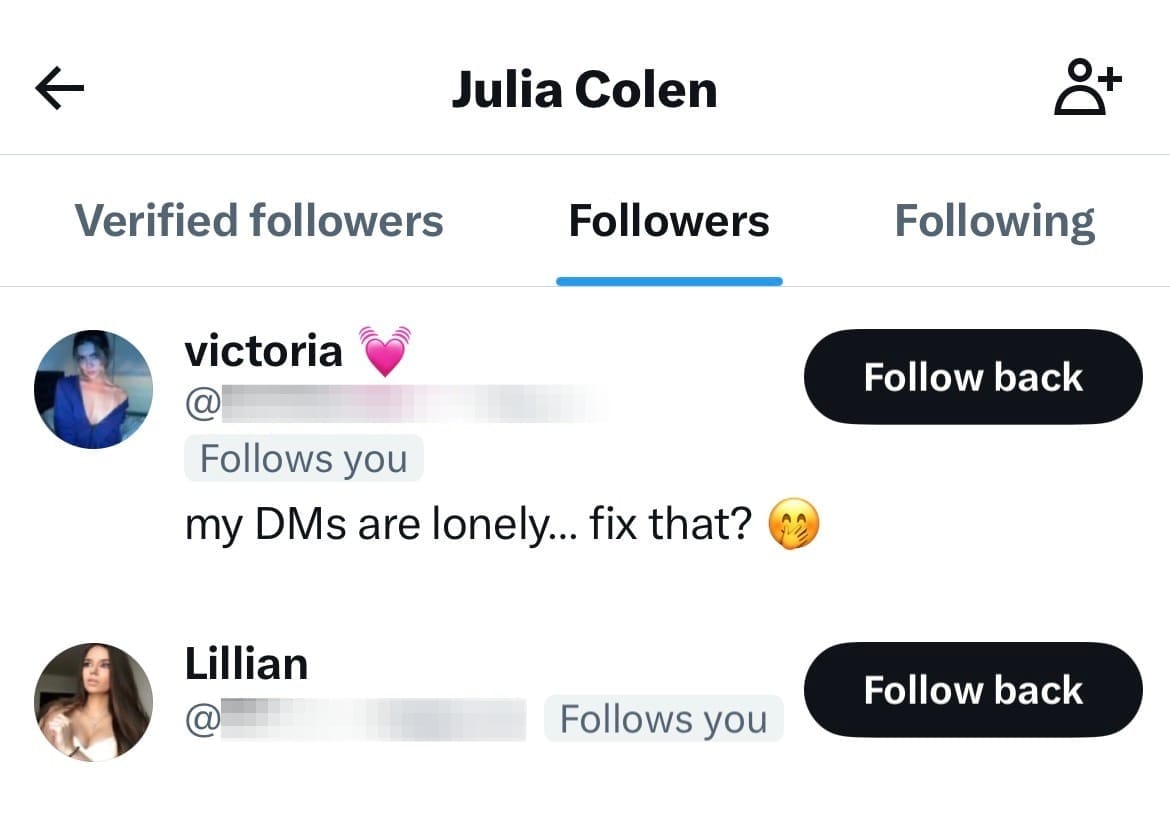
You can see your follower count and scroll through your follower list, but you can’t open a page that shows:
⛔ who unfollowed you
⛔ when they unfollowed you
⛔ how many people unfollowed during a specific time range
⛔ whether it happened recently or weeks ago
So even if your follower count drops, you’re left with zero context. And when you don’t have context, it’s hard to understand whether it’s just normal movement or something that you should pay attention to.
Why Manual Checking Doesn’t Work
At first, I tried doing it the “manual way” by checking my followers list regularly and comparing it with my following list, but it quickly became obvious that this isn’t realistic.
Even with a few hundred followers, it gets messy because you can’t remember every account you interacted with, and you can’t easily spot who disappeared from your list.
 Circleboom LLC
If your account is growing or if you follow a lot of people, manual checking becomes impossible because it turns into a daily guessing game that wastes your time and gives you no reliable results.
And honestly, the main problem is that manual tracking doesn’t scale.
The more active you become on X, the more your followers and following change, and trying to “keep it in your memory” becomes pointless.
That’s why I looked for a solution that could show unfollowers clearly and instantly directly from my iPhone.
The Easiest Way to Track Twitter Unfollowers on iPhone
This is where Circleboom solved the problem for me, because it doesn’t just show a follower count or a basic list, it gives you a dedicated unfollower tracking feature that’s actually designed for account management.

Circleboom is also an official X Enterprise partner, which was important for me, because I didn’t want to connect my account to a random “unfollowers app” that might cause security risks or violate platform rules.
With Circleboom, everything feels more stable, professional, and built for serious users who manage their accounts actively.
And the best part is that Circleboom works smoothly on iPhone, so I didn’t need to use a computer just to check who unfollowed me. I could do everything in a few seconds while staying mobile.
With Circleboom on iPhone, you can:
➡️ See a full list of your unfollowers
➡️ Filter the list (time range, account quality, verification, influence)
➡️ Unfollow them back instantly if you want
➡️ Keep your following list clean without wasting time
➡️ Manage follower changes without constantly checking counts manually
 Arif Akdogan
How to See Who Unfollowed You on iPhone (Step by Step)
If you want to track unfollowers directly from your iPhone, this is the exact process I followed using Circleboom:
Step #1: Download the Circleboom App
 Circleboom LLC
Head to the App Store and install Circleboom for Twitter.
It’s lightweight, secure, and built for mobile users like us.
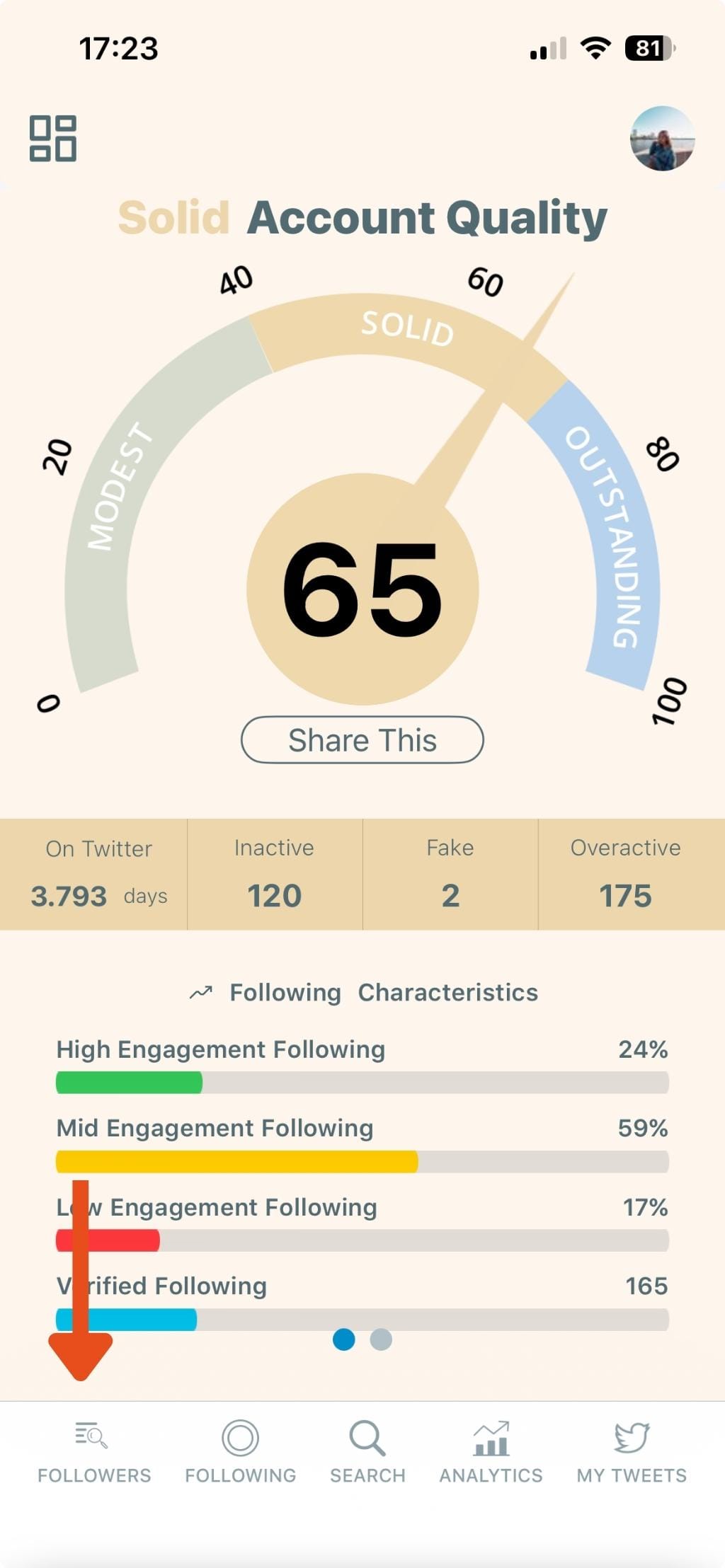
Step #2: Tap “Followers”
From the bottom menu, tap the Followers icon to open follower tools.
Step #3: Tap “Who Unfollowed Me”
Scroll and select Who Unfollowed Me. Circleboom will generate your unfollower list instantly and show you the accounts in a clean format.

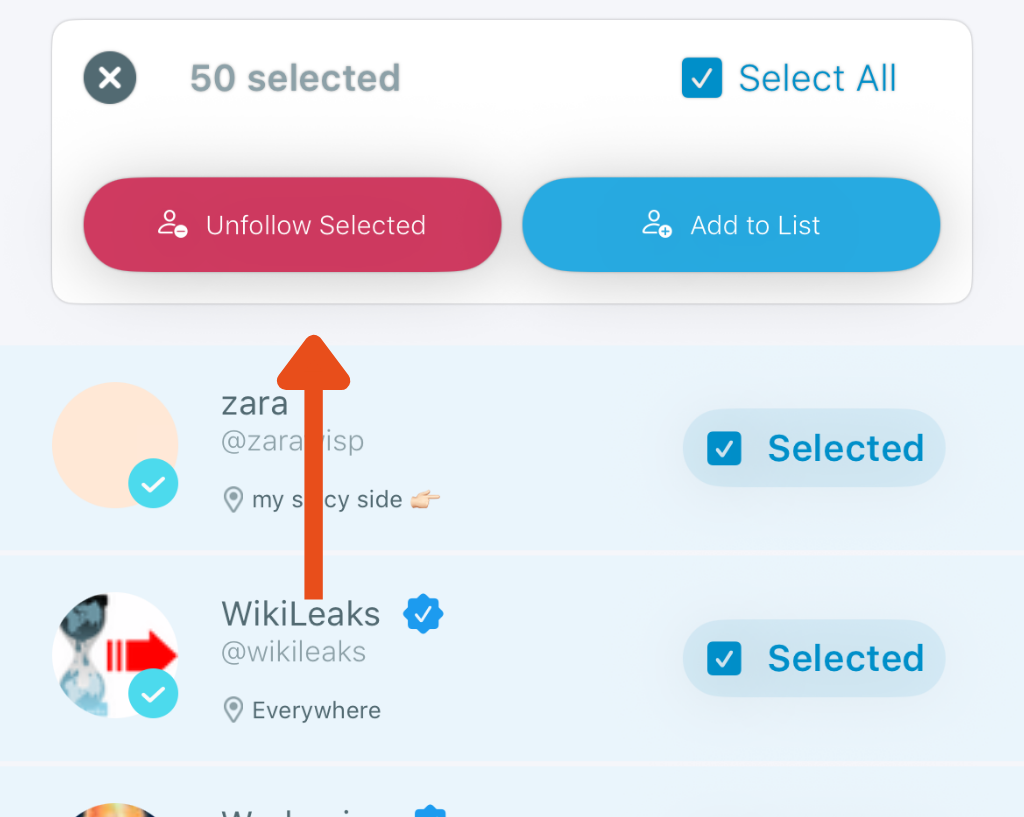
Step #5: Select the Accounts to Unfollow
Circleboom will list all the accounts you unfollowed. Tap individual profiles to select them, or use the Select All option to go full purge mode.

Step #6: Tap “Unfollow”
Once you’ve made your selection, hit the red Unfollow button at the bottom.
Circleboom will begin unfollowing those accounts instantly.
This is especially useful if you only want to focus on accounts that actually matter to you, instead of wasting time checking random low-engagement profiles.
Why Tracking Unfollowers Can Actually Help You Grow
Once I started using unfollower tracking, I realized it’s not only about finding names and moving on.
It’s also a simple way to understand what’s happening on your account without overthinking it.
Because when you track unfollowers properly, you can:
- Notice if certain post styles or topics cause people to leave more often
- Spot inactive, fake, or low-quality accounts that don’t really matter long term
- Keep your timeline cleaner by removing people who already disconnected
- Maintain a healthier follower/following ratio without guessing
- Understand your audience behavior over time instead of reacting emotionally
It becomes more like a strategy tool than a “who unfollowed me” curiosity tool, especially if you’re trying to grow your account consistently and build a stronger community.
Final Thoughts
Tracking Twitter unfollowers on iPhone is something X still doesn’t support properly, so if you want real answers instead of guessing, you need a tool that actually shows the data clearly.
Circleboom made this process simple because it works smoothly on iOS, it shows unfollowers in a clean list, and it lets you take action immediately without switching to desktop.
If you’re checking your follower count from your iPhone and constantly wondering who left, this is one of the easiest ways to stay in control and manage your account like a real system, not a guessing game.
)
