

 Circleboom LLC
We all go through phases on Twitter (now X). You might have liked hundreds of memes, news updates, or random posts over the years — and now, those same tweets might not reflect your current interests or personality.
I reached this point not long ago. My “Likes” tab had become a digital time capsule of everything I’d ever found interesting — but it was cluttered, outdated, and frankly, embarrassing in some spots.
I wanted a clean slate, but I quickly realized that unliking tweets manually on my iPhone would take forever.
That’s when I started searching for a faster, safer, and mobile-friendly way to unlike tweets in bulk — and discovered that the Circleboom App for iPhone could do exactly that.
 Arif Akdogan
Why You Might Want to Unlike Tweets
Over time, your Twitter likes can pile up faster than you think. Maybe you’ve liked posts about an old hobby, a job you’ve moved on from, or opinions you no longer share.
Sometimes, you just want to tidy up your digital footprint before applying for a job, changing industries, or building a personal brand.
Whatever the reason, unliking tweets helps you:
➡️ Rebrand your account to match your current image,
➡️ Improve privacy by removing old interactions,
➡️ Avoid algorithm confusion (so Twitter stops showing you similar unwanted content), and
➡️ Start fresh with a clean, organized feed.
The problem? Twitter doesn’t make it easy.
Why the Twitter App Isn’t Enough
If you’ve ever tried to unlike tweets on iPhone, you know how frustrating it is.
Here’s the only way Twitter allows you to do it:
- Go to your profile → “Likes” tab.
- Tap on each tweet → tap the red heart icon.
- Repeat this hundreds (or thousands) of times.
That’s it.
‼️ No filters, no bulk actions, no sorting by date or keyword.
If you’ve been on Twitter for years, your “Likes” feed might be a few thousand tweets deep — and the app won’t even load them all at once.
So while it’s technically possible to unlike tweets manually, it’s not realistic if you’re serious about cleaning your history.
That’s where Circleboom comes in.
The Smarter Way: Use the Circleboom App on iPhone
Circleboom Twitter is an X Enterprise Customer, meaning it’s 100% compliant with Twitter’s API and safe to use.

Instead of spending hours tapping hearts one by one, Circleboom allows you to bulk unlike all tweets in seconds — right from your iPhone.
With its smart filters and automation, you can:
❇️ Load up to your most recent 3,200 likes,
❇️ Filter them by keywords, hashtags, dates, or engagement metrics,
❇️ Unlike everything at once, or just specific types of tweets, and
❇️ Do it all within an easy-to-use mobile interface.
It’s like having a professional cleanup tool for your social media footprint.
🔹 Note: If you want to delete or unlike more than 3,200 tweets, you can easily do so through the web version of Circleboom Twitter, which allows you to upload your Twitter archive file and clean all your likes, tweets, and retweets — without limits.
How to Unlike All Tweets on iPhone (Step-by-Step)
Let’s walk through exactly how you can do this using the Circleboom App on your iPhone.
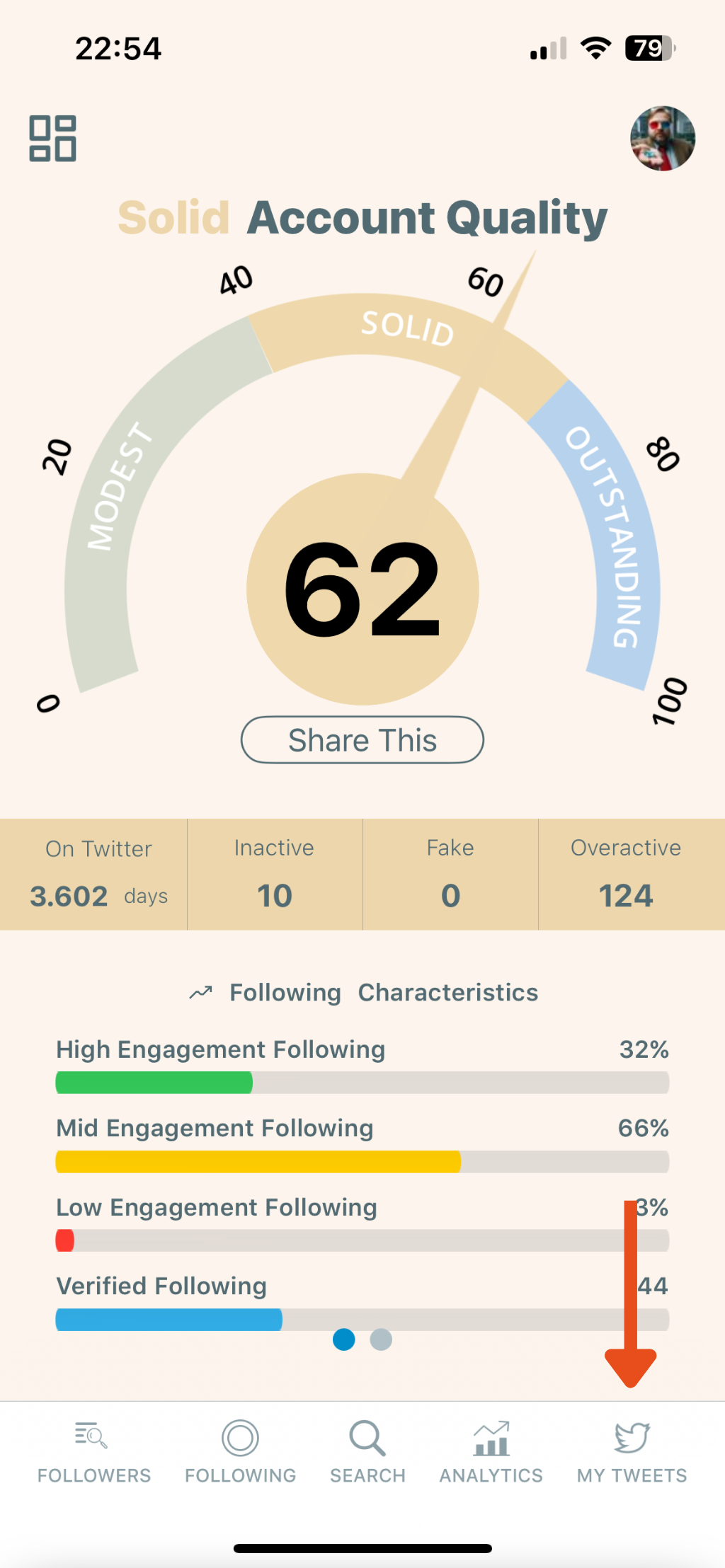
Step #1: Open the Circleboom App and Tap "MY TWEETS"
 Circleboom LLC
On the bottom navigation bar, tap the “MY TWEETS” icon (the Twitter bird on the far right). This will open your tweet and like management options.
Step #2: Select “Delete My Last Likes”
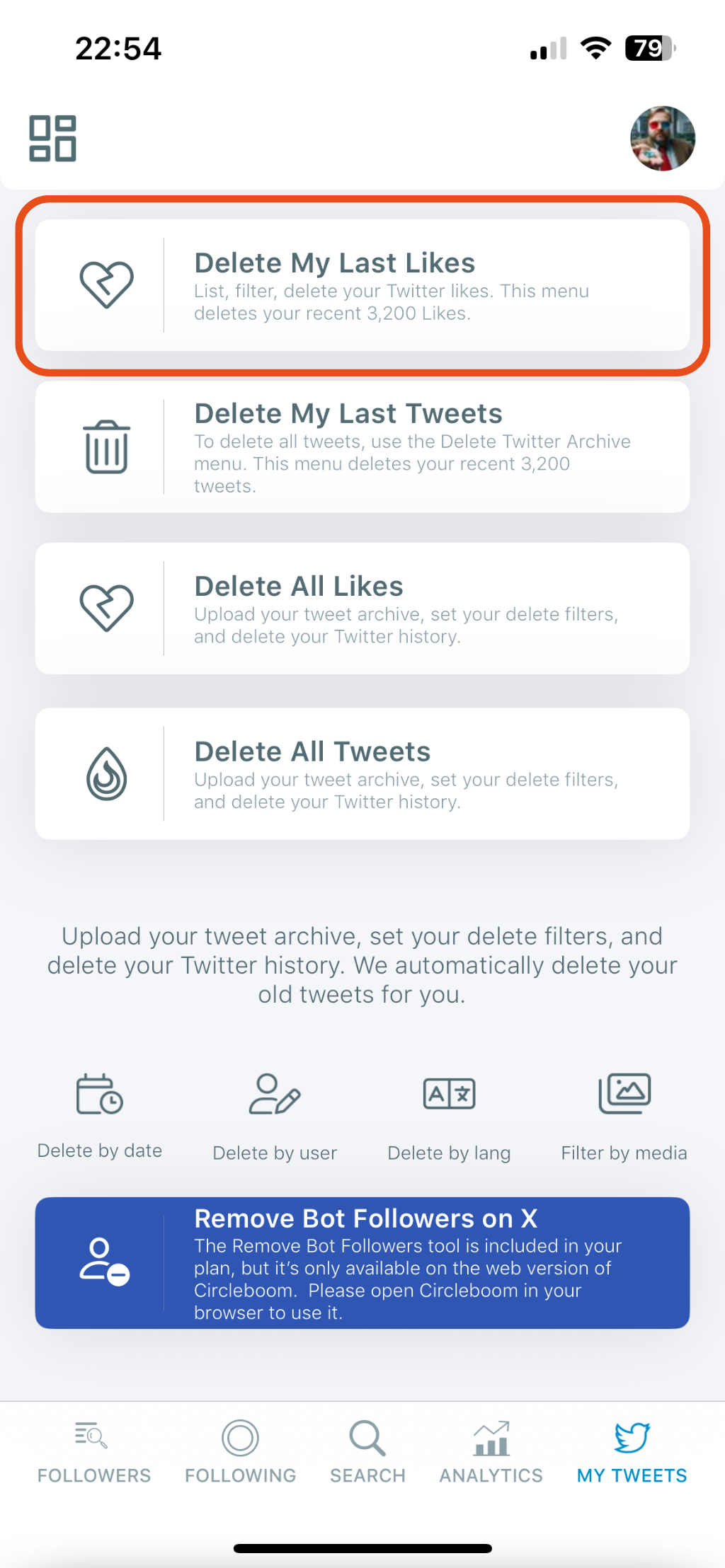
From the list of available tools, tap on “Delete My Last Likes.”
This feature loads up your most recent 3,200 likes and lets you filter or bulk-delete them easily.
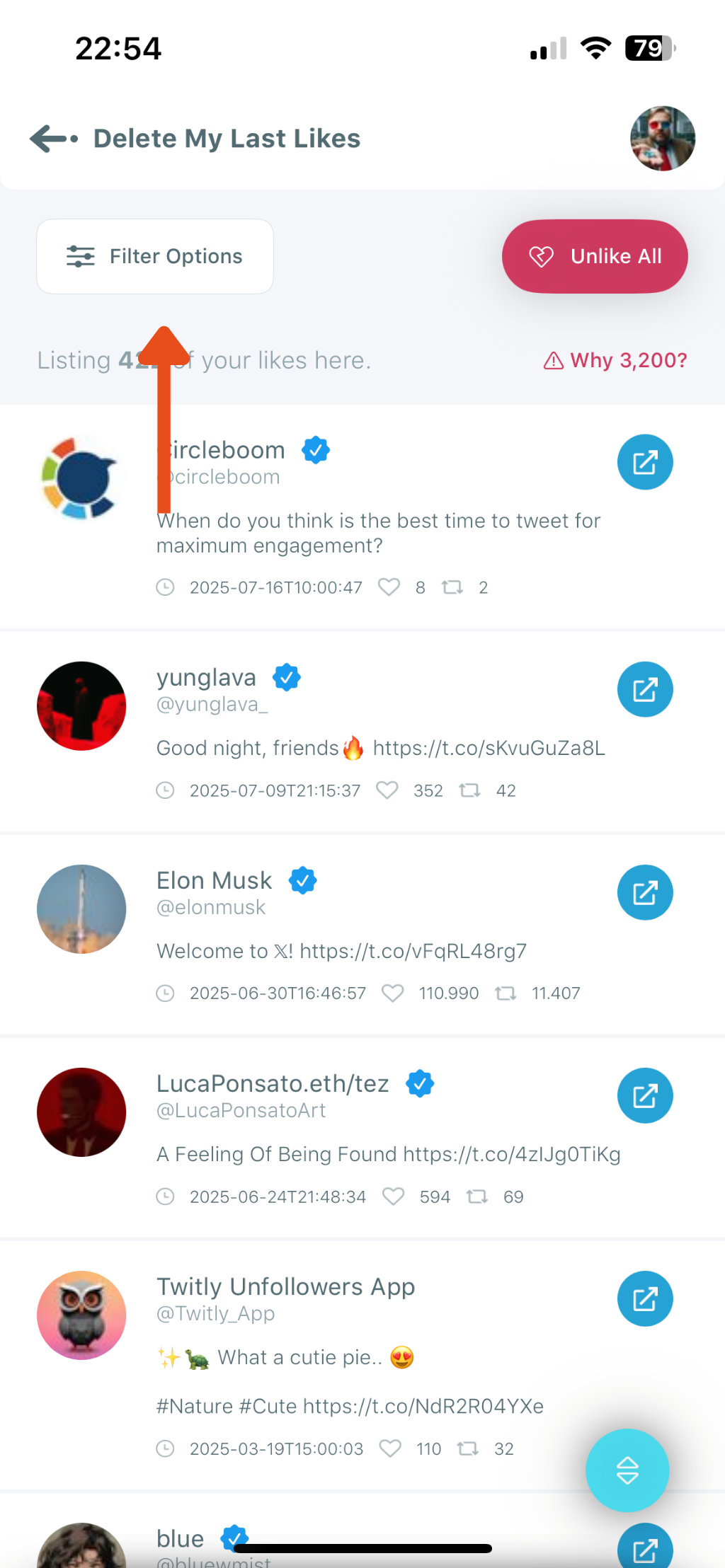
Step #3: Filter Your Likes (Optional but Powerful)
After your liked tweets are loaded, tap “Filter Options” to refine the list.
You can:
- Filter by keyword, hashtags, or mentions
- Filter tweets with or without media
- Set limits for likes, replies, retweets, impressions, and more
- Choose a specific date range or language
- Include or exclude posts, replies, and reposts
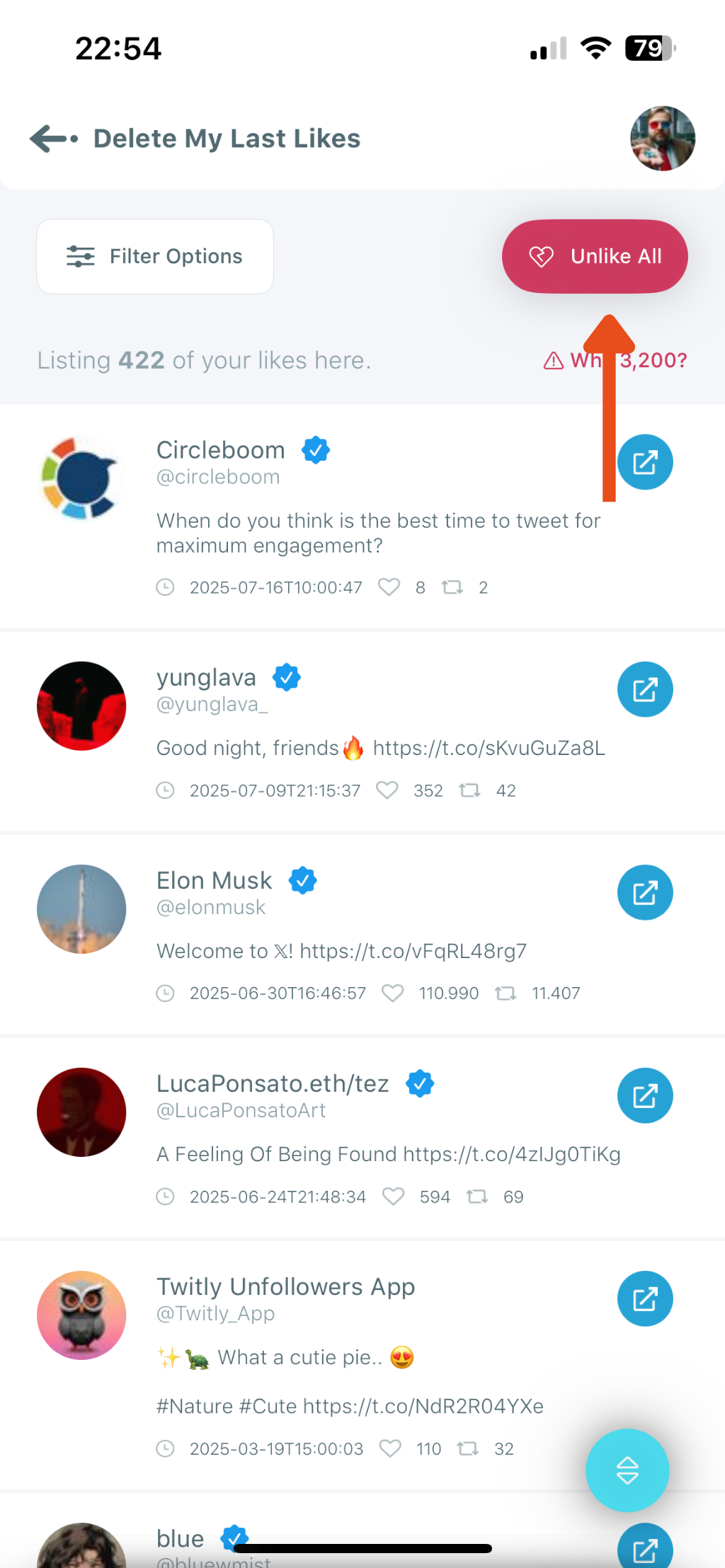
Step #4: Tap “Unlike All” to Bulk Delete
Once you've filtered your likes (or if you want to remove everything listed), tap the red “Unlike All” button in the top right corner.
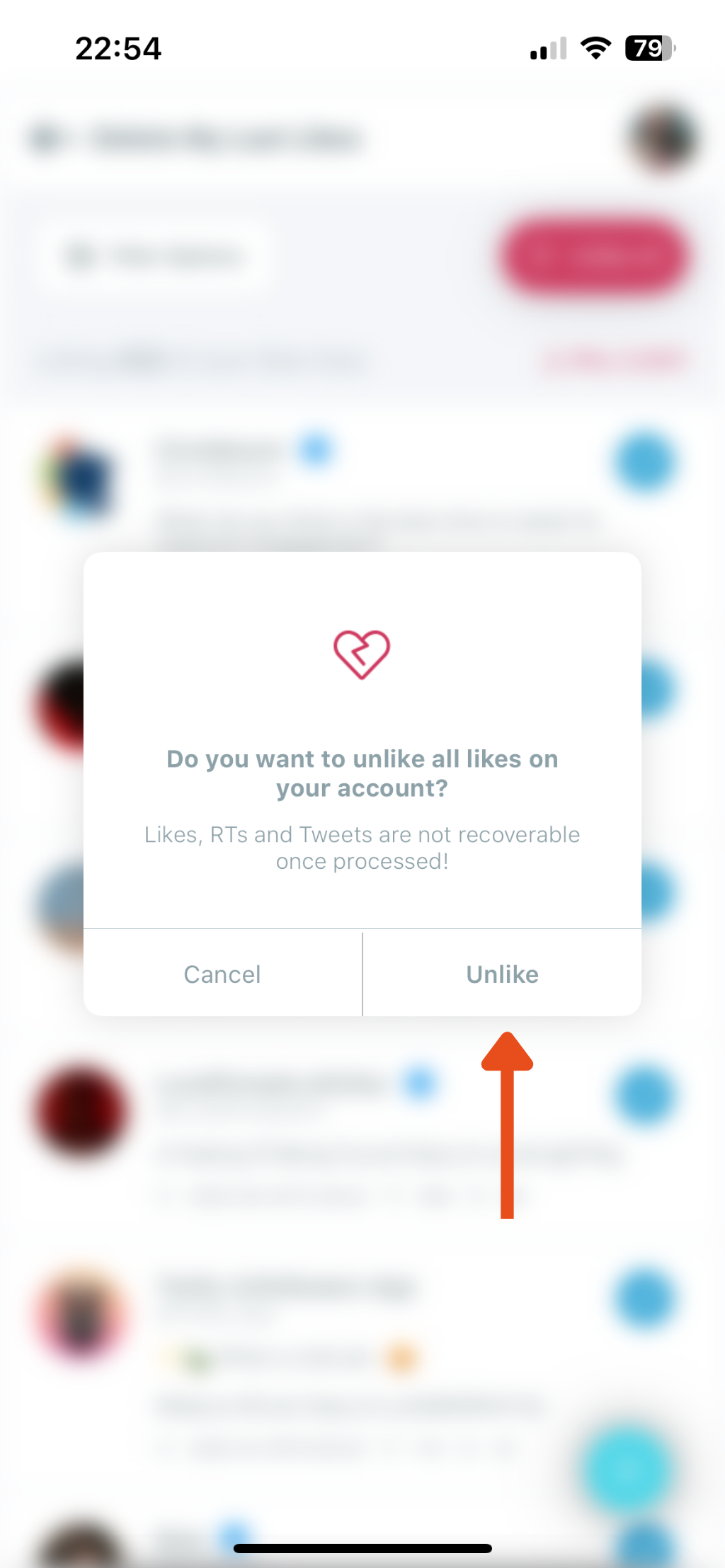
Step #5: Confirm the Action
A confirmation popup will ask:
“Do you want to unlike all likes on your account?”
Tap “Unlike” to finalize. Note: This process is irreversible.
Bonus: Manage All Your Tweets in One Place
One of my favorite things about Circleboom is that it doesn’t just handle likes.
From the same “MY TWEETS” section, you can:
- Delete old tweets based on date, keyword, or media,
- Remove retweets or replies,
- Clean your Twitter archive in one click, and
- Download your entire tweet data for offline backup.
It’s the ultimate tweet cleaner for iPhone users who want to manage their profile efficiently without risking their account.
Why Circleboom Is the Best Choice
Here’s what makes Circleboom stand out compared to scripts or unverified third-party apps:
- ✅ Official Twitter Partner: Complies with all Twitter rules and API limits.
- ✅ Secure Login: Connect safely using Twitter’s authentication system.
- ✅ No Spam or Suspension Risk: Operates within Twitter’s daily action limits.
- ✅ Smart Filters: Gives you full control over what you delete.
- ✅ Cross-Platform Access: Use it on iPhone or desktop.
You’re not just deleting blindly — you’re managing your account strategically.
Before & After: What Changes on Your Profile
Before using Circleboom:
❌ Thousands of old likes cluttering your profile.
❌ Tweets you no longer relate to keep resurfacing.
❌ Slower engagement due to irrelevant algorithm signals.
After cleaning with Circleboom:
✅ A fresh, focused Likes section that reflects your current interests.
✅ Improved timeline relevance — Twitter’s algorithm learns what you actually enjoy now.
✅ A cleaner, more professional profile for anyone visiting your page.
It’s like decluttering your digital closet — freeing space for the content that truly matters.
Final Thoughts
Unliking all tweets on iPhone manually is nearly impossible — but with Circleboom Twitter, it takes just a few minutes.
Whether you want to start over, tidy up your digital image, or simply remove years of random likes, Circleboom makes it effortless.
It’s safe, fast, and built for people who want to take control of their Twitter presence — not get lost in it.

