

On Twitter (X), comments are the backbone of almost every interaction. Whether you’re asking a question, sharing an opinion, or joining a discussion, it all happens through replies.
Understanding how to properly view comments, why some replies are hidden, and how to find and manage your own replies becomes increasingly important as you spend more time on the platform.
This guide explains each part in detail and shows the limitations of Twitter’s native tools.
 Arif Akdogan
What Are Comments on Twitter (X)?
Twitter does not use the term “comments.” Instead, it uses replies.
A reply is any response posted under a tweet. Replies form threads, and those threads are how conversations grow. Unlike platforms where comments are static, Twitter replies are dynamic.
They are ranked, filtered, and reordered based on relevance, engagement, and your relationship with the accounts involved.
Replies are also one of the strongest engagement signals on X. Tweets with active reply sections tend to get more visibility, because Twitter sees them as ongoing conversations rather than one-off posts.
How to View Comments (Replies) on Twitter (X)
Viewing replies on Twitter is simple, but understanding how they are displayed helps avoid confusion.
Step-by-step: How to view replies under a tweet
- Open Twitter (X) on mobile or desktop
- Find the tweet you want to check
- Click or tap on the tweet itself
- Scroll down to see the replies
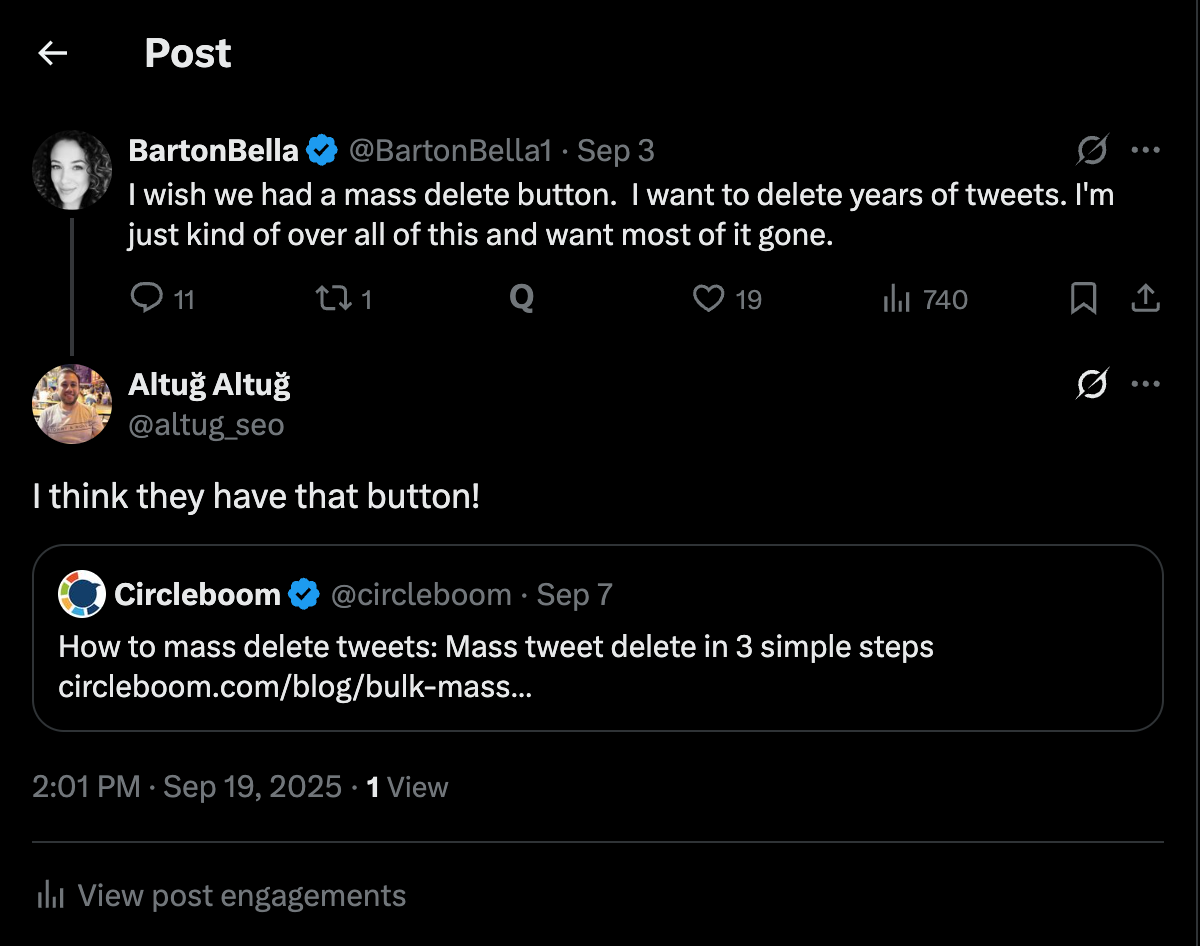
Replies appear in a threaded format. Twitter does not show them strictly in chronological order. Instead, it prioritizes replies based on engagement, relevance, and whether you follow or interact with the account.
This means the most visible replies are usually the ones Twitter believes are most useful to you, not necessarily the earliest ones.
Why You Can’t See All Replies on Twitter (X)
If you’ve ever opened a tweet and felt like replies were missing, you’re not wrong.
Twitter actively filters replies it considers spammy or low quality. These replies are usually collapsed under a section labeled “Show possible spam.” When you tap or click this section, you can see the hidden replies.

In most cases, these replies include:
- Automated bot responses
- Repetitive or promotional comments
- Low-effort replies with no real value
While you can view them, they are often not worth your time, which is why Twitter hides them by default.
 Arif Akdogan
Other reasons replies may not appear include:
- Replies from accounts you’ve muted or blocked
- Replies from protected (private) accounts
- Replies manually hidden by the tweet author
All of these filters affect what you see in a reply section.
How to View Your Own Comments (Replies) on Twitter (X)
Twitter does allow you to see your own replies, but only in a limited way.
Step-by-step: How to find your replies on your profile
- Open Twitter (X)
- Go to your profile page
- Click the Replies tab
- Scroll down to view your reply history

This section shows every reply you’ve made, but it does not separate replies from your original tweets. Everything is mixed into one timeline.
This makes it difficult to focus only on your comments, especially if you post frequently.
The Limitation: Twitter Mixes Replies With Your Tweets
This is one of Twitter’s biggest usability gaps.
There is no dedicated section where you can see only your replies.
➡️ Your comments are mixed with original tweets, reposts, and other activity. Over time, this becomes unmanageable.
If you want to review older replies, delete low-quality comments from the past, or export your replies for analysis, Twitter does not offer a native solution. Scrolling through your profile is the only option, and that quickly becomes impractical.
How I View and Manage All My Replies in One Place
To solve this problem, I use Circleboom Twitter.

Circleboom Twitter is an official X Enterprise Developer and a management tool designed to give more control over tweets and account activity. Instead of forcing you to scroll endlessly, it lets you filter your activity and isolate only replies.
This changes how reply management works. You can review your entire reply history in a structured list, rather than hunting through your profile feed.
Step-by-Step: How to View, Filter, and Delete Your Replies With Circleboom Twitter
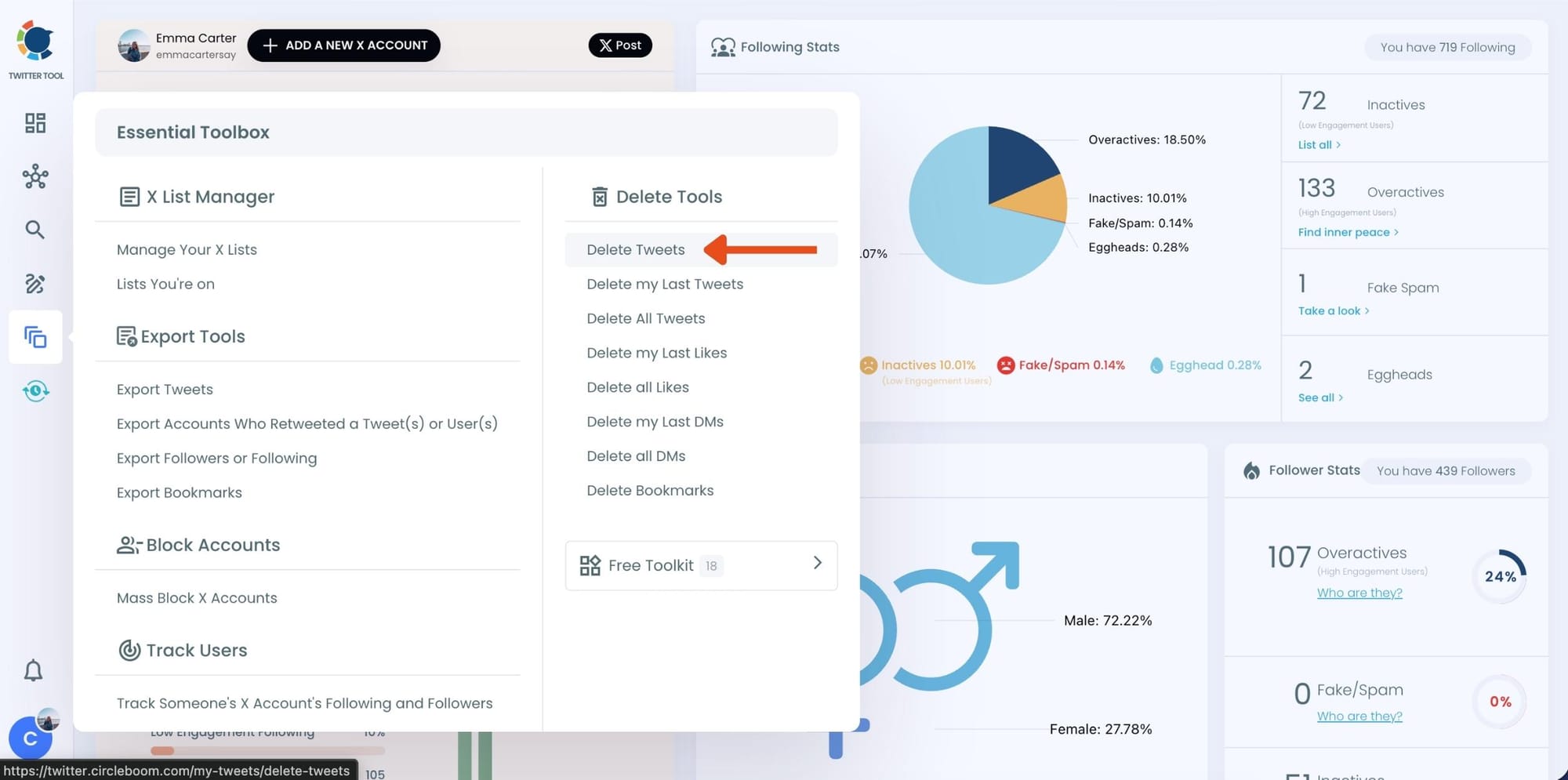
Step #1: Go to the Delete Tweets Tool
From your Circleboom dashboard, look at the left-hand menu. Under Essential Toolbox > Delete Tools, click on “Delete Tweets”.
Step #2: Open Filter Options
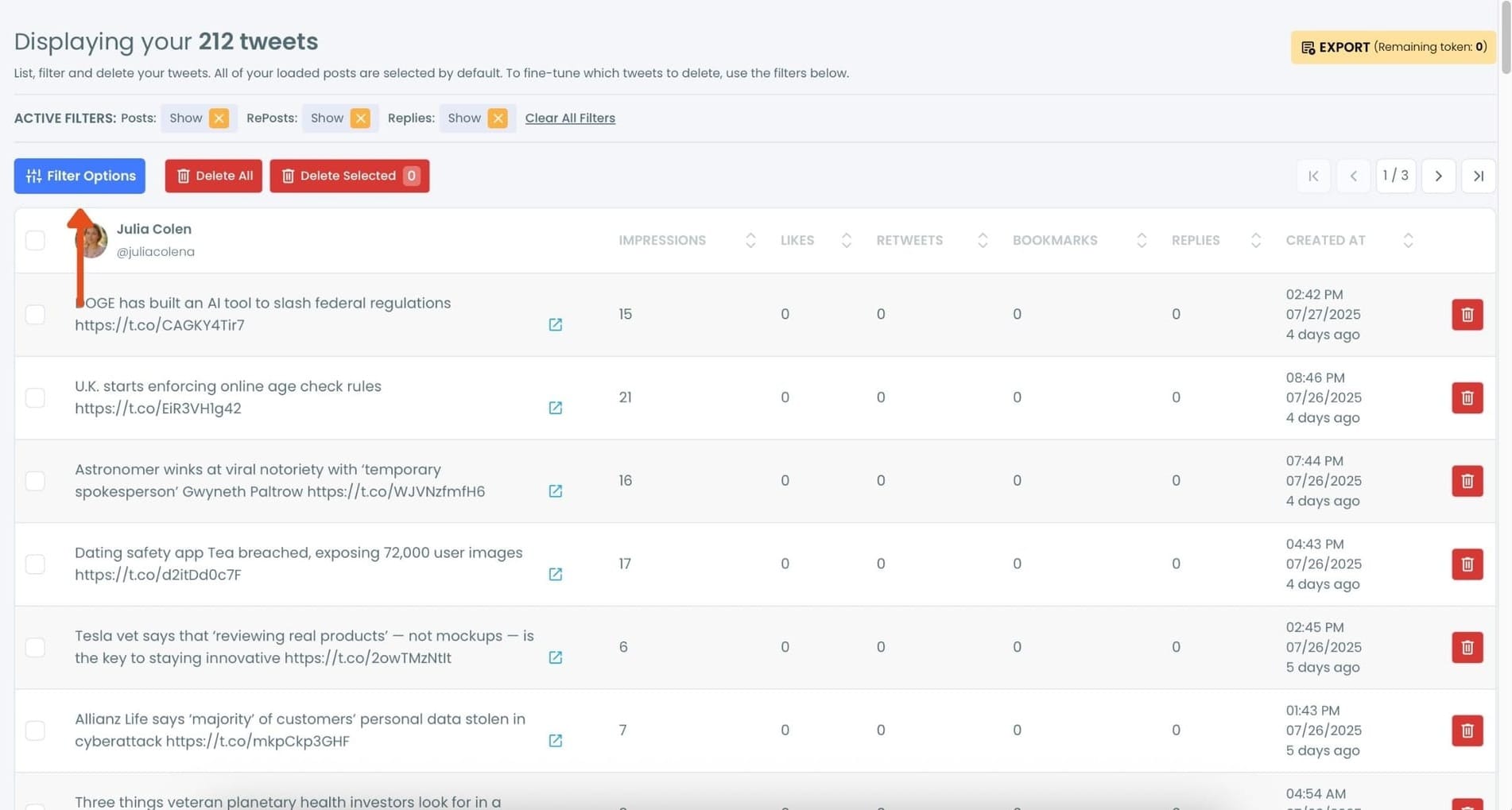
Once your tweets load, click the “Filter Options” button above your tweet list.
Step #3: Choose “Replies” as Post Type
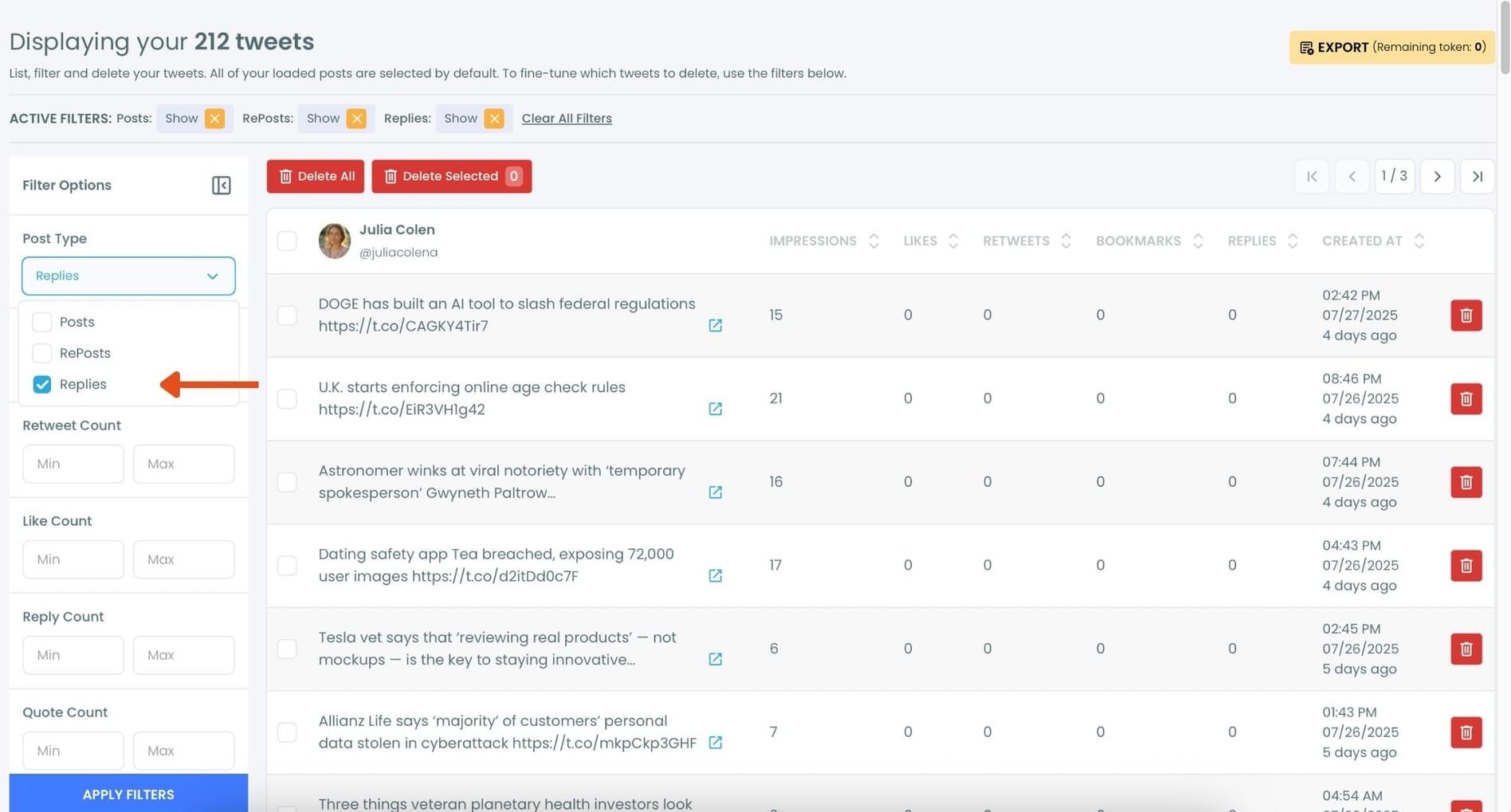
In the filtering panel, under Post Type, check the “Replies” option and uncheck others. Then, click “Apply Filters.”
This will display only your reply tweets.
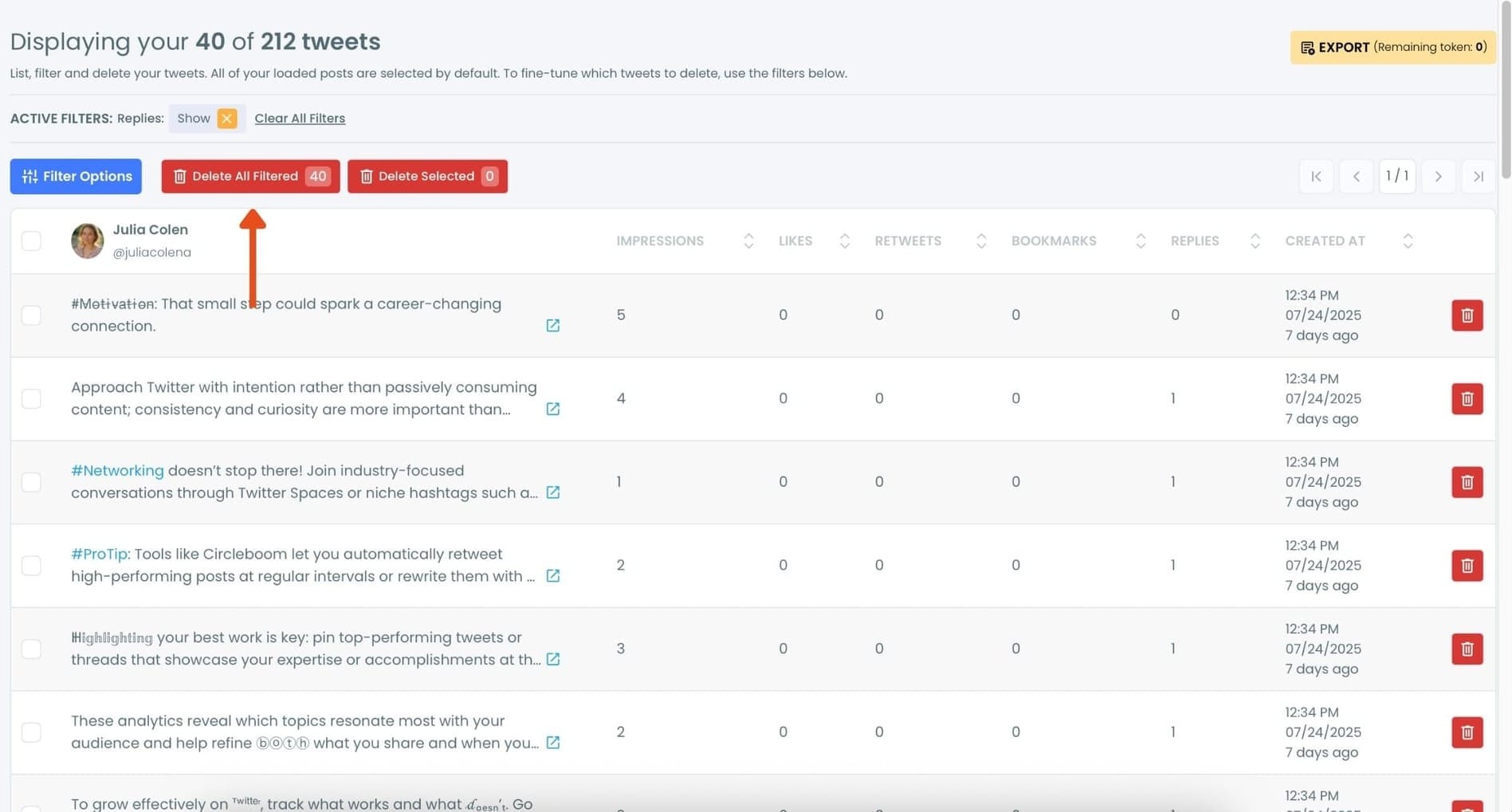
Step #4: Review the Filtered Replies and Click “Delete All Filtered”
Now you’ll see only your replies listed, nothing else. You can scroll through and review if needed.
Once you’re sure you want to delete all replies, click the red “Delete All Filtered” button at the top.
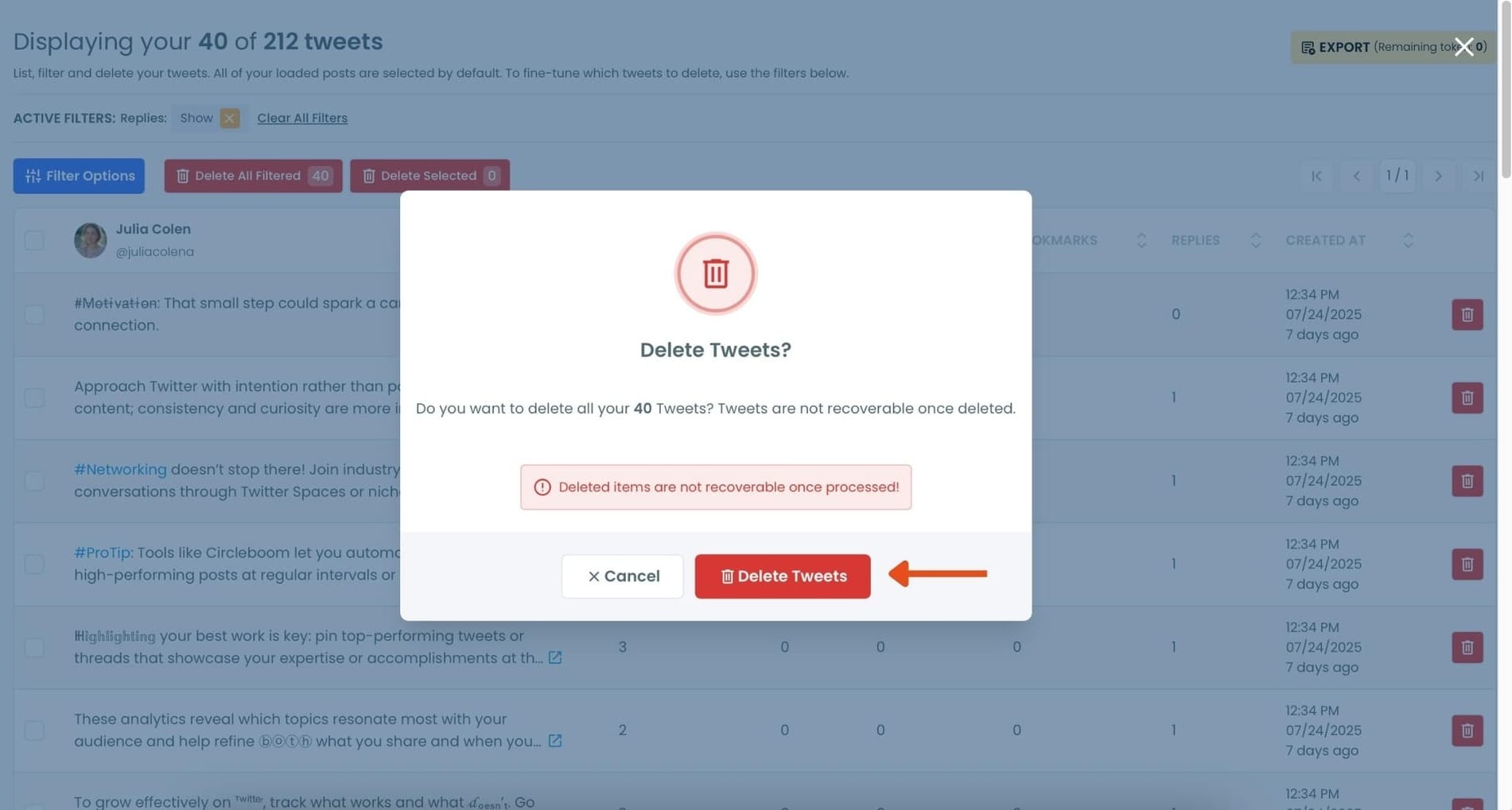
Step #5: Confirm the Action
A pop-up will appear asking if you’re sure. Click “Delete Tweets” to permanently remove all selected replies.
Final Thoughts
Viewing comments on Twitter is easy when you’re checking replies under a single tweet. Understanding why some replies are hidden helps explain why reply sections don’t always look complete.
Finding your own replies is possible through your profile, but managing them is where Twitter falls short. Replies are mixed with tweets, and there’s no dedicated interface to review or clean them up.
Having a way to view, filter, and manage replies in one place turns reply management from a frustrating task into a practical workflow.
)
