

If you use Twitter (or X) as much as I do, you probably bookmark tweets all the time, funny posts, useful threads, videos, or ideas you want to revisit later. It starts with a few, then turns into hundreds. And before you know it, your bookmarks section becomes a cluttered mess.
The bookmarking feature on X is great for saving content, but terrible for managing it.
There’s no way to organize, search, or sort your bookmarks, and deleting them one by one on the bookmarks page is just frustrating.
So, can you remove a tweet from bookmarks without opening the bookmarks page?
Yes, but only one of the two possible ways actually makes sense.
 Arif Akdogan
You Can Technically Unbookmark from the Timeline (But Don’t Count On It)
Let’s start with the small trick that exists inside Twitter itself.
If a tweet you previously bookmarked happens to appear on your timeline again, maybe someone liked it, retweeted it, or it went viral again, you’ll see that it’s already marked as bookmarked. You can simply tap the bookmark icon to remove it.

The problem? That almost never happens.
You’d have to hope that the tweet randomly reappears on your feed, and even then, you’d only be able to remove one at a time.
So while this technically allows you to unbookmark a tweet without visiting your bookmarks page, it’s hardly a practical solution.
The Real Problem with Twitter’s Bookmark System
Twitter’s native bookmarks are one of those features that sound great on paper but fall apart when you actually use them.
You can save tweets instantly, but when it comes to managing them, you’re stuck. There’s:
🔴 No search or filter option.
🔴 No way to sort by likes, date, or engagement.
🔴 No export option for saving or analyzing your bookmarks.
🔴 And worst of all, no bulk delete.
If you’ve ever tried to clear your bookmarks, you know how slow and repetitive it can be.
That’s Why I Use Circleboom Twitter Bookmark Manager
Since managing bookmarks on X was becoming a nightmare, I started using Circleboom Twitter, an official X Enterprise customer.

Circleboom’s Bookmark Manager solved every problem I had.
It’s a clean, organized dashboard where I can see all my bookmarks in one place, no scrolling, no tabs, and no waiting for Twitter to load the next batch.
And most importantly, it lets me remove bookmarks without having to open the bookmarks page at all.
What You Can Do with Circleboom Bookmark Manager
Circleboom’s Bookmark Manager turns a messy bookmark section into an organized workspace. Here’s what you can do:
🟢 Filter your bookmarks: Sort them by engagement, like count, retweets, or date.
🟢 Search efficiently: Find saved tweets using keywords, usernames, or hashtags.
🟢 Export your bookmarks: Download them as a CSV file for backup, analysis, or content curation.
 Arif Akdogan
🟢 Bulk delete: Select multiple bookmarks — or all of them — and remove them with one click.
Everything happens in Circleboom’s simple, easy-to-navigate interface. It’s faster, clearer, and more powerful than anything the native Twitter bookmark feature offers.
How to Remove Bookmarks with Circleboom Twitter
Here’s how I clean up my bookmarks in just a few minutes:
Step #1: Log In to Circleboom Twitter
Go to the Circleboom Twitter website and log in with your credentials. If you’re a new user, sign up—it’s quick and easy!

Step #2: Go to your Bookmarks
In the left-side menu, click on “My Tweets & Lists” and then select “Delete Bookmarks” from the dropdown.

Step #3: View and Manage Your Bookmarks
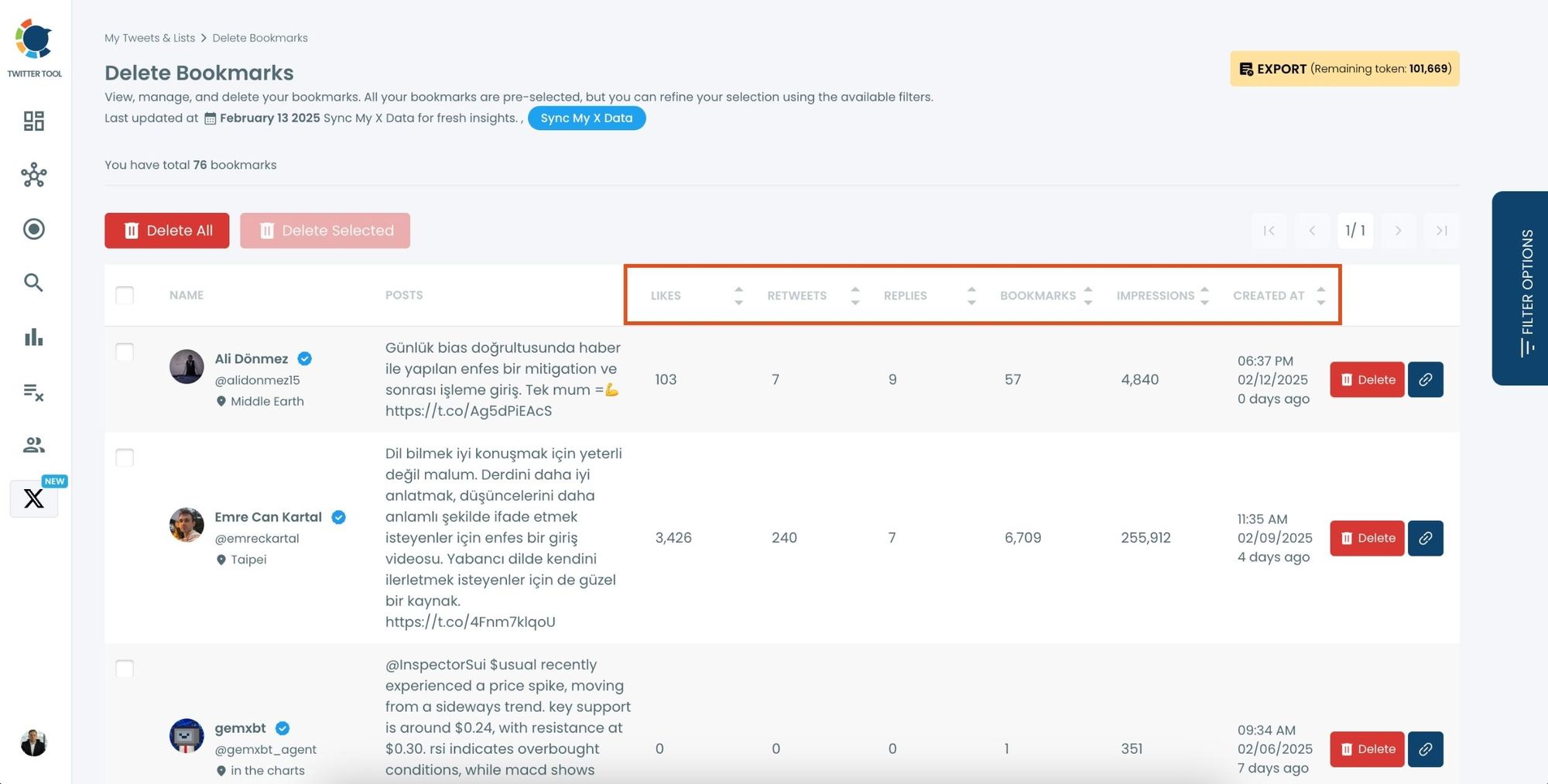
After opening the "Delete Bookmarks" section, you'll see all your saved tweets.
The page will display essential details such as likes, retweets, replies, and impressions for each bookmarked tweet.
This allows you to filter, organize, and select bookmarks for export.
Step #4: Use Filters to Find Specific Bookmarks
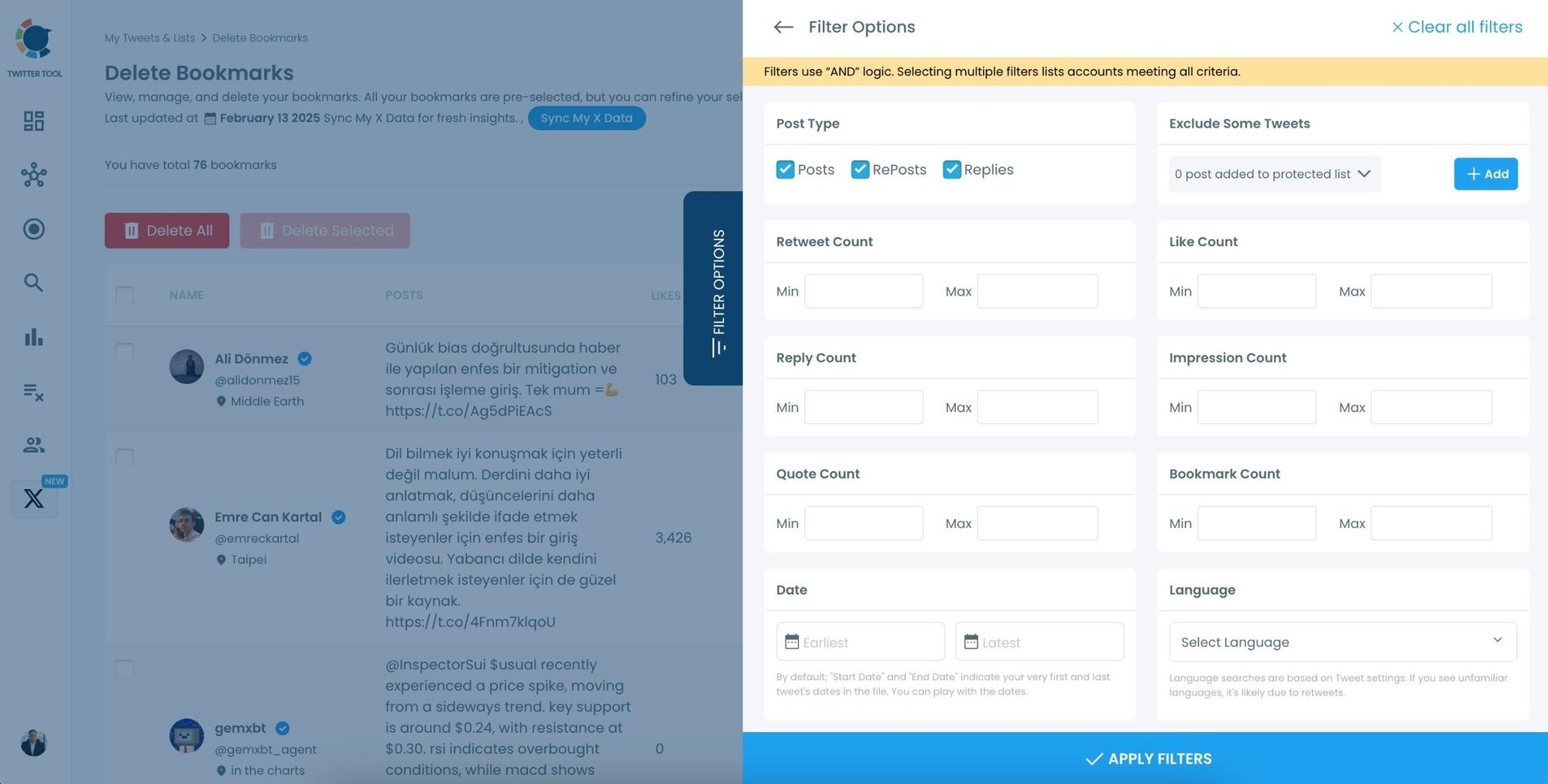
Click on “Filter Options” on the right side of the screen.
You can refine your bookmarks based on engagement (likes, retweets, impressions), date, language, and tweet type (posts, replies, or reposts).
Step #5: Delete Selected Bookmarks
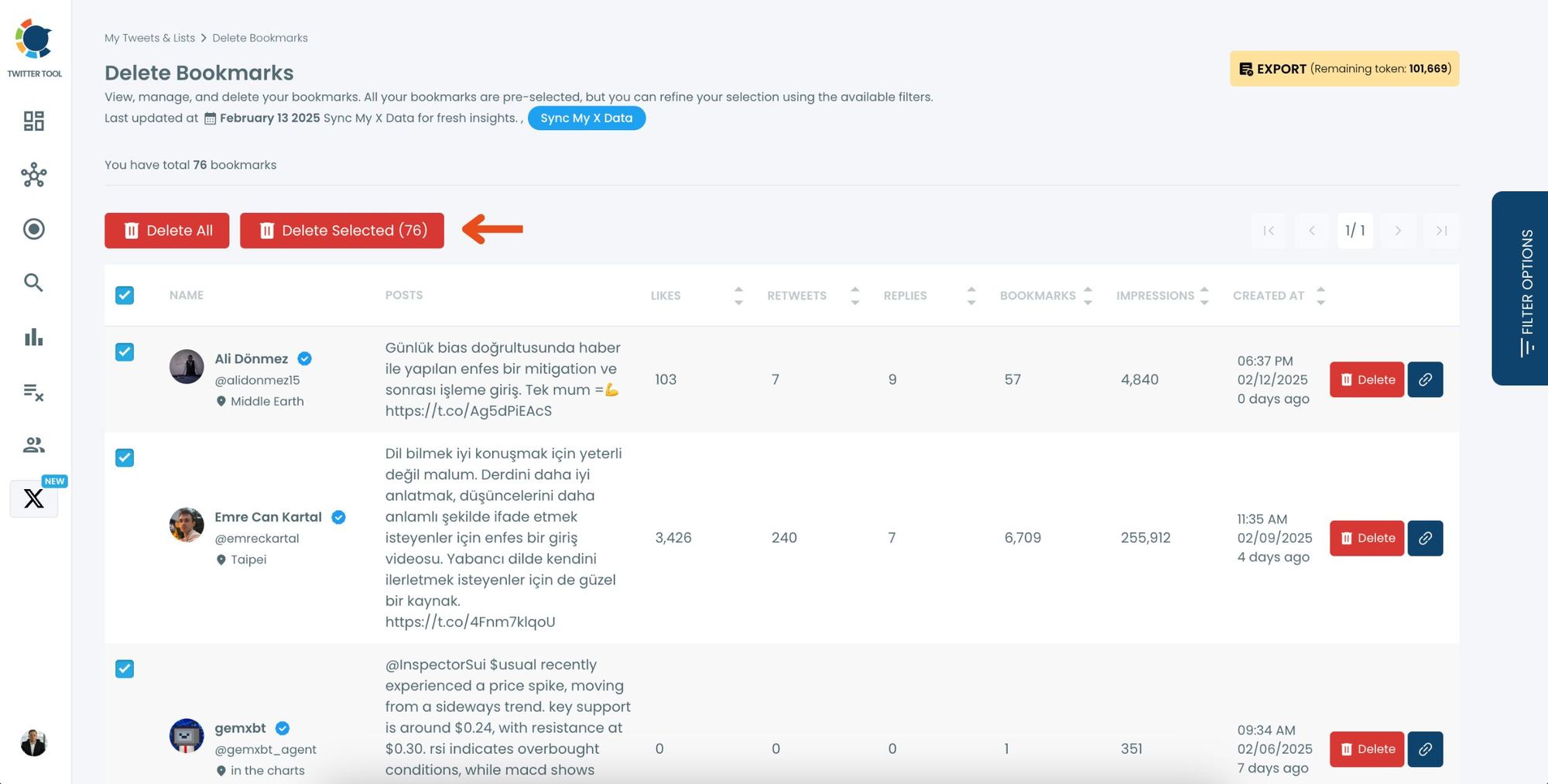
Check the box next to the tweets you want to delete or click "Select All" for a full cleanup.
Click the "Delete Selected" button to remove them.
Step #6: Confirm and Delete Your Bookmarks
A confirmation popup will appear, warning that deleted bookmarks cannot be recovered.
Click “Delete Bookmarks” to finalize the process.
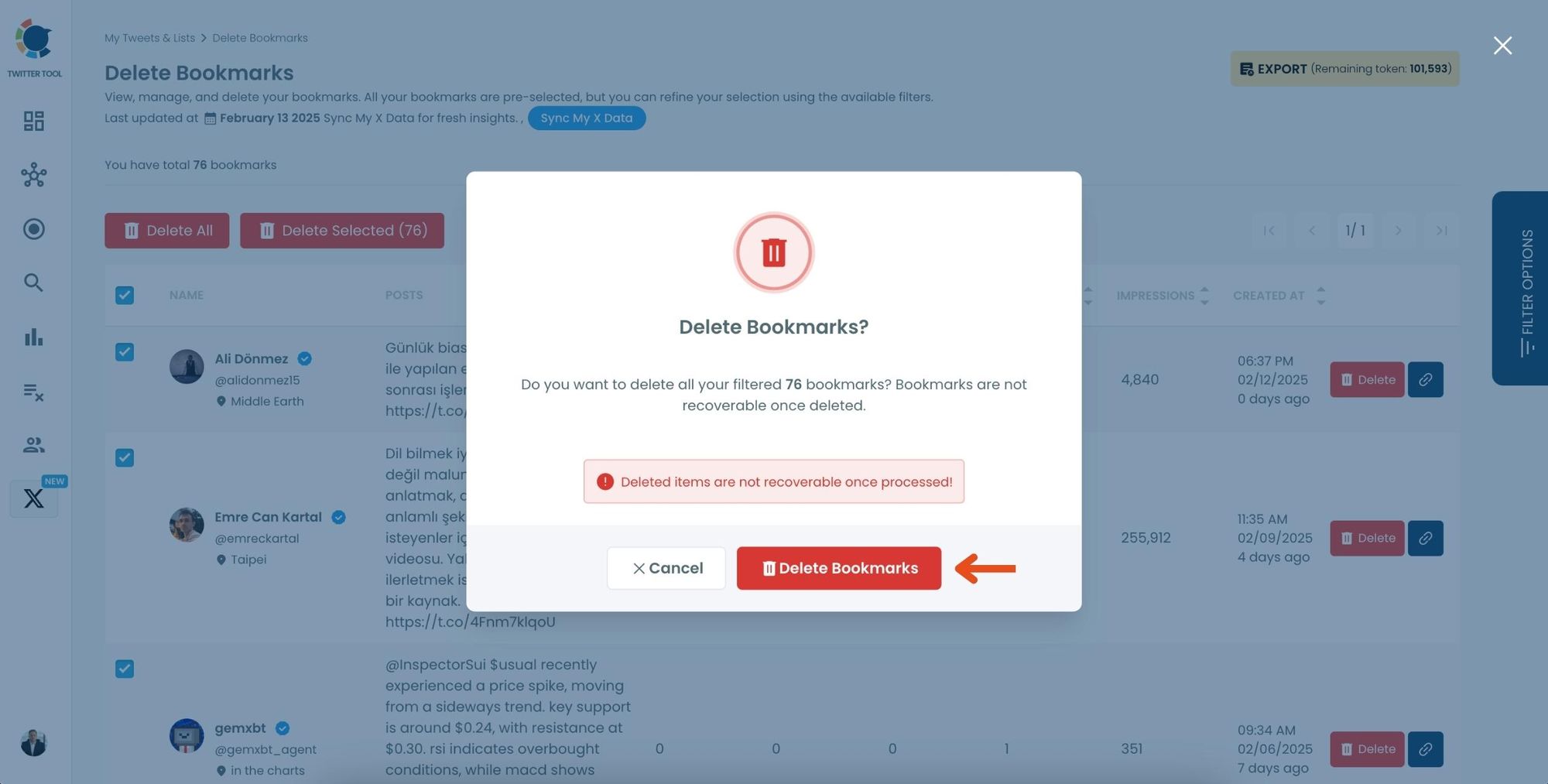
That’s it — no need to open the bookmarks tab or click through tweets one by one. Everything is handled in seconds.
Why Circleboom Is So Much Better Than the Native System
Even though Twitter technically allows you to unbookmark tweets when they show up on your timeline again, it’s an unreliable and slow method.
Circleboom, on the other hand:
➡️ Lets you view, sort, and filter all bookmarks in one dashboard.
➡️ Exports bookmarks for organization or research.
➡️ Removes bookmarks in bulk with a single click.
➡️ Works 100% safely through Twitter’s official API as a verified partner.
It’s the fastest, simplest, and safest way to manage your entire bookmarks library.
Final Thoughts
Yes, there’s technically a way to remove bookmarks on Twitter without visiting the bookmarks page, if you’re lucky enough to see the same tweet again in your feed. But that’s rare and impractical.
If you actually want to manage, filter, and clean your bookmarks efficiently, Circleboom Twitter Bookmark Manager is the best solution. It helps you delete bookmarks with one click, export them as a CSV file, and organize everything without ever touching the bookmarks tab.
Managing bookmarks shouldn’t be this hard, and with Circleboom, it isn’t.

