

The fastest way to find an old X post is to search by what it said, not by scrolling a profile or guessing a date. A Twitter post searcher does exactly that: you type the words you remember, set a time window, and it returns every matching public tweet plus the accounts that wrote them.
Circleboom's Historical Tweet Search finds any public X post by its content through the X Enterprise API, then returns both the matching tweets and a deduplicated list of the accounts behind them, ready to export as CSV.
→ Run the Twitter post searcher on any keyword and date range
What a Twitter post searcher actually does
A Twitter post searcher looks up X posts by their content rather than by their author. You describe the tweet in plain words, and the search reads across historical tweet data to find every public post that matches.
That inverts the usual habit of opening someone's profile and reading down until you hit the post you want.
The practical difference is reach. Profile scrolling only works when you already know who posted and roughly when.
Content search works when all you remember is a phrase, a hashtag, a product name, or the gist of what was said. Say you recall someone comparing two tools last spring but not their handle: type the comparison, set the window, and the post comes back with the account attached.
You start from the words, and the accounts fall out of the results.
Circleboom builds this around one search box and a set of filters. You write the query, narrow it, pick a date range, and read the matches.
Nothing about the flow assumes you know the username first, which is what makes it fast when your only clue is the wording.
Why X's own search forgets your old posts
X's built-in search is tuned for what is happening now. It reaches back a little, then the older material thins out and disappears from the results, which is why a tweet from last spring is so hard to pull up by scrolling.
If you want the mechanics of the native operators, our walkthrough on how to use Twitter advanced search lays them out in order.
X does offer an advanced form at its own advanced search page, where operators like `from:`, `since:`, and `min_faves:` let you filter by author, date, and engagement. That finds tweets.
What it will not do is collect them, export them, or hand you the list of accounts behind the matches. You read results one screen at a time and copy anything you want to keep by hand.
That gap is the reason a dedicated tool exists. When you need to search old X posts by keyword and then do something with the result, the native page runs out of room quickly.
Watch a full historical search run from query to exported account list:
How Circleboom finds any historical tweet
Circleboom's Historical Tweet Search starts from a natural-language query and can suggest sharper variations of it before you run anything. You add filters, choose how far back to look, pick how many tweets to collect, and the Circleboom Twitter advanced search pulls matching posts from the historical dataset.
Collection runs on GetTweetTokens, and the cost scales with how many tweets you gather. The token balance shows during setup and ticks down as the search runs.
If tokens run out mid-collection, the search stops where it is and saves the partial result, so nothing you already paid for is lost.
Past searches sit in a log you can reopen without spending tokens again.
Because it reads content first, you can find any tweet with Circleboom's Twitter post searcher even when you have no idea who wrote it. The words are the key, and the accounts are what the search hands back.
Find any old tweet in four steps
The flow is short enough to run in a single sitting.
- Log in to Circleboom Twitter and connect the X account you want to search from.

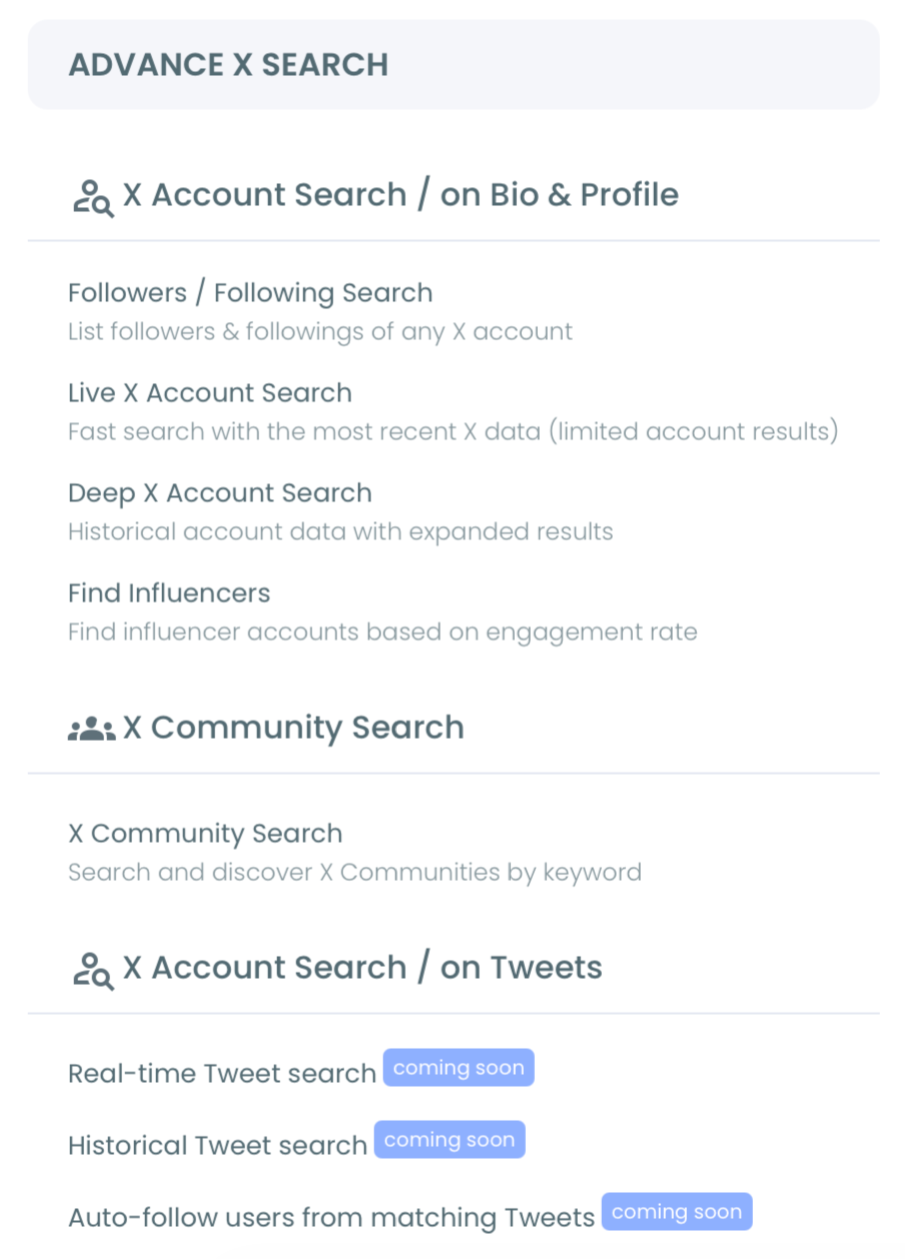
- Open the Advanced X Search menu and pick Historical Tweet Search.
- Write your query in plain words, add filters and a date range, and set how many tweets to collect.
- Read the matching tweets, switch to the profile view for the accounts, and export either set as CSV.
Four steps take you from a half-remembered phrase to a clean list of posts and the people who wrote them, which is the whole point of searching by content instead of by profile.
The filters that pin down the exact post
Broad queries return a lot of noise, so the filters exist to cut it down before you act. You can set the keyword match type to exact phrase, contains, or partial, and add exclude terms to drop the results you do not want.
Content toggles narrow things further:
- include or drop replies
- keep only posts with links
- filter by hashtag or cashtag
- restrict to verified accounts
Media type lets you ask for images, videos, or text-only posts.
Engagement minimums pull only tweets that cleared a like, retweet, or impression floor, which is how you separate a throwaway line from a post that actually landed. A short primer on Twitter advanced search shows how these filters stack in practice.
Language filtering keeps a query scoped to the audience you care about, so a mixed-language topic returns only the posts you can read.
You get the tweets and the accounts, not just tweets
This is where content search pays off twice. Every result set comes in two views of the same matches.
The tweet view lists each post with its impression, like, retweet, quote, bookmark, and reply counts, plus the timestamp and a direct link to the original on X.
The profile view is the second payoff. Click into it and the search deduplicates the authors, so five hundred matching tweets from fifty accounts return fifty profiles, each with follower count, following count, follow ratio, tweet count, join date, and an activity signal.
If you are hunting for a single standout post, the same data helps you find your most popular tweet by sorting on engagement.
That account list is what X's advanced page can never give you.
You do not just find the tweet, you find the person behind it, ready to follow, add to a list, or export.
What you can do with the accounts you find
Finding the tweet is the start; the profile view is where the search turns into action. Each account in that list carries per-row controls to follow or unfollow, whitelist to protect from bulk moves, blacklist to flag as unwanted, or open the profile in a new tab.
Bulk controls apply to everyone you check off. You can follow a whole set at once, add them to a Twitter List, or drop them onto a mass block list.
There is also an Auto Follow option that reads tweets matching your keyword, date range, and filters, then follows the authors for you. That lets you follow people based on what they are actively saying rather than what sits in their bio.
Two cautions keep this safe. Follow actions run inside X's rate limits, so a large list should be spaced rather than fired all at once.
And a keyword match does not guarantee a fit, so scan the profiles before any bulk move.
The list is a starting point for judgment, not a finished audience.
Set the date range to reach any era
The date control is what makes the word "historical" real. You can scope a search to the last 30, 60, or 90 days, the last year, or a custom window you define yourself.
That precision lets you reconstruct a conversation as it stood at a specific moment: the weeks around a product launch, the days after an industry announcement, or a campaign period you want to study. Instead of only the most recent chatter around a keyword, you get the posts from the exact stretch that matters.
Pair a tight window with engagement minimums and you pull the posts that mattered then, not the noise. If your goal is chronological order, this guide on how to sort tweets by date pairs well with a date-scoped search.
When a search comes back noisy
A first pass on a common phrase can return thousands of loosely related posts, and that is normal. The fix is to narrow, not to give up.
Add exclude terms for the meanings you do not want, switch the match type from contains to exact phrase, and raise the engagement minimum so only posts that got real traction remain.
Language and media filters trim further. If you only want English text posts, set both and the volume drops fast. A tight date window does the same work from the other direction, cutting a year of results down to the two weeks that actually matter.
It also helps to remember what the search cannot return. Private, protected, and deleted posts stay out, so a gap in results is sometimes real rather than a filter problem.
Accounts that went private or were suspended after posting may still appear from their old public tweets, so treat the list as a record of what was said, then verify current status before acting.
Export what you find
A search you cannot save is a search you have to run twice. Both views export to CSV: the tweet view for content and narrative research, the profile view for outreach lists, CRM import, or a record you can hand to a teammate.
Export draws on your token balance separately from the search itself, so check the remaining count before pulling a large set. Once exported, the accounts behind the tweets are yours to work from outside the app, which is the step the native search leaves you to do by hand.
A saved search log means you can reopen the same result later without spending tokens to run it again.
Built on X's Enterprise data, not scraping
Historical reach only counts if the data comes through a channel X sanctions. Circleboom is an official X Enterprise Developer, so every tweet and account comes through approved Enterprise access rather than scraping or unofficial workarounds.
For you, that means the results are the real public record and your connected account stays inside X's rules while you search. Only public tweets appear, so private, protected, and deleted posts stay out, and what you export is data you can trust.
Find any tweet, fast
A Twitter post searcher solves a narrow, common problem: the post you need exists, but scrolling will never find it. Circleboom's Historical Tweet Search reads by content, reaches back with a real date range, filters down to the exact match, and returns both the tweets and the accounts, all exportable and all on sanctioned X data.
Start from the words you remember and let the search do the rest.
→ Pull any historical tweet in seconds
Frequently asked questions
Can I find a tweet if I only remember what it said?
Yes. A content search is built for exactly that. You type the phrase, hashtag, or product name you remember, add a date range if you have one, and the search returns every matching public post plus the accounts that wrote them, no username required.
Does it find deleted or private tweets?
No. Only public tweets that X can still return are included. Private, protected, and deleted posts stay out of results, and historical coverage depends on what the X Enterprise API has indexed for the window you choose.
What is the difference between historical and real-time search?
Historical Tweet Search covers older and broader tweet history so you can reach back weeks or years. The real-time tweet tracker watches current and recent posts instead.
Use historical to reconstruct the past and real-time to follow what is active now.

