

Saving tweets feels like a smart habit.
You see a useful thread, a sharp insight, a tool to check later, or a post you don’t have time to read right now, and you bookmark it. One click, problem solved. Or so it seems.
At first, bookmarks feel organized. Helpful. Intentional.
Then weeks pass. Months pass.
And one day, you open your bookmarks tab… and realize something uncomfortable.
You have no idea how many bookmarks you’ve saved.
Does Twitter (X) Show How Many Bookmarks You Have?
No. Twitter doesn’t show the number of bookmarks you’ve saved.
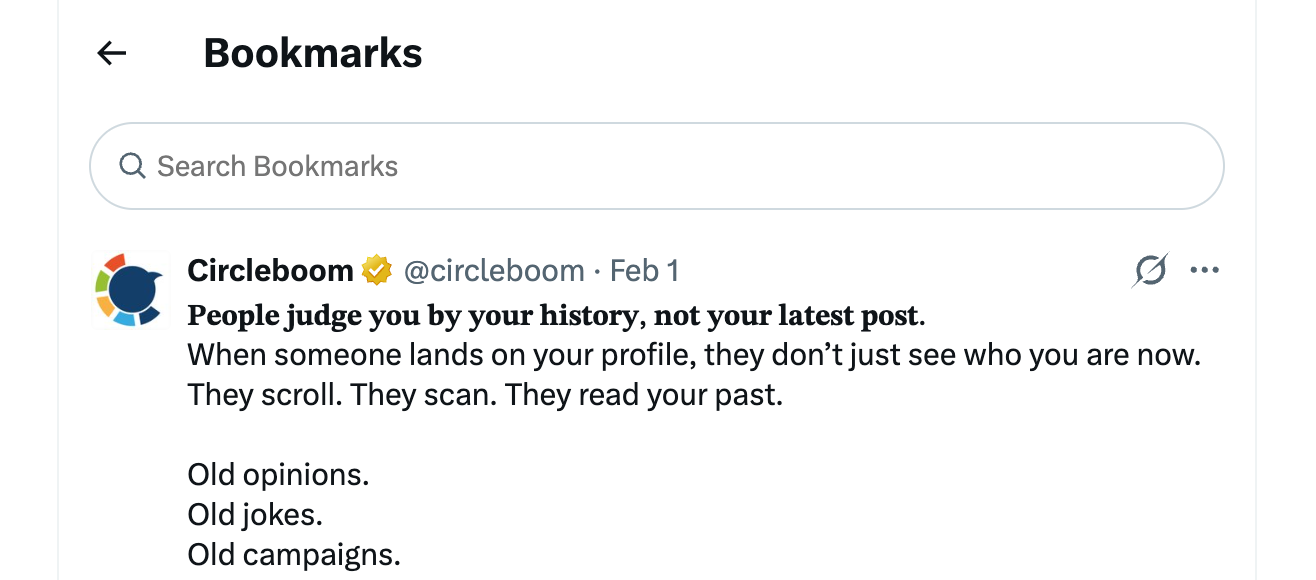
When you open the Bookmarks tab on X, you only see a list of saved tweets. There’s no counter, no total number, no indicator of scale. You just scroll. And scroll. And scroll some more.
You don’t know:
🚫 How many bookmarks exist
🚫 Where the oldest ones start
🚫 Whether you saved 50 tweets or 5,000
The scrolling never really ends, and there’s no sense of progress. You’re browsing blind.
Why Twitter Bookmarks Become Hard to Use
The problem isn’t bookmarking itself. The problem is what happens after.
When you can’t see how many bookmarks you have, you also can’t manage them. Twitter doesn’t let you sort bookmarks. You can’t filter them. You can’t analyze what you saved or why you saved it.
Even worse, Twitter doesn’t allow you to download your bookmarks.
That means:
- No backup
- No offline access
- No long-term archive
If the original tweet gets deleted, the bookmark disappears with it. The content is gone. Permanently.
At that point, bookmarks stop being a resource. They turn into a pile of saved intentions you never actually use.
When You Can’t Control Bookmarks, You Lose Them
This was the point where bookmarks stopped helping me.
I knew I had valuable content saved; ideas, research, examples, references, but I couldn’t reach it properly. I couldn’t search it. I couldn’t organize it. And I definitely couldn’t secure it.
Bookmarks felt less like a library and more like a junk drawer.
That’s when I realized the problem wasn’t too many bookmarks.
It was zero visibility.
How I See How Many Bookmarks I Have Saved
To fix this, I started using Circleboom Twitter.

Circleboom Twitter is an official X Enterprise developer, which means it works directly with X’s API in a compliant and reliable way. It’s built for people who need real control over their accounts, not just surface-level features.
 infocircleboom.com
And the first thing it solved was the most basic question Twitter never answers:
How many bookmarks do I actually have?
How Circleboom Twitter Displays Your Bookmarks
Unlike Twitter, Circleboom doesn’t hide your bookmarks behind endless scrolling.

It:
- Shows the total number of bookmarks
- Lists all bookmarks in a structured view
- Displays each bookmarked tweet with clear details
Instead of guessing, you see everything at once.
Each bookmarked tweet comes with useful information, including engagement metrics, which makes it much easier to understand why you saved it in the first place.
Better Than Twitter: Sorting and Organizing Bookmarks
On Twitter, every bookmark looks the same. On Circleboom, bookmarks become data.
You can:
- Sort bookmarks
- Review them properly
- Identify the most valuable ones
- Separate noise from content worth keeping
This alone turns bookmarks from a passive list into an active resource.
Can You Download Twitter Bookmarks?
Twitter doesn’t allow it.
Circleboom does.
With Circleboom Twitter, you can download all your bookmarks.
 infocircleboom.com
This is where bookmarks stop being fragile.
✅ Once bookmarks are downloaded:
- You have a permanent copy
- You can access them outside Twitter
- Even if the original tweet is deleted, the text stays readable
That means saved knowledge doesn’t vanish just because someone removed a post.
How to See Your Twitter Bookmarks and Download Them with Circleboom
Step #1: Log In to Circleboom Twitter
Go to the Circleboom Twitter website and log in with your credentials. If you’re a new user, sign up, it’s quick and easy!

Step #2: Go to your Bookmarks
In the left-side menu, click on “Essential Toolbox” and then select “Delete Bookmarks” from the dropdown.

Step #3: View and Manage Your Bookmarks
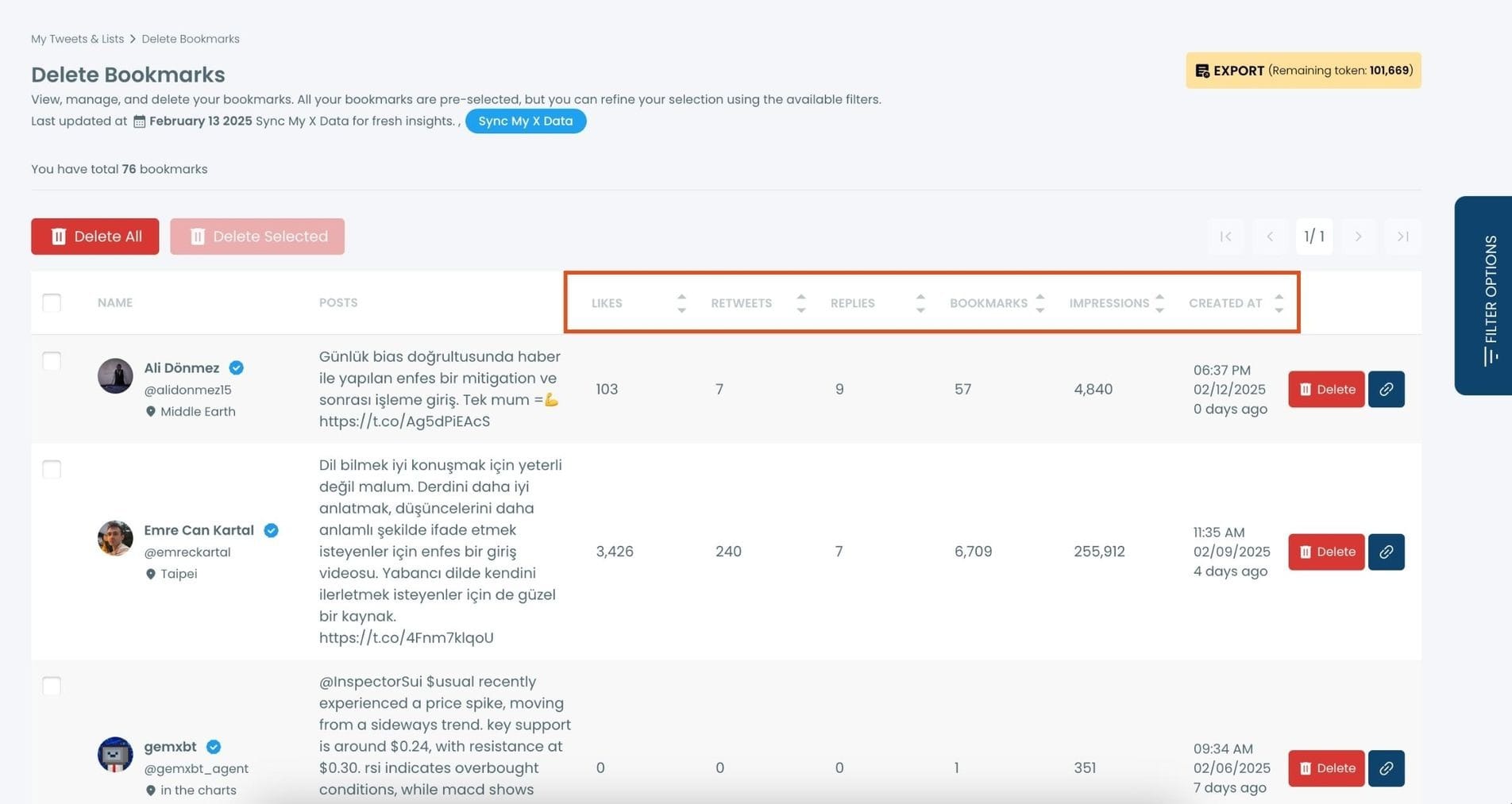
After opening the "Delete Bookmarks" section, you'll see all your saved tweets.
The page will display essential details such as likes, retweets, replies, and impressions for each bookmarked tweet.
This allows you to filter, organize, and select bookmarks for export.
Step #4: Use Filters to Find Specific Bookmarks
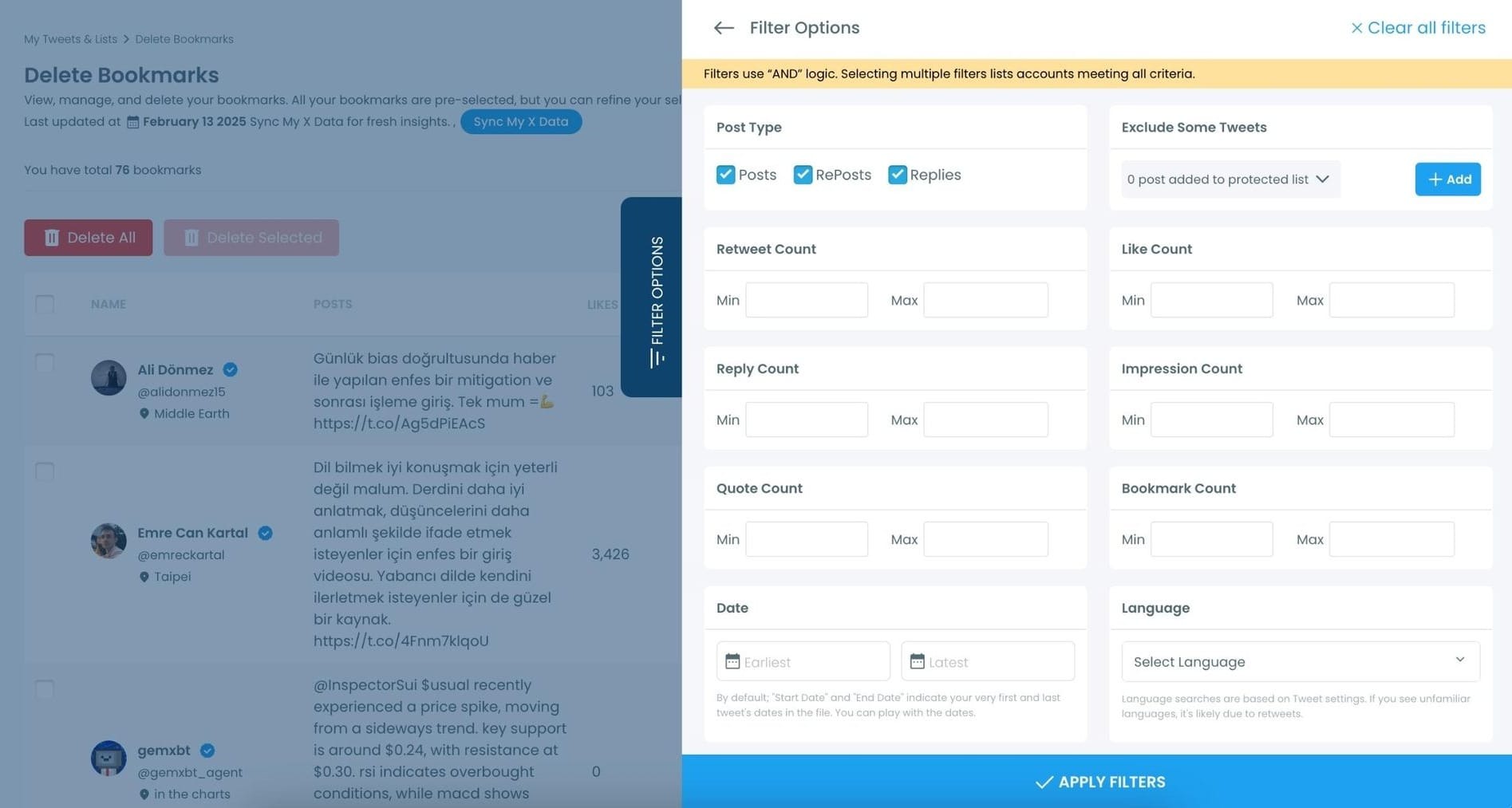
Click on “Filter Options” on the right side of the screen.
You can refine your bookmarks based on engagement (likes, retweets, impressions), date, language, and tweet type (posts, replies, or reposts).
Step #5: Select and Export Your Bookmarks
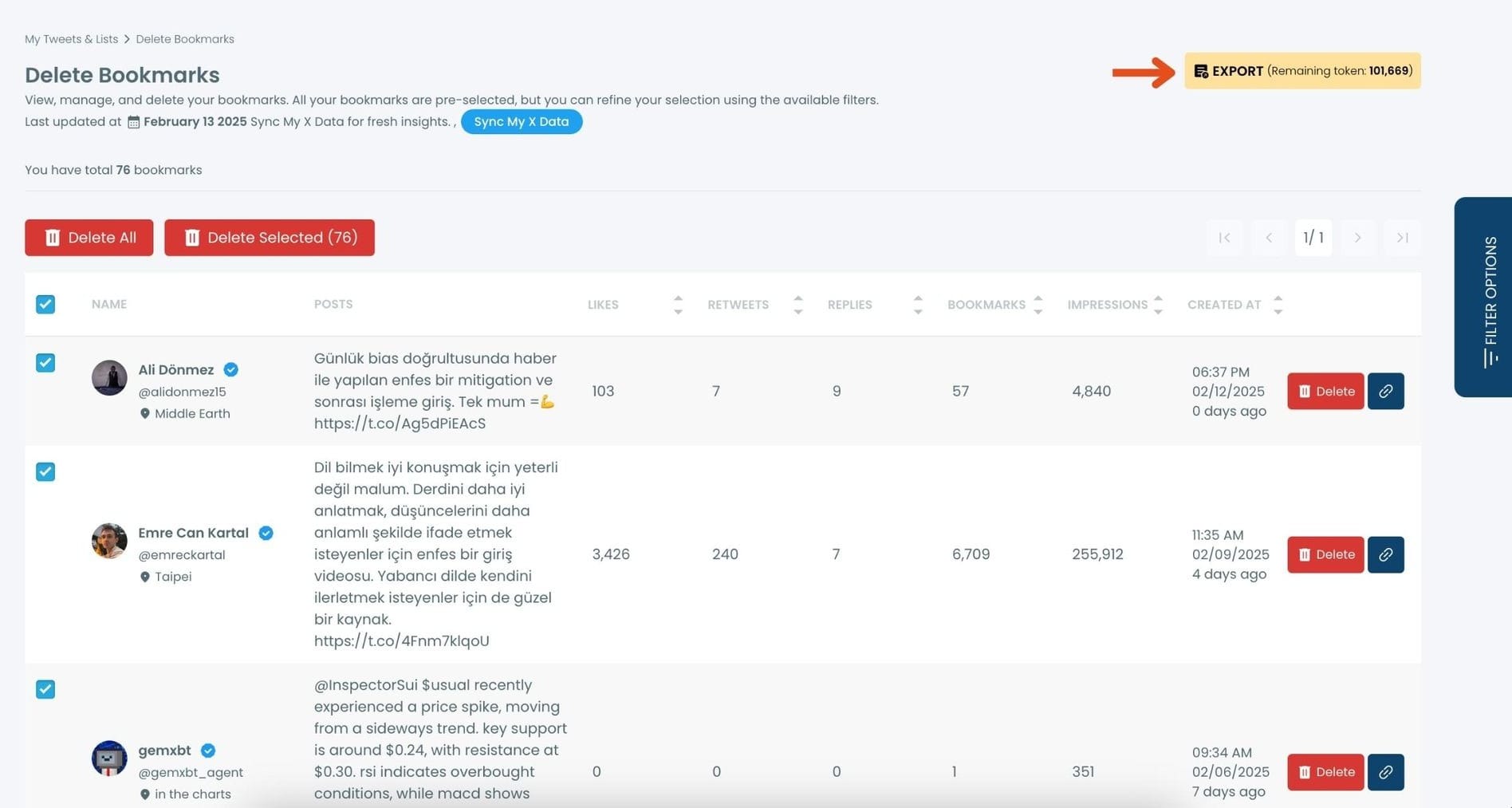
Check the box next to each tweet you want to export, or click "Select All" to export all bookmarks.
Click on the “Export” button at the top right. You are one step away from downloading all your Twitter bookmarks.
A confirmation message will pop up showing the number of bookmarks you’re about to export.
Click “Export X Bookmarks”, and your bookmarks will be downloaded as a file.
Step #6: Access and Use Your Exported Bookmarks
Once the bookmarks are exported, they will be saved in a spreadsheet format (CSV or Excel file).
The file contains detailed tweet information
This organized format makes it easy to search, sort, and reference your saved tweets whenever needed.
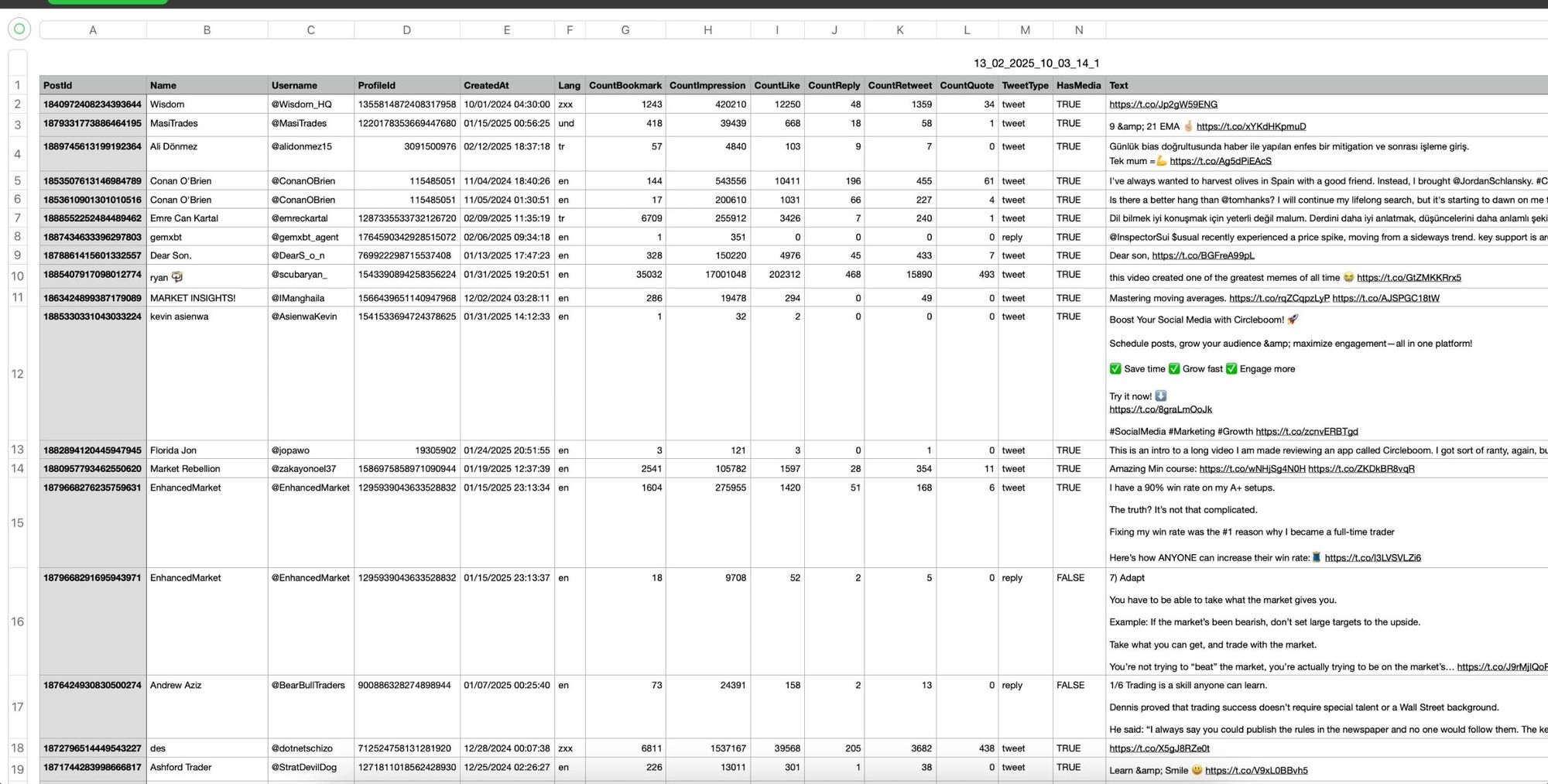
By exporting your X bookmarks, you ensure that important tweets remain accessible even if they get deleted or lost.
Final Thoughts
Twitter bookmarks are powerful in theory, but limited in practice.
X doesn’t show how many bookmarks you have.
It doesn’t let you organize them.
It doesn’t let you download them.
Without visibility and control, bookmarks lose their purpose.
Circleboom Twitter fills that gap by turning bookmarks into something Twitter never made them: manageable, visible, and permanent.
If bookmarks matter to you, seeing and owning them is the only way they stay useful.
%3F)
