

You’re tweeting regularly.
You’re sharing insights.
You’re trying to start conversations.
But the likes are low, replies are rare, and your posts feel like they’re disappearing into the timeline.
It’s frustrating — and it’s easy to assume:
“Maybe my content just isn’t good enough.”
But most of the time, your content isn’t the problem.
Your audience structure is.
That’s why auditing your followers with Circleboom can be a game-changer — it reveals inactive, spam, or irrelevant accounts that mute your reach without you noticing.
There are three major reasons why followers stop engaging — and once you understand them, engagement becomes much easier to recover.
Let’s break them down and solve them one by one.
Reason #1 — Your Audience Isn’t Interested in the Topics You’re Posting About
This is the most common cause of low engagement.
If your current followers joined you for one topic, but you're now tweeting about something different, they simply won't interact — because the content doesn’t match their interests.
Example
You used to tweet about:
Game news, memes, crypto hype, or university life
Now you tweet about:
Self-improvement, marketing, business, productivity, or finance
Your audience didn’t follow you for those things — so they scroll past.
This leads to:
- Low likes
- Low replies
- Low reach
- And eventually… the algorithm stops showing your tweets at all.
 Arif Akdogan
The Fix: Understand What Your Followers Care About
You need to check what your audience is actually interested in.
This is where Circleboom Twitter helps.

Circleboom analyzes your followers and generates an Interest Cloud of their most discussed topics — based on:
- Their tweets
- Their likes
- Their follows
- Their engagements
You’ll see clear interest signals like:
Productivity • Startups • NBA • Crypto • Art • Tech • Memes • AI • Fitness
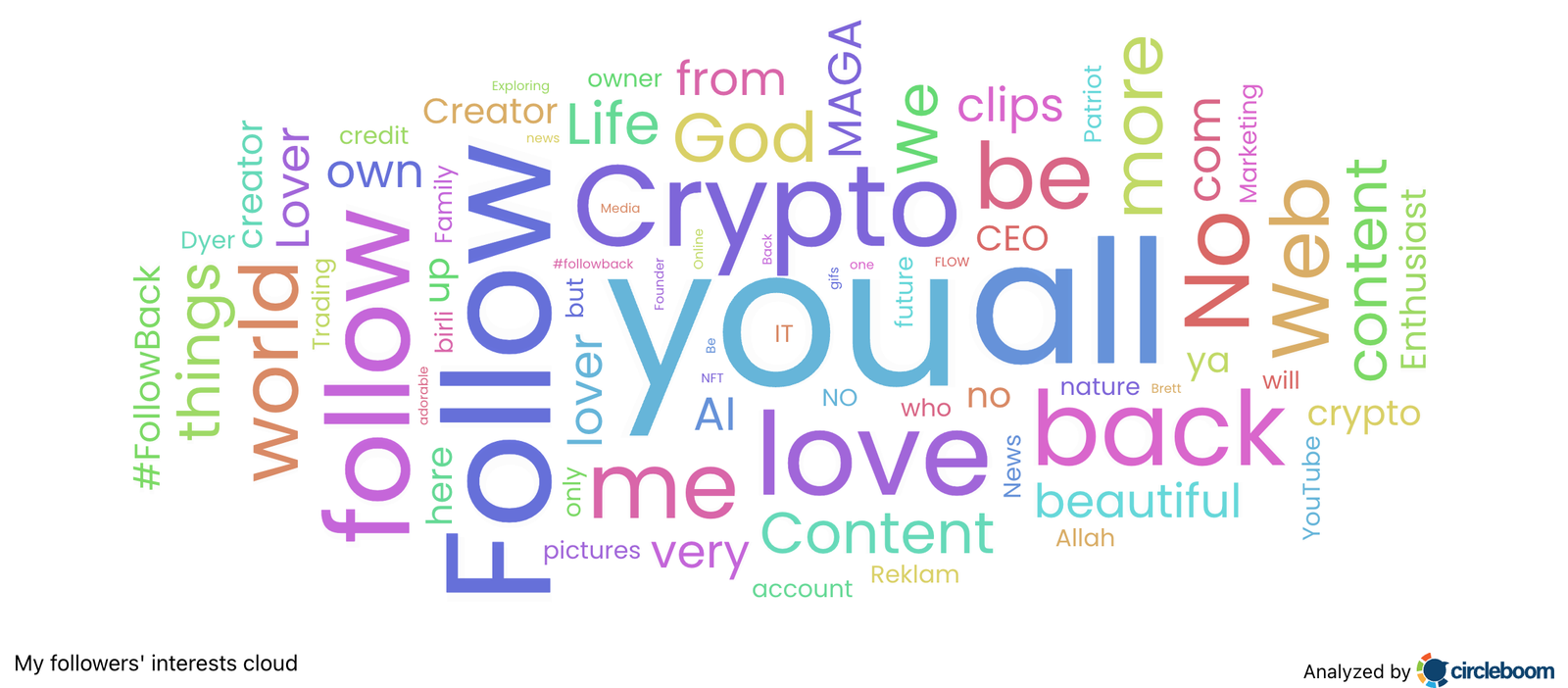
Once you know what your audience is already thinking about, you can:
🟢 Write tweets that match those topics
🟢 Shift your voice instead of forcing unrelated themes
🟢 Re-engage your audience naturally
When your content aligns with your audience’s interests, engagement rises immediately.
 Arif Akdogan
Step-by-Step Guide to Finding Followers' Interests with Circleboom Twitter
Step #1: When you have entered the Circleboom dashboard, find the left-hand menu.
On the menu, click on "User Analytics" and "Interest Cloud" from the drop-down menu.

Step #2: The Interest Cloud will prompt within seconds.
Here, you will have both Twitter audience insights graphs for your friends and followers separately.
Moreover, you will get percentages for the usage distribution of each word that appears on the graph to allow you to make the correct analysis through interests from Twitter.
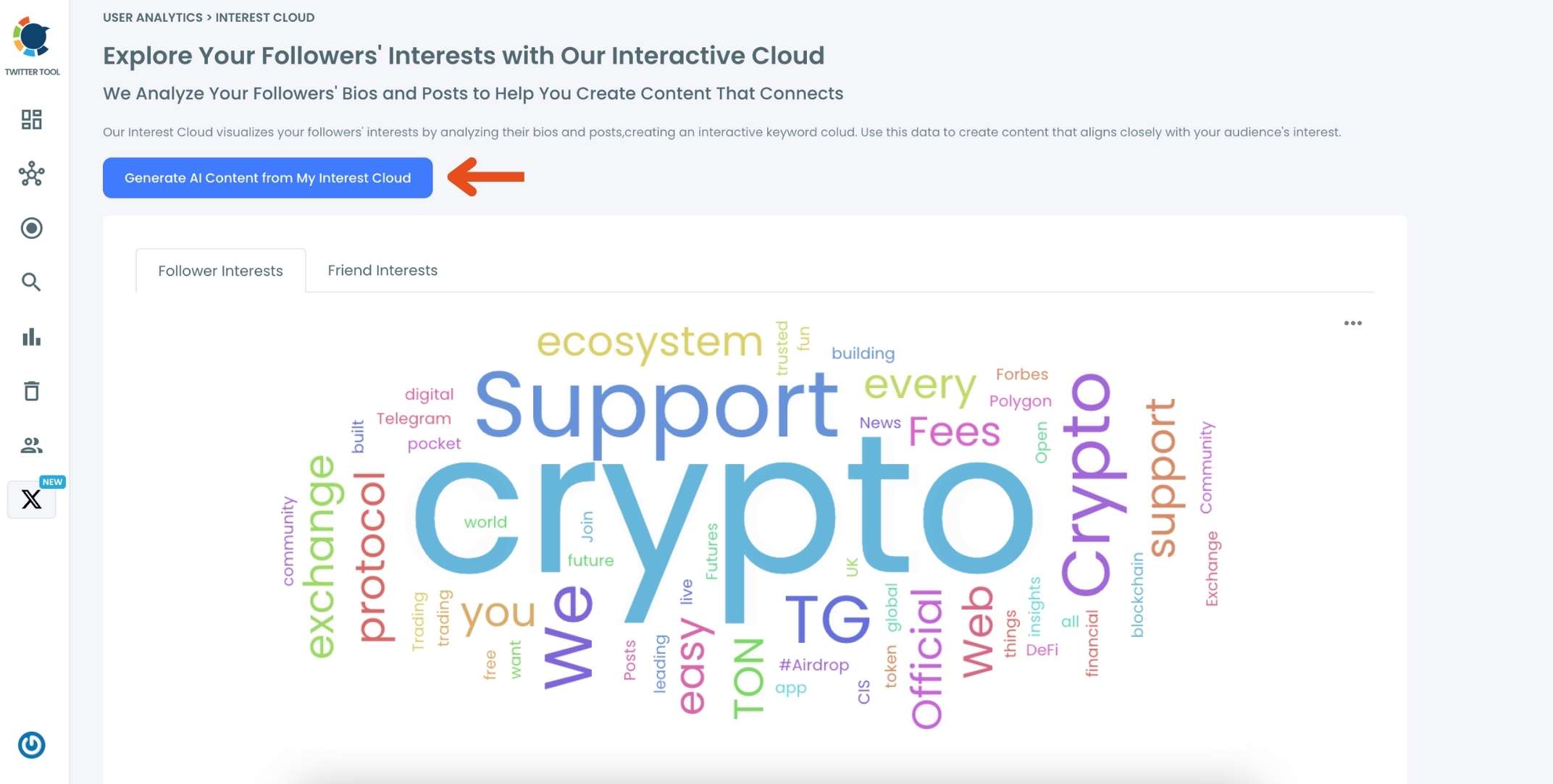
You can also save the Interest Cloud graph in different file formats like PNG, SVG, JPG and PDF to use the graph in comparative analysis while defining your Twitter Interest Targeting strategy over time!
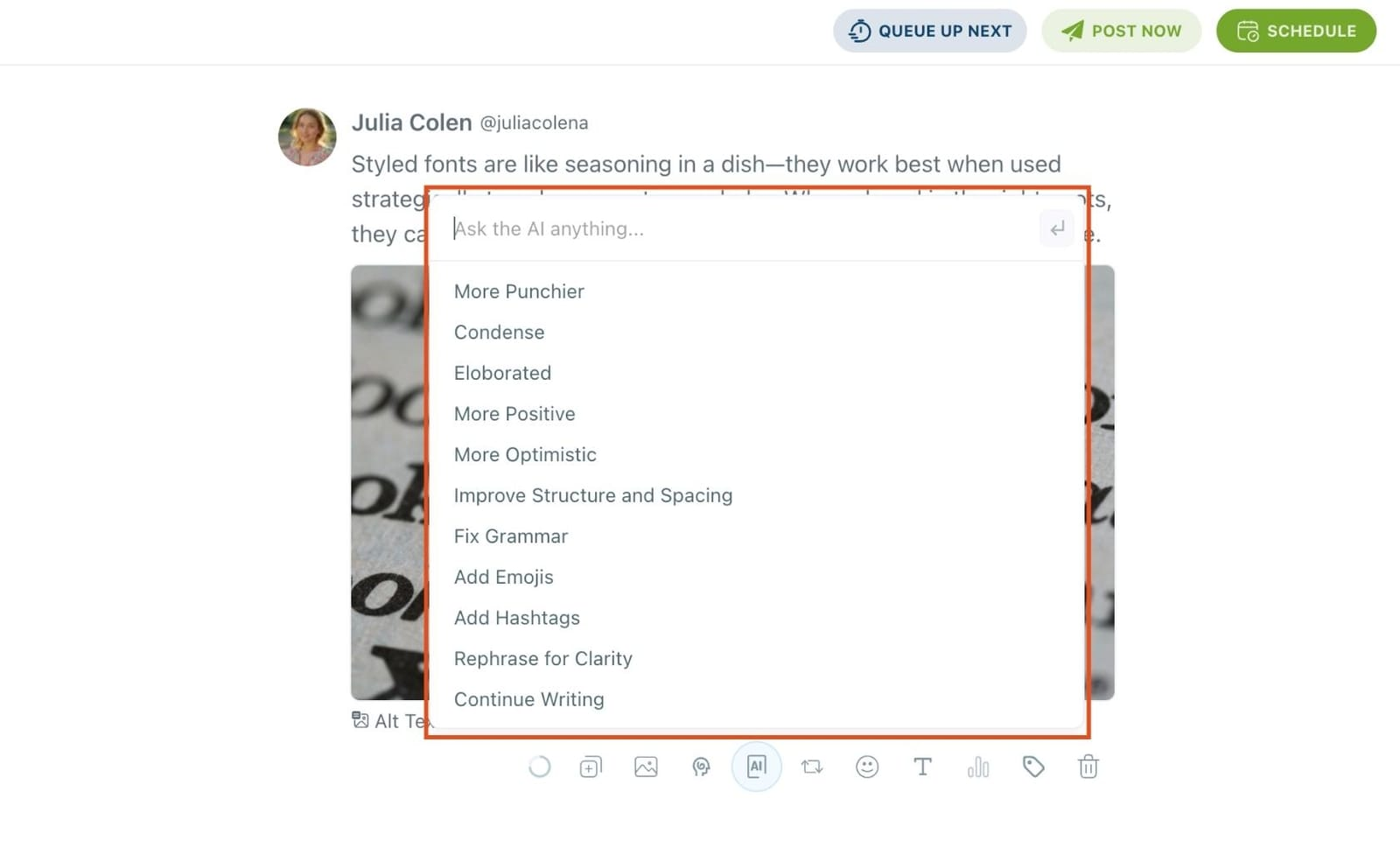
Tips: With the Ai Tweet Generator, you can easily create tweets from your followers interest cloud.
Reason #2 — Your Followers Might Not Be Real, Active, or Engaged at All
A large follower count doesn’t mean a large active audience.
Most accounts accumulate:
- Inactive followers (users who haven’t tweeted in months)
- Ghost followers (silent lurkers who never engage)
- Fake / bot accounts
- Spam followers from trends or giveaways
I didn’t even realize how many of these I had until I ran a Circleboom follower audit — the difference between my follower count and my real audience was shocking.
These followers hurt your engagement rate, because:
Twitter’s algorithm measures engagement as a percentage of your total follower number.
So if you have:
- 10,000 followers but only 200 real, active ones → your posts look like they’re underperforming.
This tells the algorithm:
“This content isn’t interesting.”
And your reach drops — sometimes dramatically.
The Fix: Clean Up Your Follower List
Circleboom analyzes your followers and categorizes them into:
- Inactive accounts
- Fake/bot-like accounts
- Ghost followers (no engagement behavior)
Then it allows you to remove or block them in one click — safely, respecting Twitter’s rate limits.
 Harshita Agrawal
This raises your:
🟢 Engagement rate
🟢 Post visibility
🟢 Algorithm trust score
Which means:
Your tweets start showing up on more timelines again.
Step-by-Step: How I Removed Ghost Followers with Circleboom
Step #1: On the left-side menu, click on the Followers section. A dropdown menu will appear. Select Fake/Bot Followers to see the full list of your followers.
If you want to remove specific accounts, such as inactive users, you can directly select these categories from the dropdown menu instead of viewing all followers.

Step #2: You will see a complete list of your fake/bot followers.
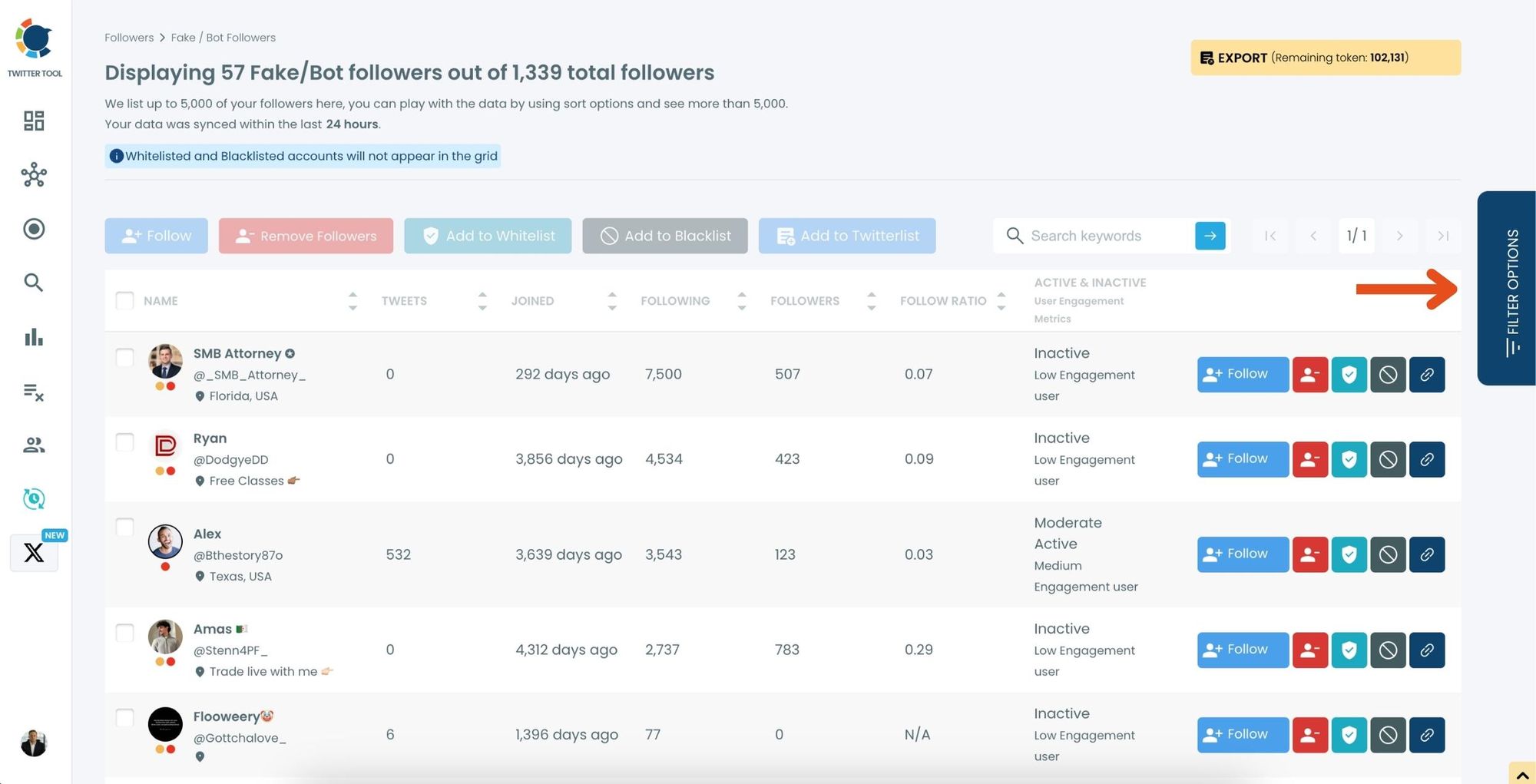
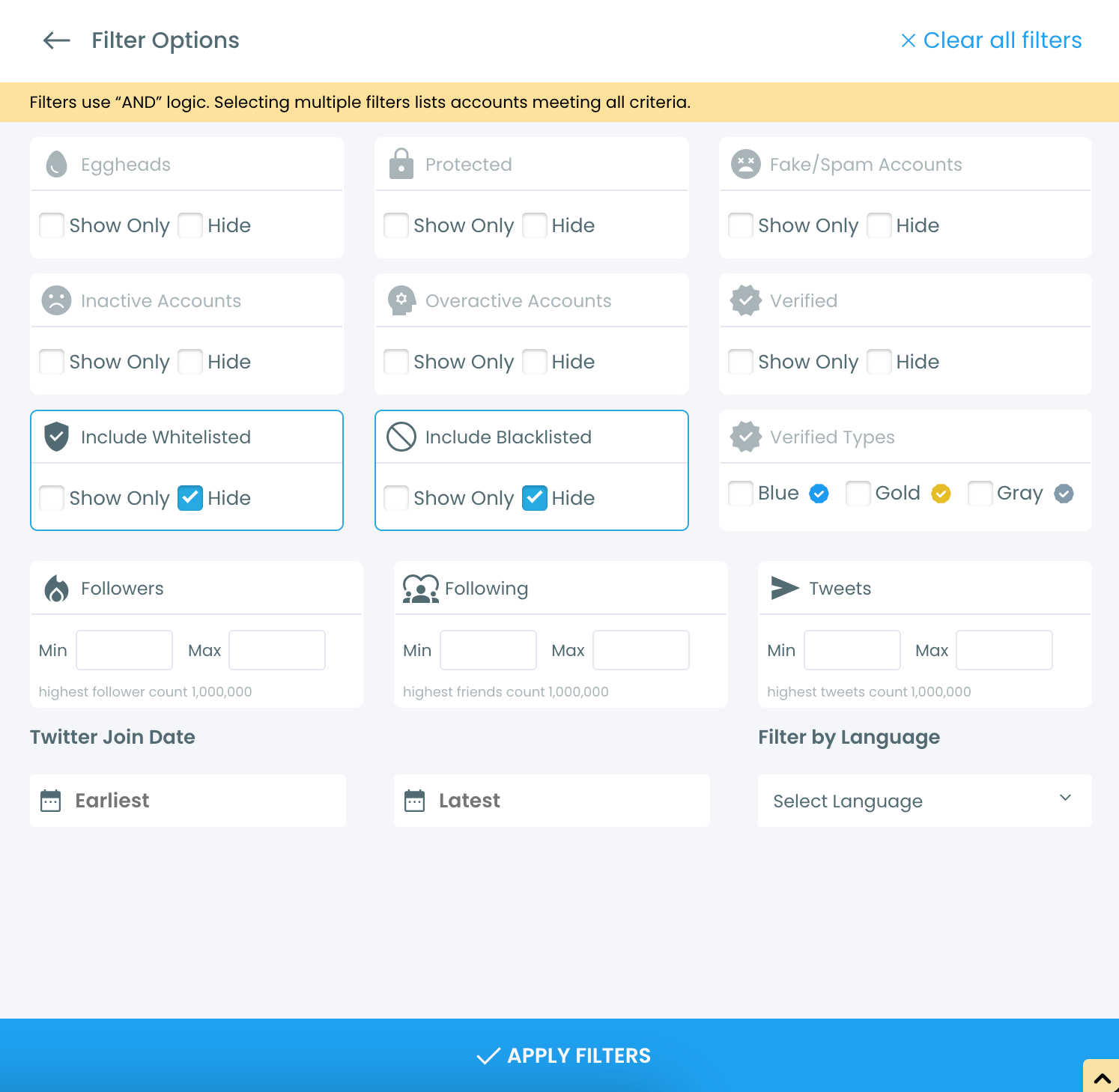
Use the Filter Options on the right-hand side to refine your list.
You can filter followers based on engagement levels, fake/spam accounts, inactivity, verification status, and more.
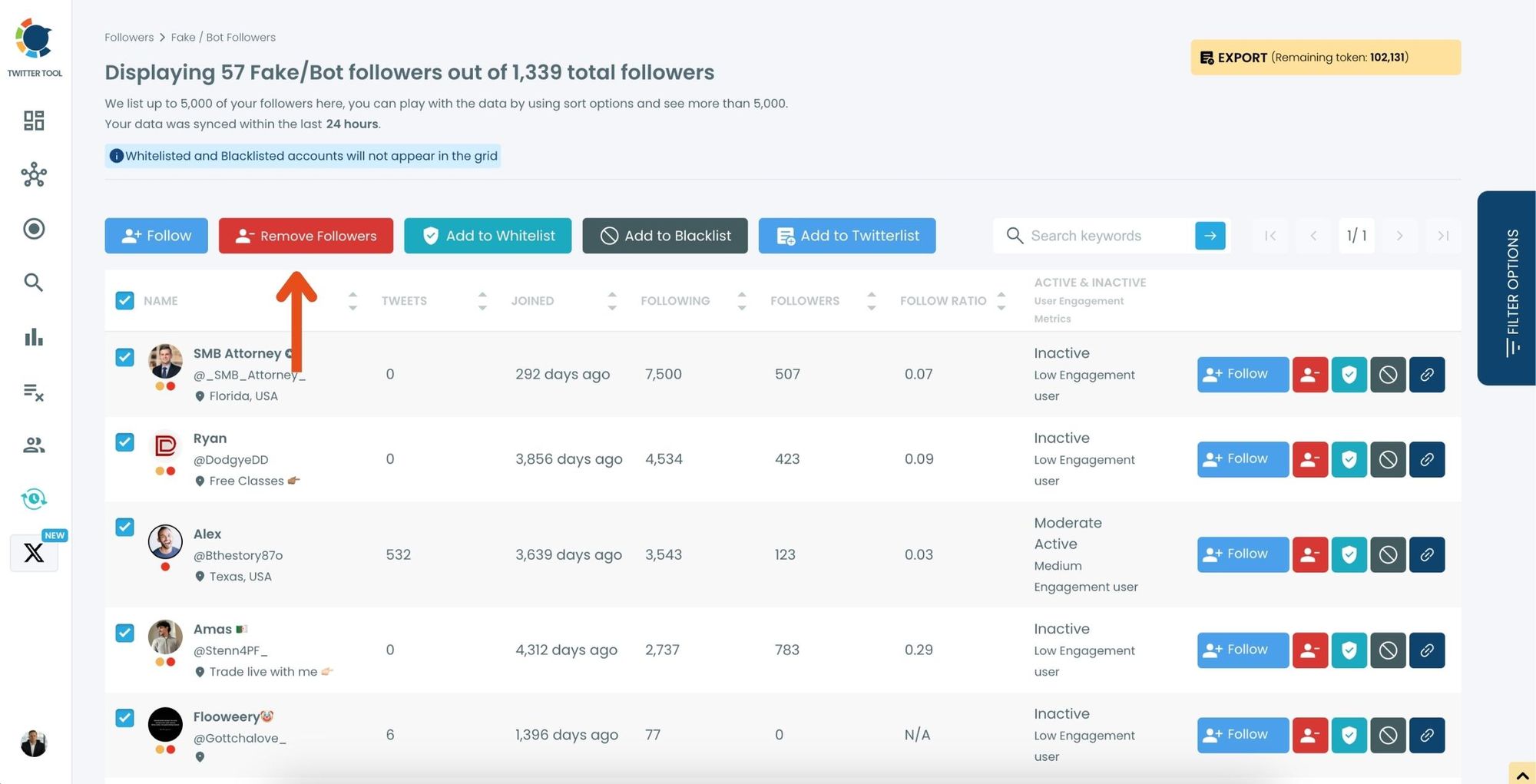
Step #3: Browse through your followers and check the boxes next to the users you want to remove.
You can also select multiple users at once. Once you have selected the users, click on the Remove Followers button at the top.
Alternatively, you can remove individual followers by clicking the red remove icon next to their name on the right side of the list.
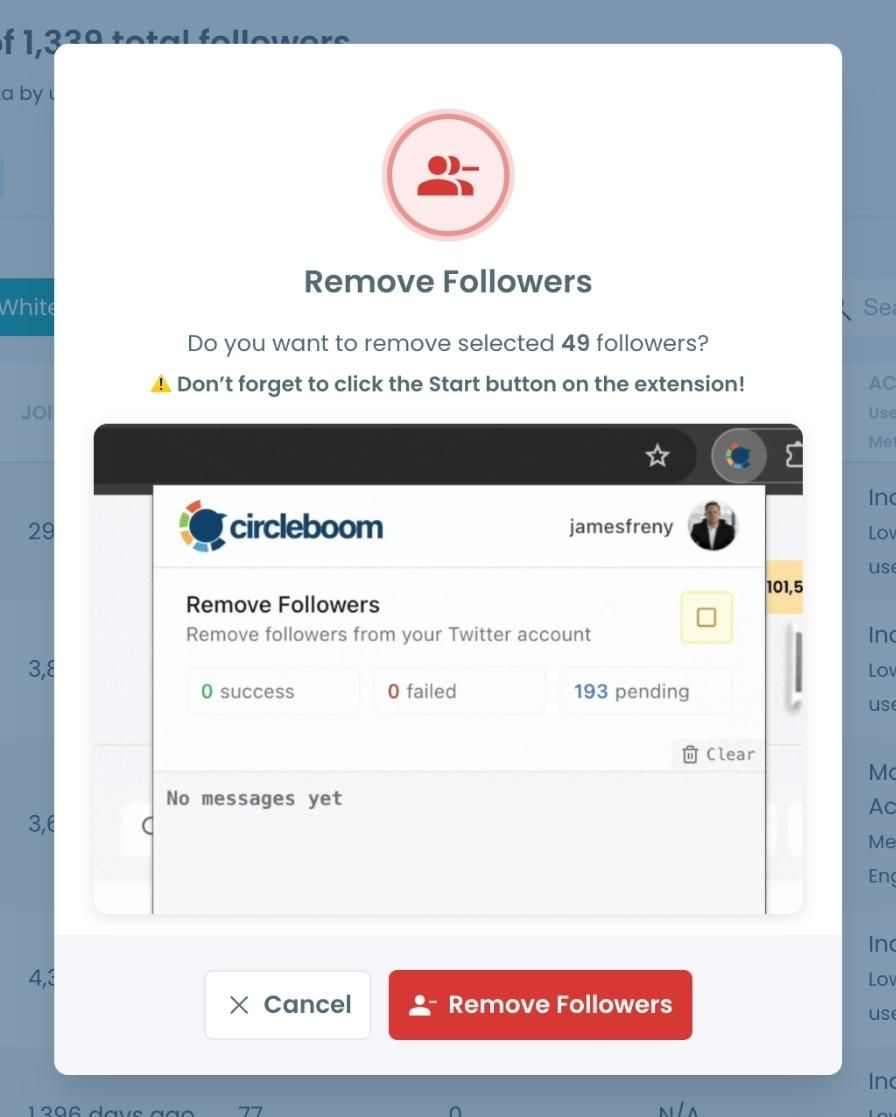
A confirmation message will appear asking if you are sure you want to remove the selected followers. Click ''Remove Followers''.
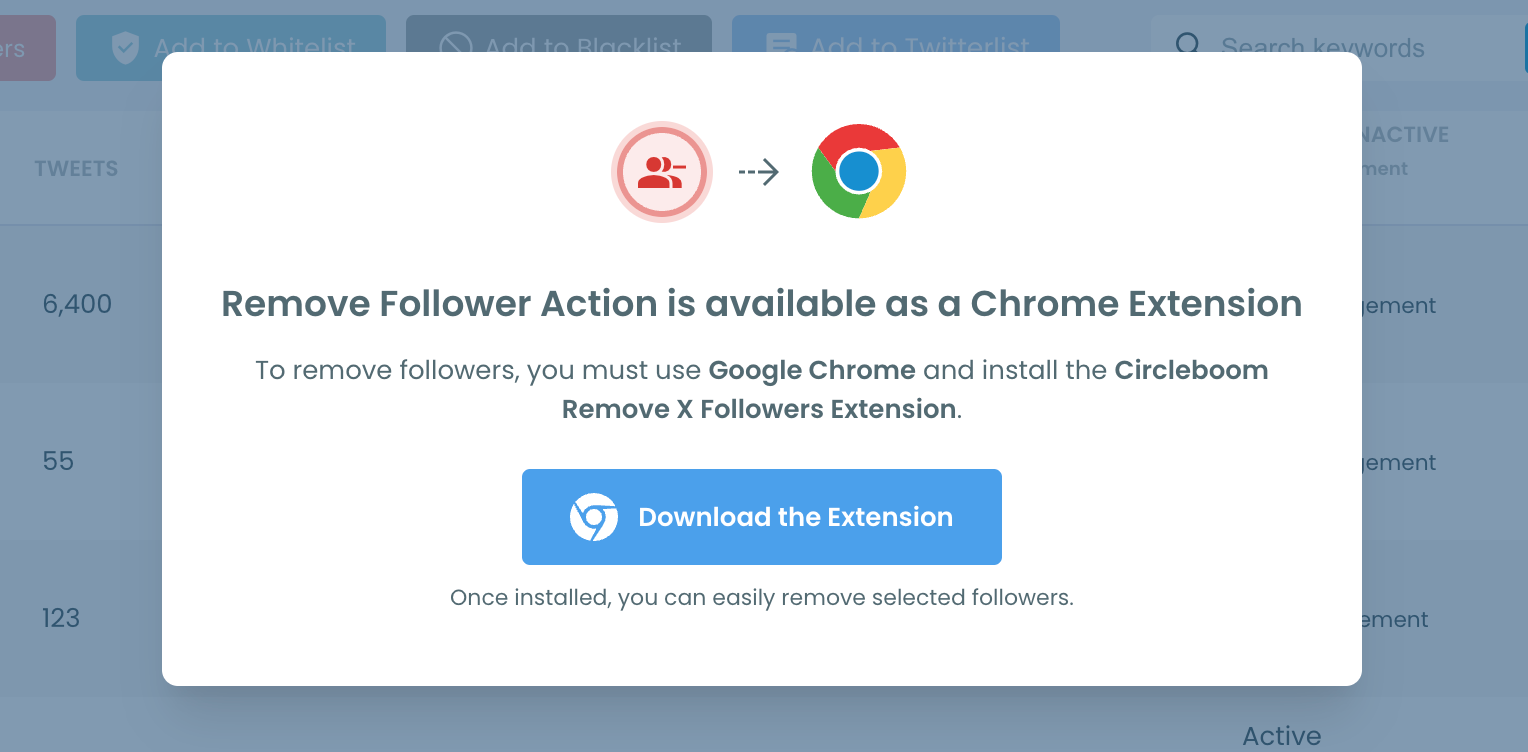
Step #4: Since the removal action is processed via the Circleboom Remove Twitter/X Followers extension, you need to install it to complete the process.
Click on Download the Extension and install it from the Chrome Web Store.
Once installed, you can easily remove followers.
Step #5: After installing the extension, Circleboom will automatically add all your removal requests to the extension queue.
Click on the Start button to begin the removal process.
The extension will process your requests and remove the selected followers.
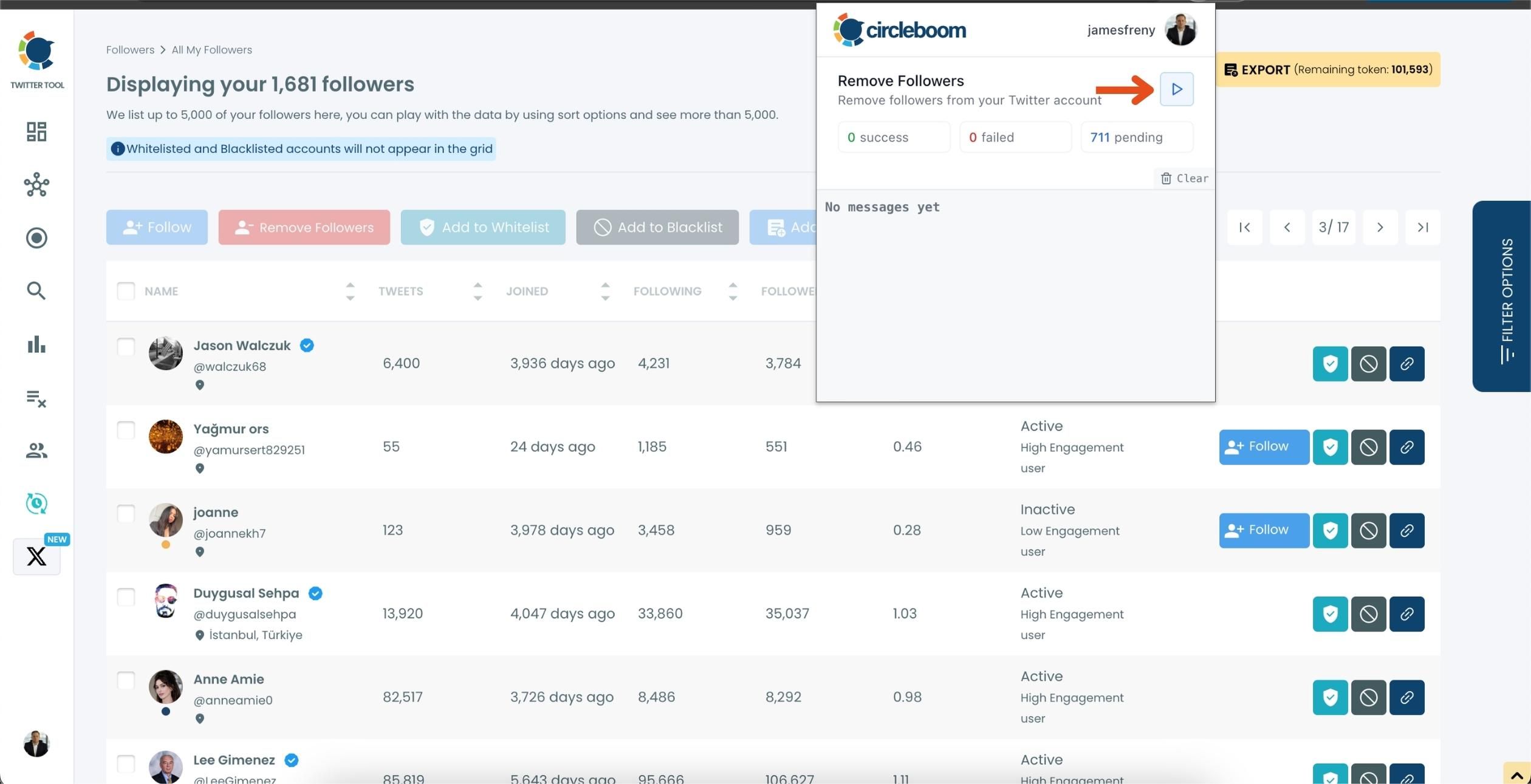
That's it! Your selected followers are now removed automatically.
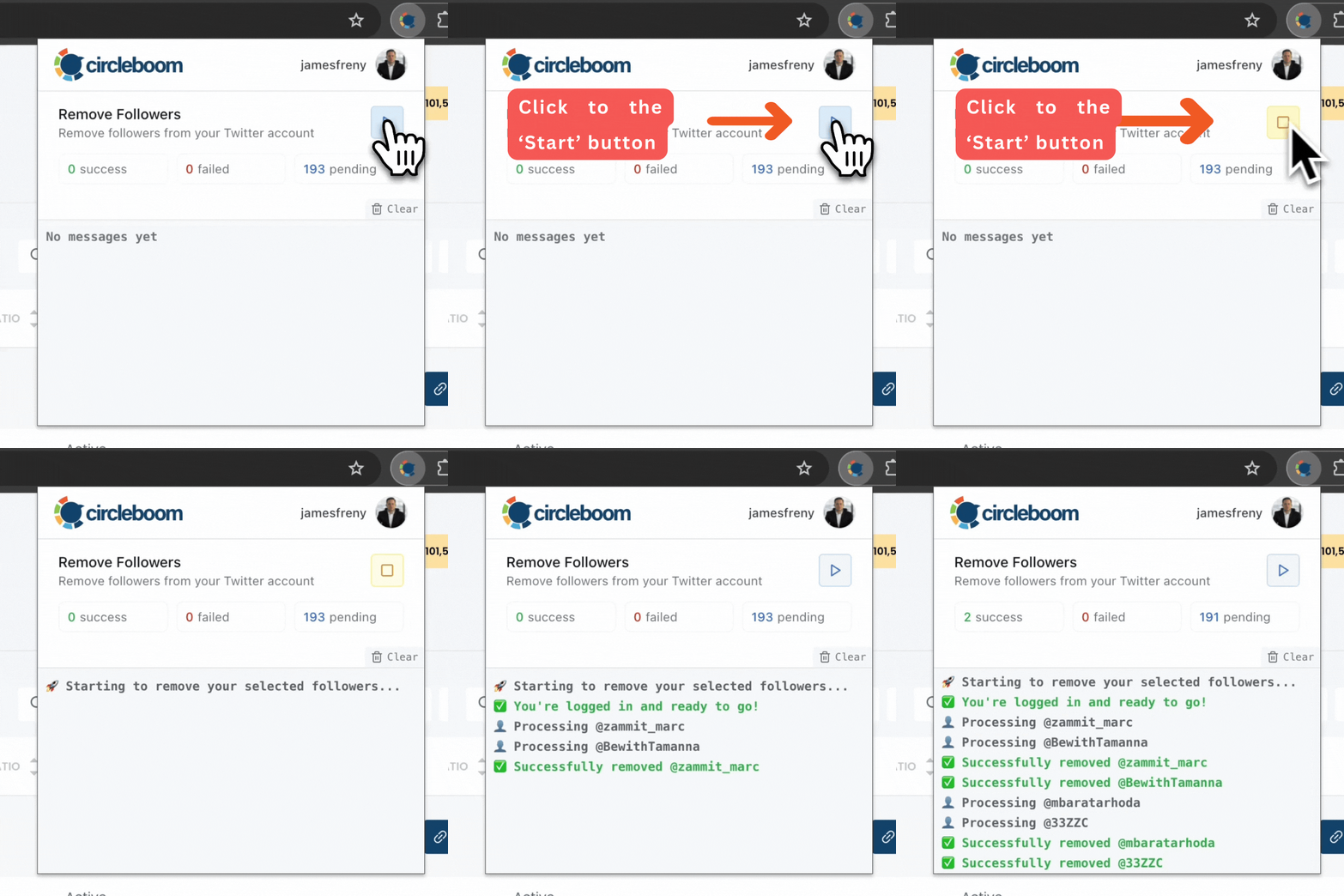
⚠️ Important Warning: Once the removal process begins, do not close your Chrome browser or the Circleboom tab. The tool will automatically remove followers in the background, but if you close the tab or exit Chrome, the process will stop.
If you need a more detailed guide check this video ⬇️
The entire process took me less than an 5 minute—something that would have taken me days, if not weeks, to do manually.
Reason #3 — You’re Posting at the Wrong Times
Twitter is one of the fastest-moving social platforms.
The average tweet has a lifespan of ~15 minutes.
If your followers aren’t online when you post, your tweet dies before anyone even sees it.
Most people assume their content is the issue, when in reality…
their timing is the issue.
The Fix: Find Out When Your Followers Are Online
Circleboom’s Best Time to Post feature analyzes:
- When your followers are active
- When they engage with other tweets
- When your tweets historically perform best
It then shows you a heatmap of your audience’s active hours.
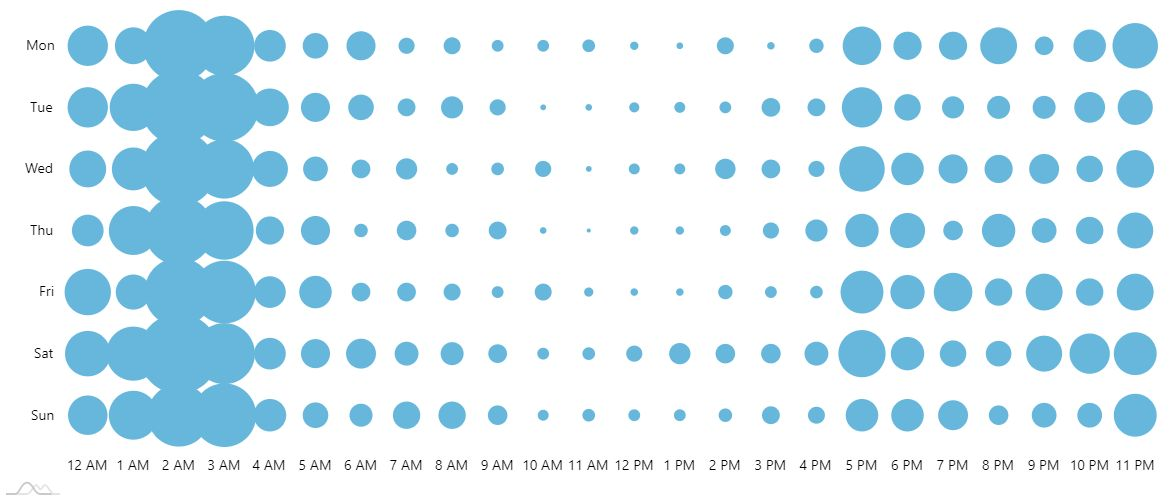
This is your personal posting window — not generic advice.
Posting during those windows means:
- More eyes on your tweets
- Higher reply & retweet chance
- Higher reach → more engagement → more growth
How to Use Circleboom Twitter to Create and Schedule Your Tweets
Step #1: After logging in with your X account, go to the left-hand menu and click on “X Post Planner + AI Writer.”
Click the “Write & Plan Your Post” button to begin crafting your tweet.

If needed, you can also use the built-in AI tools to generate your next tweet or create a thread from a URL, a block of text, or even another tweet.
Step #2: Add visuals to enhance your post
You can upload images or videos, add a GIF, pull high-quality photos directly from Unsplash, or design something custom using Canva—all without leaving Circleboom.
These media options are available under the image icon in the editor.
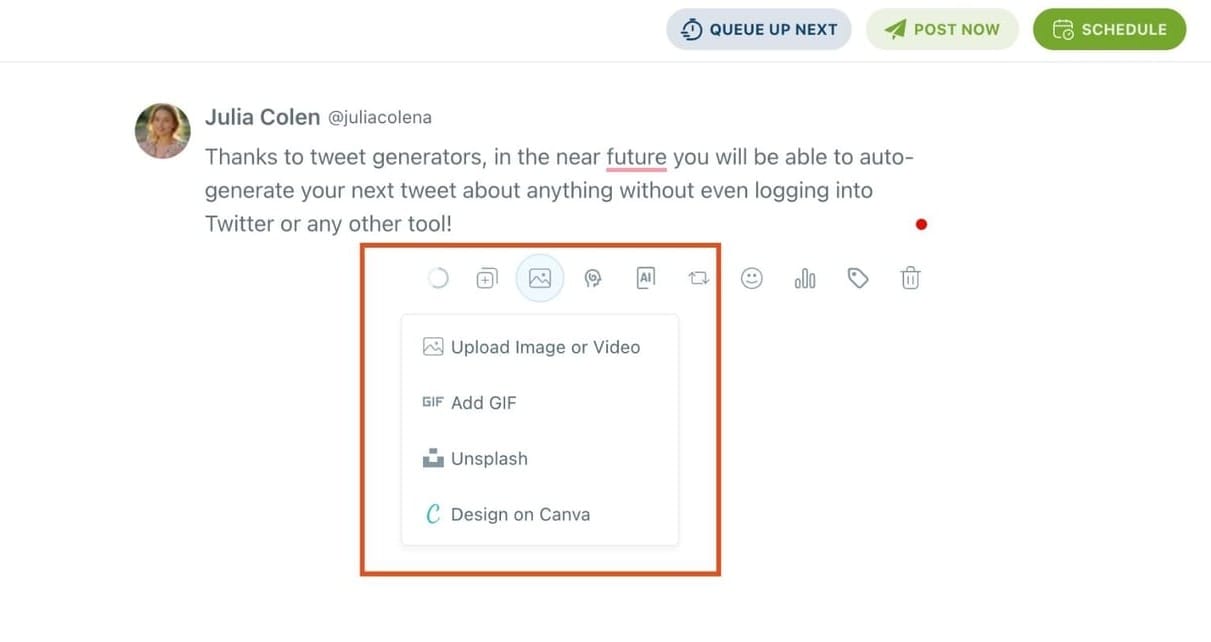
Step #3: Use AI to write and improve your text
You can create a new tweet or rewrite your tweet with the AI Tweet Generator to make it more punchy, add emojis or hashtags, fix grammar, rephrase for clarity, or even continue writing where you left off.
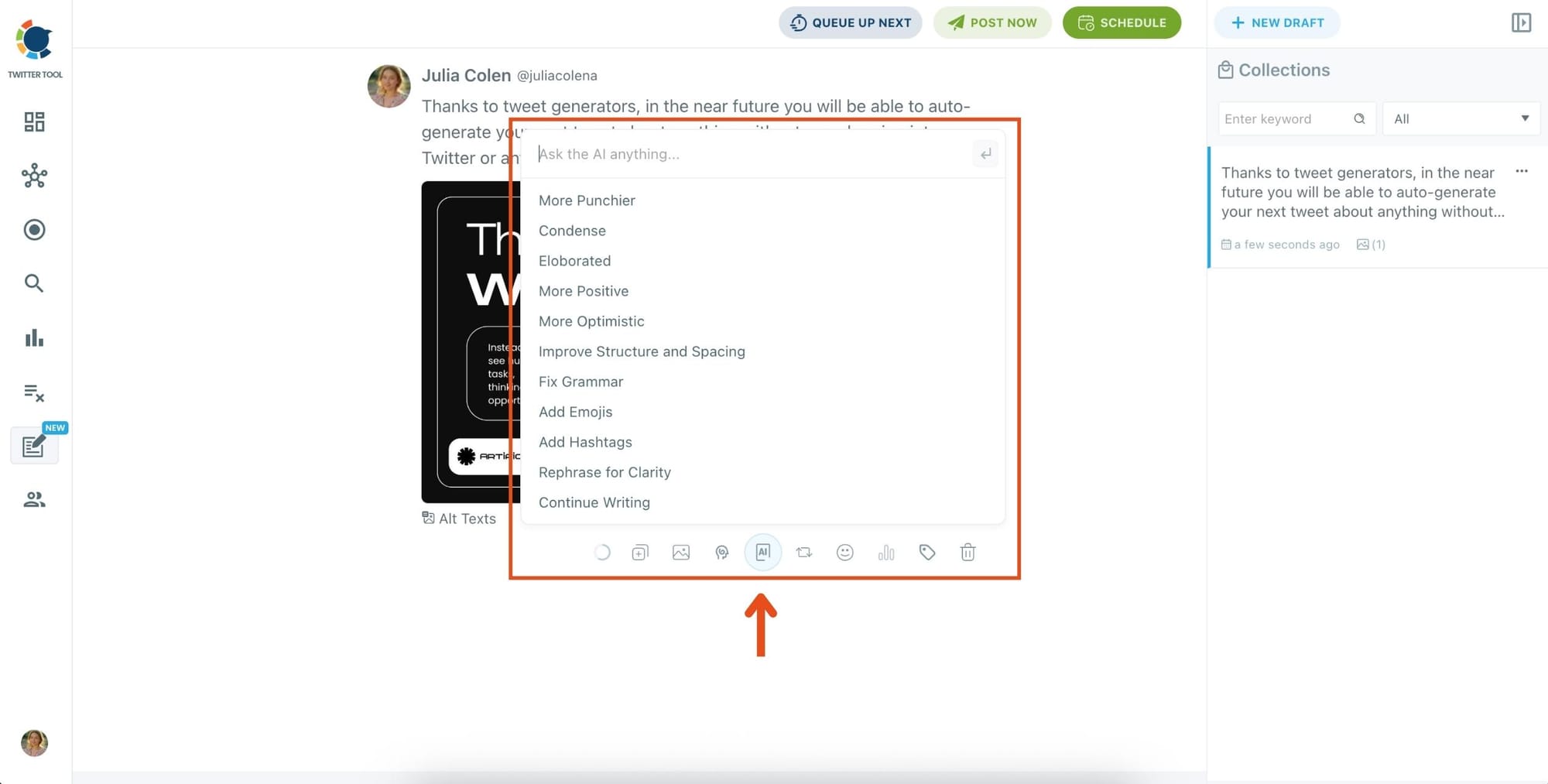
The AI tools are designed to match your tone—whether you want something professional, casual, or energetic.
Step 4: Set auto-repost to increase visibility
You can turn on the Auto Repost feature to reshare your tweet automatically.
Set how long to wait before reposting, when to un-post it, and how many times to repeat the cycle.
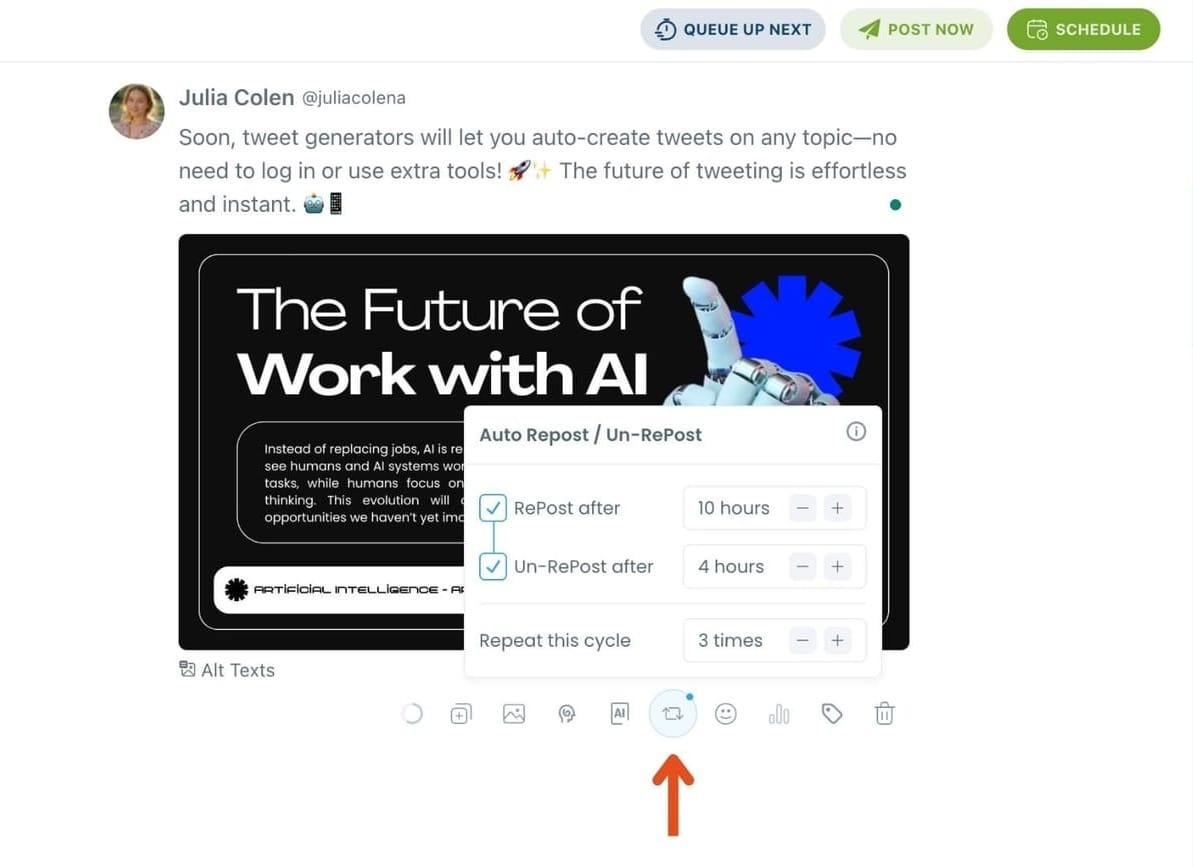
This is a useful way to reach followers across different time zones without any manual effort.
Step #5: Post or schedule your tweet
Once your tweet is ready, you can choose to post it immediately or click the green “Schedule” button to post it later.
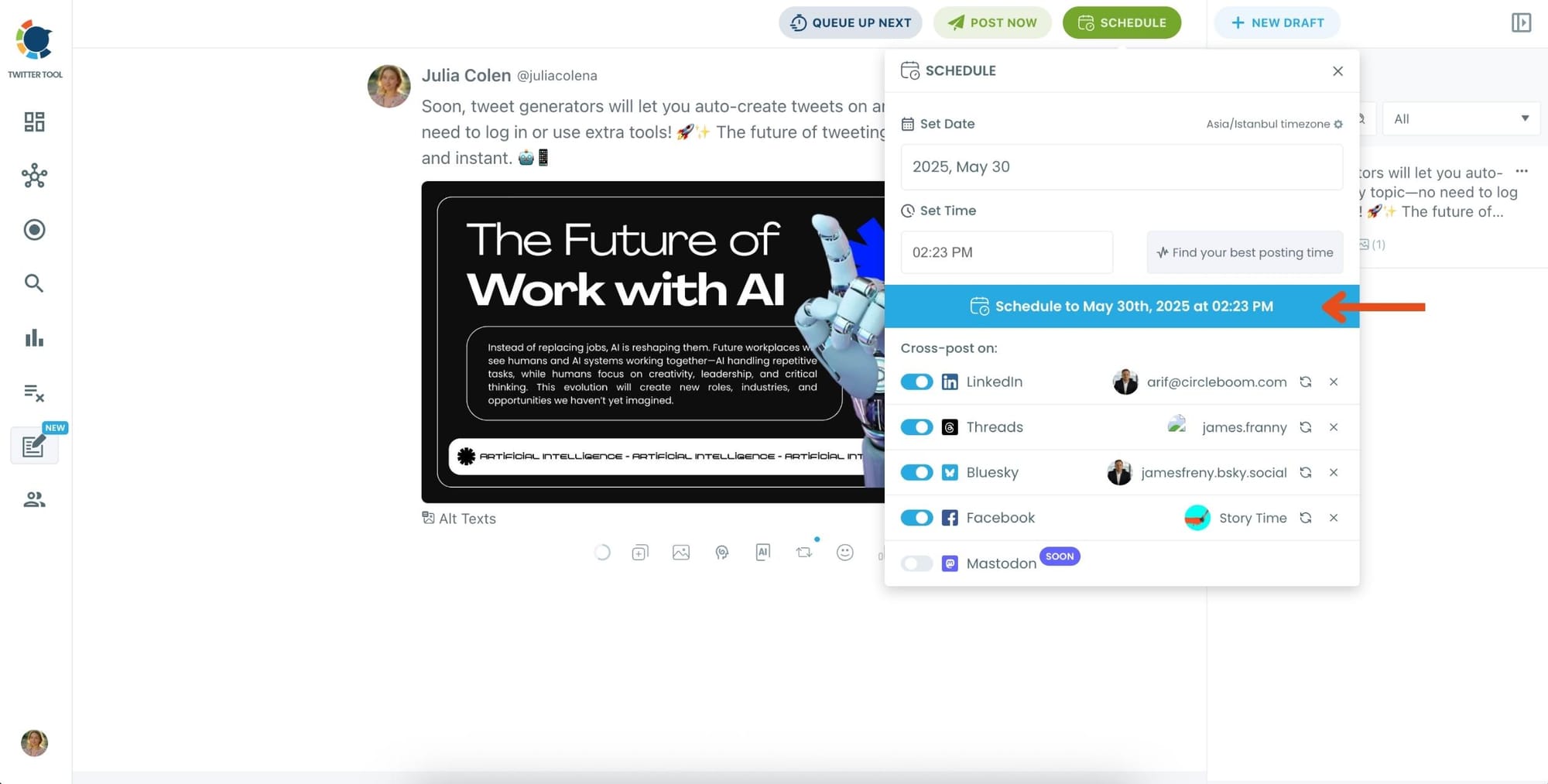
You can choose the exact date and time or let Circleboom suggest the best posting time based on your audience activity.
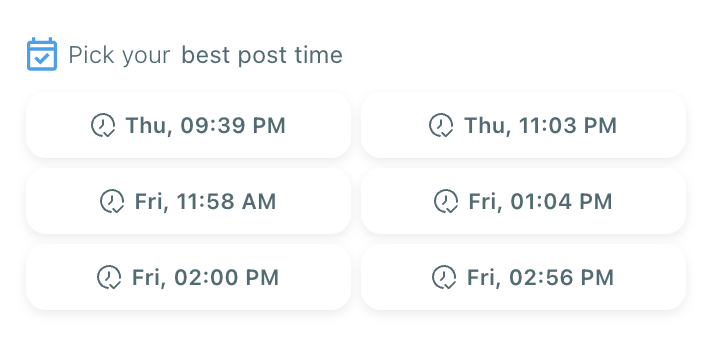
Your tweet will be automatically published at the optimal moment.
Bonus Tip: Cross-post to other platforms
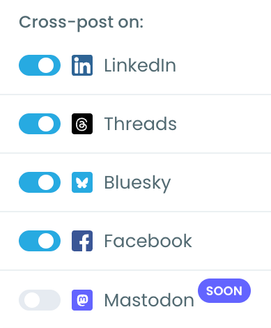
You can publish your tweet not just on X, but also on LinkedIn, Threads, Bluesky, and Facebook—all from the same screen.
Just toggle the platforms you want, and Circleboom will handle the rest.
Other Common Engagement Issues (Quick Fixes)
| Problem | Fix |
|---|---|
| Your tweets are statements, not conversation starters | Ask questions, open loops, invite replies |
| You post too rarely or too much | Aim for consistency, not spam |
| Your content is too broad | Focus on one niche and strengthen your voice |
| You never reply to others | Engagement is a two-way street — interact to be interacted with |
Final Thoughts
If your followers aren’t engaging, it doesn’t mean your content is bad.
It means your audience isn’t aligned, isn’t active, or isn’t seeing your posts.
So instead of posting harder…
Fix your audience, fix your alignment, and fix your timing.
Once you clean your follower list, understand their interests, and post when they’re online, engagement returns naturally.
Start Here:
- Clean inactive / fake followers
- Discover your followers’ interests
- Post when they’re active
You can do all three in one place:

%3F%20Here%E2%80%99s%20What%20You%20Need%20to%20Fix)
