

You see a poll on X. The question is interesting. You tap one of the options… and nothing happens.
No animation. No results. Just the same screen as if you never clicked anything.
This happens more often than people think. Many users try to vote in a poll on X but the vote simply doesn’t register. Sometimes it’s a small glitch, sometimes it’s related to the poll itself, and sometimes it’s a limitation from the platform.
After running into this problem a few times, I started paying attention to when and why it happens. Most of the time, the reason is surprisingly simple.
Let’s go through the most common reasons why you can’t vote in a poll on X, and what you can do to fix it.
 Arif Akdogan
Reason 1: The poll has already ended
This is one of the most common reasons.
Polls on X don’t stay open forever.
When someone creates a poll, they can choose a duration ranging from a few minutes up to seven days. Once the time expires, the poll automatically closes.
When that happens, you can still see the poll and the results, but you can’t vote anymore.
Sometimes the interface still shows the options clearly, so it looks like the poll is active. But when you try to vote, nothing happens because voting has already been disabled.
✅ Solution: Check the small timer under the poll. If the poll duration is over, voting is no longer possible.
Reason 2: You already voted in the poll
X only allows one vote per account.
It sounds obvious, but it’s easy to forget that you already voted, especially if you saw the poll earlier in the day or while scrolling quickly.
If your vote was already submitted, tapping again won’t do anything. X simply keeps your original vote.
✅ Solution: Look closely at the poll results. If percentages are visible, it means your vote was already counted.
Reason 3: The app or browser is glitching
Sometimes the problem isn’t the poll. It’s the app.
X polls rely on interactive UI elements, and occasionally the app or browser fails to process the click properly. When this happens, the vote button looks clickable but the action doesn’t go through.
This is especially common when:
- the app hasn’t been updated
- the session has been open for a long time
- the browser cache is corrupted
✅ Solutions that usually work:
- Refresh the page
- Close and reopen the X app
- Log out and log back in
- Update the app to the latest version
In many cases, simply refreshing the post fixes the problem instantly.

Reason 4: Browser extensions may block poll interactions
Another surprisingly common cause is browser extensions.
Ad blockers, script blockers, or aggressive privacy tools sometimes interfere with interactive elements on websites. Since polls rely on scripts to process votes, these extensions can accidentally block the interaction.
The result looks exactly like a broken poll: you click an option and nothing happens.
✅ Solution:
Try one of these quick tests:
- open the poll in an incognito window
- disable your ad blocker temporarily
- try another browser
If it works in another browser, the issue is almost certainly an extension conflict.
Reason 5: Your account may have interaction limits
X sometimes limits certain account actions temporarily.
 Fatih Kemal Oksuzoglu
If the system detects unusual activity, for example too many follows, likes, or replies in a short time, it may temporarily restrict interactions.
When this happens, actions like liking, replying, or voting in polls may silently fail.
You might still be able to read posts and scroll normally, but interaction features become limited.
✅ Solution:
Wait for the restriction window to pass and try again later.
These limits are usually temporary.
Reason 6: Network or connection issues
A weak or unstable connection can also prevent your vote from being registered.
This happens more often on mobile networks where the connection switches between towers or signal strength drops momentarily.
The poll UI may appear fully loaded, but the vote request never reaches X’s servers.
✅ Solution:
- Refresh the post
- Switch between Wi-Fi and mobile data
- Reload the poll
If the network was the issue, the vote will work after reconnecting.
Polls are also one of the easiest ways to increase engagement on X
Even though voting sometimes fails due to small technical issues, polls are still one of the most powerful engagement tools on X.
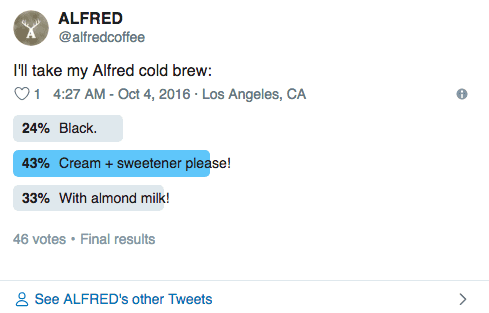
They are simple, fast, and require almost no effort from users. Instead of writing a reply, people can participate with a single tap.
Polls work especially well for:
➡️ asking your audience questions
➡️ choosing between content ideas
➡️ collecting quick feedback
➡️ increasing interaction on your posts
The only challenge is timing. A great poll posted when your followers are offline may receive very few votes.
This is why scheduling polls at the right time makes a huge difference.
Creating and scheduling polls with Circleboom Twitter
One of the easiest ways to manage polls is by using Circleboom Twitter.

Circleboom, as an Official X Enterpire Developer, is a complete Twitter/X management tool for scheduling content, analyzing followers, and increasing engagement. One feature I use frequently is scheduling tweets and polls at the best time when followers are active.
Instead of posting immediately, you can schedule your poll to go live exactly when your audience is online. You can also set auto retweets so the poll appears again later and captures more votes.
 infocircleboom.com
This simple trick can dramatically increase poll participation.
How to create and schedule a poll with Circleboom Twitter
Step #1: Log in to Circleboom Twitter.
As an official Twitter partner, Circleboom is safe and compliant with all platform policies.

Step #2: From the left-hand menu, click on X Post Planner to open the new publishing dashboard.

This section gives you access to advanced scheduling, poll creation, AI tools, and more.
Step #3: On this new dashboard, you'll see many features like Tweet design tools, Twitter thread maker, AI Tweet Generator, etc. as buttons.
"Add poll" is one of these buttons. So type in your question and click on that button.
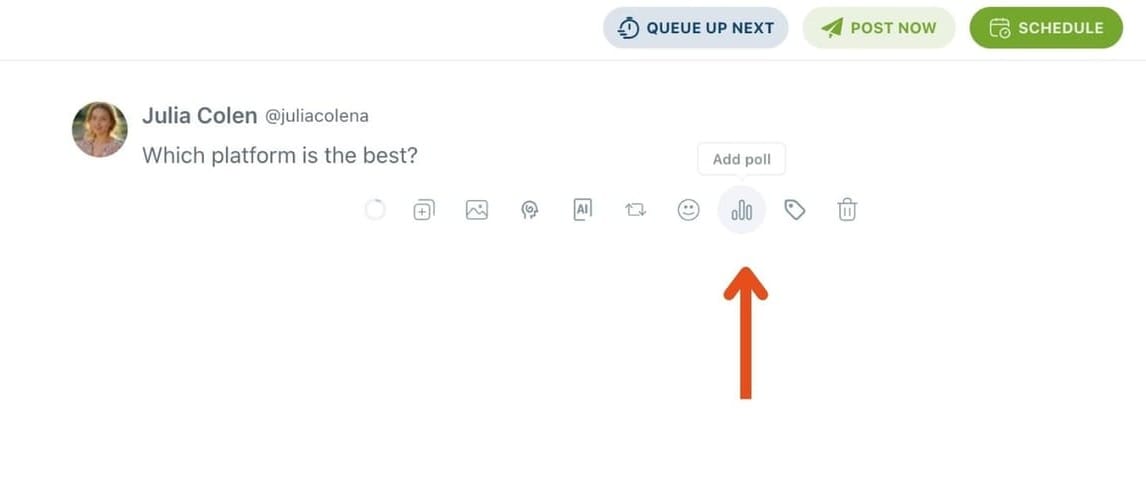
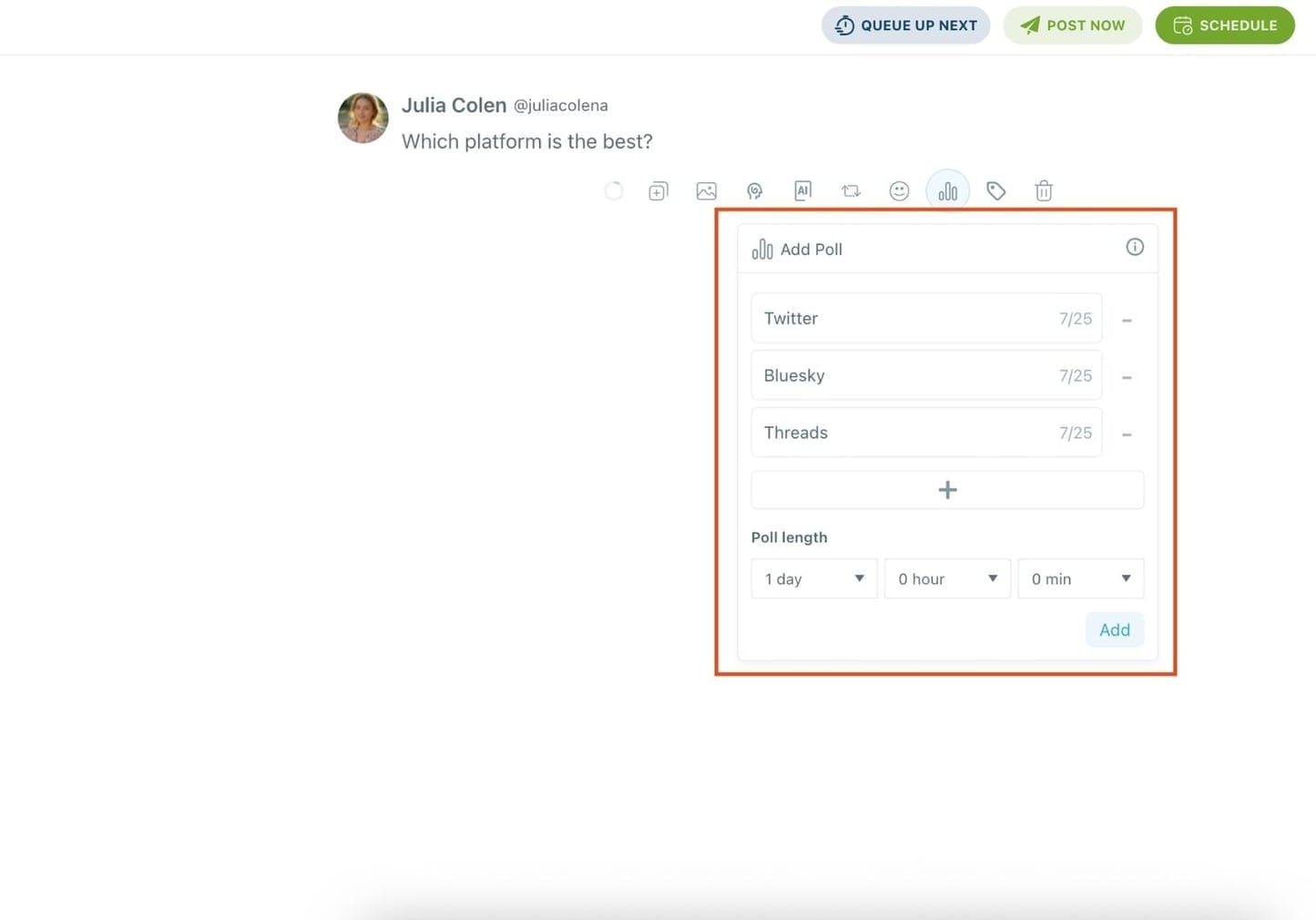
Step #4: After asking your question, all you need to do is craft your poll like you would natively on Twitter.
Enter your different answer options (up to 4 answers), and set how long the poll will stay active (up to 7 days).
You can also turn your Twitter poll into a thread or use Circleboom's built-in AI to enhance your text, by rewriting, shortening, or adding relevant hashtags.
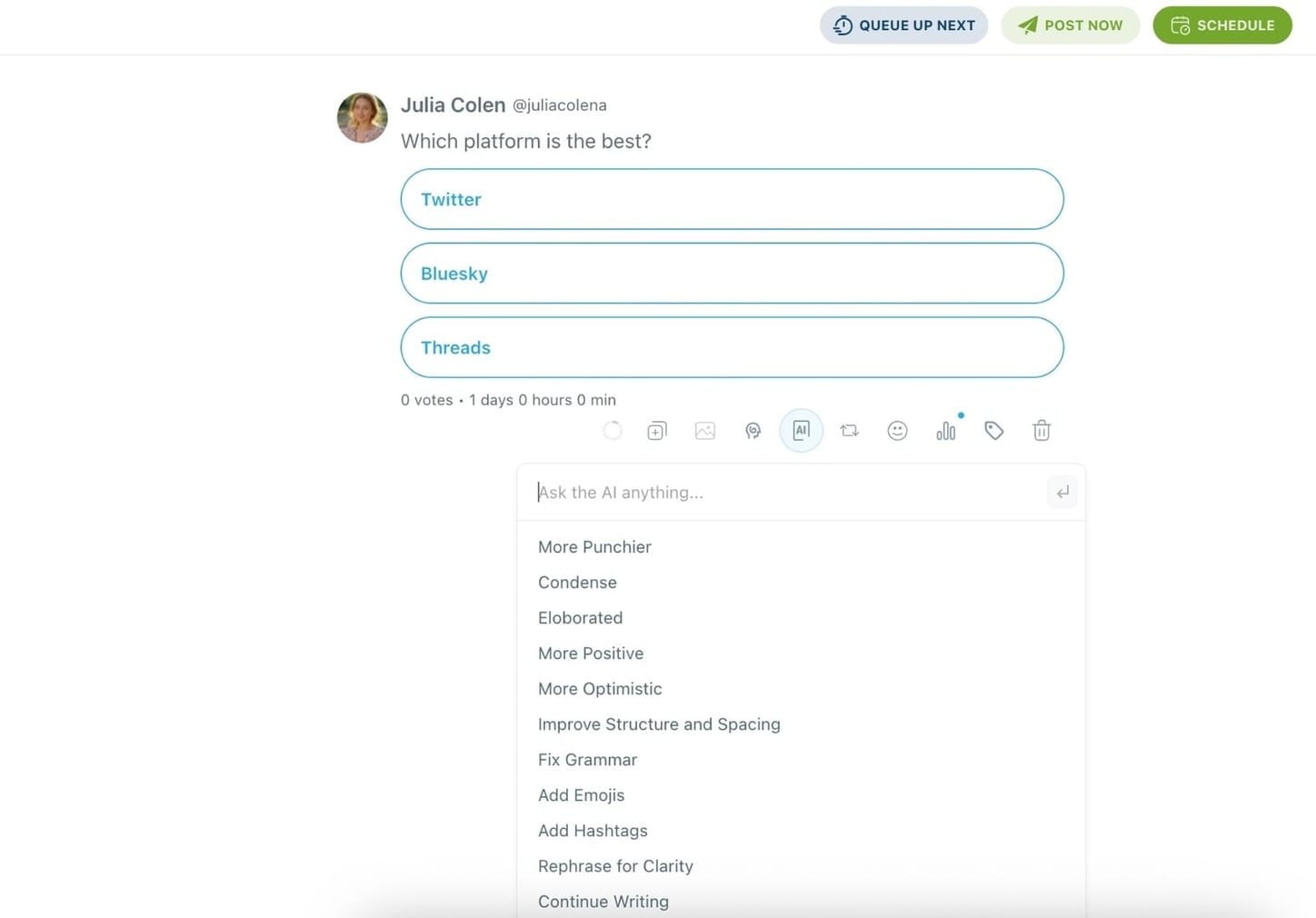
🌀 Bonus: You can even set your poll to auto-retweet after posting using Circleboom’s Auto Repost feature, boosting its reach automatically!
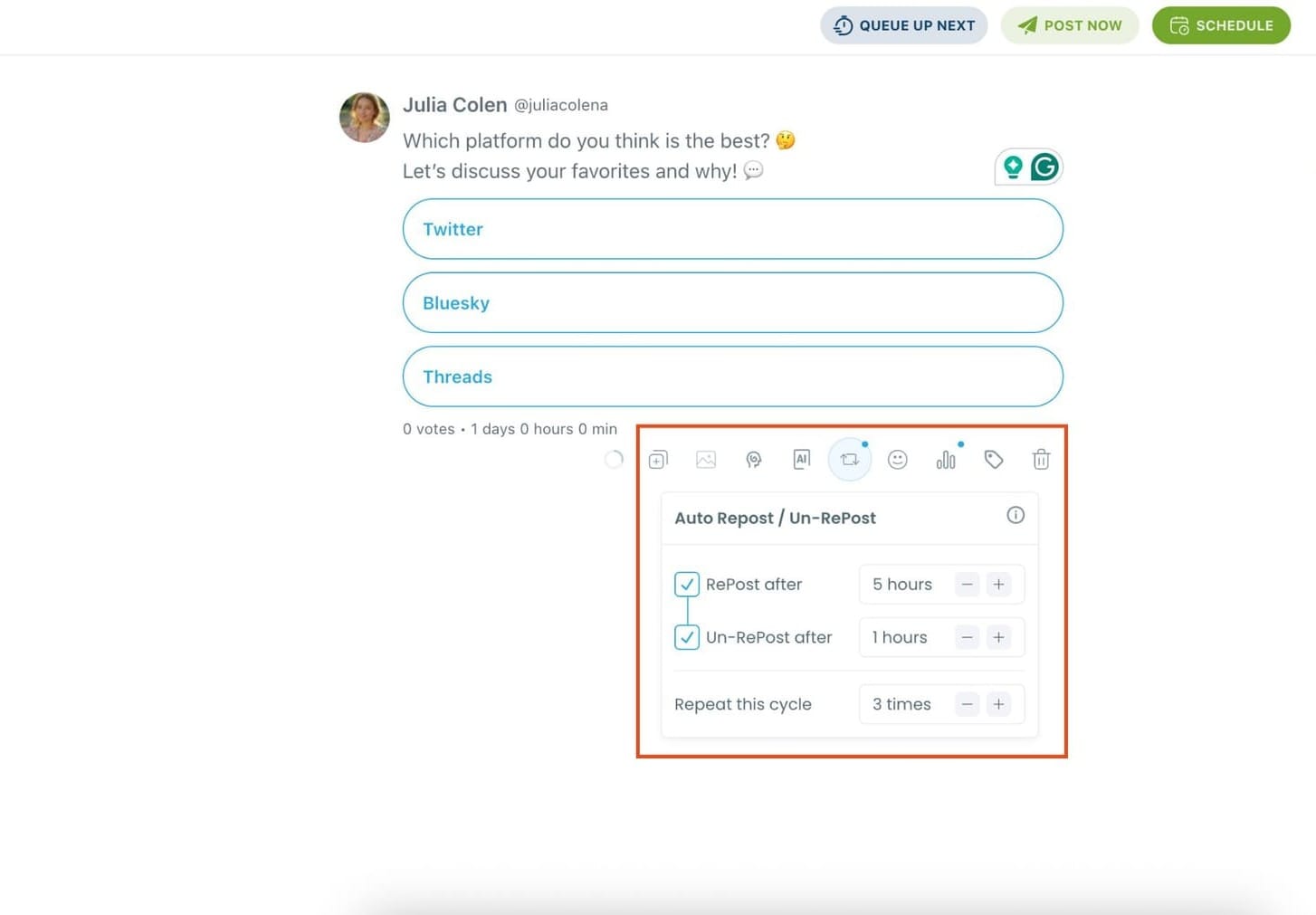
Step #5: Once your poll is ready, you can post it immediately or schedule it for later—a feature not available on X itself.
Pick a specific time manually or use your best time to post based on Circleboom's smart suggestions.
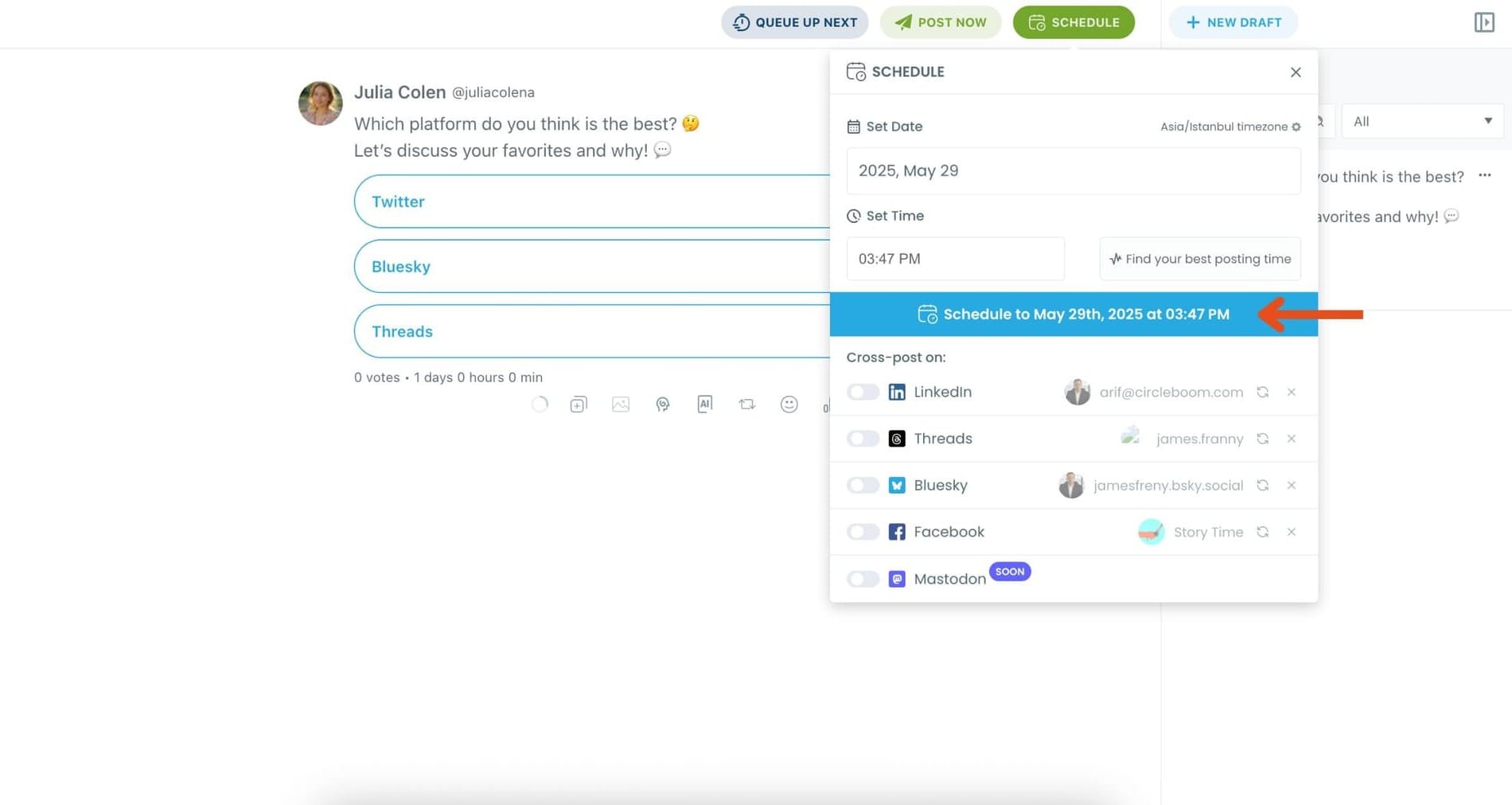
Once it’s scheduled, Circleboom will automatically publish the poll at the optimal time.
Final thoughts
If you can’t vote in a poll on X, the reason is usually simple. The poll may have ended, the app might be glitching, or a browser extension could be interfering with the interaction.
A quick refresh, switching browsers, or updating the app usually solves the problem.
And if you want to take advantage of polls yourself, scheduling them at the right time can significantly increase participation. Tools like Circleboom Twitter make this easy by letting you create, schedule, and automatically retweet your polls to reach more people.
Sometimes a small poll can spark surprisingly large conversations, especially when it reaches your audience at the right moment.
%3F)
