

You cannot block an X account by its verified country, because X never publishes one. What you can act on is the region people declare for themselves: the location typed into their bio. Group those accounts, review them, and block the whole batch at once.
Blocking X accounts by region does not mean blocking by a confirmed country, since X exposes none. It means filtering accounts by the location text they wrote in their own profile, then blocking that reviewed group in bulk. Circleboom's X region blocker reads any account's followers, following, or a tweet's retweeters through the official X API, filters the list by the Location field, and blocks the accounts you select.
→ Filter and block a region
The distinction sounds small, but it decides what the tool can honestly promise. Here is exactly what it reads, what it cannot see, and how the block runs.
What blocking X accounts by region actually means
X has no country filter. The platform never verifies where an account sits, and its API returns no country field for any profile. A true block-by-country switch cannot exist on X, inside Circleboom or anywhere else, and any tool claiming one is guessing.
What every account does carry is a self-reported Location field: the free-text line people fill in on their profile. Someone types New York, London, or Lagos, and that string is public.
A region blocker reads that string, groups accounts by the location they chose to show, then blocks the group you approve.
This is honest targeting with a stated limit. You block by what people said about themselves, not by GPS or IP address.
For spam rings and harassment clusters that openly badge a city or country in their bios, that self-reported field is usually enough to catch the pattern. If you want to understand the raw data first, here is how to find Twitter users who list their city before you block anyone.
Why you would block accounts by location
Location filtering earns its place when the problem clusters geographically:
- A coordinated spam wave often shares the same city string.
- A wave of harassment sometimes traces to one region.
- A bot farm padding a rival's numbers frequently reuses the same made-up town across hundreds of profiles.
X's own tools stop at one account at a time. Its blocking and unblocking accounts on X guide confirms the native flow: open a profile, tap block, repeat.
That is fine for a single troll and hopeless for two hundred of them sharing a location.
The bulk path lets you queue accounts by location for a bulk block instead of grinding through profiles by hand. You review the segment first, so the action stays deliberate rather than a blanket sweep.
If your target is a specific set of handles rather than a region, the walkthrough on how to block multiple Twitter accounts covers that companion case.
How the region blocker pulls and filters accounts
The filter is only as good as the list feeding it. Circleboom's X region blocker starts from a source set you choose: any public account's followers, its following list, the retweeters of a specific tweet, or your saved Circleboom blacklist.
That set loads into a table where each account is a row. Every row carries the profile Location text alongside quality signals, follow ratio, and activity.
You type a place into the Location filter, say New York, and the table narrows to accounts whose bios contain that string.
From there you scan the shrunken list, deselect anyone caught by accident, and add the rest to the Mass Block list.
The review step is the safeguard.
You are looking at real profiles before a single block fires, not trusting a location string blindly. To pressure-test your filter, the standalone search Twitter by location tool shows the same location matching in a search context first.
How to block X accounts by location, step by step
The flow splits into two stages: build and filter the list, then run the block through the extension. Give the review stage real attention, because the block itself is the easy part.
Pull and filter the accounts by location
- Log in to Circleboom Twitter and connect your X account with official OAuth.
- Open the Essential Toolbox menu, where Mass Block lives alongside the other cleanup tools.

- Filter the loaded list by the Location field, typing the city or country string you want to target, then narrow further by quality or follow ratio if the segment is still broad.
Queue and run the block through the extension
- Select the reviewed accounts and click Add to Mass Block List, checking the segment once more before you commit.
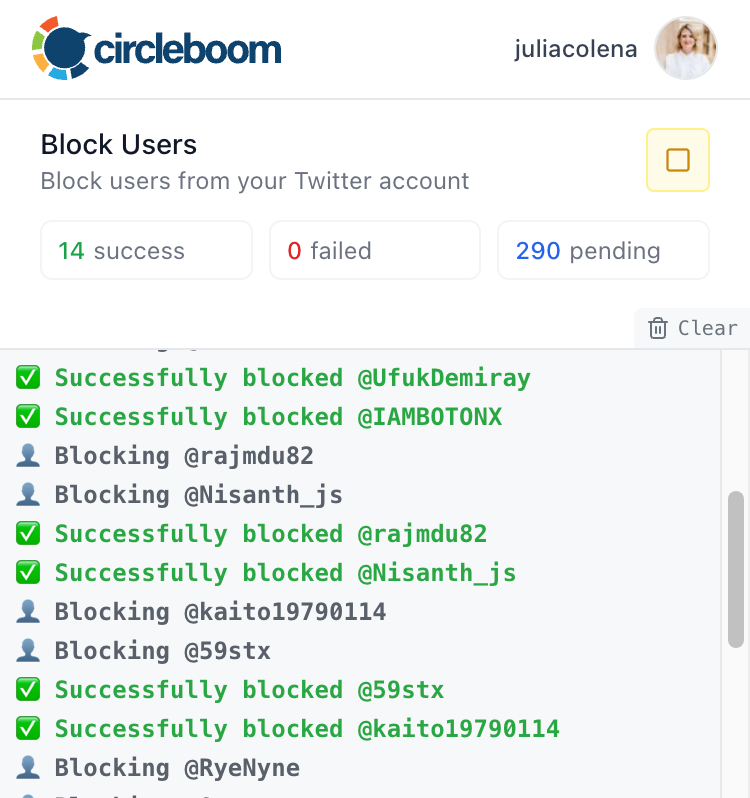
- Run the block through the Chrome extension, which processes each account in your browser and pauses on its own when X rate limits hit.
Doing it in that order keeps the whole thing reviewed and reversible in intent: you see every account, then the tool acts only on the ones you kept. Because Circleboom is an official X Enterprise Developer, the data behind that table comes through sanctioned access, so your account is never exposed to scraping while you work.
Watch a bulk block run inside Circleboom: a filtered list selected, then the extension working through it at a safe, paced rate.
Why the Chrome extension is required, not optional
X's API has no bulk-block endpoint. It will hand a tool your follower and following data, but it offers no single call that says block these three hundred accounts. That gap is architectural, and it is why the browser extension exists.
The Twitter X Mass Blocker extension runs on desktop Chrome and performs each block inside your own browser session, the same way you would by hand, only automated and paced. When X throttles the action, the extension pauses on its own for anywhere from one to twenty minutes, then resumes.
That pacing is what keeps a large block from tripping platform limits.
Two things to plan for. There is no bulk undo built into the block itself, so a separate mass unblock Twitter accounts extension exists to reverse a batch if you change your mind.
And the block only runs on desktop Chrome, not on mobile. If you only need to remove one person cleanly, the guide on how to block a Twitter follower covers the single-account route.
When location filtering will and will not work
The Location field is honest but imperfect, and knowing its blind spots keeps your expectations calibrated. Many accounts leave the field blank, so they never enter a location-filtered segment at all, even if they are exactly who you meant to catch.
Others fill it with jokes, coordinates, emoji, or a vague label like Everywhere or Worldwide. Those slip past a clean city filter.
Spelling and language vary too: London, Londres, and a misspelled Londonn are three different strings, so a thorough sweep sometimes needs a few passes with different spellings.
None of this breaks the method. It just means location filtering is a strong first cut, not a perfect net.
Pair it with the quality and ratio filters in the same table, and you catch far more of a coordinated cluster than any manual scroll would. When the pattern is loose, treat the location string as one signal among several rather than the only one.
Blocking a region by hand versus in bulk
Doing this manually is where most people give up. To block a city cluster by hand, you open each profile, read the Location line, decide, click block, close the tab, and repeat.
On a coordinated wave of two hundred accounts, that is two hundred rounds of the same motion, and attention slips long before the list ends.
The manual route also hides the pattern. Scrolling one profile at a time, you never see the cluster as a group.
You cannot tell whether forty accounts or four hundred share the same fake town. A filtered table shows the whole segment at once, which turns a vague sense of being swarmed into a countable list you can act on.
Bulk blocking changes the cost curve. The setup, loading a source set and filtering by Location, takes a few minutes regardless of how big the segment is.
After that the extension carries the repetitive part, pausing on rate limits so the volume never trips X.
Two hundred blocks cost roughly the same effort as twenty.
The trade is that bulk action deserves the review step the manual method forces on you by default. When you block one profile at a time, you read each one on the way past.
When you block a segment, you approve the list first. It is the same judgment, applied once to the group instead of once per account, and that single review is what keeps the action deliberate.
What to review before you block a whole region
A region block is only as fair as the segment behind it, so spend your minute on the list, not the button. Before you commit, scan for accounts that share the location string but nothing else, since a real customer and a spam bot can both type the same city into their bio.
Sort the filtered table by quality or follow ratio to float the obvious offenders. Coordinated accounts tend to cluster on the same signals: low follower counts, near-zero engagement, recent join dates, and near-identical bios.
Those are the rows a location filter is built to catch, and they stand out quickly once the segment is small enough to read.
Watch for collateral inside the same region. If you filter by a major city, real people you follow or do business with may land in the same batch.
Deselect them before the block runs, because the goal is to clear a cluster, not everyone who happens to name the same place.
This is the moment the review step earns its keep.
Decide your scope up front, too. Blocking a rival's full follower base by region is a heavier move than clearing a spam ring, and the two carry different downstream effects.
Keep the action tied to a specific problem, check the segment against that problem, and the block stays a targeted cleanup rather than a blunt regional sweep.
Which block approach fits your situation
Match the tool to the shape of the problem, and the decision is quick. Run through it in order.
- One specific troll or spammer? Use X's native block, or the single-account route, and move on.
- A cluster that shares a city or country in their bios? Filter the loaded list by Location, review it, and run the bulk block.
- A rival's entire follower or retweeter base padding your mentions? Load that source set, filter by region, and clear the segment in one paced pass.
The pattern holds across all three: see the accounts, keep the review step, and let the extension pace the action. For the broader mechanics of clearing a whole batch, how to mass block followers on Twitter walks through the full source-set-to-block workflow.
Start from the source set that matches your case, filter it to the region you care about, and let the reviewed list decide the rest.
→ Run the block on a reviewed region
Frequently asked questions
Can Circleboom block X accounts by country?
Not by a verified country, because X never exposes one. Circleboom filters accounts by the self-reported location string in their bios, then blocks that reviewed group in bulk.
It is location-text targeting, which catches most clusters that badge a place, but it is not GPS or IP blocking.
Do I need the Chrome extension to block in bulk?
Yes, for the block itself. X's API has no bulk-block endpoint, so the Twitter X Mass Blocker extension performs each block inside desktop Chrome and pauses automatically on rate limits.
The data retrieval and filtering happen through the official X API, but the blocking action needs the extension.
Can I undo a bulk block if I make a mistake?
There is no single undo inside the block, but a separate Mass Unblock extension reverses a batch. Because you review and select every account before the block fires, mistakes are rare, and the unblock tool exists for the times you change your mind about a whole segment.

