
Sometimes a tweet is too good to stay on X.
It could be something you wrote, an idea that landed perfectly, a short insight, a mini-thread, a quote that people kept liking and saving.
Or it could be a tweet you saw from another account that made you stop scrolling because it was that useful.
And naturally, you want to share it somewhere else.
Maybe you want to repost it on Instagram.
Maybe you want to use it as content on Pinterest.
Maybe you just want to send it to a friend in a message without copying and pasting everything.
That’s where the problem starts.
Because the moment you try to share a tweet outside X, the most common option is the worst one:
Manual Screenshots.
 Arif Akdogan
Why manual tweet screenshots are not worth the effort?
At first, screenshots sound easy.
You open the tweet.
You take a screenshot.
You send it or post it.
But if you’ve ever done it more than once, you already know how annoying it becomes.
Screenshots are rarely clean.
The tweet looks tiny.
The crop is awkward.
The background is messy.
Your phone's status bar might show at the top.
And if you want it to look good on Instagram, you suddenly find yourself doing extra work:
- cropping the image perfectly
- fixing the ratio for stories or feed
- adjusting readability
- removing unnecessary UI parts
- trying to make it “aesthetic”
It turns into one of those tasks that looks small… but quietly eats your time.
❌ And the worst part is: even after all that work, screenshots still don’t look professional.
That’s why, when you see those clean, stylish tweet images on Instagram, perfect spacing, beautiful backgrounds, readable text, you start wondering:
How are people creating these?
The real way creators turn tweets into beautiful images
Most creators don’t screenshot tweets manually anymore.
They use tweet-to-image tools.
These tools take a tweet and instantly convert it into a polished, shareable image, usually with customization options like:
- background colors or gradients
- clean layouts
- readable typography
- different style themes
- export-ready image formats
So instead of doing design work, you just generate the image and share it.
And one of the easiest ways to do this is with Circleboom.
Convert tweets to images with Circleboom’s Free Screenshot Generator
Circleboom offers a free Tweet Screenshot Generator that lets you turn any tweet into an image in seconds.


That includes:
- your own tweets
- tweets from other accounts
- viral tweets you want to repost
- content you want to save or share in a cleaner way
What makes this tool different from screenshots is the styling.
Instead of a raw screen capture, Circleboom creates a clean visual you can customize. You can change the look of the tweet image with options like:
✅ different background colors
✅ different styling themes
✅ text appearance and layout adjustments
✅ a cleaner “designed” look instead of an app screenshot
So the tweet becomes something you can confidently post on Instagram or Pinterest without it looking like you just took a random screenshot and cropped it in a rush.
How to convert a tweet to an image with Circleboom (Step-by-step)
Here’s how the workflow looks.
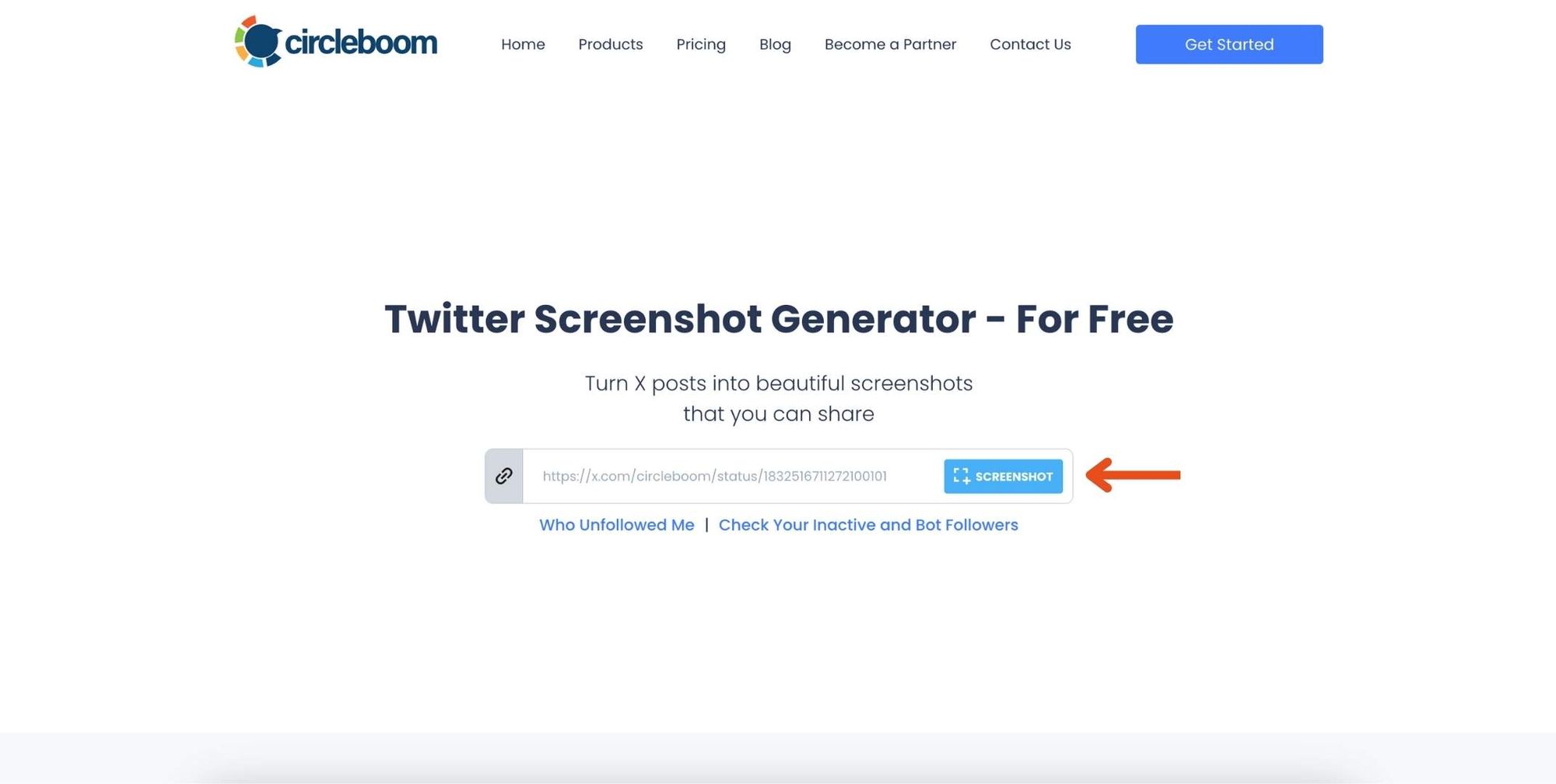
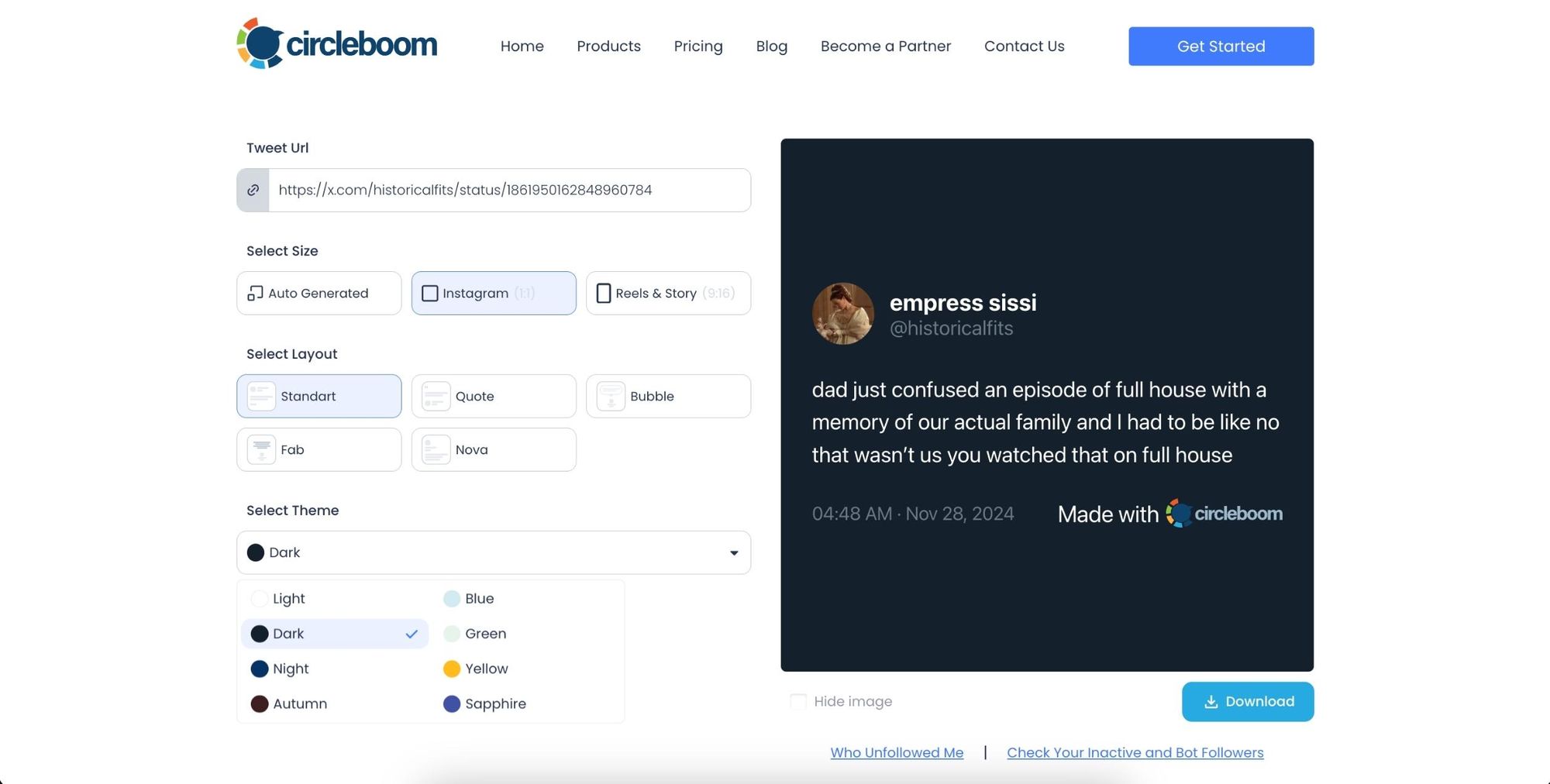
Step #1: Go to ➡️ Circleboom Twitter Screenshot Generator
First, navigate to the Circleboom Twitter Screenshot Generator. Paste the URL of the tweet you want to capture in the provided field. Then, click the 'Screenshot' button.
Step #2: Customize Your Screenshot
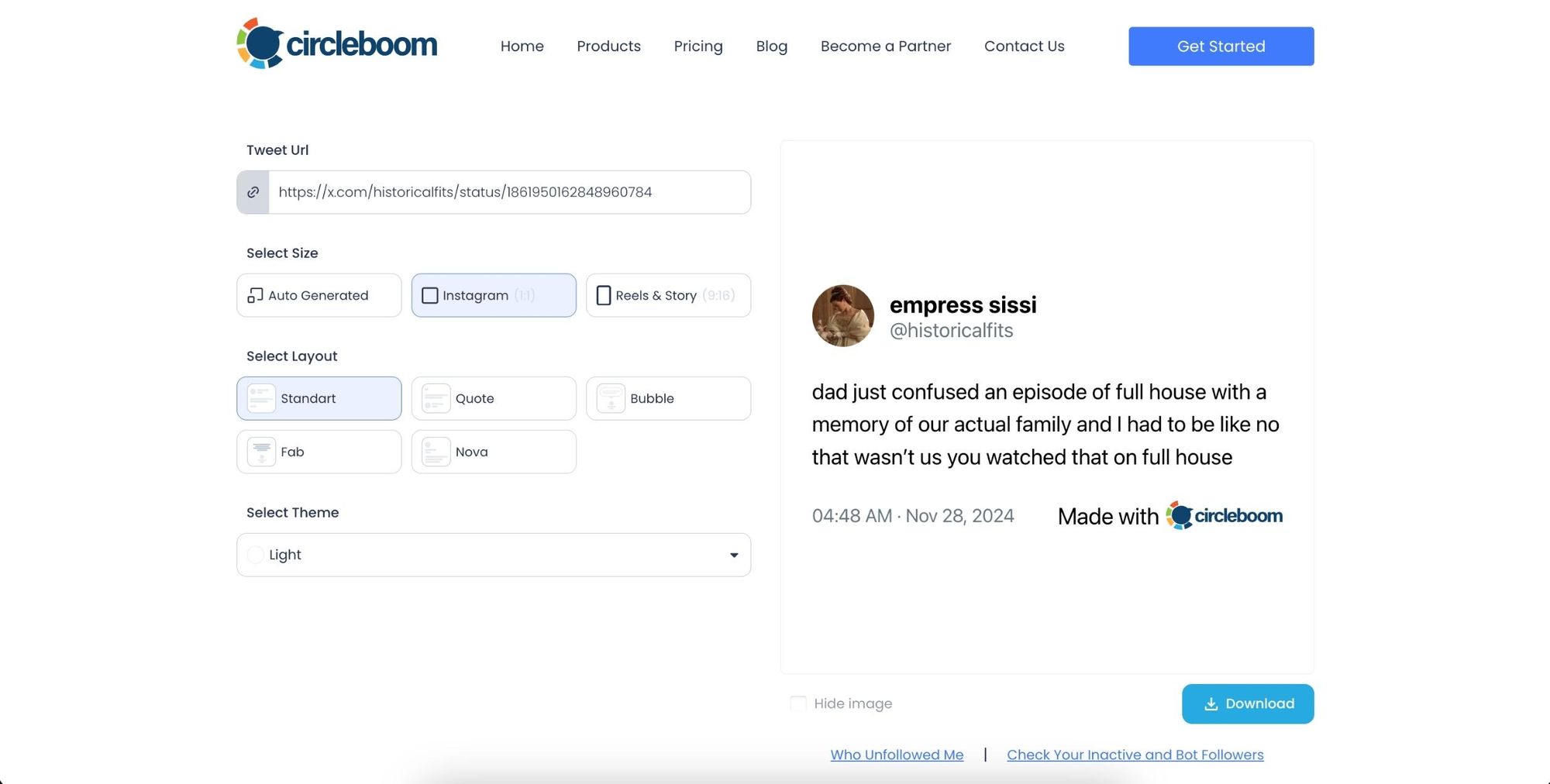
Circleboom will generate the screenshot for you instantly. If you’d like, you can change the size, layout, and theme to fit your preferences.
Step #3: Download the Screenshot
Once you’ve adjusted the design to your liking, simply click the 'Download' button. Circleboom will provide you with a high-quality screenshot of the tweet, ready to use.
Here is the result:
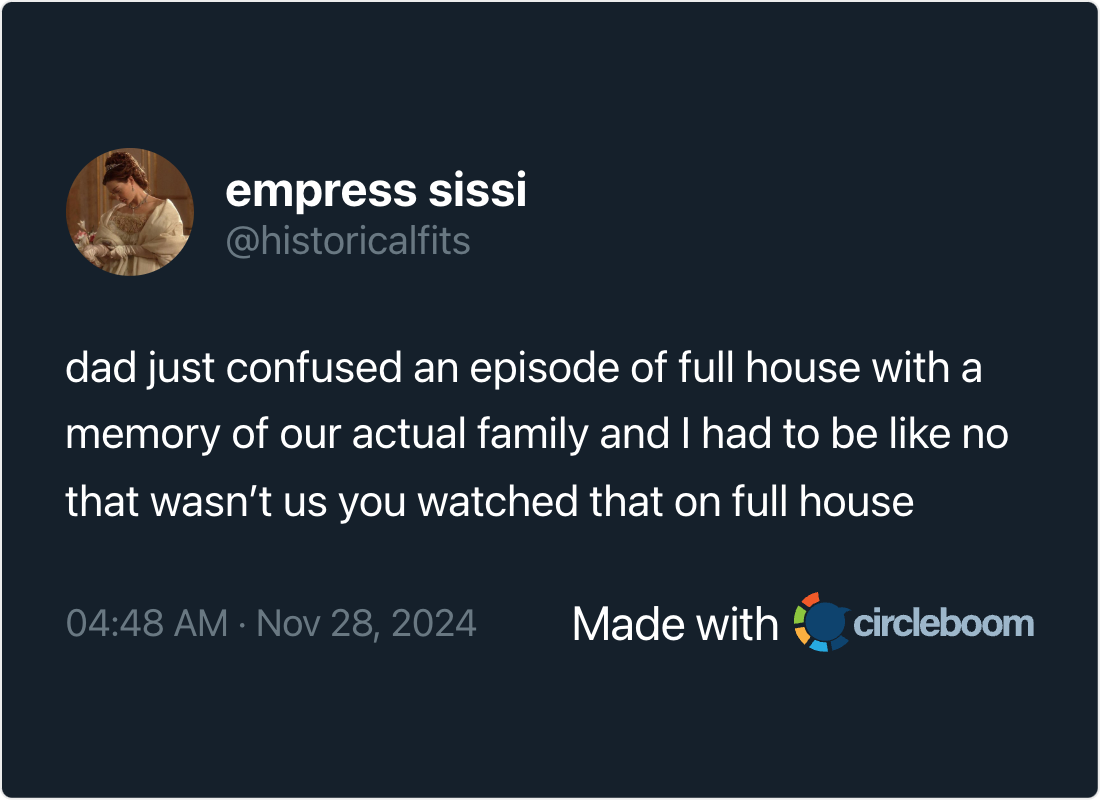
The next step is to share the screenshot on Instagram.
You can share your professional screenshot as a post or story.
If you need a more detailed guide, check out our video! ⬇️
The next level: Automate tweet → image conversion (and post to Instagram automatically)
The free tweet screenshot generator is perfect when you want to convert a tweet occasionally.
But if you share tweets regularly, you’ll eventually want something even better:
A way to automate it.
Because once you realize how powerful tweet images are for platforms like Instagram and Pinterest, you start thinking:
What if every tweet I post could automatically become an Instagram post too?
That’s exactly what I started doing.
And it’s the reason I was able to grow my Instagram account without creating extra content from scratch.
How Circleboom Twitter turns your tweets into Instagram posts automatically
Circleboom Twitter (Circleboom’s X management platform) includes cross-posting features, and this is where the workflow becomes extremely efficient.

Instead of:
- tweeting on X
- taking a screenshot
- editing it
- uploading manually to Instagram
You can do everything in one flow.
Circleboom Twitter has an X Post Planner, and inside that planner it includes the same screenshot generator functionality.
So when you create a tweet, Circleboom can automatically convert it into a styled image and post it to Instagram in the format you want.
 Altug Altug
That means you can tweet once… and repurpose it visually for Instagram without extra effort.
And because Instagram content is highly visual, turning tweets into clean images makes them feel native to the platform.
Why this cross-post workflow is so effective
This approach solves two problems at the same time:
1) It saves time
You’re not doing the same work twice.
Your tweet becomes content for another platform instantly.
2) It makes content consistency easy
Most people struggle to stay consistent on Instagram because creating visuals every day is hard.
But if your X content is already strong, you can repurpose it into visual posts automatically and keep your Instagram active without burning out.
That’s exactly how I used it to grow my Instagram account “in the background,” while still focusing mainly on X.
How to auto-convert your tweets into Instagram posts with Circleboom (Step-by-step)
Here’s the full workflow.
Step #1: First, log in to your Circleboom Twitter account.
If you don't have an account yet, you can create one in seconds!

Step #2: On the Circleboom Twitter dashboard, navigate to the left menu.
First, find the “Post Management & Analytics” and then click on “Write and Plan Your Post”.
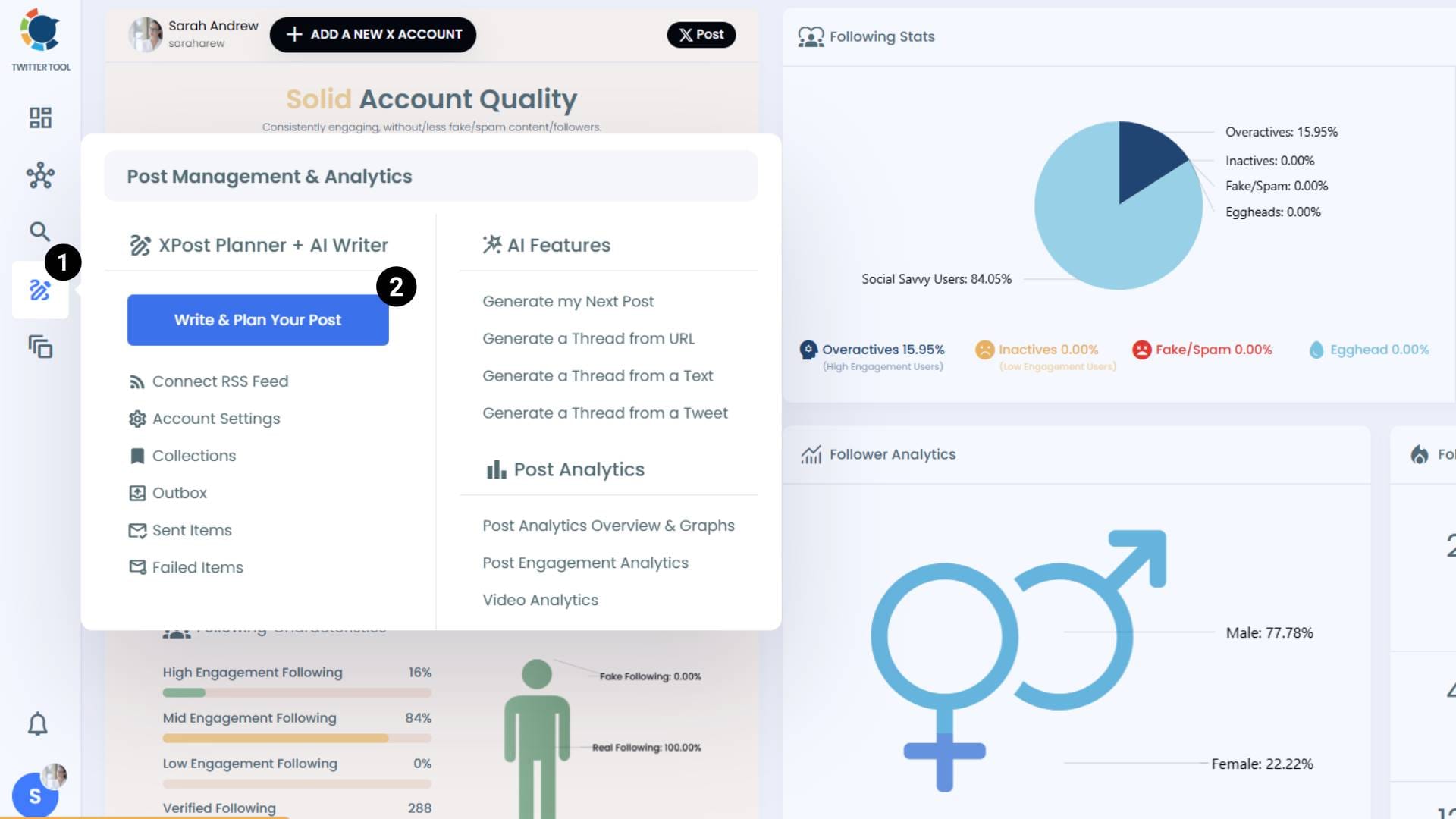
Step #3: Write your tweet. Circleboom’s AI options can generate tweets for you automatically.
When it is ready, you can “Post” or “Schedule” your tweet. To see your cross-posting options, you should click on one of them.
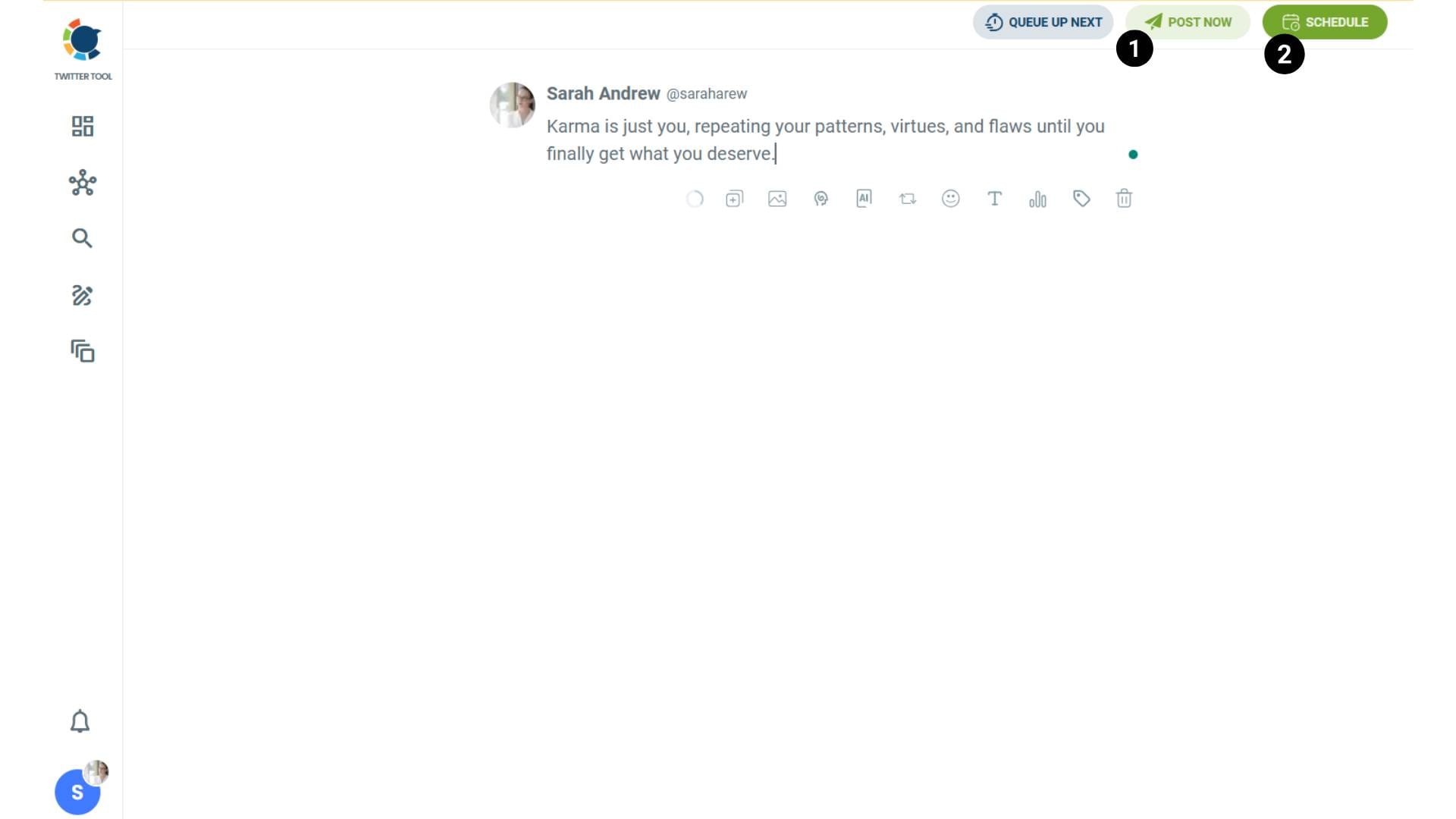
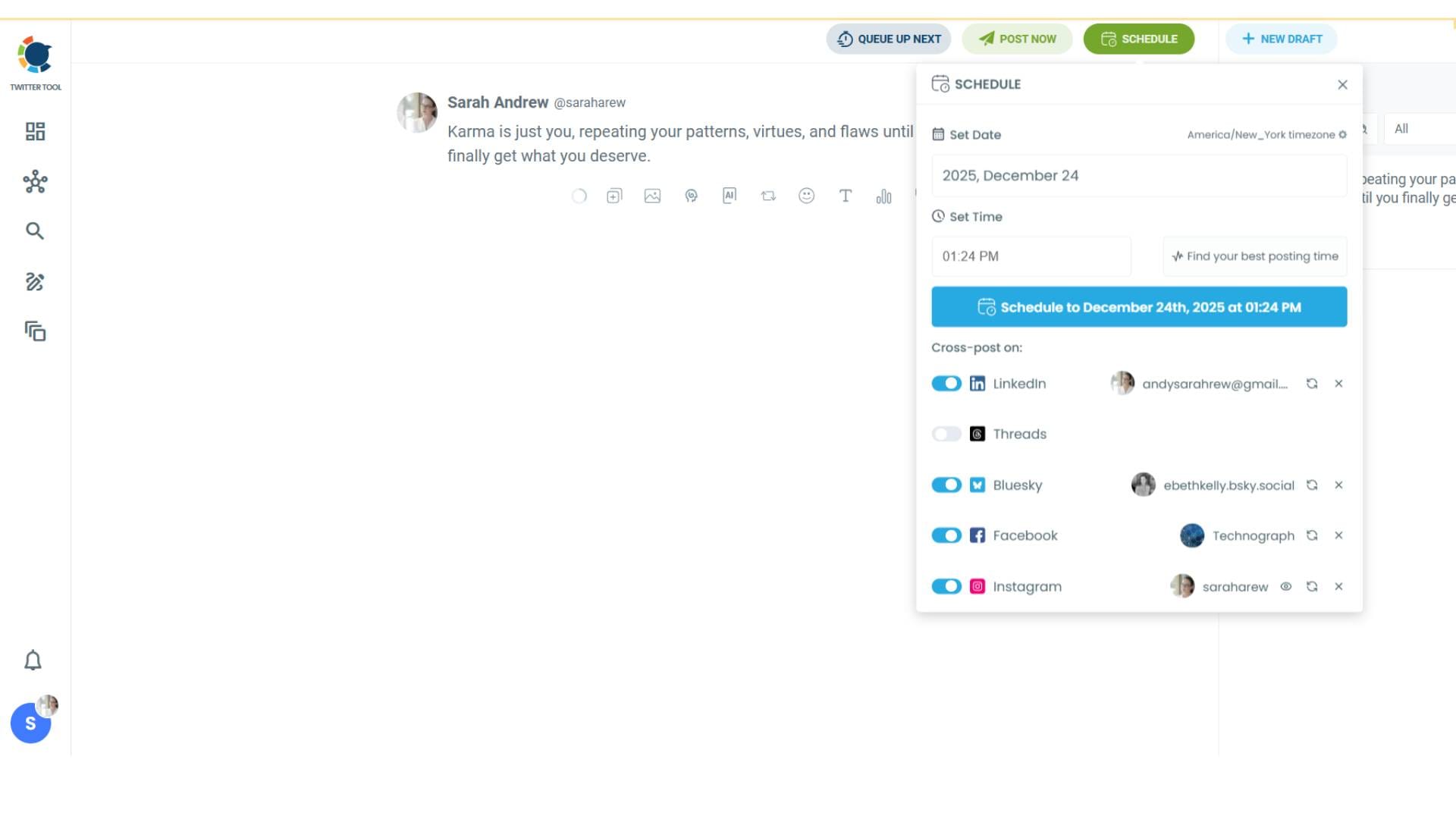
Step #4: You will see your connected platforms. You can cross-post your tweets to these accounts automatically.
You can share tweets on LinkedIn, Facebook, Threads, Bluesky, and finally, Instagram!
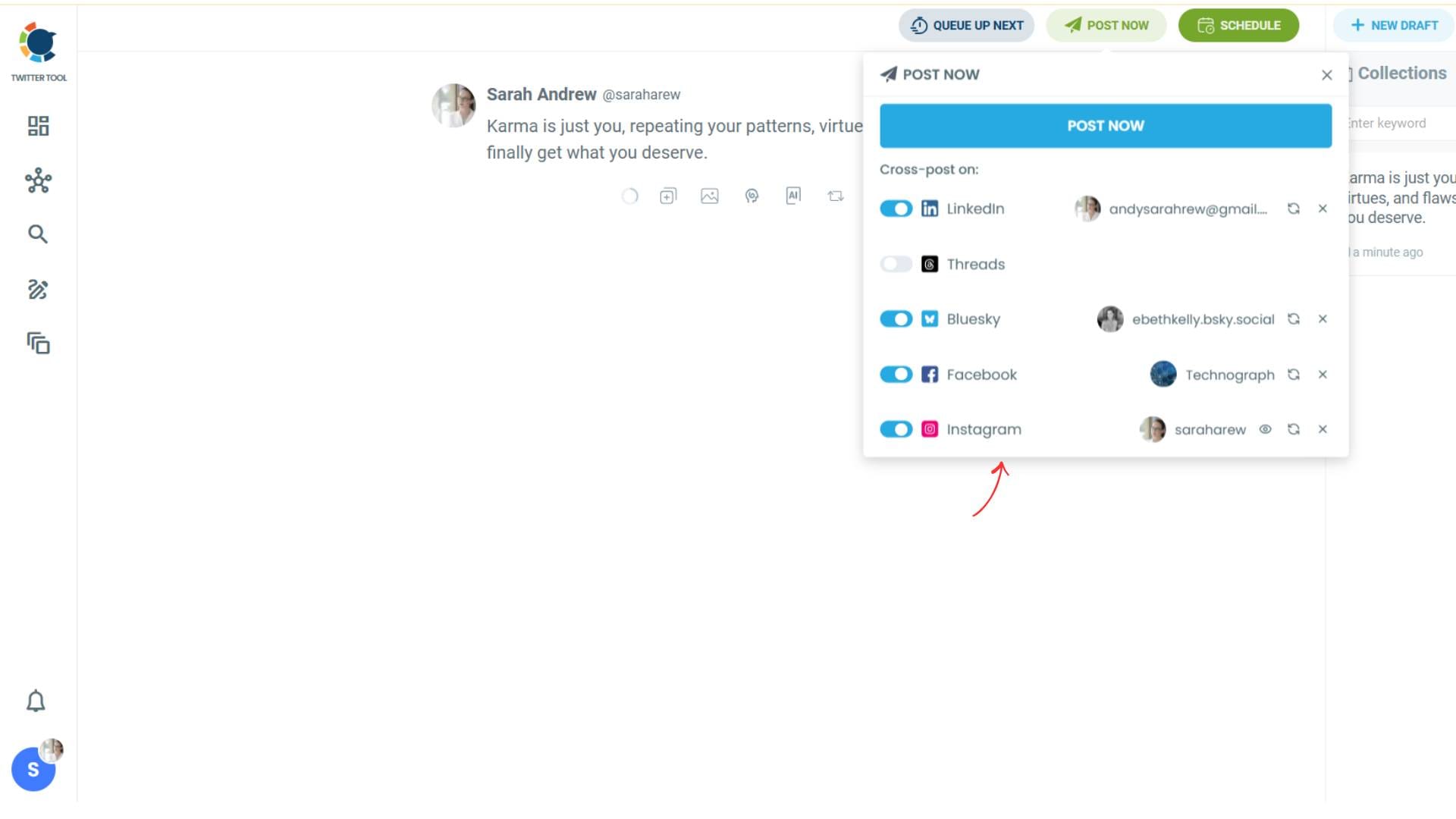
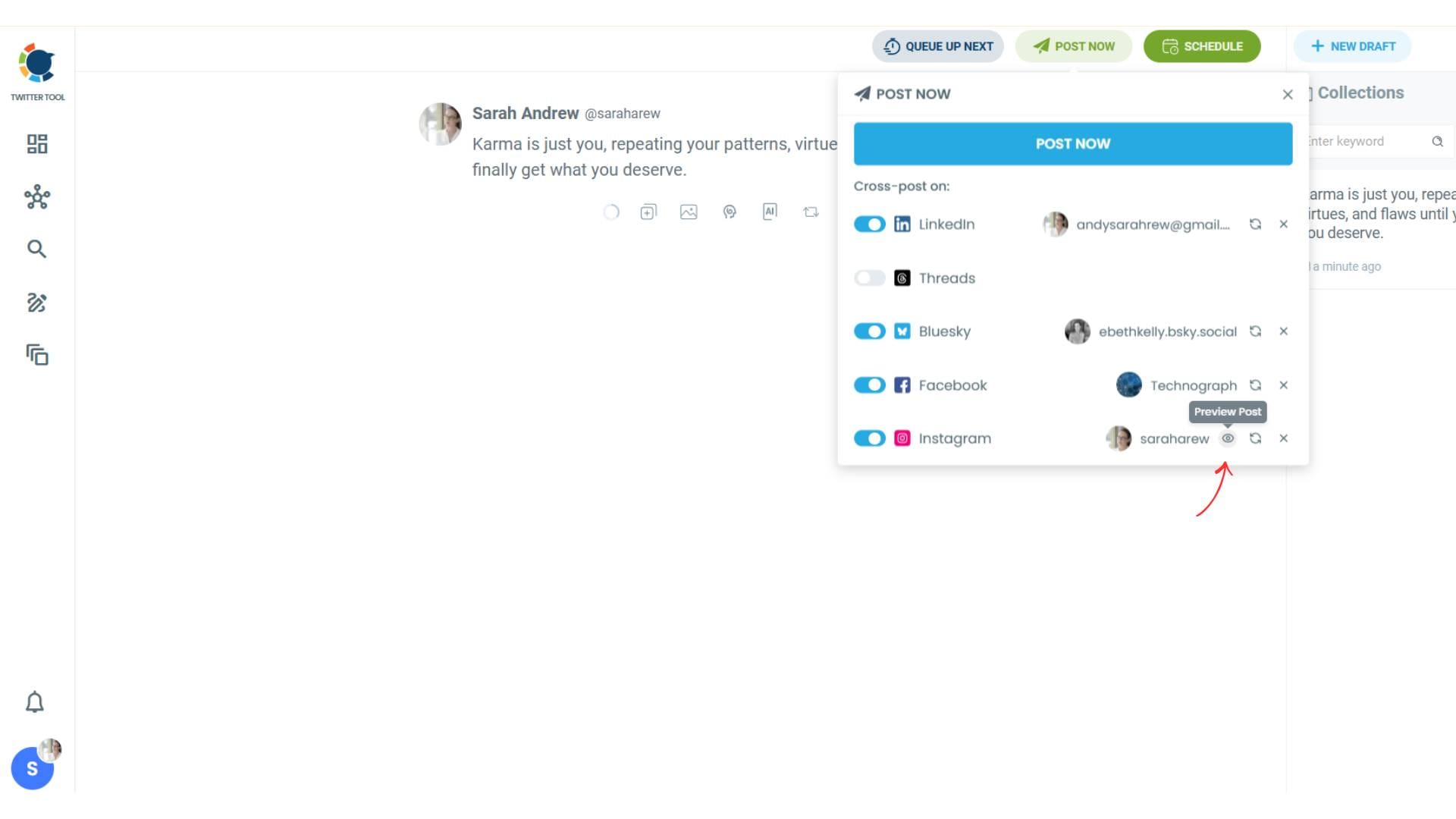
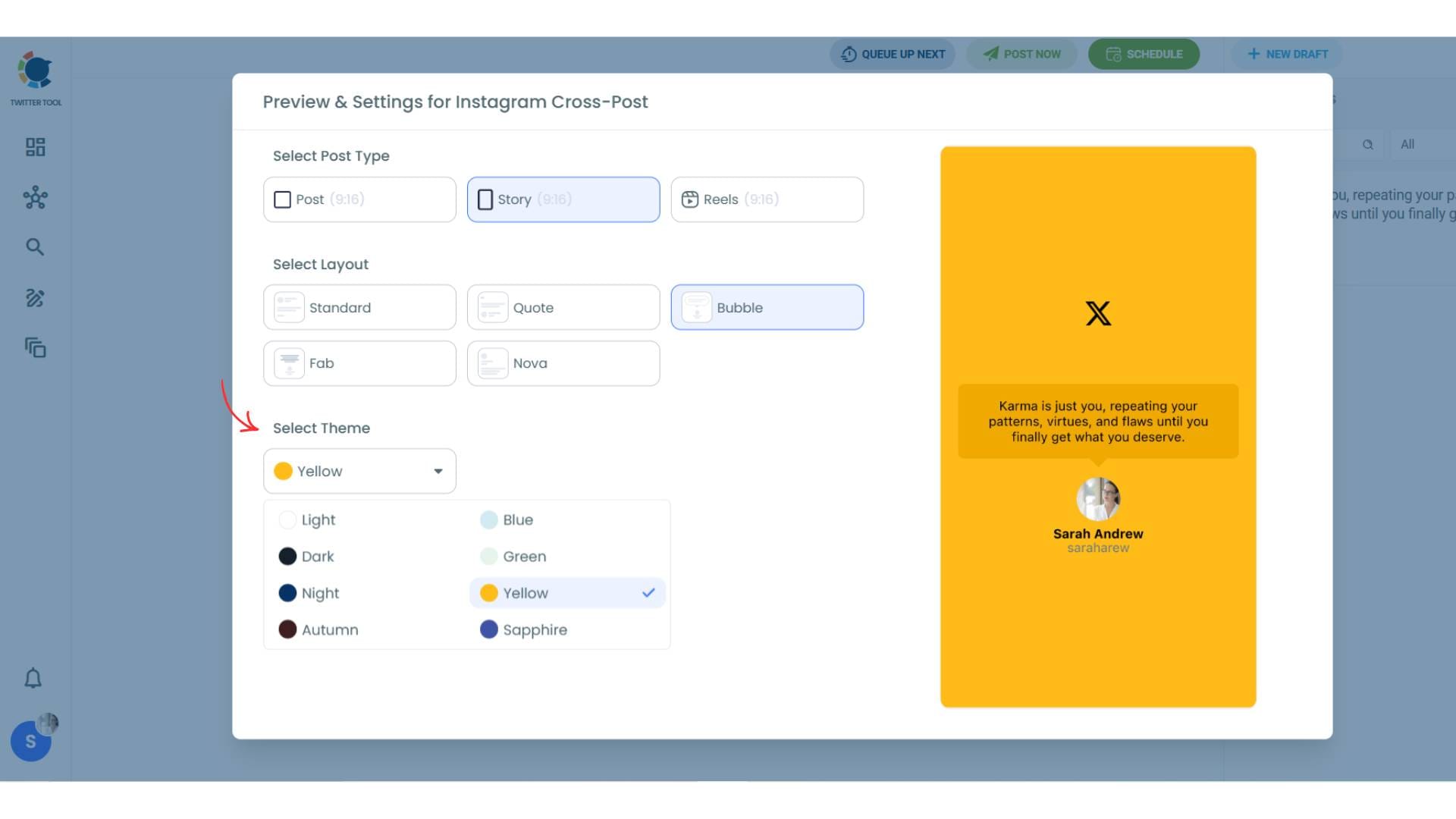
To decide if it is going to be a standard Instagram post or Story or Reels, and decide layouts and colours, click on “Preview”.
Step #5: Here you can select Instagram post type: “Post”, “Story”, and “Reels”.
You can also select the post layout.
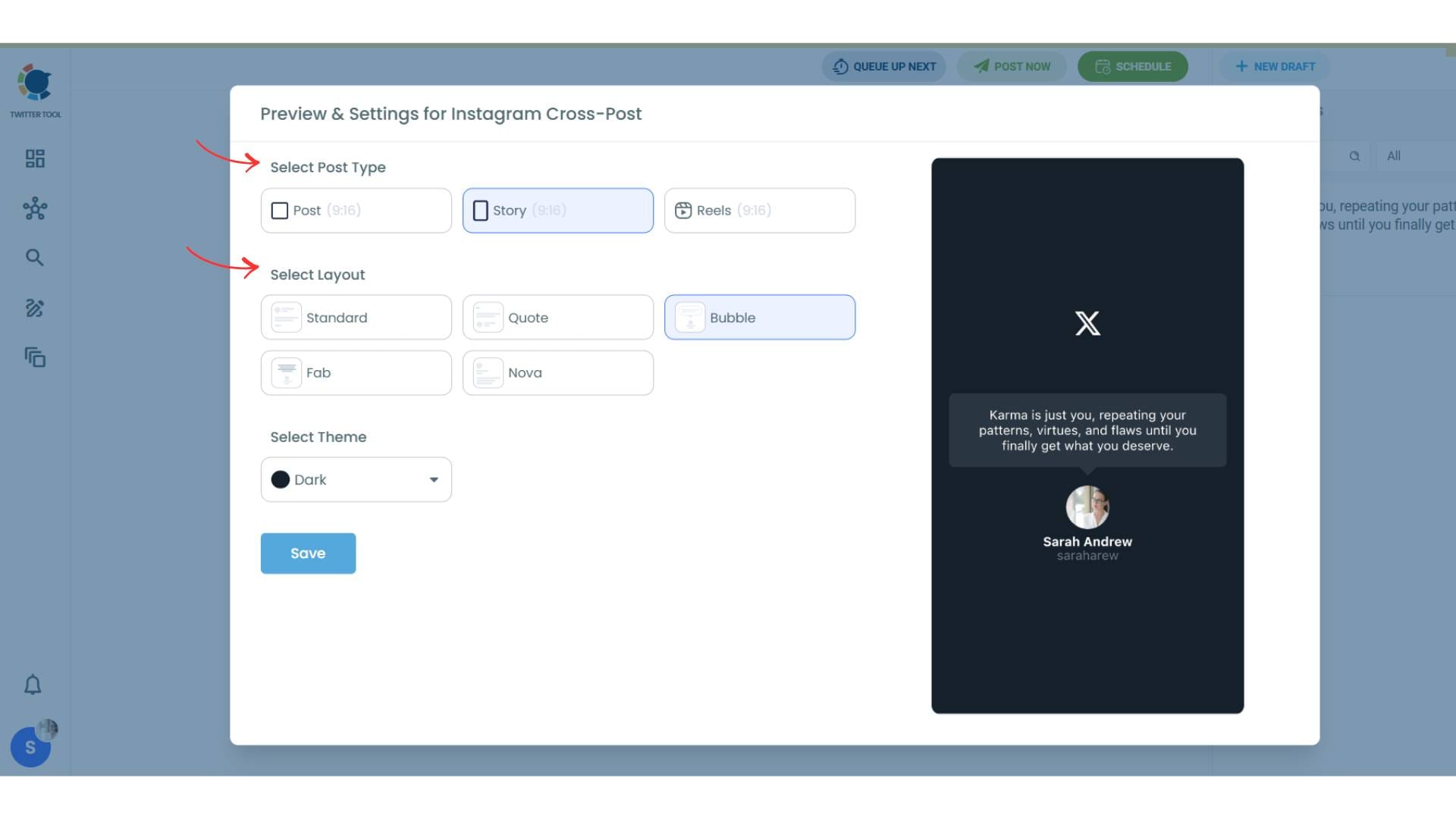
You can also select different themes. Share your tweet on Instagram with different colors.
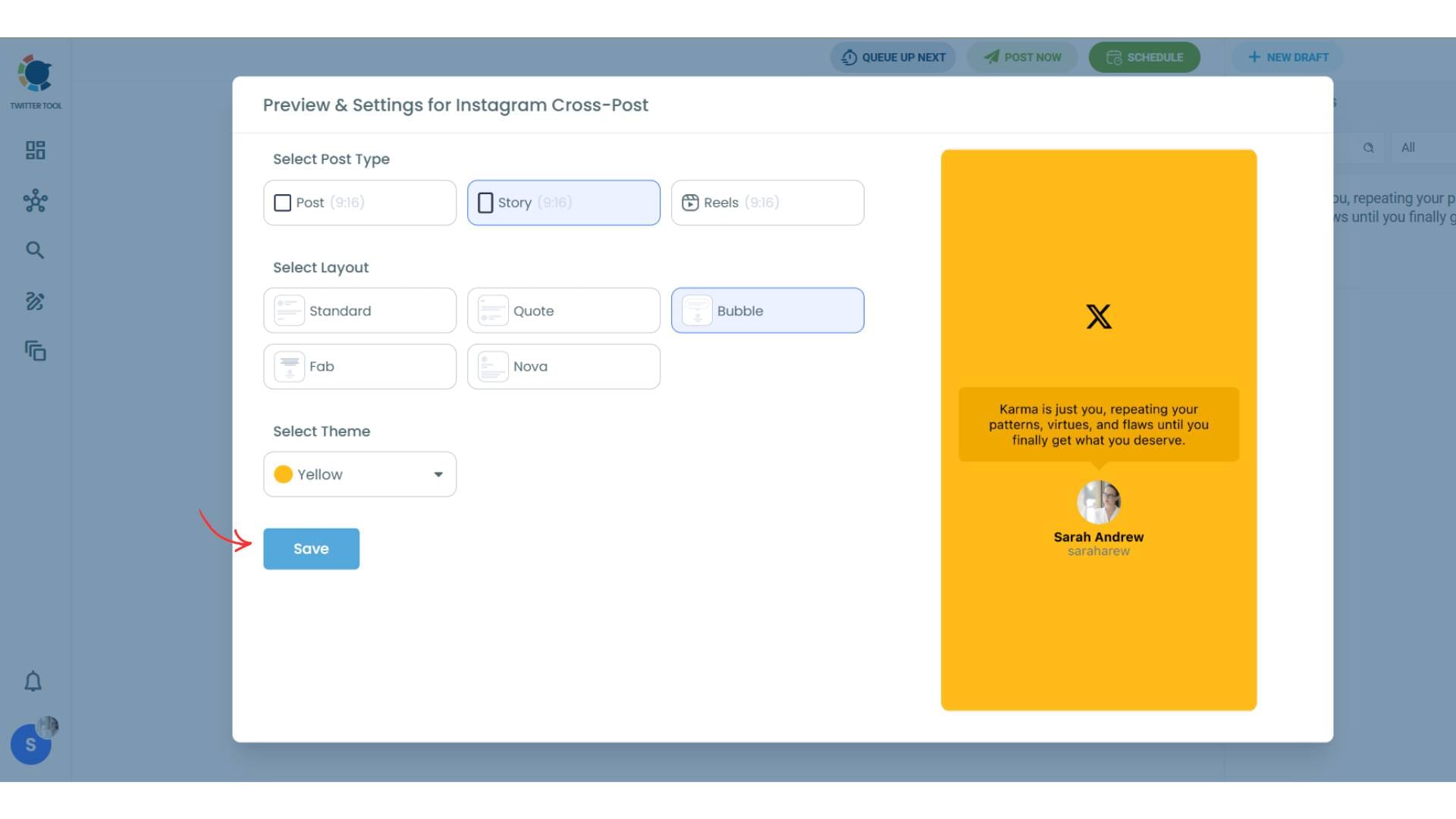
Lastly, you should click on “Save” and your Instagram cross-post is ready.
Step #6: When all is set, you can share your cross-post immediately or schedule it for a later time.
You can select the day and hour and click to share your tweet!
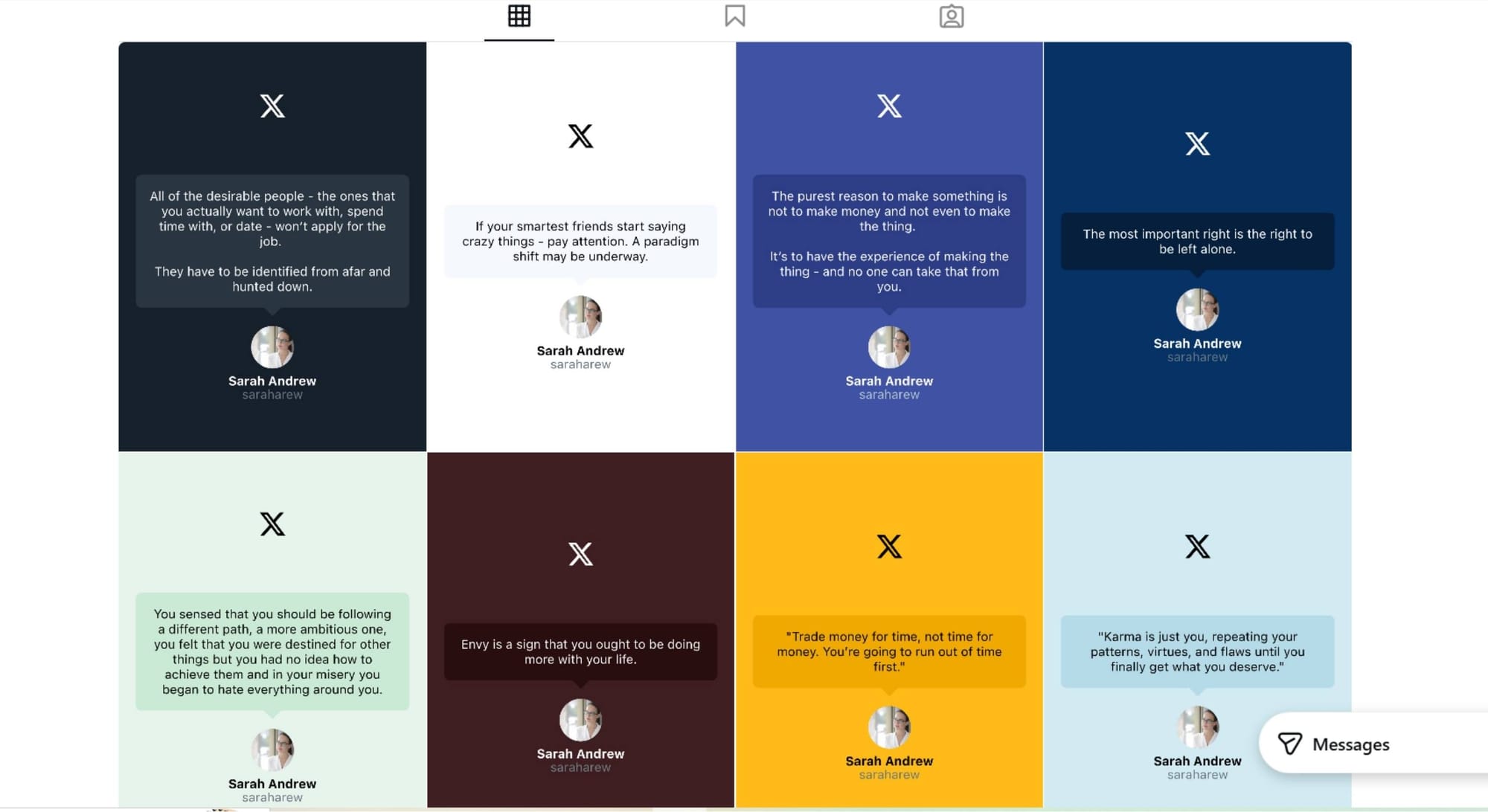
You can get more impressions and engagement for your tweets on Instagram. Don't limit yourself to Twitter (X).
Share your tweets on Instagram to reach a wider audience.
Practical tips to make tweet images perform better on Instagram and Pinterest
To get the best results, it helps to keep a few simple rules in mind:
➡️ Keep the tweet readable
If the tweet is extremely long, it won’t look good in an image format. Strong tweet images usually contain one core idea.
➡️ Use consistent styling
When your background style and layout stay consistent, your posts look more professional and recognizable.
➡️ Choose the right format for each platform
- Instagram Stories love vertical visuals
- Instagram feed works well with square or portrait
- Pinterest often performs best with tall, clean designs
➡️ Think of it as repurposing, not reposting
The goal is not just to copy content. It’s to deliver the same message in a format that fits the platform.
Final thoughts
Turning tweets into images is one of the easiest ways to repurpose X content for other platforms.
Manual screenshots technically work, but they’re messy, time-consuming, and never look as clean as the stylish tweet visuals you see from creators on Instagram.
Circleboom solves this in two ways:
1️⃣ If you want a quick result, you can use the free Tweet Screenshot Generator to convert any tweet into a clean image with styling options.
2️⃣ If you want a long-term workflow, Circleboom Twitter lets you cross-post the tweets through its X Post Planner, converting tweets into image posts and cross-posting them to Instagram automatically.
And once that system is running, you stop wasting time on screenshots and start growing multiple platforms using the content you already create.

