

There are days when posting a few tweets is not enough.
Sometimes you run a campaign, manage a theme page, share educational content, or simply have a large batch of posts ready to publish. In these situations, scheduling 50 or more tweets in a single day is completely normal.
At first, I tried to use Twitter’s native scheduling tool for this.
Honestly, it was a disappointment.
Some tweets didn’t publish at the scheduled time. Sometimes the scheduling process failed. A few tweets simply disappeared from the queue. When you are scheduling a large number of posts, constantly checking whether they were published becomes frustrating.
And if you are trying to manage dozens of tweets in one day, relying on a tool that sometimes fails is not ideal.
That’s why I started looking for a better way to schedule tweets at scale.
Stop Scheduling "Blindly." Start Scheduling Smart.
Think your native scheduler is enough? Think again.
Almost every social media platform lets you pick a date and time to post. But here’s the problem: Native tools don’t tell you when your audience is actually watching. If you’re scheduling for "Wednesday at 11:00 AM" just because a blog post told you to, you’re likely shouting into an empty room.
The "Universal Time" Trap 🌍
Most tools offer "Universal Best Times to Post." They’ll tell you that Tuesday morning is great for everyone. This is a lie. Your audience is unique. A fitness influencer’s followers are online at different hours than a crypto trader’s or a local bakery's.
Using a generic "best time" is a guaranteed way to kill your engagement before you even hit "Publish."
The Circleboom Difference: User-Specific Intelligence 🧠
True Smart Scheduling is more than just a calendar, it’s a data-driven strategy.
Because Circleboom is an Official X Enterprise Developer, we don't guess. We use the Enterprise API to analyze the real-time activity of your specific followers.

- Custom Heatmaps: We track exactly when your audience is online and ready to engage.
- Optimal Windows: We identify the "hottest" hours unique to your account.
- Maximum ROI: We ensure your content lands at the top of the feed exactly when your followers are most likely to Like, Retweet, and Reply.
Don't Just Post. Be Seen. 🚀
A "Universal" time won't work for you because your audience isn't "Universal."
Unlock your account's true potential with Smart Scheduling that adapts to your followers, not the other way around. Stop guessing and start growing with the precision only an Enterprise-level tool can provide.
Why scheduling many tweets manually becomes difficult
Posting a large number of tweets is not unusual anymore. Many creators and brands schedule multiple posts throughout the day to reach different audiences and time zones.
For example:
- sharing educational tips or threads
- posting updates during a product launch
- running promotional campaigns
- managing theme or content pages
But when you need to schedule 50+ tweets, doing everything manually becomes slow and inefficient.
You need a tool that allows you to:
- create posts quickly
- schedule them reliably
- manage many tweets in one place
- automate repetitive tasks
This is where a dedicated Twitter scheduling tool becomes extremely useful.
Scheduling tweets with Circleboom Twitter
To manage large numbers of tweets, I use Circleboom Twitter.

Circleboom Twitter is an official X Enterprise Developer, which means it works with the official platform infrastructure and provides reliable tools for managing Twitter accounts.
One feature I use often is the X Post Planner. It allows you to create tweets, schedule them, and manage your publishing calendar from a single dashboard.
The tool also includes several features that make tweet creation faster and easier.
For example, it offers an AI Tweet Generator that helps you create tweet ideas or variations quickly. This is useful when you are preparing many posts and need help generating captions.

Circleboom also includes image curation tools, allowing you to find and add visuals directly from sources like Canva, Unsplash, and Giphy.
Instead of searching for images separately, you can add them directly while creating the tweet.

There is also a font generator that lets you style parts of your tweet for emphasis.

Another helpful feature is the Auto Retweeter, which automatically retweets your posts later to extend their visibility.

And most importantly, Circleboom analyzes your followers and provides Best Time to Post recommendations. This helps you schedule tweets when your audience is actually active, increasing the chances of early engagement.
With these features, you can manually create and schedule tweets easily.
But if you want to schedule dozens of tweets quickly, Circleboom provides an even faster solution.
The fastest way to schedule 50+ tweets: Bulk scheduling
If your tweets are already prepared, scheduling them one by one still takes time.
That’s why Circleboom also offers bulk scheduling.
 infocircleboom.com
With the bulk scheduling feature, you can upload a CSV file containing your tweets, and Circleboom will automatically schedule them for you.
Instead of scheduling tweets individually, you can schedule dozens of tweets within seconds.
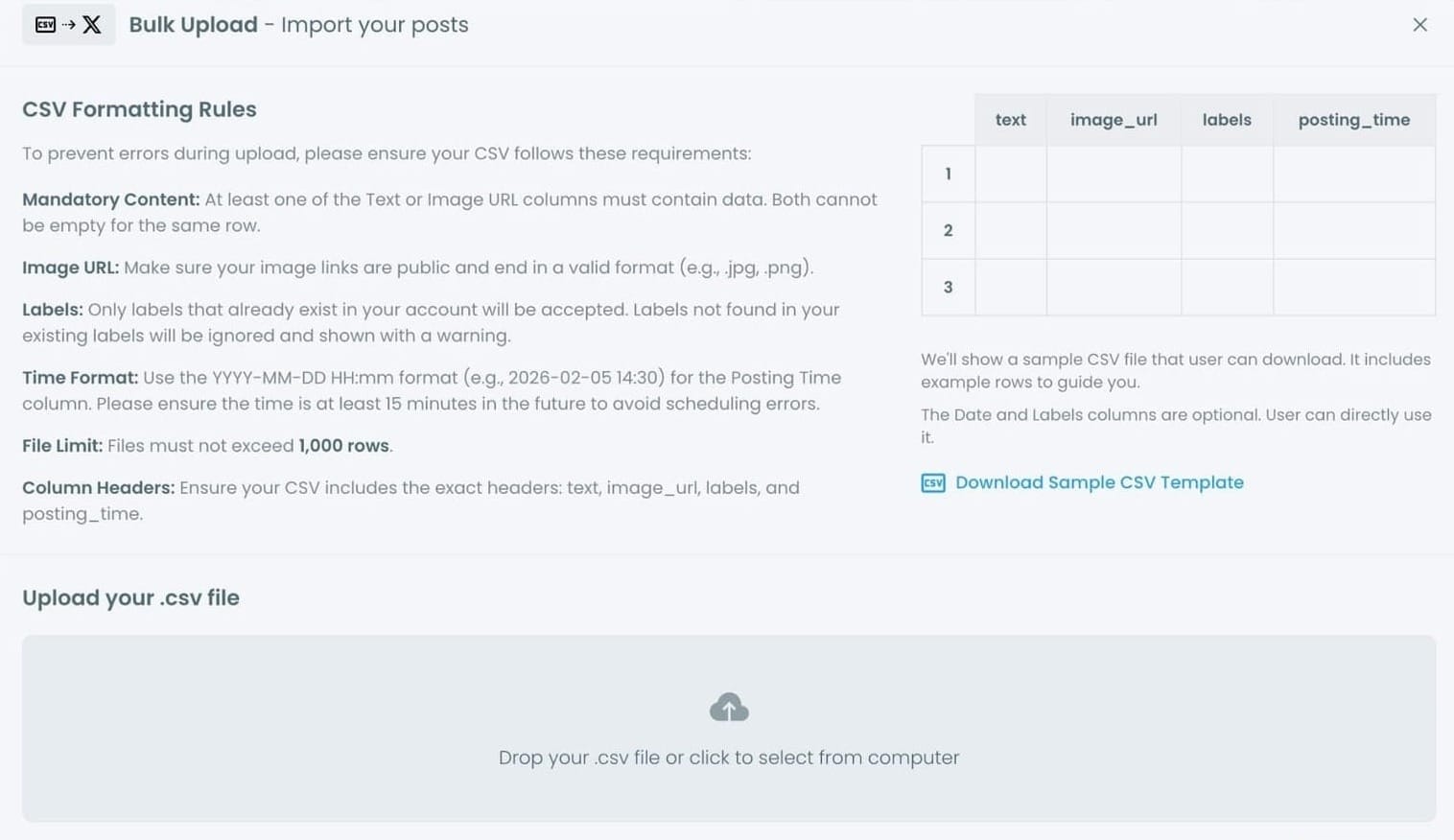
This is extremely helpful when you are working with large content batches.
How to bulk-schedule tweets using a CSV file
If you already have many tweets ready, bulk scheduling is much faster.
Step #1: After logging in to Circleboom Twitter, go to the X AI WRITER FOR CREATOR.
From the drop-down menu, click on Bulk Schedule. This opens the bulk scheduling interface and allows you to import multiple tweets at once instead of creating them one by one.

Step #2: Upload your CSV file
Upload your CSV file by dragging it into the upload area or selecting it from your computer.
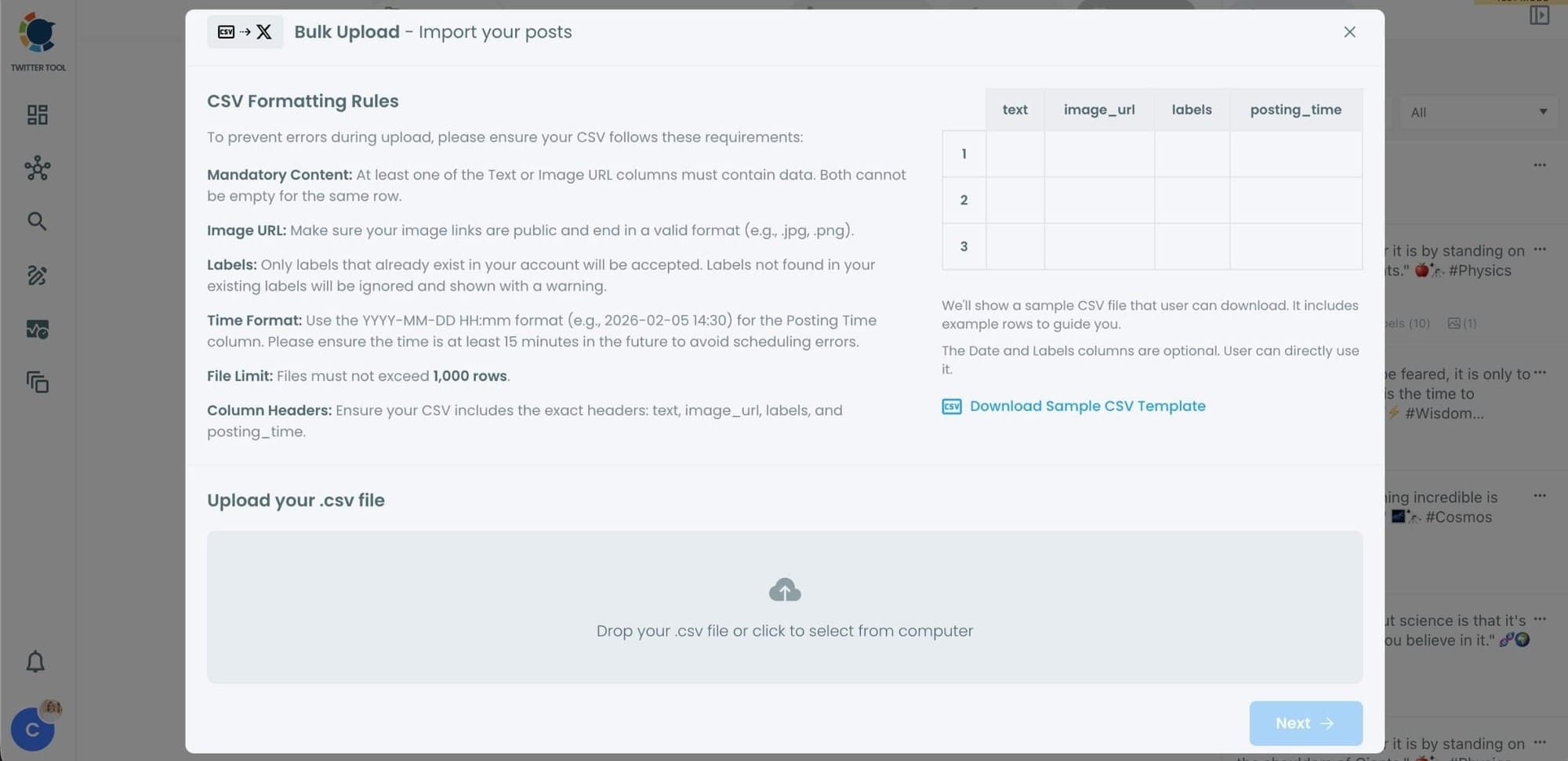
Before uploading, make sure your CSV file follows the required format.
Your file should include the correct column headers, and each row should represent a single tweet.
You can include tweet text, image URLs, labels, and posting times.
Preparing the file in the correct format prevents errors during scheduling.
Step #3: Review your imported tweets
After uploading the CSV file, Circleboom shows all your tweets in a preview list.
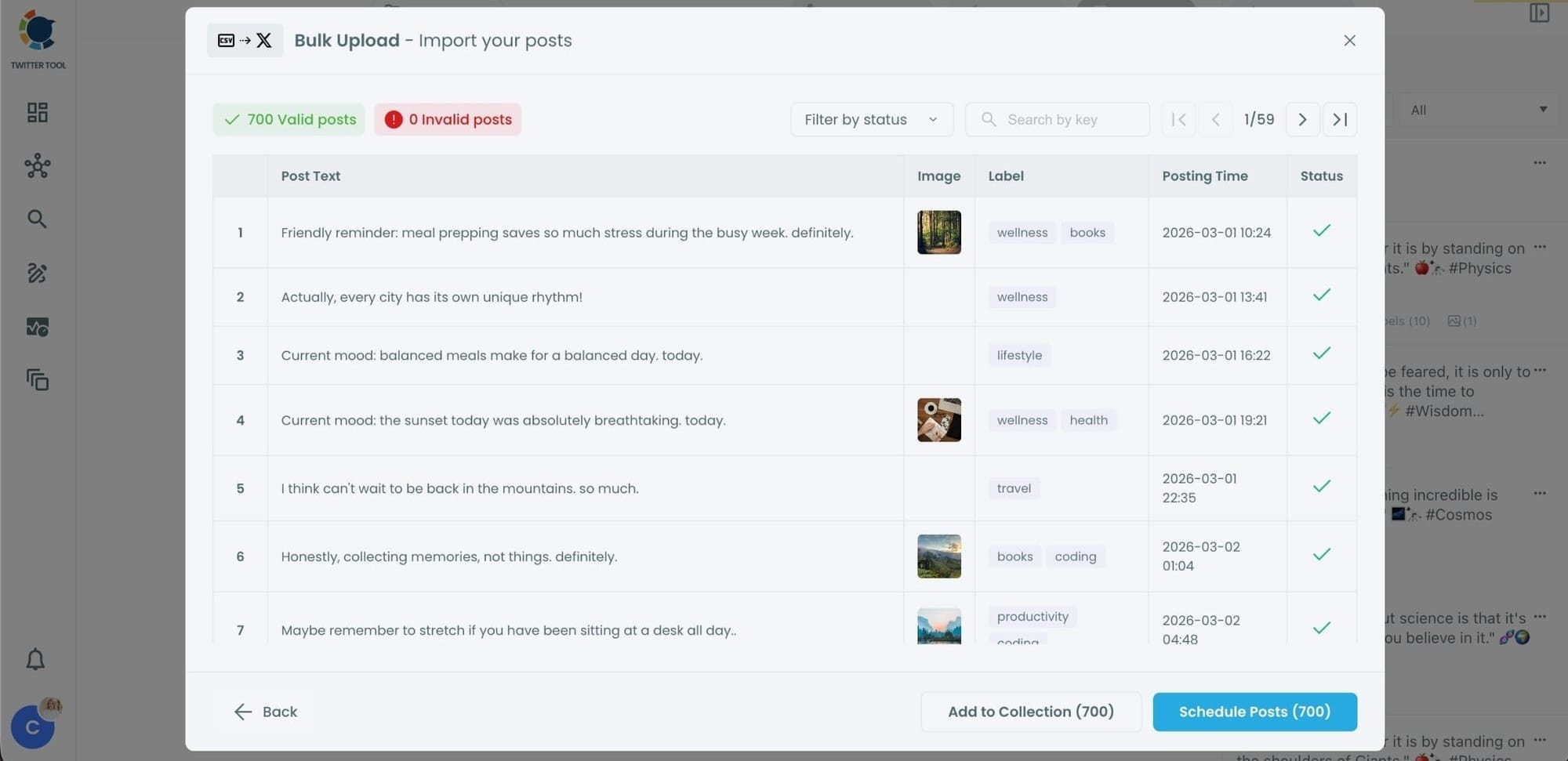
At this stage:
- Valid tweets are marked clearly
- Invalid tweets are shown with the reason for the error
- You can also add tweets to Collections if you want to organize or reuse them later
This step helps you catch and fix problems before anything is scheduled.
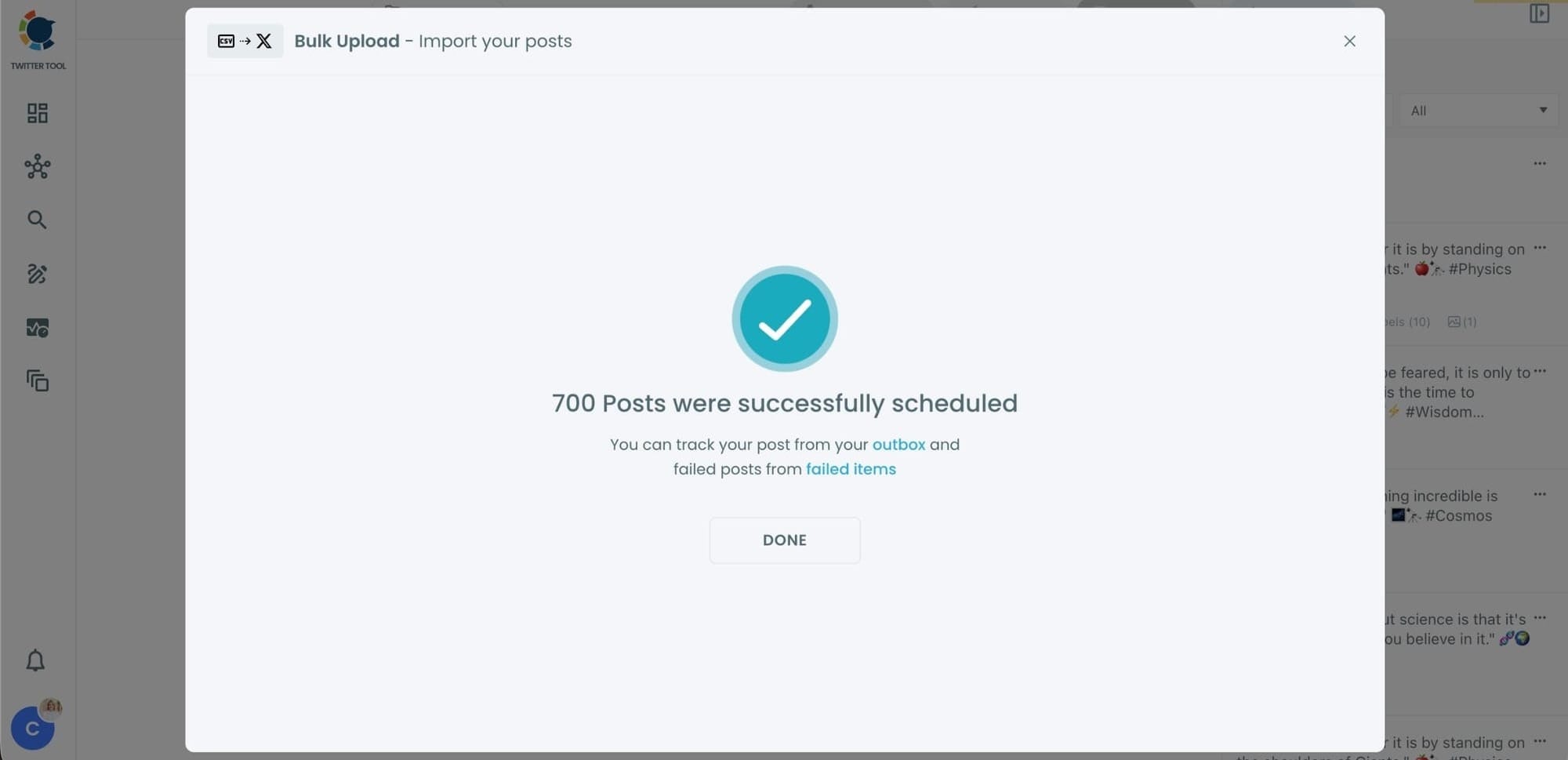
Step #4: Schedule all tweets at once
Once everything looks correct, click Schedule Posts.
Circleboom automatically schedules all valid tweets based on the posting times in your CSV file.
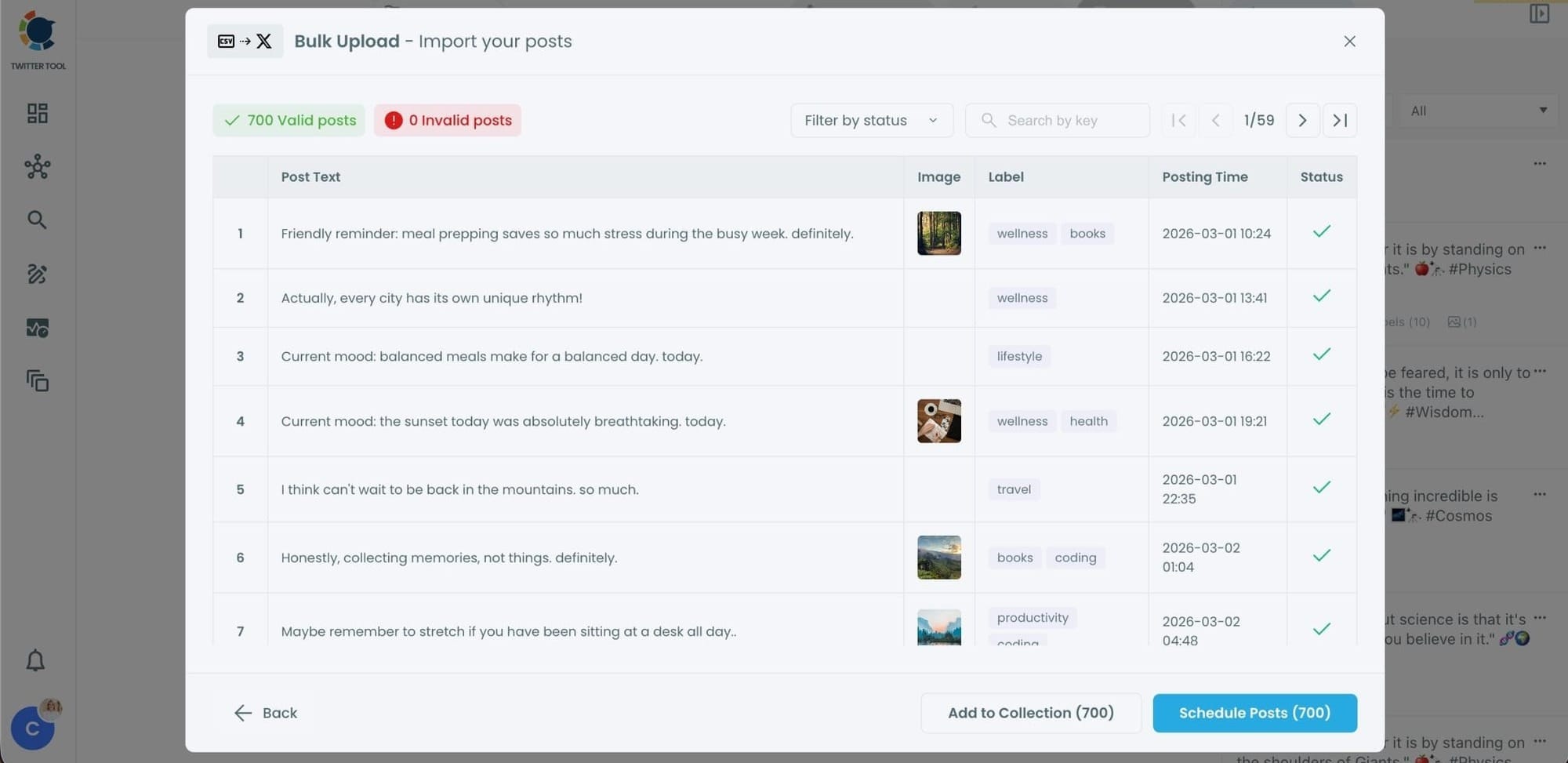
Even hundreds of tweets can be scheduled in seconds, without manual work.
Step #5: Manage scheduled tweets from the Outbox
After scheduling, all your tweets appear in the Outbox and calendar view.
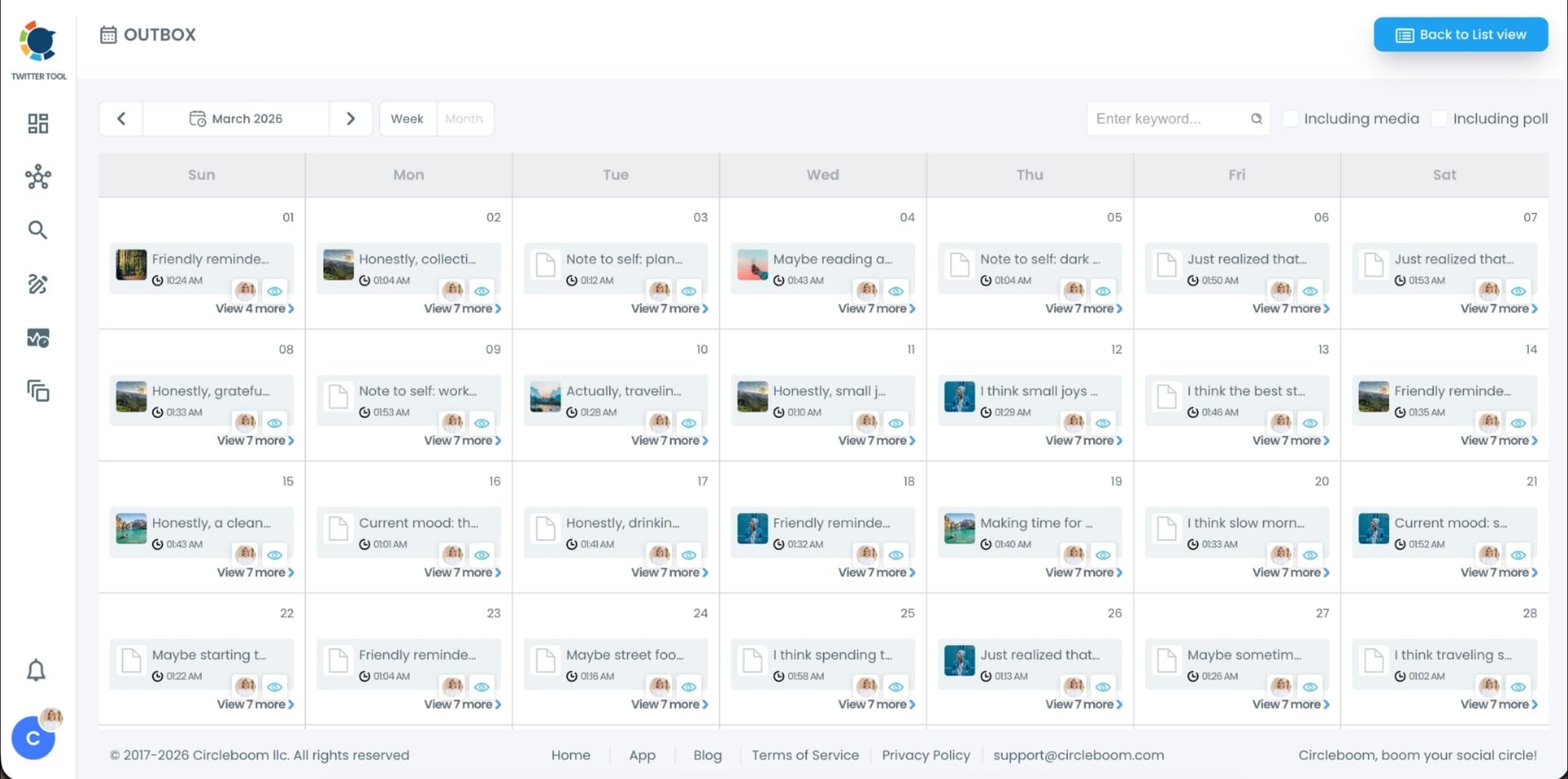
From here, you can:
- See all scheduled tweets by date and time
- Make changes if needed
- Edit or remove scheduled posts
- Keep track of your content easily
This gives you full control even after bulk scheduling is completed.
Why bulk scheduling makes managing Twitter easier
When you are working with large amounts of content, bulk scheduling saves a huge amount of time.
Instead of repeating the same steps dozens of times, you prepare your tweets once and schedule them all at once.
This allows you to focus more on content strategy instead of manual publishing tasks.
Final thoughts
Scheduling more than 50 posts in one day on X can be difficult if you rely only on the native Twitter scheduler. Publishing errors, missing posts, and manual work quickly become frustrating.
Using a dedicated tool like Circleboom Twitter, an official X Enterprise Developer, makes the process much easier.
With its X Post Planner, AI tweet generator, image tools, auto retweeter, and follower activity analysis, you can create and schedule tweets efficiently. And with the bulk scheduling feature, you can upload a CSV file and schedule dozens of tweets in seconds.
If you regularly manage large amounts of content, bulk scheduling is one of the simplest ways to save time and keep your Twitter account running smoothly.




%3F)


