

I’ve always been a big fan of retweeting, or as X now calls it, reposting. It’s probably my most-used feature on the platform. When I see something insightful, funny, or relatable, I hit that repost button instantly. Over time, though, that habit adds up thousands of retweets mixed in with my regular tweets, replies, and threads.
The other day, I needed to find all the retweets I’d made from a specific account. In my case, it was someone I had collaborated with before, but due to a disagreement, I wanted to clean things up and remove every retweet related to them.
So, I opened my X profile and started scrolling.
And scrolling.
And scrolling.
That’s when I realized something: X doesn’t give you a way to find your retweets from a specific account.
If you’ve ever tried it, you know the pain. Searching manually takes forever. And even if you use X’s built-in search operators, they can’t isolate your retweets of another user.
That’s when I turned to Circleboom Twitter, the easiest and most reliable way to find and manage your retweets.
Why You Might Need to Find Retweets from a Specific Account
There are plenty of reasons you might need to track down retweets tied to one account:
➡️ You promoted a collaborator’s content and want to clean it up after a partnership ended.
➡️ You retweeted a brand or influencer who later became irrelevant or controversial.
➡️ You’re compiling old retweets for a portfolio, campaign, or research project.
➡️ You want to analyze which accounts you amplify most.
Whatever your reason, scrolling through months or years of activity isn’t practical, especially if you’re a frequent poster like me.
Why Twitter Makes It So Hard
Twitter’s search is great for finding tweets containing words or hashtags, but it’s weak for user-specific searches.
You can search for tweets from or to an account, but you can’t search “my retweets of @username.”
There’s no filter for post type or retweet origin, and advanced search doesn’t help much either.
That’s where a follower-friendly tool like Circleboom Twitter comes in.
The Solution: Circleboom Twitter
Circleboom Twitter is an official Enterprise developer of X, meaning it operates safely and directly within Twitter’s API rules.

It doesn’t just help you manage followers, it gives you total control over all your activity, including tweets, retweets, and replies.
Here’s why it’s perfect for this task:
✅ It lists all your tweets, including original posts, retweets, and replies.
✅ It shows detailed stats for each post (date, engagement, language, type).
✅ It lets you filter posts by multiple parameters, something X doesn’t allow.
You can filter by:
- Post type (tweets, replies, or retweets)
- Account (find tweets or retweets involving a specific user)
- Keyword or hashtag
- Language
- Time range
- Engagement metrics (likes, retweets, replies)
Within seconds, Circleboom listed all my retweets from that account, no scrolling, no guesswork.
My Case: Deleting Retweets from a Specific User
In my situation, I wanted to remove all retweets from a certain account. Circleboom not only helped me find them, but it also let me delete them all safely and easily.
Before we get to the deletion part, here’s exactly how I did it.
Step-by-Step: How to See and Delete All Your Retweets From a Specific User
Step #1: Go to Circleboom Twitter and open Delete Tweets
After signing in with your X (Twitter) account, navigate to Delete Tweets from the dashboard.

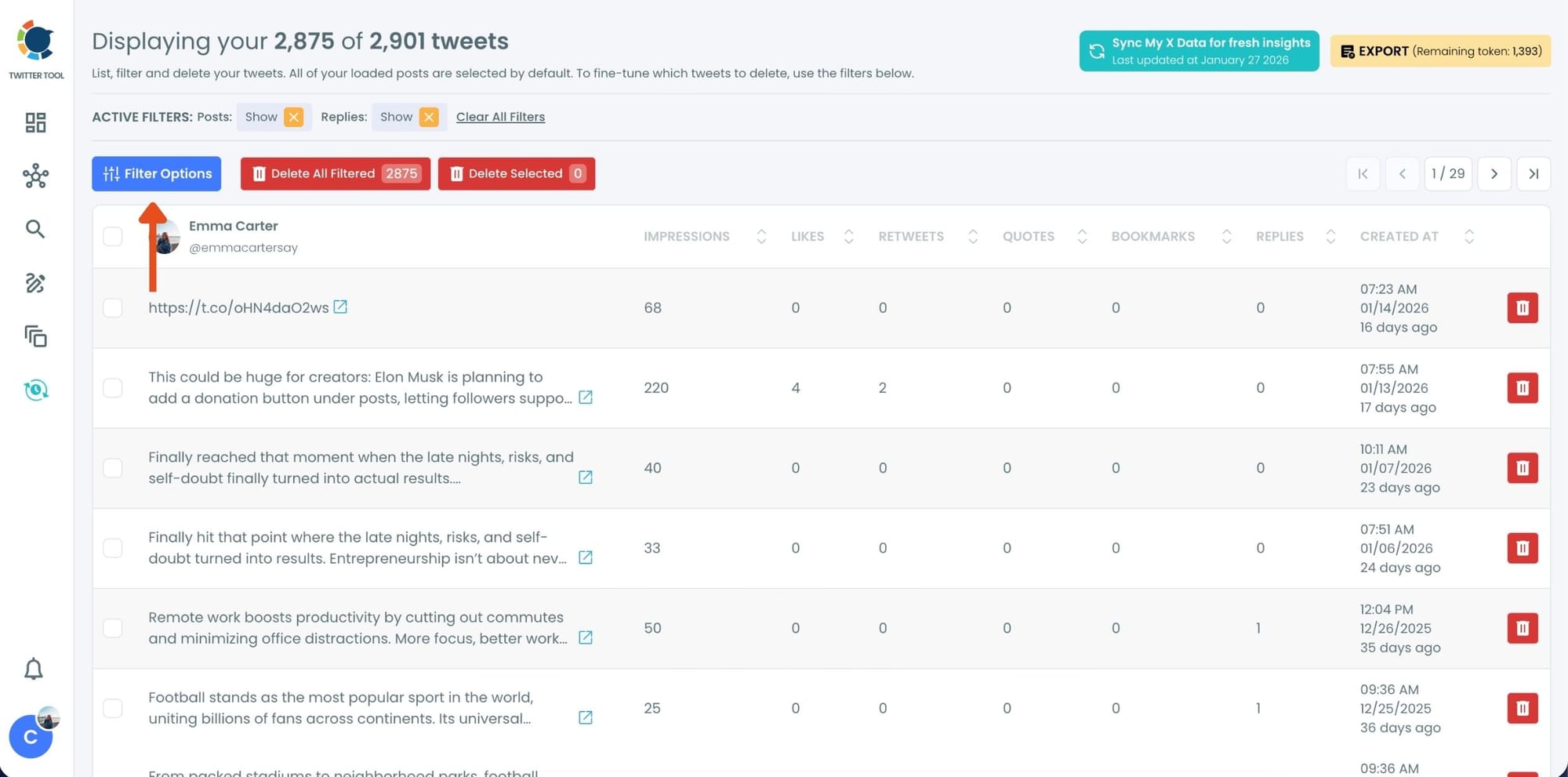
Step #2: Open Filter Options
Circleboom instantly loads all your tweets—including original posts, reposts (retweets), and replies—along with detailed stats like impressions, likes, and dates.
Click on Filter Options at the top of the page to refine what you want to see.
This is where you can narrow thousands of tweets down to a very specific group.
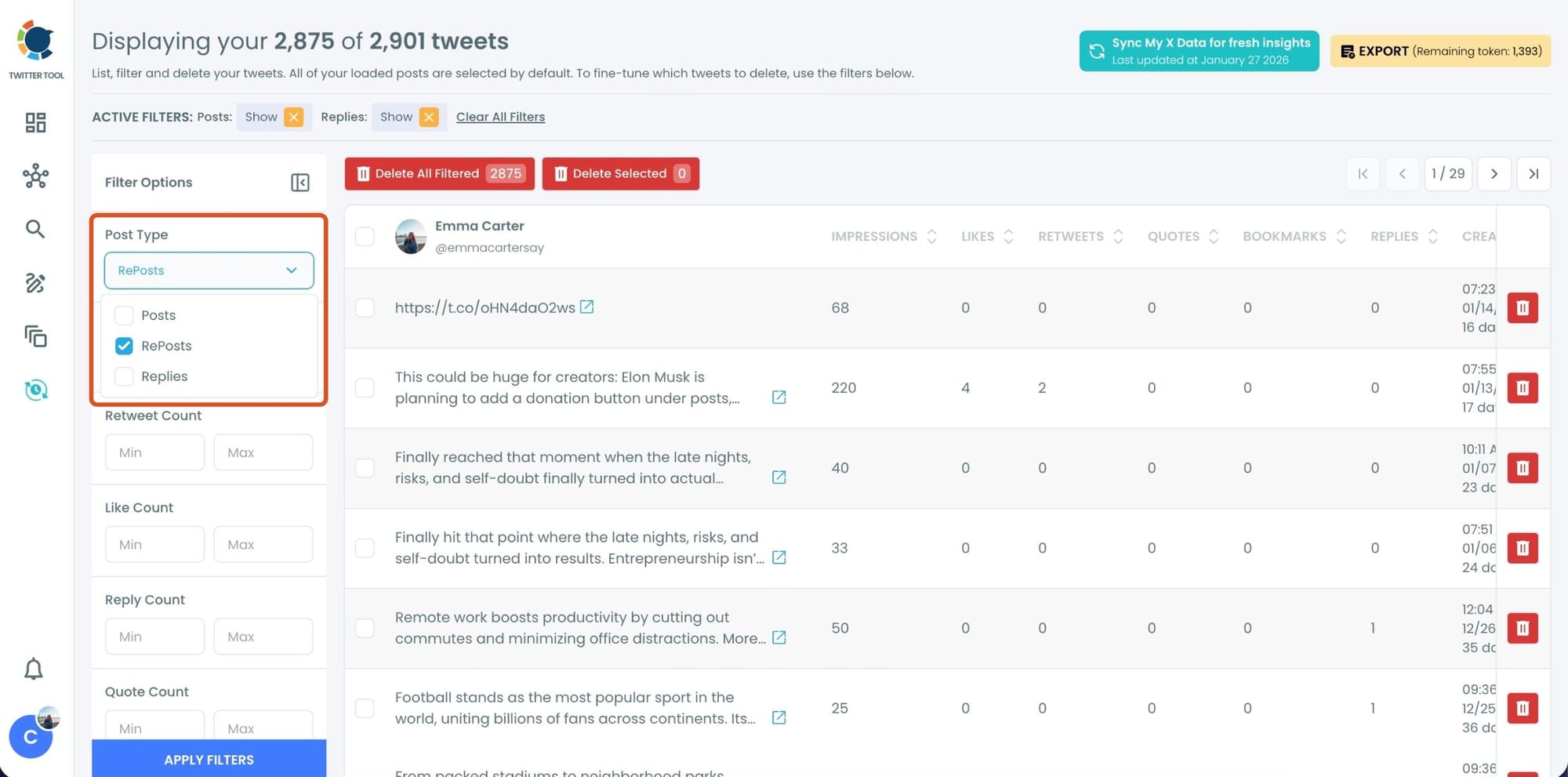
Step #3: Set Post Type = Reposts
Under Post Type, select Reposts only.
Once applied, Circleboom will display only the tweets you retweeted, hiding your original posts and replies.
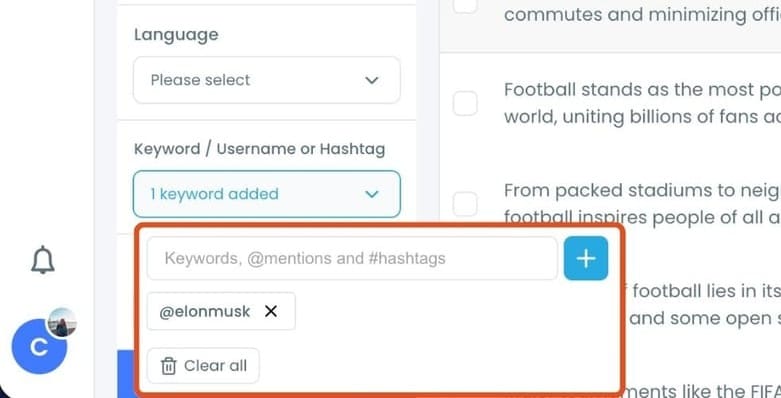
Step #4: Enter the username or keyword you want to target
Scroll down to Keyword / Username / Hashtag and enter the account you’re looking for, such as @elonmusk.
- You can also add keywords if you want to find retweets containing a specific word or phrase.
- This is useful if you want to clean up retweets around a certain topic, not just one account.
Step #5: Apply the filters
Click Apply Filters.
Circleboom will instantly show all retweets you’ve made from that specific user, displayed in a clean list with full tweet details.
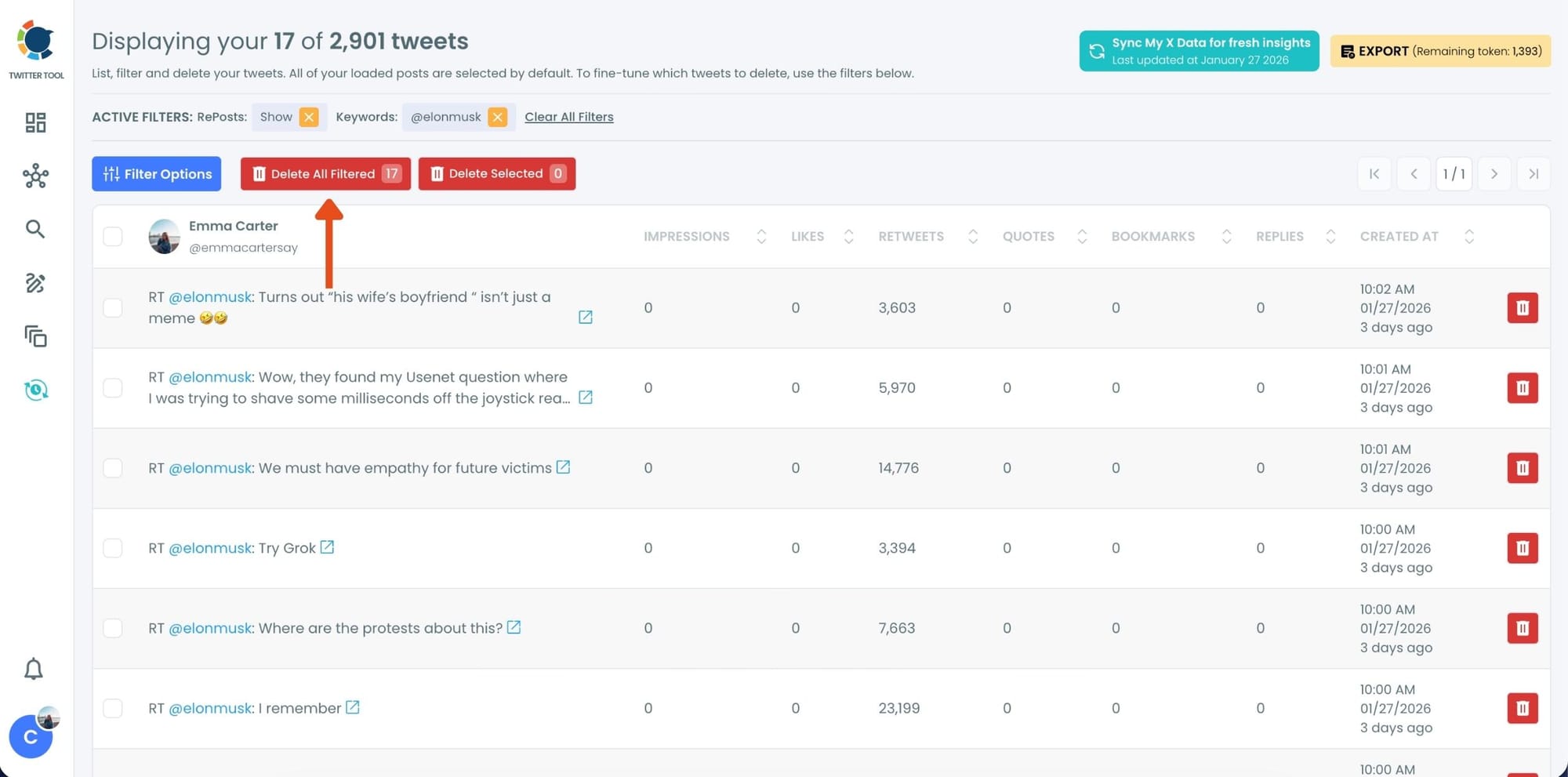
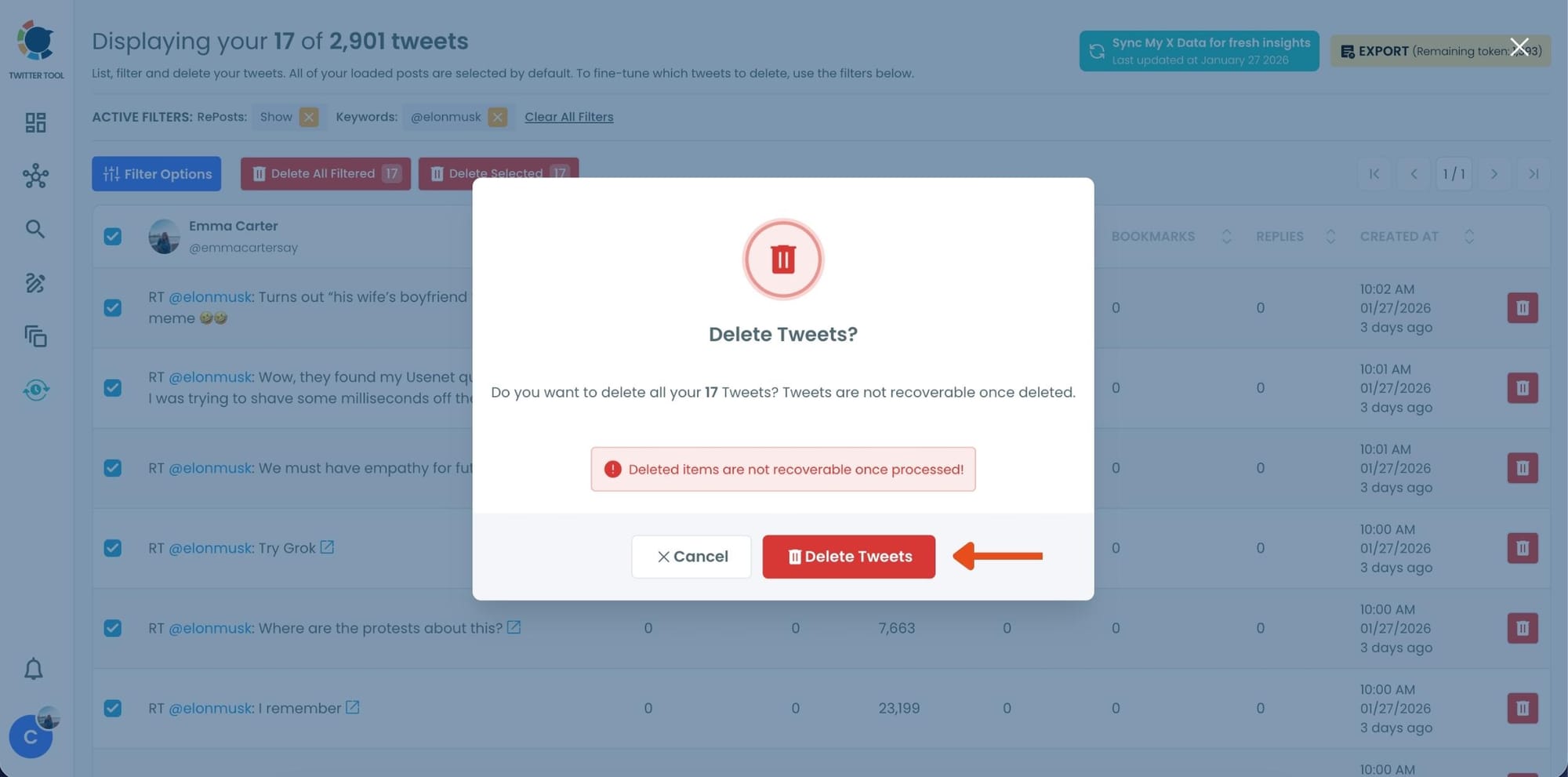
Once the filtered list looks correct, click Delete All Filtered.
Confirm the action, and Circleboom will remove all those retweets in bulk—no manual deleting, no scrolling through your timeline.
Other Things You Can Do in Circleboom
Once you start using Circleboom for retweet management, you’ll realize how powerful it is for all types of tweet control:
🟢 Delete all retweets (not just from one account).
🟢 Filter by keyword or hashtag (e.g., remove all your crypto or politics retweets).
🟢 Search your replies to find old conversations.
🟢 Export posts for research, record-keeping, or analytics.
🟢 Reuse top-performing retweets for future engagement.
Circleboom basically gives you the control panel X never built.
Tips for Managing Retweets Smartly
🔹 Use time filters to manage old posts before a rebrand or job application.
🔹 Combine keyword + account filters to narrow down campaign retweets.
🔹 Export before deleting in case you want to revisit them later.
Final Thoughts
Finding your own retweets from a specific account on X isn’t easy; in fact, it’s almost impossible without help.
But with Circleboom Twitter, the process takes seconds.
You can view, filter, and manage all your tweets, including retweets, by account, keyword, date, or engagement.
If needed, you can safely delete or export them all.
Whether you want to tidy up your profile, remove old associations, or simply organize your posting history, Circleboom Twitter gives you the clarity and control you need.
👉 Try Circleboom Twitter today, and manage your retweets the smart way, without endless scrolling.

