

Even your best tweets don’t get seen by most of your followers.
Twitter (X) moves fast. Timelines refresh constantly, people log in at different hours, and a tweet’s effective lifespan is roughly 15 minutes.
After that, it’s buried, no matter how good it is.
That’s why I started reposting my own tweets. Not to spam, but to reintroduce the same idea to people who simply weren’t online the first time. Done right, reposting increases impressions and engagement without writing new content.
The problem? Doing it manually is a mess.
 Arif Akdogan
Why Reposting Tweets Works (When Done Properly)
Reposting isn’t cheating the system, it’s working with it.
Here’s what actually happens:
- Only a fraction of followers see a tweet when it’s first posted
- Different followers are active at different times
- Reposting shows the same tweet to new online windows
One tweet → multiple chances to be seen.
If the content is valuable, reposting:
- Increases impressions
- Boosts engagement
- Extends content lifespan
- Reduces pressure to constantly create new tweets
Why Manual Reposting Doesn’t Scale
At first, manual reposting seems manageable. Then reality hits.
Common issues:
⛔ Forgetting which tweets were already reposted
⛔ Not knowing when to un-repost
⛔ Accidentally reposting too often
⛔ Losing track once you manage multiple tweets
It quickly turns into guesswork. And worse, mistakes can make your account feel spammy.
That’s when I realized I didn’t need to repost more.
I needed to automate reposting properly.
The Best Way to Automate Reposts on Twitter
That’s where Circleboom comes in.

Circleboom is a full Twitter management tool and an official X (Twitter) Enterprise Developer, which means it uses X’s approved infrastructure and stays within platform rules.
Instead of manually tracking reposts, Circleboom turns reposting into a system.
The X Post Planner: Where Reposting Starts
Inside Circleboom, everything begins with the X Post Planner.
This is where you can:
- Create tweets from scratch
- Style tweets (fonts, layouts)
- Use AI to generate or improve tweets
- Add images with built-in tools
But the most important feature for growth is the Auto-Reposter.
What the Auto-Reposter Does (And Why It’s Powerful)
The Auto-Reposter lets you:
- Automatically repost a tweet
- Automatically un-repost it
- Repeat this cycle as many times as you want
All without manual tracking.
 infocircleboom.com
Once you set it up, Circleboom handles everything in the background.
You don’t need reminders. You don’t need spreadsheets. You don’t need to remember anything.
Even better: it works for both new and old tweets.
Step-by-Step: Automate Reposts While Creating a Tweet
Here’s how to set it up for a new tweet.
Step 1: Go to Circleboom Twitter’s X Post Planner
Open Circleboom Twitter and click X Post Planner + AI Writer.
Then select Write & Plan Your Post to start creating your tweet.

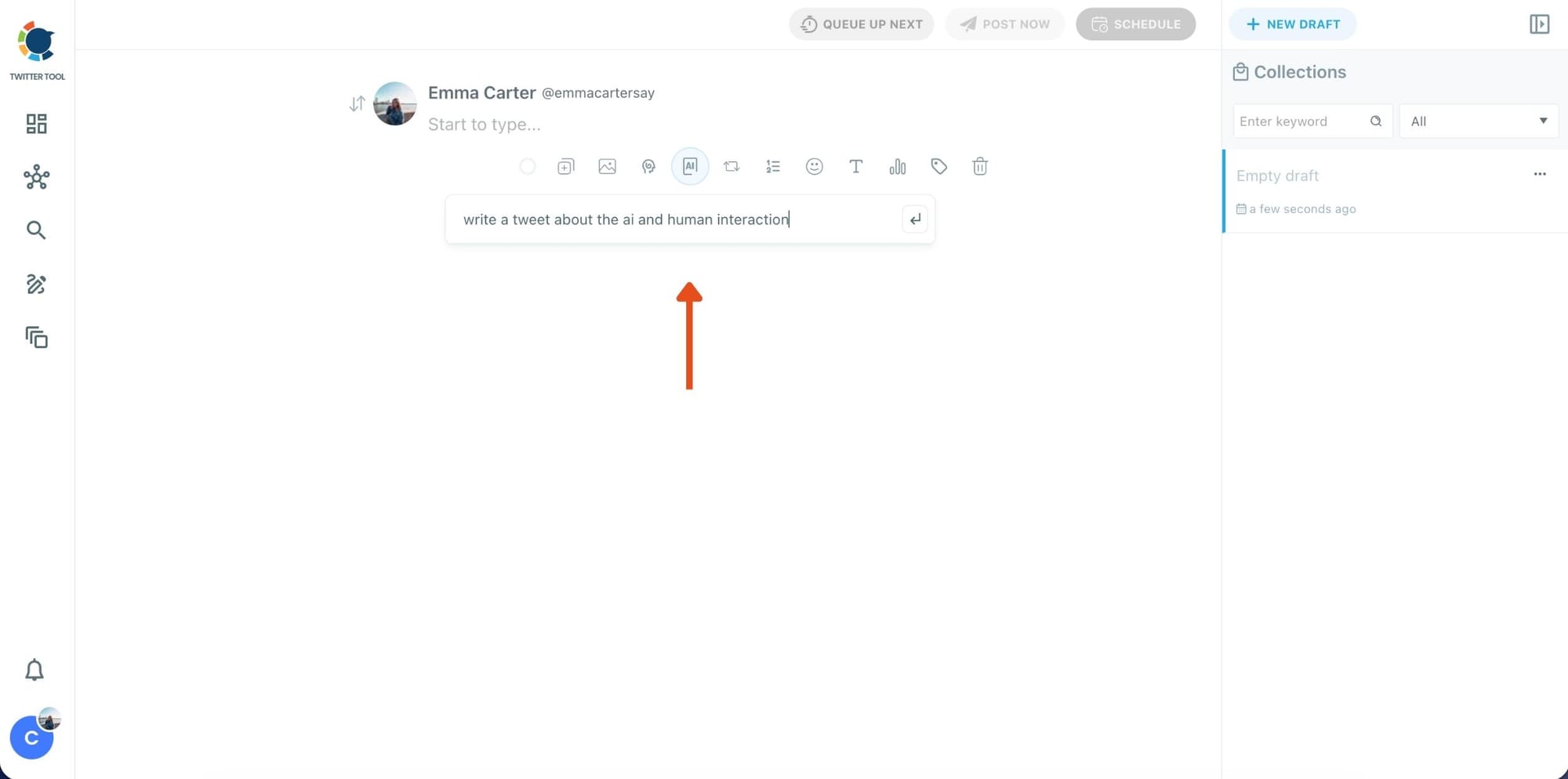
Step 2: Write your tweet (or generate one with AI)
You can type your tweet manually in the editor.
Or, if you want to move faster, click the AI option and let Circleboom generate a tweet idea for you based on your topic.
Step 3: Add an image to make the post more engaging
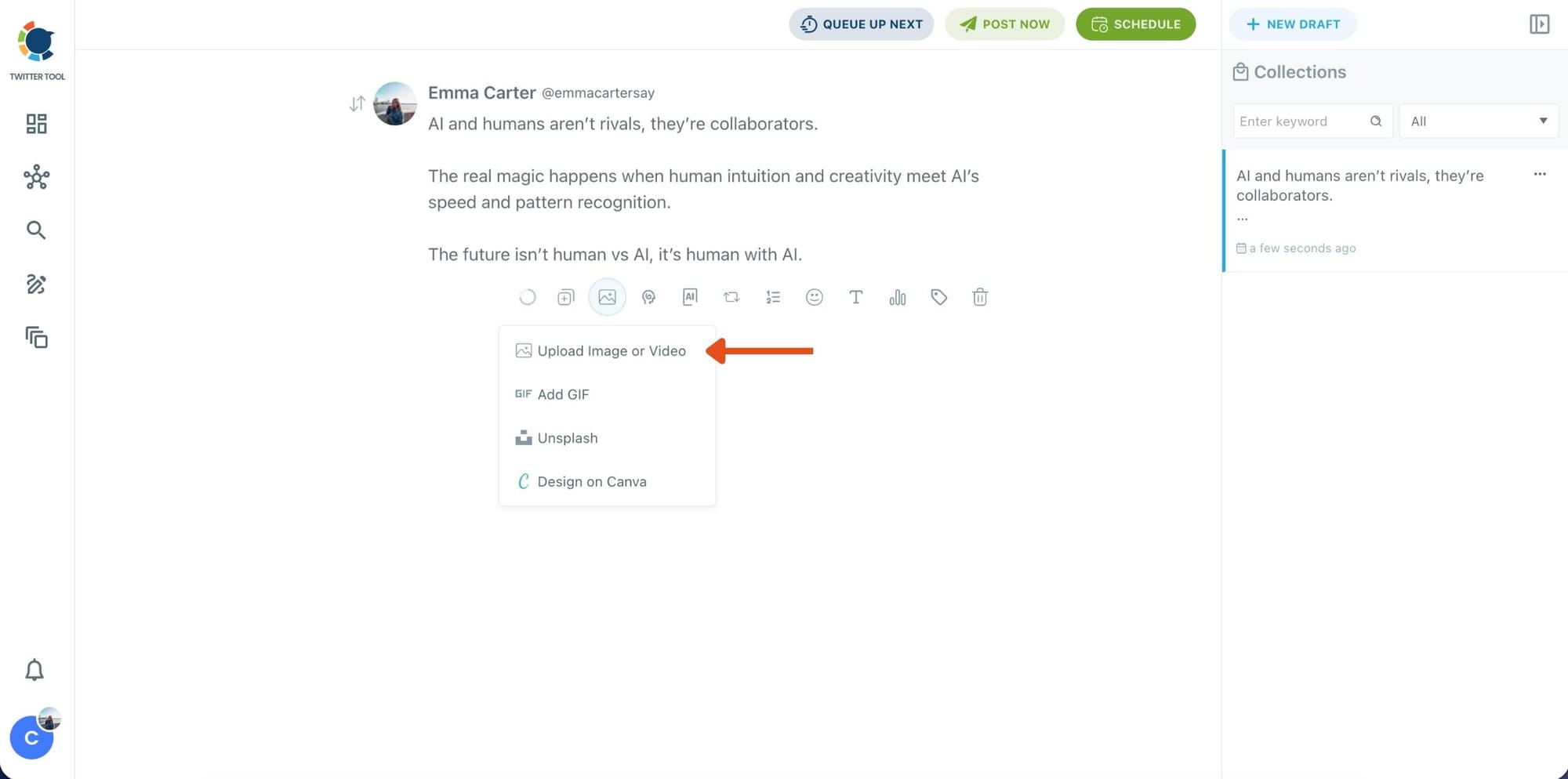
Once your text is ready, attach a visual to your tweet.
You can:
- Upload an image/video from your device
- Pick one from Unsplash
- Or design one instantly using Canva
Step 4: Style your tweet using Circleboom’s Font Generator
Now it’s time to make your tweet stand out visually.
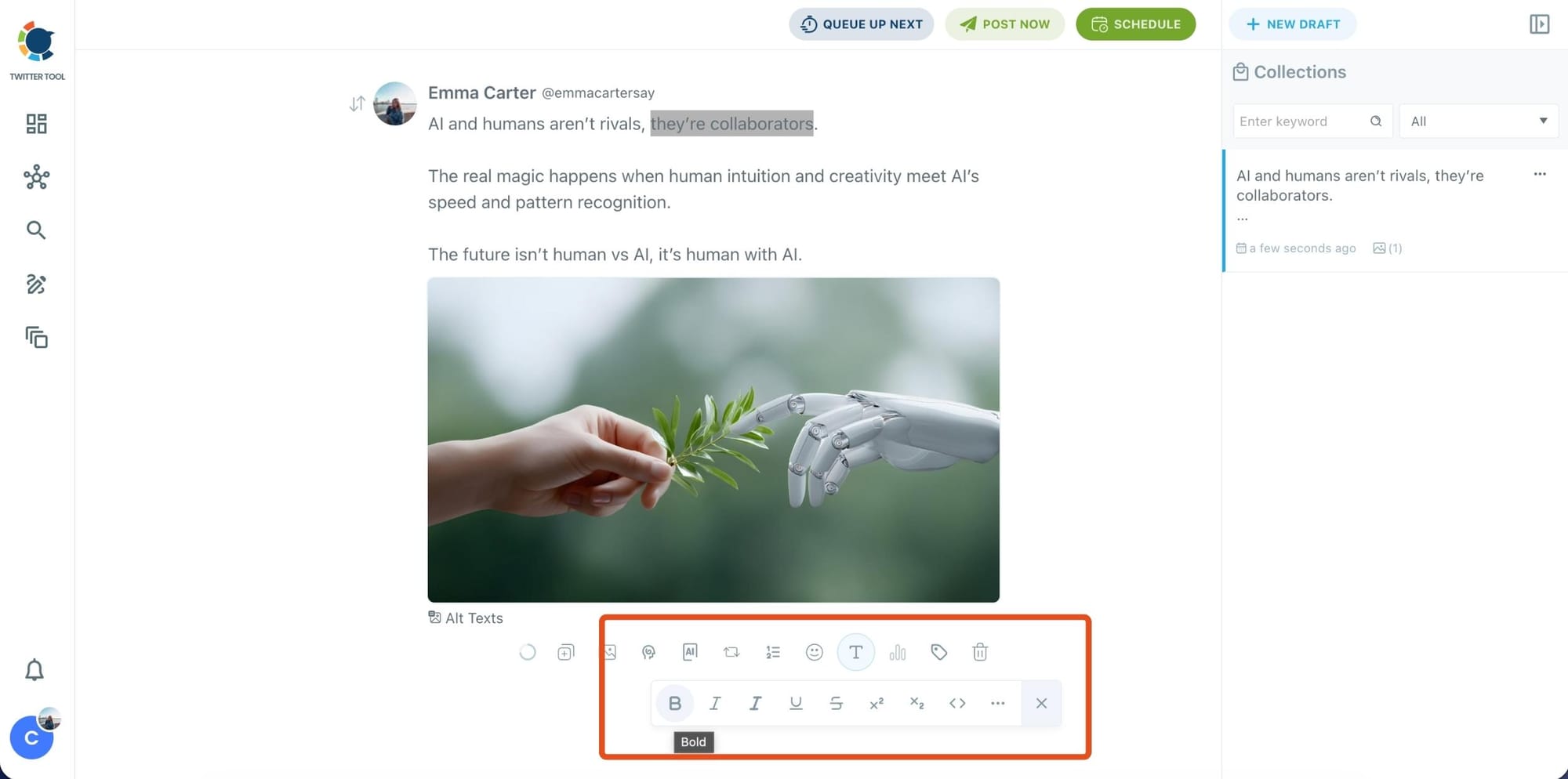
Select the part of your text you want to change, then open the Font Generator toolbar and apply styles like:
- Bold / Italic / Underline
- Different font variations
- Extra formatting options for a more “designed” look
This is perfect when you want key parts of your tweet to grab attention immediately.
Step 5: Set Auto Retweets to boost visibility
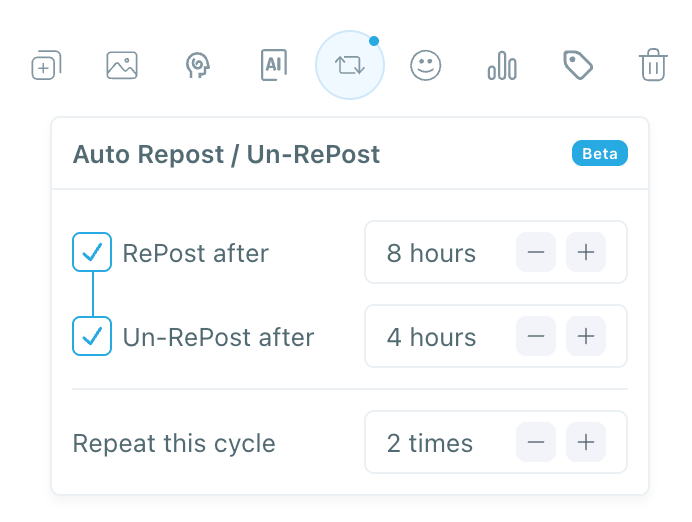
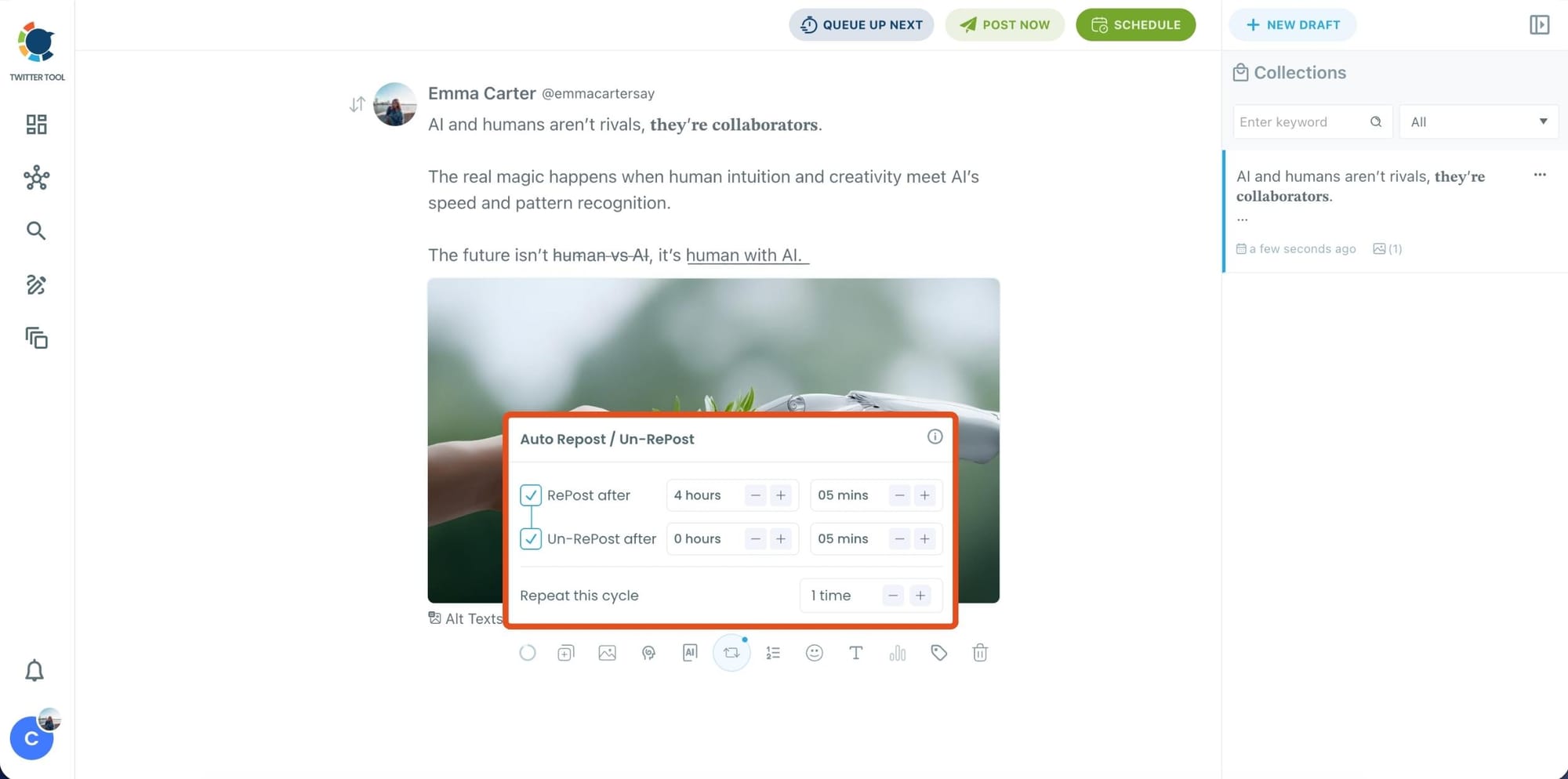
After styling your post, you can increase reach by enabling Auto Repost / Un-RePost settings.
This lets you automatically:
- Repost your tweet after a selected time
- Remove the repost later
- Repeat the cycle if you want more than one repost
It’s a smart way to bring your tweet back into the feed without manually reposting it.
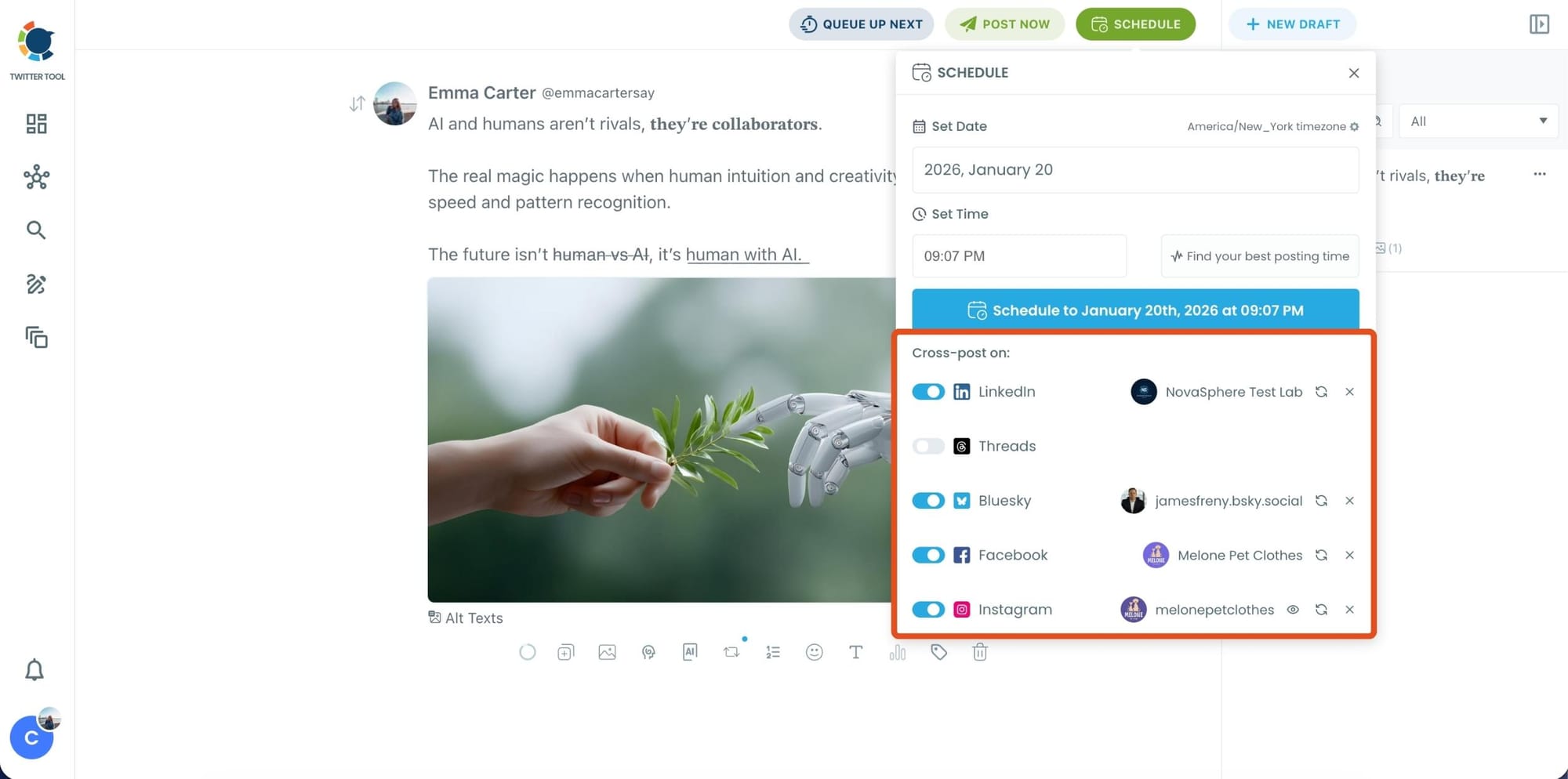
Bonus Tip: Cross-post your tweet to other platforms automatically
Before you publish, you can also enable Cross-Post to share the same tweet across multiple platforms in one go.
Circleboom lets you post your content to Instagram, Facebook, LinkedIn, Bluesky, and Threads automatically, so you don’t have to rewrite, re-upload, or repeat the same work on each platform.
Step 6: Schedule it for the best time to post
Finally, click Schedule and set your date and time.
You can also click Find your best posting time to see Circleboom’s suggested time slots based on follower activity.
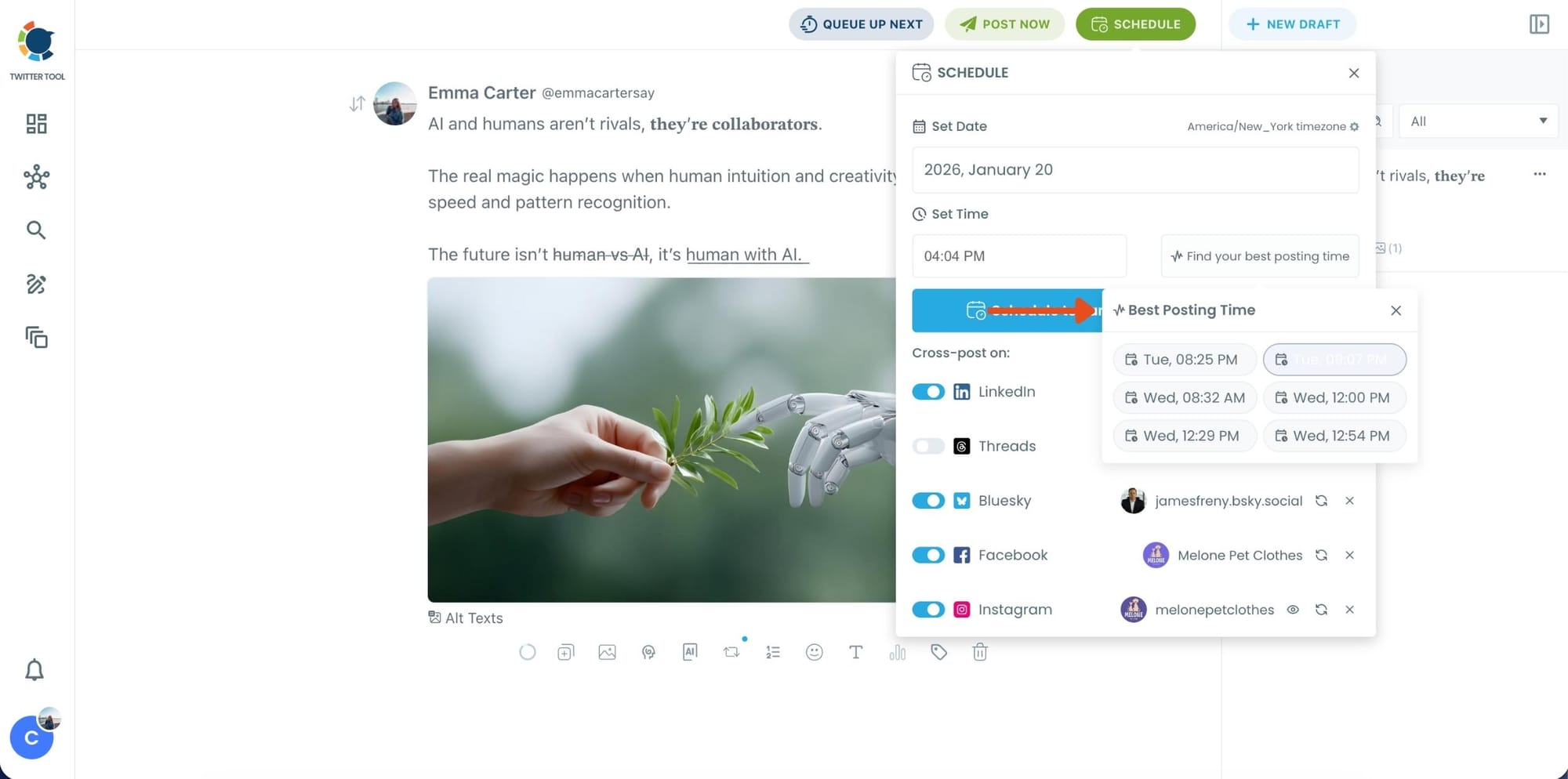
Once you pick the best option, smart-schedule it, and you’re done. Your tweet will go out at the time it has the highest chance to perform well.
Step-by-Step: Automate Reposts for Older Tweets
Already posted tweets can be automated too.
Step #1: Navigate to the Analytics Menu
From the left-hand menu, click on the "Post Management & Analytics" tab, then select "Post Analytics" from the dropdown.
Within Post Analytics, select the "Post Engagement Analytics" option.

Circleboom will display a detailed breakdown of your posts, including metrics like impressions, likes, retweets, replies, and more.
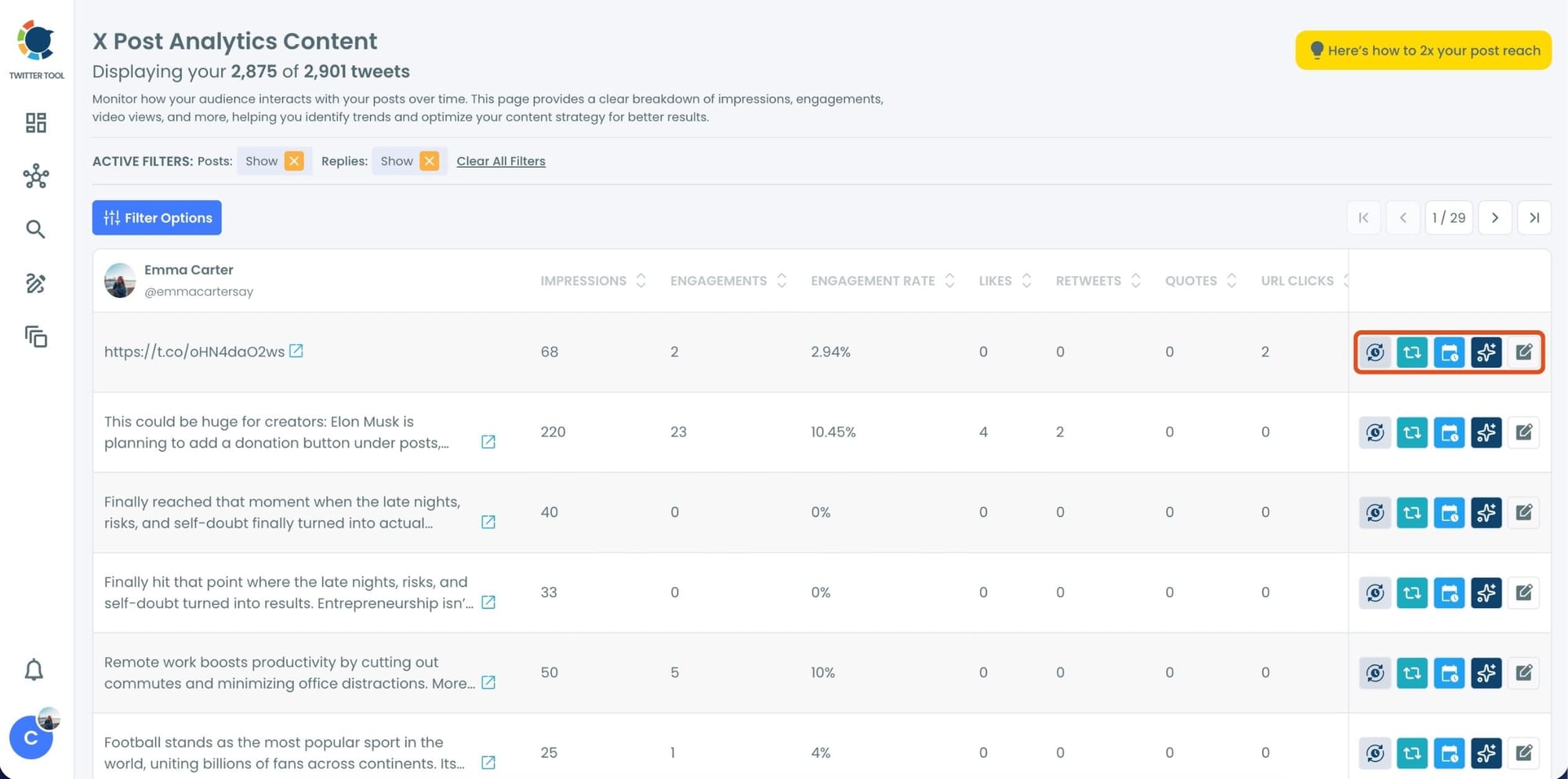
Step #2: Once you’ve found your old tweets, Circleboom offers several tools to make the most of them; choose which you want to use:

🟢 Reschedule Popular Tweets: Found a tweet that’s still relevant or hilarious but didn’t get the engagement it deserved?
With Circleboom, you can reschedule it to repost it at a better time.
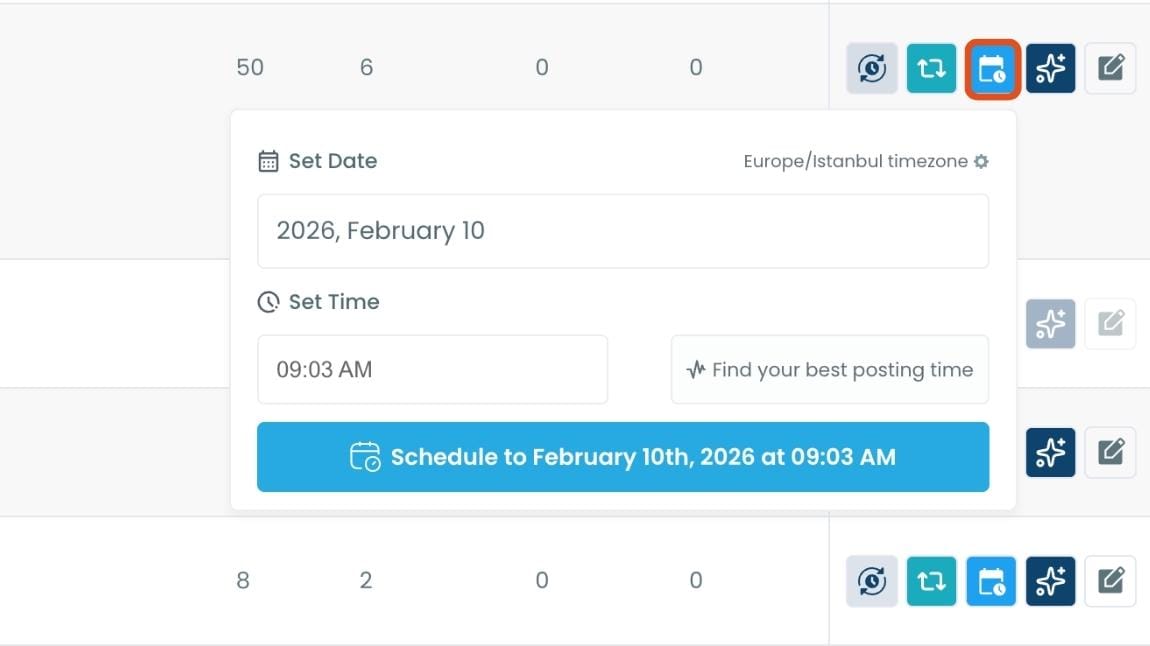
Maybe your audience wasn’t active when you first tweeted it, or perhaps it just got lost in the noise. Rescheduling ensures your best content gets a second chance to shine.
🔵 Refresh Content with AI: Some of your old tweets might feel outdated or could use a fresh twist. Circleboom’s AI-powered tweet generator can help you rewrite or improve them.
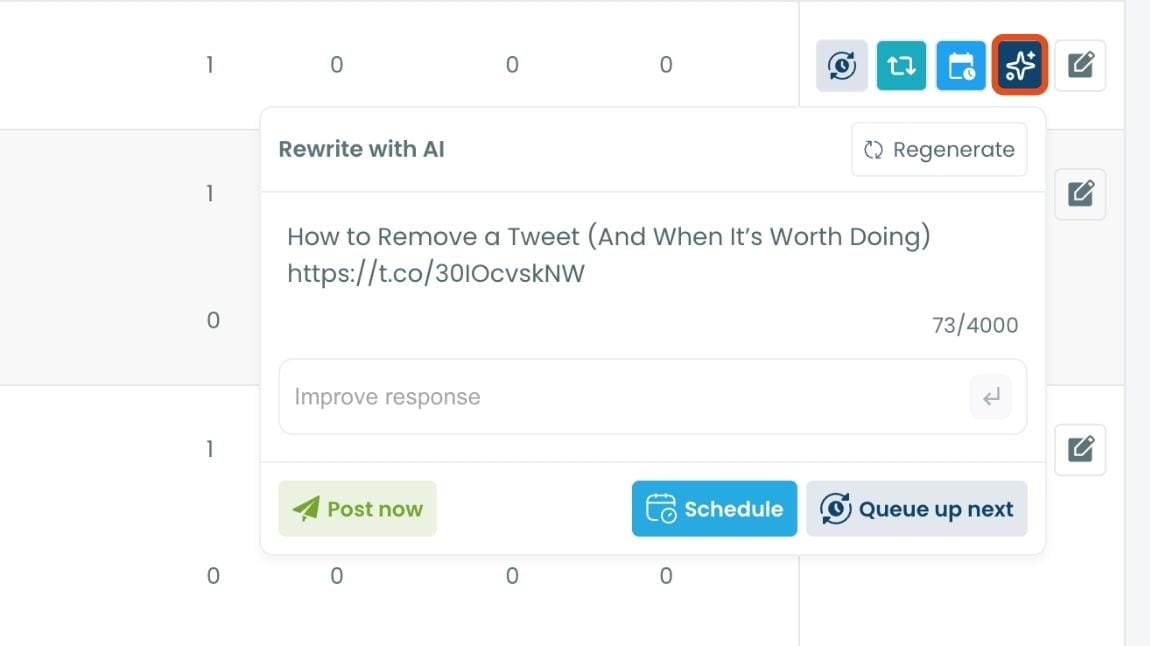
Whether you want to update the language, add a modern twist, or make it more engaging, the AI feature has got you covered.
🟡 Set Auto-Retweets: If you’ve got evergreen tweets that are still relevant, why not let them work for you on autopilot?
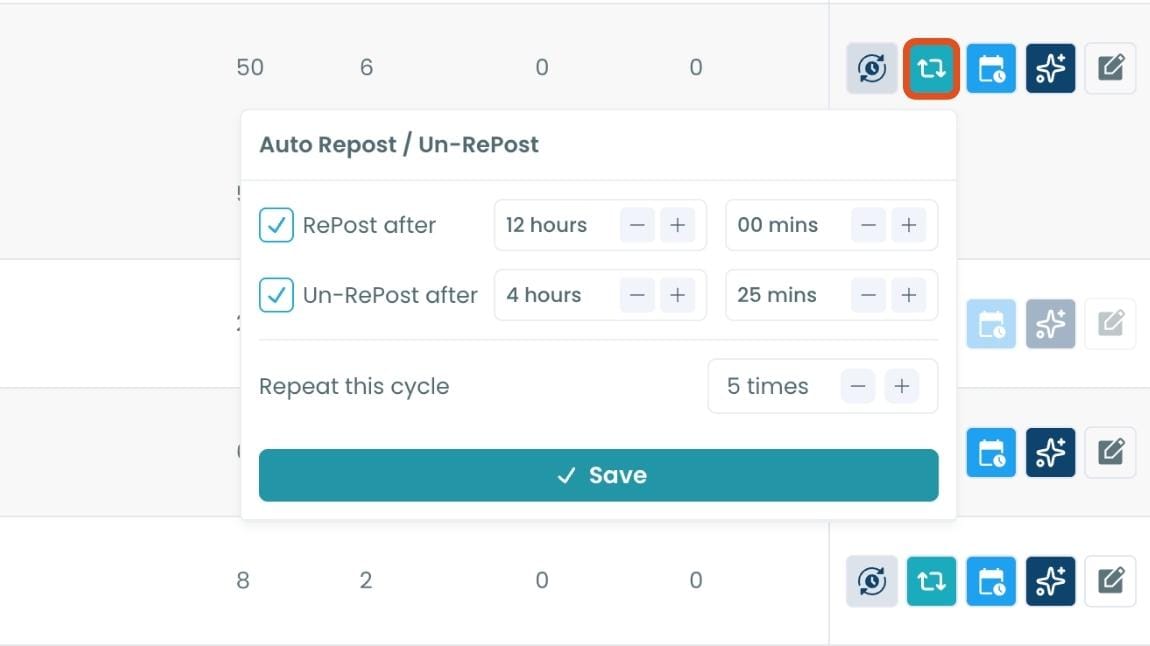
Circleboom’s auto-retweet feature allows you to automatically retweet your best-performing content at regular intervals. This is perfect for driving consistent engagement without lifting a finger.
What Happened After I Automated Reposts
Once reposting became automated, the results were clear.
- 5× increase in impressions
- Engagement scaled without posting more
- Older tweets started performing again
- No extra time spent managing reposts
Instead of chasing visibility, visibility became built-in.
Best Practices to Avoid Looking Spammy
Automation works best when used strategically:
➡️ Only automate high-quality or evergreen tweets
➡️ Use sensible gaps between reposts
➡️ Rotate a small set of strong tweets
➡️ Stop cycles that don’t perform
Reposting should feel like a reminder, not noise.
Turn One Tweet Into Ongoing Reach
On X, even great content disappears fast.
Reposting gives your tweets a second—and third—chance to be seen by people who simply weren’t online the first time.
Doing this manually is time-consuming and easy to mess up. Automation is what makes it sustainable.
With Circleboom Twitter, reposting stops being a task and becomes part of your posting system. One well-written tweet can keep showing up in the right timelines, at the right times, without extra effort or constant monitoring.
If you already create good content, you don’t need to post more, you just need to make what you’ve shared work longer.
)
