
Twitter (X) privacy is not controlled by a single switch. It’s a collection of settings that decide who can see your posts, who can interact with you, how people can find your account, and what data X uses to personalize your experience.
This guide explains how to change every important privacy setting on Twitter, step by step, and what each setting actually does.
How to Access Privacy Settings on Twitter (X)
Protecting your posts is the strongest privacy option Twitter offers. When this setting is enabled, your tweets are no longer publicly visible, and only people you approve as followers can see your content.
This setting is commonly used by users who want to:
- Keep tweets visible only to a trusted audience
- Prevent strangers from monitoring their activity
- Reduce spam replies and random interactions
Once enabled, new users must send a follow request, and you decide whether to approve or deny it. This gives you full control over who can see your tweets going forward.
On mobile (iOS / Android)
- Open the X app
- Tap your profile icon
- Tap Settings and privacy
- Tap Privacy and safety
On desktop (web)
- Log in to X
- Click More in the left menu
- Click Settings and privacy
- Click Privacy and safety
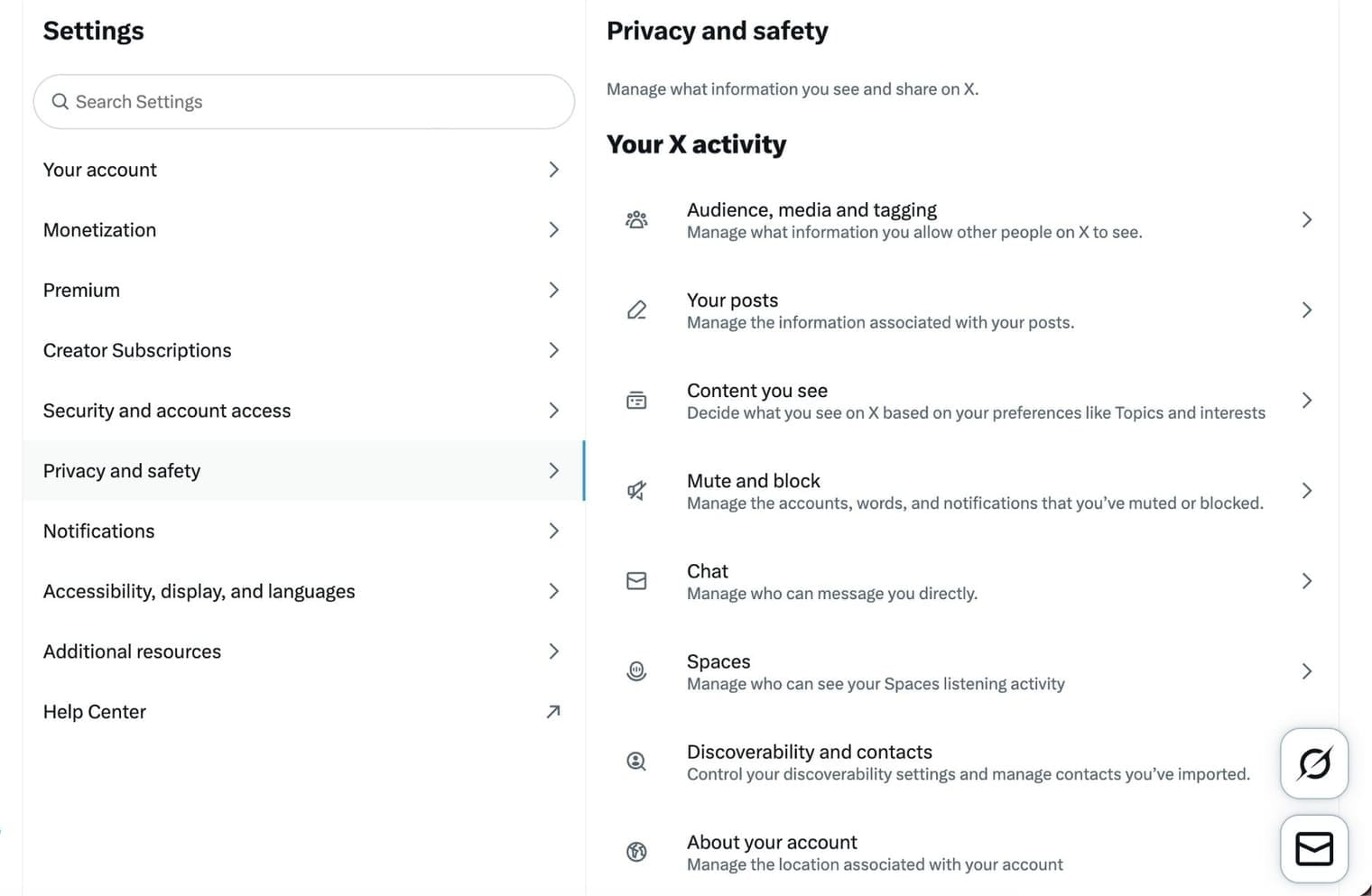
All privacy controls are managed from this section.
How to Make Your Twitter Account Private
Protect Your Posts on Twitter (X)
Protecting your posts is the strongest privacy option Twitter offers. When this setting is enabled, your tweets are no longer publicly visible, and only people you approve as followers can see your content.
This setting is commonly used by users who want to:
- Keep tweets visible only to a trusted audience
- Prevent strangers from monitoring their activity
- Reduce spam replies and random interactions
Once enabled, new users must send a follow request, and you decide whether to approve or deny it. This gives you full control over who can see your tweets going forward.
How to turn on a private account
- Go to Settings and privacy
- Open Privacy and safety
- Click Audience and tagging
- Enable Protect your posts
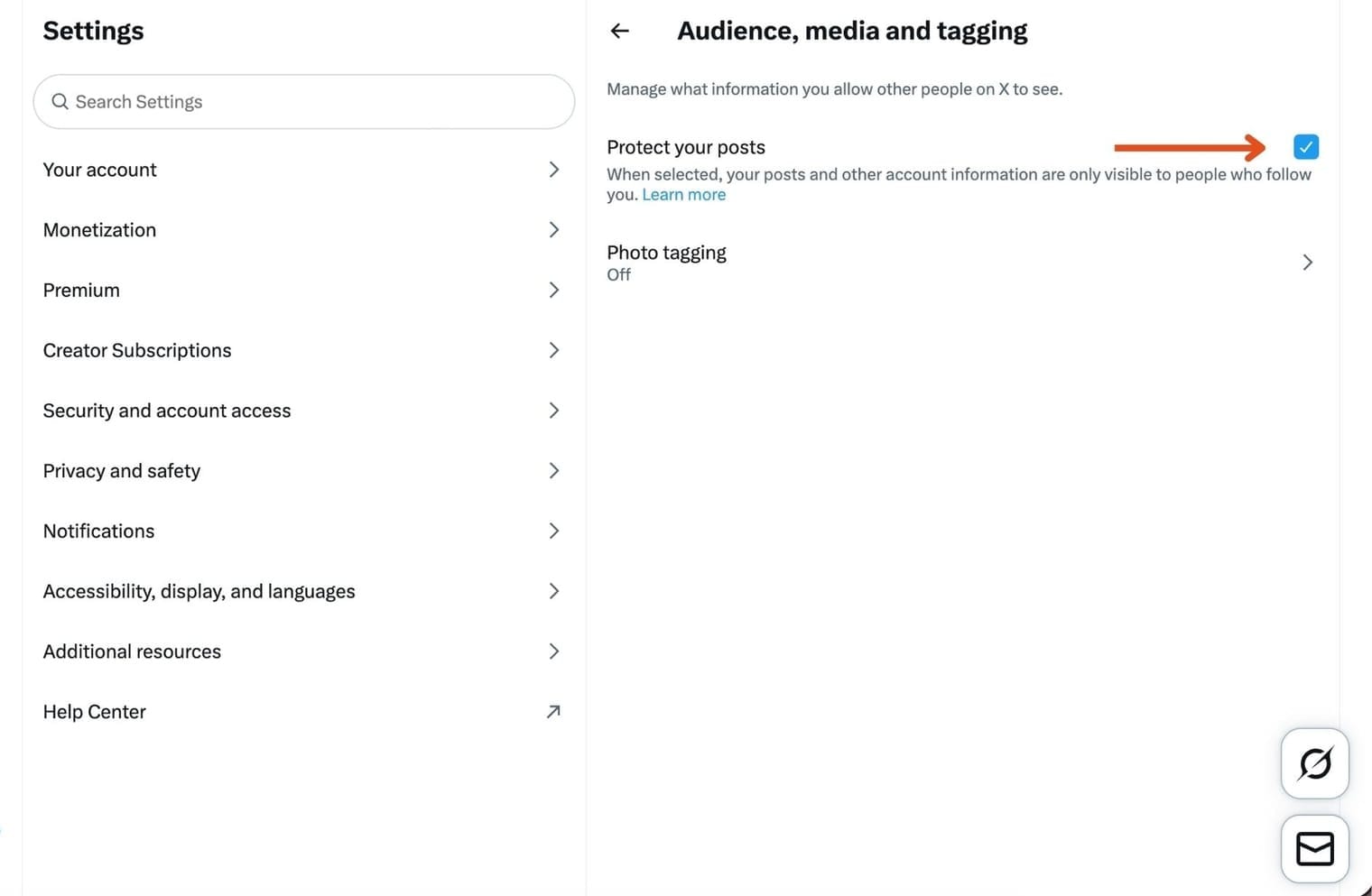
After enabling this:
- New followers must request approval
- Your posts stop appearing publicly
- Existing followers can still see your activity
What Happens When You Make Your Twitter Account Private
When your account is private:
- Only approved followers can see your tweets
- Non-followers cannot view your posts or media
- Your profile basics (name, bio, photo) remain visible
Important limitation:
Your followers can still see who you follow. A private account does not fully hide your following list.
 Arif Akdogan
How to Control Who Can Reply to Your Tweets
Reply controls allow you to limit conversations without hiding your tweets entirely.
Instead of making your account private, you can restrict replies on individual tweets. This is especially useful when posting announcements, informational threads, or content that tends to attract spam or low-quality responses.
Reply controls don’t affect who sees the tweet. They only affect who can respond, which makes them ideal for keeping discussions focused while staying public.
How to change reply settings
- Start writing a tweet
- Tap the reply control (for example: “Everyone can reply”)
- Choose:
- Everyone
- Accounts you follow
- Only accounts you mention
- Publish the tweet
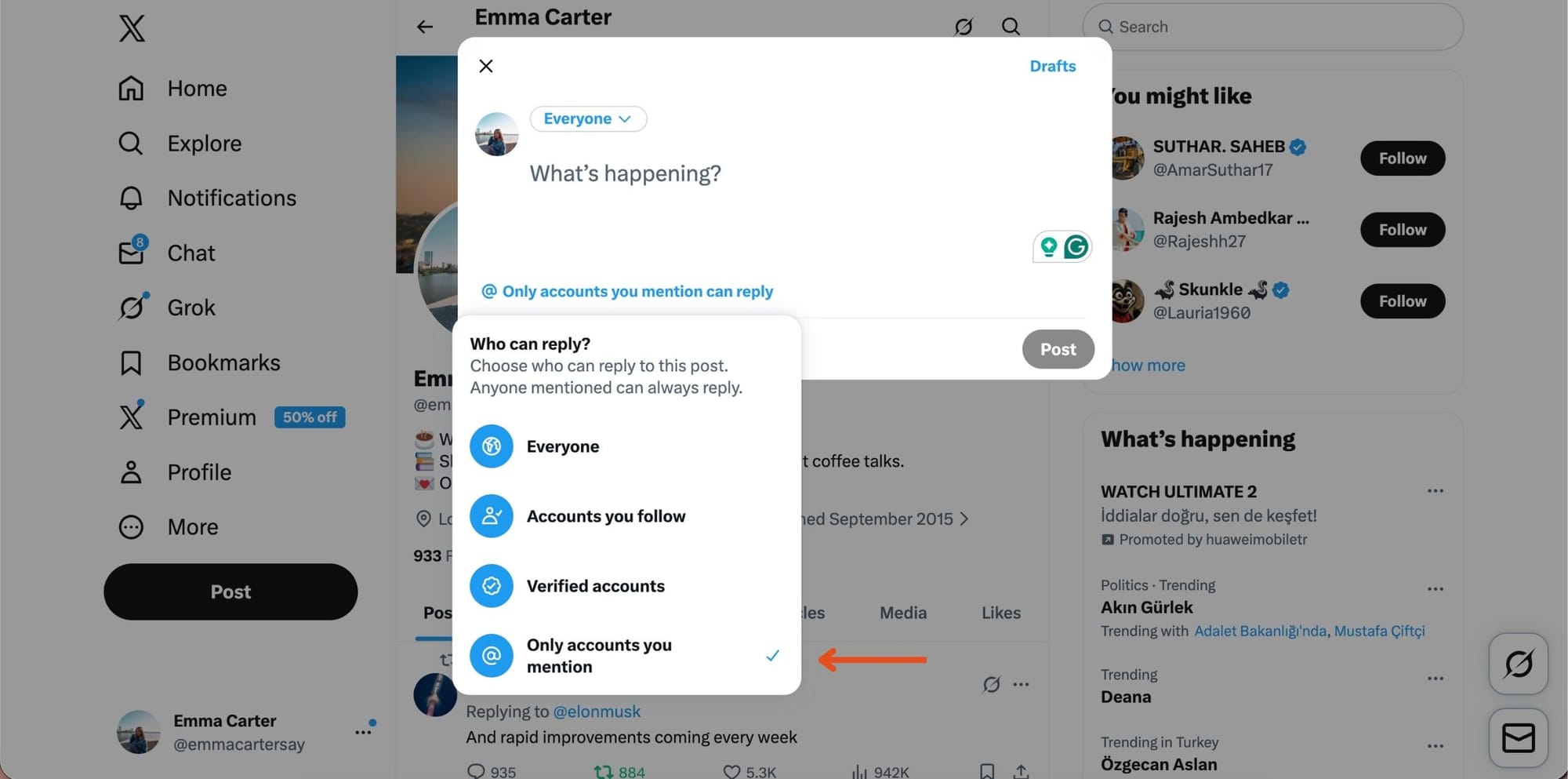
This helps reduce spam and low-quality replies without making your account private.
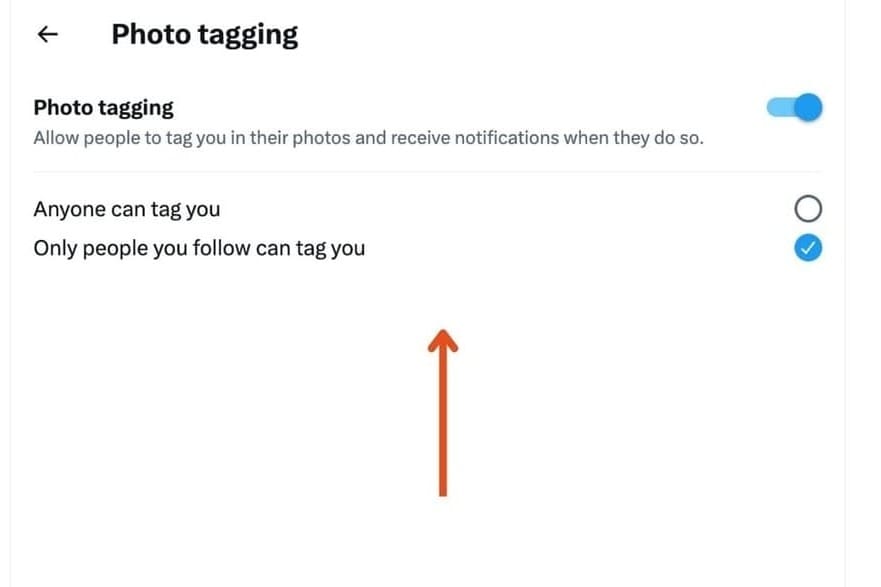
How to Control Photo Tagging on Twitter
Photo tagging is often overlooked, but it can expose your account to unwanted visibility.
 Arif Akdogan
When photo tagging is enabled for everyone, other users can tag your username in images you have no control over. Limiting photo tagging to people you follow, or disabling it entirely, helps prevent misuse while still allowing tagging from trusted accounts.
This setting is especially important if you value profile cleanliness and privacy.
How to change photo tagging settings
- Go to Settings and privacy
- Open Privacy and safety
- Tap Audience and tagging
- Open Photo tagging
- Choose who can tag you or disable tagging completely
How to Control Direct Messages and Message Requests on Twitter
Direct messages are a common entry point for spam, scams, and unwanted promotions.
 Arif Akdogan
Twitter allows you to control who can message you, whether message requests are allowed, and whether low-quality messages are filtered automatically. Restricting DMs to followers only significantly reduces noise while keeping communication open with people you already trust.
For many users, adjusting DM settings is the fastest way to improve their experience on the platform.
How to change DM privacy settings
- Go to Settings and privacy
- Open Privacy and safety
- Tap Chat
- Adjust:
- Message requests
- Message filtering
- Read receipts
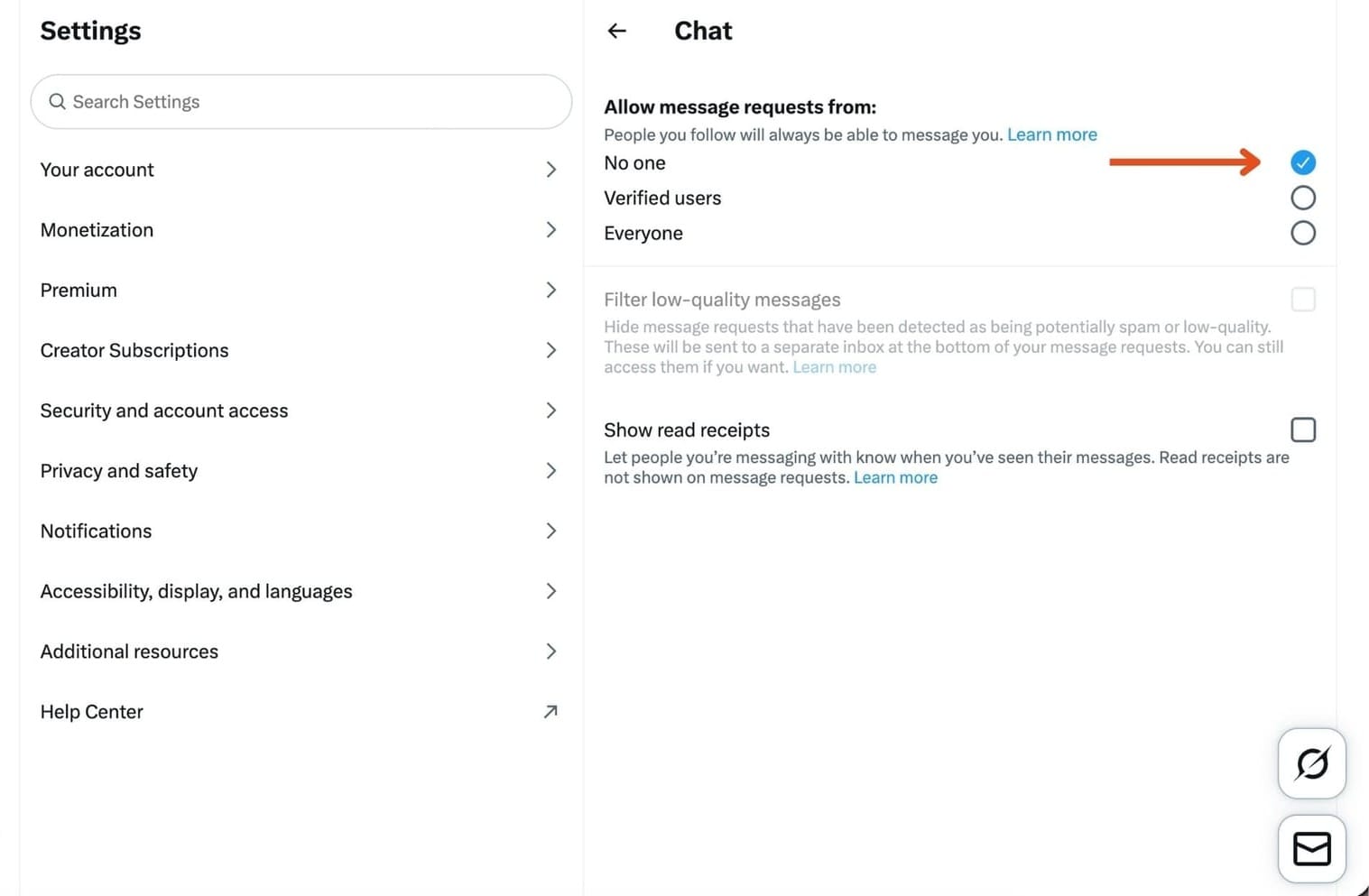
Restricting message requests is often enough to reduce spam significantly.
How to Stop People from Finding You by Email or Phone Number
Discoverability settings affect how easily people can find your account using contact information.
If email or phone discoverability is enabled, Twitter may recommend your account to people who have your contact details saved. Disabling these options reduces unintended exposure and is especially useful for users who want to separate their social presence from personal contact information.
Turning off both options is a strong step toward increased privacy.
How to disable email and phone number discoverability
- Go to Settings and privacy
- Open Privacy and safety
- Tap Discoverability and contacts
- Turn off Let people who have your email address find you
- Turn off Let people who have your phone number find you
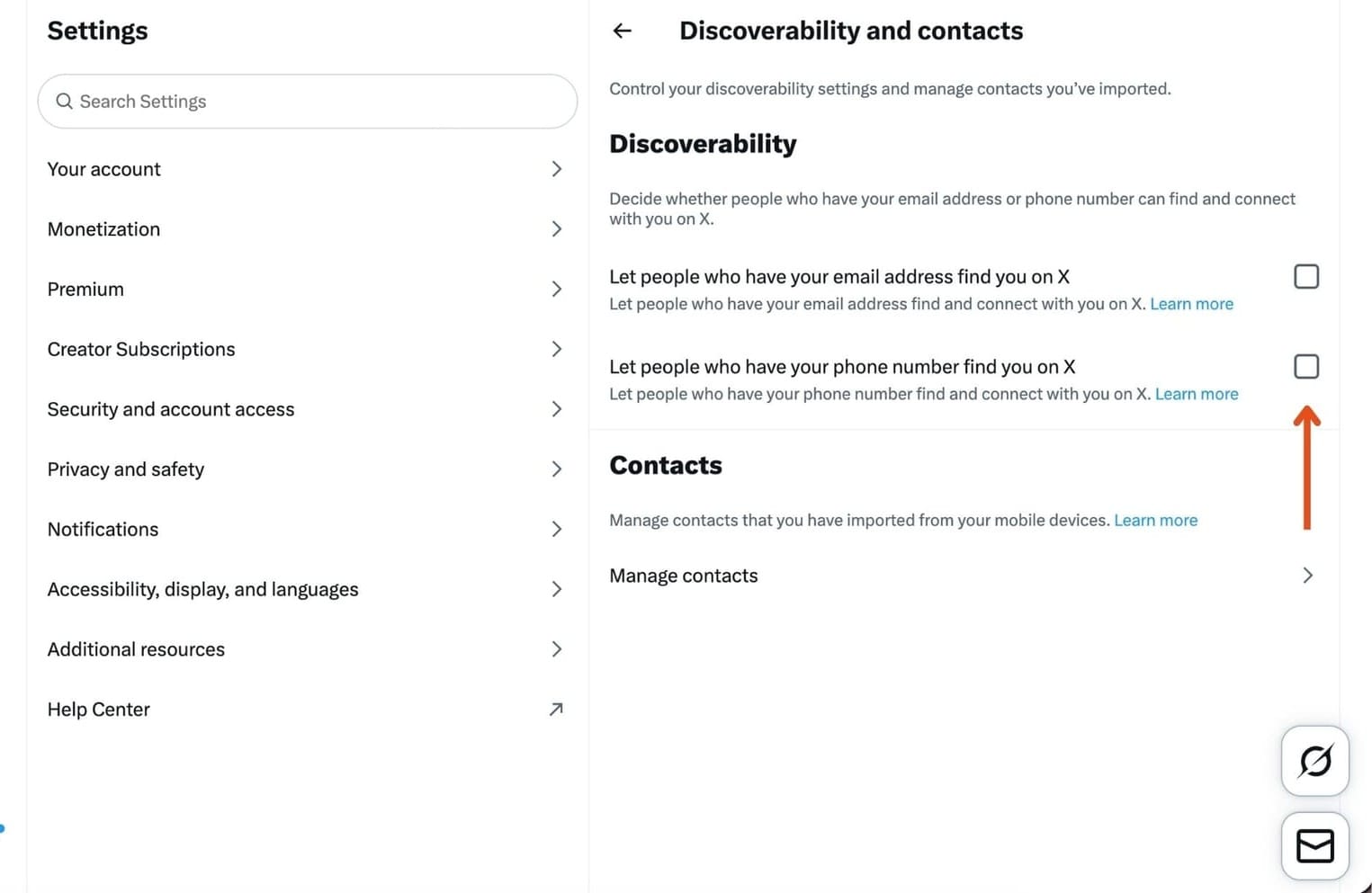
Disabling both increases account privacy.
How to Turn Off Location Sharing on Twitter
Location sharing adds geographic data to your tweets, which many users do not need.
 Altug Altug
Even if you rarely use it, disabling location sharing ensures that no future tweets include location metadata. This is a simple but important step for protecting personal privacy, especially for users who post regularly.
How to disable location information
- Go to Settings and privacy
- Open Privacy and safety
- Tap Location information
- Disable location sharing
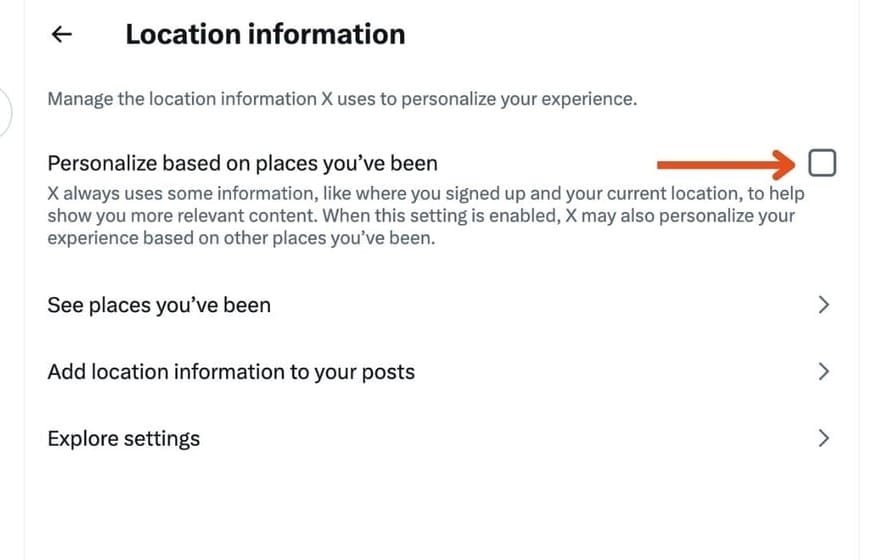
If available, also remove previously shared location data.
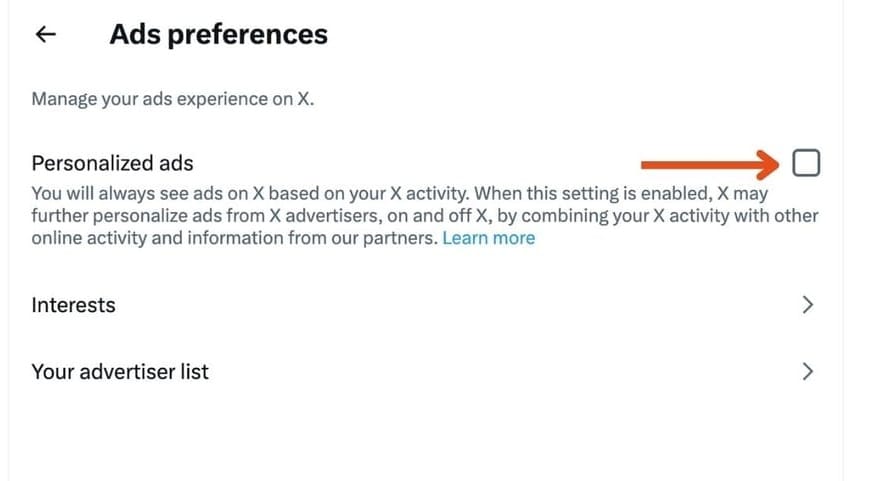
How to Control Ads and Content Personalization on Twitter
Twitter uses activity data to personalize ads, trends, and recommendations.
Ad personalization settings control whether your interests and behavior influence the ads you see. Content personalization settings affect trends, suggested accounts, and recommended posts.
Adjusting these options won’t remove ads entirely, but it does reduce how much personal data is used to tailor what you see.
How to change ads personalization
- Go to Settings and privacy
- Open Privacy and safety
- Go to Ads preferences
- Disable interest-based ad options as needed
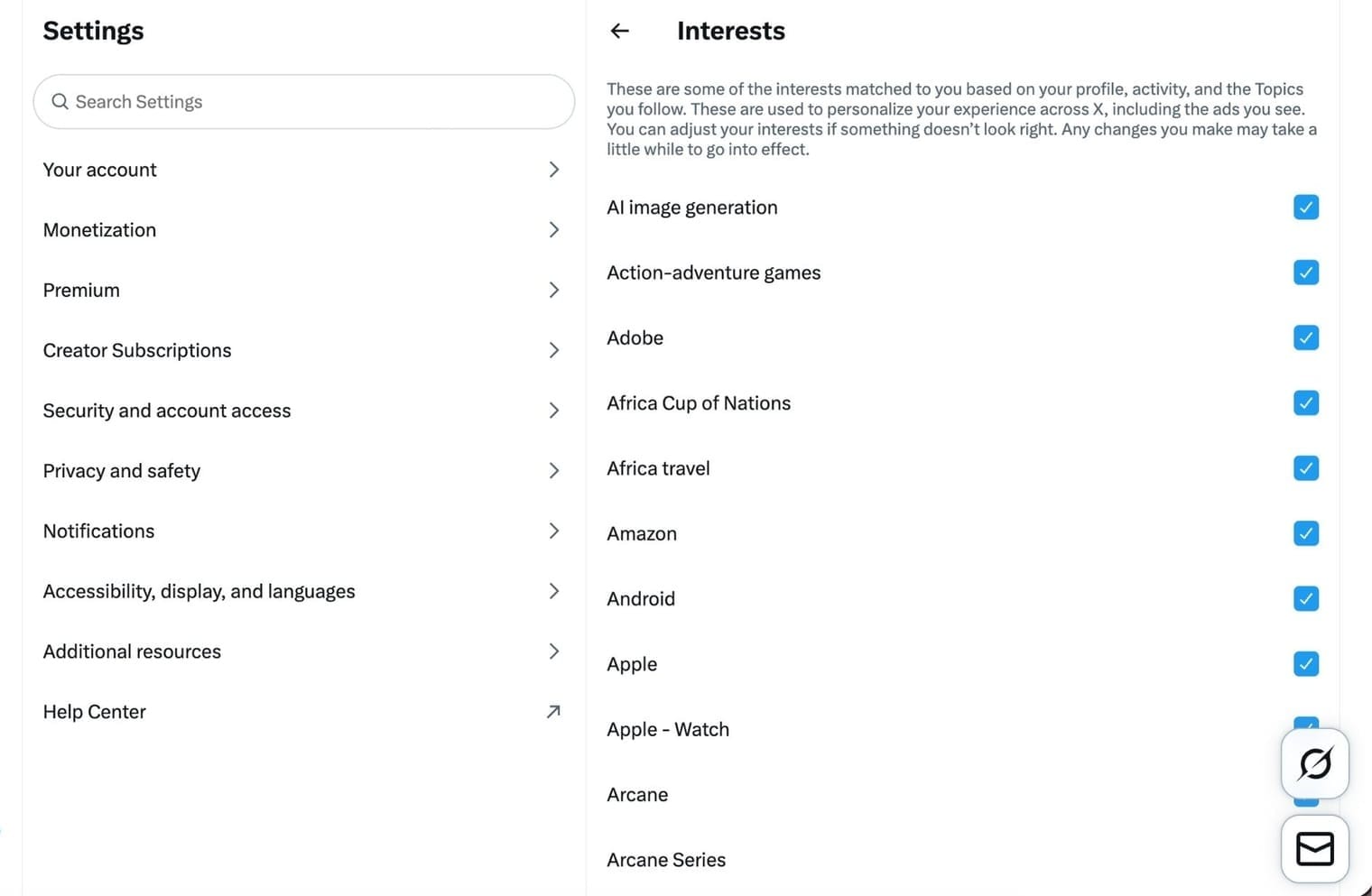
How to change content personalization
- Go to Settings and privacy
- Open Privacy and safety
- Tap Content you see or Personalization and data
- Disable personalized trends and recommendations if desired
How to Manage Muted Accounts on Twitter
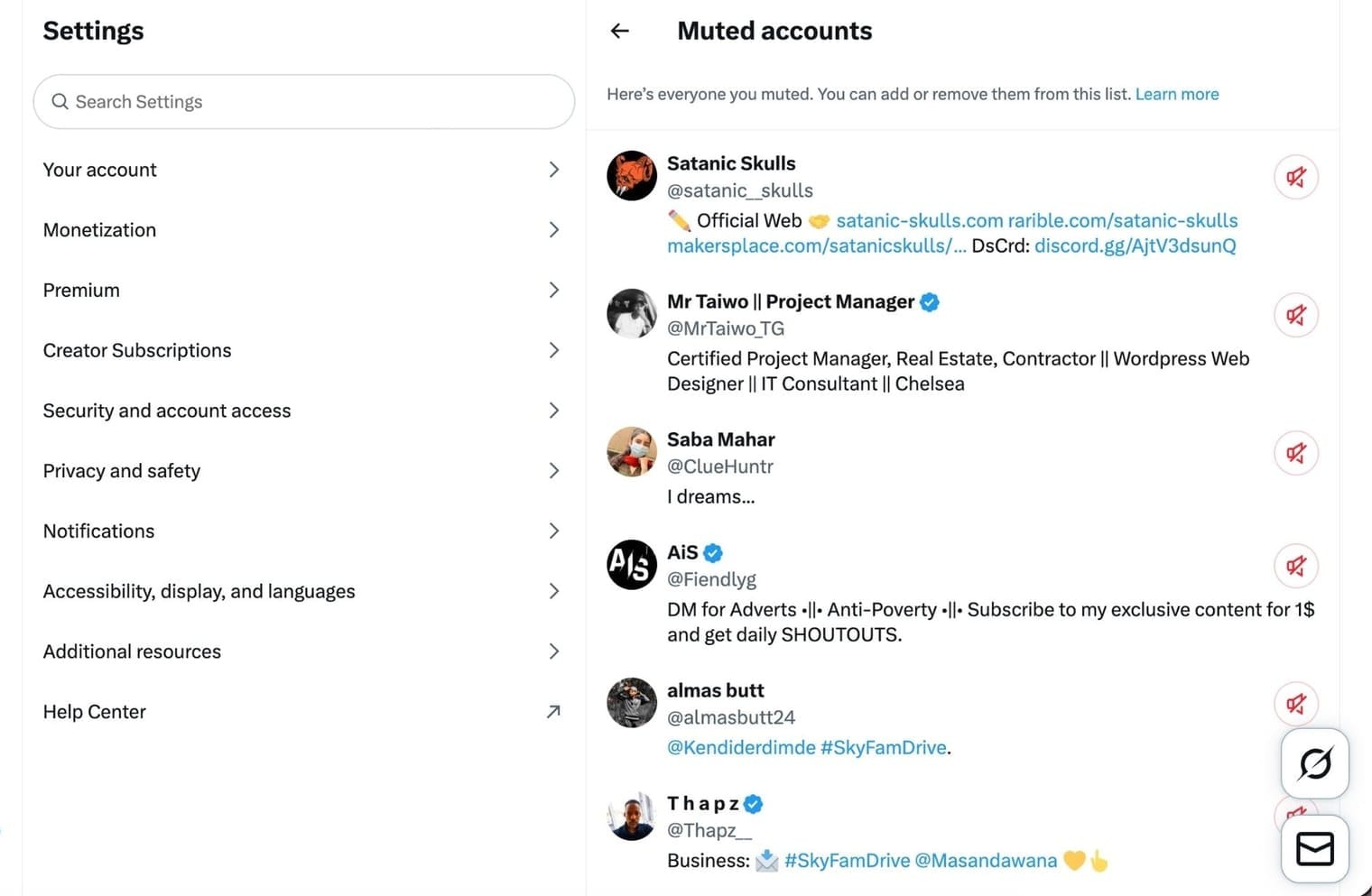
Muting allows you to remove noise without confrontation.
Muted accounts can still follow you and see your posts, but their tweets, replies, and notifications are hidden from your timeline. This is useful for managing content overload or avoiding unnecessary interactions without blocking someone.
Muted accounts can be reviewed and adjusted at any time.
How to manage muted accounts
- Go to Settings and privacy
- Open Privacy and safety
- Tap Muted and blocked accounts
- Open Muted accounts
How to Manage Blocked Accounts on Twitter
Blocking is the strongest interaction control on Twitter.
 Arif Akdogan
When you block someone, they cannot follow you, message you, or interact with your tweets in normal ways. Blocking is best used for harassment, repeated spam, or accounts that consistently disrupt your experience.
Blocked accounts are fully isolated from your activity.
How to manage blocked accounts
- Go to Settings and privacy
- Open Privacy and safety
- Tap Muted and blocked accounts
- Open Blocked accounts
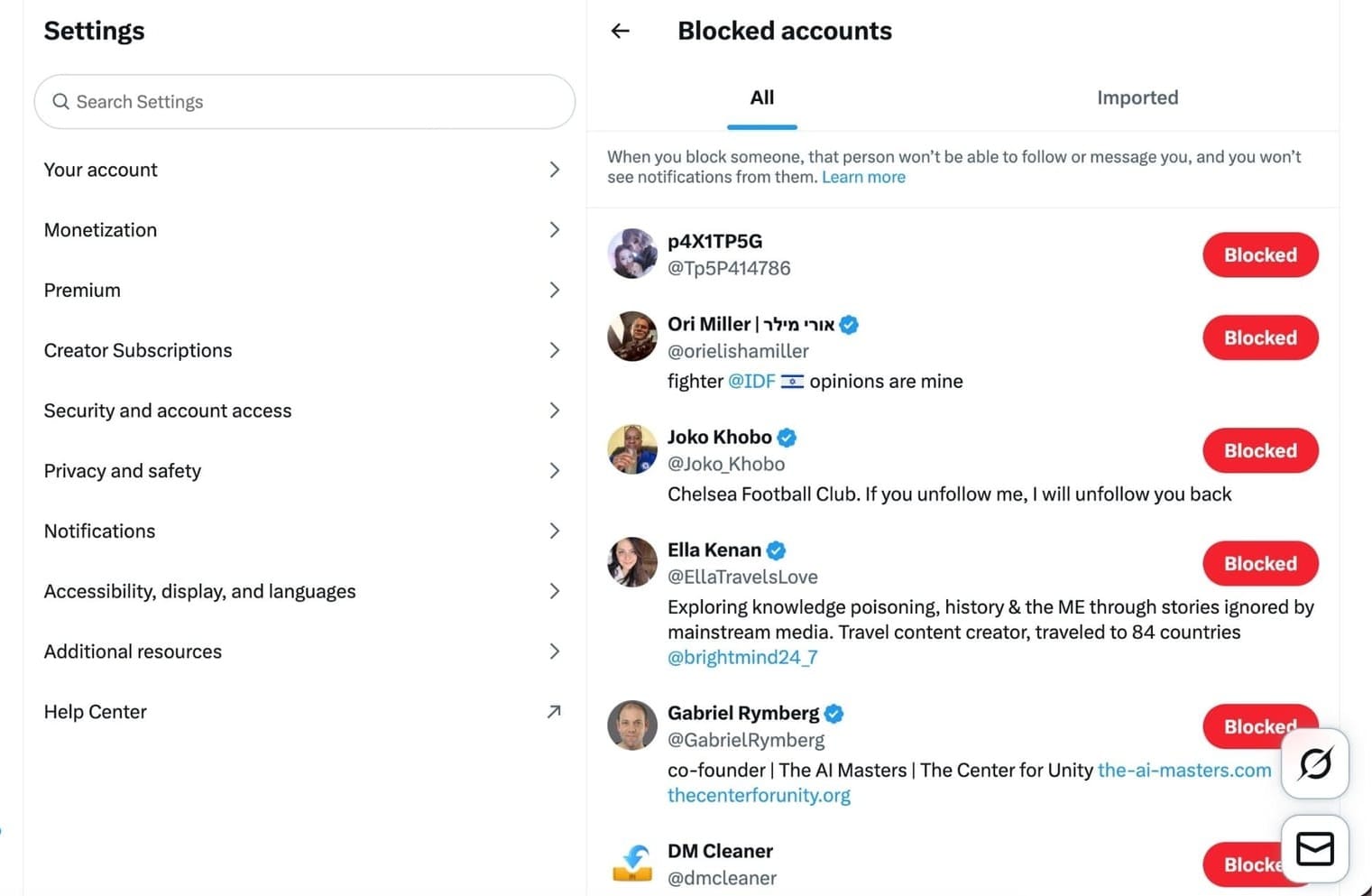
Blocked users cannot follow, message, or interact normally with your account.
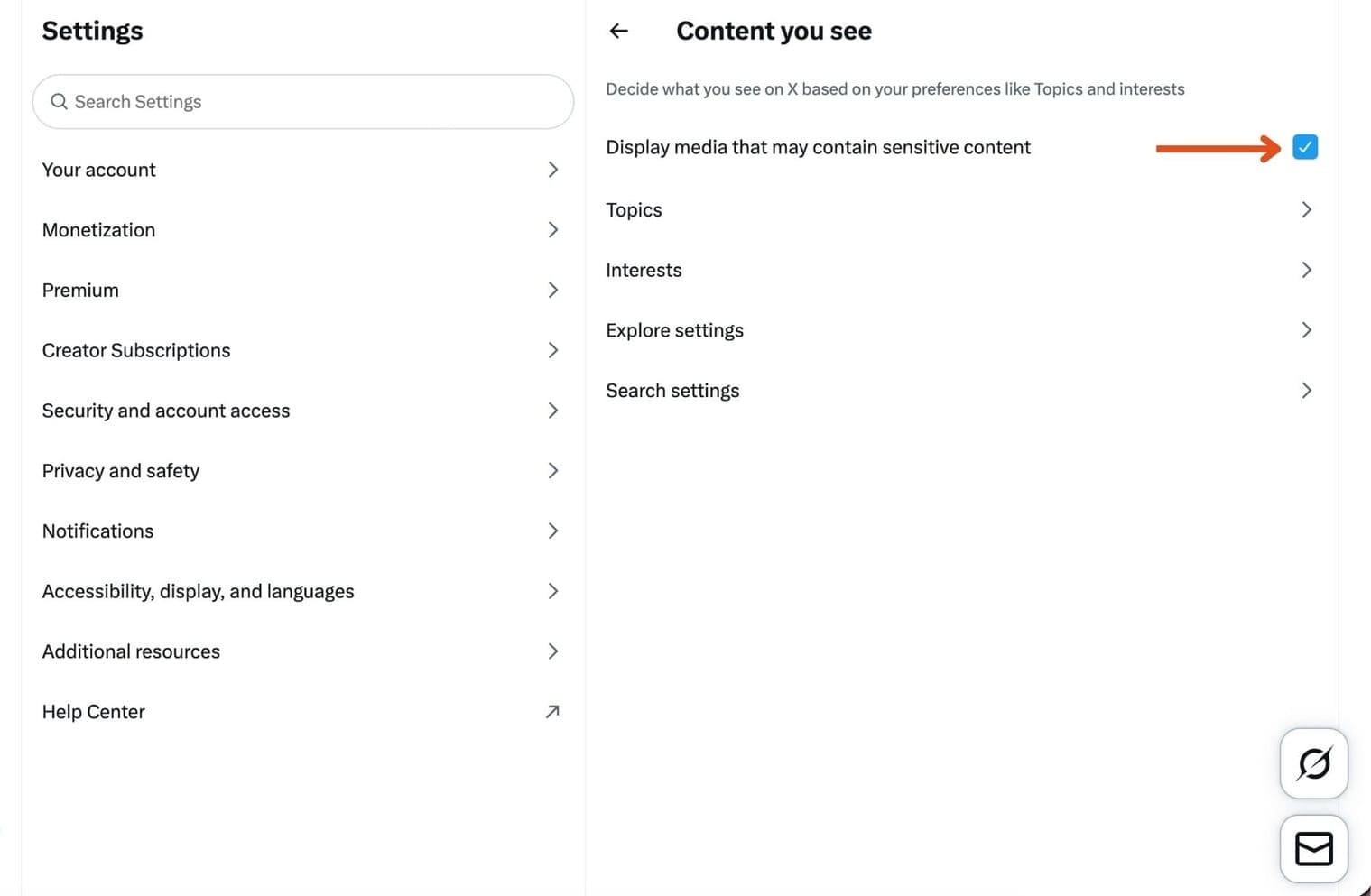
How to Control Sensitive Content on Twitter
Sensitive content settings determine how Twitter displays media that may include graphic or NSFW adult material.
You can choose whether to display sensitive media in your timeline and whether such content appears in search results. These settings only affect what you see, not what others see from your account.
They are especially useful for keeping your timeline aligned with your preferences.
How to change sensitive content settings
- Go to Settings and privacy
- Open Privacy and safety
- Tap Content you see
- Adjust:
- Display sensitive media
- Hide sensitive content in search
What Twitter Privacy Settings Cannot Hide
Even with all privacy options enabled, some things remain visible or possible.
Approved followers can still see your activity, screenshots can still be taken, and profile-level information remains public.
Privacy settings control visibility within Twitter’s system, but they cannot fully prevent content from being shared externally.
Understanding these limits helps set realistic expectations.
How to Choose the Right Twitter Privacy Setup
For maximum privacy:
- Protect your posts
- Disable email and phone discoverability
- Restrict mentions
- Limit DMs
- Disable location sharing
For public creators:
- Keep account public
- Restrict mentions
- Filter message requests
- Adjust discoverability carefully
Final Thoughts
Twitter privacy works best when you understand each setting and apply it intentionally.
Rather than locking everything down by default, adjusting specific controls gives you protection without sacrificing reach or usability. Revisiting these settings occasionally is important, as Twitter updates features and defaults over time.
A well-configured privacy setup makes Twitter feel less chaotic and far more manageable.
%3A%20A%20Complete%20Step-by-Step%20Guide)
