How do you promote a webinar on Twitter when your announcement drops out of the feed a few hours after you post it? You build a small post calendar around the webinar date, write each reminder fresh, and let the main announcement come back on a timer for followers who were offline. The rest is timing, and knowing when to stop.
Your webinar promotion plan, in three parts.
• A post calendar that ties the announcement, reminders, day-of post and replay post to the webinar date.
• An Auto Retweet setup that brings the announcement back for followers in other time zones and removes it before the event.
• A way to bring in partners and guests who share the registration link with their own audience.
Circleboom schedules your webinar posts on X and retweets the announcement on a timer through X's Enterprise API. Promote a webinar on Twitter with scheduled retweets.
Why one webinar tweet on X reaches only part of your audience
A single webinar announcement on X reaches the followers who happen to be online in its first hours, and very few after that. The engagement window of a tweet on the timeline is short. Once newer posts push it down, the people who were asleep, in meetings or in another time zone never see it.
Webinars make this worse because registration is a two-step decision. Someone sees the post, thinks "maybe," and moves on. They need to see it again closer to the date, ideally with a reason to act now.
So most hosts start posting the same tweet every day.
That feels like promotion, but it creates a different problem, covered below: X does not want the same post repeated from one account.
The goal is more chances to be seen, not more copies of the same tweet.
That is why the setup in this guide has two layers.
One original announcement sits at the center of the plan and returns on a timer. Around it sit a handful of reminders, each written for its own moment.
If you want to see what the timer looks like before reading further, you can promote a webinar on Twitter with automatic retweets of your own announcement. The plan itself lives in a tweet planner where every post gets a date before the first one goes live.
The webinar promotion calendar for X
To promote a webinar on Twitter well, give every post one job and one date relative to the event. The calendar below is the version I build for most webinars that run with about two weeks of lead time:
| When | Post | Its job | Auto Retweet |
|---|---|---|---|
| About 14 days before | Main announcement | Earn the first sign-ups | Yes, a few cycles |
| About 7 days before | Agenda thread | Show what attendees learn | Optional, one cycle |
| 3 to 5 days before | Speaker or partner post | Borrow a second audience | No |
| 1 day before | Reminder with one takeaway | Catch the "maybe" group | No |
| 1 hour before | Last call | Move people to the room | No |
| After the session | Replay post | Reach the people who missed it | One cycle while current |
Two rows carry Auto Retweet and four do not. The announcement and the agenda are evergreen until the event, so bringing them back adds reach.
The last-call post is useless the moment the session starts, so a repost after that point would only advertise something that is already over.
The agenda row works best as a thread. In X Post Planner, Add another post turns one tweet into a thread of up to 25 posts, and each speaker or segment can get its own line.
Why each webinar reminder needs its own wording
X's automation rules list "duplicative or substantially similar posts on one account" as spam behavior to avoid. That rule is the reason the calendar above has different posts, not the same post six times.
A reminder that only changes "in 7 days" to "tomorrow" is still the same post.
Give each one a new angle instead:
- A question the webinar answers.
- A short quote from the speaker.
- One number or finding the session covers.
- A "seats are filling" note, only if it is true.
The announcement is the exception, because Auto Retweet reposts the original tweet itself rather than publishing a new copy. More on why that matters below.
When should you schedule webinar posts on X?
Schedule webinar posts for the hours your own followers are online, then use Auto Retweet to cover the hours when a second group is active. Generic "best times" ignore that your audience may sit in two or three regions.
Inside the Schedule window of X Post Planner, the Find your best posting time button suggests six time slots based on your audience activity. Pick one and the time field fills in.
The best time to post on Twitter view shows the follower activity behind those suggestions if you want to inspect the pattern.
For reminders you add with Queue Up Next, the timing comes from your queue. Circleboom's help page on how to set your posting queue times covers the Time and Queue Settings tab, including Add Best Times to Post.
Check the time zone setting there before you schedule anything, because all queue times and scheduled posts use it.
An announcement published at 09:00 in New York with RePost after set to 12 hours returns at 21:00 New York time, which is around 09:00 in Singapore. Both groups see the webinar in their morning.
One hard rule applies: a scheduled post must be set at least 15 minutes in the future. Write the one-hour last call well before that hour, not in the final minutes.
What Circleboom adds to webinar promotion on Twitter
Circleboom gives you one place to write, schedule and resurface every webinar post on X, so the calendar runs on its own once it is set.
Circleboom is an approved X Enterprise API partner, which means your account connects through access X granted, not through a shared password or a scraper.
The piece that changes webinar promotion is Auto Retweet. It sits inside the X Post Planner editor as the cycle icon and opens the Auto Repost / Un-RePost panel, with three settings:
- RePost after: how long after publishing the tweet is retweeted.
- Un-RePost after: how long the retweet stays before it is removed.
- Repeat this cycle: how many times the repost and removal run.
Un-RePost is the setting people skip, and it matters for an event. It removes each repost from your profile after the time you set, so a visitor scrolling your timeline sees the announcement once instead of three times in a row.
It does not delete the original tweet or the likes and replies it collected.
Unlike retweeting by hand, you set the timing once.
With a three-cycle setup, one announcement gets four visibility windows: the original plus three reposts. That is a simple way to run scheduled retweets for your webinar announcement without a second copy of the post.
Three-tool tour: smart scheduling, bulk scheduling and Auto Retweet working inside one X Post Planner session.
How to promote a webinar on Twitter with X Post Planner and Auto Retweet
The setup runs in three phases: write the core posts, schedule them with the retweet timer, then check results and adjust before the event.
Write the announcement and the agenda in X Post Planner
- Log in to Circleboom Twitter with the X account that will host the webinar promotion.
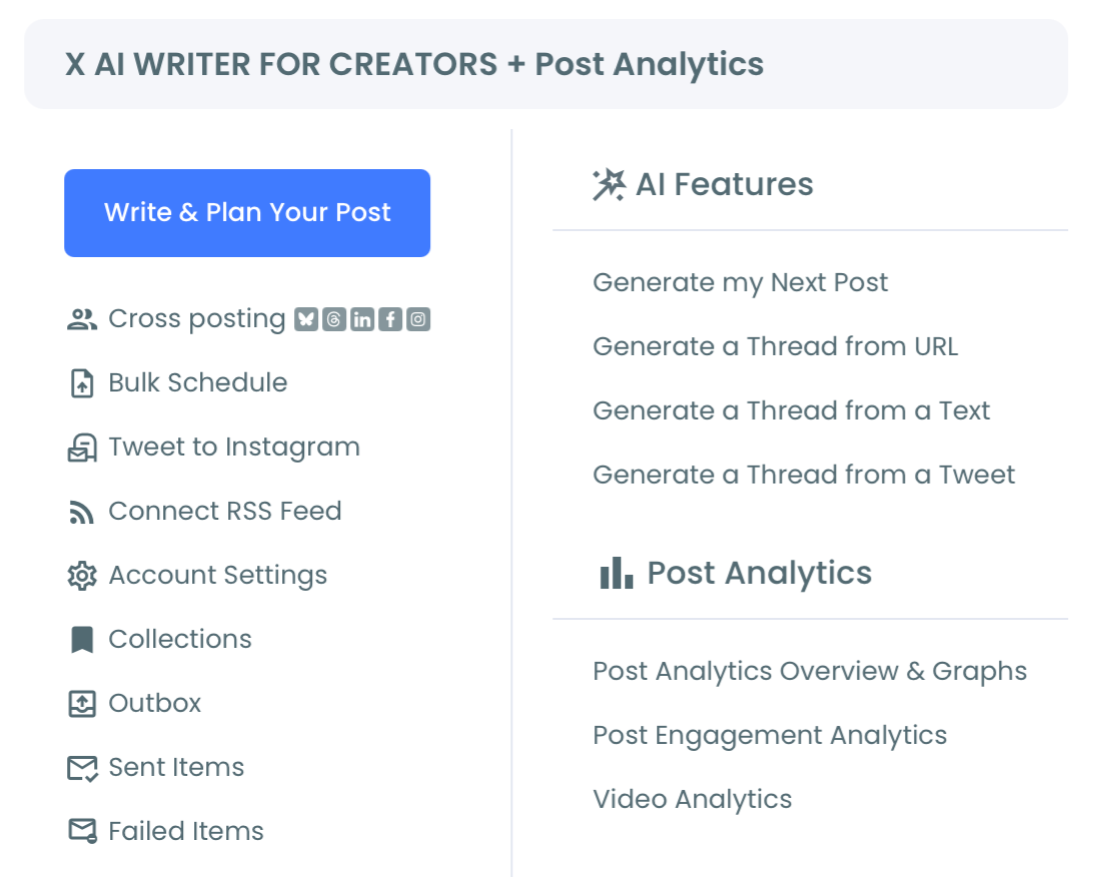
- Go to the X Post Planner menu and click Write & Plan Your Post.
- Write the main announcement with the date, the time with its time zone, one clear benefit and the registration link. Add an image through the image icon if you have a speaker card.
- Build the agenda as a thread by clicking Add another post for each segment. Drag the reorder handle to change the order before you schedule it.
Schedule the posts and set the retweet timer
- Open the cycle icon in the editor toolbar and set RePost after, Un-RePost after and Repeat this cycle on the announcement. For a two-week lead time, a 12-hour RePost after, a 2-hour Un-RePost after and three cycles is a reasonable start.
- Click Schedule on the announcement, set the date and time or use Find your best posting time, and confirm it.
- Schedule each reminder as its own post with its own wording, using the calendar dates above. Leave Auto Retweet off on the day-before and last-call posts.
Check results and adjust before the webinar
- Open X Post Analytics a day or two after the announcement and see which promo post earned the most engagement. The per-post buttons include Reschedule, Queue up next, Rewrite with AI and Set Auto-Retweet.
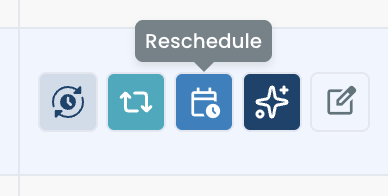
- Use Rewrite with AI on your strongest post to draft a fresh version for the final reminder, then edit it in your own voice before you schedule it.
This order keeps the plan honest. The announcement gets its timer before it goes live, the reminders stay distinct so nothing reads as a repeat, and the analytics check lets real engagement decide which message carries the last push.
Is it spammy to retweet your own webinar announcement?
Retweeting your own webinar announcement a few times, spaced out, is normal use; dozens of quick reposts are not.
X's automation rules allow automated reposts for informational purposes, as long as everything else complies, and they call bulk, aggressive or spammy reposting a violation of the X Rules.
Circleboom's own documentation for Auto Retweet adds two practical warnings. Excessive automated reposting of the same tweet may be flagged as spam-like behavior, and cycles set too close together show the same tweet to the same followers, which lowers engagement per view.
A safe webinar pattern looks like this:
- Three cycles spread across a day or more, not six in three hours.
- Un-RePost turned on, so reposts never stack on your profile.
- Auto Retweet on the announcement and agenda only, not on every reminder.
The question of retweeting the same post repeatedly comes up often enough that Circleboom answered it separately in can I retweet my tweet more than once.
When you promote a webinar on Twitter, the short version is to space the cycles and stop them on time.
Stop the webinar reposts when the session starts
Every Auto Retweet cycle on a webinar post should end before the webinar begins. A repost of "register now" that lands during or after the session sends people to a closed door.
How you stop a cycle depends on where the post is. Circleboom's guide on how to stop an Auto Retweet cycle lays out both paths:
- Still scheduled: open Outbox, click Edit on the post, open the cycle icon and turn off RePost after, then save.
- Already published: open Sent Items, find the post whose Auto Retweet icon shows a red dot, click it and choose Cancel Auto-RT. The cycle stops right away.
The panel in Sent Items also shows when the active cycle will complete.
Check that end time against your webinar start time the day the announcement goes live.
If the last repost would land after the session starts, cancel it or shorten the cycle count.
The same applies when the webinar date moves. Auto Retweet does not know your event changed, so a postponed webinar needs a manual review of every scheduled post and every active cycle.
Bring partners into your webinar promotion on X
Your own followers are only one audience. A co-host, a guest speaker or a partner brand who shares the registration link puts your webinar in front of people who have never seen your account.
Circleboom's Find Twitter Influencers search takes a topic keyword and lists accounts with reach and engagement in that niche. That gives you a shortlist of possible guests before you pitch anyone.
Check their recent posts before you reach out; a large follower count is not proof of fit.
After the announcement has run for a day, look at who retweeted it. Those accounts already care about the topic, and a quick thank-you or a mention in the agenda thread brings them back. The walkthrough of the Twitter retweet list extractor covers how to extract that list.
Pick your webinar promotion setup by how much time is left
The right plan depends on how far away the webinar is today:
- Two weeks or more: build the full calendar, put three Auto Retweet cycles on the announcement and one on the agenda thread.
- About one week: skip the speaker post, schedule the announcement and agenda together, and keep one cycle on each.
- Two days or less: post the announcement now, set one repost about 12 hours later for your second region, and schedule the last call.
- The webinar is today: post key points while the session runs, so late readers can still join or ask for the replay. Circleboom's notes on how to live-tweet during major live events carry over well.
- The webinar is over: cancel any active cycles in Sent Items, then post the replay link with one cycle while the replay stays available.
Whichever row you are in, the logic to promote a webinar on Twitter stays the same: one strong announcement that returns on a timer, a few fresh reminders, and nothing left running after the event.
→ Schedule retweets that keep your webinar in front of every time zone
Webinar promotion on X: three questions after the plan is set
Should I pay to promote my webinar tweet instead?
Paid promotion and scheduled organic posts solve different problems: ads reach people outside your followers, while the calendar above reaches your own audience several times. If you have a budget, the guide on how to promote a tweet explains the paid route, and the organic calendar still runs alongside it.
Can I post the same webinar announcement on LinkedIn at the same time?
Yes. The Schedule window in X Post Planner has cross-post toggles for LinkedIn, Threads, Bluesky, Facebook and Instagram, and each platform gets its own text field. LinkedIn allows 3,000 characters, so you can add more detail there; Circleboom's cross-post page shows the setup.
How do I promote the webinar replay after it ends?
Write a new post that says the replay is available and what viewers will learn, then link it. Do not reuse wording like "starting soon" or "live now," which stops being true the moment the session ends, and keep any repost cycle within the period the replay stays online.