Two hours before kickoff is the worst time to write a tweet. The kegs need changing, the screens need testing, and the fans who would book a table are deciding right now where to watch the match.
A bar that posts its match day thread live posts it late, or not at all. The fix is to schedule an X thread with video the day before, with every post and the clip built in one quiet sitting.
To schedule an X thread with video, build every post of the thread in one composer, attach the clip to the first post, and pick the date and time once so the whole thread publishes in order. Circleboom Publish builds and schedules X threads with video from one dashboard, so the post lands while your followers are still choosing a venue.
→ Schedule an X thread with video for every match day
Below: what the clip has to meet, the exact steps, and the repost that catches late fans.
Why a match day thread on X has to be scheduled, not typed live
Match day is the one day a sports bar's X account matters most, and it is the one day nobody behind the bar has time to tweet. That gap is the whole problem.
A tweet stays visible in a follower's timeline for roughly 12 minutes before newer posts bury it. If the thread goes out at the wrong moment, or while you are pouring the first round, those 12 minutes pass with your regulars looking at something else.
The stakes are concrete. A fan picks a venue once per match. Miss that decision window and the table goes to the bar down the street, along with the evening's food and drink spend for the whole group.
Writing live also produces a weaker thread. You skip the clip because uploading it takes too long, you forget the booking link, and the specials end up in a single cramped tweet.
A better plan is to schedule X thread with video the evening before, when the bar is quiet and you can check every post.
The thread you plan the night before is the thread that actually fills tables.
What X's own tools leave out on match day
X does offer scheduling for single posts on the web. Plenty of bar owners find it missing from the phone app. That gap is covered in why the tweet scheduling feature is not showing up on your Twitter app.
Even where it works, a native scheduler only picks a time for one post on one account.
A match day thread needs more than that:
- Several linked posts that publish together and in order.
- A video clip on the post that has to earn the click.
- A time chosen from when your own followers are online.
- A second appearance for fans who missed the first one.
Circleboom Publish covers all four inside one X composer, so you can build and schedule an X thread with a video clip in a single sitting. The rest of this guide works from that composer.
What the clip must meet before it goes into a scheduled thread
Before you schedule an X thread with video, check the clip file itself, because a clip that fails X's limits fails at publish time, when nobody is watching the dashboard.
Circleboom Publish follows X's media rules for every X post:
- One video per post, between 0.5 and 140 seconds long.
- MP4 or MOV format.
- Up to 512 MB per video.
- Up to 4 images per post when you use photos instead of a clip.
The 140-second ceiling is X's own limit for accounts without a paid plan. X's help page on sharing and watching videos on X explains that longer uploads need a Premium subscription.
For a bar, 20 to 40 seconds of last week's full room, the screens and the cheer at a goal is plenty.
A second rule matters more for threads: the clip belongs on the first post. X shows the first post of a thread in the timeline and hides the rest behind a click, so the video is what stops a scroll and earns that click.
For more on how media posts behave once they are scheduled, see how to schedule a tweet with photo, video or GIF.
How the rest of the thread should be shaped
A thread on X can hold up to 25 linked posts, each with the standard 280-character limit on accounts without X Premium. A match day thread rarely needs more than five:
- The hook and the clip: who is playing, kickoff time, and the room on a big night.
- The screens: how many, where the sound is on, and which areas are standing room.
- The food and drink specials for the match.
- Table booking: how to reserve and the cut-off time.
- A closing line with the address and a reason to arrive early.
Circleboom cites threads earning about 250% more engagement than single tweets, because the click to open them and the longer reading time both count as signals for X's ranking. A five-post thread gives the algorithm both, and it gives the reader everything they need to say yes in one place.
How to schedule an X thread with video
To schedule an X thread with video in Circleboom Publish, you work in three phases: open the X composer, build the thread with the clip, then set the time and the repost. It takes about ten minutes once the clip is ready.
Open the X composer and pick the bar's account
- Log in to Circleboom Publish and connect the bar's X account under Settings, then Manage Social Accounts, if it is not connected yet.
- Open the "X Specific or Thread" card on the dashboard, or choose "X Specific Post or Thread" from the Create New Post menu in the sidebar.
- Select the bar's X account in the account selector; the X composer posts to one X account per post.
Build the thread and attach the clip to the first post
- Write the hook in the first post box, then click the image icon (Add media) and upload the match clip to that same post.
- Click "Add another post" to append the next linked post, and repeat until the screens, specials, booking and address posts are in place.
- Check the stacked preview on the right side of the composer to confirm the order and that the clip sits on post one.
Pick the posting time and add a repost for late fans
- Turn on Auto Repost / Un-RePost in the composer toolbar before scheduling, and set RePost after, Un-RePost after and Repeat this cycle.
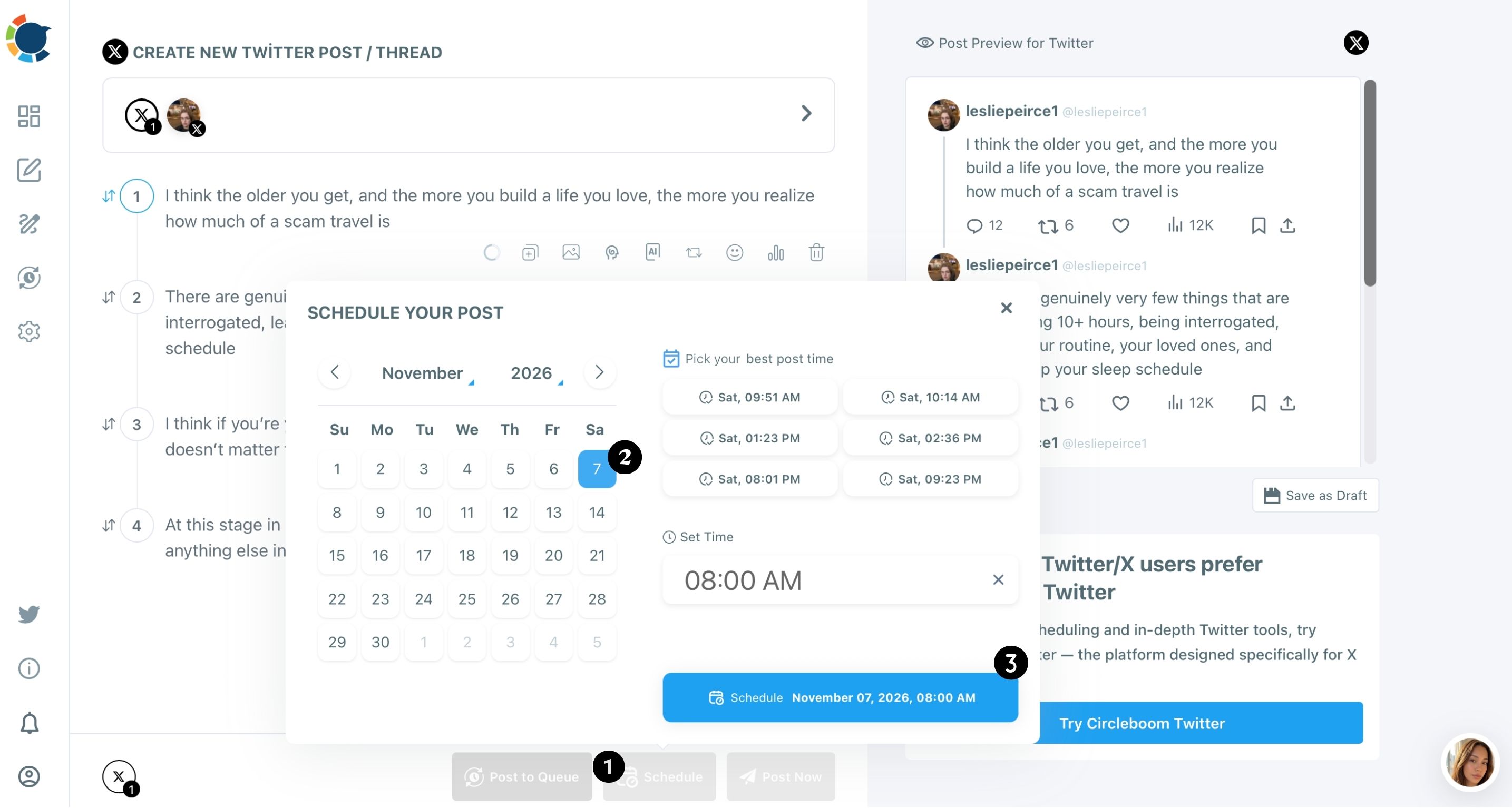
- Click Schedule, pick the match date on the calendar, and choose a slot from "Pick your best post time" or type your own in Set Time.
- Confirm with the Schedule button; the thread moves to the Outbox, where you can still edit or delete it before it goes live.
That order matters because the clip and the repost both live inside the composer, before the thread is sent. Auto Repost cannot be added to a thread that has already published, and a clip on post four is never seen by most of the timeline.
Under five minutes on screen: tweet after tweet woven into one X thread, then the schedule locked in before the fixture.
When should a sports bar's match day thread go out on X?
Post when your own followers are most active, not when a generic chart says X is busy. The "Pick your best post time" panel in the Schedule modal suggests slots computed from your account's follower activity, and two bars in the same town can get very different suggestions.
Treat kickoff as a deadline, not a target.
Fans who plan to watch at a bar decide hours earlier, so a thread that lands 30 minutes before kickoff arrives after most groups have booked elsewhere. A useful rule is to take the suggested slot that falls in the window between the morning of match day and roughly three hours before kickoff.
If you want the reasoning behind those suggestions, the best time to post on Twitter page shows how the timing analysis reads your followers.
A season of fixtures also rewards planning in batches. Sit down once a week with the fixture list and schedule an X thread with video for every match that week in one session. That is roughly the same ten minutes per thread, moved to the quietest hour of your week.
For recurring posts such as weekly quiz nights, the Queue's fixed slots fit better, as covered in can you queue tweets.
What Auto Repost does for a scheduled thread with video
Auto Repost gives a scheduled X thread with video more than one 12-minute window. In a thread, it applies to the first post only, which is the post carrying the clip and the hook, so every repost puts the video back in front of followers who missed it.
The three settings work as a loop. RePost after sets the delay before Circleboom reposts the first post, Un-RePost after sets when that repost is removed again, and Repeat this cycle sets how many times the pair runs.
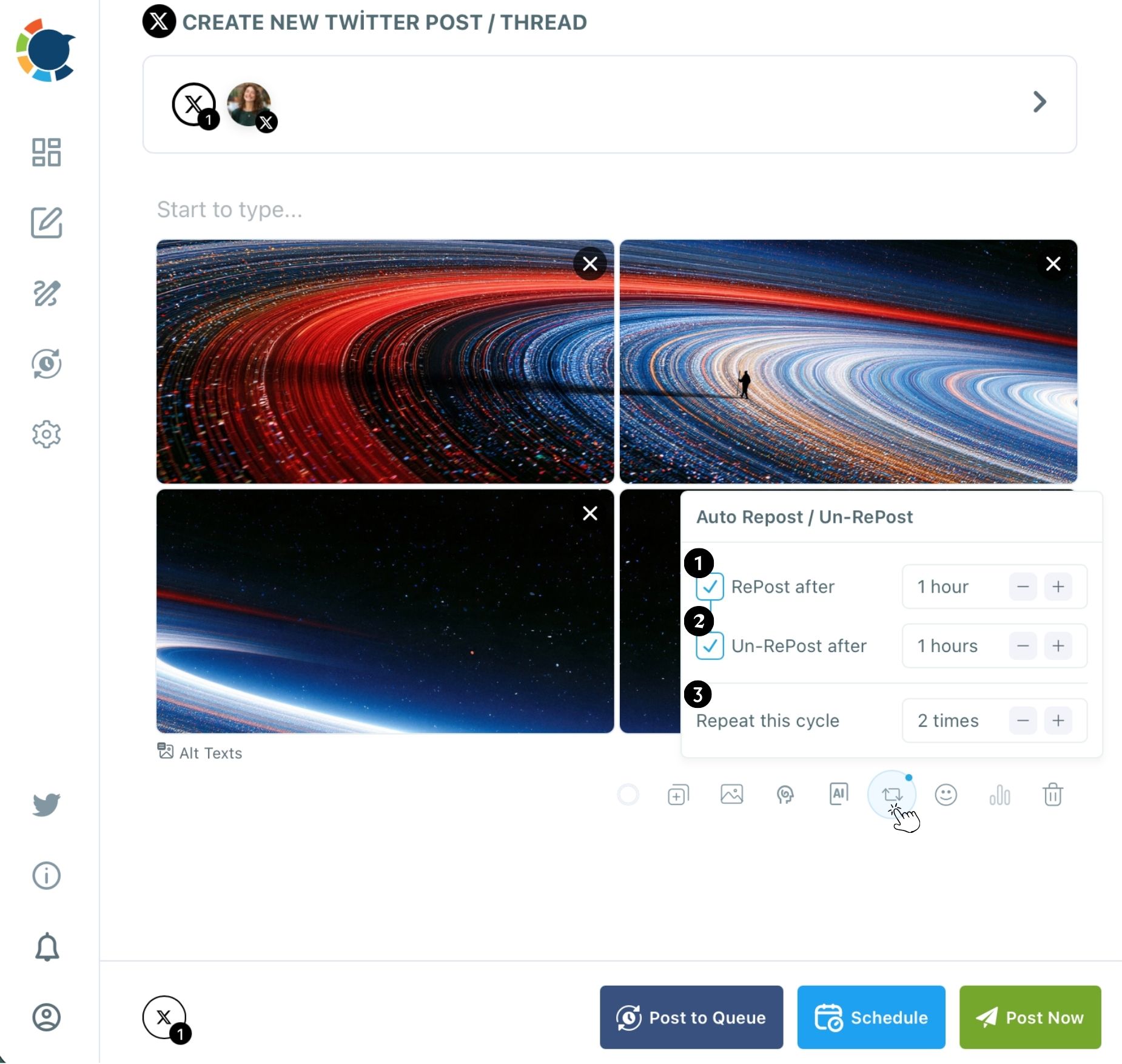
Here is a match day example built from those settings. The thread goes out at 2:00 PM for a 7:30 PM kickoff, with RePost after set to 1 hour, Un-RePost after set to 1 hour and Repeat this cycle set to 2.
- 2:00 PM: the thread publishes, clip first.
- 3:00 PM: the first post is reposted.
- 4:00 PM: that repost is removed.
- 5:00 PM: the first post is reposted again, for the after-work crowd.
Circleboom has observed accounts that use Auto Repost consistently see up to 300% more impressions and engagement than posting once and leaving it. You can read more about the setting itself on the Auto Retweeter page.
Keep the delay modest. A repost a few minutes after the original reaches the same people twice; a repost an hour or more later reaches a different slice of the timeline.
Is it safe to schedule threads and reposts on the bar's X account?
Yes, when the tool connects through X's official access. Circleboom is an official X Enterprise Developer, listed in X's own customer directory. The bar's account connects through X's approved channel, not a workaround that could put it at risk.
X's own posting-rate cap of roughly 200 posts per 15 minutes still applies underneath any schedule, which a match day thread will never come close to. The X composer also posts to one X account per post, a deliberate safeguard against the identical-simultaneous posting pattern X's spam detection watches for.
How to get more views on the clip once the thread is live
When you schedule an X thread with video, the clip's job does not end at publish time. On X, the first minutes decide how far a post travels, because the ranking weighs how quickly it earns likes, replies and reposts.
Three habits help a match day clip pick up speed:
- Open the clip on the action, not on a logo or a slow pan of an empty room.
- Add one or two match hashtags, not ten; X reads a tag-packed post as spammy.
- Reply to early comments from the bar's account in the first hour.
For a fuller list of tactics, see how to get more impressions on Twitter videos.
If you are still deciding how long a thread should be and how to break a longer idea into posts, the Twitter thread maker walkthrough covers structure in more depth.
After two or three match days, compare the threads that carried a clip with the ones that did not. That comparison, run on your own account, tells you more than any general advice about video on X.
Match day checklist for your X thread with video
Choosing to schedule an X thread with video turns match day from a scramble into a checklist you finish the night before. You plan once, while the bar is quiet, and the thread works while you are serving.
Before the next fixture:
- Trim a 20 to 40 second clip, MP4 or MOV, under 140 seconds and 512 MB.
- Draft five posts: clip and hook, screens, specials, booking, address.
- Put the clip on post one and check the stacked preview.
- Pick a suggested time at least three hours before kickoff.
- Turn on Auto Repost before you press Schedule.
If you also want the thread structure itself as a reusable template, the Twitter thread maker page shows the builder on its own.
Drafts help too: save a half-finished thread with Save as Draft and come back after service.
→ Schedule your next X thread with video before match day
Questions about scheduling X threads with video for match day
Can I change the clip after the thread is scheduled?
Yes. A scheduled thread sits in the Outbox, where you can open it, edit any post or swap the media, and save it again before it publishes.
What happens if a scheduled thread fails to post on X?
It appears under Failed Items with the specific error reason, such as a file over the media limit. Read the reason, fix it, and use Share Again to resend the thread.
Can I put a different video on several posts of the same thread?
Each post in the thread has its own Add media button and takes one video, so a second clip can go on a later post. Keep the strongest clip on the first post, because that is the one most people see.
Does Auto Repost resurface the whole thread or just the first post?
Just the first post. That is the post with the hook and the clip, and it links readers into the rest of the thread.