

I remember when opening Twitter actually felt worth it.
There was a time when just a few minutes on the app would expose me to sharp insights, useful threads, and breaking news before it hit anywhere else. It felt fast, relevant, and honestly, one of the most efficient ways to stay informed.
But at some point, that changed.
My feed slowly turned into something else. Instead of valuable content, it became filled with random viral posts, rage bait, repetitive tweets, and topics I didn’t even care about. Scrolling started to feel like noise instead of signal.
At first, it felt like the platform had gotten worse.
But after paying closer attention, it became clear that the algorithm wasn’t the problem.
The feed was simply reflecting the signals it had been given over time.
So instead of trying to fight the algorithm, the goal became simple: reset those signals and rebuild the feed from scratch.
And the good news is, you can do the same.
 Arif Akdogan
Why Your Twitter Feed Feels Off
Twitter’s algorithm is designed to learn quickly. A tweet’s visibility is often decided within the first 10–15 minutes, and the platform continuously adapts based on how users interact with content.
Every action feeds into that system:
🟢 who you follow
🟢 what you like
🟢 what you click
🟢 what you bookmark
Over time, these signals build a detailed profile.
The issue is that this profile keeps growing without being updated.
Interests change, but past activity stays. Accounts followed years ago, tweets liked without thinking, and bookmarks that were never revisited all continue to influence what appears on the timeline.
Eventually, the feed becomes a reflection of outdated and mixed signals.
The First Reset: Fix Who You Follow
One of the biggest shifts comes from cleaning up the following list.
Because in a very direct way, your feed quality depends on the accounts you follow.
If that list includes inactive users, spam profiles, or low-quality accounts, your timeline will naturally start to reflect that.
The challenge is scale.
Going through hundreds of accounts manually isn’t practical, and that’s where using a tool becomes necessary.
This is where Circleboom Twitter comes in.

As an official X Enterprise Developer, it analyzes your following list and categorizes accounts in a way that’s actually useful. Instead of scrolling endlessly, you can immediately see:
Once identified, these accounts can be selected and unfollowed in bulk.
This alone creates a noticeable improvement, because it removes a large portion of low-quality input from your feed.
How to clean up your following list with Circleboom Twitter
Step #1: Log in to your Circleboom Twitter dashboard.
From the left-side menu, go to Followers / Following Management & Analytics, then click on All Your Following.
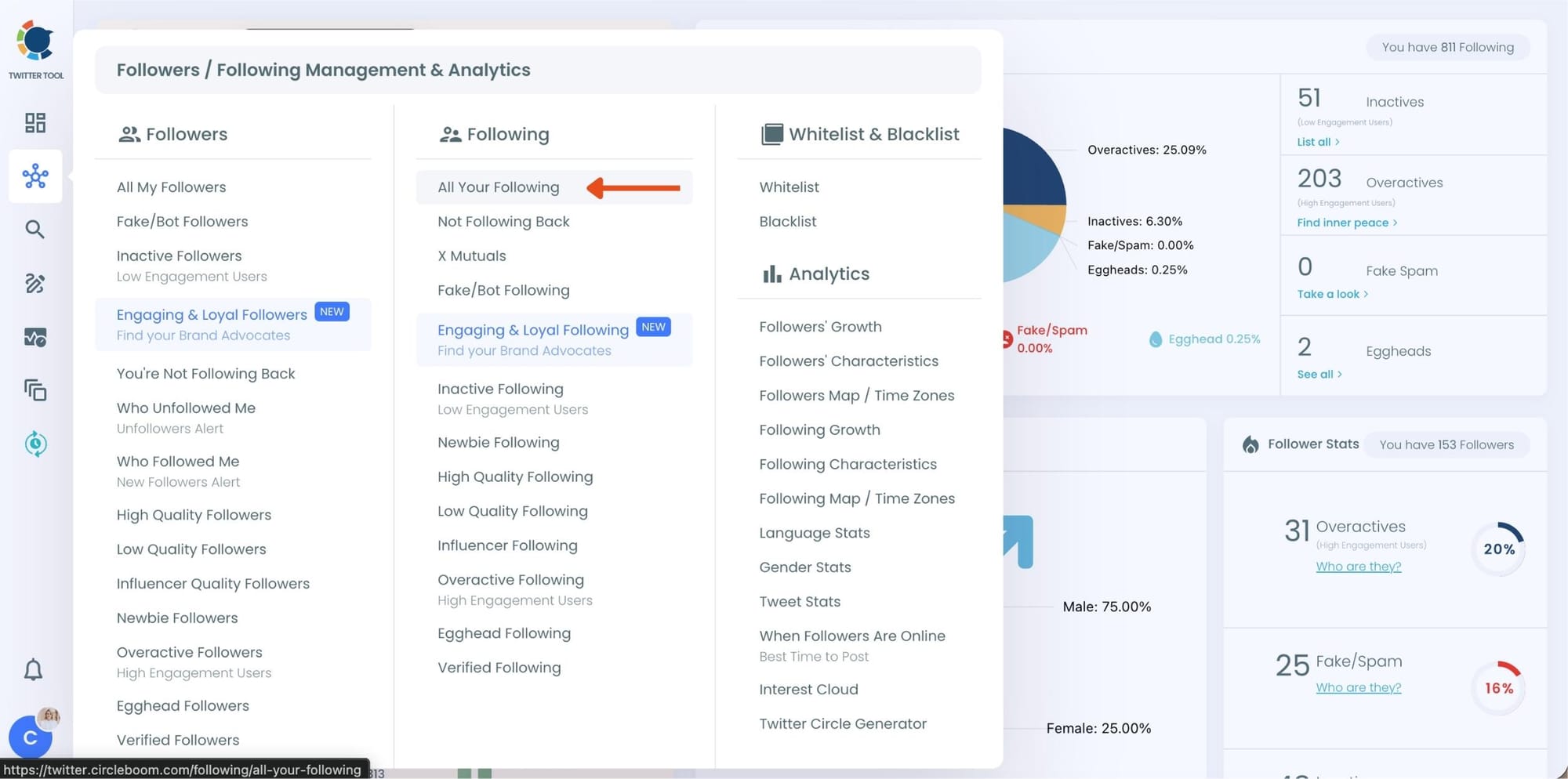
At this point, Circleboom loads your entire following list and displays each account with detailed metrics such as tweet count, join date, follower and following numbers, follow ratio, and activity level.
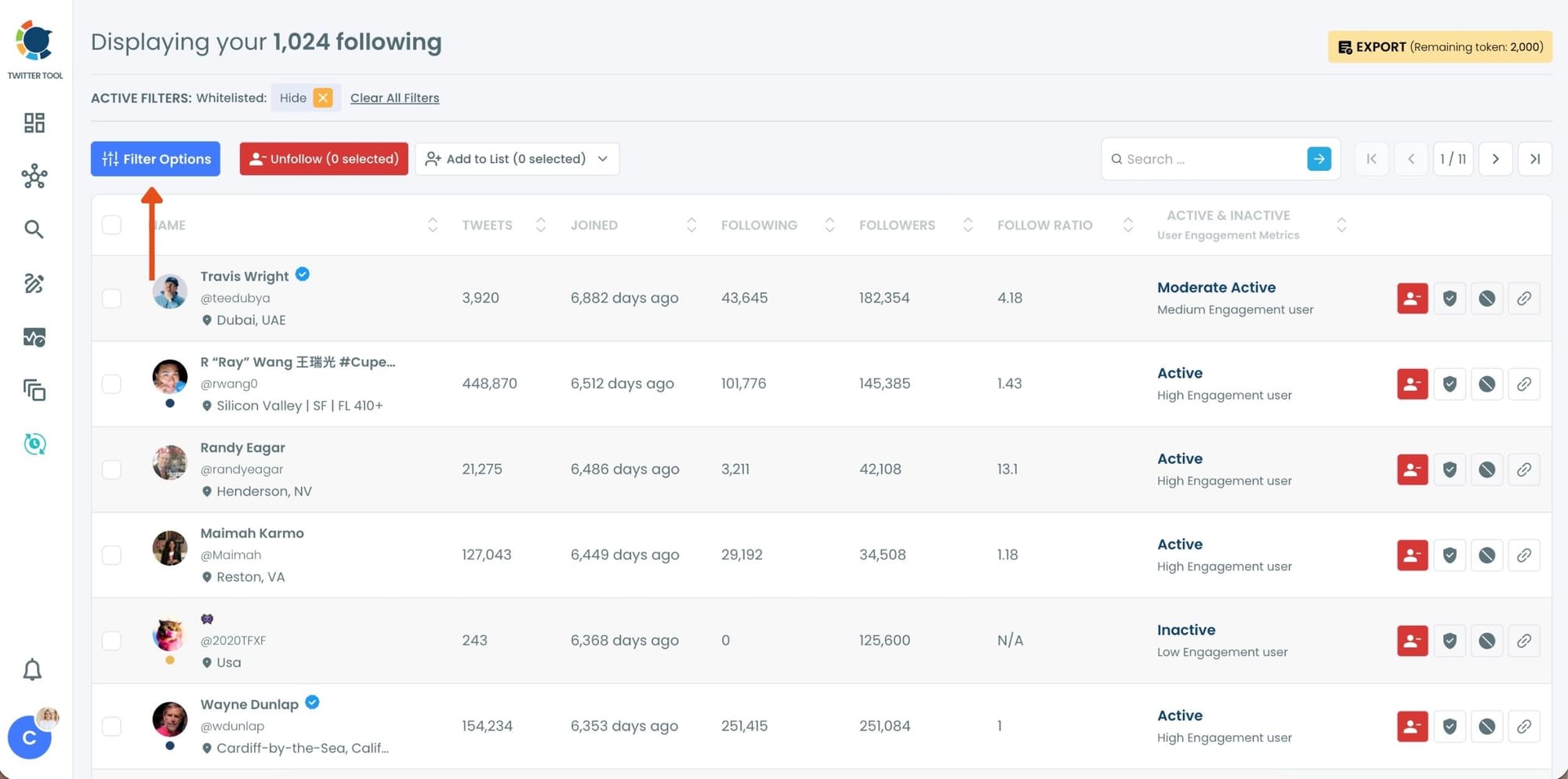
Step #2: Once your following list is visible, click on Filter Options at the top of the page.
Inside the filter panel, use the Follower Quality section to define what you want to see.
Select Fake/Spam and enable Show only. You can also adjust additional quality filters depending on how strict you want the cleanup to be.
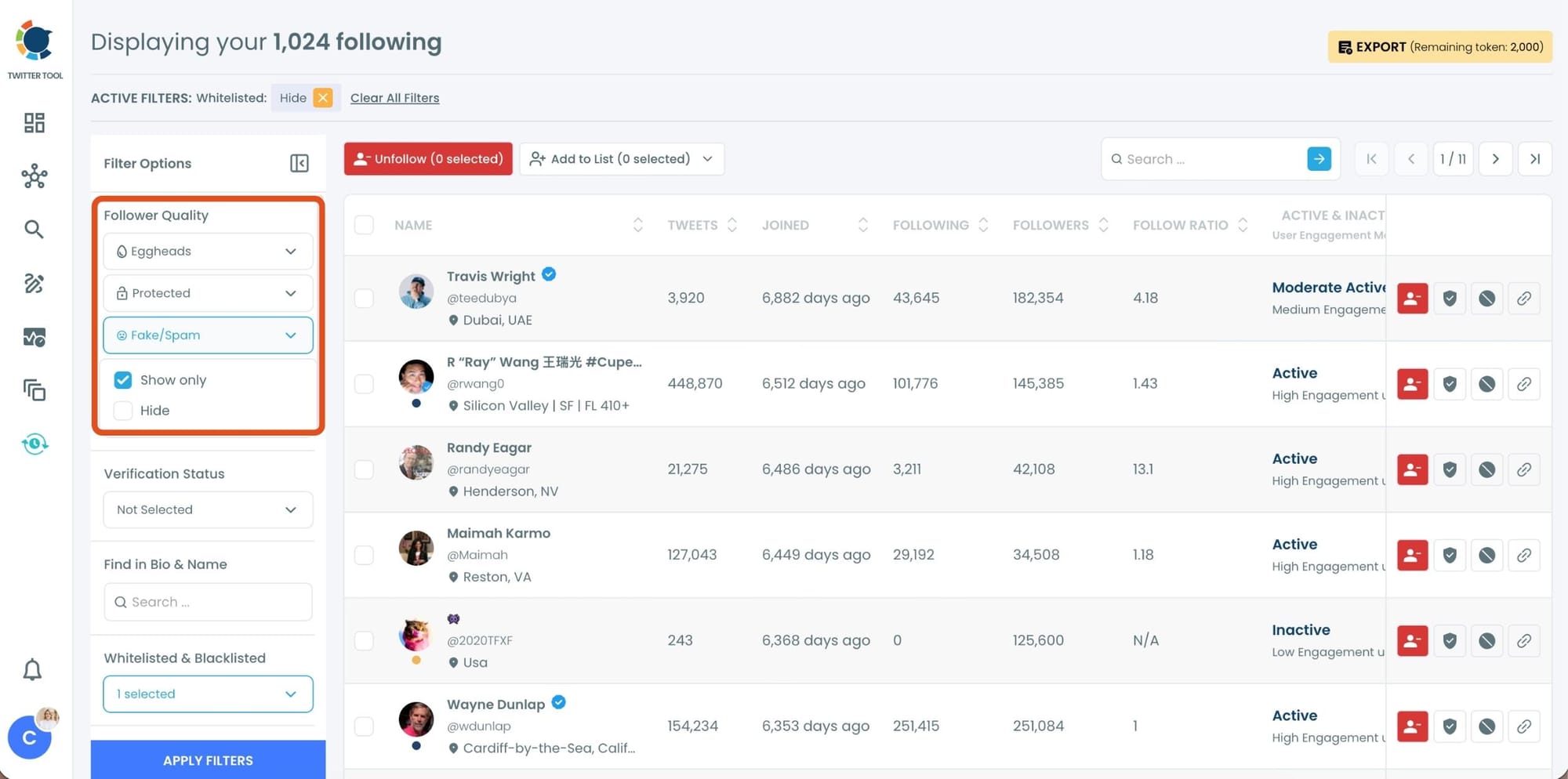
After setting your filters, apply them. Circleboom now lists only fake and low-quality following accounts.
Step #3: Circleboom now shows only low-quality or fake following accounts, each clearly labeled with engagement and activity indicators.
Select the accounts you want to remove by using the checkboxes on the left. You can select multiple accounts at once.
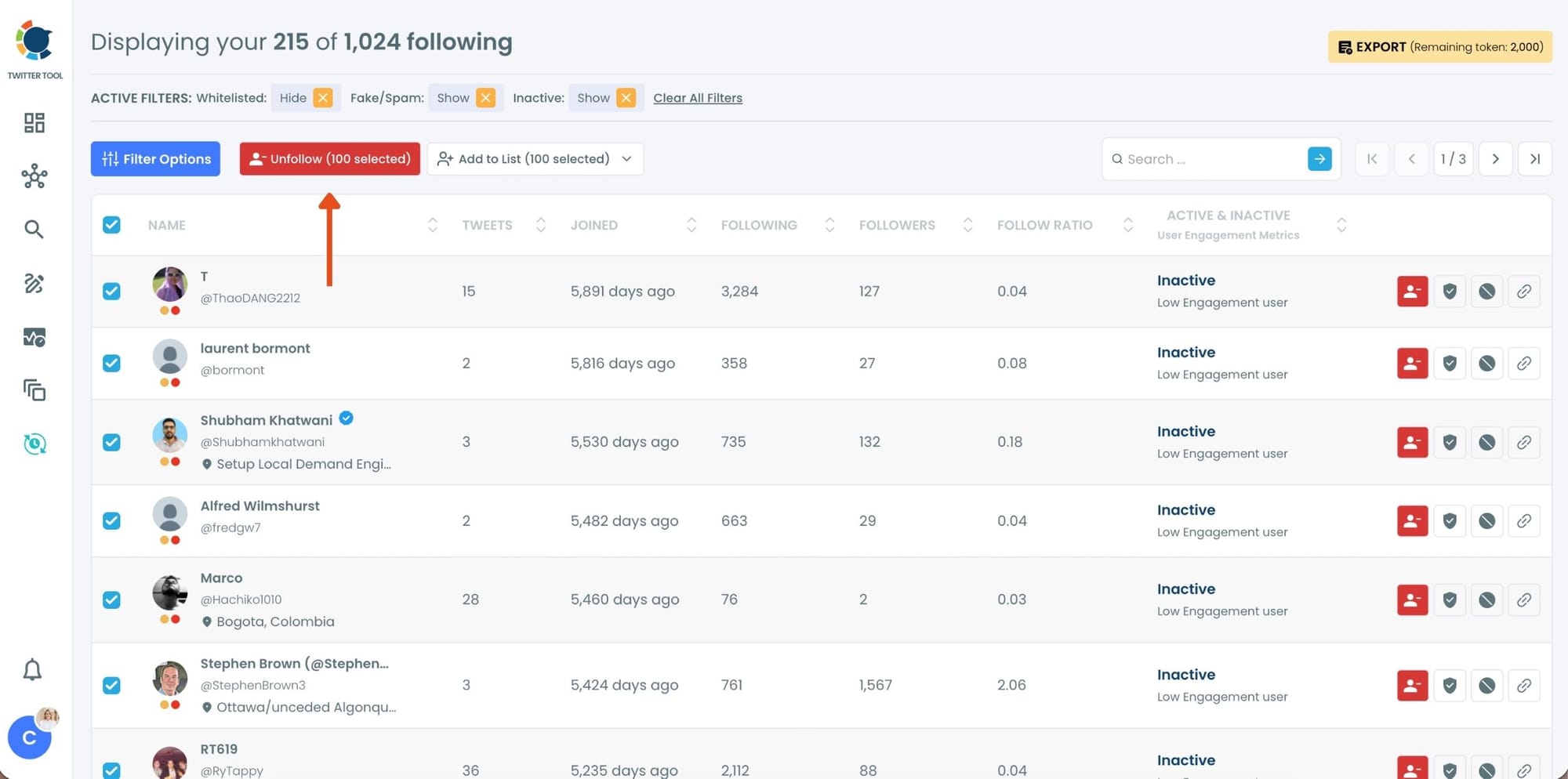
Click the red Unfollow button at the top of the list after making your selection.
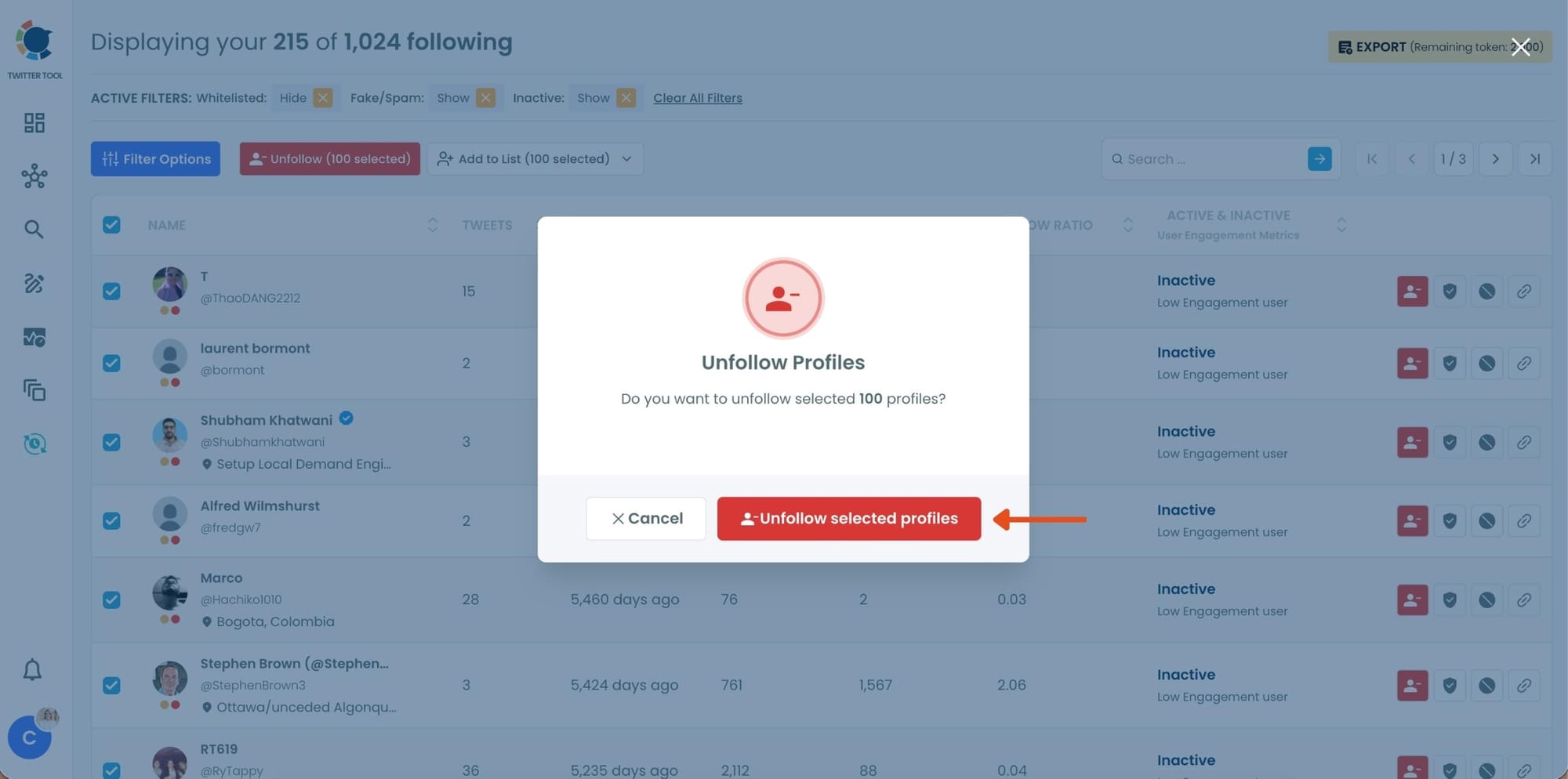
Step #4: Circleboom will show a confirmation pop-up to prevent accidental unfollow actions.
Confirm the action by clicking Unfollow selected profiles.
The Second Reset: Rethink Your Likes
Likes are one of the most underestimated signals on the platform.
They feel casual, but they carry weight.
Every like tells the algorithm to show more of that type of content.
And considering how often people tap the like button, it’s easy to build up thousands of mixed signals over time.
A typical feed ends up influenced by:
- memes liked casually
- viral posts clicked without much thought
- content that was interesting once but no longer relevant
This creates a scattered content profile.
Manually removing likes isn’t realistic, especially for long-time users.
Using Circleboom Twitter, liked tweets can be listed in one place and removed in bulk. This makes it possible to reset this signal entirely instead of trying to fix it one by one.
 infocircleboom.com
Once cleaned, the algorithm starts adjusting fairly quickly, and the feed becomes more aligned with current interests.
How to Delete All Your Likes with Circleboom Twitter (Step-by-Step)
Step 1: Logging into Circleboom Twitter
If you don't have a Circleboom account yet, you can get one quickly with a few clicks.

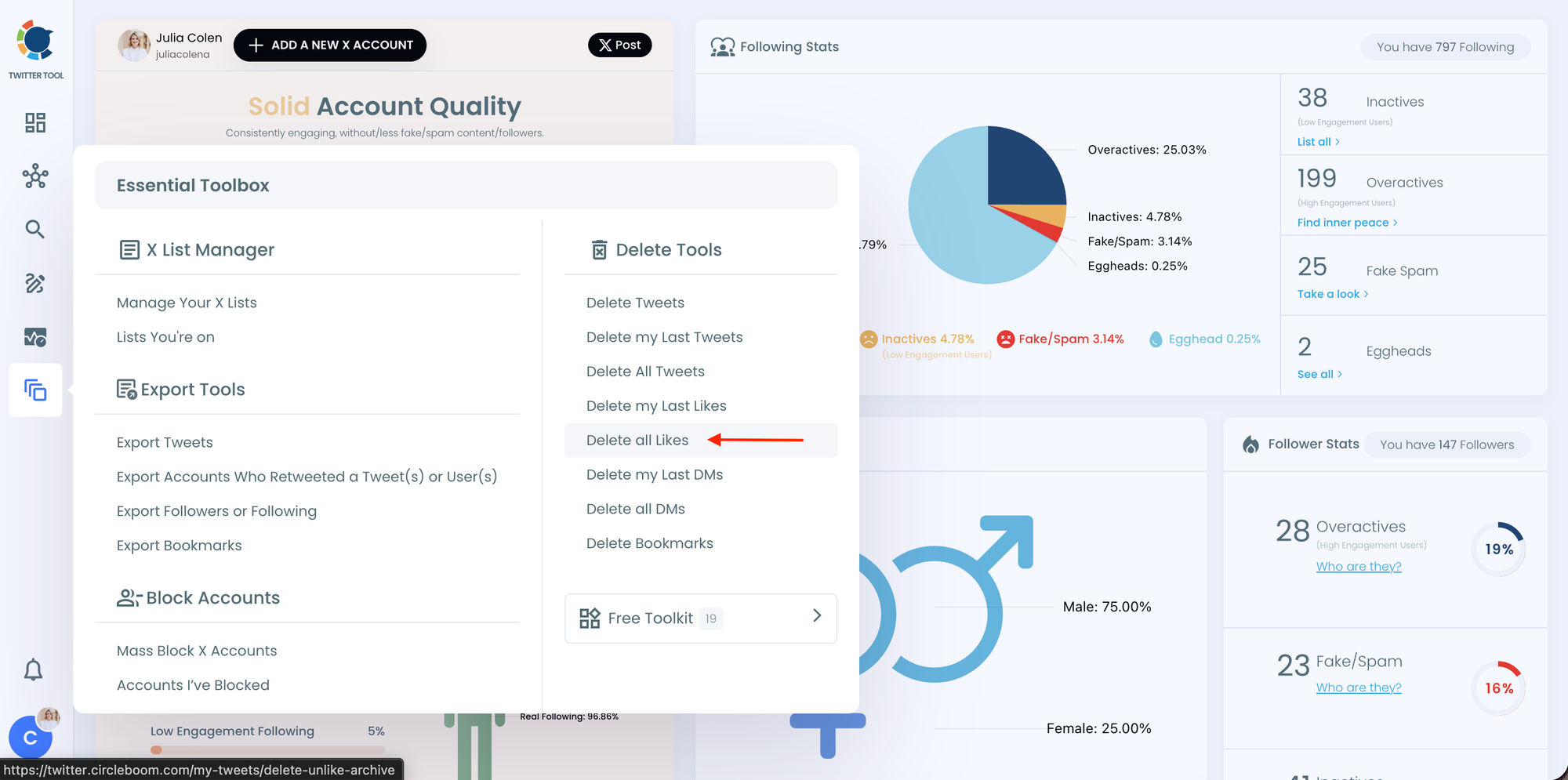
Step 2: Navigate to the left menu and find the "Essential Toolbox" section on the list
Then, you should click on "Delete All Likes" to delete all your X likes.
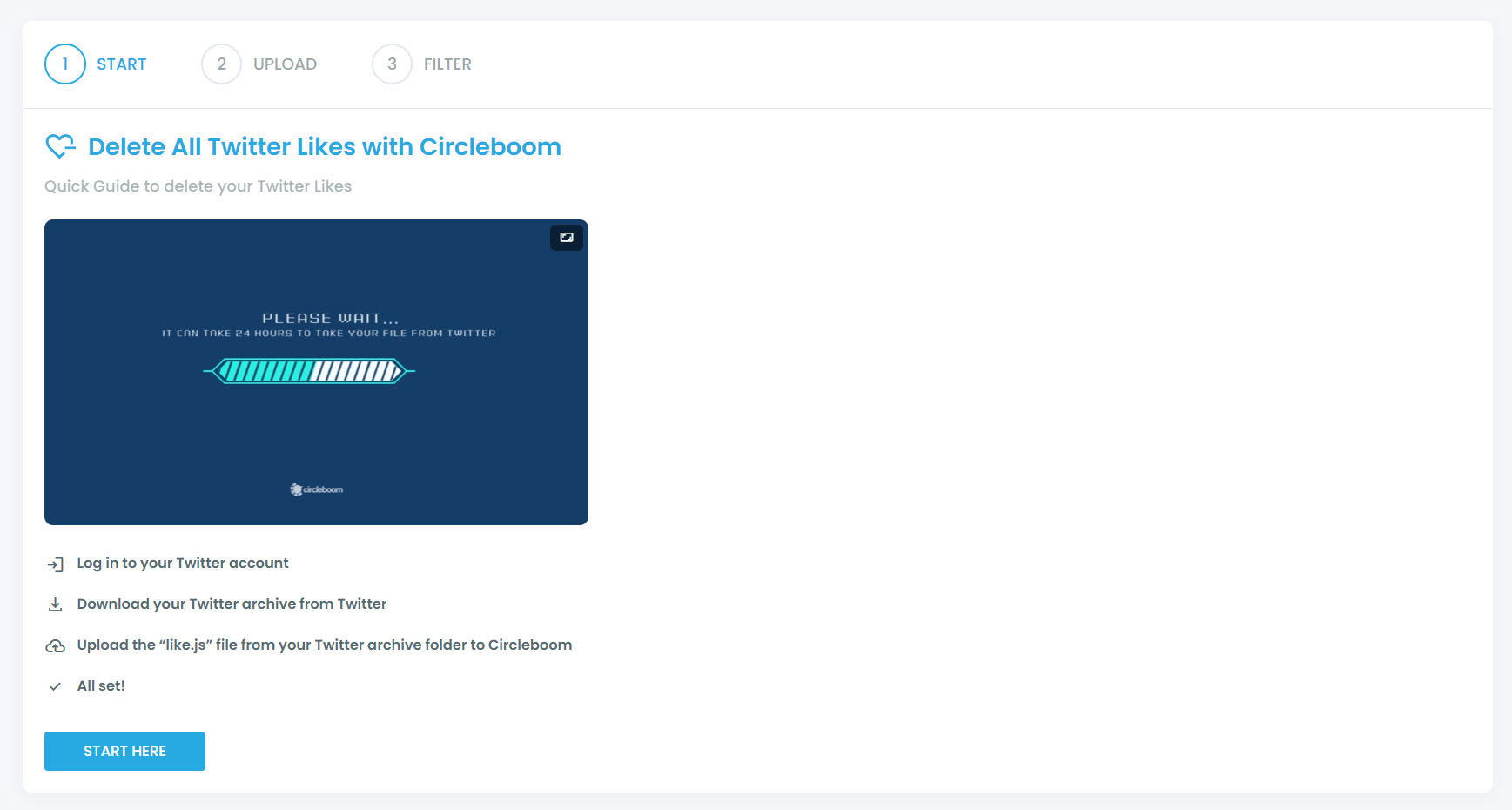
In the next stage, you should click on "Start Here" to proceed.
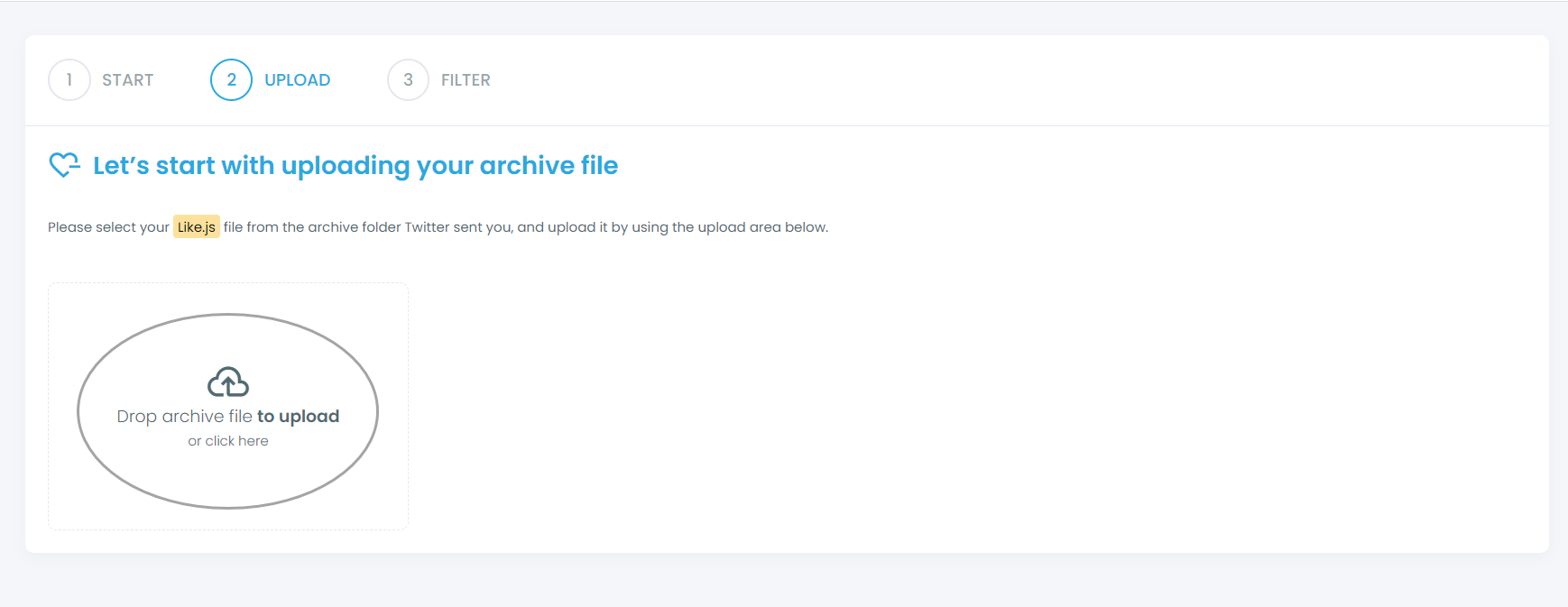
You should find your "like.js" file from your Twitter archive and upload it on Circleboom.
Step 3: Filter your liked tweets and approve your cleaning process
If you want to keep/delete only certain liked tweets, you can apply filters, though this is optional. Our filters give you the flexibility to keep or delete some tweets matching with selected hashtags, keywords, usernames, dates, and more.
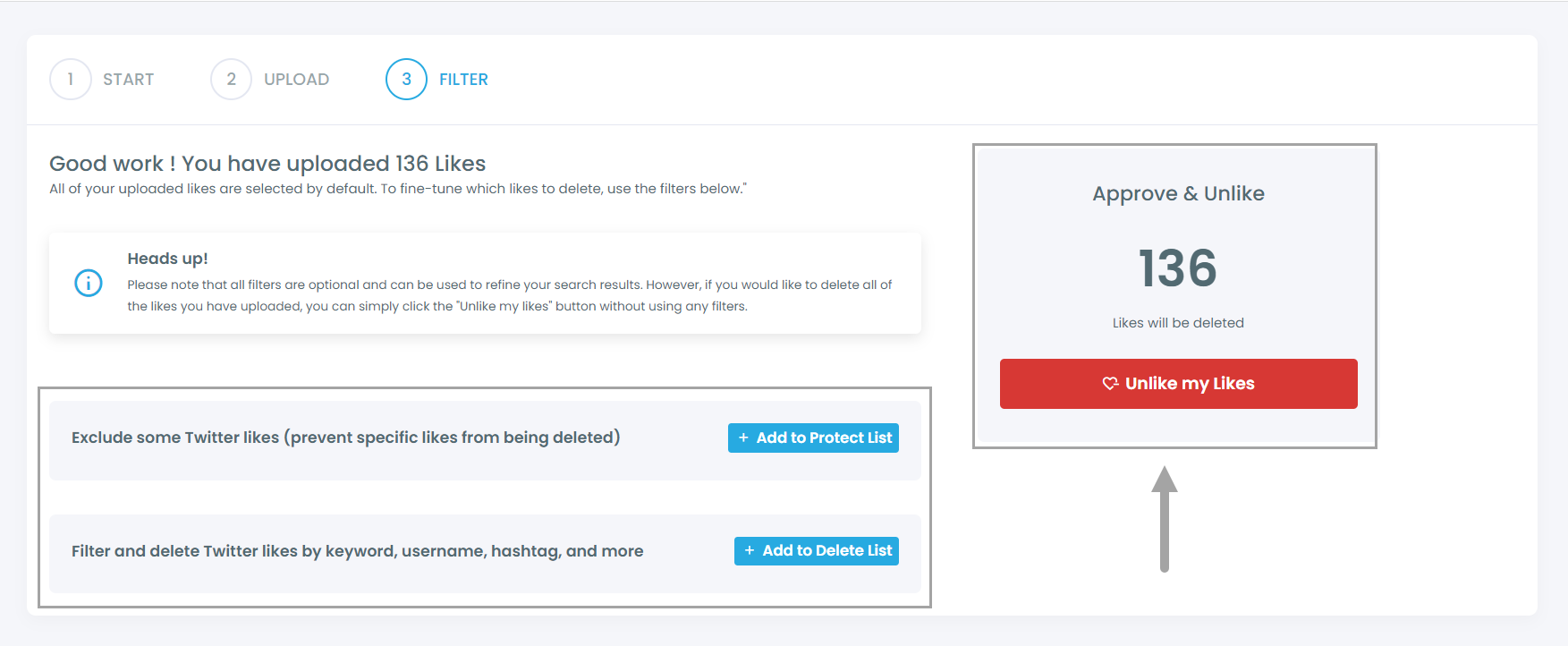
After you confirm your deletion requests, all set! We'll take care of the rest in a timely manner.
The Third Reset: Clean Your Bookmarks
Bookmarks are another signal that tends to be ignored.
They’re meant to save important content, but over time they usually become a mix of everything.
Interesting threads, random ideas, news posts, and even memes all end up in the same place.
From the algorithm’s perspective, this creates confusion.
To fix this, Circleboom’s Bookmark Manager allows all saved tweets to be viewed together and cleaned efficiently.
 infocircleboom.com
Instead of keeping everything, removing unnecessary bookmarks and keeping only relevant ones helps clarify what actually matters.
How to See Your Twitter Bookmarks and Download Them with Circleboom
Step #1: Log In to Circleboom Twitter
Go to the Circleboom Twitter website and log in with your credentials. If you’re a new user, sign up, it’s quick and easy!

Step #2: Go to your Bookmarks
In the left-side menu, click on “Essential Toolbox” and then select “Delete Bookmarks” from the dropdown.
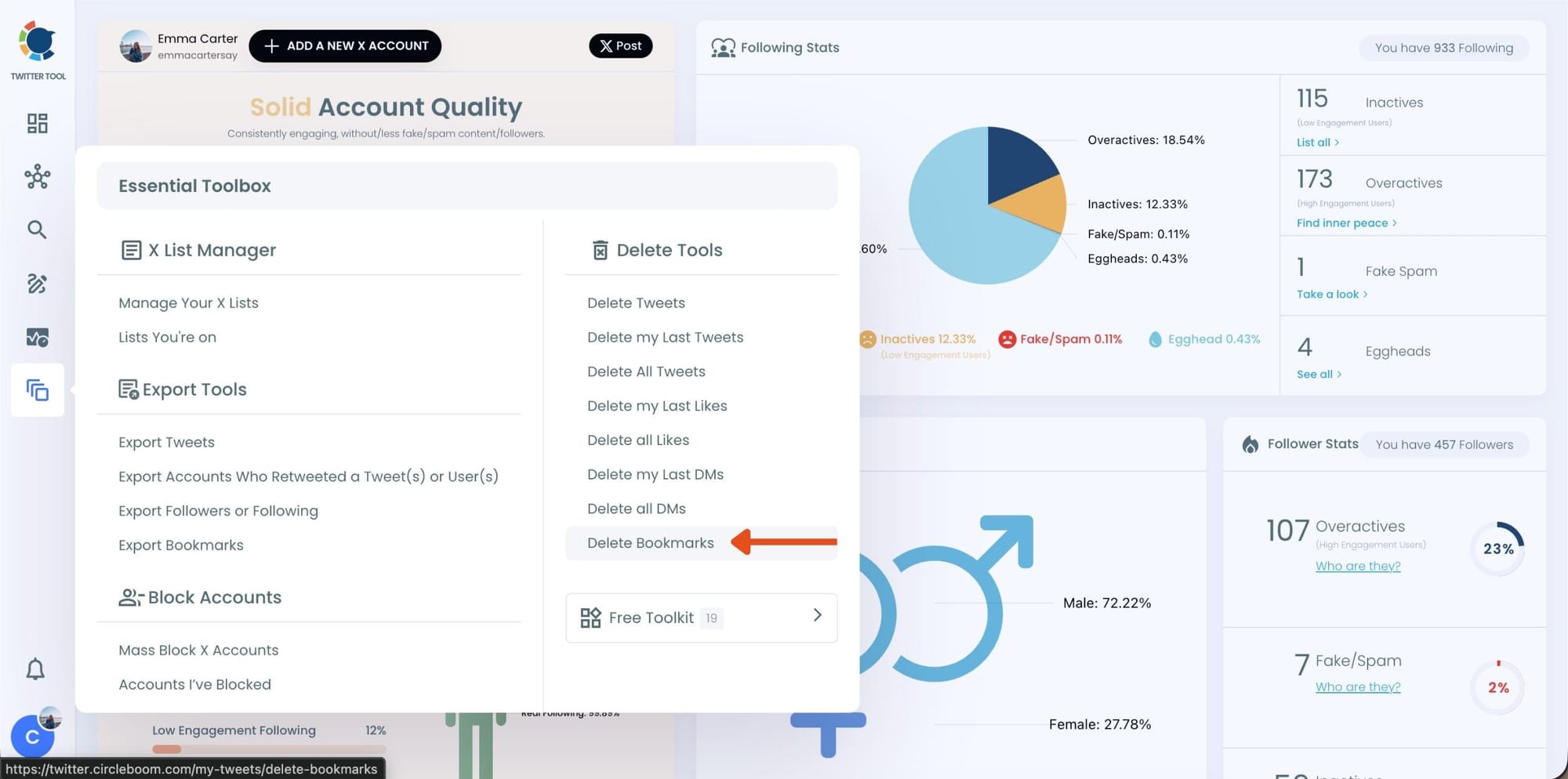
Step #3: View and Manage Your Bookmarks
After opening the "Delete Bookmarks" section, you'll see all your saved tweets.
The page will display essential details such as likes, retweets, replies, and impressions for each bookmarked tweet.
This allows you to filter, organize, and select bookmarks for export.
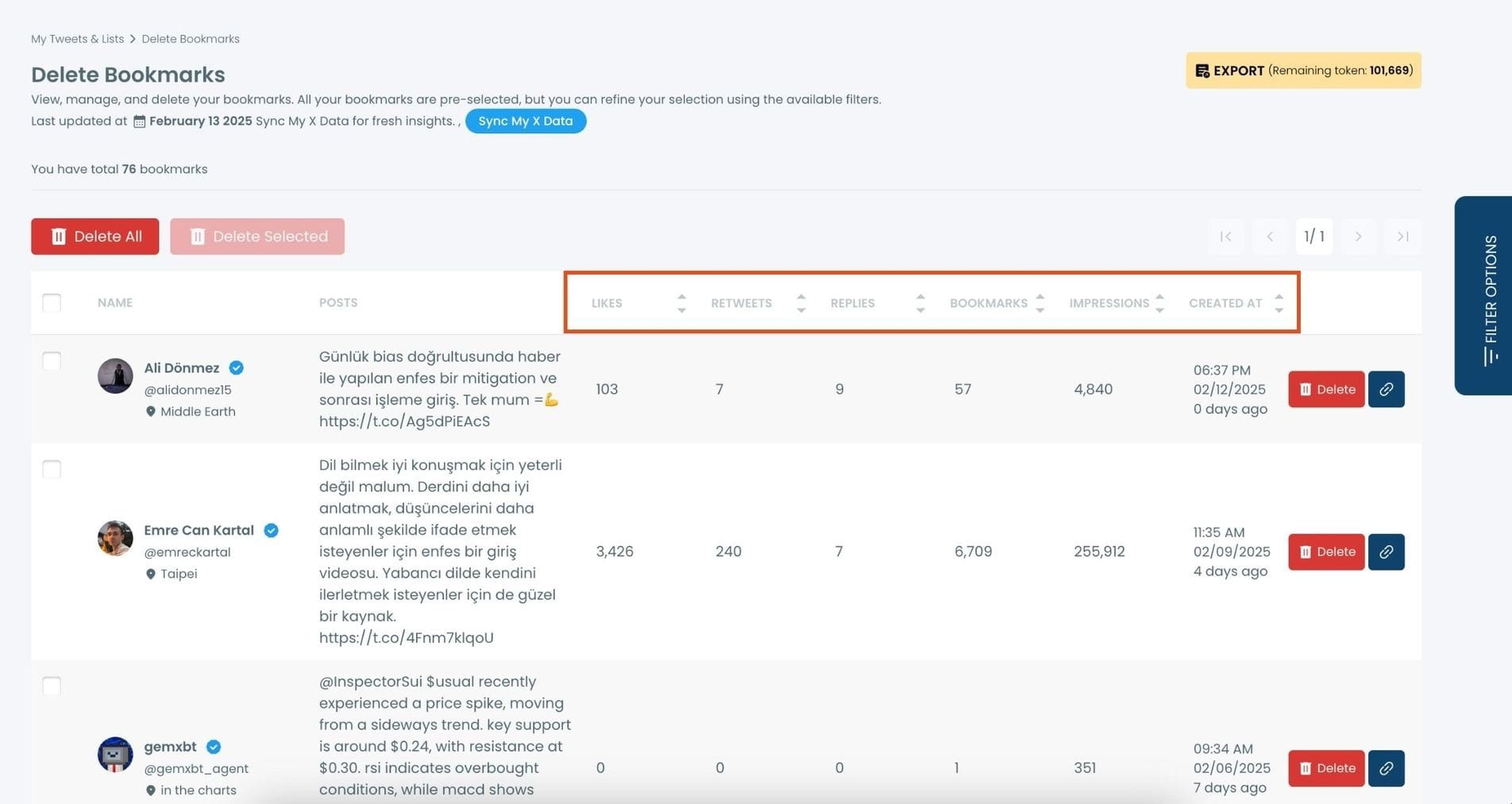
Step #4: Use Filters to Find Specific Bookmarks
Click on “Filter Options” on the right side of the screen.
You can refine your bookmarks based on engagement (likes, retweets, impressions), date, language, and tweet type (posts, replies, or reposts).
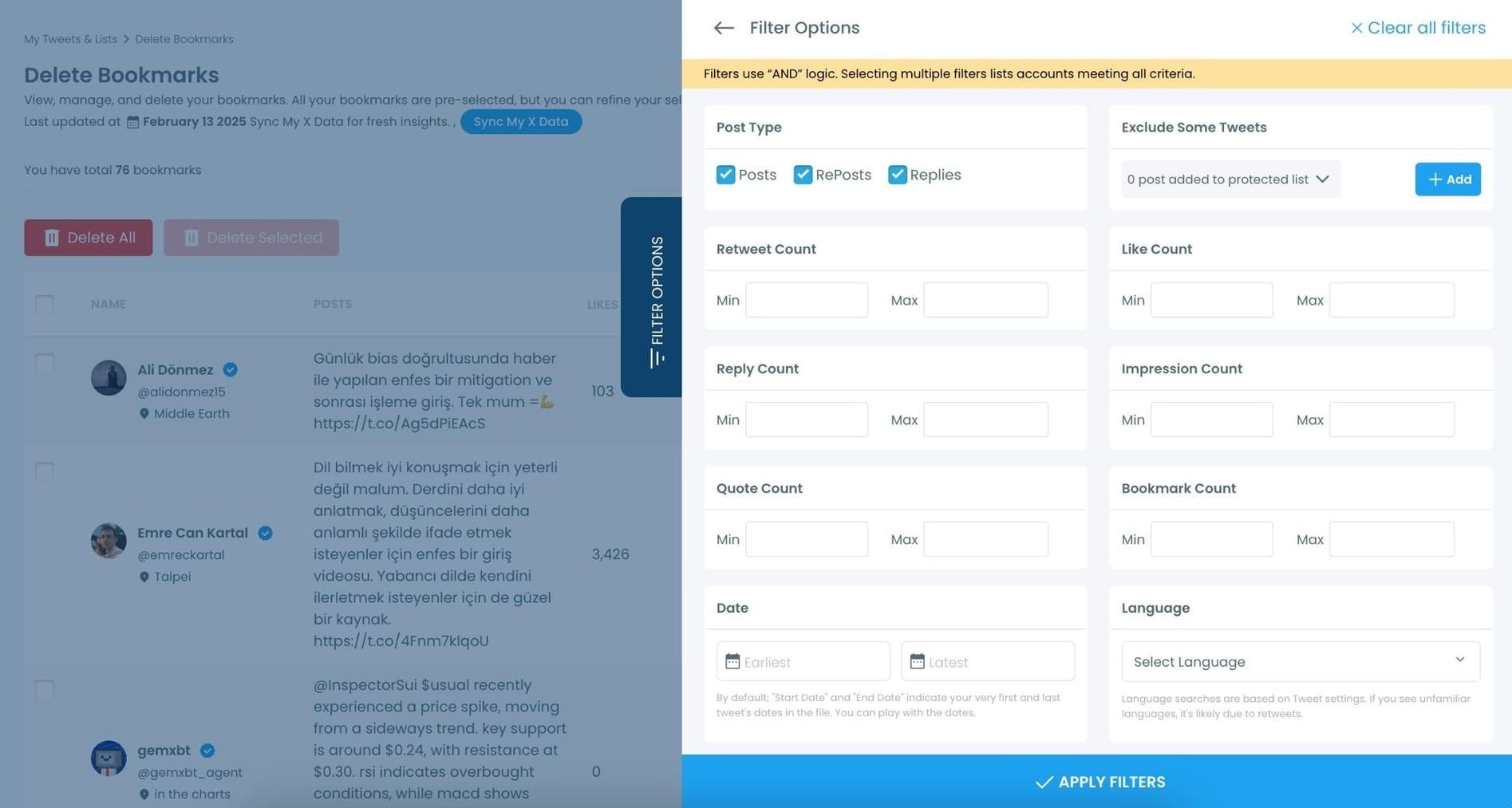
Step #5: Select and Export Your Bookmarks
Check the box next to each tweet you want to export, or click "Select All" to export all bookmarks.
Click on the “Export” button at the top right. You are one step away from downloading all your Twitter bookmarks.
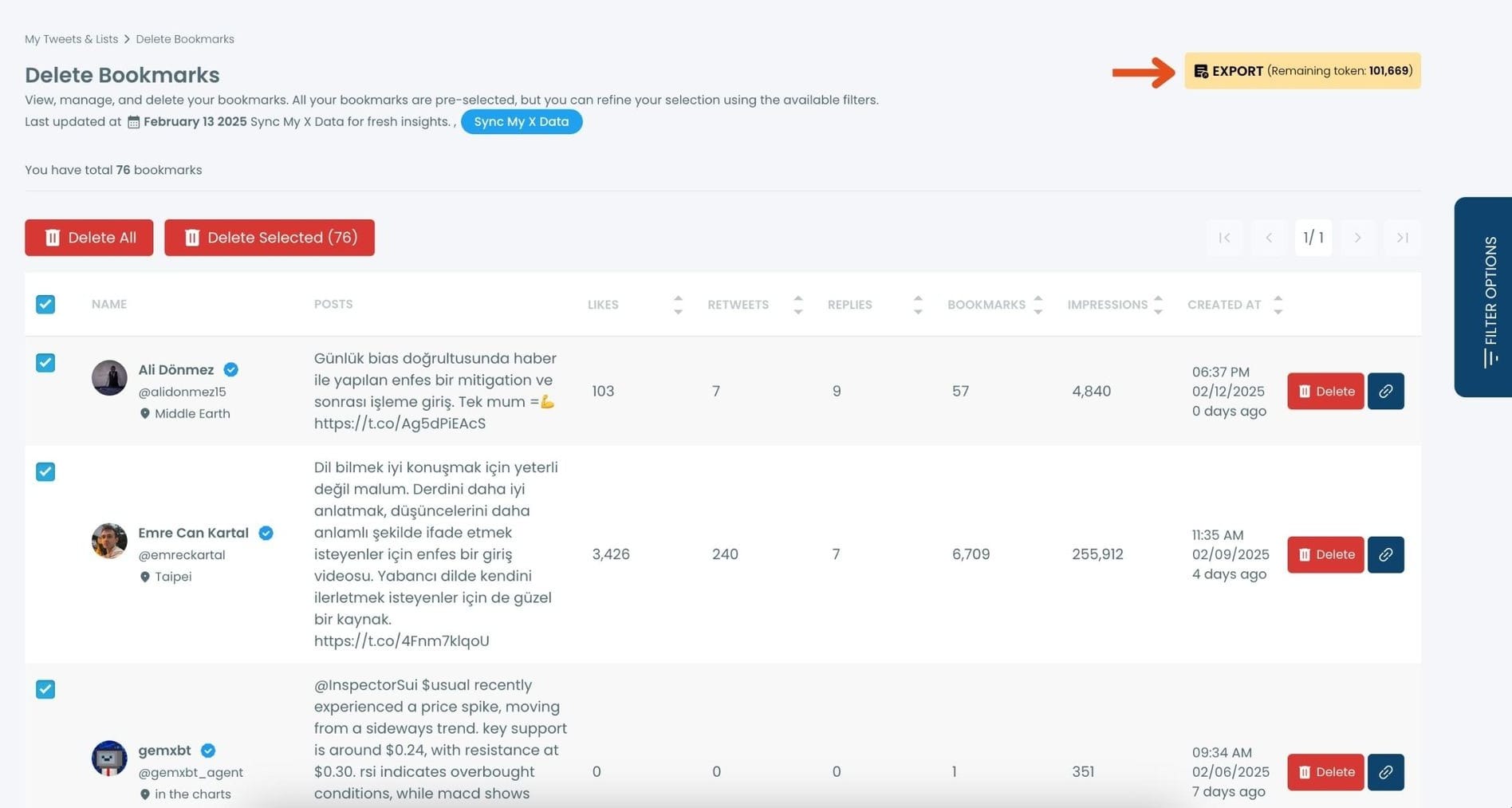
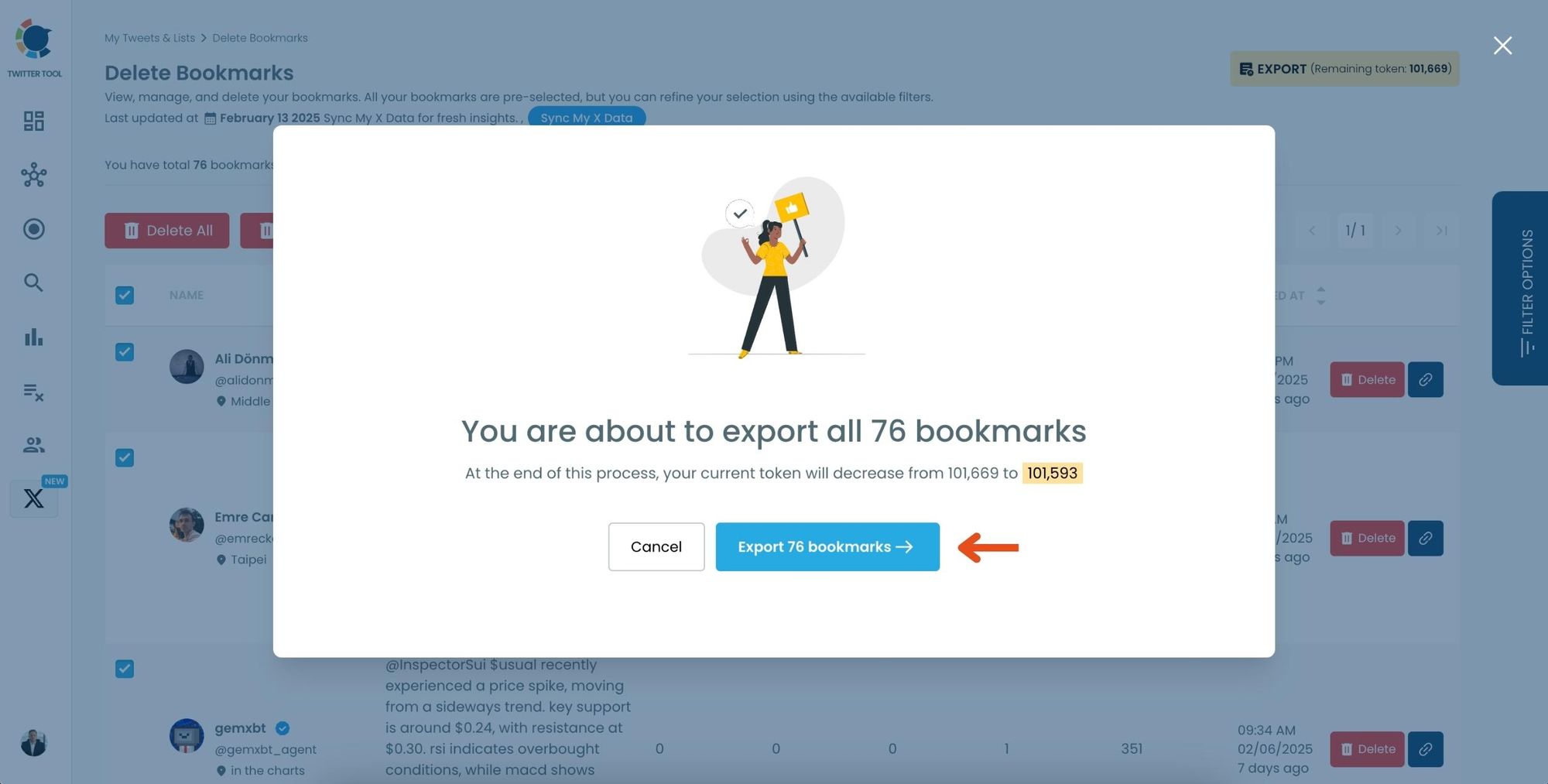
A confirmation message will pop up showing the number of bookmarks you’re about to export.
Click “Export X Bookmarks”, and your bookmarks will be downloaded as a file.
Step #6: Access and Use Your Exported Bookmarks
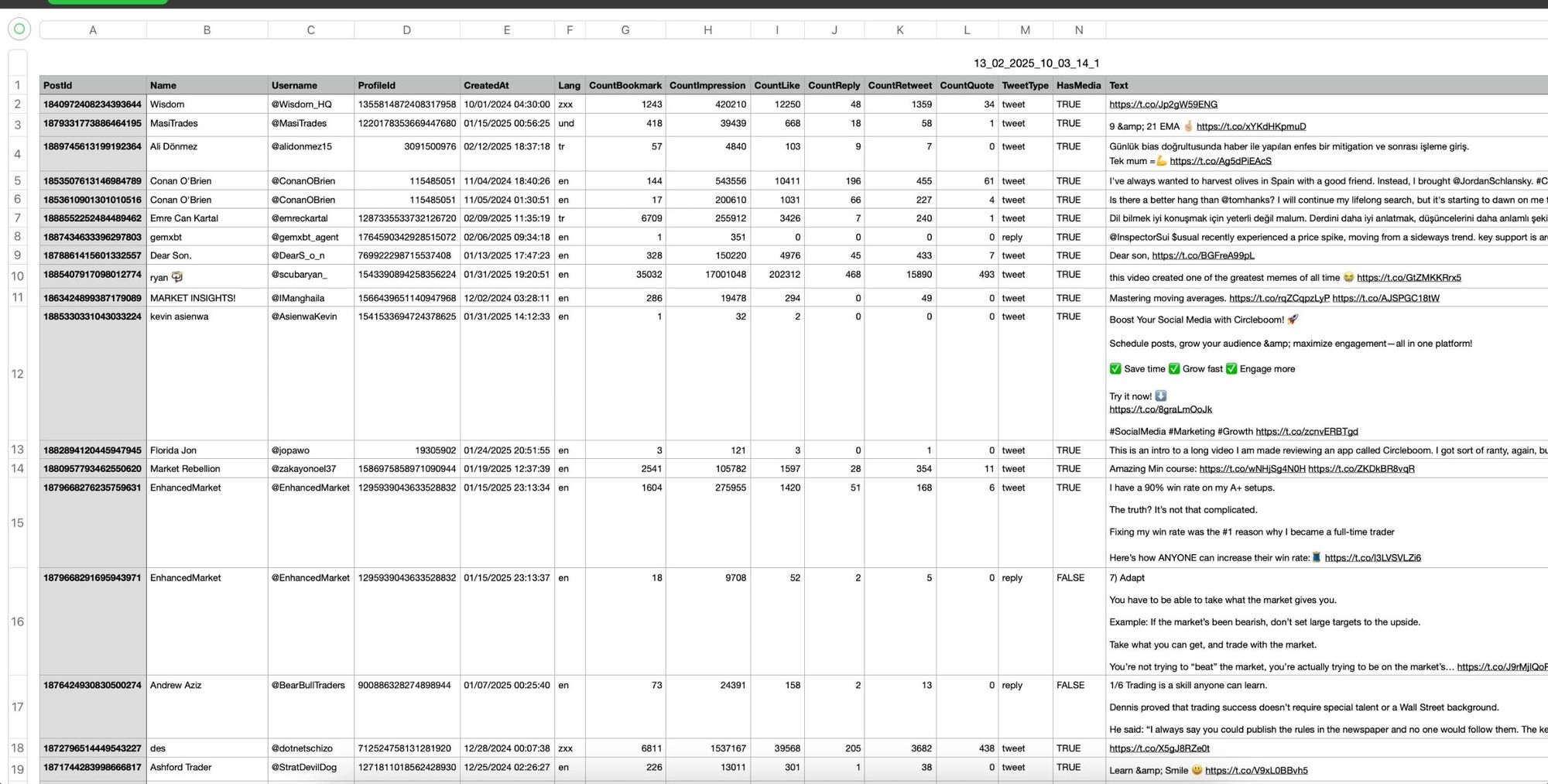
Once the bookmarks are exported, they will be saved in a spreadsheet format (CSV or Excel file).
The file contains detailed tweet information
This organized format makes it easy to search, sort, and reference your saved tweets whenever needed.
By exporting your X bookmarks, you ensure that important tweets remain accessible even if they get deleted or lost.
The Part That Makes the Biggest Difference
Even after cleaning signals, there’s one more shift that improves the experience significantly.
Relying entirely on the For You feed means giving full control to the algorithm.
Sometimes, that’s not ideal.
A better approach is to build your own controlled environment using Twitter Lists.
Lists allow you to create focused feeds around specific topics, such as:
- AI and technology
- startups and business
- crypto
- news and journalism
Each list becomes a clean, curated timeline.
Using Circleboom Twitter’s search tools, it’s possible to find relevant accounts and add them to lists in bulk, which saves a lot of time compared to manual setup.
 infocircleboom.com
What Changes After Resetting Your Feed
Once these steps are applied, the difference becomes clear.
The feed starts to feel more intentional.
Instead of random content, you begin to see:
- posts that match your interests
- discussions that are actually worth reading
- accounts that consistently provide value
The algorithm adapts fairly quickly once the signals are cleaned.
Final Thoughts
Resetting your Twitter feed isn’t about finding a hidden setting.
It’s about understanding how the platform learns from you.
Every follow, like, bookmark, and interaction shapes what you see.
If those signals are messy, your feed will be messy.
If they are clean and intentional, your feed becomes useful again.
Using tools like Circleboom Twitter makes this process much easier by helping you analyze, clean, and rebuild your signals without spending hours doing it manually.
Once you take control of those inputs, the experience changes completely.
And the platform starts to feel like it did at the beginning; fast, relevant, and actually worth your time.
%20Feed)
