
Retweeting is a one-click action. Retweeting on a schedule is something Twitter has never supported.
You can write a tweet today and schedule it to go out next Thursday. You can queue up a week's worth of content in advance. But if you want a tweet you just published to automatically repost itself tomorrow afternoon, or next week when a different slice of your audience is online, Twitter gives you no way to do that. The retweet button exists. The schedule does not.
Circleboom Twitter fills that gap with two distinct entry points. You can set up automatic retweets while creating a tweet, or you can find a tweet that's already published and set up a retweet schedule from there. Both lead to the same result: your content keeps moving without you having to push it manually each time.
Can you schedule retweets on Twitter/X?
Not natively. Twitter supports scheduling original tweets through its composer and TweetDeck, but there is no built-in way to schedule a retweet of any kind.
With Circleboom Twitter's Auto Retweeter, you can schedule retweets of your own tweets in two ways: directly from the X Post Planner when creating a new tweet, or from Post Analytics for tweets that are already published and live.
 infocircleboom.com
What Is Circleboom Twitter?
Circleboom is an Official X Enterprise Developer, which means it works directly with X's official APIs. All scheduling and automation runs through compliant, verified access. No scraping, no credential sharing, no workarounds.

Here's what Circleboom Twitter gives you for content scheduling and automation:
- Schedule tweets, threads, and bulk content from the X Post Planner
- Set up automatic retweet cycles for new tweets at the point of creation
- Access Post Analytics and schedule retweets of already-published tweets
- Analyze tweet performance and act on top-performing content directly from the dashboard
- Cross-post tweets to other platforms from the same scheduling workflow
If you want to schedule retweets on Twitter and extend the life of your content automatically, Circleboom Twitter is how you do it.
The Two Ways to Schedule Retweets with Circleboom Twitter
Circleboom Twitter gives you two separate entry points for scheduling retweets, each suited to a different moment in the content workflow.
Mode 1: While Creating a Tweet in X Post Planner
When you write a new tweet in Circleboom Twitter's X Post Planner, there's an Auto Retweet option available before you hit publish.
You define three things:
- how long after the original post the retweet should go out,
- how long the retweet should stay up before being removed,
- how many times the cycle should repeat.
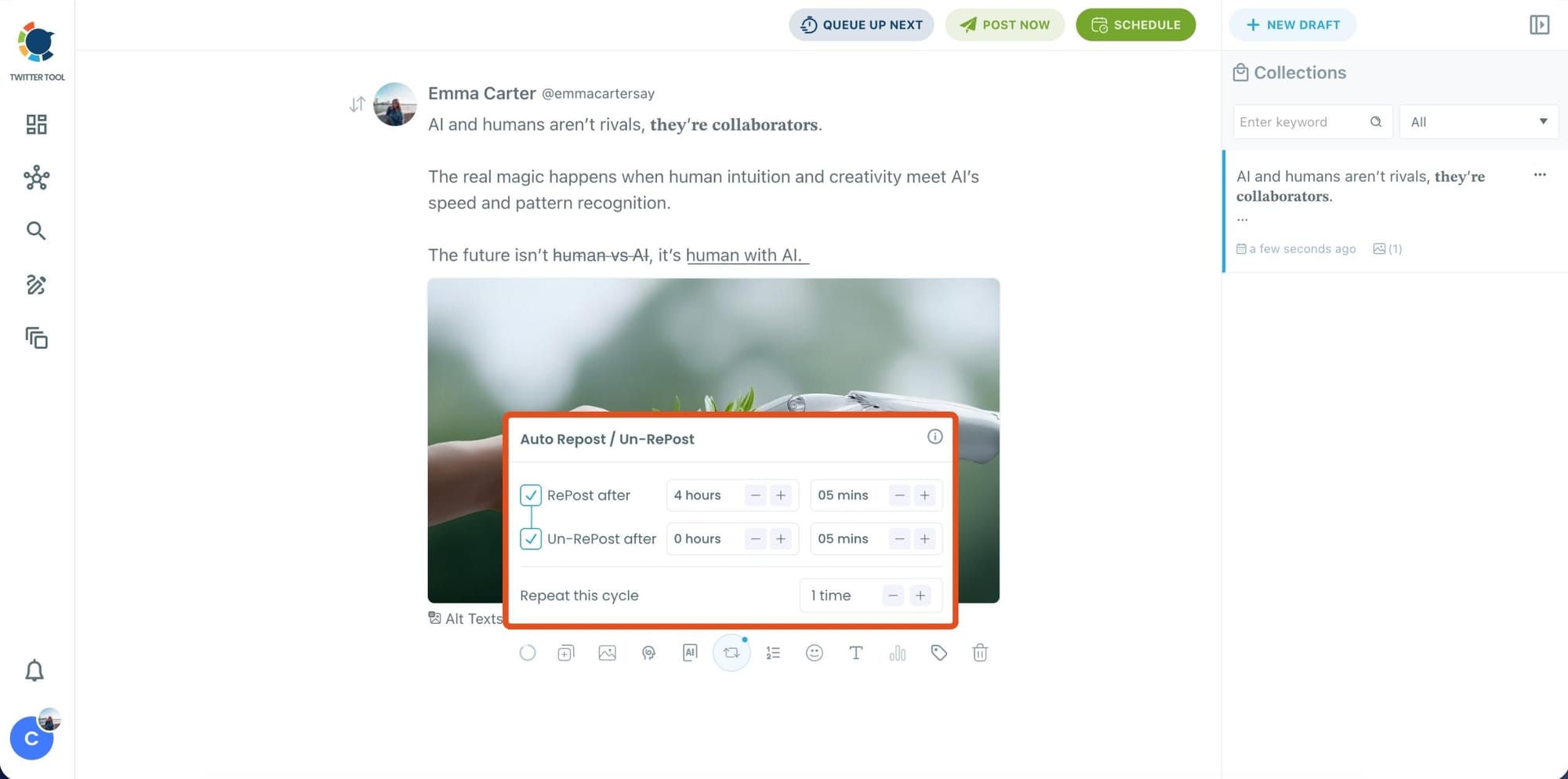
So a tweet published at 9am could be automatically retweeted at 3pm, removed an hour later, retweeted again the following morning, and cycle through that pattern as many times as you set. You configure this once at the point of creation. After that, Circleboom handles the rest without any further input from you.
This mode is most useful for content you already know you want to keep in rotation: announcements, evergreen tips, campaign content, or anything that benefits from multiple exposures to different segments of your audience across different times of day.
Mode 2: From Post Analytics for Already Published Tweets
The second entry point is for tweets that are already live. In Circleboom Twitter's Post Analytics, you can pull up any published tweet and set up an auto retweet schedule directly from there.
No need to recreate the tweet or copy it into a new draft. You find it, configure the repost timing and cycle, and Circleboom takes over.
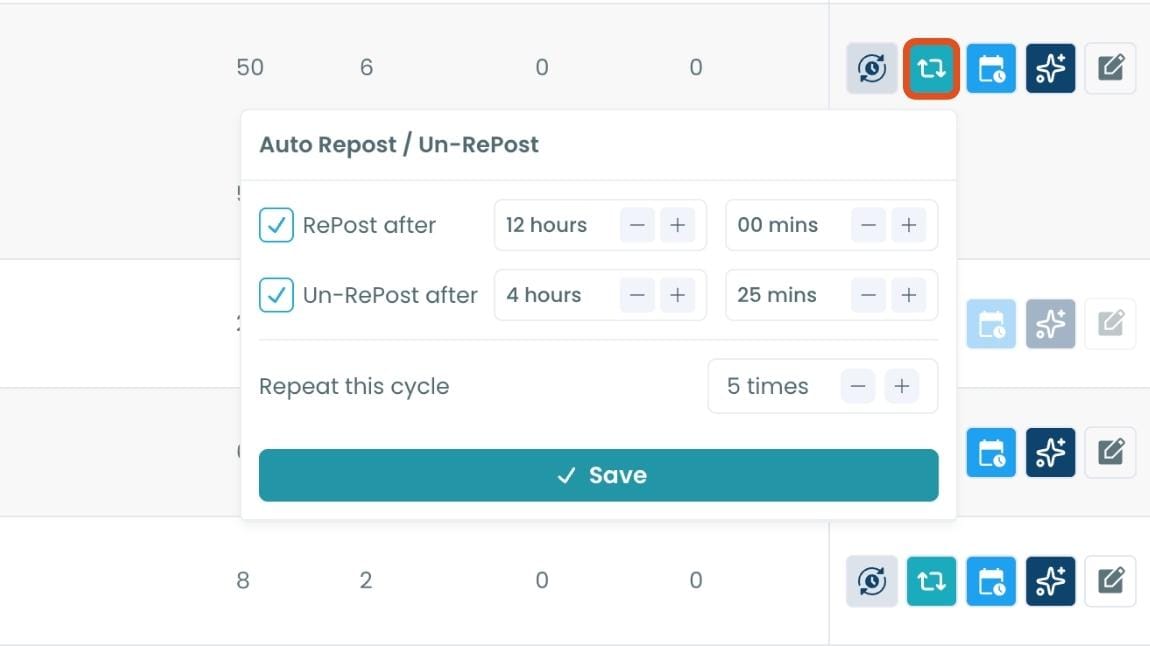
This mode is especially useful for identifying what's already working and giving it more runway. A tweet that performed well in its first few hours has already demonstrated it resonates. Setting up a retweet cycle from Post Analytics lets you capitalize on that signal without starting from scratch or guessing what to post next.
⚠️ Retweet frequency matters. Setting reposts too close together or repeating the same tweet too often in a short window can feel repetitive to followers who are actively online.
Space cycles out meaningfully, at least several hours between reposts, and keep the total number of repetitions reasonable relative to how often you post original content.
How to Schedule Retweets on Twitter/X with Circleboom Twitter
Here’s how to set it up for a new tweet.
Step 1: Go to Circleboom Twitter’s X Post Planner
Open Circleboom Twitter and click X Post Planner + AI Writer.
Then select Write & Plan Your Post to start creating your tweet.

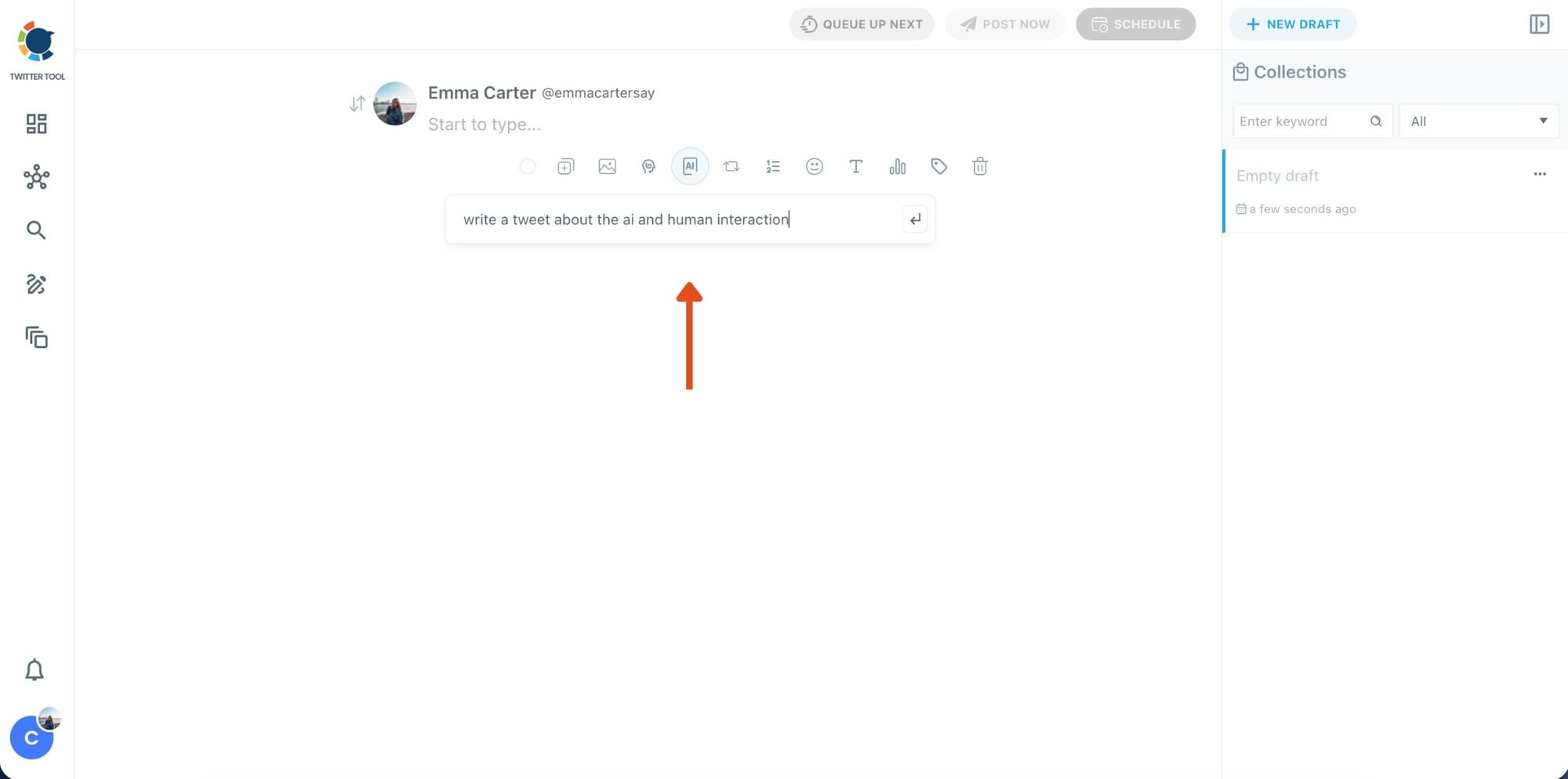
Step 2: Write your tweet (or generate one with AI)
You can type your tweet manually in the editor.
Or, if you want to move faster, click the AI option and let Circleboom generate a tweet idea for you based on your topic.
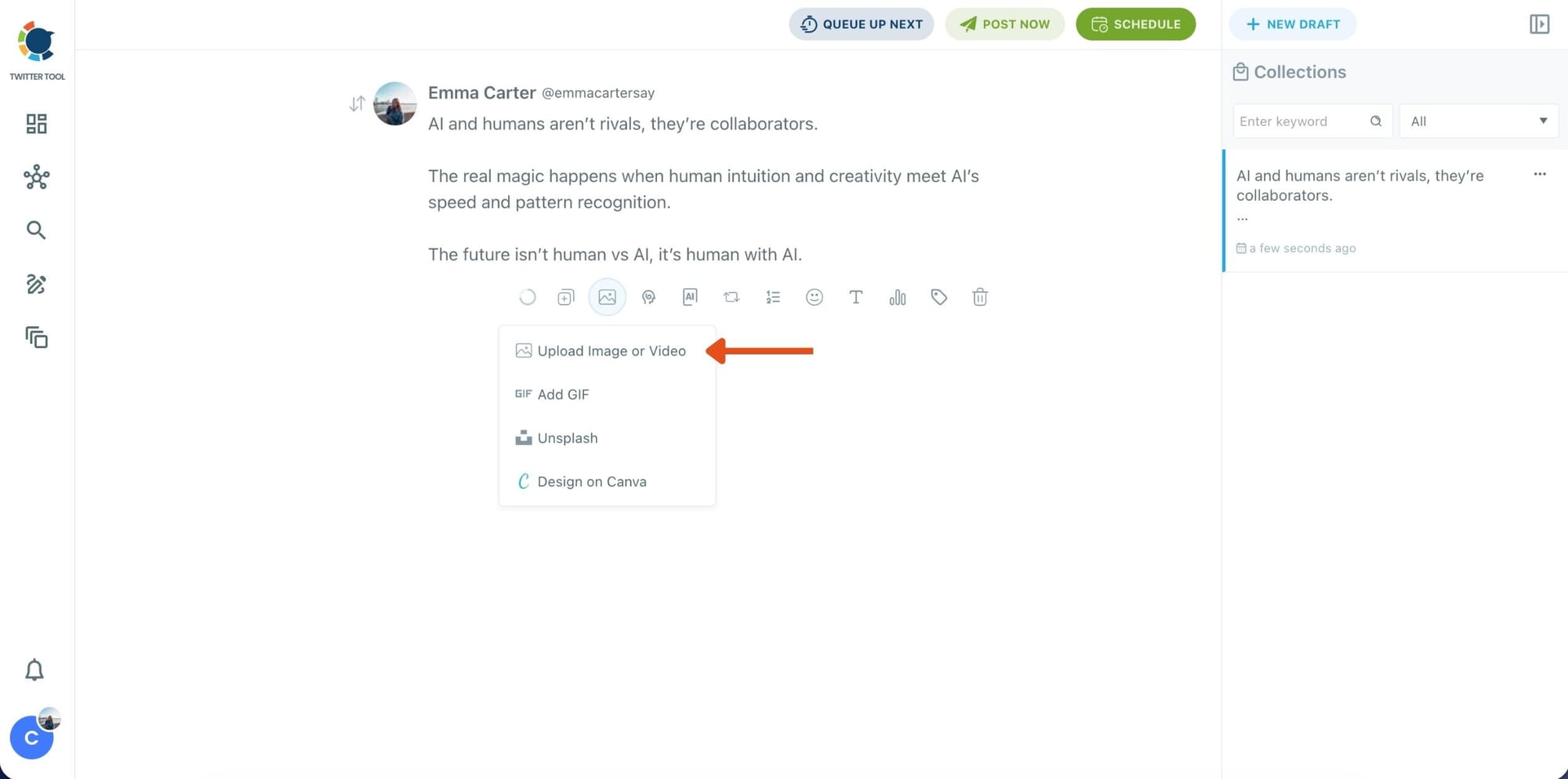
Step 3: Add an image to make the post more engaging
Once your text is ready, attach a visual to your tweet.
You can:
- Upload an image/video from your device
- Pick one from Unsplash
- Or design one instantly using Canva
Step 4: Style your tweet using Circleboom’s Font Generator
Now it’s time to make your tweet stand out visually.
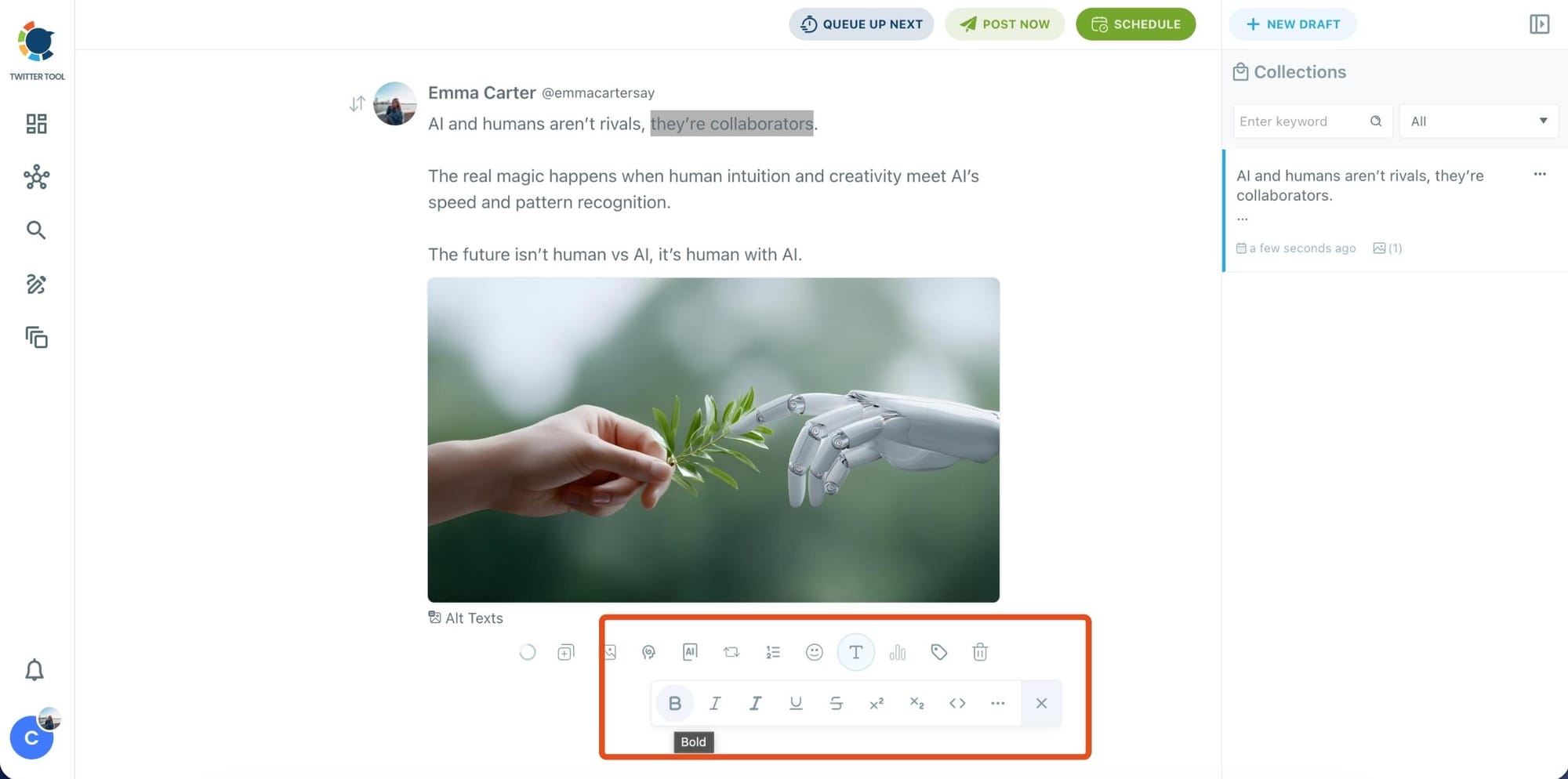
Select the part of your text you want to change, then open the Font Generator toolbar and apply styles like:
- Bold / Italic / Underline
- Different font variations
- Extra formatting options for a more “designed” look
This is perfect when you want key parts of your tweet to grab attention immediately.
Step 5: Set Auto Retweets to boost visibility
After styling your post, you can increase reach by enabling Auto Repost / Un-RePost settings.
This lets you automatically:
- Repost your tweet after a selected time
- Remove the repost later
- Repeat the cycle if you want more than one repost
It’s a smart way to bring your tweet back into the feed without manually reposting it.
Bonus Tip: Cross-post your tweet to other platforms automatically
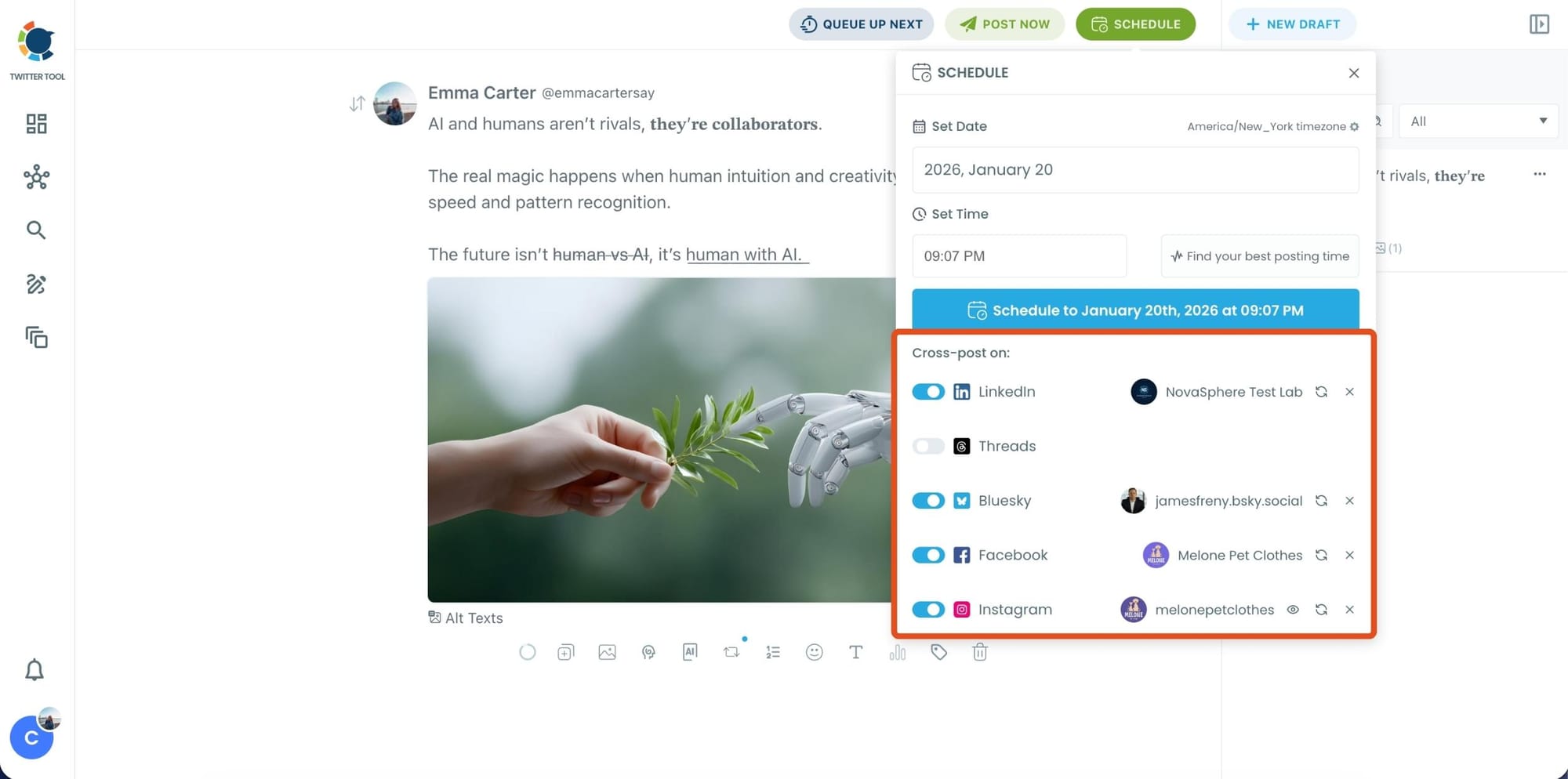
Before you publish, you can also enable Cross-Post to share the same tweet across multiple platforms in one go.
Circleboom lets you post your content to Instagram, Facebook, LinkedIn, Bluesky, and Threads automatically, so you don’t have to rewrite, re-upload, or repeat the same work on each platform.
Step 6: Schedule it for the best time to post
Finally, click Schedule and set your date and time.
You can also click Find your best posting time to see Circleboom’s suggested time slots based on follower activity.
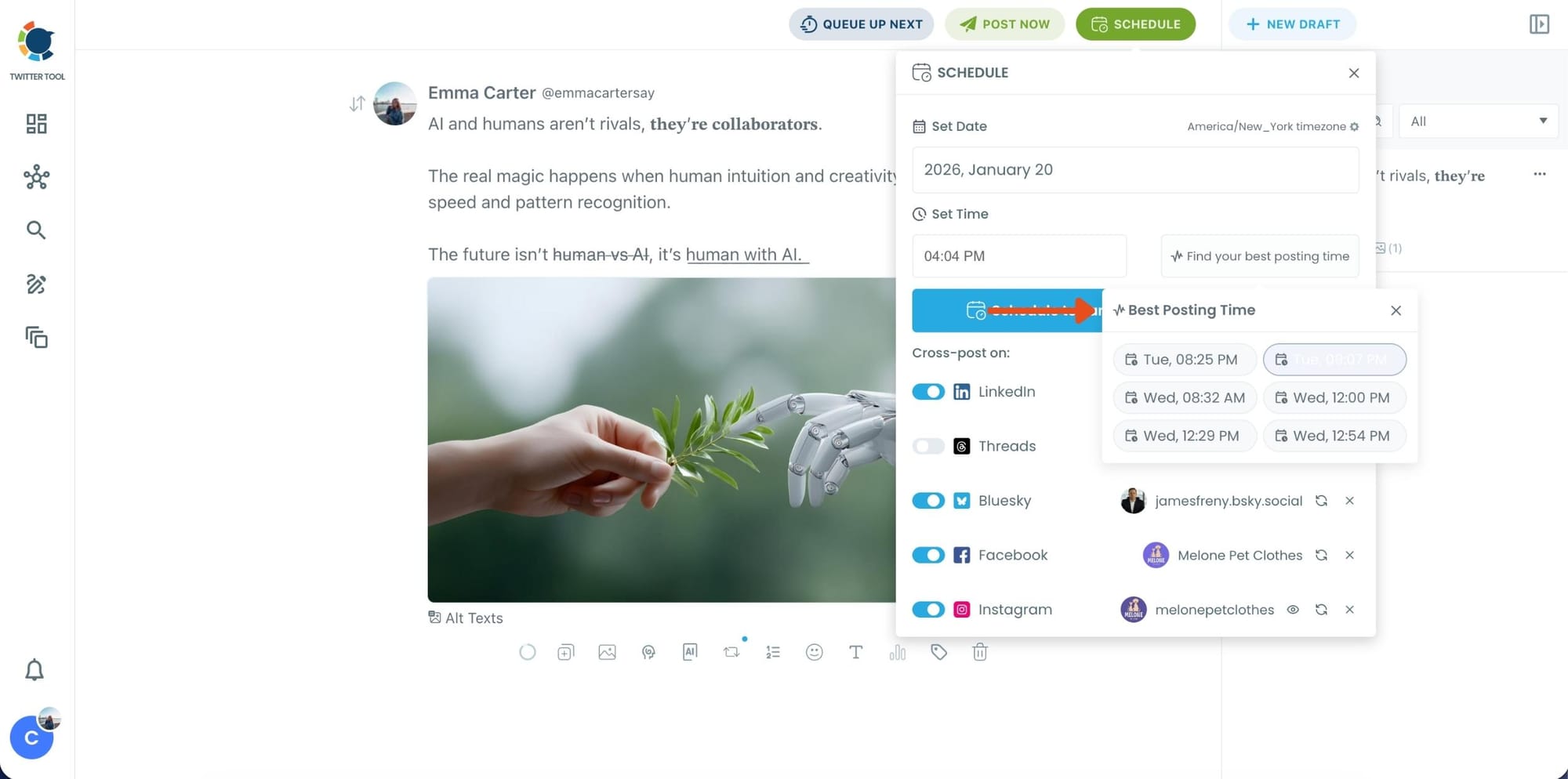
Once you pick the best option, smart-schedule it, and you’re done. Your tweet will go out at the time it has the highest chance to perform well.
Step-by-Step: Automate Reposts for Older Tweets
Already posted tweets can be automated too.
Step #1: Navigate to the Analytics Menu
From the left-hand menu, click on the "Post Management & Analytics" tab, then select "Post Analytics" from the dropdown.
Within Post Analytics, select the "Post Engagement Analytics" option.

Circleboom will display a detailed breakdown of your posts, including metrics like impressions, likes, retweets, replies, and more.
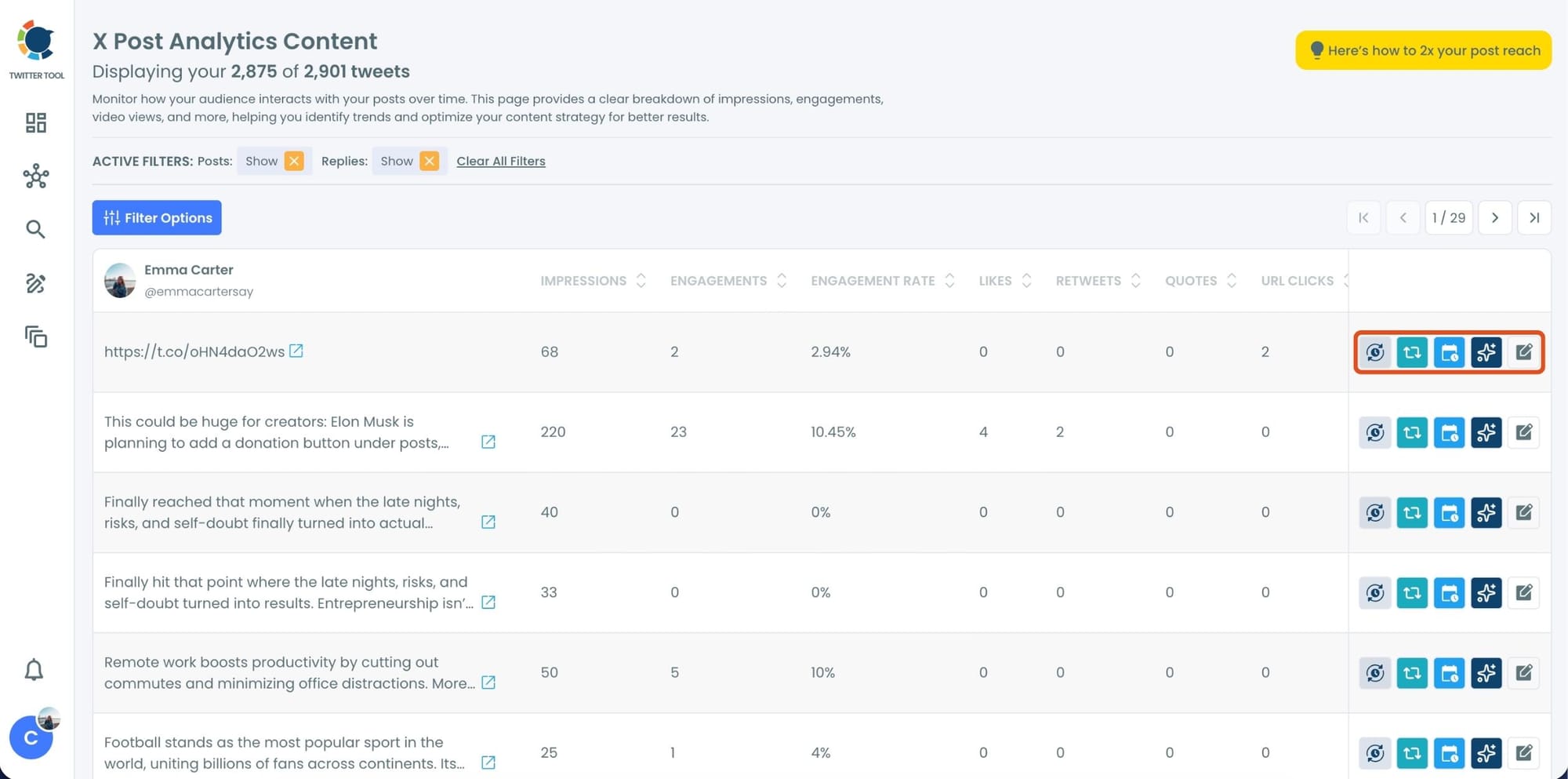
Step #2: Once you’ve found your old tweets, Circleboom offers several tools to make the most of them; choose which you want to use:

🟢 Reschedule Popular Tweets: Found a tweet that’s still relevant or hilarious but didn’t get the engagement it deserved?
With Circleboom, you can reschedule it to repost it at a better time.
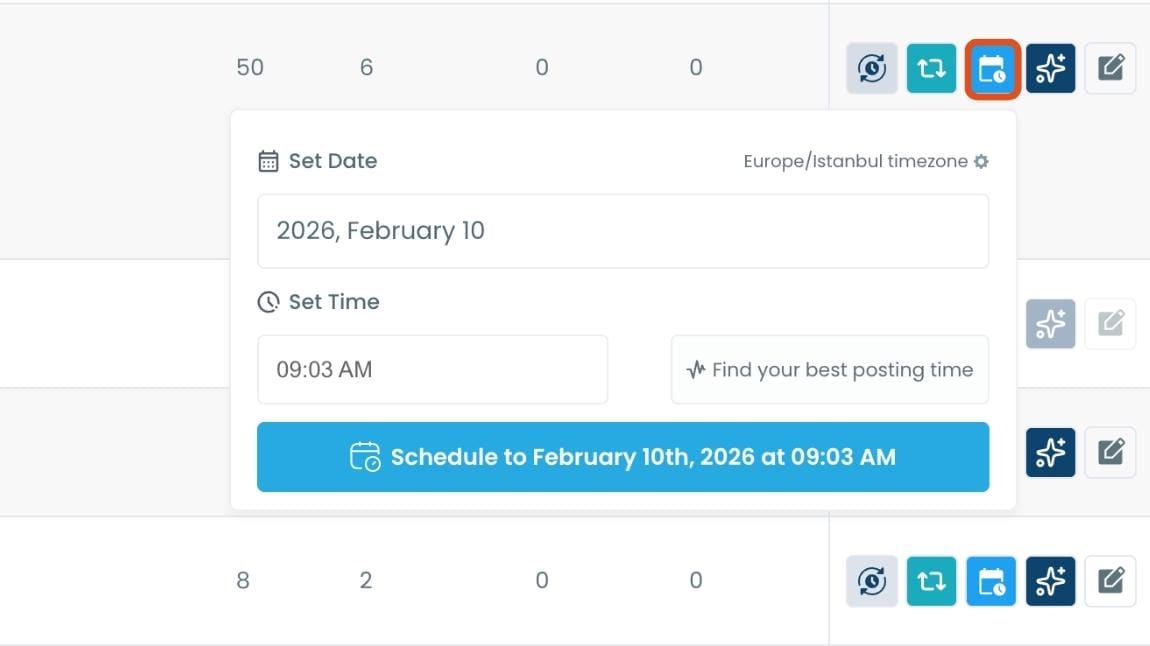
Maybe your audience wasn’t active when you first tweeted it, or perhaps it just got lost in the noise. Rescheduling ensures your best content gets a second chance to shine.
🔵 Refresh Content with AI: Some of your old tweets might feel outdated or could use a fresh twist. Circleboom’s AI-powered tweet generator can help you rewrite or improve them.
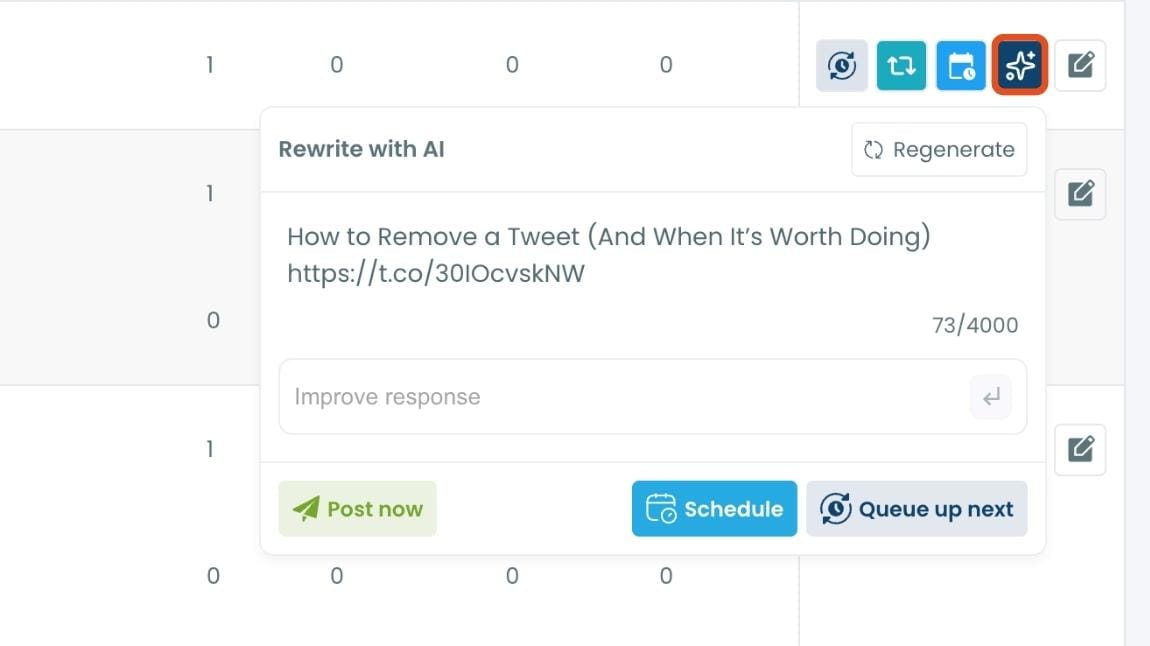
Whether you want to update the language, add a modern twist, or make it more engaging, the AI feature has got you covered.
🟡 Set Auto-Retweets: If you’ve got evergreen tweets that are still relevant, why not let them work for you on autopilot?
Circleboom’s auto-retweet feature allows you to automatically retweet your best-performing content at regular intervals. This is perfect for driving consistent engagement without lifting a finger.
Why Scheduling Retweets Actually Matters
Most of your followers didn't see the original post. Organic reach on Twitter is a fraction of your follower count. Even a tweet that performs well in its first window reaches a limited portion of your audience. A well-timed repost hours or a day later catches a different segment without requiring any new content.
Time zones make single-post publishing inefficient. If your audience spans multiple regions, posting once means one region gets the tweet during active hours and everyone else sees it buried under newer content. Automated repost cycles let the same tweet surface at different times without you setting an alarm to post manually at 3am.
Evergreen content deserves more than one appearance. A tip that was useful in January is still useful in March. A resource that got good engagement six months ago can generate the same response today for followers who joined since then. Scheduling retweets of your best content through Circleboom Twitter's Post Analytics is the most direct way to keep that content working.
Consistency doesn't require constant effort. Accounts that post and engage regularly build audiences faster than those that post in bursts. Automated retweet cycles let you maintain a posting rhythm during periods when you're not actively creating, without padding your feed with filler content.
You've already done the work. The tweet exists. The copy is written, the timing is set, and for posts identified through Post Analytics, the performance data confirms it works. Scheduling retweets of content that already resonates is one of the most efficient moves available in a Twitter content strategy. Combine it with Bulk Schedule Tweets for a full content calendar that runs largely on autopilot.
Frequently Asked Questions
Can you schedule retweets on Twitter natively?
No. Twitter and TweetDeck support scheduling original tweets but have no mechanism for scheduling retweets. A retweet on Twitter is a real-time action only. Circleboom Twitter's Auto Retweet feature was built specifically to fill this gap.
What is the difference between the two Auto Retweet modes in Circleboom?
The first mode is accessed inside the X Post Planner while writing a new tweet. You configure the retweet cycle before the tweet is published. The second mode is accessed inside Post Analytics for tweets that are already live. You find an existing tweet and set up the retweet schedule from there. Both modes use the same cycle settings but serve different workflow moments.
Can I set how many times a tweet gets retweeted automatically?
Yes. When configuring the Auto Retweet feature in either mode, you set the number of times the repost cycle should repeat. You also define the time delay before each repost and how long each repost stays up before being removed, giving you full control over the cadence.
Can I schedule retweets of other people's tweets or only my own?
Circleboom Twitter's Auto Retweet feature is designed for your own tweets, accessed either through the X Post Planner or Post Analytics. It automates the reposting of content you've created and published from your own account.
Will auto retweets appear the same as manual retweets in the feed?
Yes. Automated retweets through Circleboom Twitter appear in the feed the same way a manual retweet would. Followers see the reposted content without any indication that it was scheduled or automated.
Can I pause or cancel a scheduled retweet?
Yes. You can manage and cancel active auto retweet cycles from within Circleboom Twitter. If you want to stop a cycle mid-way, that option is available from the dashboard without affecting the original tweet.
Does scheduling retweets affect my account's standing with Twitter?
No, as long as the frequency is reasonable and the content is yours. Circleboom Twitter operates through X's official APIs and all actions are compliant with platform rules. Excessive or aggressive reposting of the same tweet in a very short window is the scenario to avoid, but a measured cycle cadence presents no compliance issues.
Final Thoughts
Twitter gives you the retweet button. It doesn't give you the schedule. For anyone who wants their content to reach more than the slice of followers who happened to be online at the exact moment of publication, that's a real gap.
Circleboom Twitter closes it with two entry points: set up automatic retweets while you're still writing the tweet, or go back to any published tweet in Post Analytics and schedule it from there. Either way, the content keeps working after you stop watching it.
Schedule retweets on Twitter with Circleboom Twitter's Auto Retweet feature.
infocircleboom.com