
Most advice about scheduling from an Android phone stops at the moment you tap confirm. That is the easy half. The half that costs you a post arrives twenty minutes later, when X rejects the publish attempt and your phone tells you nothing at all.
The X app: drafts only, no schedule button, every post published by hand. Circleboom: an official X Enterprise Developer company whose X Post Planner sets a date and time for any tweet on X from a phone browser. Rejected posts land in a Failed Items queue instead of vanishing.
→ schedule tweets on Android
The failure queue is the half of this workflow nobody mentions.
How to schedule tweets on Android, step by step
Screen recording: the compose-to-confirmed-slot path a phone browser actually shows, including the schedule modal's date and time fields.
https://www.youtube.com/watch?v=NZUMFgdzQhk
The flow, in order, from one Chrome tab on your phone.
Open Circleboom in your phone browser
- Log in to Circleboom Twitter in Chrome on your Android phone, then authorize the X profile you publish from.
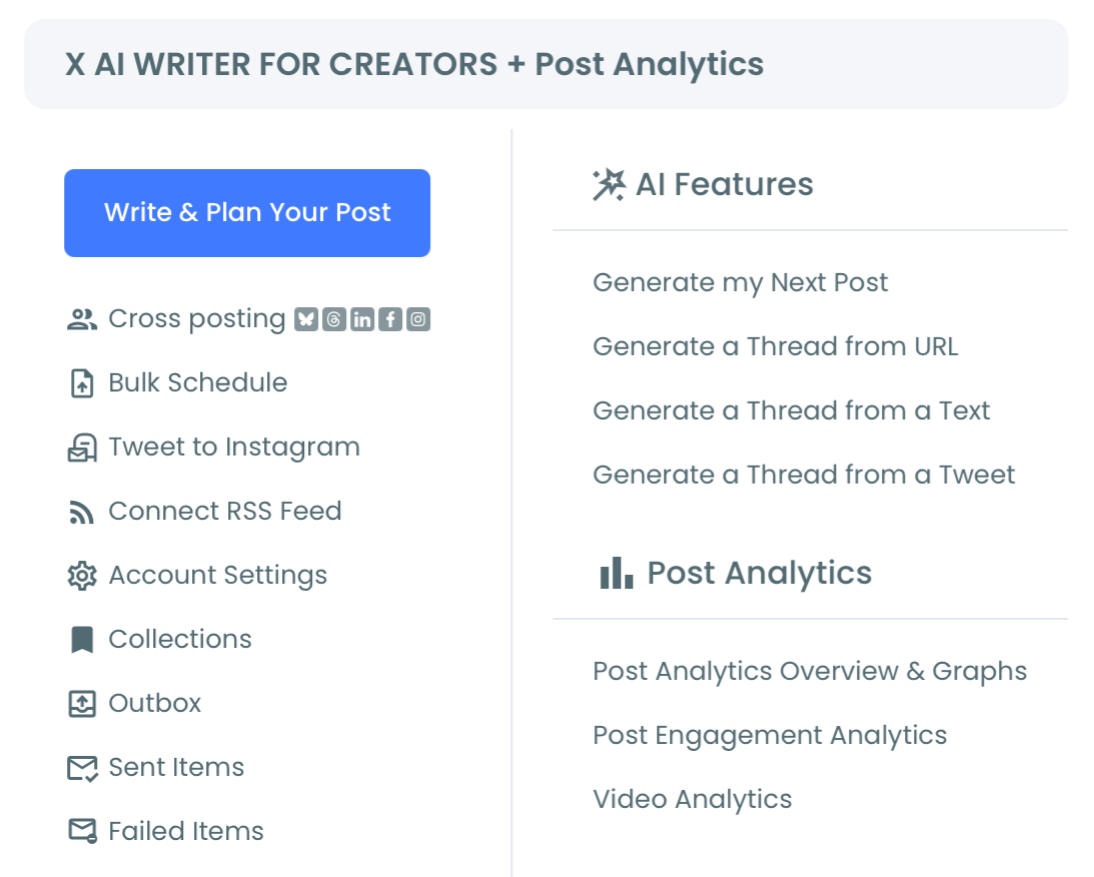
- Open the X Post Planner from the dashboard menu.
- Write the post in the editor and watch the live character counter as you thumb-type. Standard X accounts stop at 280 characters, X Premium at 4,000, and Premium+ at 25,000.
Set the time, then confirm it before you close the tab
- Tap SCHEDULE to open the schedule modal, then fill the date field and the time field. Anything closer than fifteen minutes from now is refused.
- Use the best-posting-time suggestions offered inside that modal. Six slots appear, drawn from when your followers are active, and tapping one writes it into the time field.
- Confirm with the Schedule button that carries your chosen date and time, then reopen the Outbox and check that the entry is really sitting there.
That order matters because each step closes a gap the next one cannot. Signing in first is what puts sanctioned API access behind the queue. The character counter catches a rejection X would otherwise throw at publish time. And the Outbox check is the last cheap moment to fix a wrong date.
At a glance: log in, open the planner, write, set the time, confirm, verify in the Outbox.
Why scheduled tweets go missing on a phone
Scheduling from Android breaks at two different points, and only one of them is the part people write about.
The first is getting a schedule button on screen at all. The second is finding out what happened after you walked away from the tab.
X documents its own scheduling flow plainly enough: select the calendar icon at the bottom of the compose box, make your selections, confirm. That instruction sits on X's how-to-post help page, alongside the rest of its posting basics.
The catch is where that compose box lives. Circleboom schedules posts to X from any browser, including a phone one, and keeps a record of every attempt the platform refused.
Why desktop mode is not the answer
The composer in X's Android app saves drafts. A draft still needs you to open the app and tap publish, which is exactly the chore scheduling was supposed to remove.
Most people who hit this switch Chrome to desktop mode and follow the guide to scheduling tweets in the Twitter web app as a workaround.
That workaround gets one post out. It does not survive a week of them.
Desktop mode on a small screen means a compose box sized for a 1440-pixel window rendered into a 400-pixel one. Every tap becomes a pinch-zoom first.
The calendar picker in particular is built for a mouse. Picking a date in it with a thumb is the sort of thing you do once and then quietly stop scheduling.
Check what you actually want from a phone: a composer sized for a small screen, a time picker that does not require pinch-zooming a desktop layout, and some record of what published. You get all three when you schedule your tweets from an Android phone through a workspace built for the job.
What the X Post Planner gives an Android screen
Circleboom's X Post Planner is a browser workspace, and that is the honest description of it. There is no separate Android app to install, no APK, no store listing.
You open the same planner in Chrome that you would open on a laptop, and the composer, the toolbar, and the schedule modal are the same ones.
What changes is which parts of it you lean on.
On a phone, the toolbar row does more work than the keyboard does.
The image icon opens Image Tools, which uploads media straight from the device, so a photo you took ninety seconds ago is two taps from the draft.
The thread icon adds another post block, and the reorder handle on the left of each block lets you drag tweets into a different order before anything is scheduled.
Threads built this way run up to 25 connected tweets, which is worth knowing before you try to schedule a Twitter thread from a train.
Five other platforms sit inside the schedule modal as toggles: LinkedIn, Threads, Bluesky, Facebook, and Instagram. Switching any of them on means one confirmation queues both the tweet and that platform's version.
If Bluesky is already in your rotation, the same logic behind scheduling posts on Bluesky applies inside this modal rather than in a second tab.
Start where the composer is: plan tweets from your phone and the rest of the toolbar comes with it.
The clock behind the audience data
Those six suggested slots are built from your audience's activity data, and that data carries a documented time zone of its own. Circleboom's best time to post on Twitter chart reads its hours off whichever zone your account is set to.
That setting is not necessarily what your handset believes, and if you travel, it does not travel with you.
So confirm that setting before you read a peak window as a local hour, whether you are reading it off the chart or off a slot the modal filled in for you.
Draft on the phone, finish anywhere
Not every post you start on a phone should be scheduled on a phone, and the planner is built to let you split the work.
The Collections panel stores drafts, so a half-written thought typed on a bus stays in the account rather than in a notes app you will forget about.
Collections has a keyword search field and a dropdown that filters by collection, which matters more than it sounds.
A phone screen shows three or four drafts at a time. Search is how you find the one you want without scrolling past forty.
The practical pattern: capture on the phone, refine and schedule wherever you happen to have a keyboard. The draft is the same object in both places, so nothing gets retyped.
I reach for this split more than the all-on-mobile version, because the writing improves when it gets a second look and the scheduling does not care which device confirms it.
Where a failed tweet actually goes
A scheduled post that fails does not send you a notification. It simply does not appear.
On a laptop you might notice the gap in your timeline within the hour. On a phone, where you scheduled the thing precisely so you could stop looking, you often notice days later or never.
Circleboom handles this with a dedicated Failed Items queue. When a scheduled post is attempted and X returns an error instead of a confirmation, the post moves to Failed Items rather than to Sent Items, and the reason X returned is stored with it.
Failed posts are never retried automatically, which is deliberate. A blind retry against an unfixed cause produces the same failure.
The reasons are specific enough to act on:
- Permission or authentication errors, when the account's token expired or a password change invalidated it.
- API rate limit errors, when too many publishing actions fired inside one window.
- Character count rejections, when the text ran past the limit for that account tier.
- Media processing errors, when an attached image, GIF, or video failed to process.
- Duplicate content rejections, when X saw a near-identical recent post from the same account.
From Failed Items you can add the post back to the queue, schedule it again for a new time, or reshare it once the cause is fixed.
Cross-posted items fail independently, too. An X failure does not mean the LinkedIn or Threads version failed, which is worth remembering if you also schedule posts on Threads from the same modal.
Which of those a phone makes more likely
Two of them, and neither reason has anything to do with the post itself.
Changing your X password from the same handset can invalidate the connection you authorized weeks earlier. Every queued post then fails on permissions at once.
That is also the tell. Several failures at the same moment carrying the same reason points at the connection, not at the content.
Media processing errors climb for a duller reason. Phone cameras produce large files, and large files run into a size ceiling that a laptop screenshot rarely touches.
The media rules that bite hardest on Android
Media limits are where phone scheduling actually fails, and the numbers are worth memorizing.
Each tweet takes a maximum of four images at up to 5 MB each in JPG or PNG. Or one GIF at up to 15 MB. Or one video capped at 512 MB and 140 seconds of runtime.
A tweet never carries stills and video together. A poll carries no media at all.
The 5 MB ceiling is the one Android users hit. A modern phone camera writes files that clear it without trying, especially in portrait mode or at higher resolutions.
Resize before you attach, or skip the camera roll entirely and pull from Unsplash, Giphy, or Canva inside Image Tools, where nothing you select is a 12 MB original.
If your workflow involves a lot of visual posts, preparing them in one sitting beats fighting the upload one at a time. The approach behind bulk scheduling tweets with images applies once you are back at a keyboard.
Is it safe to schedule tweets from a phone browser?
Yes, and the browser is not the risky part. What matters is how the tool talks to X once your tab is closed.
Publishing runs on approved API access. It is not a browser script impersonating your session, which is why closing Chrome, killing the tab, or losing signal leaves an already-queued post untouched.
The scheduling happens server-side. Your phone is an input device, not the thing holding the post.
The one dependency worth naming: the connected account has to stay active and authenticated at publish time. Revoke Circleboom's permission in your X settings, or change your password, and the queue keeps its entries but the publish attempts fail.
That is the permissions error in Failed Items, and it is fixed by reconnecting the account and retrying.
The practical upshot for Android
Scheduling from an Android phone is a browser workflow, not an app workflow, and pretending otherwise is how people end up disappointed.
Open Chrome, open the planner, write, set a time at least fifteen minutes out, confirm, and check the Outbox before you put the phone in your pocket.
Then build one habit on top of it: check Failed Items after any batch you scheduled on the move. That single check is the difference between a queue that works and a queue you only think is working.
Kick off the setup here: set up Android tweet scheduling.
Questions left over after your first queue
Do I need to keep Chrome open for a scheduled tweet to publish?
No. Once a post is confirmed in the schedule modal it lives in Circleboom's queue on the server, so closing the tab, closing Chrome, or turning the phone off has no effect on publication.
Does one bad tweet fail an entire scheduled thread?
Not the whole thread. Failures are captured at the individual post level, so a single tweet X rejects lands in Failed Items with its own reason rather than taking the sequence down with it. Bulk-scheduled posts behave the same way, arriving as separate entries rather than as one batch failure.
Why was my scheduled time rejected?
Almost always because it was too close. Every scheduled post must be set at least fifteen minutes in the future, which catches people who try to queue something for a few minutes ahead while walking out the door.

