

To search through your retweets on Twitter, you need a tool that reads tweet content by keyword and date instead of asking you to scroll a timeline that only shows the most recent activity. X's own search leans toward what happened this week, and the archive download is a static file you cannot query live. That gap is exactly where a content-first historical search earns its place.
To search through your retweets, start from the tweet content, not your profile: query public X posts by keyword, set a date window, and filter by engagement. Circleboom's Historical Tweet Search reads public X posts by keyword, date range, and engagement filters, then returns both the matching tweets and the accounts behind them through official X Enterprise data access.
→ search through your retweets
Keep reading for the exact filters that separate a useful retweet search from a noisy one.
The reason this matters is that a retweet is a post you chose to share at a moment in time. Six months later, that share carries context your live timeline has already buried. Whether you are rebuilding a campaign, checking what you endorsed before a brand shift, or mapping who else shared a topic, you are really asking one question: what was said, and when. That is a content query, not a profile lookup.
Why X's Native Tools Fall Short for Retweet Search
X's native search does one job well and one job poorly. Typing from:yourhandle keyword with a date range in X advanced search can turn up some older posts, but the interface leans toward recency and quietly drops results the further back you reach. The archive download, meanwhile, gives you a .zip you open once, not a live query you can filter by engagement or re-run next month.
Both approaches share the same ceiling: they show you tweets, but they do not turn those tweets into a working list of accounts you can act on.
When you search through your retweets to find the people who also shared a topic, you want the accounts, deduplicated and exportable, not a scroll of individual posts. That is the gap a content-first tool closes. If you have hit that wall before, the breakdown in how to find my retweets of a certain account walks through why the native path stalls.
You can start a cleaner search here: search your retweet history.
How Circleboom Searches Your Retweets
Circleboom's Historical Tweet Search inverts the usual logic. Instead of starting from an account and reading its posts, it starts from content, what was actually said, and works back to the accounts. You describe the retweets you are looking for in plain language, refine with filters, pick a historical date range, and choose how many tweets to collect. The result comes in two views: the matching tweets, and the deduplicated accounts behind them.
Circleboom is an official X Enterprise Developer company, so every result is pulled through sanctioned Enterprise access, not scraping. That distinction is why the date range can reach into public history the native search hides, and why your account stays fully compliant while you dig.
Video walkthrough: how a keyword plus a date window rebuilds a historical retweet search from scratch in one Circleboom view.
Connect your X account to Circleboom
Here is the flow, in order.
- Log in to Circleboom Twitter and connect your X account with official OAuth.

Open Advanced X Search and start the query
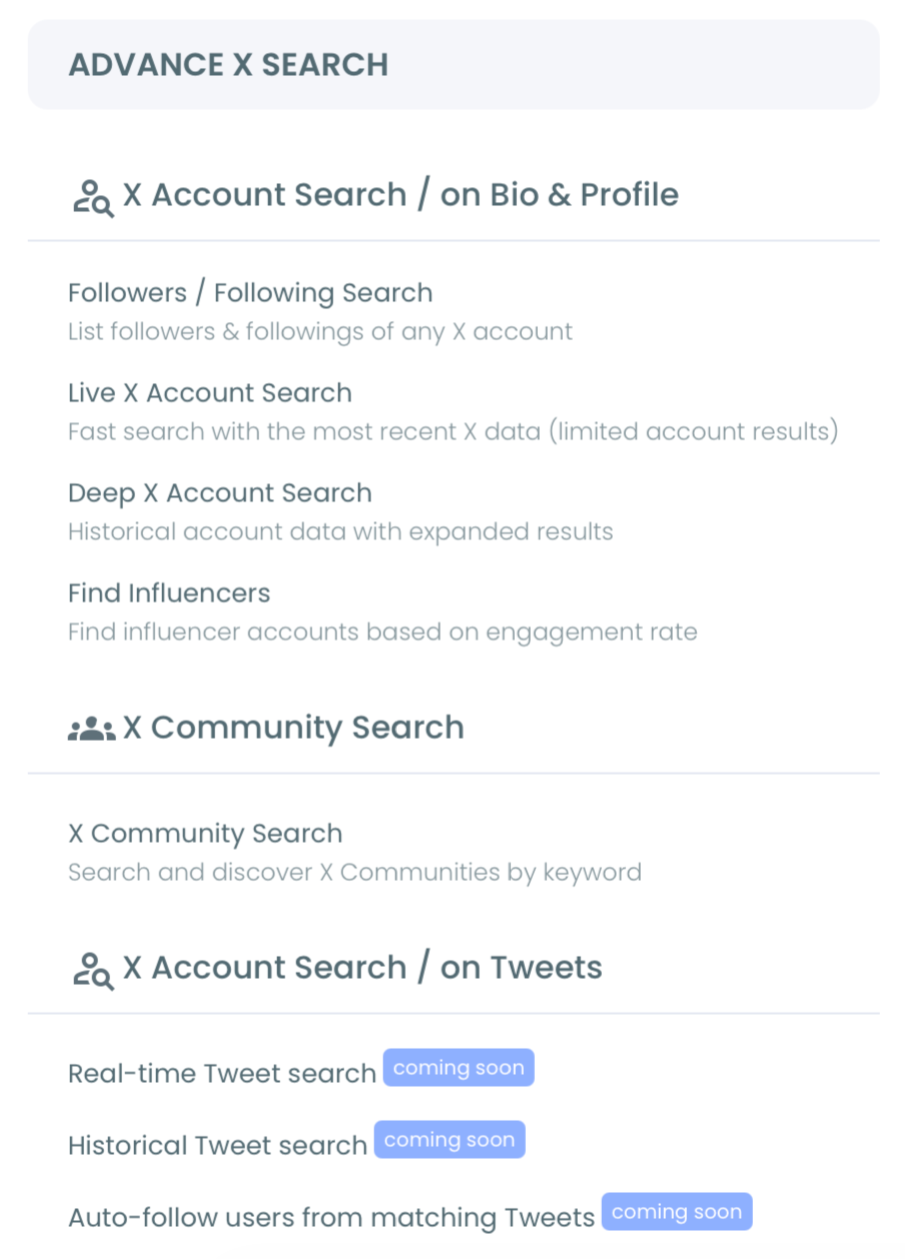
- Open the Advanced X Search menu and select Historical Tweet Search.
- Describe the retweets you want in plain language, then confirm or refine the AI-suggested query. Name the topic, the phrase, or the hashtag you shared.
Scope the search and pull the accounts
- Select a historical date range (last 30, 60, or 90 days, one year, or a custom window) so the search reconstructs the period you actually retweeted in.
- Apply filters to cut noise: exclude terms, set language, toggle replies or links, restrict to verified accounts, or add a minimum retweet and like count.
- Choose how many tweets to collect and run the search; Circleboom retrieves the matching public posts and their metadata.
- Switch to the profile view to see the deduplicated accounts, then export to CSV or add them to a list.
That order holds up because each control removes a different kind of noise before you act: the date window frames the moment, the filters strip the off-topic matches, and the profile view turns a pile of posts into a clean account list. Skip the filters and you drown in broad-keyword volume; skip the date range and you lose the historical dimension entirely. If you are wondering how deep that dimension goes, the search Twitter history reference explains how far back a content-first query can actually reach and why the ceiling sits where it does.
At a glance: connect, describe, date-scope, filter, collect, then pivot to profiles. Tokens meter the collection so you only pay for what you pull.
What You Get After the Search
You get two exportable outputs from a single query, which is what makes retweet search actionable instead of nostalgic. The tweet view holds each matching post with impression, like, retweet, quote, bookmark, and reply counts plus the creation timestamp. The profile view holds every unique account that posted a match, with follower count, follow ratio, join date, and an active-or-inactive signal.
A concrete example makes the payoff obvious. Say you spent March boosting posts about a product launch and now need that amplifier list back. You set the date range to that month, type the product name as the keyword, and add a minimum of five retweets so only shares that genuinely spread survive the filter. The tweet view returns the exact posts you amplified, in order, with the metrics that tell you which landed. The profile view returns the forty or so accounts that shared the same topic in that window, deduplicated and sorted by follower count. That second list is a ready-made outreach segment you would never have reconstructed by scrolling, and it took one query to build rather than an afternoon of screenshots.
That second view is the real payoff. When you search through your retweets on a topic, the accounts behind the shares become a prospect list, an outreach segment, or a monitoring group you can drop into a Twitter List. You can also compare an old set against a live real-time tweet tracker run to see whether the conversation is still active or has moved on.
For teams that live in spreadsheets, the CSV path pairs naturally with a plain export tweets job for content analysis. If you want the mechanics of safe downloads before you run one, the guide on export tweets extensions and safe tweet-data download covers the trade-offs between browser extensions and API-backed exports.
Ready to run it? Dig through your retweets by keyword and let the profile view do the account work for you.
One insight most guides miss: the value of a retweet search is not the tweet, it is the person who shared it. A profile-only search would never place that account in front of you, because people show their interests by what they share, not by what their bio says. The complete Twitter advanced search guide for 2026 shows how operators stack, but the account extraction is where content search pulls ahead.
Summary
Searching through your retweets is really about querying content, not scrolling a profile. Set a keyword, frame it with a date range, filter out the noise, and let Circleboom hand you both the tweets and the accounts behind them through compliant Enterprise access. The native search shows you fragments; a historical content query gives you a working list you can export, monitor, and reuse.
Frequently Asked Questions
Can I search my retweets by keyword?
Yes. Historical Tweet Search reads public X posts by keyword, so you describe the topic, phrase, or hashtag you shared and it returns the matching tweets plus the accounts behind them.
How far back can I search?
You can set a custom date range or pick a preset window up to one year, and Enterprise API access reaches historical public content that X's native search tends to bury. Coverage depends on what the API has indexed for that range.
Does this include private or deleted retweets?
No. Only publicly available tweets that can be retrieved are included. Private, protected, or deleted posts cannot be pulled.
What can I do with the accounts I find?
You can follow, unfollow, whitelist, blacklist, add them to a Twitter List, or export the whole set to CSV for outreach, research, or ongoing monitoring.
How many retweets can I collect in one search?
The collection size is set by the number you choose before running the search and metered by your token balance, so you control the depth. A tighter keyword and a shorter date window return a smaller, cleaner set that costs fewer tokens, while a broad query across a full year pulls more accounts but spends more of your balance. Start narrow when you are testing whether a topic is worth a wider pull.
%20by%20keyword%20and%20date)
