

X has no native keyword alert. You can save a search, and an X Pro column can be set to ping you when fresh posts match your terms. Neither one hands over the thing a monitoring workflow exists for: the accounts writing those posts, listed once each, ready to act on.
A feed tells you a conversation is happening. It does not tell you who to talk to.
What a working keyword monitor has to give you.Every live post matching your terms from a start date you pick.The deduplicated list of accounts that wrote those posts.Filters that cut the stream down to accounts worth contacting.
Circleboom collects live keyword matches on X through official API access and returns both the posts and the account behind each one. Set up your Twitter alerts for keywords from the Advanced X Search menu.
Why a saved search on X is not an alert
A saved search is a query you re-run by hand. X keeps the string; it does not keep the results, and it does not tell you when something new arrives. The official advanced search page is explicit about what it does: it filters posts.
Filtering is the first quarter of the job.
The other three quarters are deduplication, qualification, and action. Nothing in the native search path does any of them. If you want to see how far the operator syntax can be pushed before it runs out, the walkthrough on Twitter advanced search maps the full set.
What X Pro columns give you and where they stop
X Pro closes part of the gap. Its columns accept a search query and can trigger a sound or a desktop notification on new matches, which is genuinely useful if you sit in front of that column all day.
What comes back is still a scrolling list of posts. One row per post, with the same author appearing five times if they tweeted five times.
That shape breaks the moment you try to work the results. There is no dedup, no follower count next to the name, no way to strip out the accounts that matched your keyword ironically, and no export.
So you copy handles into a spreadsheet by hand, which is exactly the manual step you set up keyword alerts on X to avoid. The gap is not speed. It is structure: a notification stream is optimized for reading, and an outreach list is optimized for acting, and the two want different data shapes.
The Twitter advanced search filters page shows the alternative. Same filter logic, applied to a structured sortable table instead of an infinite scroll.
Set up your keyword alerts on X the way you will actually use them. The difference shows up in the output, not the setup.
The output that matters is the account list, not the post feed
A keyword monitor earns its place when it answers "who," not just "what." Every competing setup, from saved searches to notification columns to email digests, optimizes the same axis: how fast you see the post. That axis stops mattering after the first hour. The axis that keeps mattering is whether you can turn the match into a person you can reach.
Circleboom's Real-time Tweet Search collects matching live posts from a start date you choose, then pivots the same result set into a profile view with one click. Each account appears once, no matter how many matching posts it wrote.
The profile table carries follower count, following count, follow ratio, total posts, join date, and an activity classification. That is enough to sort a noisy 400-post stream into a shortlist of forty accounts in about a minute.
From that view the account is actionable in place. Follow it, add it to an X List, whitelist it, blacklist it, or export the filtered set as CSV. Nothing gets copied into a spreadsheet, and nothing gets lost when the original post is deleted an hour later.
Why one row per account beats one row per post
The distinction sounds small until you count the steps it removes. A notification stream costs you one manual step per interesting post: open the profile, judge it, note the handle. Fifty matches is fifty open tabs. The profile view collapses all fifty into one sorted table where the judging happens on visible numbers rather than on individual page loads.
That is also why the same collection serves two jobs at once. The post view is your record of what was said, useful for spread analysis and for documenting a live conversation. The account view is your working list. If your monitoring is aimed at people rather than posts, the approach in more targeted X account search pairs naturally with this.
How to set up Twitter alerts for keywords step by step
Video walkthrough: how a keyword query turns into a collected post set and then into the account list behind it.
Here's the flow, in order.
Connect your X account and open Advanced X Search
- Open Circleboom Twitter Management and authorize the X account that will run the searches.
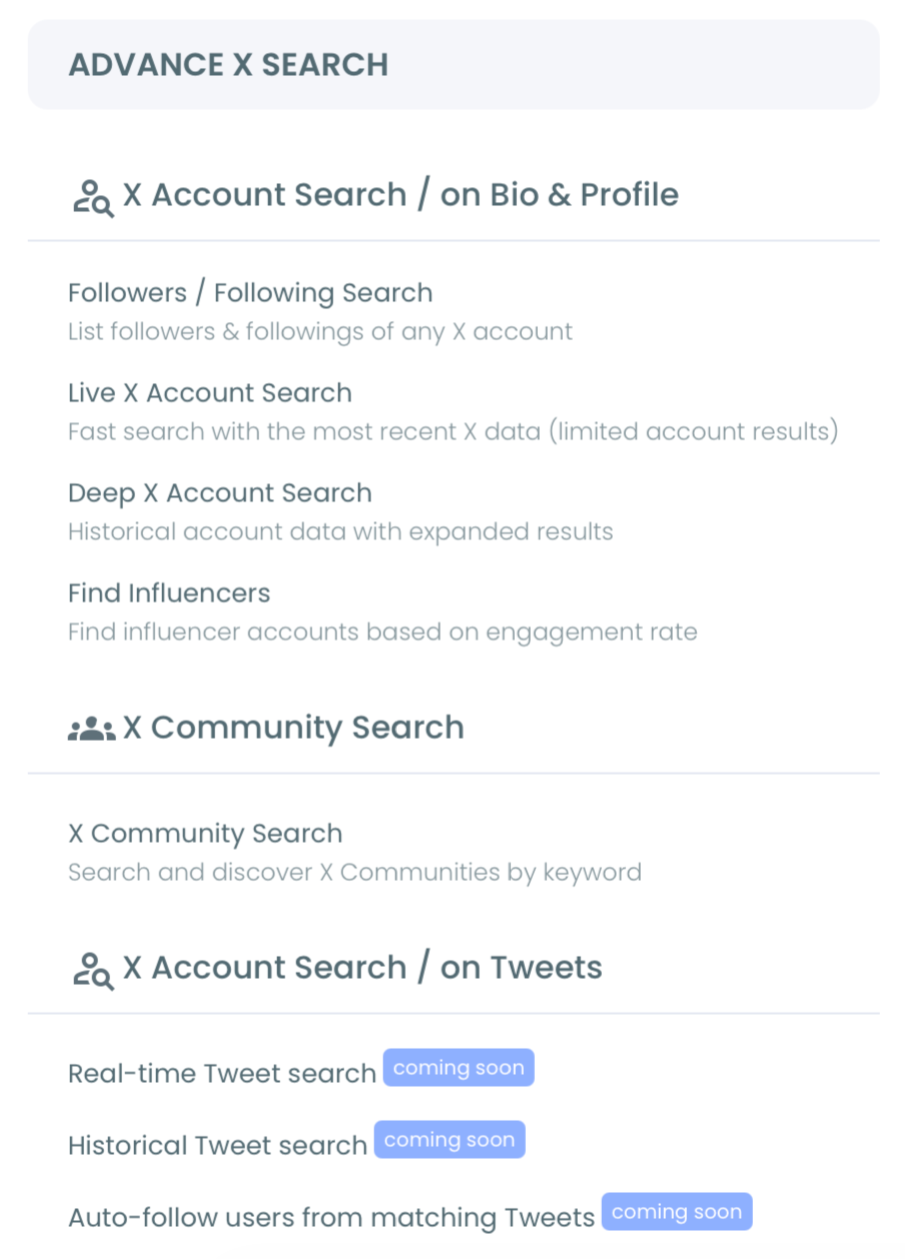
- Open the Advanced X Search menu from the dashboard, where the account-level and post-level search modes sit side by side.
Define the keyword window
- Select Real-time Tweet Search rather than Historical Tweet Search. Historical queries a past window; real-time collects forward from a moment you set.
- Write the search in plain language and let the query builder refine it, or open Filters directly and set keywords, match type, exclusions, language, and media type by hand.
- Pick a start date and a collection size. Last 24 hours, last 7 days, last 30 days, or a custom date. The collection size controls how many posts are gathered, and it draws from your GetTweetToken balance.
Turn matches into an account list you can work
- Review the collected posts in the results table, which shows impressions, likes, retweets, quotes, bookmarks, replies, and the timestamp for each match.
- Click "Display Profiles of this search" to pivot into the account view. Every unique author appears once with full profile context.
- Filter the account list, then act on it. Follow, add to an X List, whitelist, blacklist, or export the filtered set to CSV.
That order matters because each step narrows the problem before the next one gets expensive. The login earns official API access. The start date bounds the collection so tokens are not spent on stale posts. The profile pivot lands after the filters have already thinned the noise, so you review forty accounts instead of four hundred.
Quick recap:
- Connect with official OAuth.
- Open Advanced X Search and choose Real-time Tweet Search.
- Set keywords, filters, start date, and collection size.
- Pivot to the profile view and act on the accounts.
Which filters decide whether a match is worth your time
The filter panel is where a keyword monitor stops being a firehose. Every filter works with AND logic, so each one you add narrows the result set rather than widening it, and an Active Filters bar shows exactly what is applied at any moment.
The five that change the result most:
- Exclude terms. Strips the homonym, the parody, and the unrelated product with the same name.
- Engagement minimums. Drops the posts nobody saw, which is most of a broad keyword stream.
- Language. Keeps the stream in a language you can actually respond in.
- Replies and links toggles. Removes reply chains and link-drop spam when you want original posts only.
- Verified-only and account-level quality signals. Cuts eggheads, protected accounts, and spam-shaped profiles before you review anything.
Getting the keyword itself right does more work than any single filter. "CRM" returns everything; "switching from our CRM" returns intent.
The same discipline applies when you match against bios instead of posts, which is the method behind search for keywords in Twitter profiles. For recurring campaign terms and branded hashtags, the keyword and hashtag tracker keeps the counts in one place.
Is it safe to monitor keywords on X this way?
Yes, because nothing here scrapes. Circleboom is an official X Enterprise Developer company, which means keyword collection runs through sanctioned endpoints and only ever returns publicly posted content from public accounts. Protected and private accounts never appear in a result set.
Two limits are worth planning around. Collection draws GetTweetTokens in proportion to the posts gathered, and export draws them separately, so a broad keyword during a spike can eat a balance faster than expected. Live posts also change underneath you: a post visible at collection time can be edited or deleted before you act on it, and engagement counts keep moving.
One thing this workflow does not do yet is push a notification to you. Automated keyword alerts under Monitoring are on the roadmap and not available today, so the current shape is a collection you run and revisit rather than a ping you receive.
Results are stored under a search log, which means you can reopen a past collection without spending tokens again.
What changes after the first collection
The first run usually reframes the keyword rather than the workflow. Almost everyone starts too broad, watches the collection fill with noise, and tightens the terms on the second attempt. That is the correct sequence, and it costs one small collection to learn.
What you have afterwards is a working list rather than a feeling.
A launch keyword returns the accounts that picked the conversation up in the first hours. A competitor's outage returns the accounts expressing frustration while the alternative still sounds credible. A category phrase like "looking for recommendations" returns accounts in a decision window that closes in days, not months.
Each of those is an export away from being a campaign audience, and each one decays. An account that publicly asked for a recommendation on Monday has usually chosen by Friday, which is why the start date does more work here than the keyword does.
Run your Twitter alerts for keywords against a live term first, then compare it against the same term historically.
Whether a spike is new or seasonal is one question. Who is talking right now is a different one. Twitter historical data answers the first, and the live collection answers the second.
Where the exported account list goes next
An export is only worth running if you know what receives it. Three destinations cover almost every case.
An X List. Adding the filtered accounts to a List keeps them visible without changing your follow graph, which matters when the accounts are competitors, prospects, or event attendees you want to watch rather than follow. Lists turn a one-time collection into an ongoing view.
A follow batch. Following selected accounts from the result puts them in your feed and often triggers reciprocal attention, which is the point when the keyword is a niche you are trying to enter. Keep it selective and paced; a keyword match is not a reason to follow everyone in the table.
A CSV for something outside X. The export carries handles and profile metrics, which is enough to build a targeted audience, brief a campaign, or hand a shortlist to whoever is doing the actual outreach.
The choice matters more than most people expect. A List costs nothing and stays reversible. A follow batch is a public signal that changes how your account looks. A CSV leaves the platform entirely and stops being current the moment it downloads.
Picking the destination before you run the collection also tells you how tight the filters need to be. A List tolerates a loose result; a follow batch does not.
Your next move
Keyword monitoring pays off in the acting, not the watching, so the setup is worth doing once and properly.
- Write one narrow keyword and one exclusion list before you open anything.
- Start the collection at the moment the conversation began, not thirty days back.
- Apply engagement and language filters before you look at a single profile.
- Pivot to the account view, export the shortlist, and work it the same day.
The approach in track crypto masters daily and catch new projects early runs this loop where the window is hours, not days.
→ Run it on one keyword: real-time tweet tracker
What to know before you start monitoring
How far back can the collection start?
You choose the start date from last 24 hours, last 7 days, last 30 days, or a custom date. Setting it too far back turns a live collection into something closer to a historical query, which returns a less current account list than you probably want.
Does collecting posts use up my whole token balance?
Collection consumes GetTweetTokens in proportion to the number of posts gathered, and export consumes them separately. The balance is shown during setup, and if it runs out mid-collection the search stops there with partial results still saved.
Can I act on the accounts without leaving the results page?
Yes. The profile view carries per-row follow, unfollow, whitelist, blacklist, and open-profile actions, plus bulk follow, add to X List, and CSV export for every checkbox-selected account.
Will a keyword match always mean the account is relevant?
No, and this is the most common misread. Accounts match keywords ironically, sarcastically, or in an unrelated context, so review the profile view before running any bulk action on it.

