

An account that posts nine times in one week and then goes silent for three teaches its followers to stop expecting it. The cost is quiet: every gap is a stretch when nobody new finds you and nobody who follows you is reminded why they did. Tweeting consistently closes those gaps, and it takes less daily effort than tweeting in bursts.
How do you tweet consistently when your weeks are unpredictable?
Write a month of posts in one sitting and schedule them all at once. Circleboom's Bulk Schedule uploads a CSV of prepared tweets and schedules each one on X at its own date and time through official Enterprise APIs.
→ Twitter posting consistency
Why tweeting in bursts costs you on X
Burst posting ties your output to your free time, and free time is the first thing a busy week removes. The result is a profile that looks active for a few days and abandoned for the rest of the month.
The usual advice is to post daily, which treats the problem as a discipline issue. I see it differently. The weak point is that a tweet only exists on the day someone sits down to write it, so a day with no time to write is a day with no post.
Scheduling posts one at a time does not fully solve it. Thirty trips through the same form invite wrong dates and uneven spacing, and attention fades long before the last post is set.
A better approach treats the month as one job. Prepare the posts together, load them together, and you get consistent tweeting on Twitter without a daily decision.
What tweeting consistently on Twitter takes
Tweeting consistently takes two separate sessions: one for writing and one for scheduling. Circleboom keeps the two apart on Twitter by letting you prepare posts in a spreadsheet and schedule the whole file in one action.
Twitter posting consistency is the outcome of that split. The writing happens when you have ideas. The publishing happens on the dates in the file.
Bulk Schedule reads the CSV and maps each row to a post with its own publish time. A validation preview appears before anything is scheduled. One file holds up to 1,000 rows, so a month, or several, fits in a single import.
Circleboom is an official X Enterprise developer, so the scheduled posts reach X through approved access and not through a workaround.
Compared with scheduling by hand, the difference is where the effort goes. Thirty separate scheduling sessions spend most of their time on dates and clicks. One file spends it on the writing, and the dates sit in a single column where a wrong one is easy to spot.
The split also makes delegation practical. One person can prepare the spreadsheet while another reviews the preview and holds the final click.
How many posts the month should hold
The count is a smaller decision than it looks. One post a day already closes the gaps, and the feature's own examples run between five a week and two a day. Anyone planning far beyond that should first read how to schedule more than 10 posts a day.
Once the count is fixed, the file does the rest, and a steady posting schedule on X stops depending on daily motivation.
Do you need a content calendar to tweet consistently on X?
Yes, but a small one: a spreadsheet with one row per post and a date beside it is enough.
The calendar's job is to make the month visible before it is scheduled. You should be able to see the format of each day and count the days left open. Two documented patterns from the Bulk Schedule feature make the arithmetic concrete.
A 30-row month, split by format
Circleboom's example for a varied month is 30 posts in four formats.
| Format | Rows in a 30-post month | How often it appears |
|---|---|---|
| Tips | 10 | About every third day |
| Questions | 10 | About every third day |
| Threads | 5 | About once a week |
| Visual posts | 5 | About once a week |
Thirty rows at one post a day fills the month. The split matters for two reasons. Followers do not get the same format day after day, and ten tips are easier to write in one sitting than thirty unrelated posts.
Plan by format first and by date second. Fill the tip rows, then the question rows, and only then spread them across the dates.
If the rows themselves are the hard part, a list of tweets to post on Twitter will get the first batch moving.
The 5-a-week variant that leaves 2 open slots
The second documented pattern schedules 5 posts a week instead of 7, which leaves 2 slots for news and trending topics.
The same arithmetic for a four-week block, as an illustration:
- 4 weeks at 5 scheduled posts gives 20 rows.
- 4 weeks at 2 open slots gives 8 days kept free for timely posts.
- At the same proportions, 20 rows come to about 7 tips, 7 questions, 3 threads and 3 visual posts.
The 20-row plan is the one I would hand a solo account first. It is a third less writing, and the open days absorb the reactive posts that would otherwise break the plan.
An account with more to say can go the other way. Sixty rows covers 2 posts a day for 30 days, still in one upload.
Laying the dates across the month
Write the dates after the formats are filled. Start with the days you want left open and mark them, then give each remaining day one row.
Alternate the formats as you go. A tip followed by a question, with a thread or a visual post about once a week, keeps two identical formats from landing back to back.
Labels can carry the format into Circleboom. If labels named for your formats already exist in the account, add them in the labels column and the preview shows a tag on each row. The label has to exist first, since the import does not create new ones.
Keep one posting hour unless you have a reason to vary it. A fixed hour makes the posting_time column quick to fill, and any row with a different time stands out as a likely mistake.
Treat the hour of each post as a separate decision. Circleboom offers Best Time to Post slots in its scheduling flow, but a CSV import does not choose those slots for you. The times written in the file are the times used.
How to tweet consistently with one CSV upload a month
Bulk scheduling on screen: a tweet upload shown from start to finish, to follow alongside the steps below.
The process runs in three phases and nine steps.
Open Bulk Schedule and get the template
- Open Circleboom Twitter and connect the X account the posts will publish from.

- Go to the X Post Planner menu, then select Bulk Schedule from it.

- Click Download Sample CSV Template in the import window to get a file with the correct column headers.
Build the month in the spreadsheet
- Enter one post per row in the text column. A row needs text or an image link, and both cannot be empty.
- Set a posting_time for every row in the YYYY-MM-DD HH:mm format, at least 15 minutes in the future, spaced at the cadence chosen above.
- Add labels only where they already exist in the account, because unknown labels are ignored and shown with a warning.
Upload, validate and schedule
- Upload the CSV by dropping it into the upload area or selecting it from the computer, then click Next.
- Review the validation preview. The summary shows how many posts are valid and how many are invalid, and the table lists each row with its posting time and status. Use the status filter to show only the invalid rows, then click Back to correct the file.
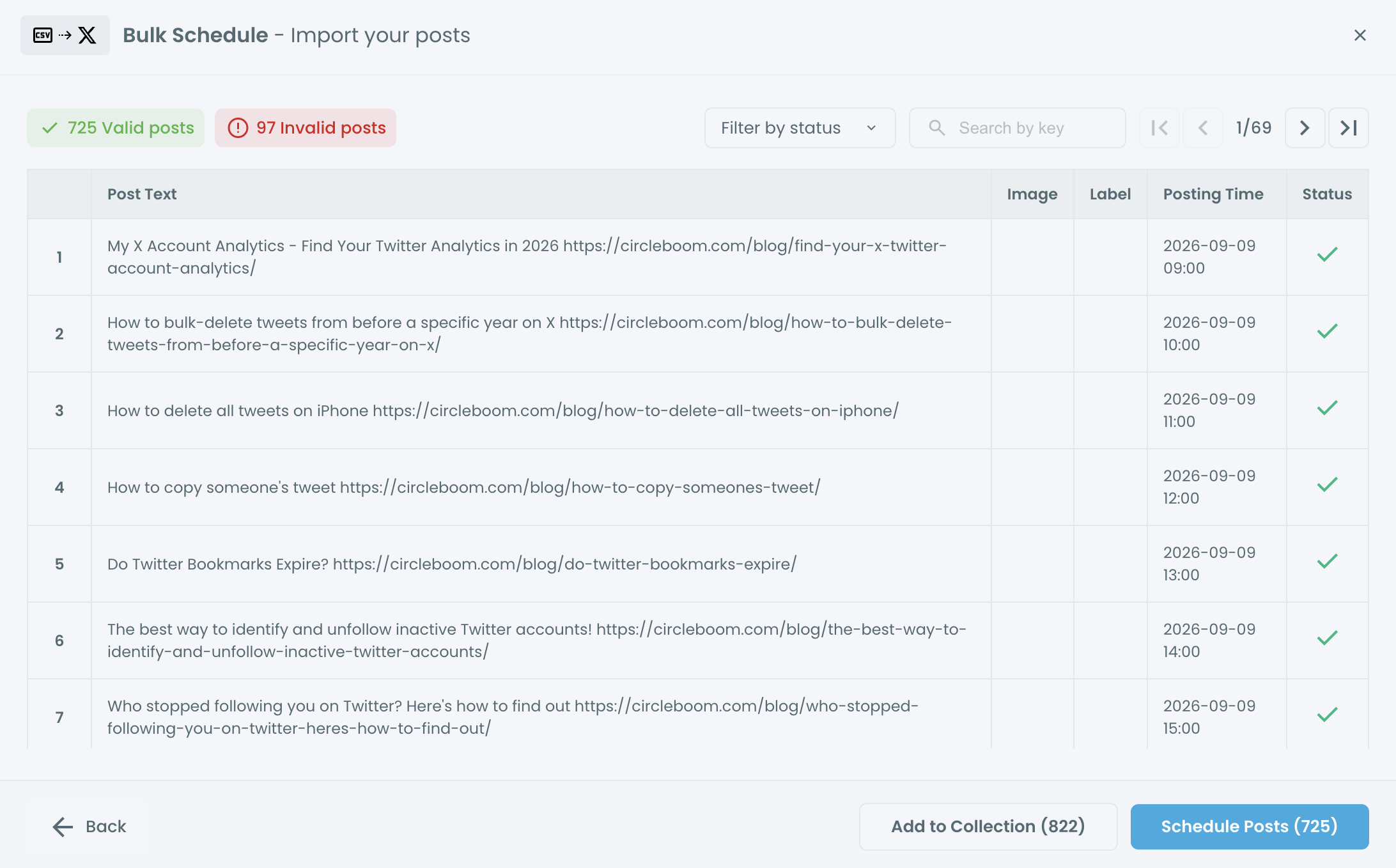
- Click Schedule Posts to schedule every valid row, or click Add to Collection to store the batch for later.
The sequence puts every check ahead of the commitment. The template fixes the structure, the preview exposes row-level errors, and scheduling stays a separate, deliberate click.
The routine in short:
- Download the template once.
- Fill one row per post, with a date and time.
- Upload and read the preview.
- Schedule the valid rows.
Why a row fails validation
A row fails for a short list of reasons, and each one is fixed in the spreadsheet:
- The text and image_url cells are both empty.
- The time is not written as YYYY-MM-DD HH:mm.
- The time is in the past or less than 15 minutes ahead.
- The text is longer than X allows for the connected account.
An invalid row does not block the file. The valid rows can still be scheduled, and the rest can be corrected and uploaded again.
Image links deserve one extra check. A link has to be public and point directly at the file, because a link that needs a login can pass the upload and still fail when the post publishes.
After the upload
Review the imported posts in the Outbox once the batch is scheduled. Each post stays editable until its publish time, so the preview is a checkpoint and not the last chance.
Keep the source spreadsheet. Circleboom does not store the CSV after the import, and next month's file is easiest to build from this one.
Confirm the active account and its time zone before each import as well. One spreadsheet mistake becomes many publishing mistakes, so thirty seconds of checking is cheap.
How to refill the X calendar without repeating yourself
Reusing the structure of last month's file is fine, and reusing its text is where the trouble starts.
The same CSV template can be updated with new content and imported again, which is what keeps a monthly routine cheap. What has to change is the wording in the text column.
X's copypasta and duplicate content policy is the reason. It limits identical text posted over and over, and a calendar padded with copies of one tweet is the pattern that policy is about.
Circleboom's guidance for bulk uploads is to review duplicate text before the final action. A simple way to do that is to sort the text column alphabetically before exporting, so repeated rows land next to each other.
A practical habit is to keep one tab in the spreadsheet for each month. Last month's tab shows what has already run, which makes an accidental repeat easy to catch before the upload. It also keeps consistent posting on Twitter from turning into the same thirty tweets on a loop.
Three ways to reuse a good post
There are three honest ways to reuse a good post:
- Rewrite the idea with new wording and a new example.
- Repost the original with Auto Retweet, which reposts a published tweet after a delay you set.
- Store approved copy in a Collection and schedule it in a later month.
A repost is a second showing of one tweet. A copy is a second tweet. That difference is why Auto Retweet is the safer tool for evergreen material.
Auto Retweet suits posts whose point stays true whenever they are seen, and posts that beat your average the first time. It does not suit time-sensitive posts such as an announcement with a deadline.
A blog is another source that refills itself. If you publish articles, you can automatically tweet your new post and let those tweets take a few of the open slots.
If a dated file feels like more structure than you want, the Tweet Planner also has a posting queue with fixed weekly slots as the lighter alternative.
How to tell whether steady posting on Twitter is working
Steady posting is working when two things are true: the planned posts went out, and some of them beat your usual results.
Check delivery first. Published posts move from the Outbox to Sent Items with a publication timestamp. A post that failed to publish lands in Failed Items with the error reason, so nothing disappears silently.
Then check performance in Twitter Post Analytics. Its per-tweet table sorts by engagement, which makes the month's strongest and weakest posts easy to find.
Read the results by format, since the file was planned by format. If the question rows drew more replies than the tip rows, next month's split can lean toward questions.
The review feeds the next file. That loop is what keeps Twitter posting consistency going past the first month. Each upload starts from evidence and not from a blank sheet.
Give the routine a full month before judging it. One week of results mostly reflects timing and topic. The question worth answering is which formats keep doing well across the whole file.
Keep the comparison fair as well. Compare a tip with other tips and a thread with other threads, or the format with the highest natural reach will always look like the winner.
What a silent month costs on X, and what one upload prevents
Without a prepared calendar, every busy week becomes a gap, and every gap has to be recovered from. With one, the busy week passes and the posts go out anyway.
I would start with the 20-row plan: five posts a week, two days open, one sitting to write them. Tweeting consistently on X does not need a bigger commitment than that.
The time this frees is best spent on what cannot be batched. Replies are the obvious example, and there is a separate post on how to grow your Twitter account in 10 minutes a day.
A consistent tweet schedule is a file you fill once a month. The cost of setting it up is one spreadsheet. The cost of skipping it is the next silent month.
→ Keep your Twitter posting consistent
What to know about keeping a tweet calendar full
Is it safe to automate tweets, or will X treat scheduled posts as spam?
Scheduling your own posts ahead of time is a normal use of a scheduling tool, and the limits that apply are set out in X's automation rules. Circleboom schedules nothing on X until you have seen the validation preview and confirmed the batch, so every post in the calendar is one you approved.
How do I see where the gaps in my posting are?
Use Circleboom's tweet statistics, which chart your tweet volume on X day by day from the date you connect the account. Flat stretches on the chart are your gaps. The chart shows posting volume only, so engagement belongs in Post Analytics.

