

Posts on X move extremely fast. A tweet can receive attention for a few minutes and then quickly disappear from timelines. Because of this, many creators and brands repost their own posts to give them another chance to reach more people.
Reposting is actually one of the best ways to bring a post back to life. A tweet that didn’t perform well the first time might reach a completely different audience when it appears again in the feed.
However, reposting also comes with another action: undoing the repost. Once a repost has served its purpose, you may want to remove it so your timeline does not look repetitive.
The problem is that doing this manually over and over again becomes time-consuming.
That is why I automate this process using Circleboom Twitter, an official X Enterprise Developer, which allows me to create tweets, schedule them when my followers are online, and automatically repost and undo repost in repeating cycles.
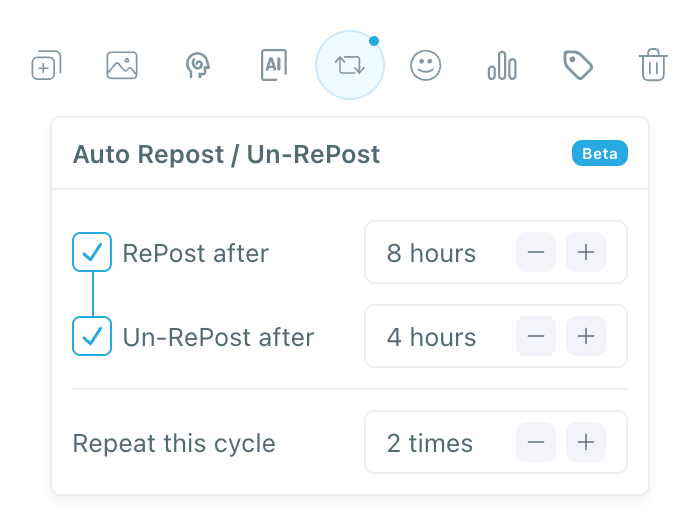
But first, let’s look at how to undo repost on X manually.
How to Undo Repost on X (Twitter)
Undoing a repost on X simply means removing a repost you previously made. When you undo it, the repost disappears from your timeline.
This can be done in just a few clicks.
Undo Repost on Mobile (X App)
Follow these steps:
- Open the X mobile app.
- Find the post that you reposted.
- Tap the repost icon (two arrows forming a square).
- Select Undo Repost.
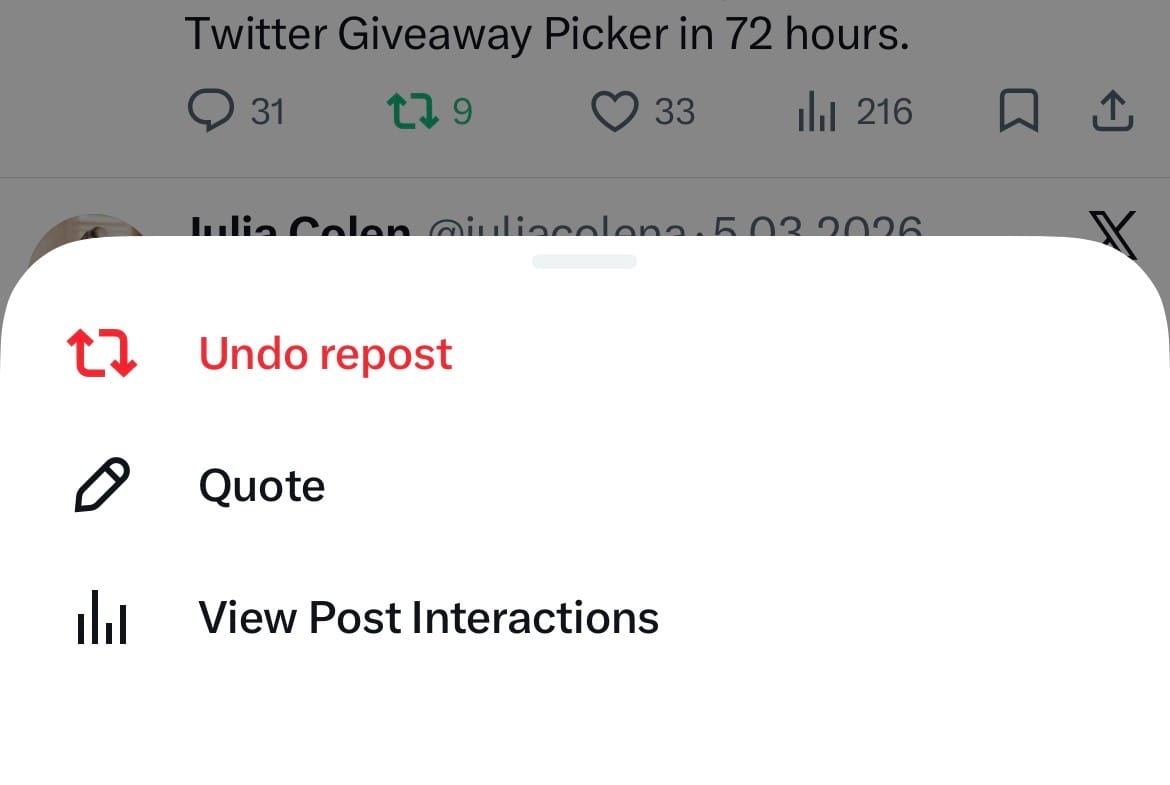
Once you tap undo repost, the repost will be removed from your profile timeline.
Undo Repost on Desktop (Web)
You can also do this from your computer.
- Open X.com.
- Find the post you previously reposted.
- Click the repost icon.
- Click Undo Repost.
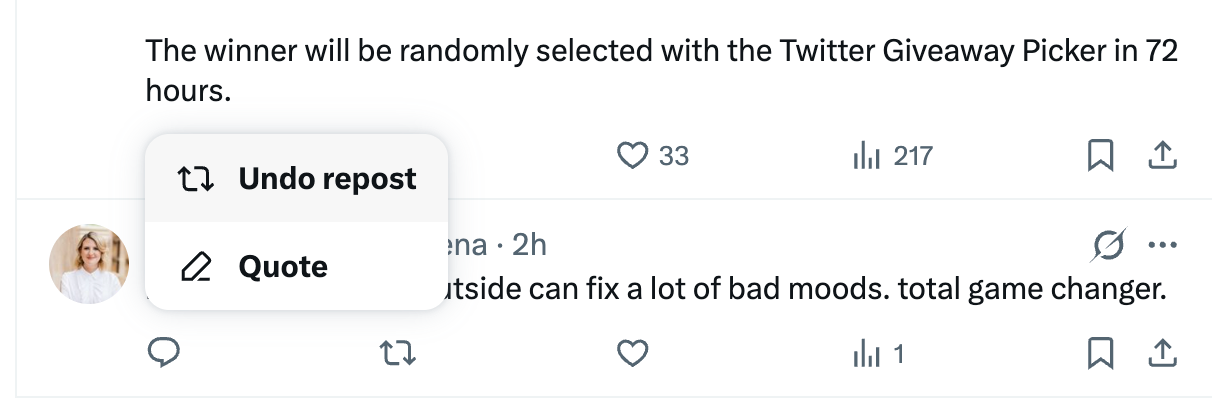
The repost icon will return to its normal color, meaning the repost has been removed.
Why People Repost Their Own Tweets
Reposting your own content is actually a common strategy on X.
There are several reasons for this:
Your followers are not online at the same time
If you post once, only a portion of your audience will see it. Reposting later helps reach followers who were offline.
Good tweets can easily get buried
Because timelines move quickly, even strong posts may disappear before people notice them.
Reposting increases visibility
When you repost a tweet, it reappears in feeds, giving it another opportunity to get engagement.
This is why many creators repost important tweets like:
- blog posts
- product announcements
- important threads
- evergreen content
However, doing this manually is not always practical.
The Problem With Manual Reposting
If you want to repost content regularly, you need to constantly manage the process.
You have to:
- remember when to repost
- manually repost the tweet
- remember to undo repost later
- repeat the same process again and again
This becomes even harder if you manage multiple tweets or multiple accounts.
That is why I prefer automating the entire repost cycle.
Automate Reposts and Undo Reposts With Circleboom Twitter
Instead of manually reposting and undoing reposts, I use Circleboom Twitter.

Circleboom Twitter is an official X Enterprise Developer, and it allows you to manage your tweets much more efficiently.
Keep in mind that the API provides a more accurate real-time data stream than the X interface itself. While the platform UI may experience lag, the API captures and reflects new developments instantaneously.
With Circleboom Twitter, you can:
🟢 create tweets from one dashboard
🟢 schedule posts when your followers are online
🟢 set auto repost / auto retweet rules
🟢 automatically repost, undo repost, and repeat the cycle
🟢 keep your content visible for longer without manual work
This makes it much easier to keep your posts active and visible.
How to Automatically Repost and Undo Repost With Circleboom Twitter
Here is how you can automate the process.
Here’s how to set it up for a new tweet.
Step 1: Go to Circleboom Twitter’s X Post Planner
Open Circleboom Twitter and click X Post Planner + AI Writer.
Then select Write & Plan Your Post to start creating your tweet.

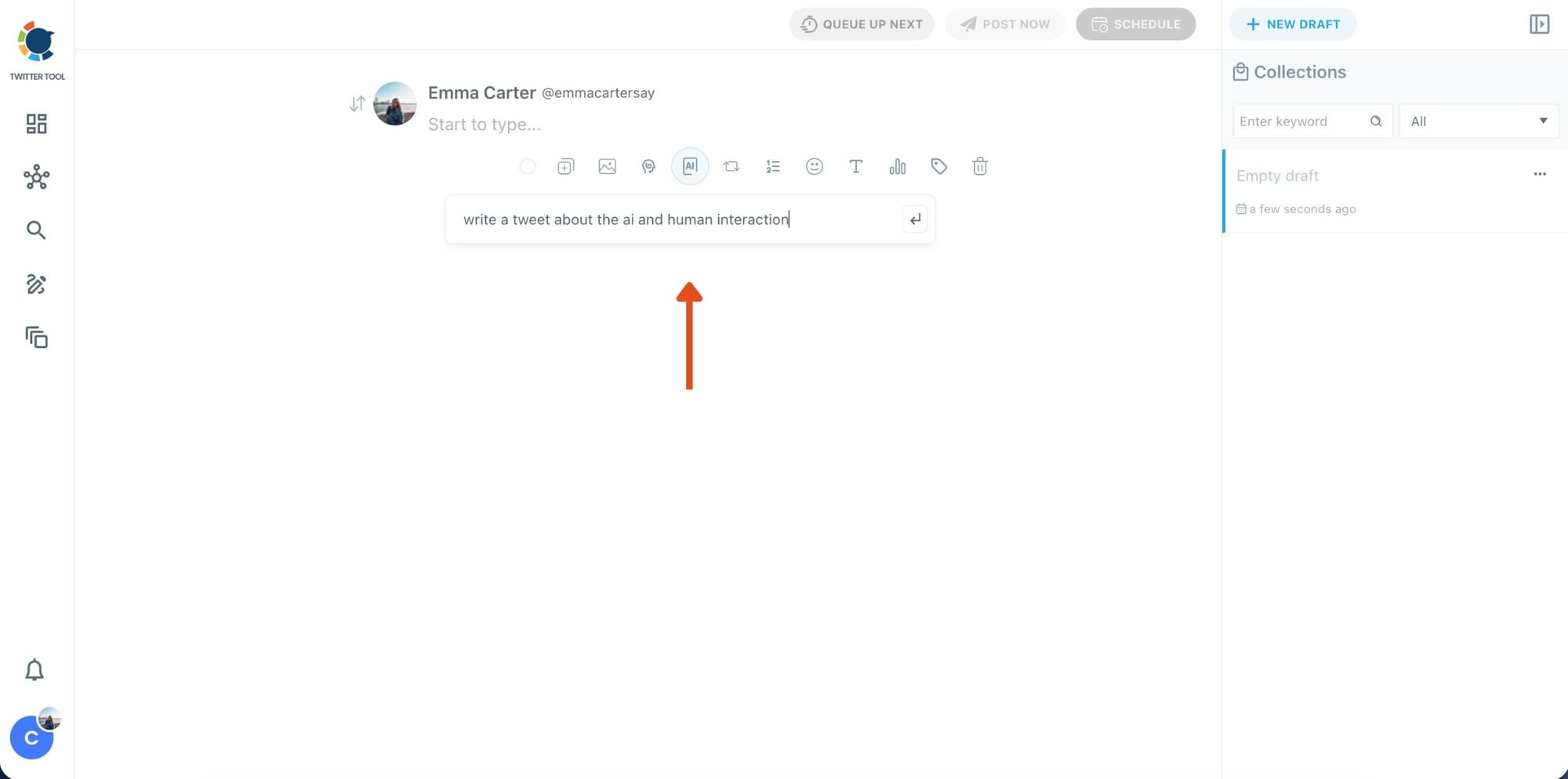
Step 2: Write your tweet (or generate one with AI)
You can type your tweet manually in the editor.
Or, if you want to move faster, click the AI option and let Circleboom generate a tweet idea for you based on your topic.
Step 3: Add an image to make the post more engaging
Once your text is ready, attach a visual to your tweet.
You can:
- Upload an image/video from your device
- Pick one from Unsplash
- Or design one instantly using Canva
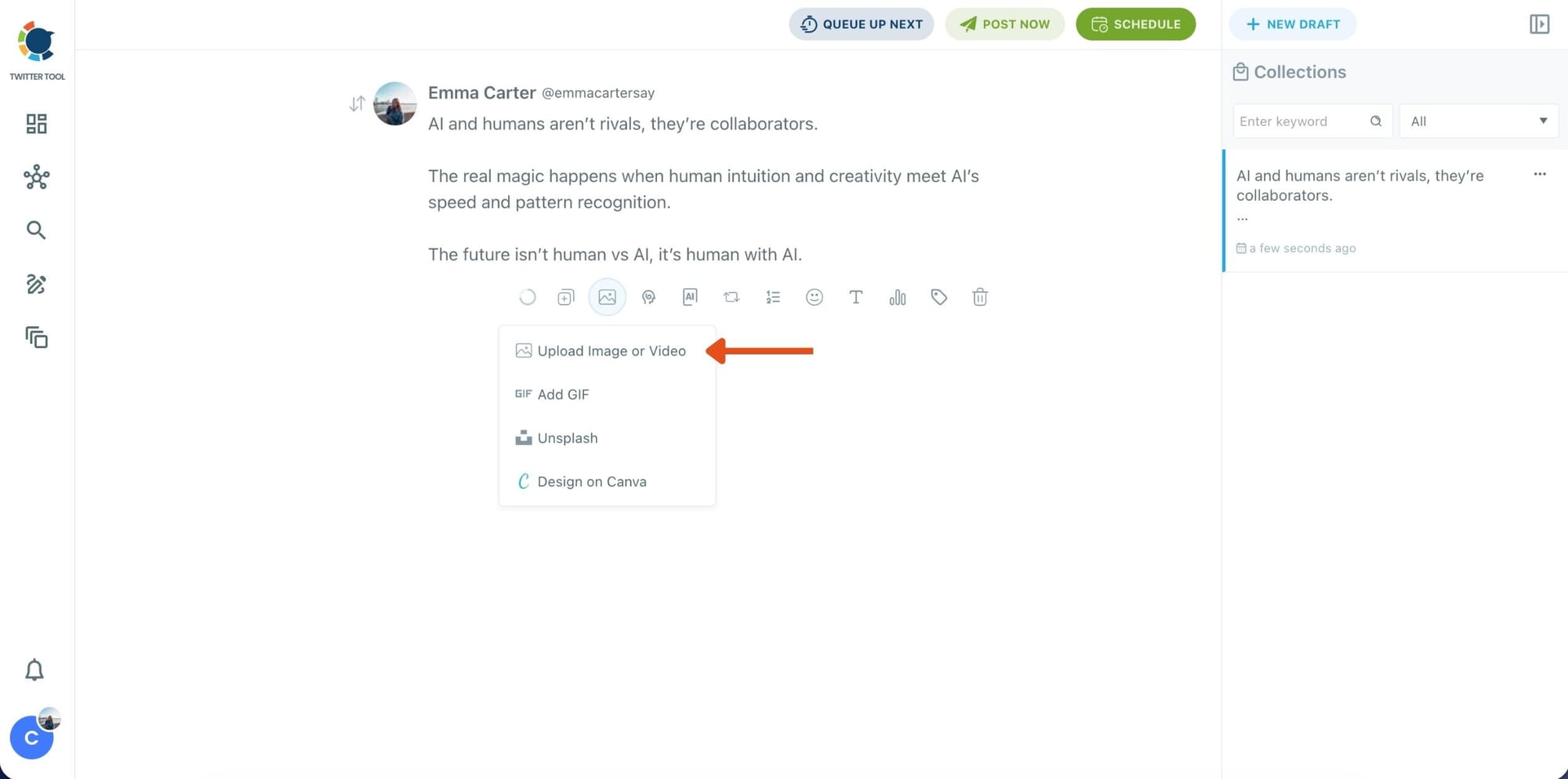
Step 4: Style your tweet using Circleboom’s Font Generator
Now it’s time to make your tweet stand out visually.
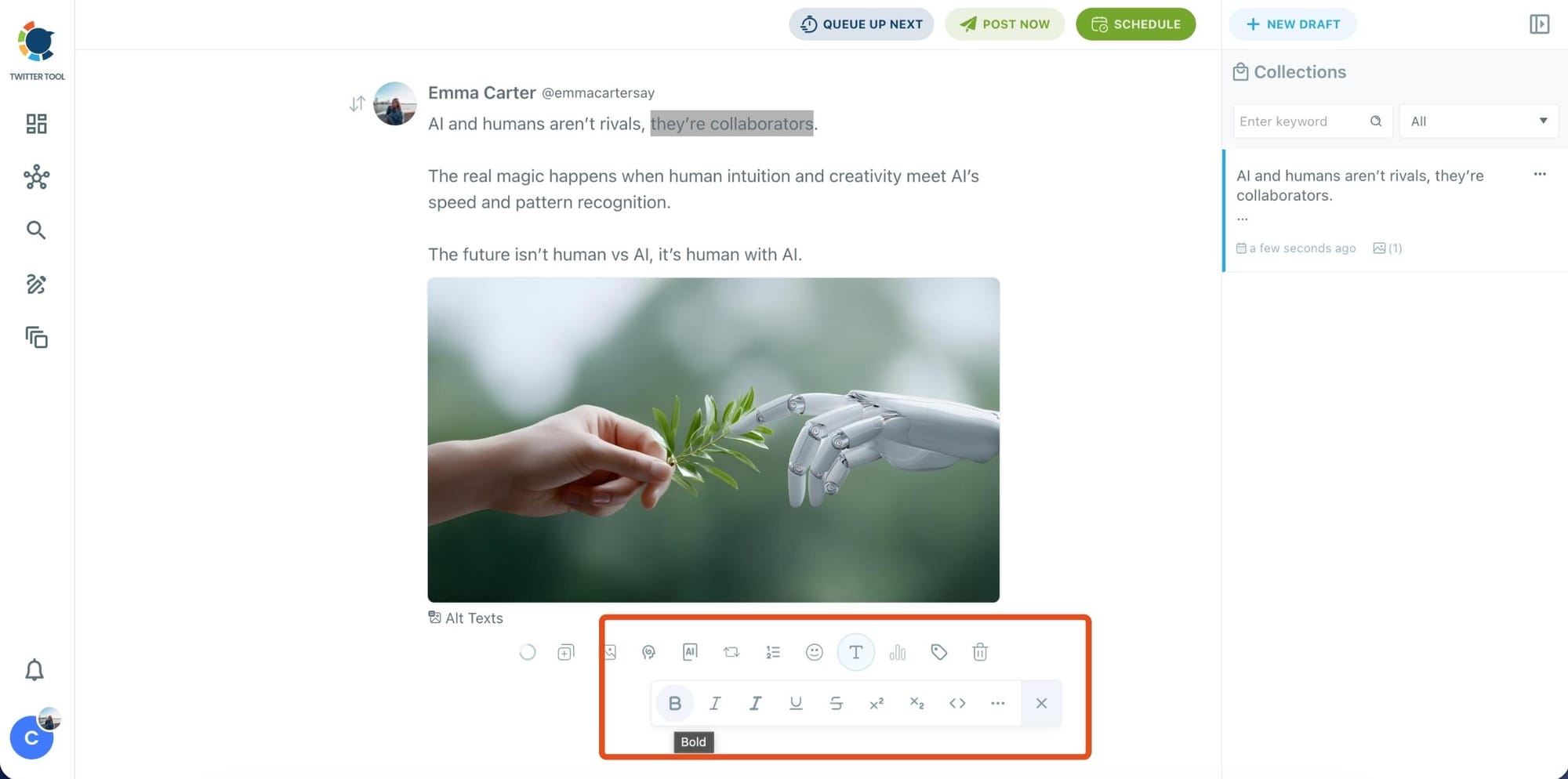
Select the part of your text you want to change, then open the Font Generator toolbar and apply styles like:
- Bold / Italic / Underline
- Different font variations
- Extra formatting options for a more “designed” look
This is perfect when you want key parts of your tweet to grab attention immediately.
Step 5: Set Auto Retweets to boost visibility
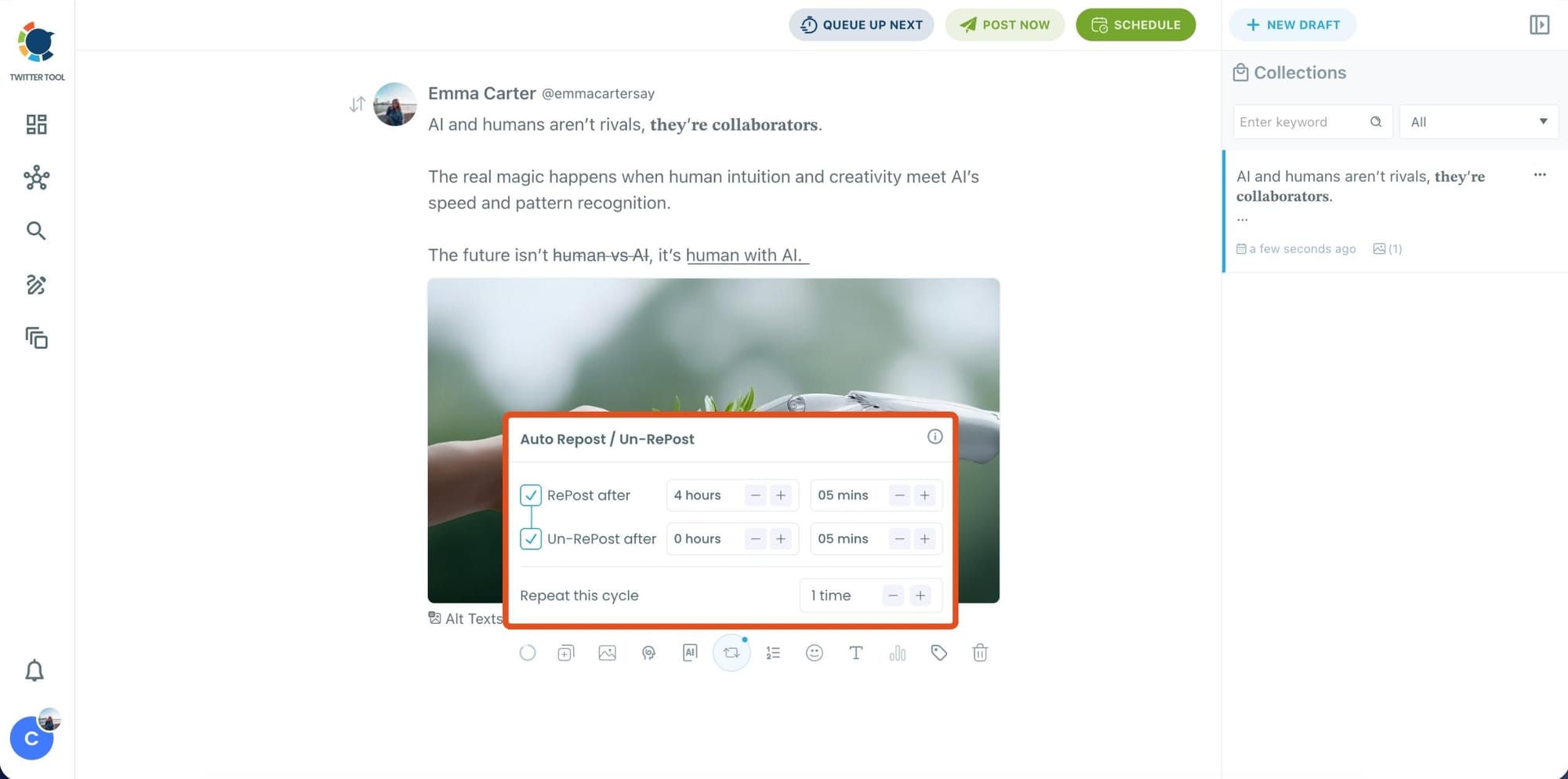
After styling your post, you can increase reach by enabling Auto Repost / Un-RePost settings.
This lets you automatically:
- Repost your tweet after a selected time
- Remove the repost later
- Repeat the cycle if you want more than one repost
It’s a smart way to bring your tweet back into the feed without manually reposting it.
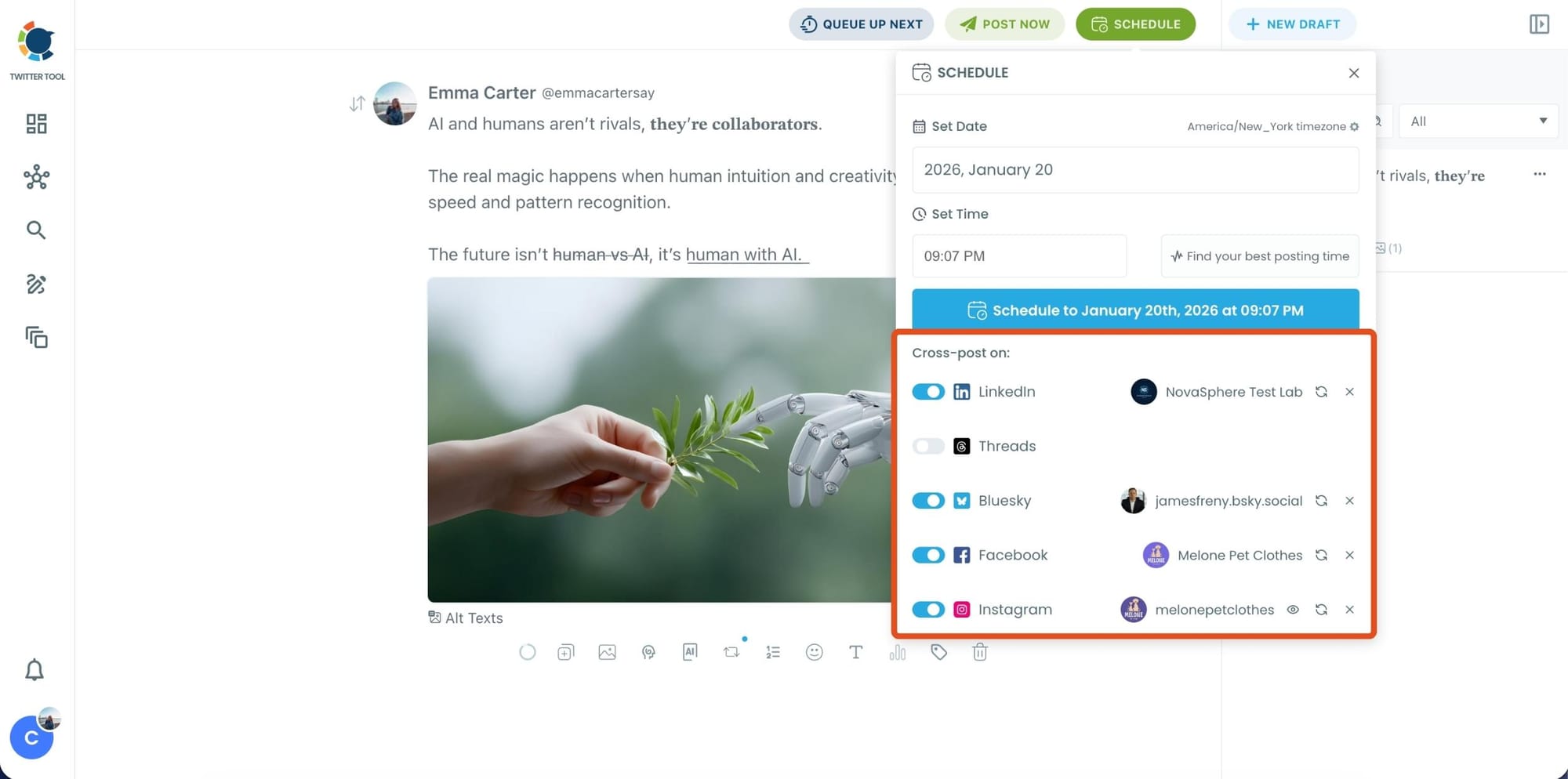
Bonus Tip: Cross-post your tweet to other platforms automatically
Before you publish, you can also enable Cross-Post to share the same tweet across multiple platforms in one go.
Circleboom lets you post your content to Instagram, Facebook, LinkedIn, Bluesky, and Threads automatically, so you don’t have to rewrite, re-upload, or repeat the same work on each platform.
Step 6: Schedule it for the best time to post
Finally, click Schedule and set your date and time.
You can also click Find your best posting time to see Circleboom’s suggested time slots based on follower activity.
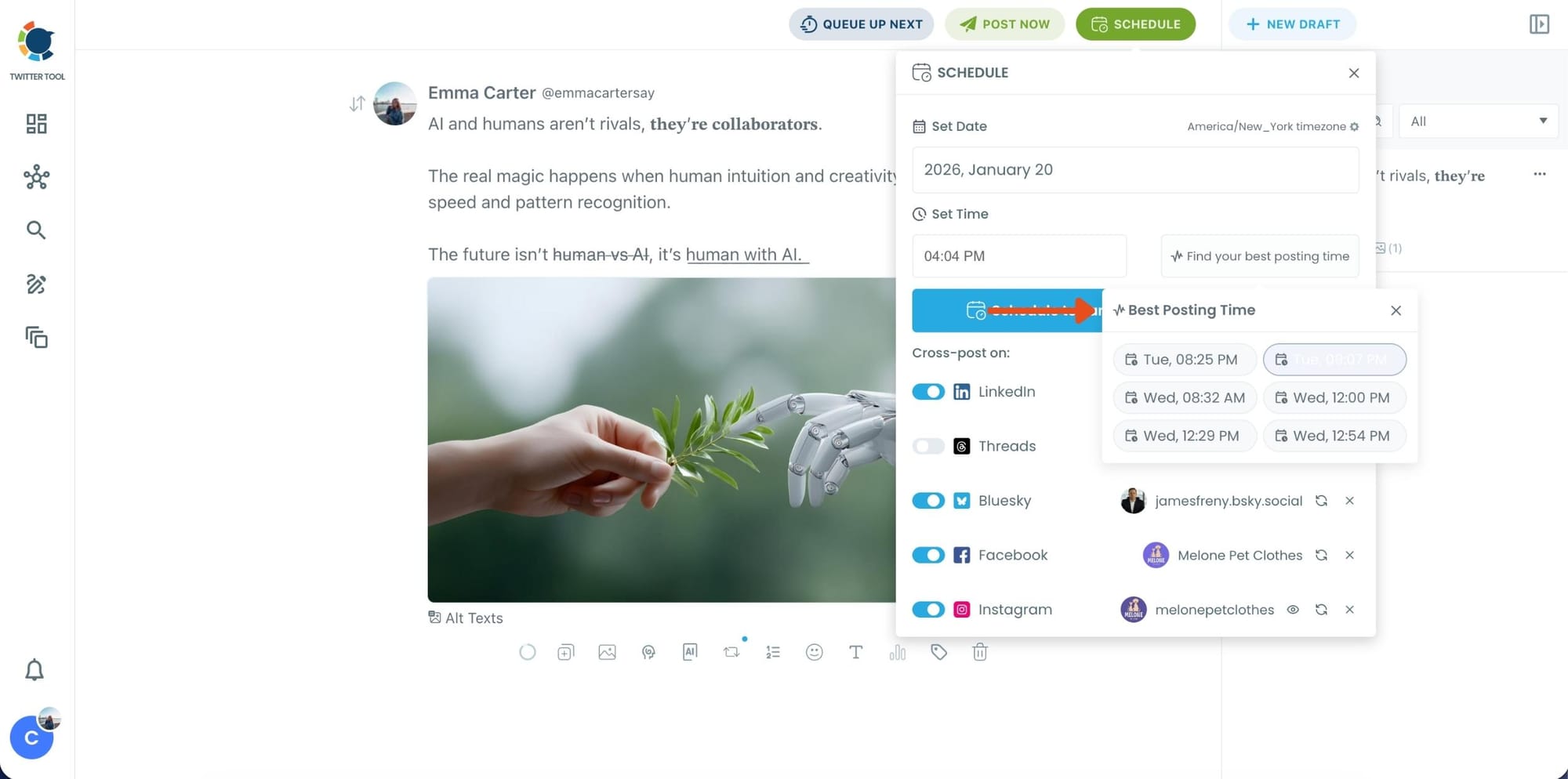
Once you pick the best option, smart-schedule it, and you’re done. Your tweet will go out at the time it has the highest chance to perform well.
Step-by-Step: Automate Reposts for Older Tweets
Already posted tweets can be automated too.
Step #1: Navigate to the Analytics Menu
From the left-hand menu, click on the "Post Management & Analytics" tab, then select "Post Analytics" from the dropdown.
Within Post Analytics, select the "Post Engagement Analytics" option.

Circleboom will display a detailed breakdown of your posts, including metrics like impressions, likes, retweets, replies, and more.
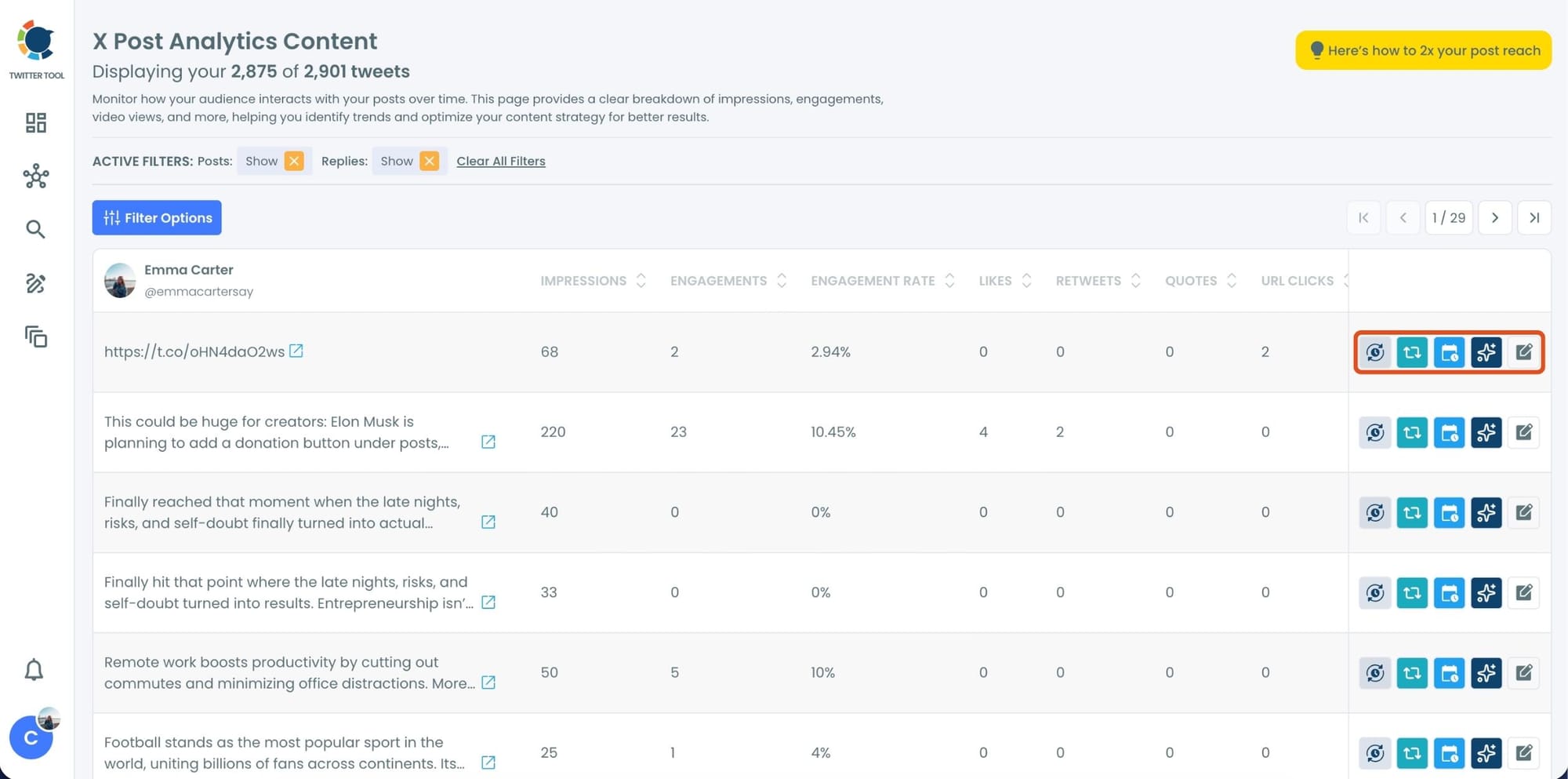
Step #2: Once you’ve found your old tweets, Circleboom offers several tools to make the most of them; choose which you want to use:

🟢 Reschedule Popular Tweets: Found a tweet that’s still relevant or hilarious but didn’t get the engagement it deserved?
With Circleboom, you can reschedule it to repost it at a better time.
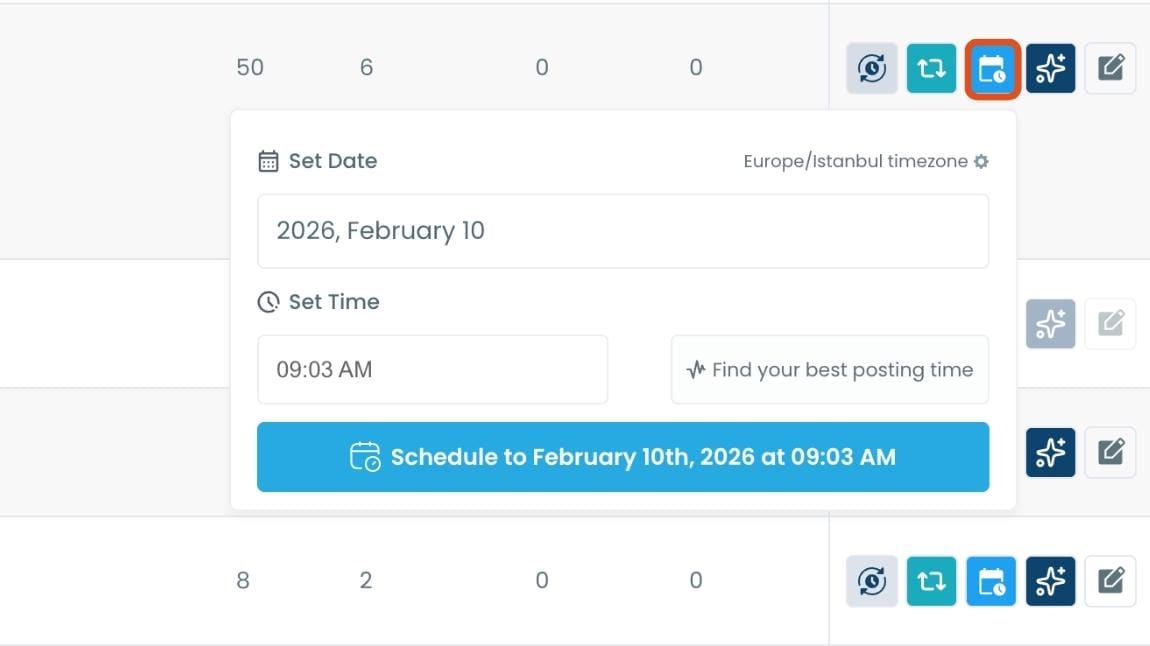
Maybe your audience wasn’t active when you first tweeted it, or perhaps it just got lost in the noise. Rescheduling ensures your best content gets a second chance to shine.
🔵 Refresh Content with AI: Some of your old tweets might feel outdated or could use a fresh twist. Circleboom’s AI-powered tweet generator can help you rewrite or improve them.
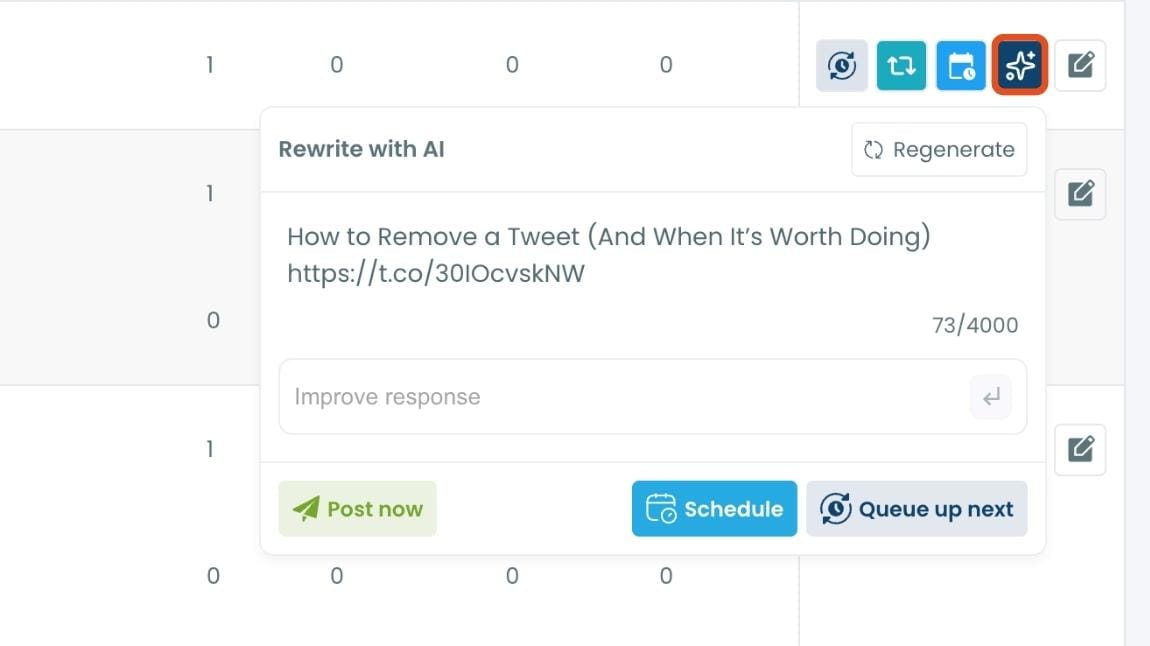
Whether you want to update the language, add a modern twist, or make it more engaging, the AI feature has got you covered.
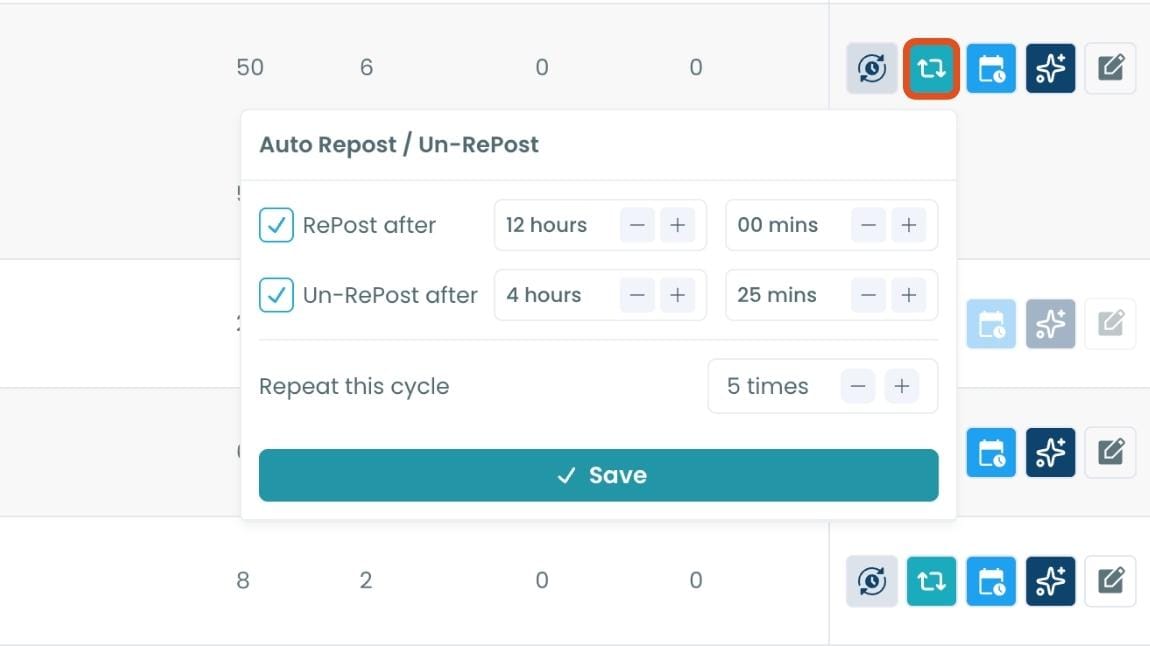
🟡 Set Auto-Retweets: If you’ve got evergreen tweets that are still relevant, why not let them work for you on autopilot?
Who Should Use Automated Reposting
Automated reposting is useful for many types of users.
For example:
- content creators who want to maximize tweet reach
- bloggers who share articles regularly
- small businesses promoting products or services
- marketers managing multiple campaigns
- agencies handling several social media accounts
Automation helps save time while improving visibility.
Final Thoughts
Undoing a repost on X is very easy. You can remove a repost in just a few clicks directly from the repost button.
However, if you regularly repost your content to extend its reach, doing everything manually can quickly become repetitive.
Reposting is one of the most effective ways to give your tweets a second life and increase engagement.
Instead of manually reposting and undoing reposts every time, tools like Circleboom Twitter make the process automatic. With scheduled posts, auto repost, and undo repost cycles, your content stays active while you focus on creating more valuable posts.
%20in%202026)
