

If you’re using X on your iPhone and you want to unfollow people who don’t follow you back, you probably already noticed something:
It’s not really hard to unfollow someone…
but it becomes a problem when you want to do it for a lot of accounts.
Because once your Following list gets bigger, the whole process turns into a slow and annoying task. You try to clean your account, but the X app doesn’t really help you do it in an easy way. You can still do it manually, but it feels like a job, and it takes way longer than it should.

So if you’re at the point where you follow hundreds or even thousands of accounts, and you want to unfollow the ones who don’t follow you back, this guide will save you a lot of time.
Why It’s Hard to Find Not-Following-Back Accounts on the X App (iPhone)
X actually gives you one small clue when you check your Following list.
Some accounts have a small label that says “Follows you”.
So yes, technically, you can understand who follows you back and who doesn’t.
But the problem is: it’s not made for real cleanup.
It’s only useful when your list is small, because when you follow too many people, you simply can’t go through all of them one by one. You start scrolling, then you lose where you were, then you open a profile, then you go back again, and after a while it becomes tiring.
Here are the biggest reasons why it’s so hard on iPhone:
❌ The “Follows you” label doesn’t really solve anything:
That label is small, and it only helps when you look at a few accounts. If you follow 2000 people, scanning for that tiny label is not a solution.
You’re basically trying to find a few words inside a very long list, and it takes too much effort.
❌ You can’t filter the list to show only not-following-back accounts:
This is the biggest missing feature. X doesn’t let you tap a filter and say “Show me people who don’t follow me back.”
Instead, it shows your full Following list, and you’re expected to figure everything out manually.
 Arif Akdogan
❌ You can’t bulk unfollow on the X app:
Even when you find accounts that don’t follow you back, you still need to unfollow them one by one. There’s no fast selection system, no bulk action, and no way to clean up your list quickly.
So even if you want to unfollow 50 accounts, you need to do the same action 50 times, and that’s exactly why people give up.
If you are a creator on X and want to know about the latest developments regarding the algorithm changes, engagement strategies, payout boosts, etc., you can join Circleboom's X Creator Growth Lab Community and enjoy a free space to learn from and contribute to!
Why People Actually Want to Unfollow Not-Following-Back Accounts
Some people think unfollowing not-following-back accounts is only about ego or numbers, but honestly, it’s usually more practical than that.
 Circleboom LLC
When you follow too many people who don’t follow you back:
- your timeline becomes less useful
- you stop seeing the content you actually care about
- you waste time scrolling through random posts
- and your account feels less controlled
Also, if you’re trying to grow your account, it’s normal to want your Following list to feel clean. You don’t want to follow accounts that don’t interact with you, don’t follow you back, and don’t bring anything valuable to your feed.
But again, doing this inside the X app on iPhone is just too slow.
That’s why I use Circleboom instead.
The iPhone Solution I Use: Circleboom Twitter
To manage not-following-back accounts properly, I use Circleboom Twitter.

Circleboom Twitter is an official X Enterprise developer, and it’s one of the most complete X management tools you can use on the App Store.
The reason I prefer it is simple: it gives you the kind of list and control that the X app does not provide. Instead of making you scroll and guess, Circleboom shows you the exact data you need, and it helps you take action from one place.
So if your goal is to unfollow not-following-back accounts faster and more clearly, Circleboom makes that process much easier on iPhone.
What Circleboom Twitter Can Do (Besides Unfollowing)
Circleboom Twitter is not only for unfollowing. It’s more like a full dashboard for X, and it gives you access to tools that normally take a lot of time to do manually.
Here are some of the main features it offers:
Followers & Following Management
Circleboom lets you control your followers and followings in a smarter way. Instead of only seeing usernames, you can actually understand who the accounts are, how active they are, and whether they look real or low quality.
It also helps you detect and manage things like fake accounts, spam profiles, inactive users, and people who don’t follow you back.
 infocircleboom.com
Insights and Analytics
Circleboom also gives you follower insights and analytics, which are useful if you care about growth and engagement. You can understand what’s happening on your account without trying to guess it by looking at random numbers.
 infocircleboom.com
Detailed Post Stats
You can check more detailed stats on your posts, which helps you understand which content type performs better. This is especially useful if you share content regularly and you want to make better decisions.
 infocircleboom.com
Account Cleanup Tools
This part is very helpful if you like keeping your account organized. Circleboom lets you manage actions like:
- deleting tweets
- deleting retweets
- removing likes
- managing bookmarks
- managing DMs
- and more
And since doing these things one by one on iPhone is slow, having them on a dashboard saves a lot of time.
How to Unfollow Not-Following-Back Accounts on X from iPhone (Step by Step)
Now let’s get into the actual steps.
This is how you can unfollow accounts that don’t follow you back, using Circleboom Twitter on your iPhone.
Step #1: Download the Circleboom App
 Circleboom LLC
Head to the App Store and install Circleboom for Twitter.
It’s lightweight, secure, and built for mobile users like us.
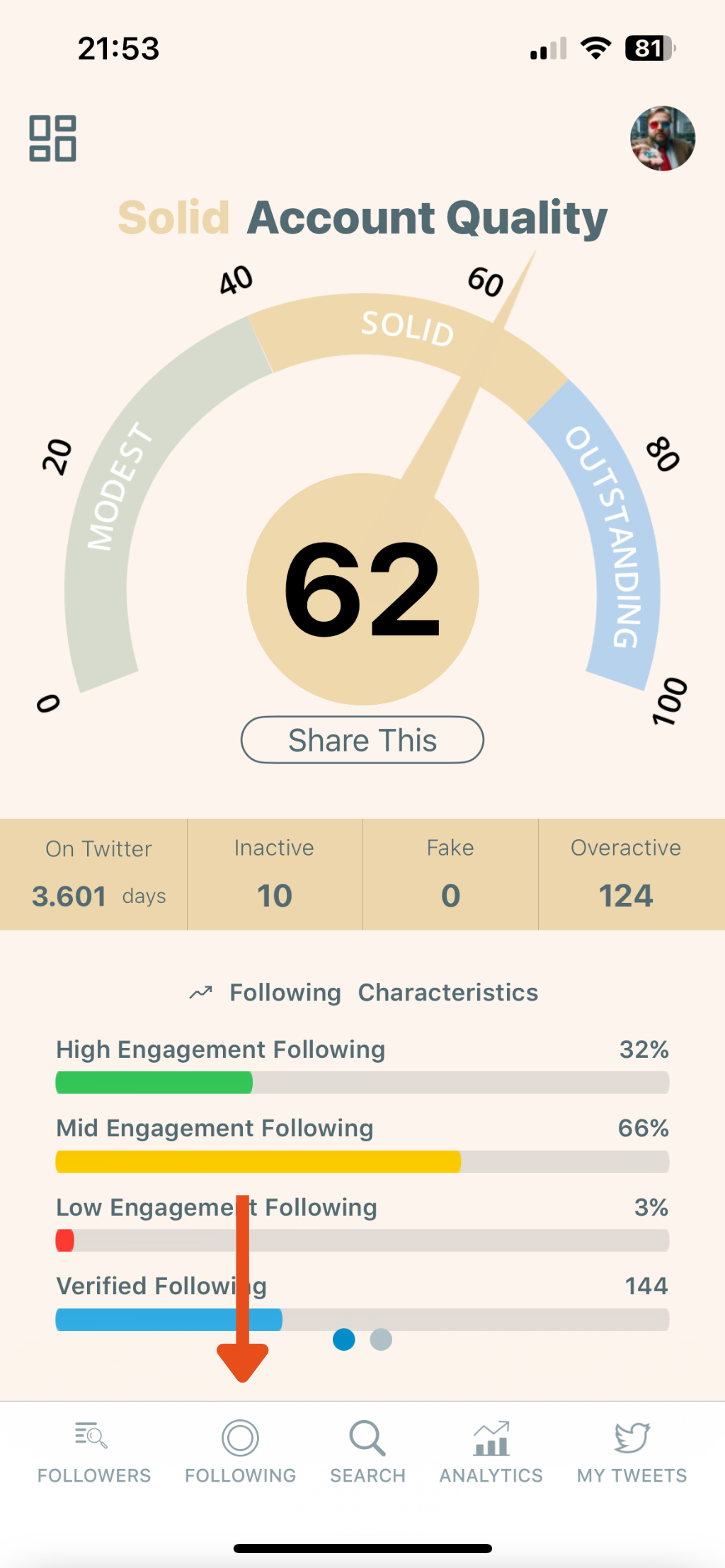
Step #2: Tap “Following” from the Bottom Menu
Look at the bottom navigation bar and tap the second icon from the left.
This opens up your account management tools.
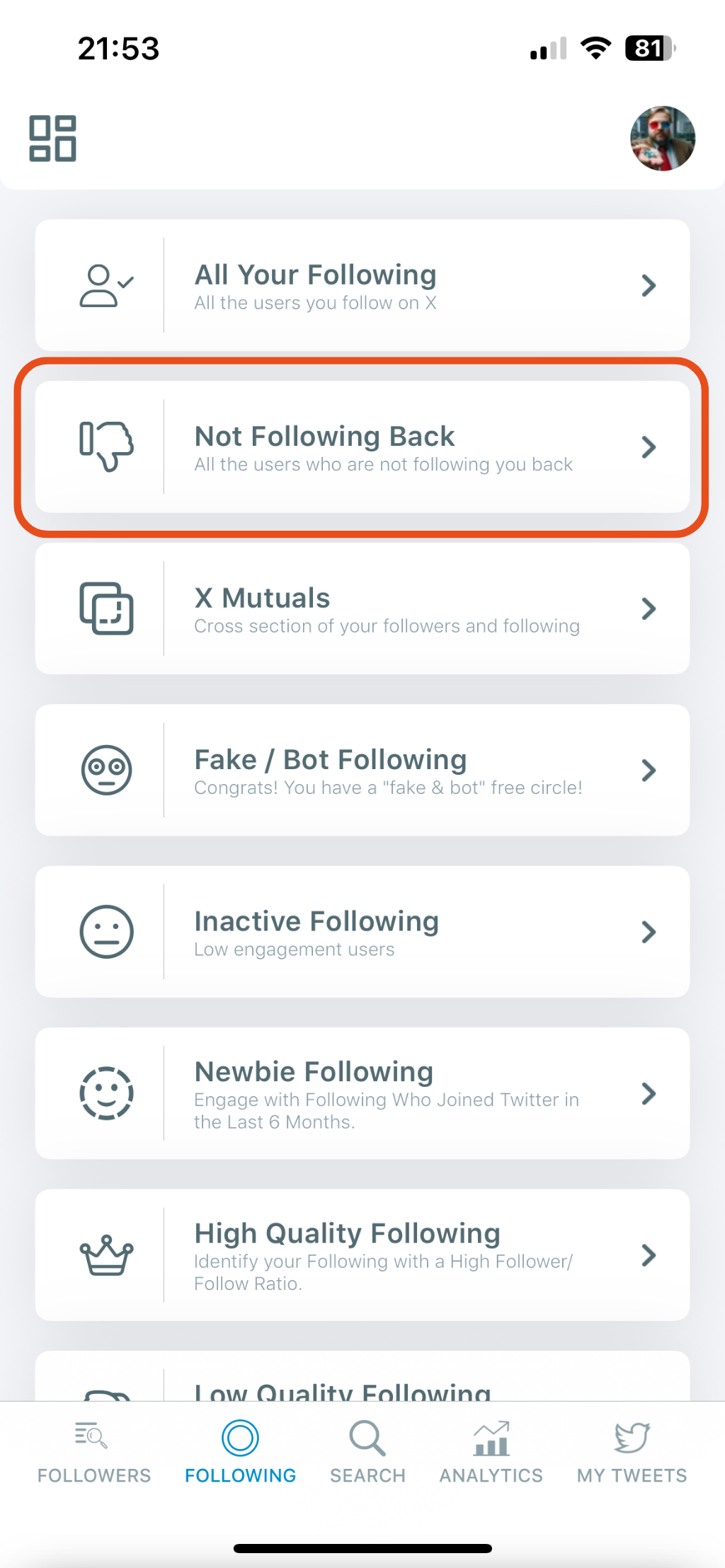
Step #3: Choose “Not Following Back”
From the list of follower tools, tap “Not Following Back.”
This will instantly load a list of all the accounts you follow that don’t follow you back.
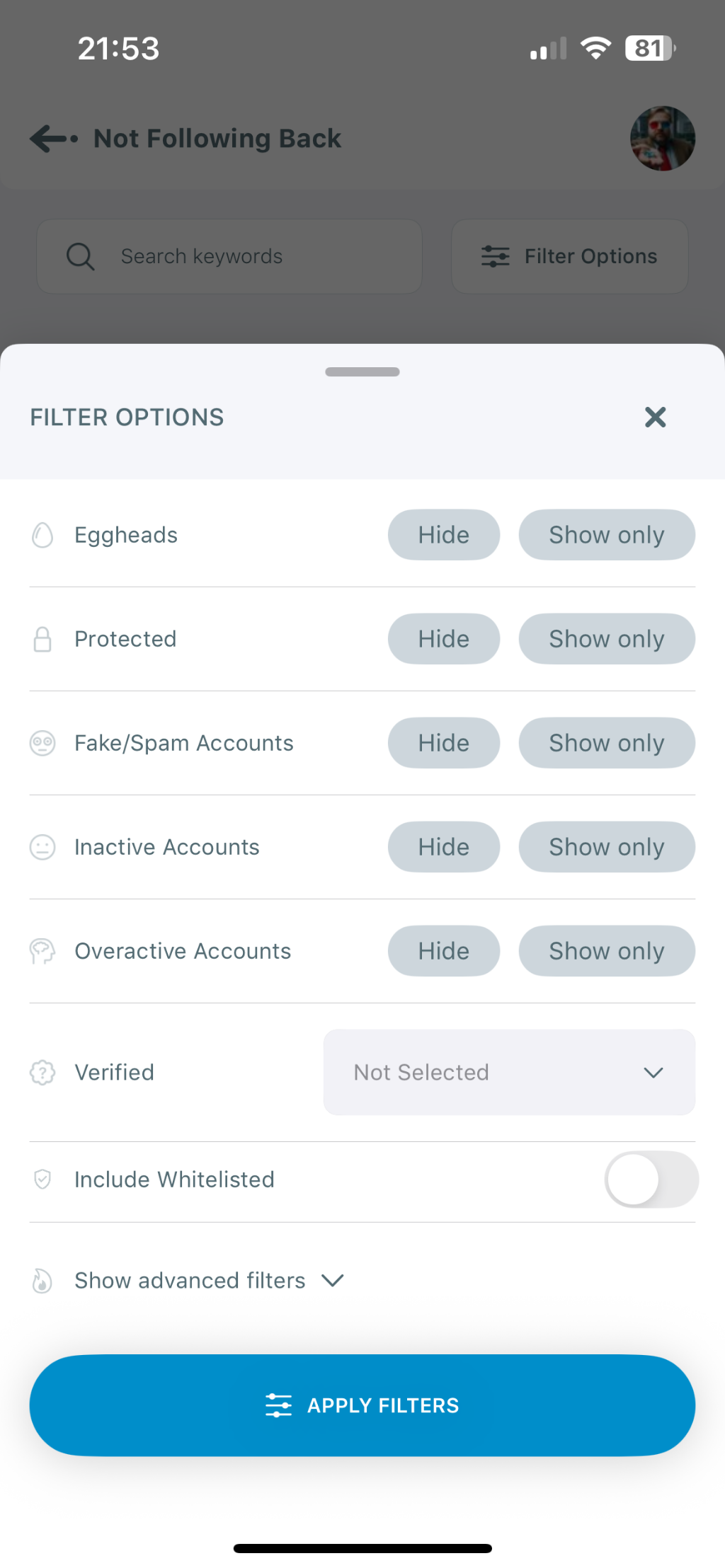
Step #4: Apply Filters
Tap the Filter icon in the top right to sort the list by:
- Follower count (to keep influencers)
- Follow date
- Activity level
You can also exclude verified users you still want to follow.
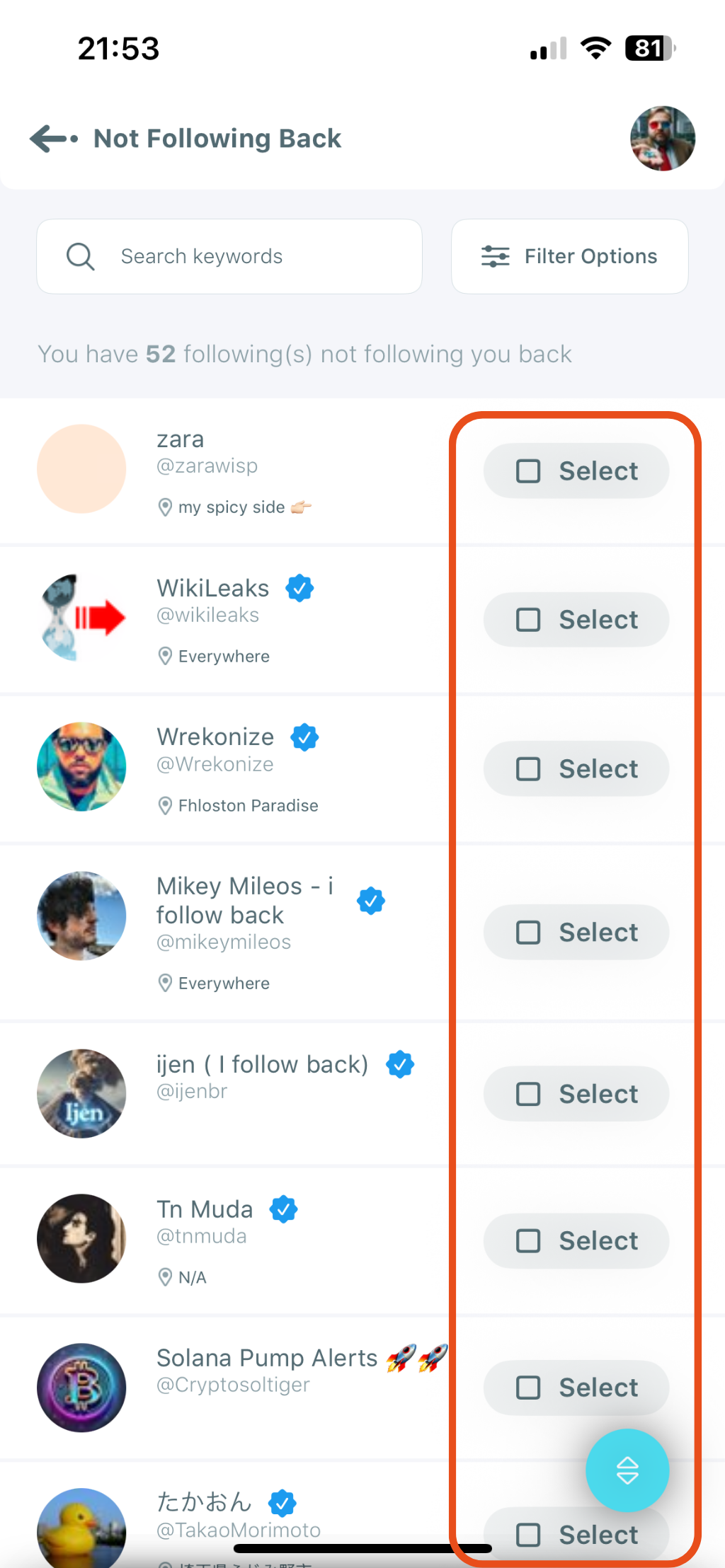
Step #5: Select the Accounts to Unfollow
Tap individual profiles to select them, or use the Select All option to go full purge mode.
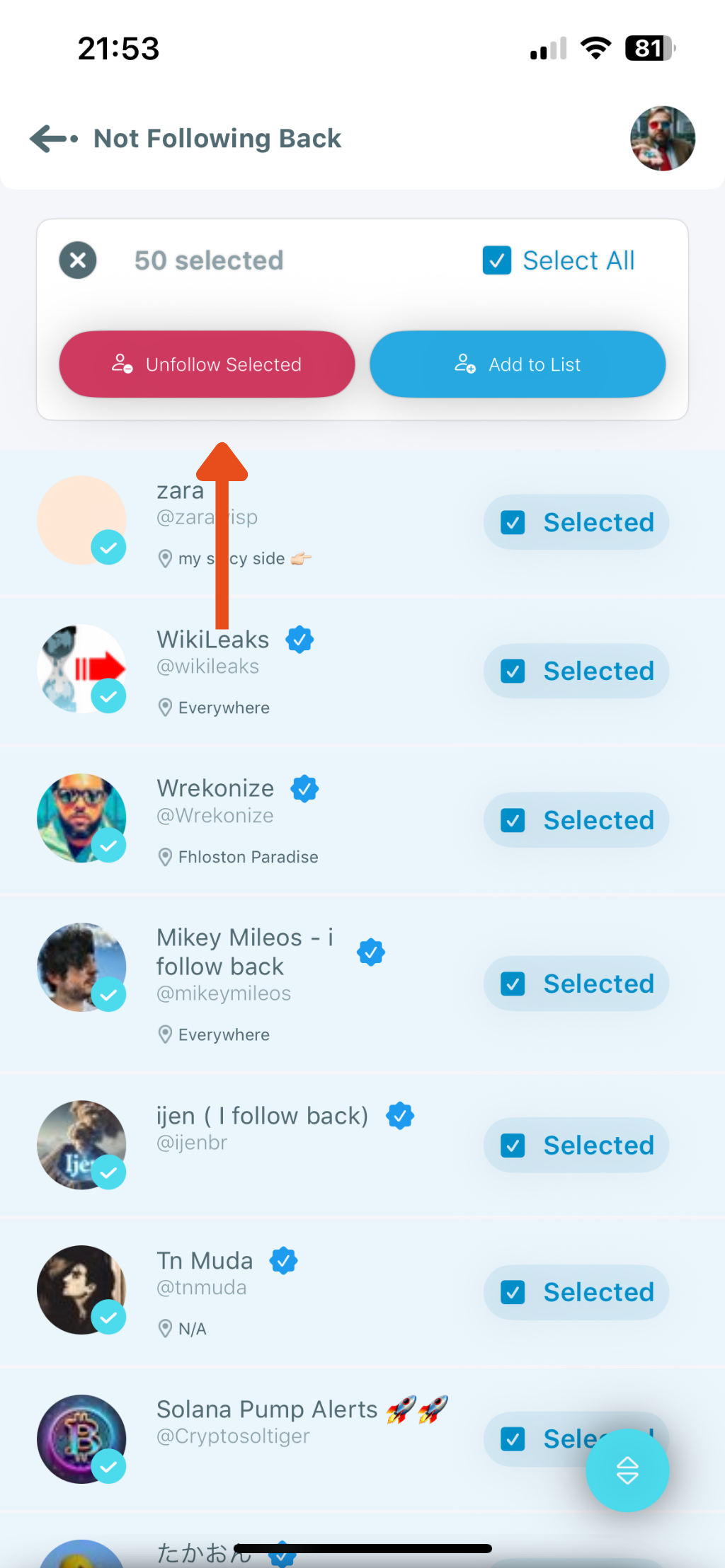
Step #6: Tap “Unfollow”
Once you’ve made your selection, hit the red Unfollow button at the bottom.
Circleboom will begin unfollowing those accounts instantly.
Quick Tip Before You Unfollow Everyone
One important thing: not every not-following-back account is a “bad account.”
Some accounts don’t follow back because they are big accounts, brands, or creators, and you might still want to follow them because their content is useful.
So the best way to do this is:
Unfollow accounts that don’t add value to your feed.
Keep accounts that you actually enjoy seeing.
That way, you clean your Following list but you don’t ruin your timeline.
Final Thoughts
Unfollowing not-following-back accounts on iPhone is possible with the X app, but it’s clearly not designed for real cleanup.
You can’t filter the list properly, you can’t do bulk actions, and everything becomes slow if your Following list is big.
That’s why Circleboom Twitter is a better option for this specific goal. It gives you a clean not-following-back list instantly, and it helps you unfollow accounts in a much faster and easier way.
If you’re trying to keep your X account organized and you don’t want to waste time scrolling and checking labels one by one, this is one of the easiest workflows you can use.





%20users%20are%20not%20following%20you%20back%3F)

