

Your X following list starts small and stays readable. Then it grows.
A year of follows later, the Following tab is a scroll with no bottom, no search box, and no way to tell an active source from a dead account. When you actually need to review who you follow, X gives you almost nothing to work with, and the list you see is never the whole list you have.
An X following list viewer is a tool that loads every account you follow into one table you can sort, search, and filter. Circleboom is the X following list viewer that pulls your complete following list from X's official API, then lets you unfollow, list, whitelist, or export from the same screen without touching a spreadsheet.
→ Open your complete following list
What viewing your following list really means
Viewing your following list should be simple: see who you follow, decide who stays. In practice, X makes even the seeing part hard.
People regularly report that their following and followers are not showing in the list once the account grows. The native tab loads a slice and then quits before it reaches the end.
A real viewer changes the starting point. Instead of a partial scroll, you get the complete set of accounts as rows, each carrying the numbers that tell you whether the follow still earns its place.
Viewing, in that sense, is not scrolling. It is loading everything at once and reading it as data you can sort and search.
That shift, from a feed you swipe through to a table you query, is the whole reason the tool exists, and it is what makes the rest of an audit possible instead of guesswork.
Why X won't show you the whole list
The native Following tab loads in reverse-chronological order, pages in more rows quietly as you scroll, and then cuts off after a set number of them. It has no search field.
It has no sortable columns. It has no filter for language, location, activity, or account age.
On any account past a few hundred follows, that combination means the list you can see is never the list you actually have.
This is not a bug you can fix by refreshing. The tab was built to show a recent window into your follows, not the full record.
So the accounts you followed longest ago, the ones most likely to be stale, are exactly the ones you can never reach by scrolling. A viewer removes the ceiling by loading every row through the API instead of the feed.
That is why you can pull every account you follow into one table and reach the very first follow you ever made.
The safe way to load the list, not the scraped way
When the tab fails them, some people try to scrape their Twitter following list with a script. It is the wrong trade.
Scraping breaks X's rules, breaks the moment X changes its page markup, and puts the account at risk of a lock or a suspension. You get a fragile copy of the data and a real chance of losing the account you were trying to organize.
Circleboom reads the same list through X's official API, which returns the complete data set without the fragility and without the risk.
The difference between a workaround and a tool is who stands behind the data.
Circleboom is a verified Enterprise partner, listed among X's authorized developers. The following list you load is pulled through channels X itself sanctions, and every unfollow or export you run stays inside the platform's rules.
That is what keeps a large audit from turning into a suspended account.
Watch a full following list load and filter inside Circleboom:
How to pull your full following list
Load your following list
- Log in to Circleboom and pick the X account whose following list you want to review.

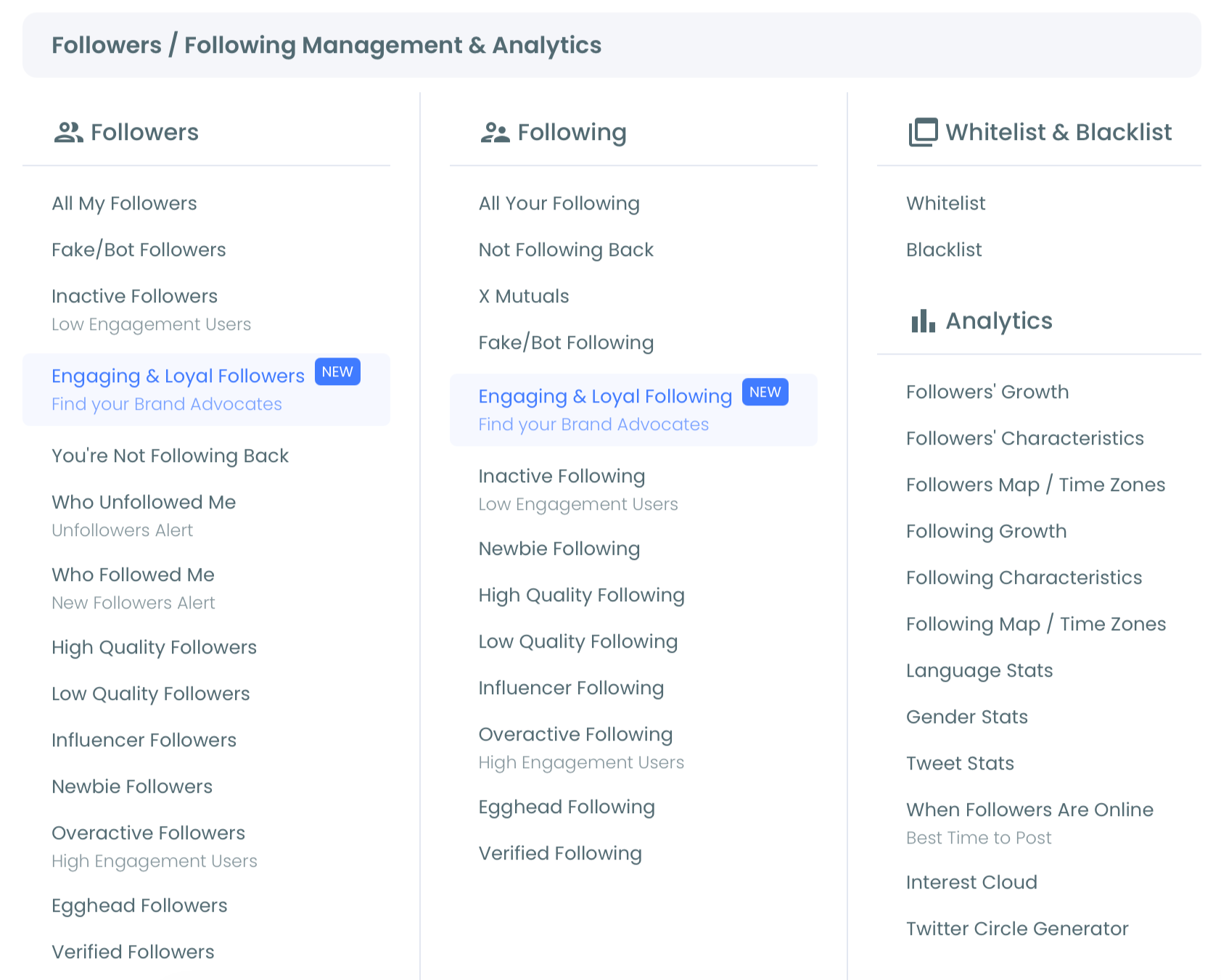
- Open the Follower/Following menu, the audience area where every following view is grouped.
Filter and export what you find
- Select All My Following to load the complete list as one table with every account and every column.
- Sort a column or open the filter panel to narrow the view by activity, follow ratio, join date, language, or location.
- Export the segment to CSV, or act on it in place with unfollow, list, whitelist, or blacklist.
Working in that order matters, because you decide what to keep or cut from the full, filtered set rather than from a scroll that stops before the end.
What the columns tell you at a glance
Once the table loads, seven columns do the work. Name carries the handle and the location.
Tweets shows post volume, so you can spot the accounts that went quiet years ago. Joined shows account age, which separates long-standing sources from accounts spun up last month.
Following and Followers give the raw counts, and Follow Ratio turns them into one number you can sort on.
The final column labels each account active, moderately active, or inactive. Read across a single row and you have the account's whole story: how old it is, how much it posts, how balanced its network is, and whether it still shows up in feeds at all.
That is the exact information X hides behind separate profile visits, and it is the information that makes a real decision possible. A viewer does not just show you more names; it shows you the reasons behind each one.
Filters that turn looking into acting
Sorting handles the obvious cases. Filters handle the specific ones.
You can narrow the table by language, location, join date, follower count, tweet count, and follow ratio, or by quality flags like fake, inactive, overactive, protected, and egghead accounts. You can also search names and bios for a keyword to gather every account tied to an old interest or a former role.
Once you have a segment you like, you do not have to unfollow it. You can add those accounts to a Twitter List instead, so the sources you value get a clean, dedicated timeline; X explains how Lists work on X if you have never built one.
Filtering is what turns a viewer from a way to look into a way to act, because the segment on screen becomes the exact set you keep, list, or remove, with nothing left off the bottom.
Export the list, then keep working outside the tool
Exporting is the step people underrate. Before any large change, export your Twitter following and followers lists so you have a dated record of exactly who you followed.
Circleboom writes the current table, filters and all, to a CSV with every column intact, so the export matches the view you built rather than a raw dump.
That file is useful well beyond a backup. You can open the export of your Twitter following list in a spreadsheet and sort it any way you like.
Hand it to a teammate, or feed it into a CRM for outreach. The value of a viewer is not only what you do inside the tool.
It is that you can take the entire list with you and work on it anywhere, which a scroll you cannot even finish loading will never let you do.
Use it before you move accounts
A viewer also earns its keep when you are moving between accounts. If you want to transfer your Twitter followings to a new account, you first need to see the full list you are carrying over.
The native tab will not hand you that in one piece. Load the complete table, export it, and you have the exact set to rebuild from on the new account.
The same visibility that powers a cleanup powers a migration, because both start from the same requirement: knowing every single account you currently follow. Without the full list, a move is guesswork and you drop sources you meant to keep.
With it, the transfer becomes a checklist you can work through account by account, confident that nothing important got left behind on the old profile.
Tell one-way follows from the rest
Not every account you follow follows you back, and that is fine, but it is worth knowing which is which. Sorting or filtering the table separates reciprocal relationships from one-way follows so you can judge them case by case.
Some one-way follows are news outlets or creators you keep on purpose.
Others are leftovers with no reason left behind them.
Pairing this view with a look at who is not following you back gives you both sides of every relationship in one sitting. That context is the part a single scroll can never provide, because the native list shows you names in the order you followed them and nothing about whether the follow was ever returned.
Seeing both directions at once is what lets you prune with a clear reason instead of a hunch.
Keep the account safe while you clean up
When it is time to unfollow, the tool stays inside X's limits so the account stays safe. Circleboom processes up to 50 unfollows every 15 minutes and around 800 a day, and it recommends working in batches of 100 to 150 so you never trip the automated checks X runs against aggressive behavior.
Reach the daily cap and the queue pauses, then resumes the next day on its own.
Whitelist the accounts you never want removed before you start, and no bulk action in any following feature can catch them by mistake. The order that keeps a big audit safe is always the same: load the list, protect what matters, then remove the rest in measured batches.
Because every action runs through official access rather than a browser hack, none of it puts the account itself at risk, which is the point of doing the work through a sanctioned tool.
What changes once your following list is clean
A clean following list is not about a lower number.
It is about signal.
When the accounts you follow are ones you actually chose, your feed carries fewer dead posts and more of the sources you opened X for in the first place. The change shows up within a day or two: less noise at the top, fewer stale reposts, and more room for the handful of accounts that reliably say something worth reading.
There is a quieter benefit too. Your following list is public, so anyone who checks your profile reads it as a signal of who you pay attention to.
A current list tells an accurate story. A neglected one, full of accounts you forgot about years ago, tells the wrong story to exactly the people you most want to reach.
Your following list audit, in five moves
You do not need a complicated process to get control of your following list. You need to see it once, then work in order. Here is the short version to keep next to you:
- Load the complete list so nothing hides below the scroll.
- Sort by ratio or activity to bring the weakest follows to the top.
- Whitelist the accounts you never want to lose.
- List the sources worth keeping, then unfollow the rest in batches.
- Export the final table so you always have a record of who was there.
Start with the full table and every later step gets easier, because each decision is made against the whole list instead of a fragment of it.
→ Export and audit your following list in one place
What to know about your following list
Can I see every account I follow, even on a large account?
Yes. Circleboom loads your complete following list through X's official API, so the full set appears as one table no matter how many accounts you follow, without the cutoff the native tab hits.
Do I have to unfollow anything to use the viewer?
No. Viewing, sorting, filtering, and exporting all work without changing a single relationship. Unfollowing, listing, and whitelisting are there when you want them, but the list is yours to read first.
Can I export my following list to a spreadsheet?
Yes. The Export action writes the current table, including any filters you applied, to a CSV file with every column, ready for a spreadsheet, a report, or a CRM.
Is it safe to manage my following list this way?
Yes. Every read and every action runs through X's official API within the platform's rate limits, so a large audit or cleanup stays inside X's rules and keeps your account safe.

