
Most monthly Twitter reports compare the one number that explains the least: the total. The figure that shows whether your posts improved is the per-post average, and it reads a different window from the monthly charts sitting next to it.
Native X analytics: a rolling 28-day view plus 30-day CSV exports that you save, label and line up by hand every month. Circleboom: Circleboom's X Account Analysis tool saves a dated report of your X account each month and sets it beside your earlier months through X's official Enterprise API.
→ Twitter performance month over month
Below: the four figures worth comparing, and the window each one reads.
What Twitter performance month over month should measure
Twitter performance month over month is best measured with four figures, read in this order:
- Per-post averages: the response each tweet earned, which shows whether the content changed.
- Monthly totals: the combined response for the month, which moves with how much you published.
- Engagement rate with impressions: response per impression, which only means something next to its impression base.
- Audience quality: the share of active, inactive and suspected bot followers, which explains movement but is not performance.
Totals are the figure most reports lead with, and they are the least diagnostic. A month with more posts will usually earn more total likes and replies even when no single post did better.
When I review someone's monthly deck, the first thing I look for is whether a rising total has a rising per-post average under it.
That is why a dated record of your X performance month over month needs all four figures from the same day. A total pulled from one screen and an average pulled from another rarely describe the same posts.
The follower count sits outside these four on purpose. It is a running total that never corrects itself, so it belongs on a trend line rather than in a monthly verdict. If you want that line between two reports, is there a free way to track Twitter follower growth over time covers the options.
Which X metric reads which window
Every figure in a monthly comparison describes a specific stretch of time, and two figures that both get called "monthly" can cover very different ones. This map pairs each metric in Circleboom's X Account Analysis report with its window and what a change in it means:
| Metric | Window it reads | What a change means |
|---|---|---|
| Per-post averages (likes, reposts, replies, quotes, bookmarks, engagement) | Last 90 days, in the Engagement summary row | The posts themselves earned more or less response |
| Monthly interaction totals | Each calendar month, in the over-time charts | Output and response together; check the post count first |
| Engagement rate % | Monthly chart, plus a 90-day figure in the summary | Response per impression; read with that month's impressions |
| Total impressions | Each calendar month | Visibility volume, from more posts, one post that traveled, or both |
| Average impressions per tweet | Weekly or monthly chart | Visibility earned per post |
| Posting cadence | Lifetime average against the last 30 days | Whether output rose or fell against your habit |
| Posting consistency | Last 30 days | Steady daily posting or bursts with quiet gaps |
| Audience quality shares | The analysis date | A change in who follows you, for example after a cleanup |
A monthly comparison is only as honest as the windows it lines up.
When reading Twitter performance month over month, the most common mismatch is between the first two rows. A 90-day per-post average and a single month's total can both be called "this month" in a slide, but the average reaches back across three months of posts.
A single calendar month's per-post figure comes from simple arithmetic: the month's bar in the chart, split across however many posts went out that month.
A worked division for one calendar month
Here is how that division changes a verdict, with illustrative numbers. Say last month's chart shows 900 total engagements on 30 posts, and this month's shows 1,200 on 48 posts.
The total rose by a third, which is the line most reports would lead with.
Divided by post count, last month earned 30 engagements per post and this month earned 25. The account published far more and each post earned less, so the honest headline is about output, and the content question is still open.
Divide before you celebrate.
Reading total impressions before the rate
Total impressions are the sum of each tweet's impressions in a month, so a tall bar can come from publishing more, from one post that traveled far, or both. Read this chart before the engagement rate, because the rate is total engagement divided by total impressions.
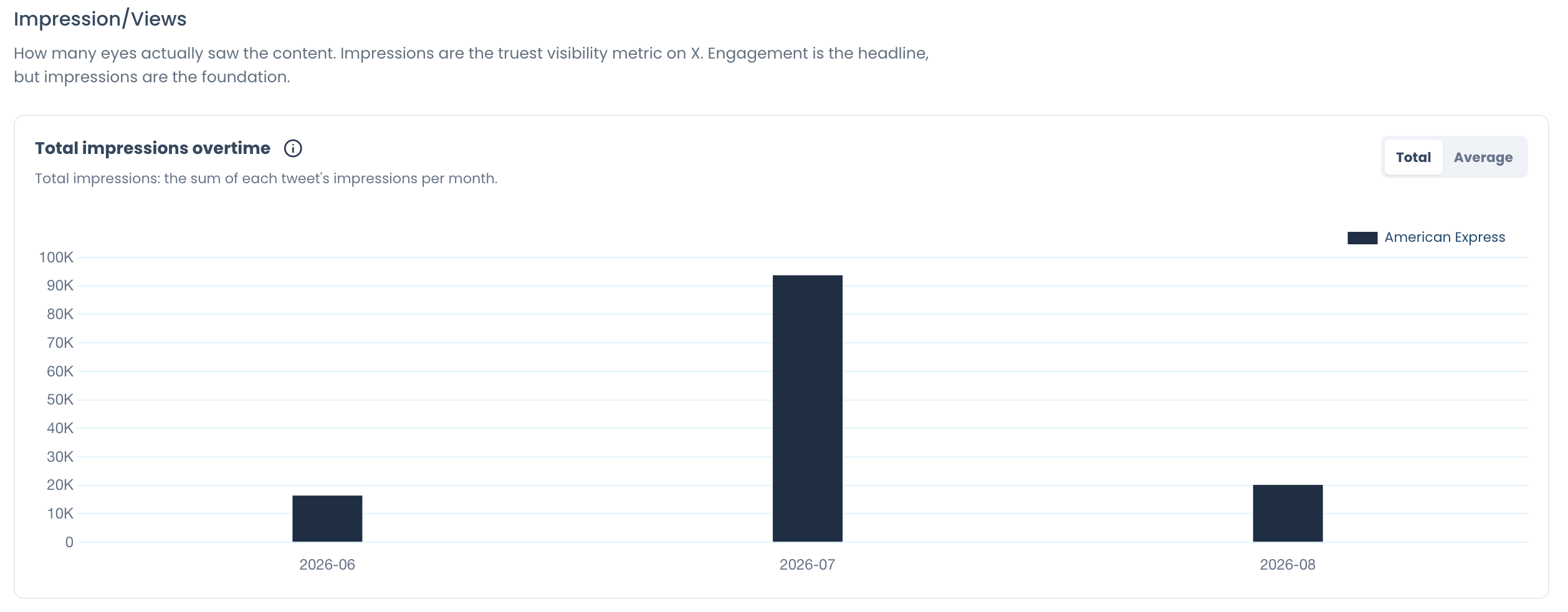
A month with a small impression base can post a high rate from a handful of interactions. A month with broad reach usually shows a lower rate, because many more people saw the posts without acting.
Paired, the two charts tell you which month was stronger; alone, the rate can point the wrong way.
Reading cadence and consistency beside the totals
Cadence explains most surprises in monthly totals. The report sets your lifetime posting average against the last 30 days, so you can see at once whether this month's output ran above or below your habit. A total that jumped in a month when the 30-day bar also jumped is mostly a publishing story.
Posting consistency adds the shape of that output. Over the last 30 days the report labels the account Steady or Burst, with a coefficient-of-variation value beside the label; a higher value means spikier posting.
A burst month can produce one tall bar in the totals and quiet weeks around it, which makes a month-over-month swing look larger than any change in the content.
Reading audience quality as context, not as a score
The audience row describes the followers on the day the analysis ran, while engagement and impressions describe your posts. A drop in the inactive or suspected bot share between two analyses means the audience changed; it does not prove that engagement will follow.
If that row is the one you plan to move next month, a fake followers audit on Twitter is the step to take before the following analysis.
Can't X's own analytics compare months for you?
Only partly. X's native analytics show post-level numbers for a date range, but they do not keep a dated snapshot of your account that you can reopen next month exactly as it was read.
X documents its activity dashboards in detail. By default the view opens on the last 28 days, and a single CSV download reaches back no more than 30 days and holds no more than 3,000 posts.
A monthly history therefore has to be exported and stored by hand, month after month. X's own page on Professional Accounts describes the account analytics in Professional Home as basic.
| What a monthly comparison needs | X native analytics | Circleboom X Account Analysis |
|---|---|---|
| A record that stays as it was read | Exports you save yourself | Every analysis dated and stored, never overwritten |
| Past months on one screen | Separate exports | Compare Reports, up to 5 analyses |
| Audience composition | Not shown | Inactive, suspected bot and quality-tier shares |
| The accounts you follow | Not shown | A Following view of the same audience panels |
| Audience geography and bio keywords | Not shown | Country, language, time zone and bio keyword panels |
For Twitter performance month over month, the gap that matters most is the audience. Nobody can rebuild last month's follower composition after the fact, so a month that was never analyzed stays missing from any history.
The native screens still have a job. They are the right place for a single post's detail on the day it goes out. The dated report is the right place for the month, because it fixes every figure to one read and keeps it there.
Using both, I check a post in X and judge a month in the report, and the two never get mixed into one slide.
How Circleboom keeps a dated record of your X account
Circleboom's X Account Analysis tool reads your connected X account into a dated, 9-section report and keeps every analysis in the account's history. Compare Reports places up to 4 earlier analyses next to the current one, so five months can be read on one screen.
The monthly plan builds that history without reminders. Keep it up to date every month runs today's analysis plus 12 automatic ones, 13 in total, on the day of the month you choose, and cancelling the plan keeps every report already taken.
Circleboom is an approved X Enterprise customer, so each report is calculated from official X records rather than scraped pages. For month-over-month work that matters twice: the data is complete enough to trust, and your account stays inside X's rules while it is collected. A scraped dataset can skip posts from one month to the next and quietly break the comparison.
To start your own series, open Circleboom Twitter with the account you report on and run the first analysis. The sample account analysis report shows every section before you do.
When you are ready, this is where to track Twitter performance month over month on your own account.

From numbers to a plan: building a SWOT analysis of your X account out of what a monthly report shows.
How do you turn a monthly X comparison into a client report?
Build it with Create Your Presentation, which turns the current analysis into a branded export carrying your logo, and keep the analysis dates visible on every page. A client or executive should see when each number was read before they see what it says.
Keep the report to one finding, its evidence and one decision. A finding such as "per-post replies rose while total impressions held steady" needs the Engagement summary and the impressions chart beside it, then a single action for next month.
The case for Twitter analytics for business is strongest when every chart in the deck leads to that decision.
Agencies should take the first analysis at onboarding. It becomes the baseline every later month of Twitter performance is measured against, and the monthly plan then produces a dated report on the same account each month.
Managing many accounts changes the routine only slightly. Switch accounts on the X Account Analysis page moves between connected accounts, so each client gets its own history. Running that at scale is the subject of how to manage social media accounts of over 20 clients.
When a client wants the raw figures in their own spreadsheet, Twitter analytics export provides the download.
When they ask how they stand against a named rival, that is a different report. X Account Analysis looks at an account only against its own past, so the rival view lives in Twitter competitor analysis.
What to leave out of a monthly client report
A few figures in the report are easy to misquote, and a client deck is where a misquote travels furthest. Keep these out of the headline, or quote them with their exact meaning:
- The engagement rate in the top essentials row, which can differ from the 90-day figure in the Engagement summary.
- A timing-alignment "score", because the overlay chart prints no number.
- Hashtag use, which the report counts per 500 tweets rather than per tweet.
- Post length, which appears as a typical character range rather than one average.
Leaving them out is not hiding anything. It keeps the client's attention on the one finding that should change next month's plan.
Your monthly X comparison checklist
Twitter performance month over month is readable in minutes once the record exists, and the same five checks work whether you report to a founder, a client or yourself. Before the next report goes out, run this list:
- Confirm an analysis exists for both months you are comparing, and note each one's date.
- Read the per-post averages first and write the 90-day window beside them.
- Divide each month's total by its post count before calling a rise an improvement.
- Quote the engagement rate only next to the same month's total impressions.
- Treat audience quality as context and keep it out of the engagement claim.
Each figure on that list is read from X's own records by a company named on X's Enterprise developers list. That is the short answer when a stakeholder asks whether the numbers can be trusted.
→ Run your first dated analysis: monthly Twitter performance report
Questions on reading a monthly change on X
Did my numbers go up because I posted more or because my posts got better?
Compare the per-post averages in the Engagement summary with the monthly totals: if the totals rose and the averages stayed flat, you posted more, not better. Circleboom's report also shows cadence for the last 30 days against your lifetime average, which confirms whether output rose.
Why did my impressions drop this month?
Rule out causes in order: audience quality first, then cadence for the last 30 days against your lifetime average, then the format mix and the top posts, then the timing overlay of your posting hours against your audience's active hours. A drop in output alone lowers total impressions, so check the average impressions per tweet before blaming the content.