

Posting on X sounds simple until you try to do it consistently.
One day you post on time, the next day you forget. Some days you are busy, some days you do not even open X. When posting depends on your daily routine or mood, consistency quickly breaks.
Auto-scheduling solves this problem by letting you prepare tweets in advance and publish them automatically. Instead of thinking about posting every day, you set everything up once and let the system handle it.
What auto-scheduling actually means
Auto-scheduling is more than scheduling a single tweet for later.
It means planning multiple tweets ahead of time and letting them publish automatically without manual action. Once tweets are scheduled, they go live whether you are online or not.
The real difference shows over time. Scheduling one tweet helps with reminders. Auto-scheduling helps you stay active and consistent for weeks or even months.
This is especially useful if you:
➡️ post daily or multiple times a day
➡️ want your account active while you are offline
➡️ plan campaigns or evergreen content
➡️ do not want posting to depend on daily availability
How Circleboom Twitter handles auto-scheduling
For auto-scheduling, I use Circleboom Twitter.

Circleboom Twitter is the best tool for scheduling tweets because it supports both manual scheduling and full automation.
You can schedule tweets one by one when you want precise control, but you can also auto-schedule multiple tweets at once when you want everything to run automatically.
As an official X Enterprise developer, Circleboom works directly with X’s system in a stable and reliable way. Everything is managed from a single dashboard, so you do not repeat the same steps for every tweet.
With Circleboom Twitter, you can:
🟢 Use the AI Tweet Generator to create tweet ideas and variations quickly
🟢 Schedule tweets at the best times, based on your followers’ activity
🟢 Schedule tweets individually or in bulk, depending on how much content you are planning
🟢 Auto-schedule multiple tweets at once, with posting times defined in advance
 infocircleboom.com
Once your tweets are prepared, auto-scheduling becomes a background process. You set it up once, and Circleboom handles publishing automatically. There is no need to log in every day just to post.
Auto-scheduling multiple tweets at once
The real strength of auto-scheduling appears when you work with more than a few tweets.
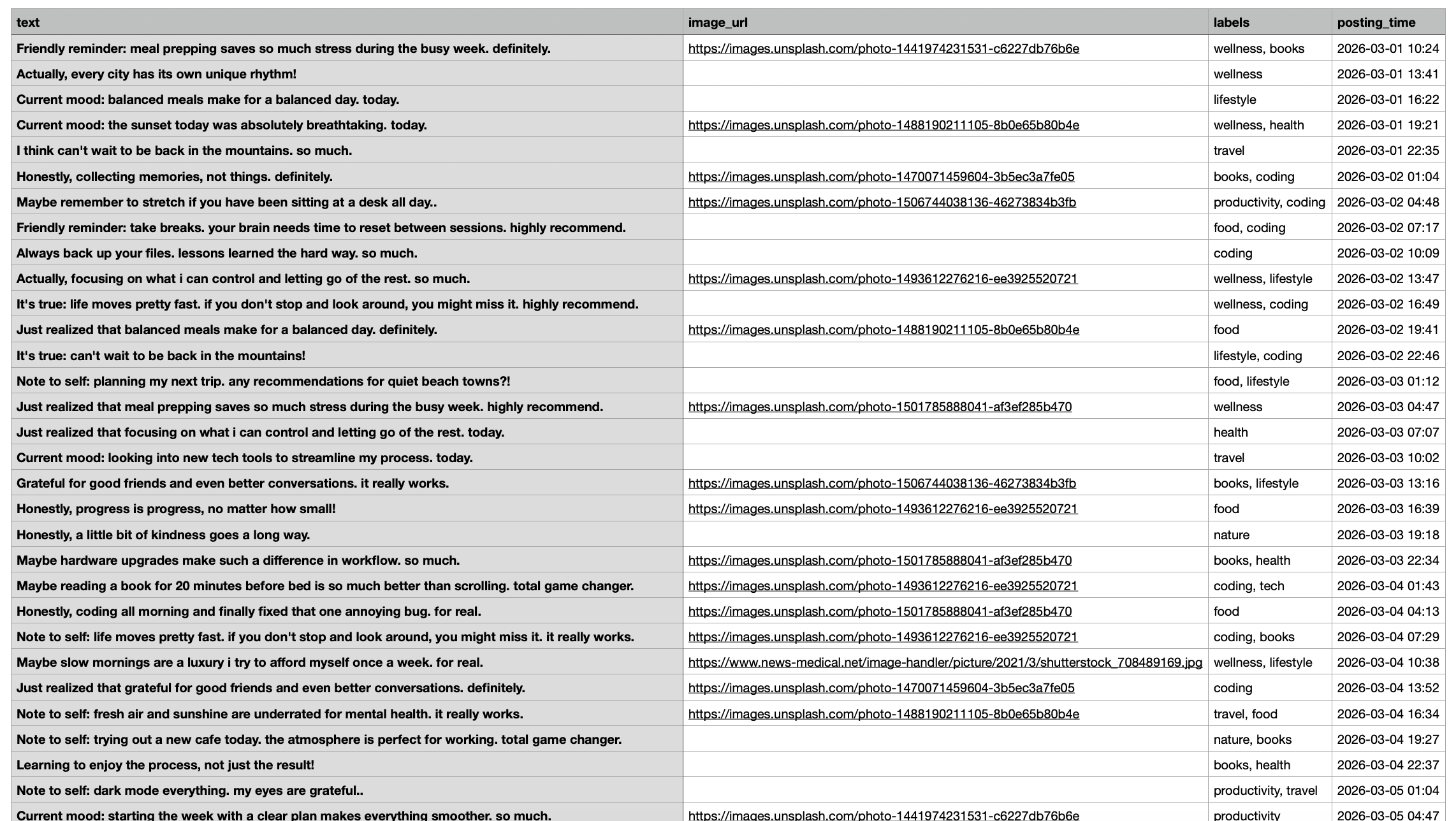
With Circleboom Twitter, you can bulk schedule your tweets and include posting times in advance.
 Arif Akdogan
After uploading your content, Circleboom schedules all tweets automatically in one action.
This changes scheduling from a daily task into a one-time setup. Scheduling dozens or even hundreds of tweets manually would normally take hours or days. With auto-scheduling, it takes only minutes.
Once scheduled, tweets publish automatically at the times you selected, without further work.
How to Auto-Schedule Tweets with Circleboom Twitter
Step #1: Log in to Circleboom Twitter and connect your X account.
If you don't already have a Circleboom account, you can get one in five seconds!
Step #2: After logging in to Circleboom Twitter, go to the X Post Planner.
Click on "Bulk Schedule" on the list and move forward to upload your tweets in bulk.

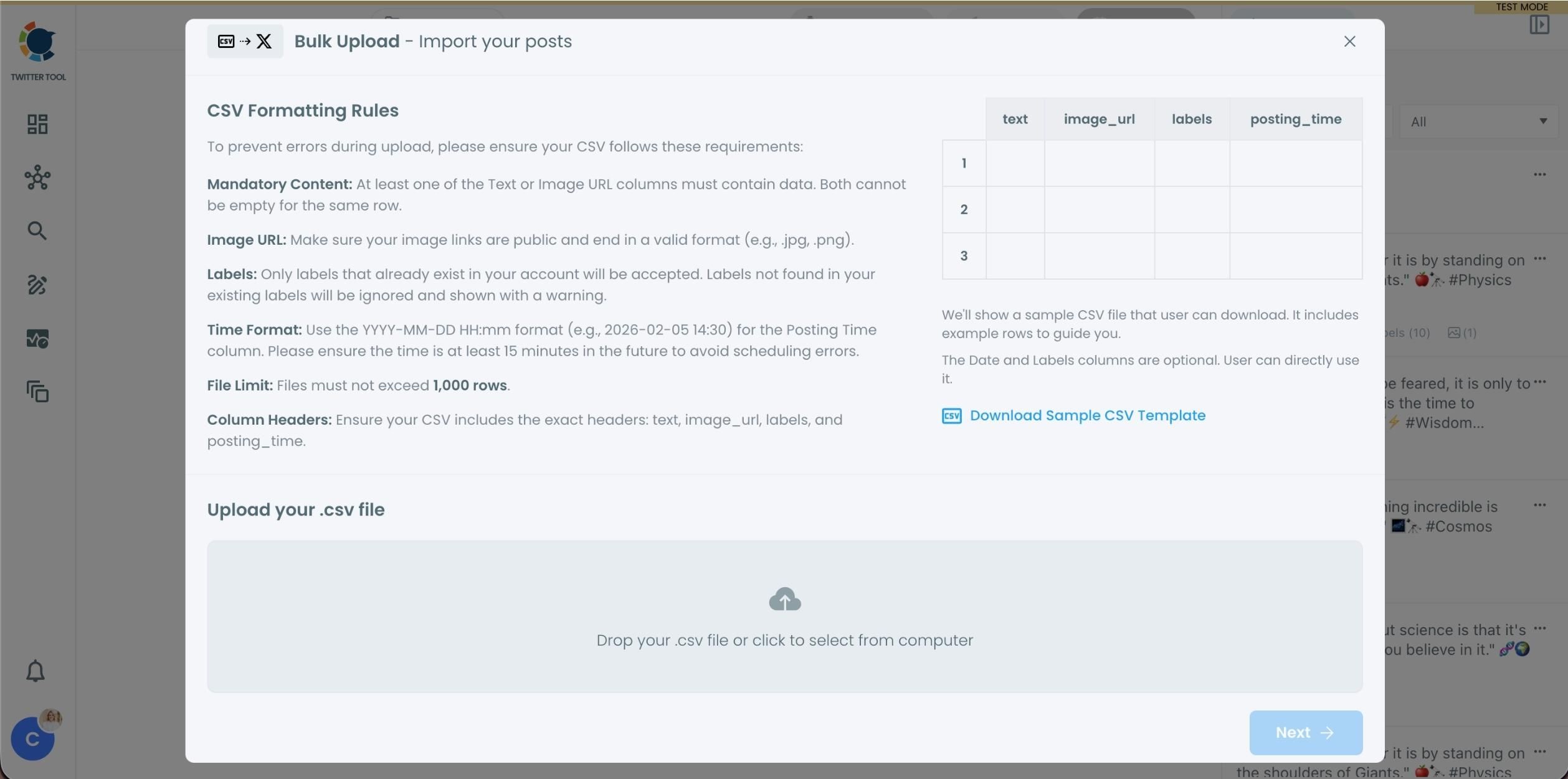
Step #3: Now, you should upload your tweets that you prepared before.
It should be a CSV file. Your file should include the correct column headers, and each row should represent a single tweet. You can include tweet text, image URLs, labels, and posting times. Preparing the file in the correct format prevents errors during scheduling.
Step #4: When the uploading is done, you will see a preview.
At this stage:
When the uploading is done, invalid tweets are shown with the reason for the error. You can also add tweets to "Collections" if you want to organize or reuse them later. This step helps you catch and fix problems before anything is scheduled.
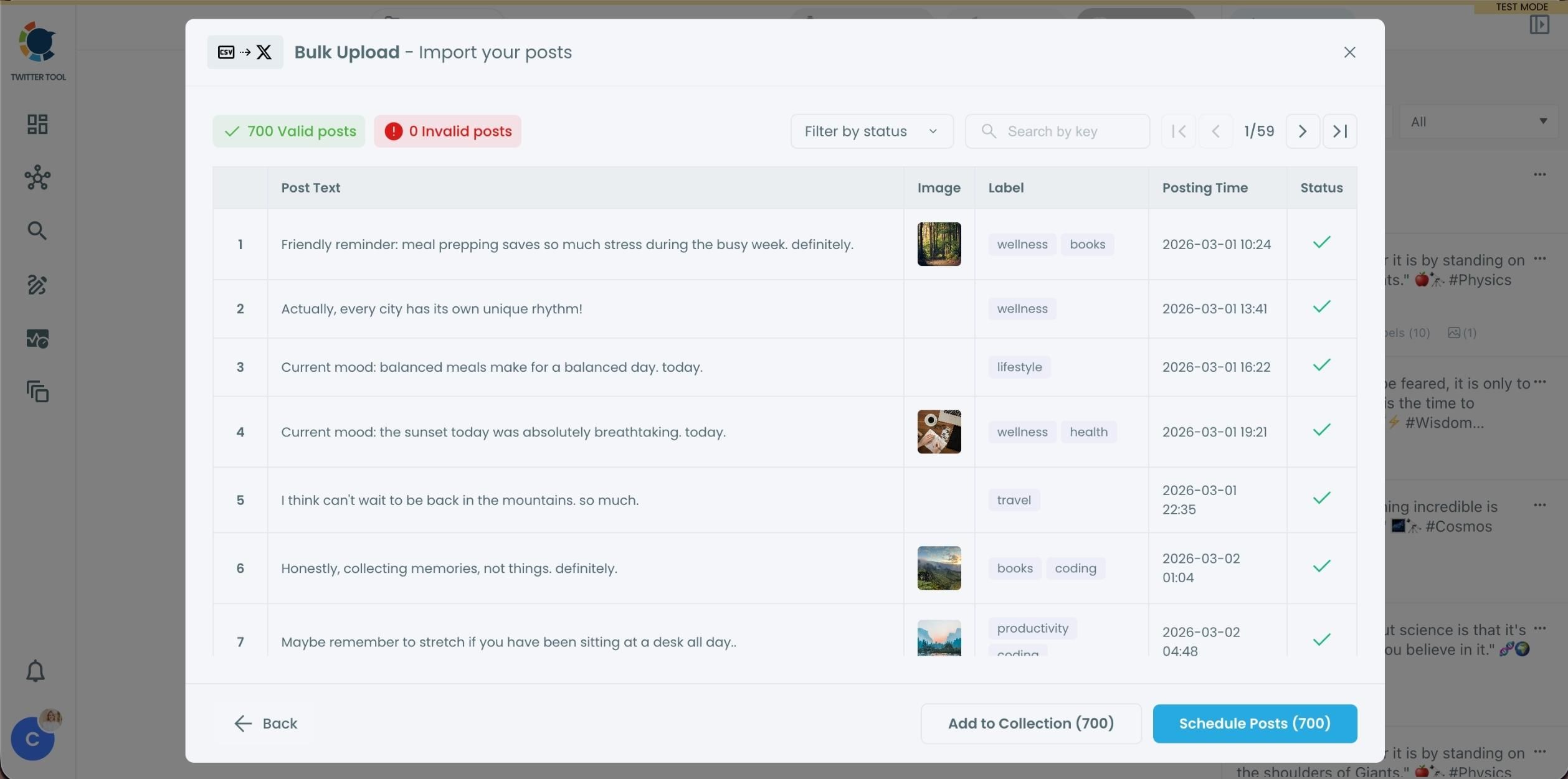
Step #5: If everything is correct, you are ready to schedule your tweets.
After that, the process is automated. You can click on the button and Circleboom will take care of the rest!
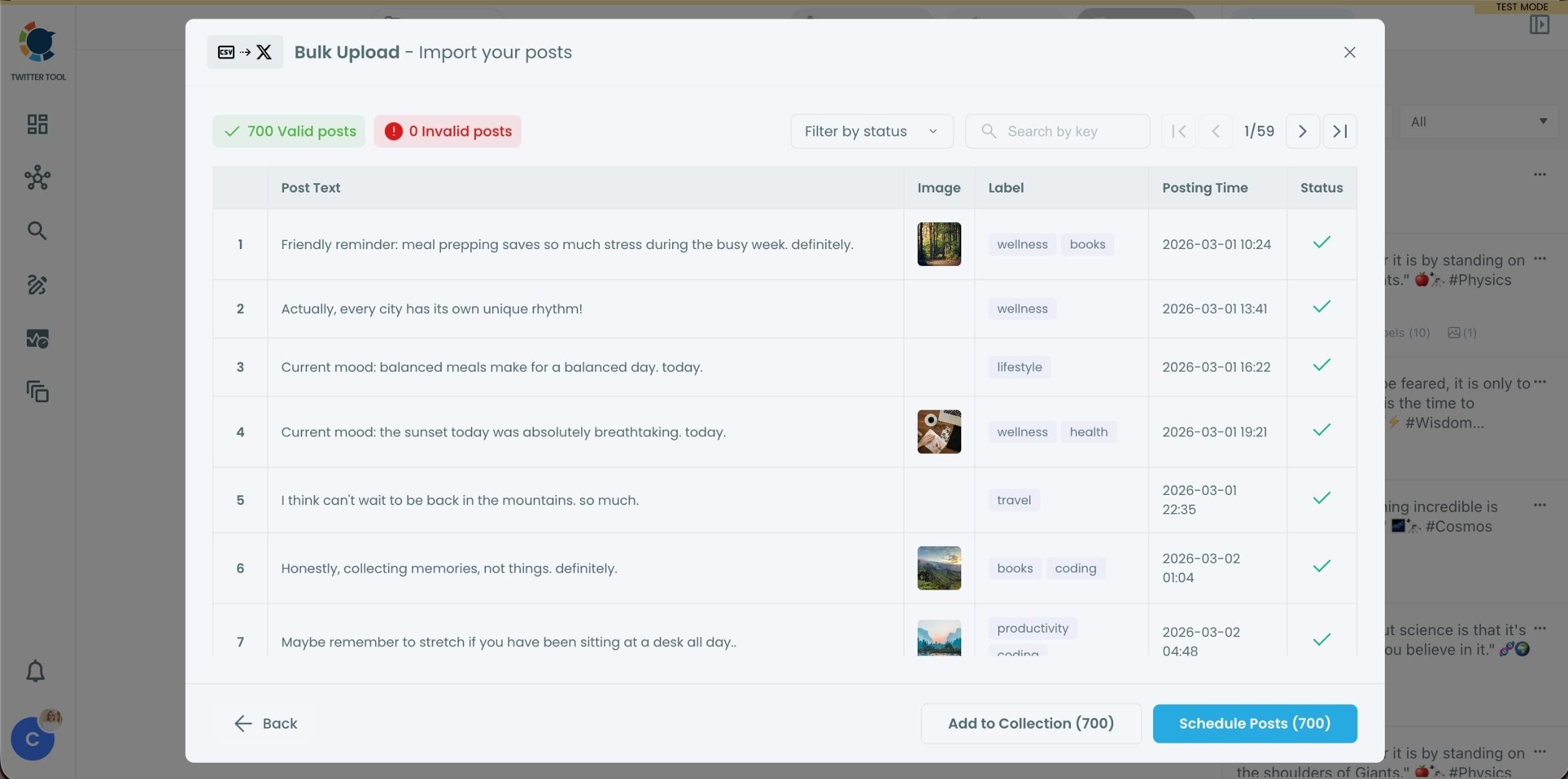
Hundreds and even 1000 tweets can be scheduled with Circleboom in bulk.
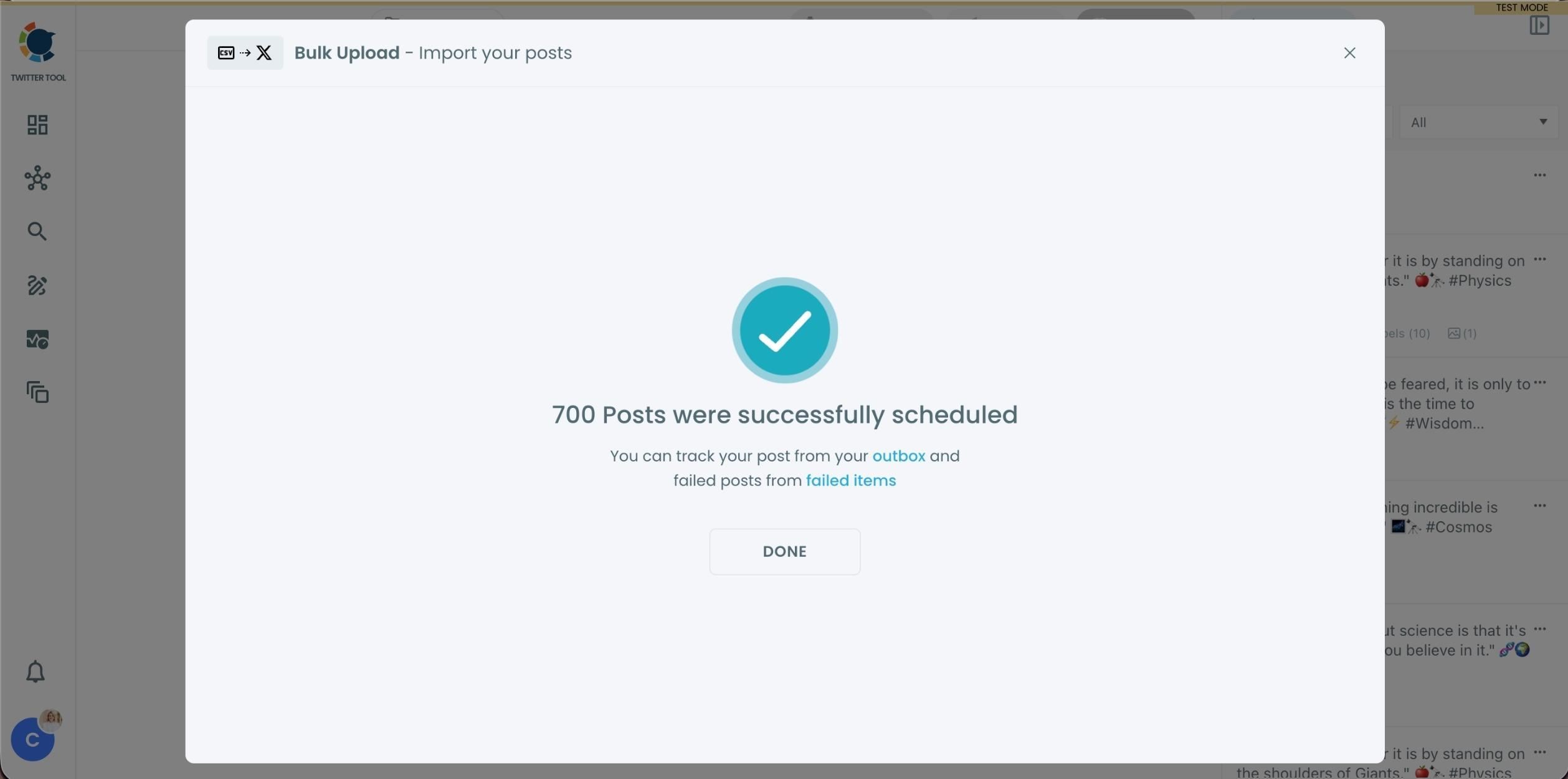
Step #6: You can view your scheduled posts in the Outbox.
If you want to edit something, you are free to make changes on your tweets.
Step #7: There is more on Circleboom for tweet scheduling.
You can write, plan, schedule and automate your X posts all in once, and at the same place.

You can create tweets yourself and also get help from AI.

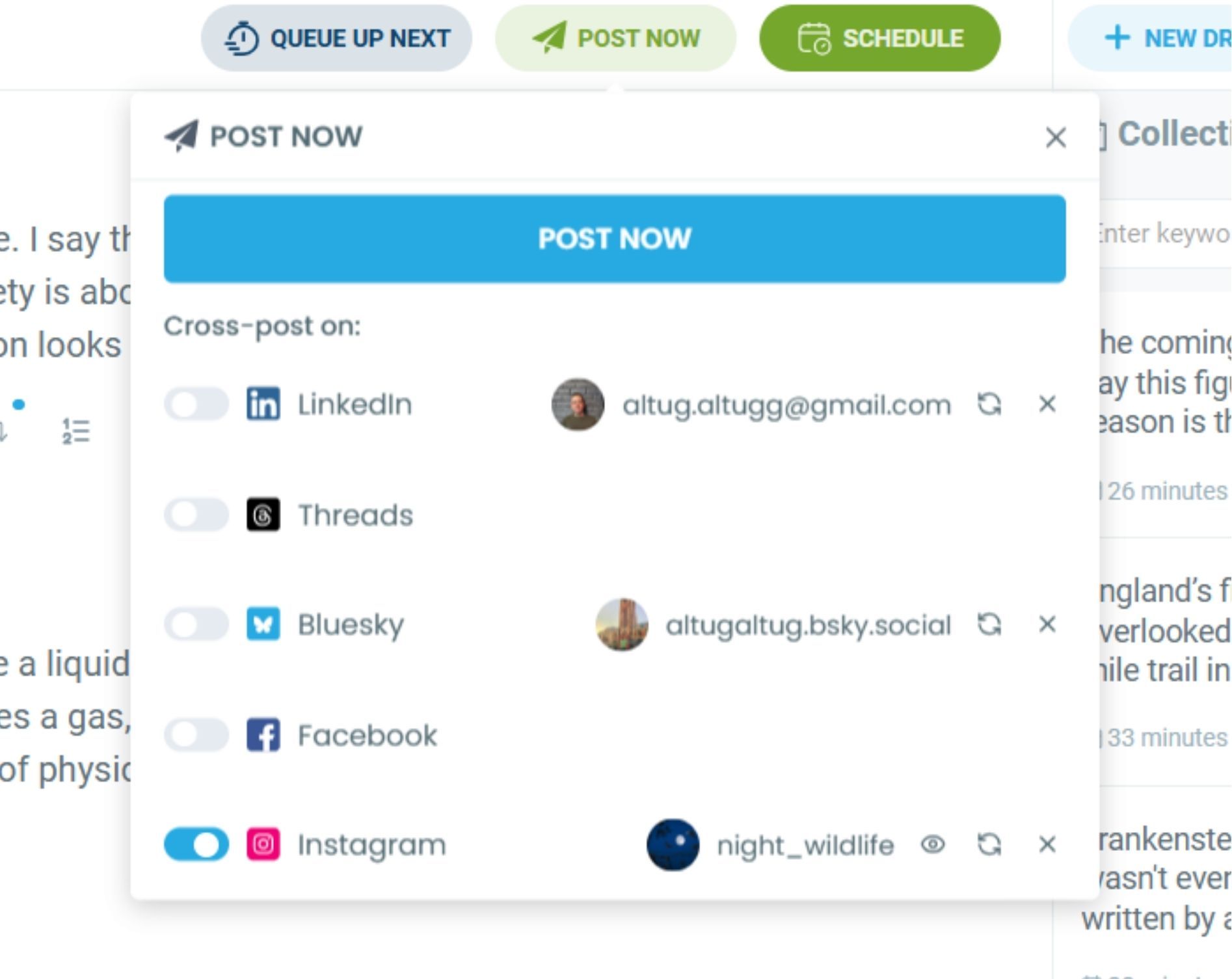
When your tweets are ready, you can schedule them at the best times to post! Also, you can cross-post your tweets to other available platforms. Even Instagram is possible!
Step #8: You can even schedule your retweets.
You can auto retweet your tweets with intervals you set.
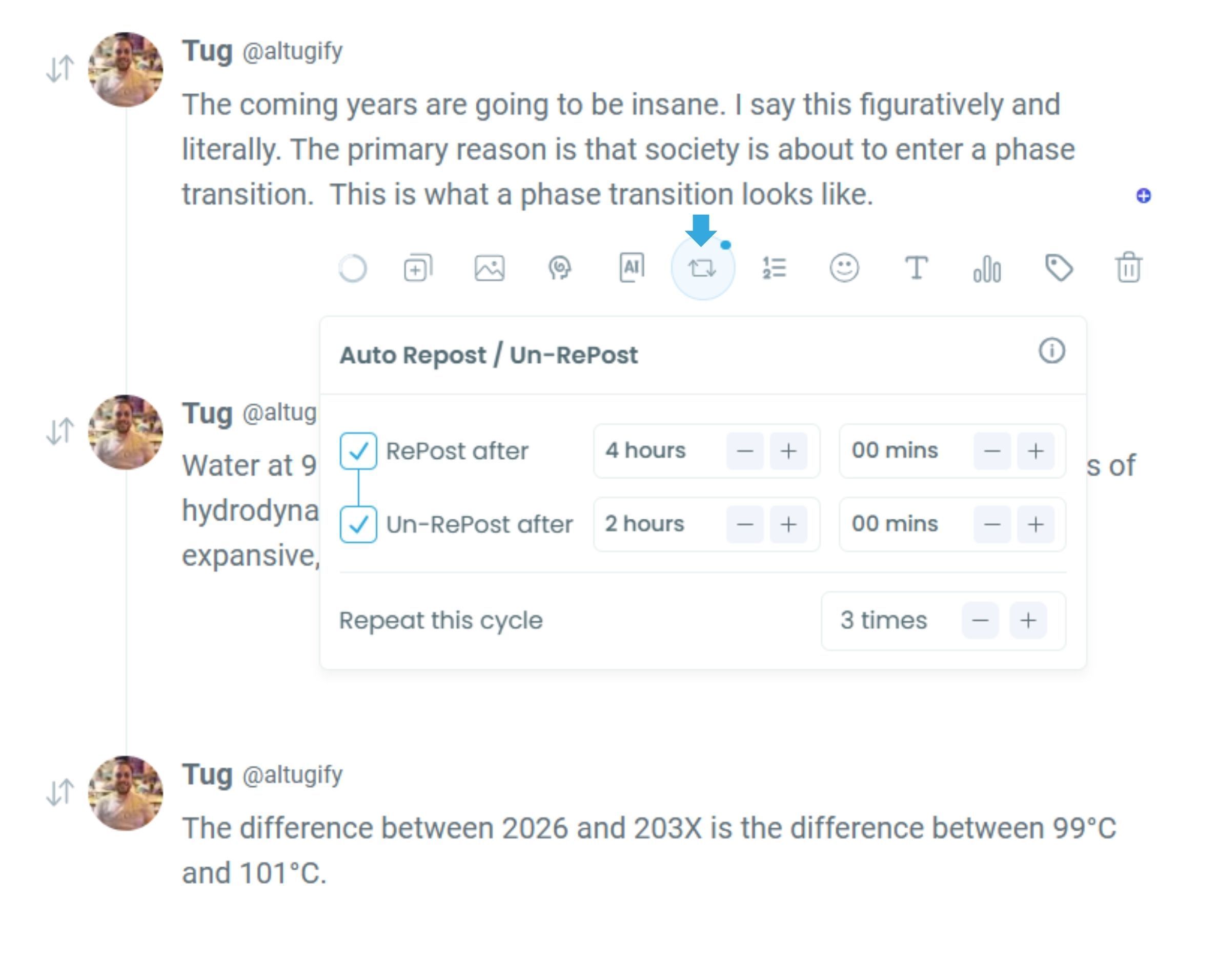
This gives you full control even after bulk scheduling is completed.
Things to keep in mind when auto-scheduling
Auto-scheduling saves time, but it should still feel natural.
Scheduling too many tweets too close together can reduce engagement and make your account look automated. Leaving realistic time gaps keeps your activity balanced.
Always double-check formatting, links, and media before scheduling. Fixing issues before tweets go live is much easier than correcting mistakes later.
Auto-scheduling handles publishing, but engagement should stay manual. Replying to comments and joining conversations keeps your account human.
When auto-scheduling is most useful
Auto-scheduling is helpful in many situations, but it becomes essential when consistency and scale matter.
It works especially well for:
🔹 daily posting routines
🔹 long-term content plans
🔹 campaigns and launches
🔹 evergreen content
What changes after you switch to auto-scheduling
Once your tweets are auto-scheduled, posting stops being something you worry about.
Your content goes out consistently, even when you are busy. Missed posting days disappear. You gain time and mental space that was previously spent managing schedules.
Instead of thinking about when to post, you focus on engagement, performance, and improving your content.
Final thoughts
Auto-scheduling is not about shortcuts. It is about removing repetitive work.
With Circleboom Twitter, auto-scheduling becomes a simple, one-time setup instead of a daily obligation. You prepare your tweets, schedule them in advance, and let everything run automatically.
If consistency matters to you, auto-scheduling is one of the most practical systems you can use.

