

While X (formerly Twitter) has made likes private, effectively hiding a user's direct preferences, the door to deep profile analysis remains wide open.
The real story lies in what a user says and amplifies; by strategically analyzing an account's tweets, replies, and quoted posts, you can gain far more valuable and nuanced insights into their interests and genuine priorities than a simple list of likes ever could.
Here's how to uncover that data.
 Arif Akdogan
Why Analyze Tweets, Replies, and Quotes?
An account's publicly available tweets, replies, and quotes—the content they actively create or amplify—paint a far more detailed and reliable picture of their interests, values, and interactions than hidden metrics ever could. By examining these elements, you gain specific analytical value:
➡️ Recurring Themes in Tweets: Directly identify core interests and values by seeing what subjects they post about consistently.
➡️ Engagement in Replies: See how they interact with others—their tone, the topics they choose to debate, and whether they engage with criticism or support.
➡️ Topics Amplified by Quoting: Understand their information filters by seeing what content they find compelling enough to comment on and share with their own audience.
To carry out this level of comprehensive analysis quickly and efficiently, you need a method to gather and organize all this publicly available data.
This is where Circleboom's powerful data tools come in.

Our standout feature is the Export Tweet tool, which lets you download an account’s entire tweet history into a neat, organized CSV file for easy analysis.
Here’s how I used Circleboom and how you can do the same.
How to Use Circleboom to Export Tweets
Circleboom’s Export Tweet feature makes gathering this information simple and efficient. Follow these steps to get started:
Step #1: Enter the Username
On the Circleboom export page, type in the Twitter/X username of the account you want to export tweets from (without the “@” symbol) and click on the blue “Search” button.

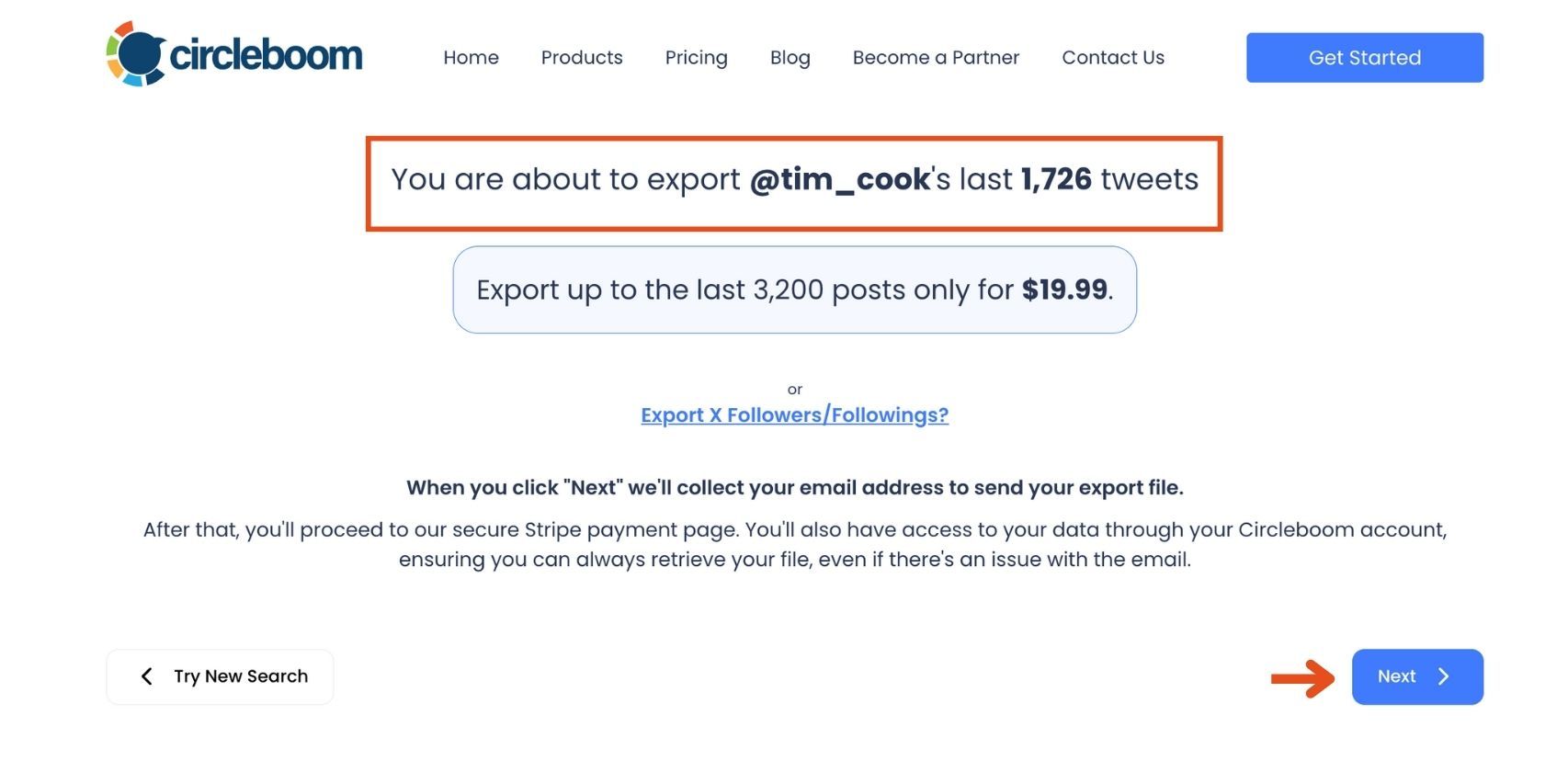
Step #2: Confirm the Tweet Count
Circleboom will display the total number of tweets available for export from the selected account. Review this information, then click the “Next” button to proceed with the export process.
Step #3: Enter Your Email Address
Enter the email address where you’d like to receive the exported tweet file. Circleboom also recommends creating an account for easy access to your export file at any time. After entering your email, click the “Next” button to continue.

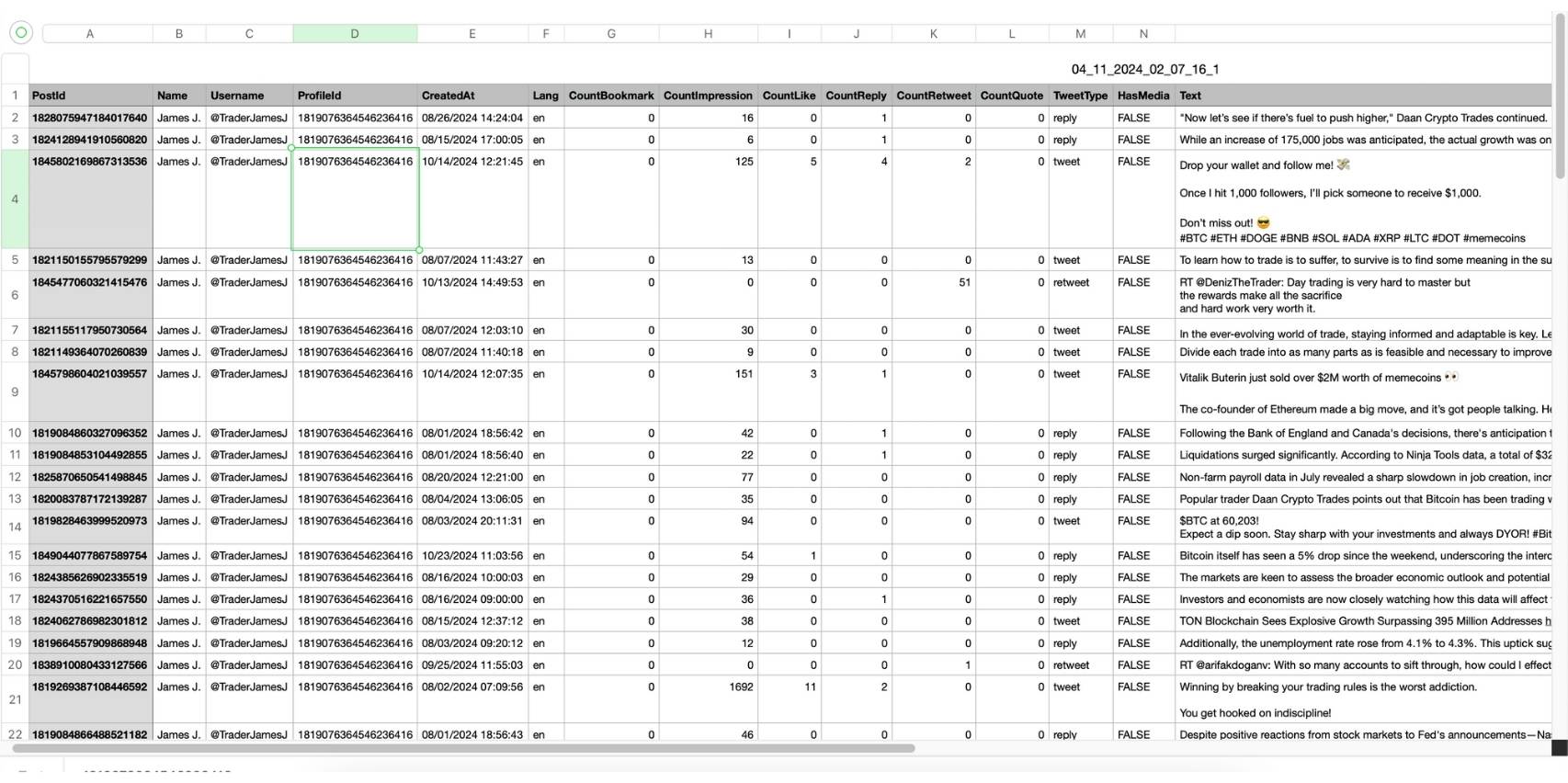
Step #4: After entering your email address, Circleboom sends the exported tweets in a CSV format directly to your inbox.
This CSV file includes essential details like Post ID, username, tweet text, engagement metrics (likes, retweets, replies), language, and timestamps, making it easy to review, analyze, or archive the tweets.
Tips for Analyzing the Data
Once you’ve exported the tweets, here are some tips for making meaningful assumptions based on the data:
❇️ Tweet Content: Look for repeated topics, hashtags, or phrases. These can reveal the user’s core interests and priorities.
❇️ Replies: Analyze their replies to understand their tone and the kinds of conversations they engage in.
❇️ Quotes: Examine their quoted tweets to see what content they find compelling enough to comment on.
❇️ Engagement Patterns: Pay attention to tweets with the highest engagement (likes, retweets). This indicates what resonates most with their audience.
❇️ Activity Trends: Look at the frequency and timing of tweets to understand their online habits.
Fatih Kemal Oksuzoglu
Why Choose Circleboom to Export Tweets?
Circleboom Twitter isn’t just a tweet export tool. As an official Twitter Enterprise customer, it offers a range of features to help users analyze, organize, and optimize their Twitter experience.

From managing followers to finding influencers and scheduling tweets, Circleboom is a comprehensive solution for Twitter power users.
Conclusion
Although Twitter likes are no longer accessible, analyzing tweets, replies, and quotes offers a powerful alternative for understanding someone’s interests and behavior. With Circleboom’s Export Tweet feature, gathering and analyzing this data is straightforward and efficient.
If you’re ready to gain deeper insights into any Twitter account, try Circleboom today. You’ll be amazed at what you can discover from just a few clicks.







%20do!)