

I’ve been using my Twitter account for a long time. Years, actually. And like most long-term accounts, it didn’t become messy overnight. The chaos built up slowly, quietly, until one day I opened my profile and realized it no longer represented me at all.
My timeline was full of old tweets that had nothing to do with what I post today. Retweets and replies from years ago were still sitting there. My following list was a mix of random accounts I no longer cared about, inactive profiles, and some that clearly shouldn’t have been there in the first place.
My followers looked strange too; accounts I didn’t recognize, many of them clearly low quality. And my DM inbox? Completely buried under spam, automated messages, and scam links.
At that point, starting a new account felt tempting. But deleting years of history, followers, and credibility didn’t make sense either. What I actually needed wasn’t a new account; it was a reset.
That’s when I decided to scrub my Twitter (X) account.
What Does It Mean to Scrub a Twitter Account?
Scrubbing a Twitter account doesn’t mean deleting everything blindly or abandoning your profile. It means cleaning, restructuring, and taking control of your account so it reflects who you are now, not who you were years ago.
A proper scrub focuses on:
- Removing clutter without destroying valuable history
- Getting rid of low-quality connections
- Cleaning content that no longer serves a purpose
- Eliminating spam and noise
- Resetting the signals your account sends to the algorithm
For long-running accounts, scrubbing is often far more powerful than starting from zero.
Why Manual Cleanup Wasn’t an Option
At first, I tried doing things manually. Unfollowing accounts one by one. Opening profiles to see if they were active. Scrolling endlessly through tweets and replies. It didn’t take long to realize this approach was unrealistic.
Twitter simply isn’t built for deep account cleanup:
🚫There’s no bulk unfollowing
🚫 No meaningful filters for followers or following
🚫 No way to analyze account quality at scale
🚫 No proper DM management
🚫 No smart tweet deletion tools
Without proper tools, scrubbing an old account can take weeks or never fully happen.
Why I Chose Circleboom Twitter
To do this properly, I needed visibility first, then control. That’s why I used Circleboom Twitter.

Circleboom is an official X Enterprise Developer, which means it can legally and securely access deeper account data through X’s API. More importantly, it doesn’t just show lists it analyzes them.
Circleboom breaks your account down into meaningful parts and enables you to manage all your:
❇️ Followers and their quality
❇️ Following list with detailed metrics
❇️ Tweets, retweets, and replies
❇️ Direct messages
❇️ Bookmarks
❇️ Twitter Lists
Instead of guessing, I could finally see what was actually going on inside my account and take action based on real data.
Keep in mind that the API provides a more accurate real-time data stream than the X interface itself. While the platform UI may experience lag, the API captures and reflects new developments instantaneously.
Circleboom has the official Enterprise API, we don't scrape data from X!

1. Cleaning My Following List Changed Everything
The first thing I tackled was my following list, because this directly shapes your feed and the signals you send to X’s algorithm.
 Arif Akdogan
Over time, my following list had become a mix of:
- Inactive accounts that hadn’t tweeted in months or years
- Bots and suspicious profiles
- Accounts I followed once and forgot about
- Topics I was no longer interested in
Circleboom didn’t just show usernames. It showed context:
- Follower and following numbers
- Total tweet count
- Activity status
- Fake or bot signals
Once you see your following list like this, patterns become obvious. You immediately understand which accounts add value to your feed and which ones silently drain it.
How to Clean Your Following List with Circleboom
Step #1: Open “All Your Following” in Circleboom Twitter
After logging in to Circleboom Twitter, head to the Followers / Following Management & Analytics section.
From the Following column, click All Your Following.
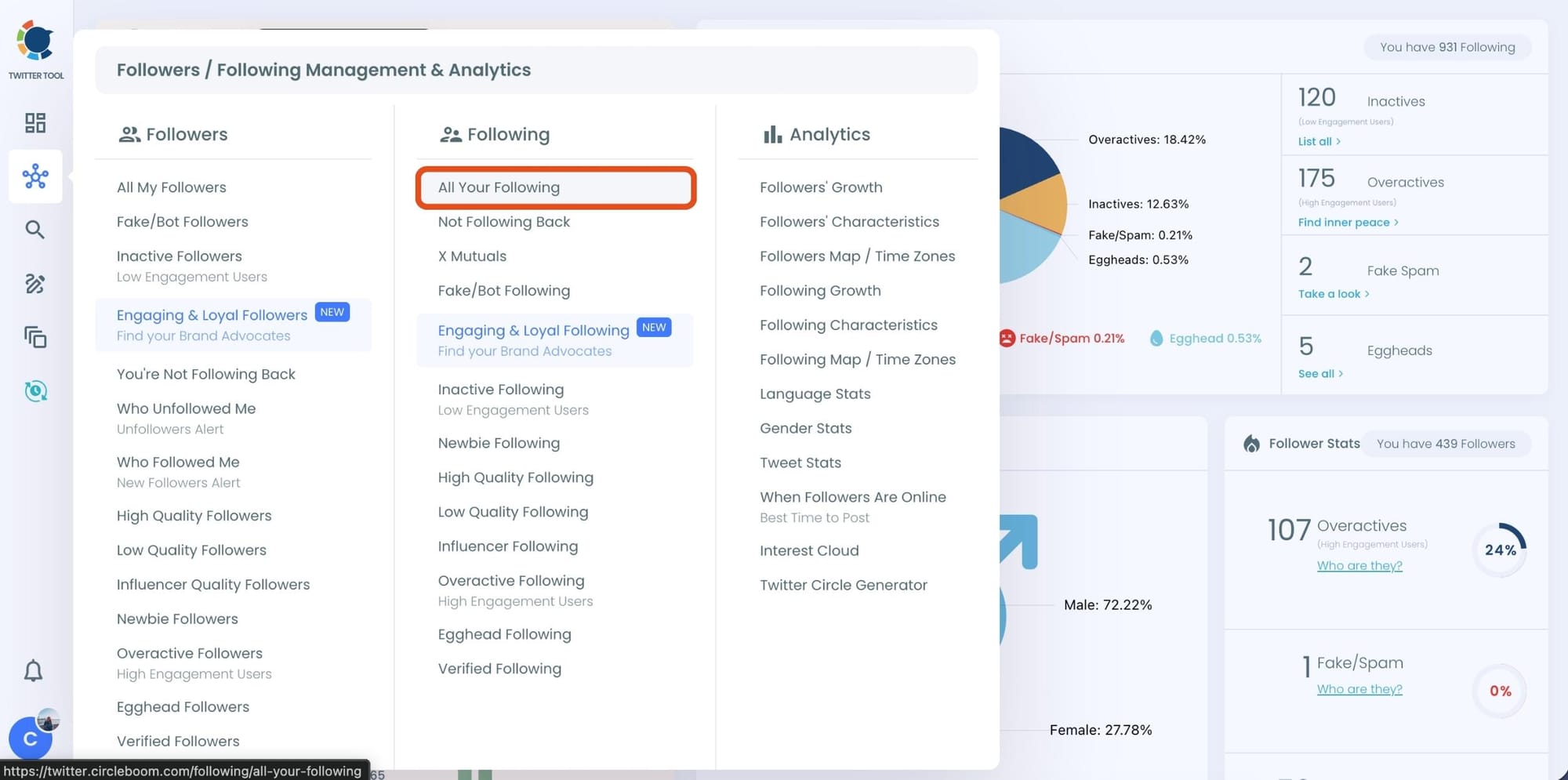
This instantly loads your entire following list, something Twitter itself never fully shows.
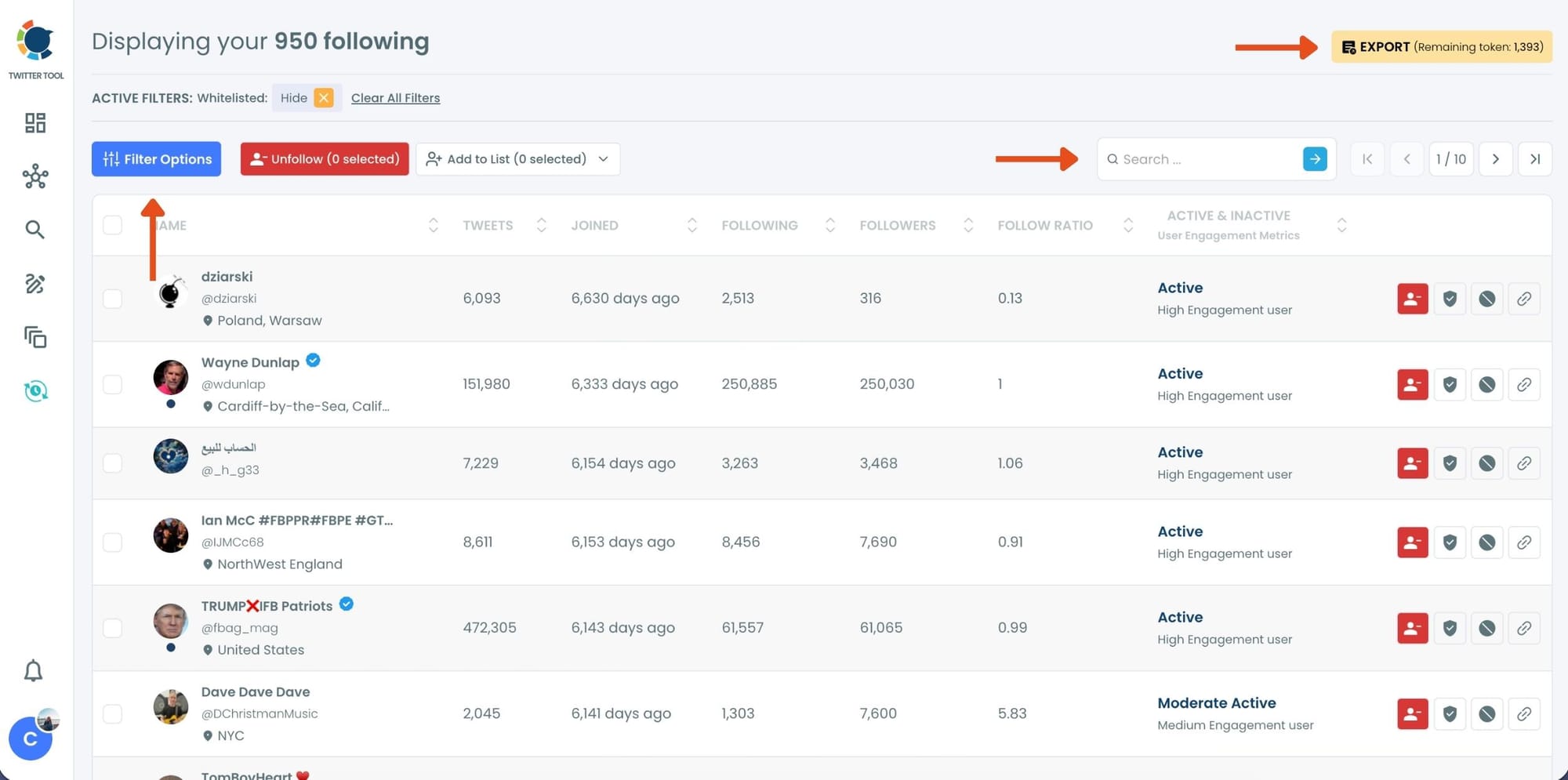
Step #2: View Detailed Stats for Every Following
Once the list loads, Circleboom displays much more than usernames.
For each account, you can see:
- Total tweet count
- Follower and following numbers
- Follow/follower ratio
- Account join date
- Activity status (active, moderate, inactive)
This is where the real difference starts. Twitter hides most of this context, but here it’s visible for every account, making meaningful sorting possible.
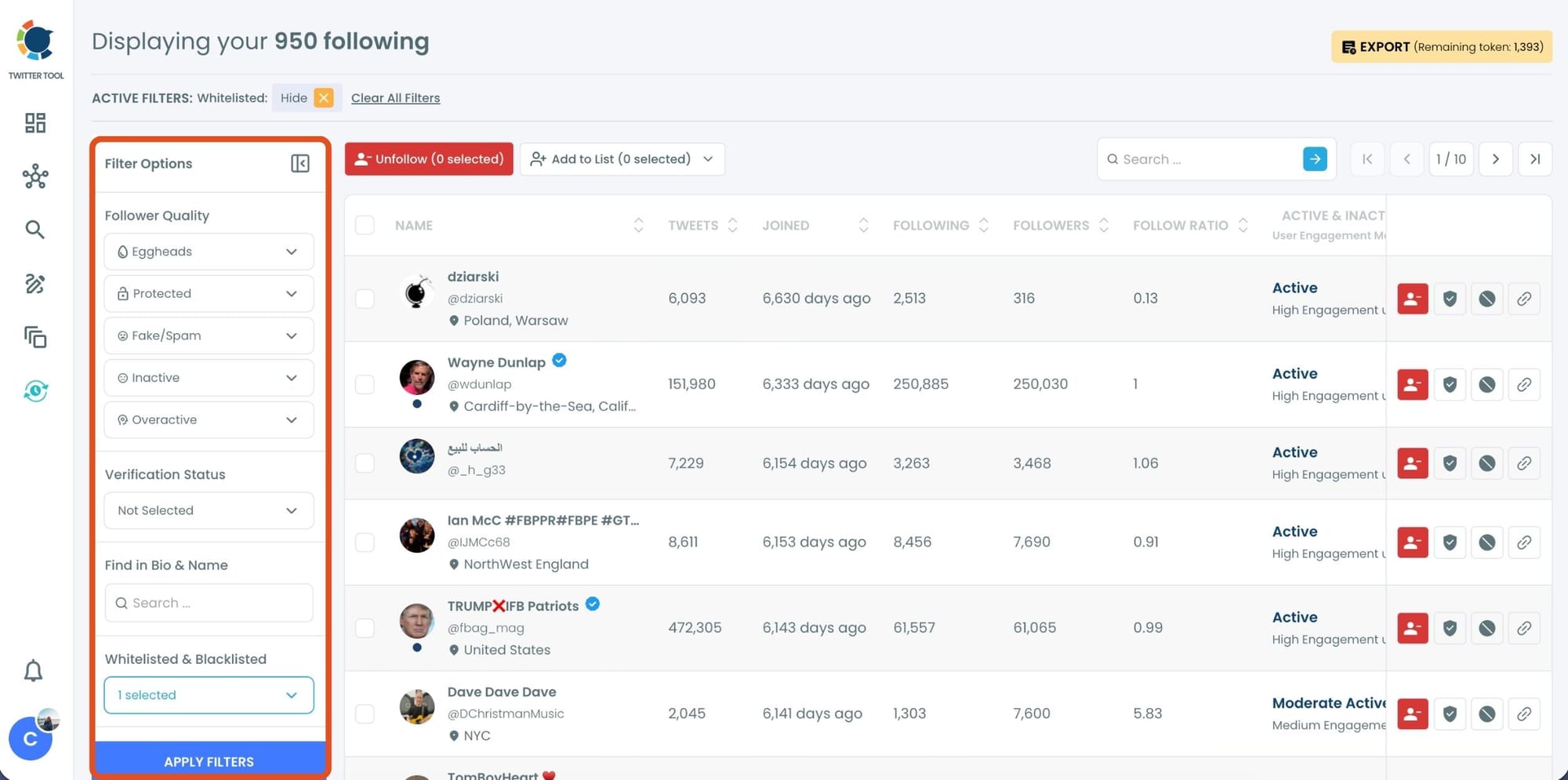
Step #3: Use Filter Options to Sort and Clean Your Following
On the left side, open Filter Options.
Here, you can filter and sort your following list based on quality signals, such as:
- Fake or spam accounts
- Inactive users
- Overactive accounts
- Egghead profiles
- Protected accounts
Instead of guessing who’s worth keeping, Circleboom flags low-quality accounts automatically. You can narrow your list down to only the profiles that actually matter.
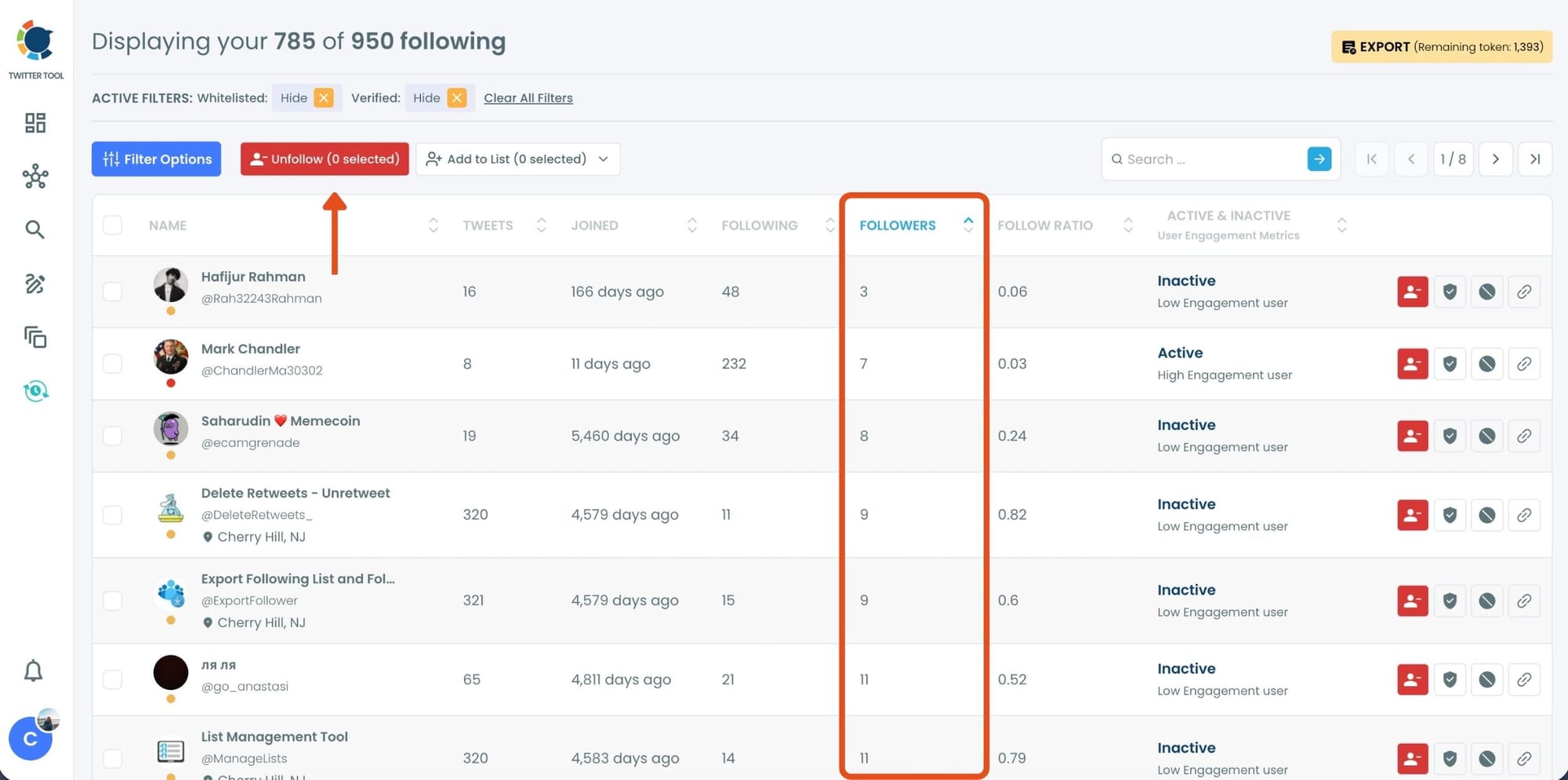
Step #4: Sort by Metrics That Matter to You
After applying filters, you can sort the list directly from the table by follower count, following count, join date, or activity level.
This is especially useful when you want to:
- Find the most or least followed accounts you’re following
- Identify low-impact or spammy profiles
- Prepare a clean export for deeper analysis
Everything happens on a single screen, without jumping between tabs or profiles.
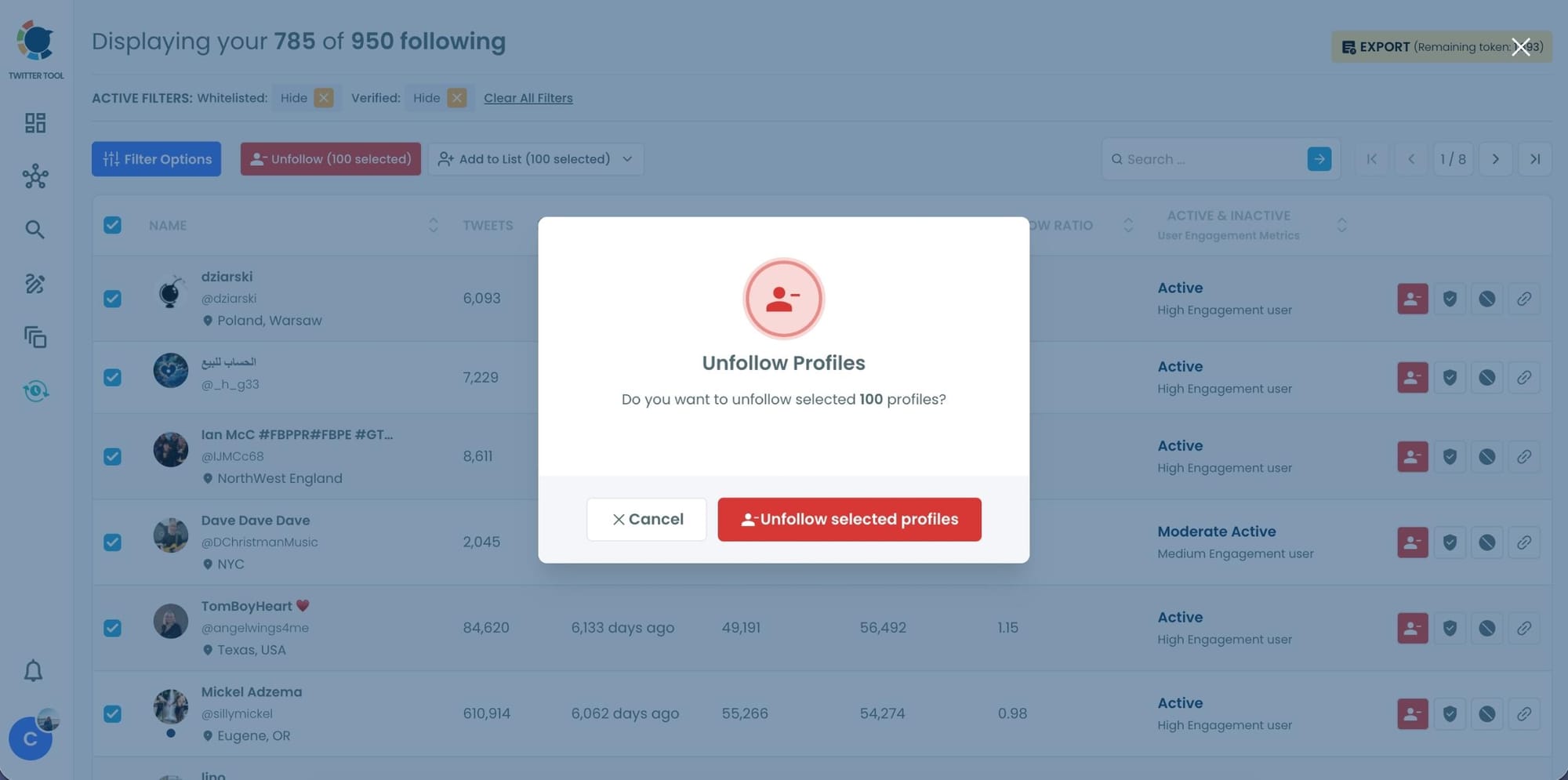
Step #5: Take Action in Bulk (Unfollow, List, or Export)
Once your list is sorted and filtered, you can select accounts and take action instantly.
With one click, you can unfollow selected profiles.
No manual profile visits. No repeating the same action hundreds of times.
2. Scrubbing My Followers Was Just as Important
Followers often get ignored during cleanup, but they matter more than most people realize.
 Arif Akdogan
Low-quality followers affect:
- Engagement rates
- Profile credibility
- DM spam volume
- Algorithm trust signals
When I looked at my followers through Circleboom, I noticed the same issues:
- Inactive accounts
- Bot-fake accounts
- Strange profiles with no real activity
Being able to filter followers by quality, activity, and authenticity made the cleanup process logical instead of emotional. I wasn’t removing people randomly; I was removing noise.
How to Remove Fake and Inactive Followers with Circleboom
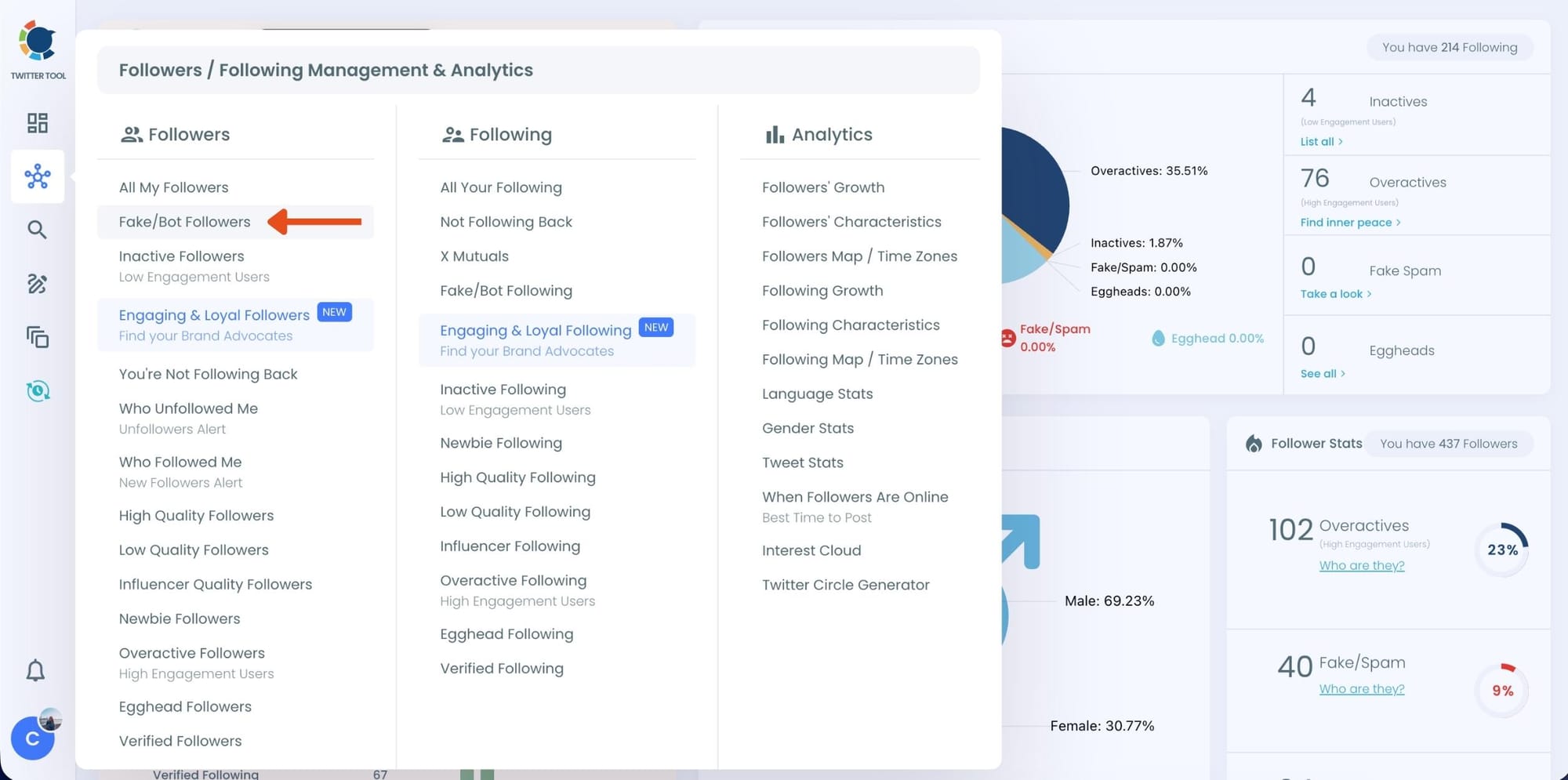
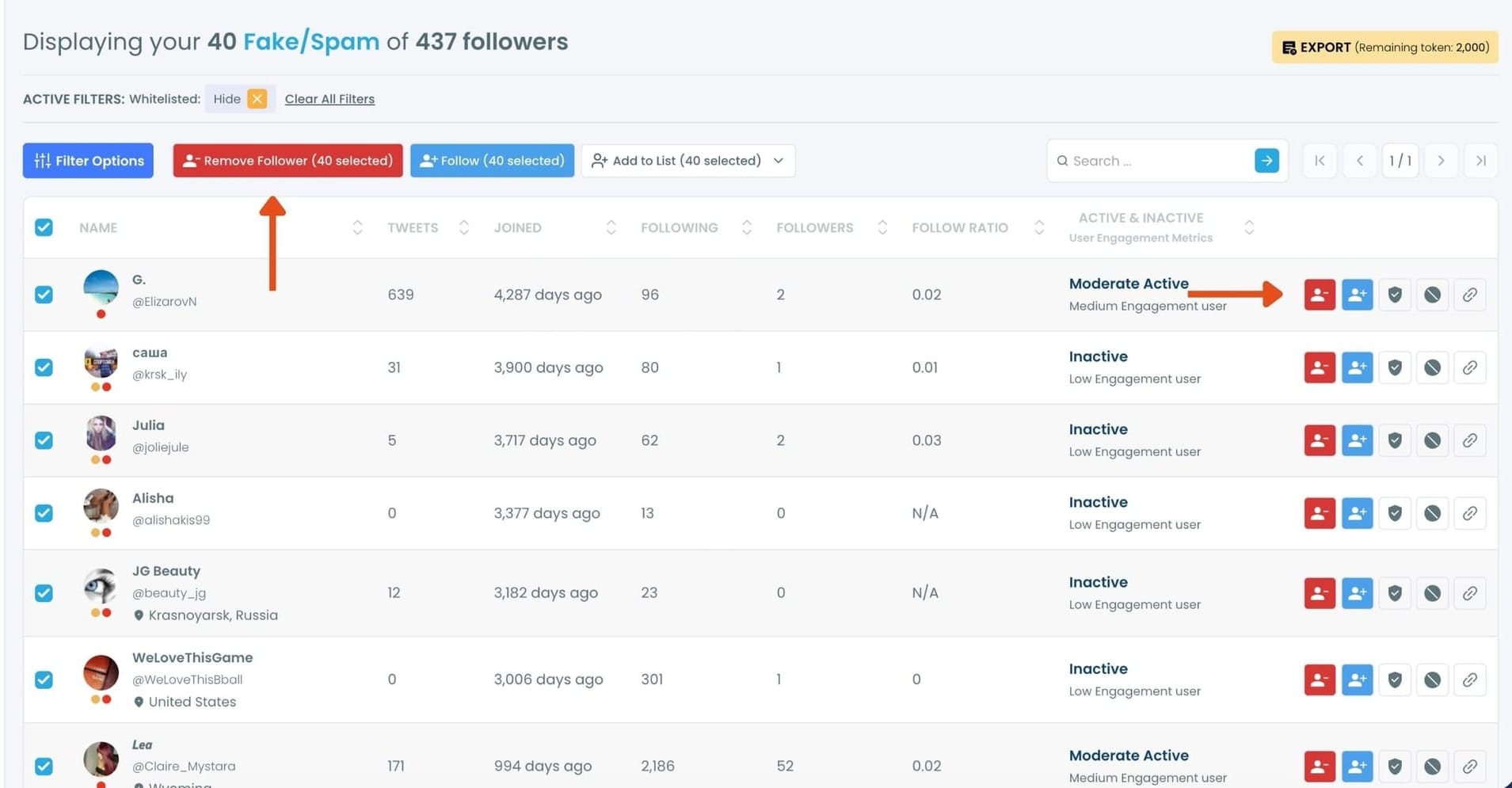
Step #1: On the left-side menu, click on the Followers / Following Management section. A dropdown menu will appear. Select Fake/Bot Followers to see the full list of your followers.
If you want to remove specific accounts, such as inactive users, you can directly select these categories from the dropdown menu instead of viewing all followers.
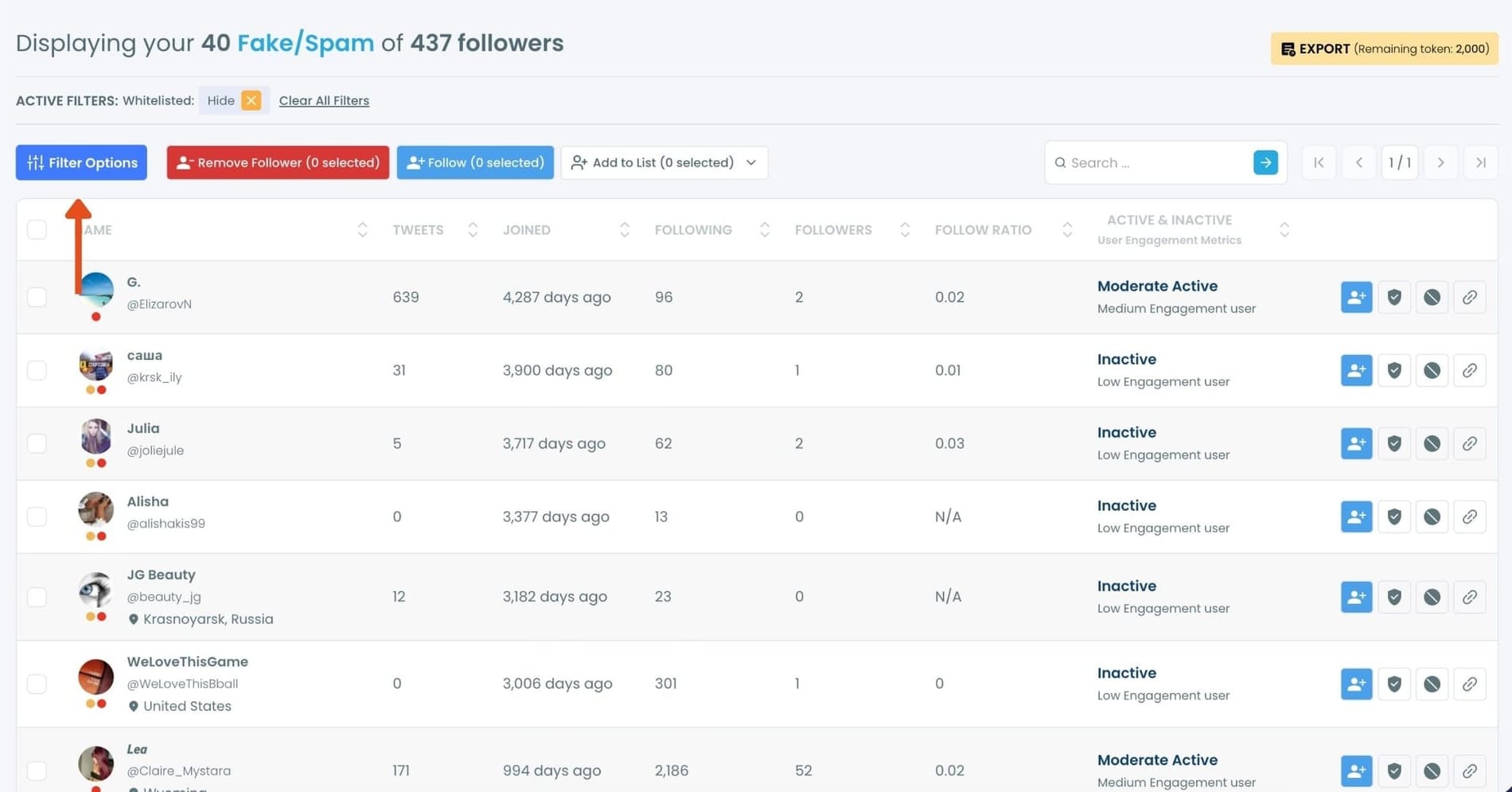
Step #2: You will see a complete list of your fake/bot followers.
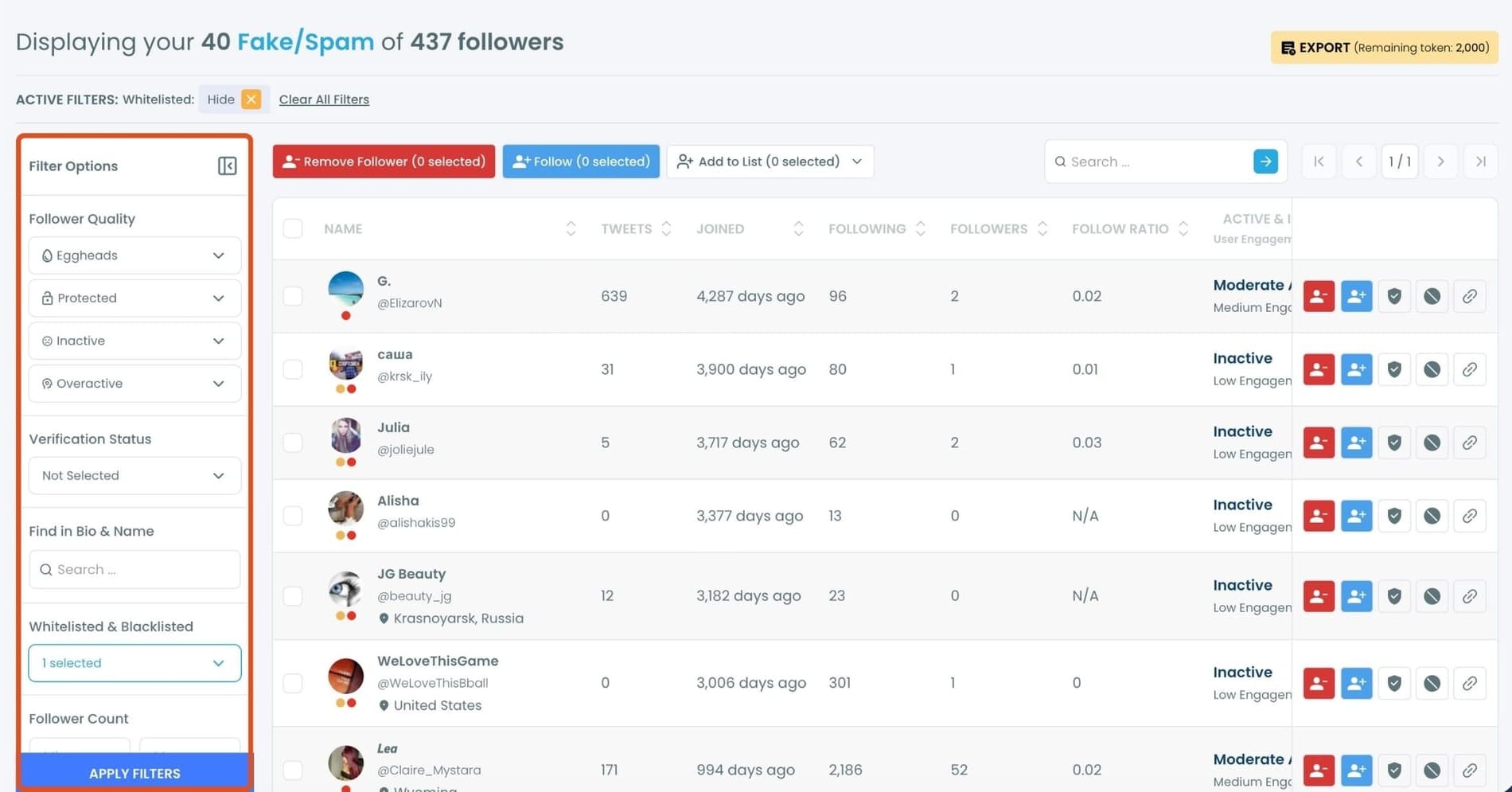
Use the Filter Options on the left side to refine your list.
You can filter followers based on engagement levels, inactivity, verification status, follower/following count, and more.
Step #3: Browse through your followers and check the boxes next to the users you want to remove.
You can also select multiple users at once. Once you have selected the users, click on the Remove Followers button at the top.
Alternatively, you can remove individual followers by clicking the red remove icon next to their name on the right side of the list.
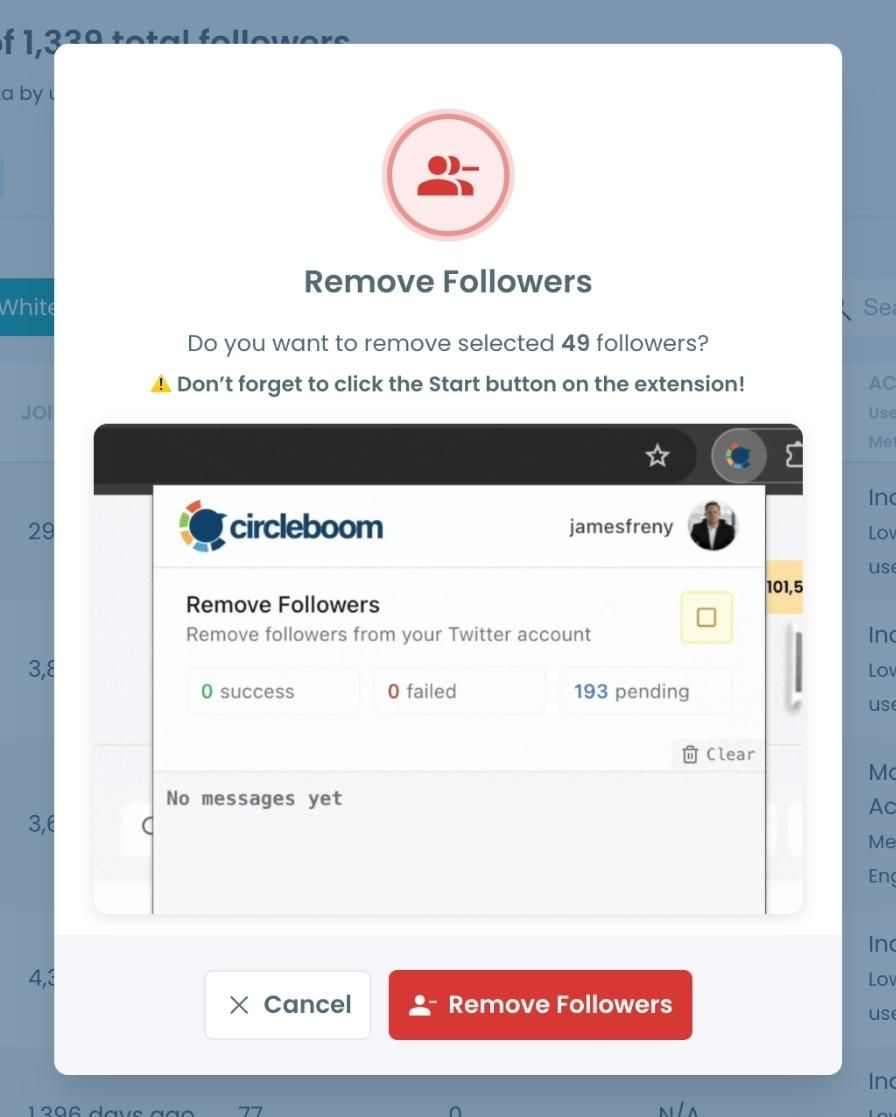
A confirmation message will appear asking if you are sure you want to remove the selected followers.
Click ''Remove Followers''.
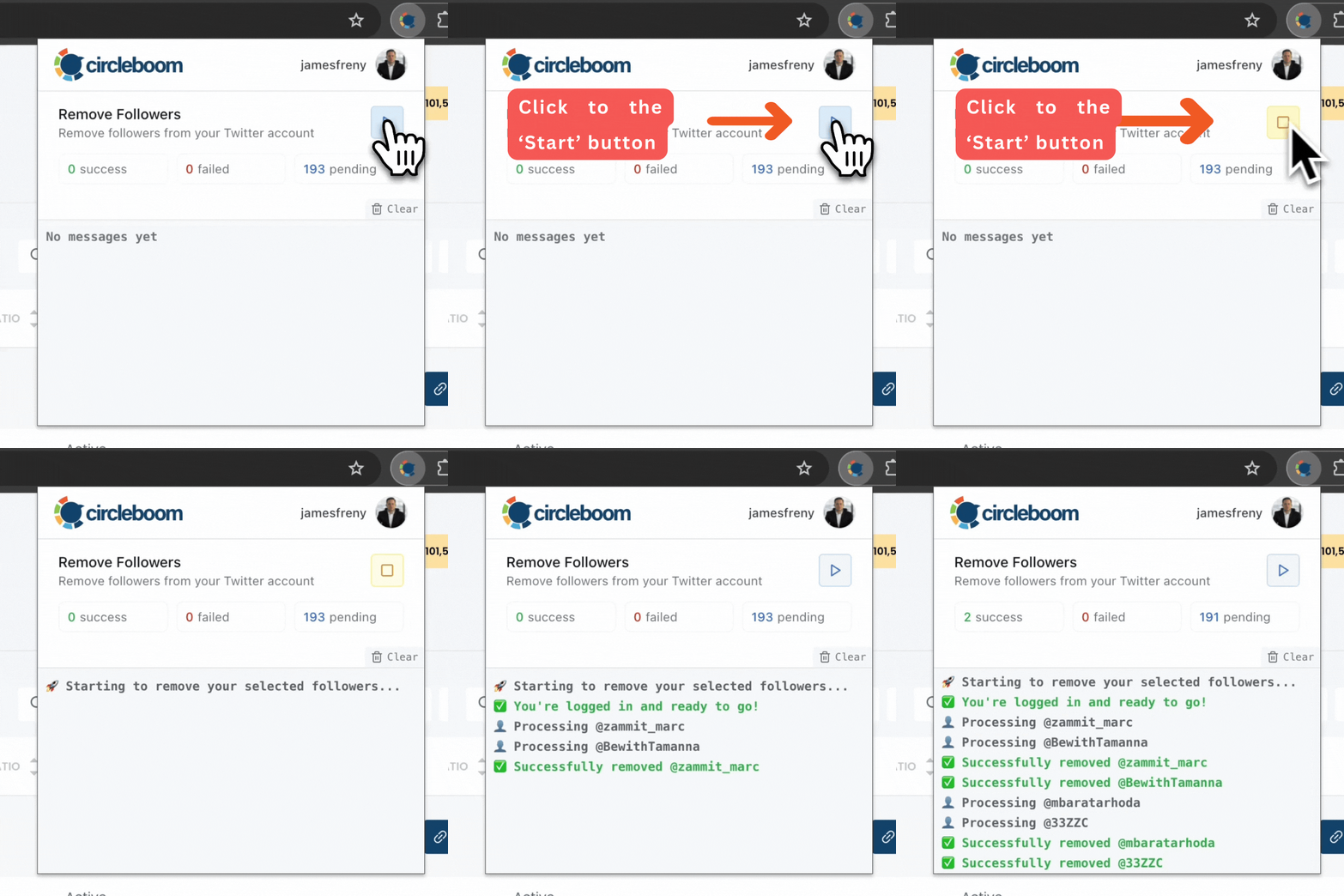
That's it! Your selected followers are now removed automatically.
3. Cleaning My Old Tweets Was the Real Reset
Tweets accumulate fast. And over years, your profile becomes a timeline of outdated opinions, irrelevant conversations, and low-engagement posts.
 Altug Altug
I didn’t want to delete everything. I wanted to be selective.
Circleboom’s tweet deletion tool made this possible by letting me focus on:
- Low-engagement tweets
- Tweets from specific date ranges
- Tweets containing certain keywords
- Retweets and replies that no longer mattered
This wasn’t about erasing history, it was about curating it.
Once the clutter was gone, my profile instantly felt cleaner, more intentional, and easier to understand.
How to Delete Tweets with Circleboom
Step #1: Navigate to the left menu and find the "Delete Tools" tab.

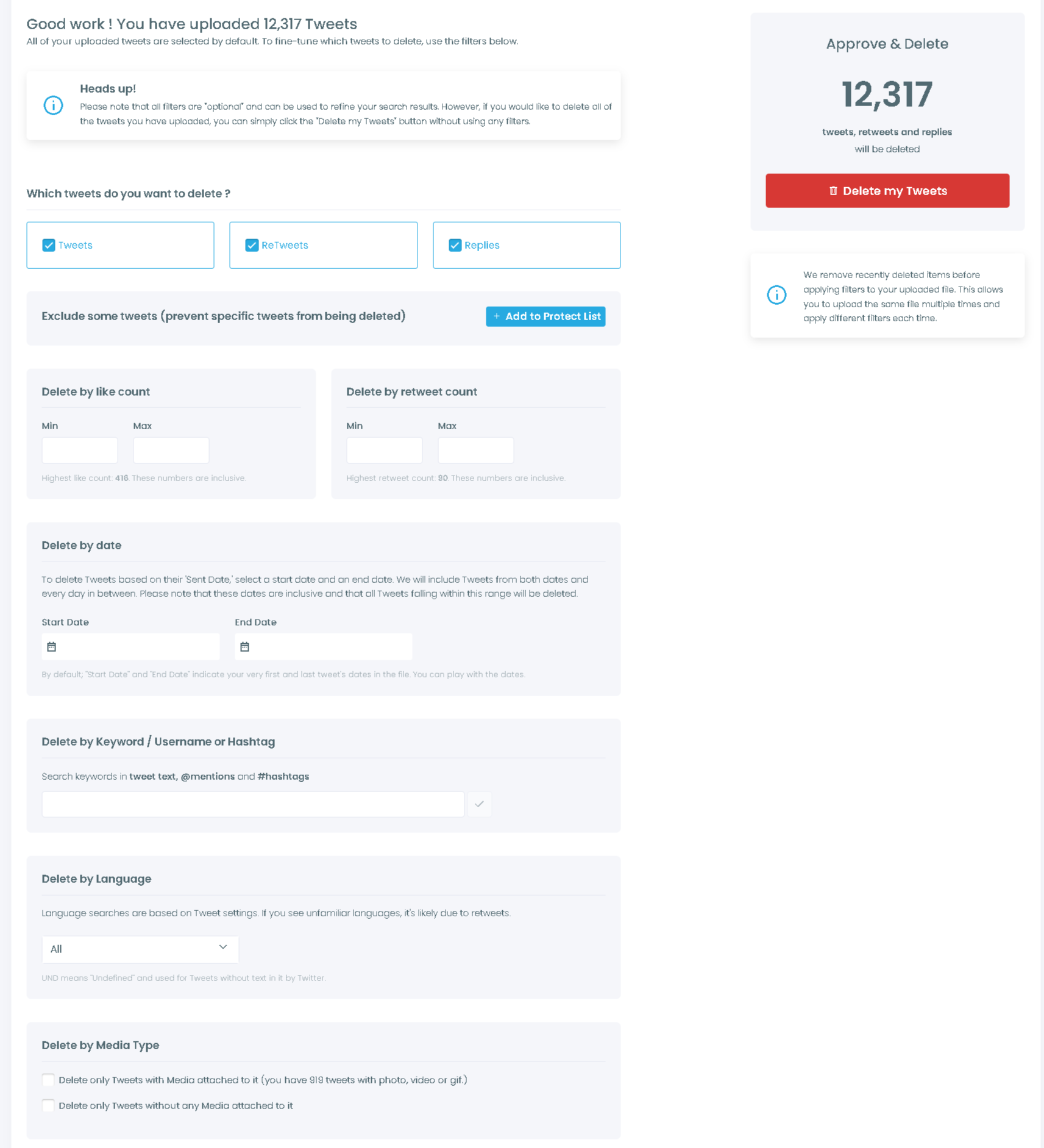
From there, you can choose to delete your past 3,200 tweets or all your tweets, or apply filters to pick what to delete and what to keep.
Step #2: If you go with deleting your last 3,200 tweets only, below is what you'll see.
You can pick if you want to delete plain tweets, retweets, replies, or quotes. You can also apply date or language filters here.
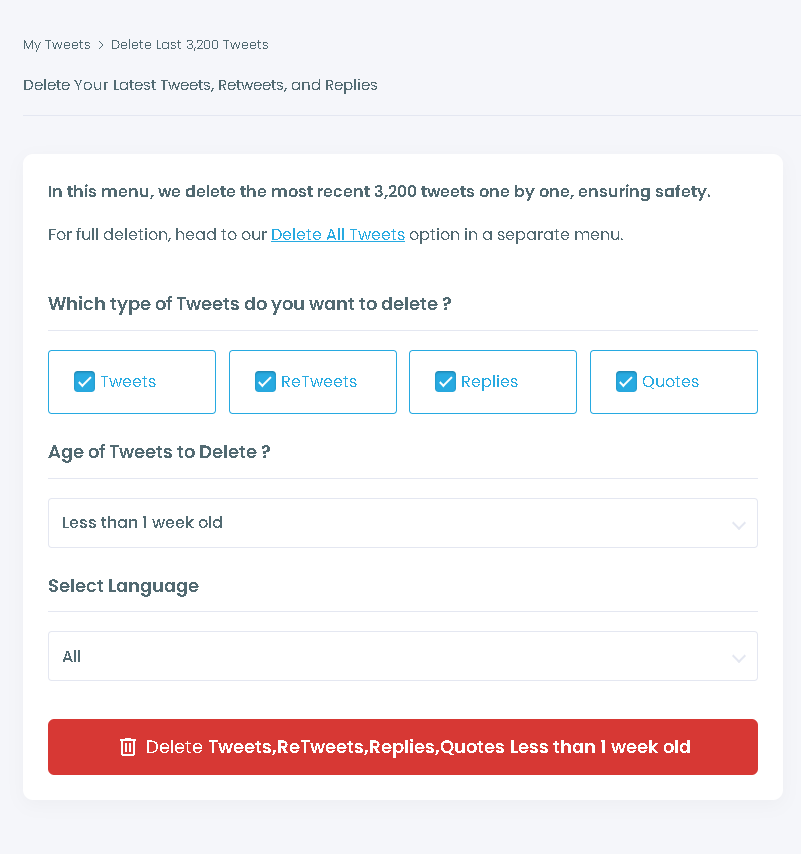
However, if you proceed with deleting all your tweets on X (assuming that you already have your X archive downloaded), you'll be asked to upload the "tweet.js" file within your archive. Then you'll have many more options to choose from.
Go for engagement levels, specific dates, keywords, and many more. You'll have full control here, and your imagination is your only limit. Delete all X tweets or choose what to delete.
4. Finally, I Took Control of My DMs
My DM inbox was a mess. Spam, fake offers, automated messages, scam links, and important conversations were buried under noise.
 Altug Altug
Circleboom made DM management feel manageable again. Instead of deleting conversations one by one, I could filter, select what mattered, and remove everything else in one go.
The result was a DM inbox that felt usable again, not something I avoided opening.
How to Clean Your Twitter DMs with Circleboom
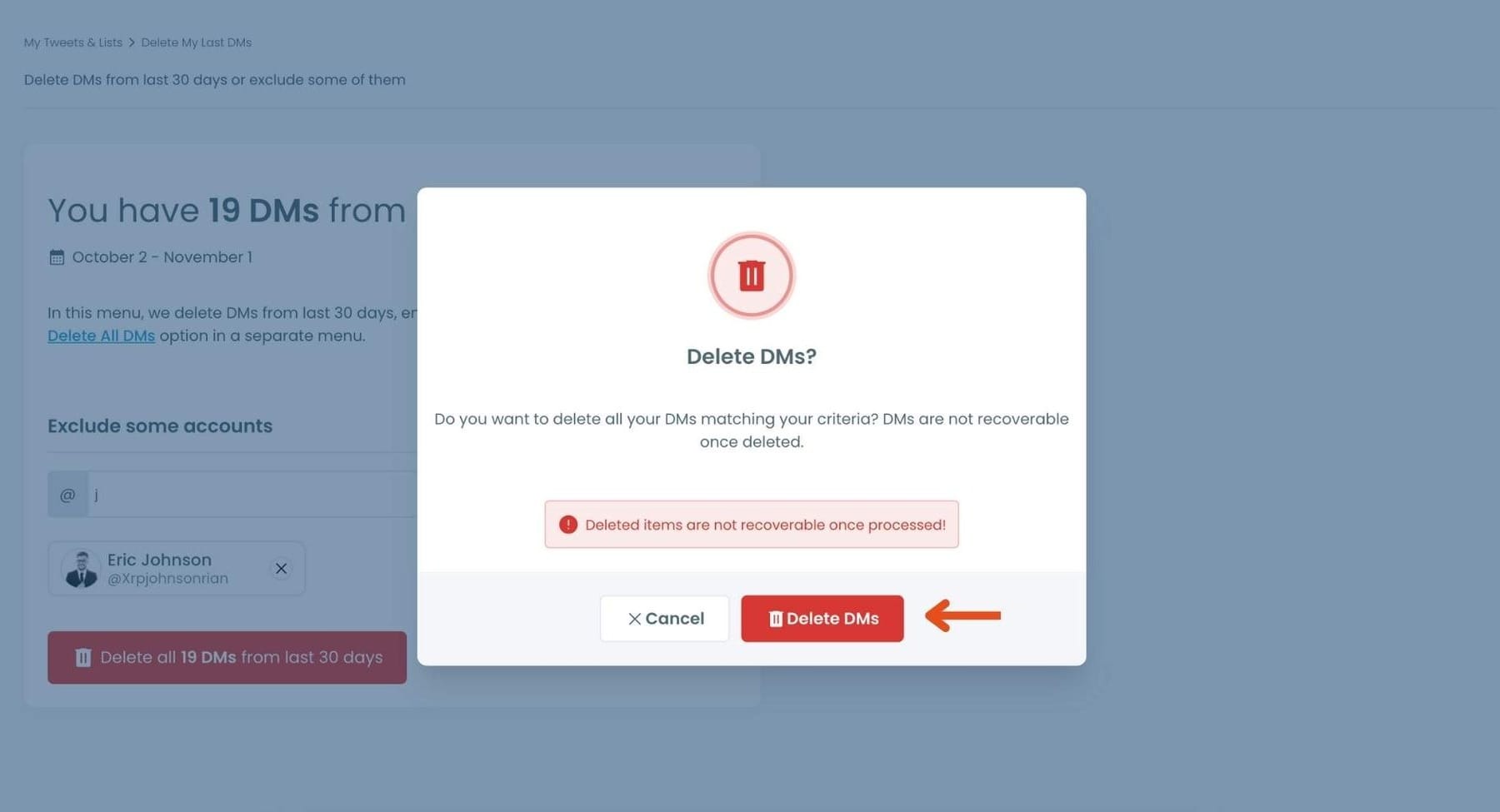
Step #1: On your Circleboom dashboard, navigate to My Tweets & Lists.
There, select Delete My Last DMs.

This option will bring up a list of all your direct messages from the past month, giving you a quick overview of your recent DMs.
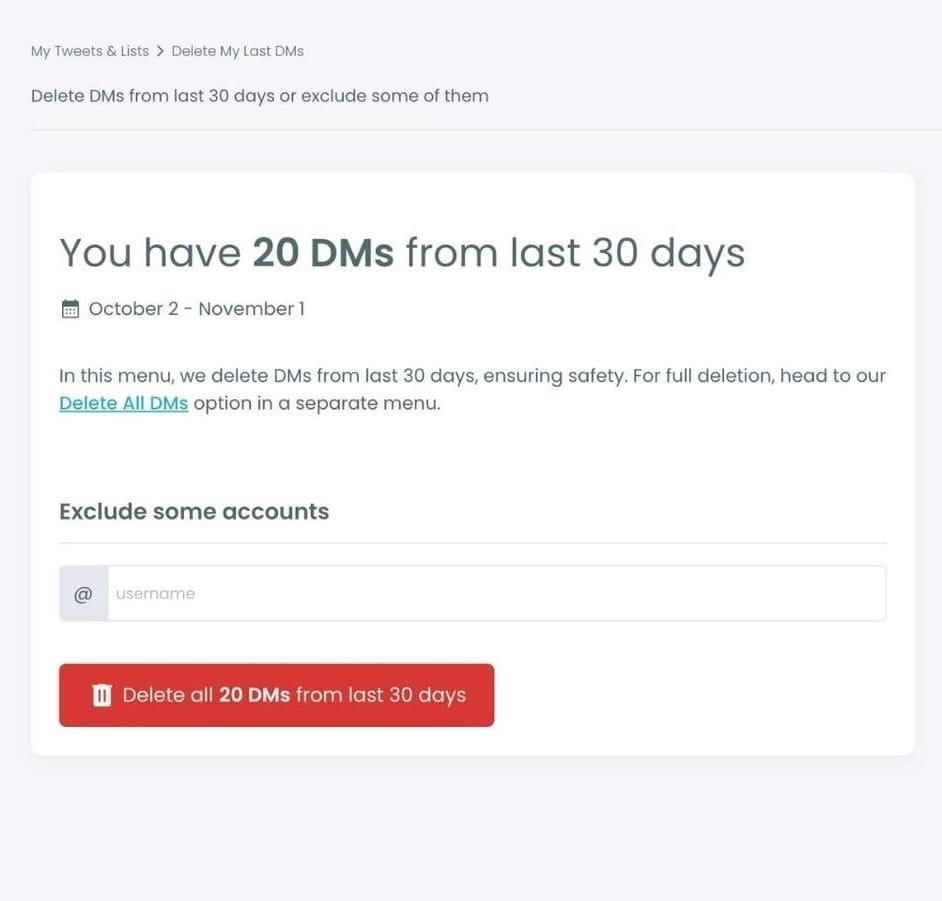
Circleboom will display the count of messages you’ve received over the last month, making it easy to see your message activity in one place.
Step #2: If there are specific accounts you want to keep messages from, simply select those accounts from the list.
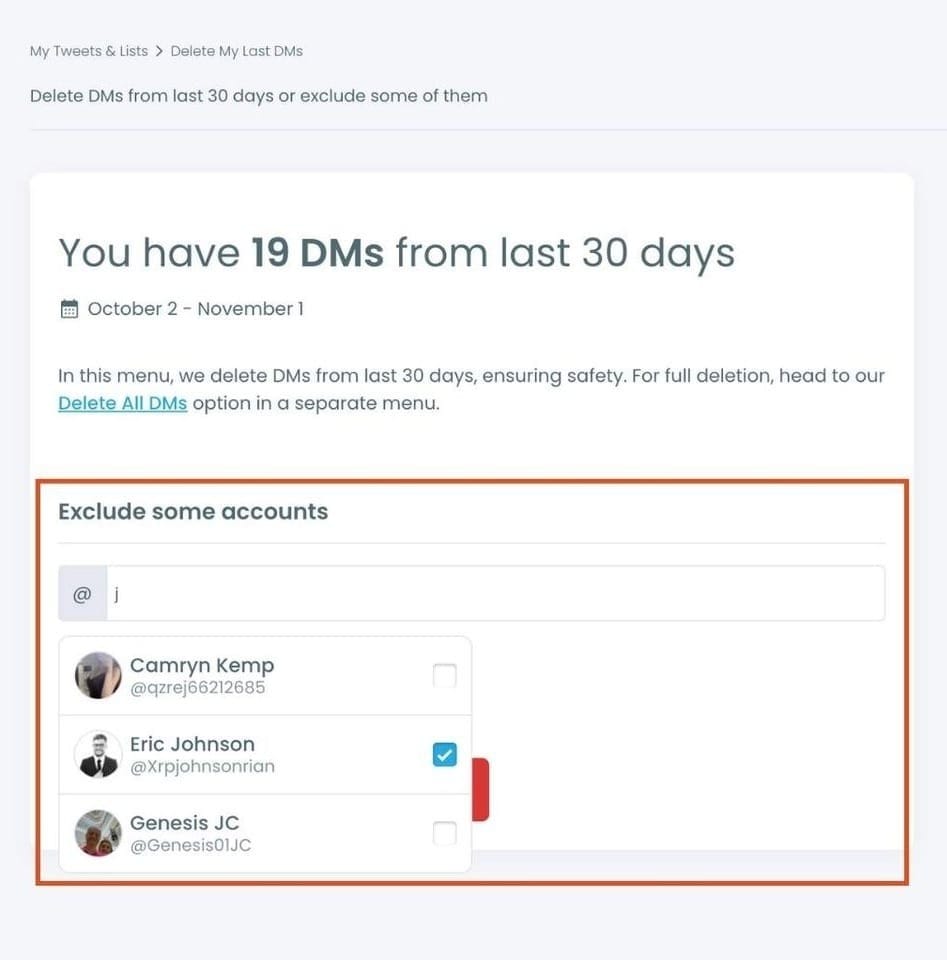
Once selected, these accounts will be excluded from the deletion process, ensuring that their messages are protected
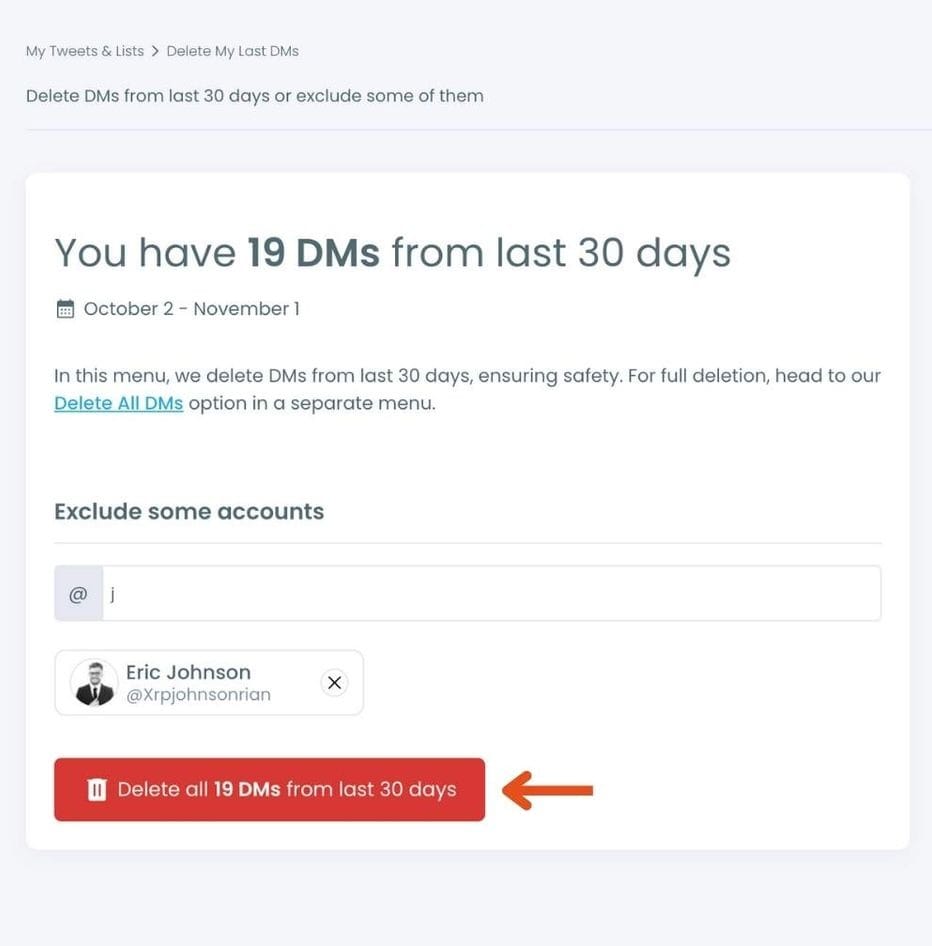
Now, to delete the remaining messages, click the Delete button.
Step #3: Once you’re ready, click Delete again to confirm. And that’s it!
Circleboom will delete all your DMs from the past month, keeping only those you’ve chosen to save.
Congratulations, your inbox is now refreshed and clutter-free!
Here's how you can delete Twitter DMs all at once. Watch the video ⬇️
Bonus Cleanup: Likes, Bookmarks, and Twitter Lists
Once the core cleanup was done, I moved on to smaller but equally important details that are often ignored. These parts do not always feel urgent, but over time, they add a lot of hidden clutter to your account.
Cleaning Old Likes
Likes are easy to forget, but they silently build up your public activity history. Over the years, I had liked tweets out of curiosity, agreement, habit, or impulse. Many of them no longer reflected my interests, values, or the topics I focus on today.
 Fatih Kemal Oksuzoglu
Old likes can create confusion for anyone reviewing your profile. They can also send mixed signals to the algorithm about what you care about. Leaving thousands of outdated likes untouched makes your account feel unfocused.
With Circleboom, deleting likes becomes manageable instead of overwhelming. Instead of scrolling endlessly through years of activity, likes can be reviewed and cleaned in bulk, allowing you to remove what no longer makes sense and keep what still aligns with your current direction.
Cleaning Bookmarks That Lost Their Purpose
Bookmarks were originally saved with good intentions. Tweets marked to read later, research threads, ideas, and resources. But over time, many of them were never revisited.
 Arif Akdogan
My bookmark list had turned into a storage space rather than a useful library. Important tweets were buried under hundreds of outdated ones.
Circleboom Twitter Bookmark Manager makes bookmark cleanup realistic. It allows you to search, sort, export, and clean bookmarks from a single place. This turns bookmarks back into something useful instead of something forgotten.
Cleaning Twitter Lists That No Longer Made Sense
Twitter Lists are powerful when they are curated. But like everything else, they age.
 Altug Altug
Lists that once followed specific topics, industries, or communities may no longer reflect your focus today. Some lists become outdated as accounts go inactive or change direction.
Cleaning lists helps you regain control over how you monitor conversations and communities. Circleboom makes it possible to manage lists in bulk, review members efficiently, and remove what no longer belongs.
The Result: A Reborn Twitter Account
After scrubbing my account, the difference was immediate:
✅ My timeline felt relevant
✅ My followers and following made sense
✅ Spam was gone
✅ My profile reflected my current interests and goals
✅ Engagement started to feel more natural again
Most importantly, I felt back in control.
Final Thoughts: Don’t Start Over Scrub Smarter
If your Twitter account feels chaotic, you don’t need a new profile. You need clarity.
Scrubbing your account is about removing friction, not erasing history. With the right tools, it becomes a structured, intentional process, not an overwhelming one.
Circleboom gave me visibility, control, and the ability to rebuild without losing what mattered.
And once everything was clean, my account didn’t just look better, it finally felt like mine again.
%20Account)
