

Writing a good tweet is only half the job on X. The other half is making sure people actually notice it.
X is a fast, scroll-heavy platform. Users move quickly, timelines refresh constantly, and most tweets are skimmed in seconds. In that environment, visual emphasis matters. Bold text helps certain words or phrases stand out immediately, guiding the reader’s attention before they move on.
That’s why many users search for ways to bold text on X. But once you try to do it, you quickly realize the platform makes it harder than it should be.
 Altug Altug
Why Bold Text on X Matters
Bold text is not about decoration. It’s about clarity.
When someone sees a tweet, their eyes don’t read every word line by line. They scan. Bold text helps create visual anchors, making it easier to understand the message at a glance. A strong hook, a key statement, or a call to action becomes more noticeable when it’s emphasized.
This is especially useful for:
➡️ Opening lines that need to stop the scroll
➡️ Important phrases inside longer tweets
➡️ Thread starters that introduce a main idea
➡️ Calls to action you don’t want people to miss
Used sparingly, bold text improves readability. Overused, it becomes noise. The goal is not to make everything bold, but to highlight what matters most.
Can You Bold Text on X Natively?
X does allow text formatting but not for everyone.
If you’re using a free X account, there is no native way to bold or italicize text directly inside the tweet composer. The platform does not offer formatting controls unless you’re subscribed to X Premium.
 Arif Akdogan
This means that something as basic as bold text is locked behind a paid plan, even though it’s a common formatting feature on many other platforms.
How to Bold Text on X With X Premium
If you do have an X Premium subscription, you gain access to basic text formatting tools inside the tweet composer.
These tools allow you to apply bold or italic styling to selected text while writing your tweet.
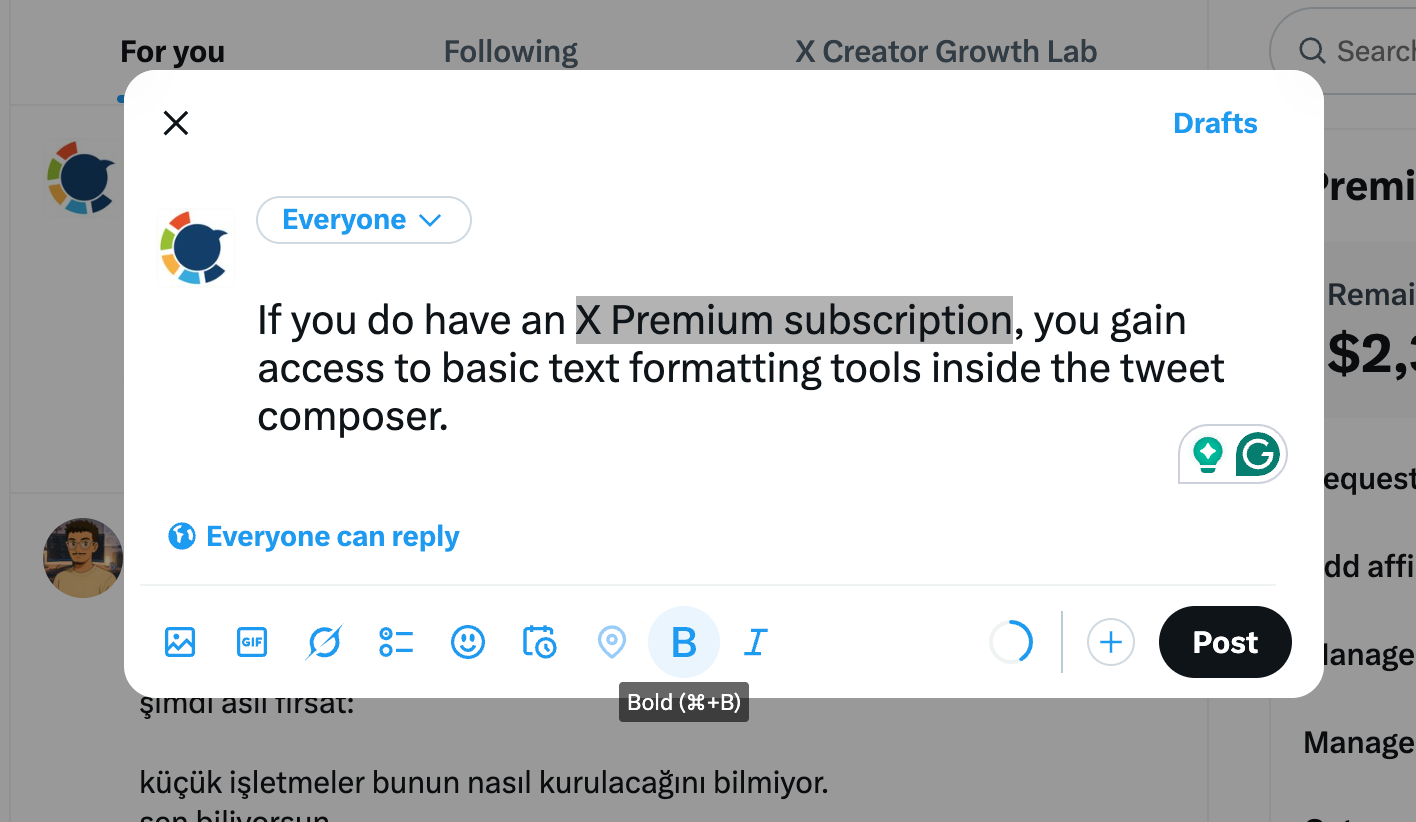
Once the tweet is published, the selected text appears bold in the timeline. From a technical standpoint, it works fine. The real issue shows up once you start using it regularly.
The Limitations of X Text Formatting
Even with X Premium, formatting options are extremely limited.
You only get:
- Bold
- Italic
That’s it.
There are no alternative font styles, no different emphasis levels, and no way to visually structure text beyond those two options.
If you want to create contrast, hierarchy, or stylistic variation, you simply can’t do it natively on X.
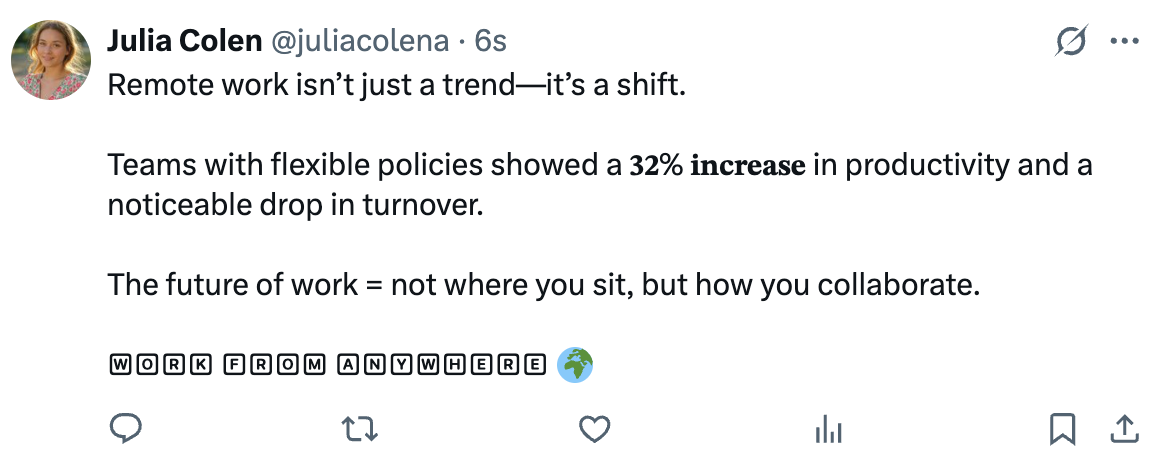
For creators, marketers, and anyone who posts regularly, this becomes frustrating very quickly. Paying a monthly fee just to access bold text and still being limited to two styles doesn’t feel adequate.
Styling Tweets Without Paying for X Premium
Text styling shouldn’t be a premium-only feature.
Many users try to solve this by using random “Twitter font generator” websites. These tools usually require you to write your tweet somewhere else, paste it into a generator, copy the styled text, and then paste it back into X.
That workflow breaks focus. It’s slow, repetitive, and easy to mess up. More importantly, those tools don’t help with the actual post creation process. They only change how the text looks.
This is exactly where Circleboom Twitter becomes useful.

Introducing Circleboom Twitter’s Post Planner
Circleboom Twitter’s Post Planner is the central place where posts are created.

Instead of separating writing, formatting, and preparation into different steps and tools, everything happens inside one dashboard. You write your tweet directly in the planner, format specific parts of the text, add visuals, refine wording, and prepare the post without switching context.
Inside the Post Planner, Circleboom provides:
🟢 A built-in Font Generator for text styling
🟢 An AI Tweet Generator for improving wording and flow
🟢 Image curation tools to enhance visual content
🟢 A hashtag generator to support discoverability
So instead of writing your tweet in one place and formatting it somewhere else, you do everything at once. You write the post, style the parts you want, and it’s ready.
Another important detail is trust. Circleboom Twitter is an official X Enterprise developer. That matters because there are countless unofficial tools online that ask for account access without clear credentials. Using a tool built on official API access removes that risk.
Twitter Font Generator Inside Circleboom
The Font Generator is not a separate tool. It’s built directly into Circleboom’s Post Planner.
This means you can apply different font styles while you’re writing the tweet, not after. Instead of being limited to bold and italic, you can choose from dozens of font styles to emphasize text in different ways.
✅ And unlike X’s native formatting, you don’t need X Premium to use it. Even with a completely free X account, you can create styled tweets and publish them normally.
How to Style Tweets With Circleboom Font Generator (Step-by-Step)
Step 1: Go to Circleboom Twitter’s X Post Planner
Open Circleboom Twitter and click X Post Planner + AI Writer.
Then select Write & Plan Your Post to start creating your tweet.

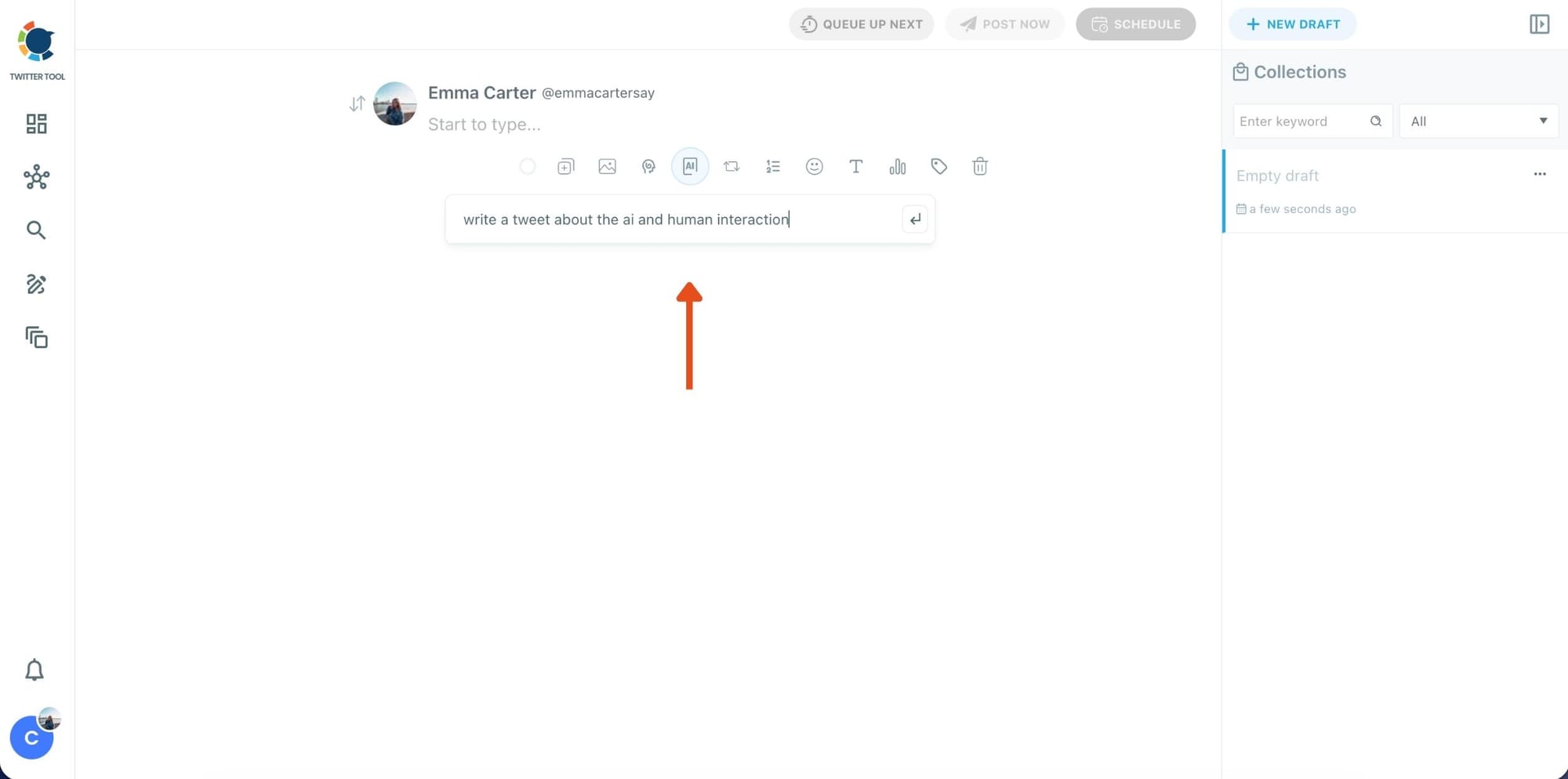
Step 2: Write your tweet (or generate one with AI)
You can type your tweet manually in the editor.
Or, if you want to move faster, click the AI option and let Circleboom generate a tweet idea for you based on your topic.
Step 3: Add an image to make the post more engaging
Once your text is ready, attach a visual to your tweet.
You can:
- Upload an image/video from your device
- Pick one from Unsplash
- Or design one instantly using Canva

Step 4: Style your tweet using Circleboom’s Font Generator
Now it’s time to make your tweet stand out visually.

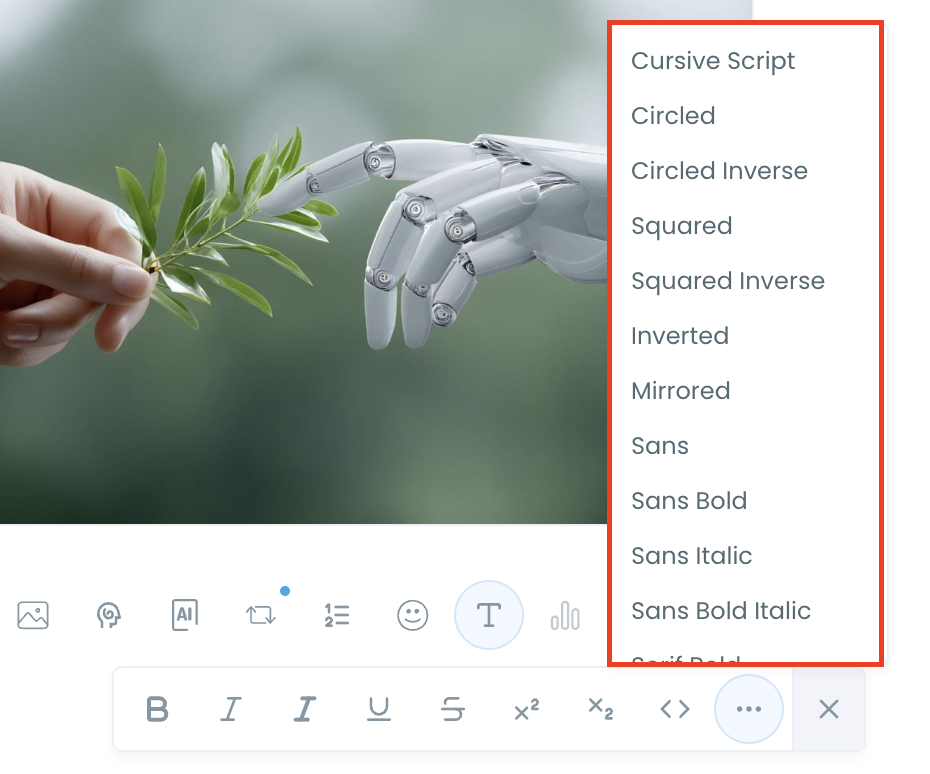
Select the part of your text you want to change, then open the Font Generator toolbar and apply styles like:
- Bold / Italic / Underline
- Different font variations
- Extra formatting options for a more “designed” look
This is perfect when you want key parts of your tweet to grab attention immediately.
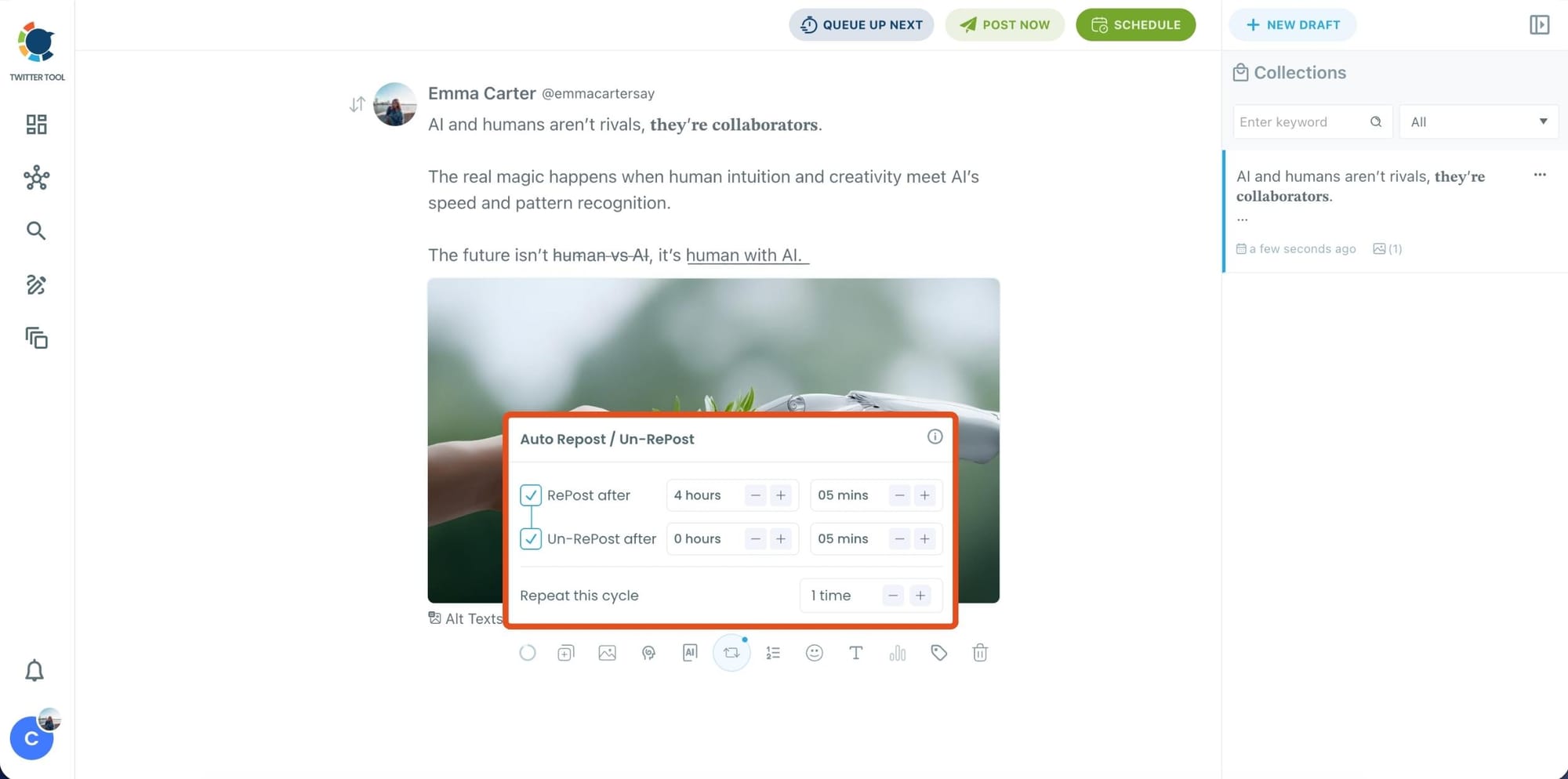
Step 5: Set Auto Retweets to boost visibility
After styling your post, you can increase reach by enabling Auto Repost / Un-RePost settings.
This lets you automatically:
- Repost your tweet after a selected time
- Remove the repost later
- Repeat the cycle if you want more than one repost
It’s a smart way to bring your tweet back into the feed without manually reposting it.
Bonus Tip: Cross-post your tweet to other platforms automatically
Before you publish, you can also enable Cross-Post to share the same tweet across multiple platforms in one go.
Circleboom lets you post your content to Instagram, Facebook, LinkedIn, Bluesky, and Threads automatically, so you don’t have to rewrite, re-upload, or repeat the same work on each platform.

Step 6: Schedule it for the best time to post
Finally, click Schedule and set your date and time.
You can also click Find your best posting time to see Circleboom’s suggested time slots based on follower activity.

Once you pick the best option, schedule it, and you’re done. Your tweet will go out at the time it has the highest chance to perform well.
Final Comparison: X Native Formatting vs Circleboom
X native formatting works if you already pay for Premium and only need basic bold or italic text.
Circleboom Twitter makes more sense if you want real styling flexibility without paying for Premium, and if you want to create, format, and manage posts from a single dashboard.
Text styling on X doesn’t have to be complicated or expensive. With the right setup, it becomes a natural part of writing better tweets, not an extra task you have to fight with.
)
